
Asus WL-530g: Setting IP address for Wired or Wireless Connection Get IP Automatically Setting IP Manually
Setting IP address for Wired or Wireless Connection Get IP Automatically Setting IP Manually: Asus WL-530g
Table of contents
- Installation Procedure
- Software Configuration Connecting to the ASUS Wireless Router
- Setting IP address for Wired or Wireless Connection Get IP Automatically Setting IP Manually
- Installing the ASUS Wireless Router Utilities Using the Wireless Router for the First Time 1. ASUS Wireless Router Utilities 2. Connect to the ASUS WLAN Web Manager
- Quick Setup
- 3. Set your own password 4. Use Quick Install Quick Setup
- Quick Setup (Cont.)
- Authentication and Security
Quick Setup
Setting IP address for Wired or Wireless Connection
English
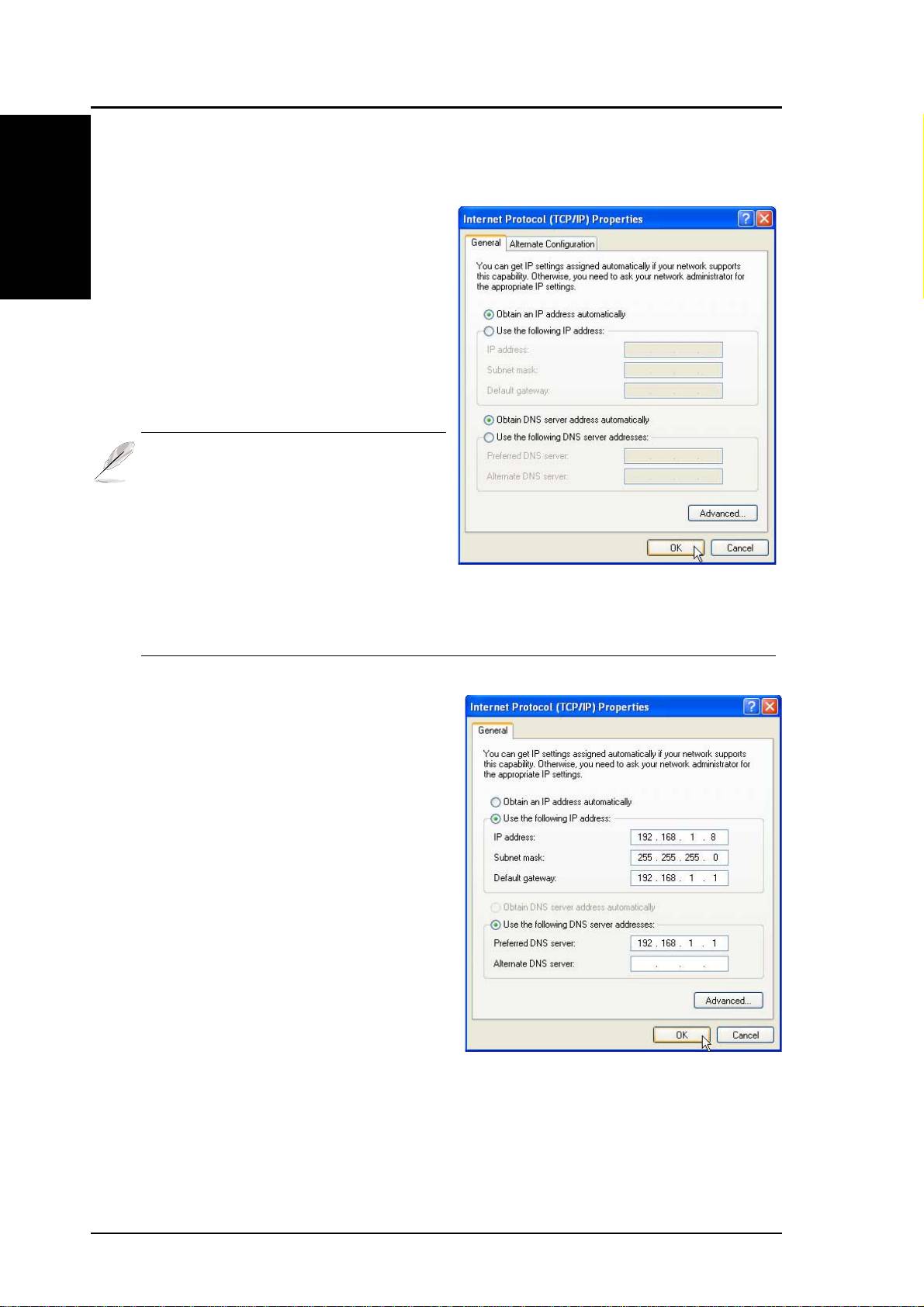
Get IP Automatically
The ASUS Wireless Router
incorporates a DHCP server so the
easiest method is to set your PC to get
its IP address automatically and reboot
your computer. So the correct IP
address, gateway, DNS (Domain
Name System Server) can be obtained
from the ASUS Wireless Router.
Note: The Wireless Router will act
as a router and provide IP ad-
dress only when the physical
connection of WAN port exists.
You must connect the WAN port
on the ASUS Wireless Router
with the Ethernet port on your ADSL or Cable modem with a net-
work cable. Before rebooting your PC, the ASUS Wireless Router
should be switched ON and in the ready state.
Setting IP Manually
If you want to set your IP address
manually, the following default
settings of the ASUS Wireless Router
should be known:
• IP address 192.168.1.1
• Subnet Mask 255.255.255.0.
If you set your computer’s IP
manually, it needs to be on the same
segment. For example:
• IP address 192.168.1.xxx (xxx can
be any number between 2 and 254
that is not used by another device)
• Subnet Mask 255.255.255.0 (same as the ASUS Wireless Router)
• Gateway 192.168.1.1 (this is the ASUS Wireless Router)
• DNS 192.168.1.1 (ASUS Wireless Router IP address or your own).
4 ASUS Pocket Wireless Router
