
Asus WL-530g: Installing the ASUS Wireless Router Utilities Using the Wireless Router for the First Time 1. ASUS Wireless Router Utilities 2. Connect to the ASUS WLAN Web Manager
Installing the ASUS Wireless Router Utilities Using the Wireless Router for the First Time 1. ASUS Wireless Router Utilities 2. Connect to the ASUS WLAN Web Manager: Asus WL-530g
Table of contents
- Installation Procedure
- Software Configuration Connecting to the ASUS Wireless Router
- Setting IP address for Wired or Wireless Connection Get IP Automatically Setting IP Manually
- Installing the ASUS Wireless Router Utilities Using the Wireless Router for the First Time 1. ASUS Wireless Router Utilities 2. Connect to the ASUS WLAN Web Manager
- Quick Setup
- 3. Set your own password 4. Use Quick Install Quick Setup
- Quick Setup (Cont.)
- Authentication and Security
Quick Setup
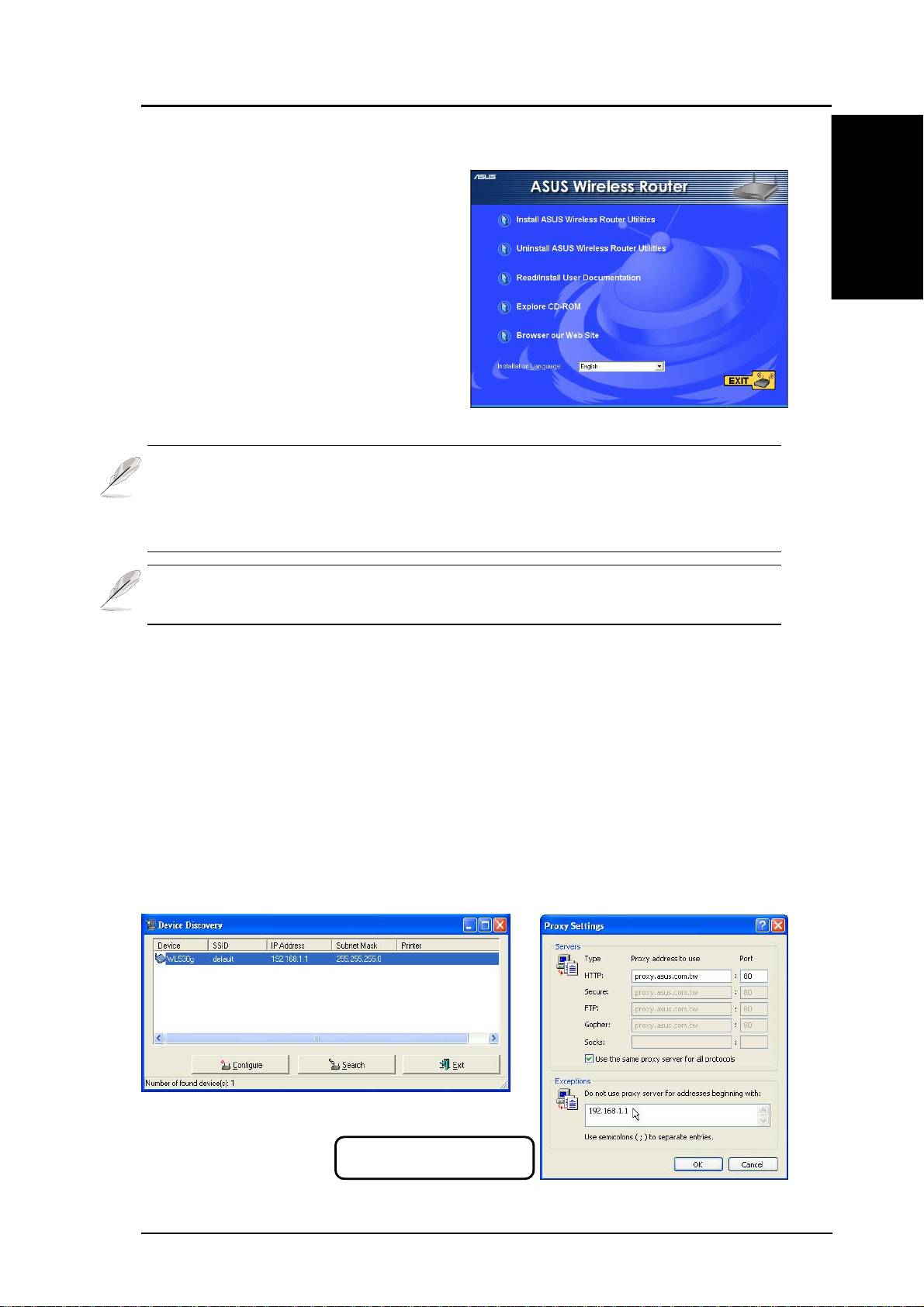
Installing the ASUS Wireless Router Utilities
Follow these steps to install the ASUS
Wireless Router Utilities in Microsoft
Windows. Insert the support CD
English
provided with the ASUS Wireless
Router and the menu will appear.
(Double-click setup.exe if your autorun
has been disabled.)
Note: By default, the Wireless Router will act as a router and pro-
vide an IP address only when a physical connection on the WAN
port exists. You must connect the Wireless Router’s WAN port with
your ADSL or Cable modem using a network cable.
Note: Before rebooting your PC, the ASUS Wireless Router should
be switched ON and in the ready state.
Using the Wireless Router for the First Time
1. ASUS Wireless Router Utilities
Run Device Discovery from “ASUS Utility” in Windows Start Programs.
2. Connect to the ASUS WLAN Web Manager
Run the ASUS WLAN Device Discovery from the Start menu and click
Config when the device is found.
Add 192.168.1.1 in the Exceptions
box if you are using a proxy server.
ASUS Pocket Wireless Router 5
