
Asus NOVA (P20/P22): Conguring audio output
Conguring audio output: Asus NOVA (P20/P22)
Table of contents
- Welcome Package contents
- Preparing your ASUS NOVA 1. Connect the USB keyboard and mouse* 2. Connect the Ethernet cable
- 4. Connect the AC adapter 3. Connect the monitor. 5. Start up your ASUS NOVA
- Knowing Component parts Front view Rear view Bottom view
- Conguring wireless connection
- Bluetooth wireless connection
- English
- Conguring audio output
- Connecting to digital speakers Configuring audio output settings
- Using Windows Media Center
- ASUS Easy Update
- Recovering your system
- Crashfree BIOS
- Using the Hidden Partition
English
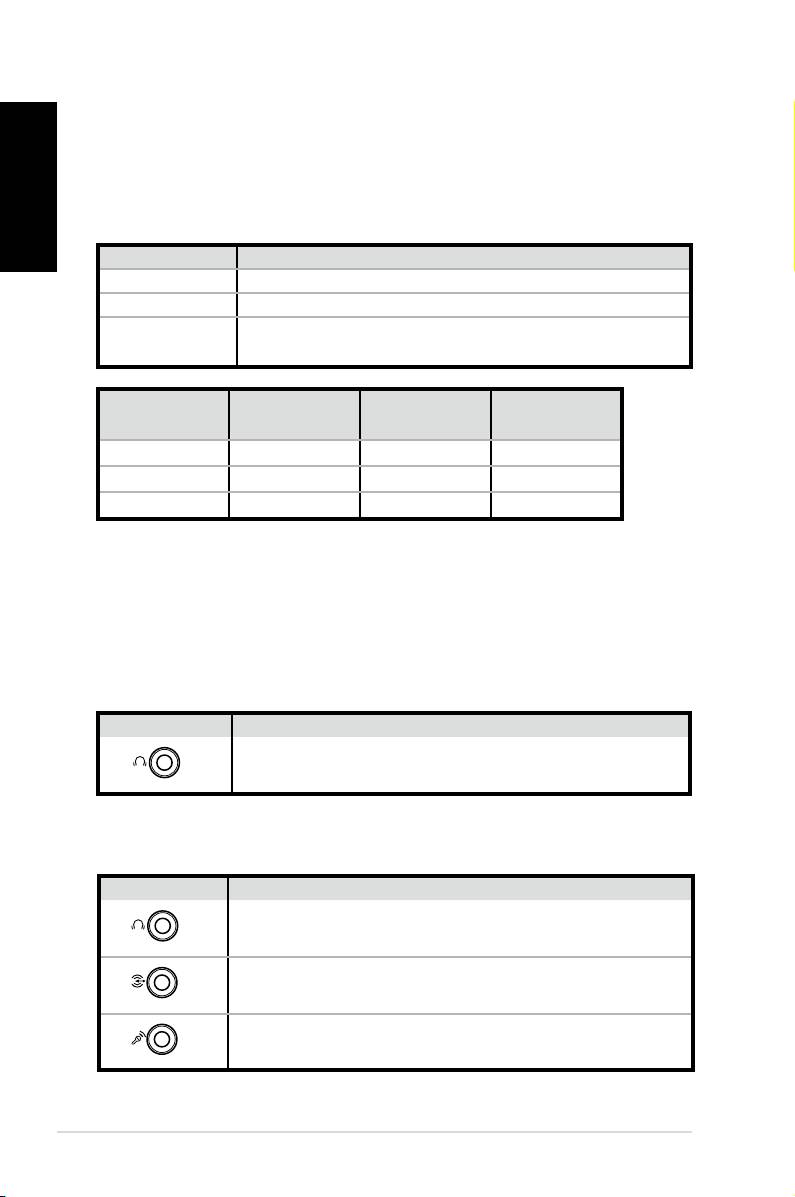
Name Speaker system
2 (stereo) Left speaker, right speaker.
4 Two front speakers, two rear speakers.
Two front speakers, two rear speakers, a center
5.1
speaker, and a subwoofer.
Headset
Port
6-speaker S/PDIF
2-speaker
Light Blue Line In Surround S/PDIF in
Lime Line Out Front S/PDIF out
Pink Mic In Center/Bass Mic
Connecting to analog speakers
Refer to the table below for the audio connectors on the rear
panel and their functions.
For stereo speakers
P20/P22 Description
8
Quick Start Guide
S/PDIF
OUT
FRONT
Front connects to stereo speakers.
P20/P22 Description
S/PDIF
OUT
FRONT
FRONT connects to the FRONT port on the sub-
woofer.
S/PDIF
IN
SURROUND
SURROUND connects to the REAR port on the
subwoofer.
CENTER/BASS
Conguring audio output
Speaker configurations
You may set up the system with the following speaker
configurations:
For a multi-channel audio speaker system
CENT/BASS connects to the SUB/CENTER port on
the subwoofer.
