
Asus BR-HD3: instruction
Class: Household, kitchen appliances, electronics and equipment
Type:
Manual for Asus BR-HD3
Table of contents
- Setting up PS3 and XBox to 1080i output
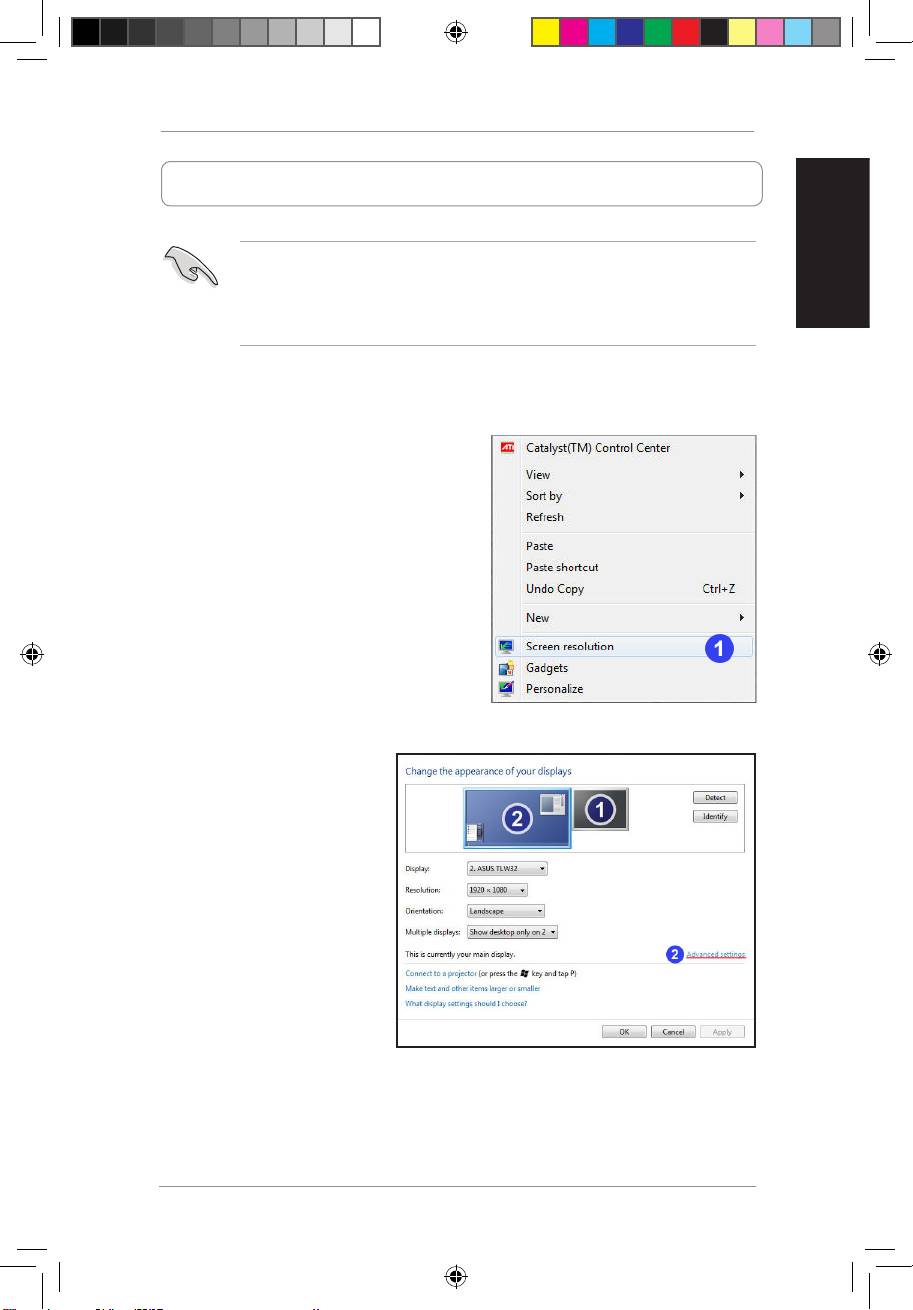
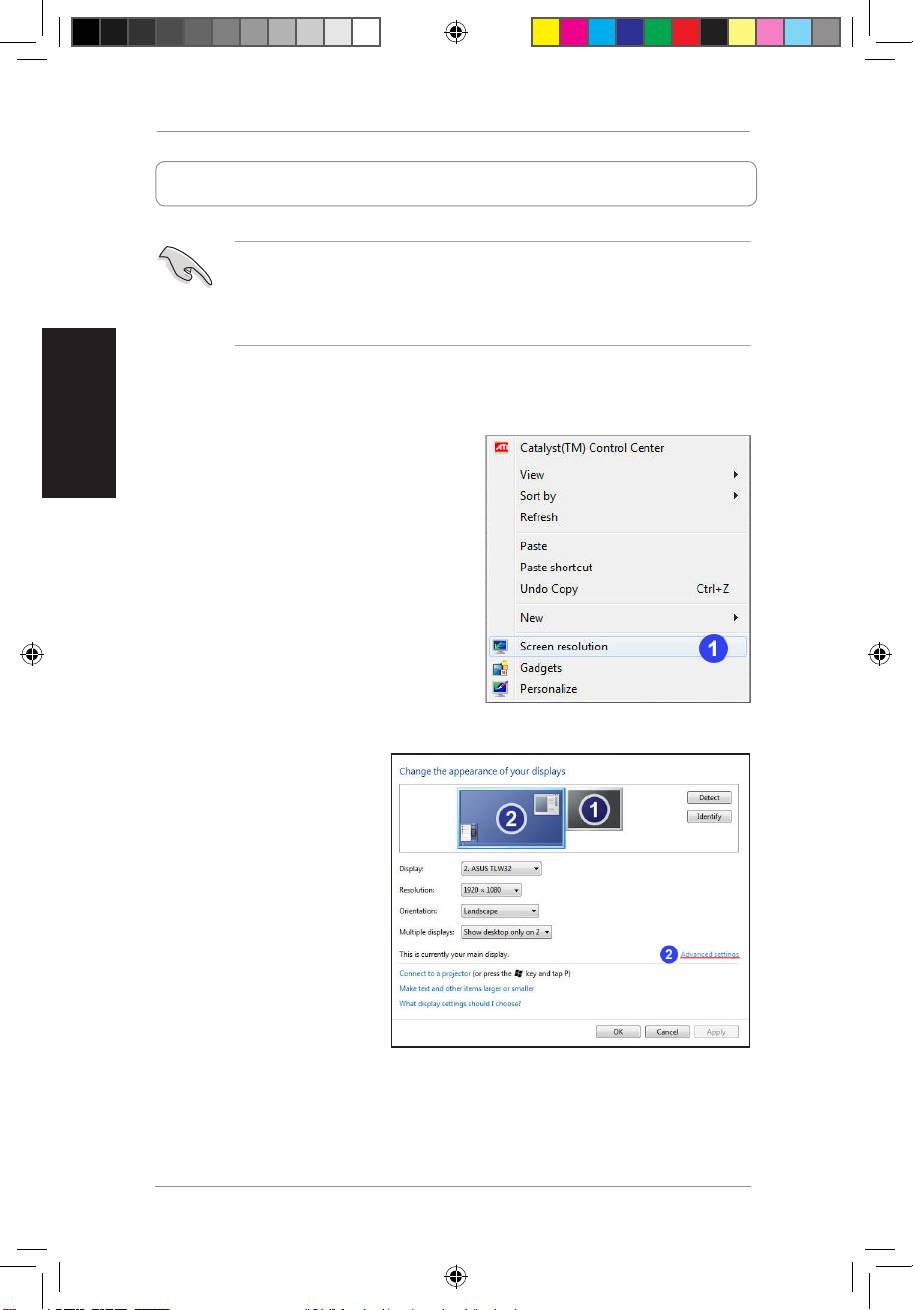
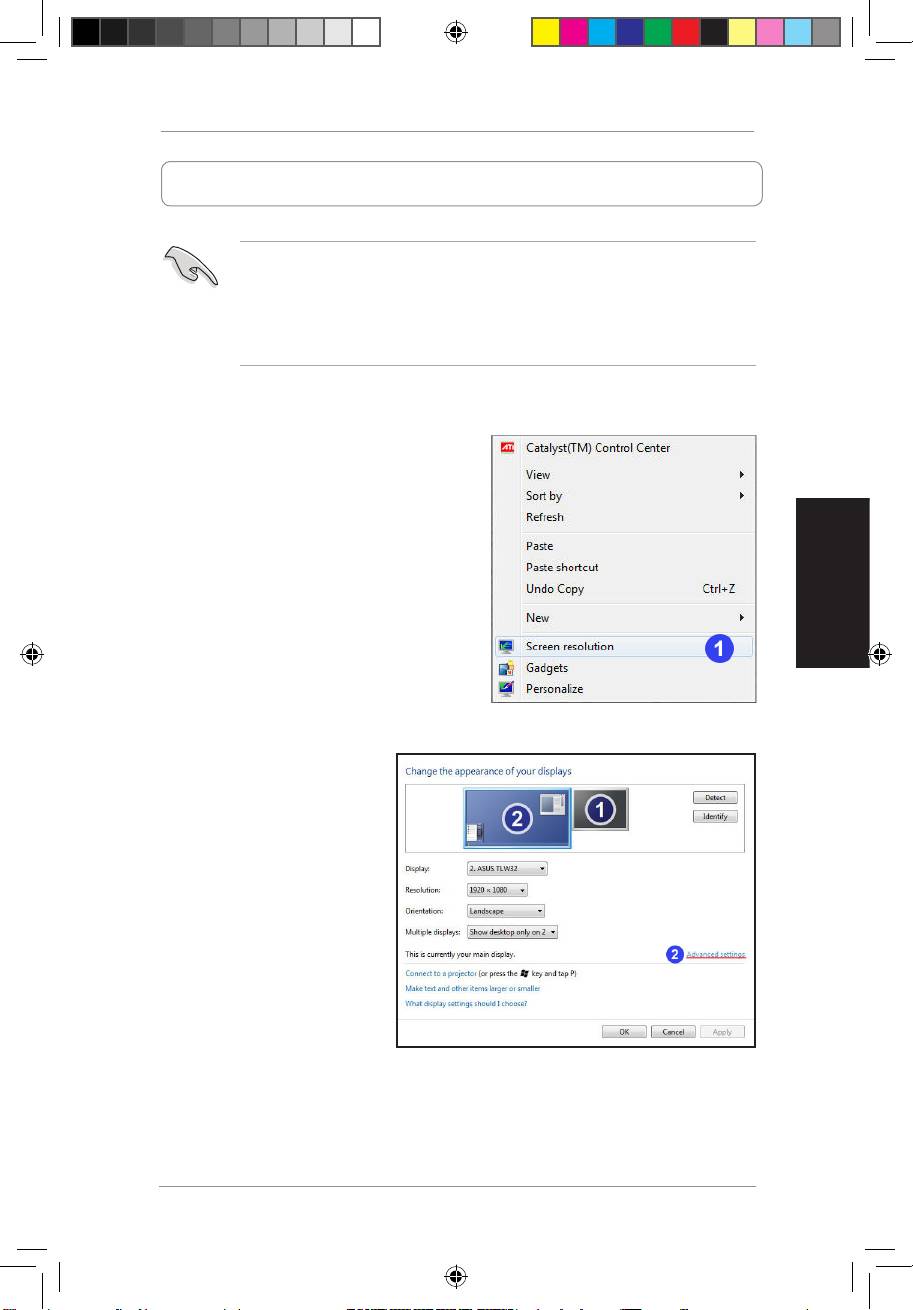
- Setting up your computer to 1080i output 1. Right-click anywhere on Windows desktop,andclick Screen resolution 2. Click Advanced settings
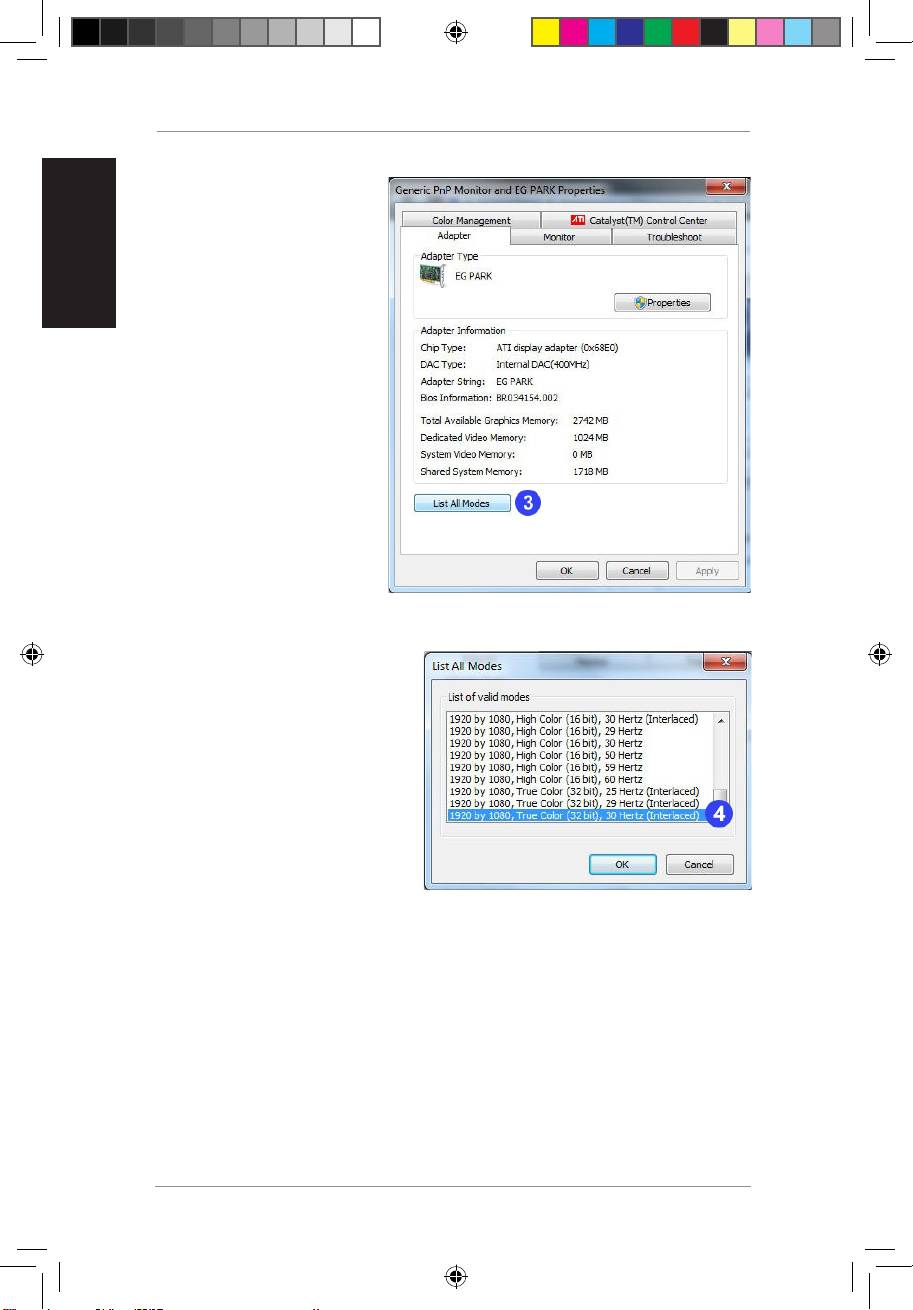
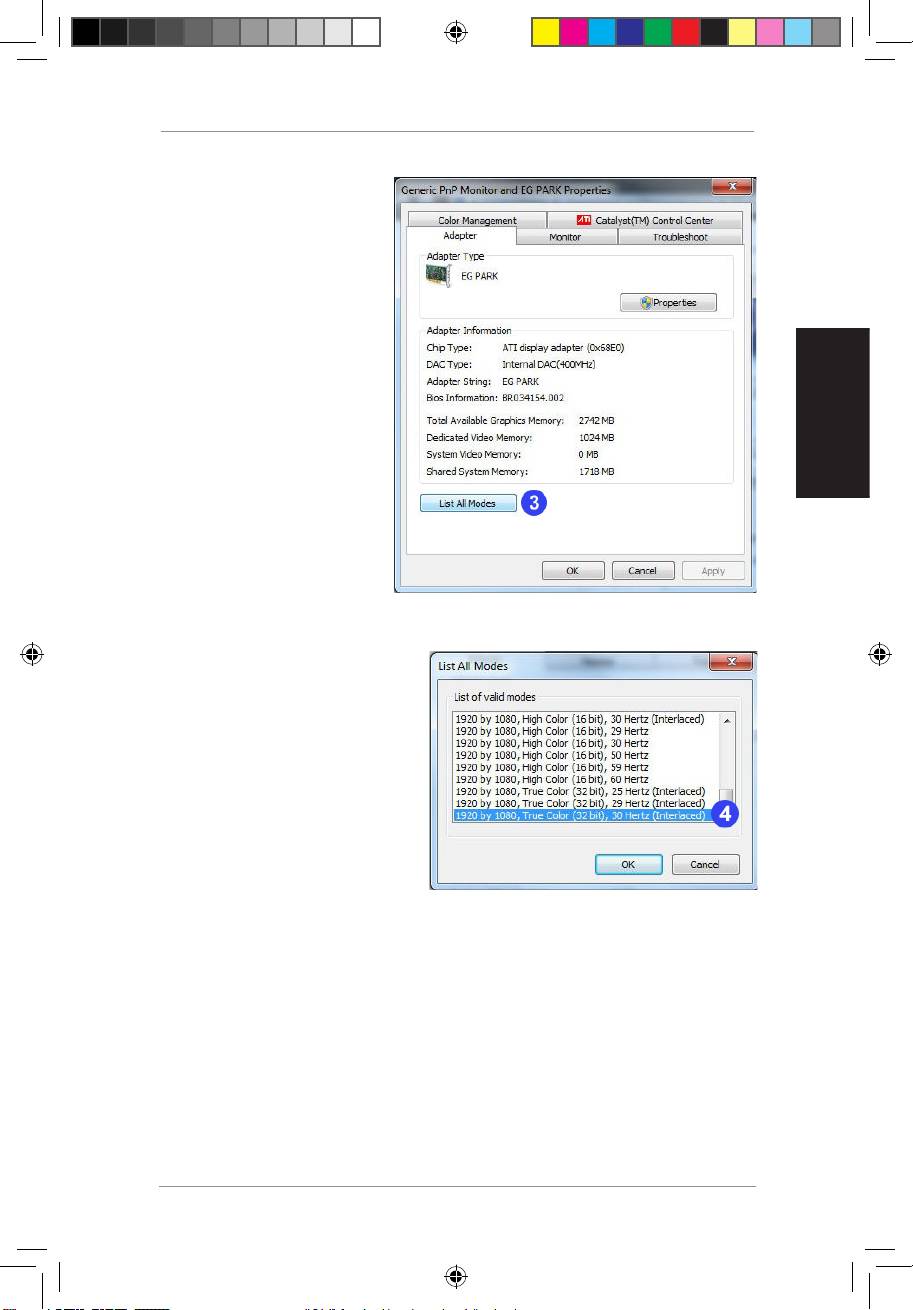
- 3. Click List All Modes. 4. Select 1920 by 1080, True color (32 Bit), 30Hertz (Interlaced)
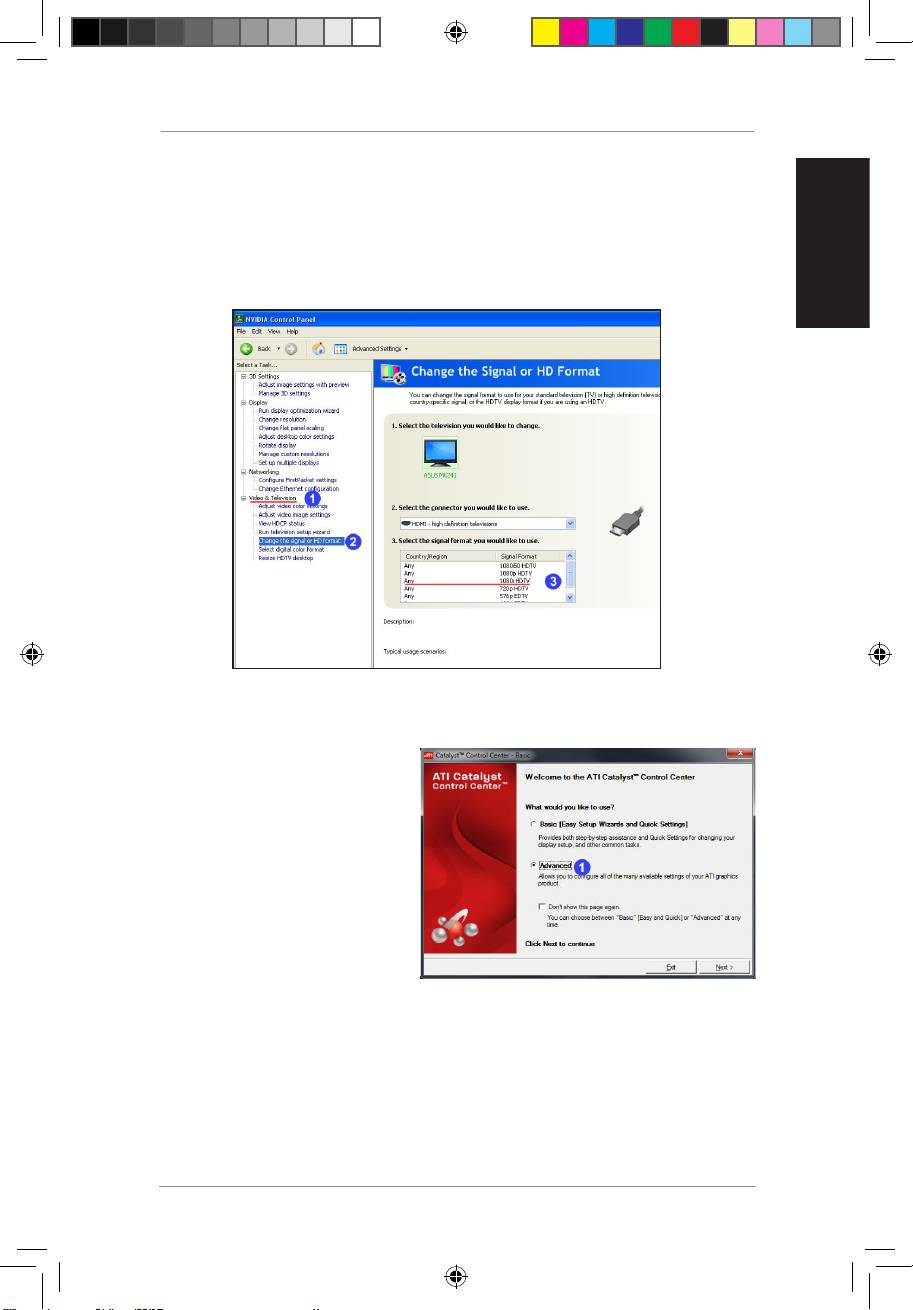
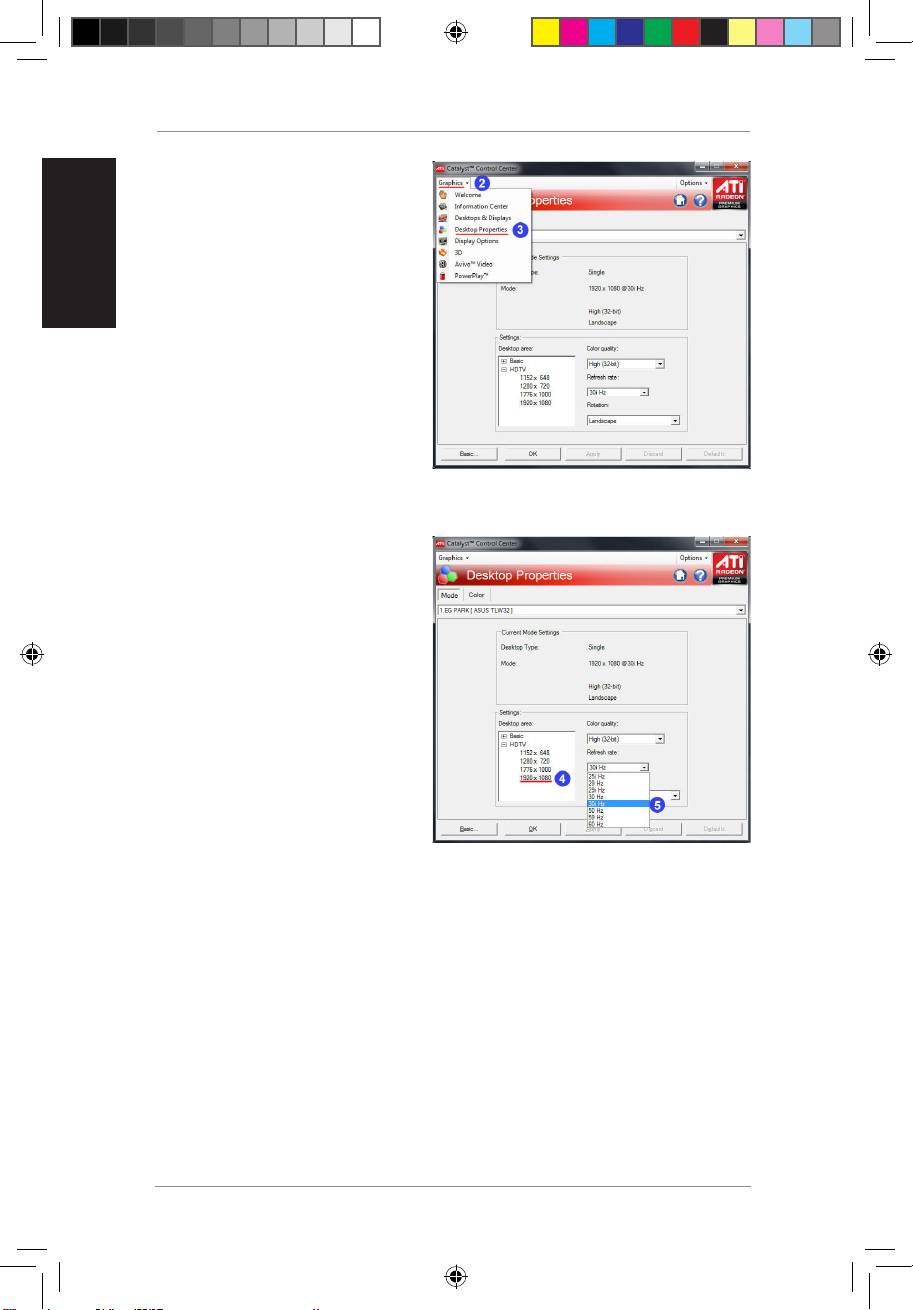
- Using NVIDIA utility Using ATI utility 1. L a u n c h t h e ATi C o n t r ol Center.Select Advanced
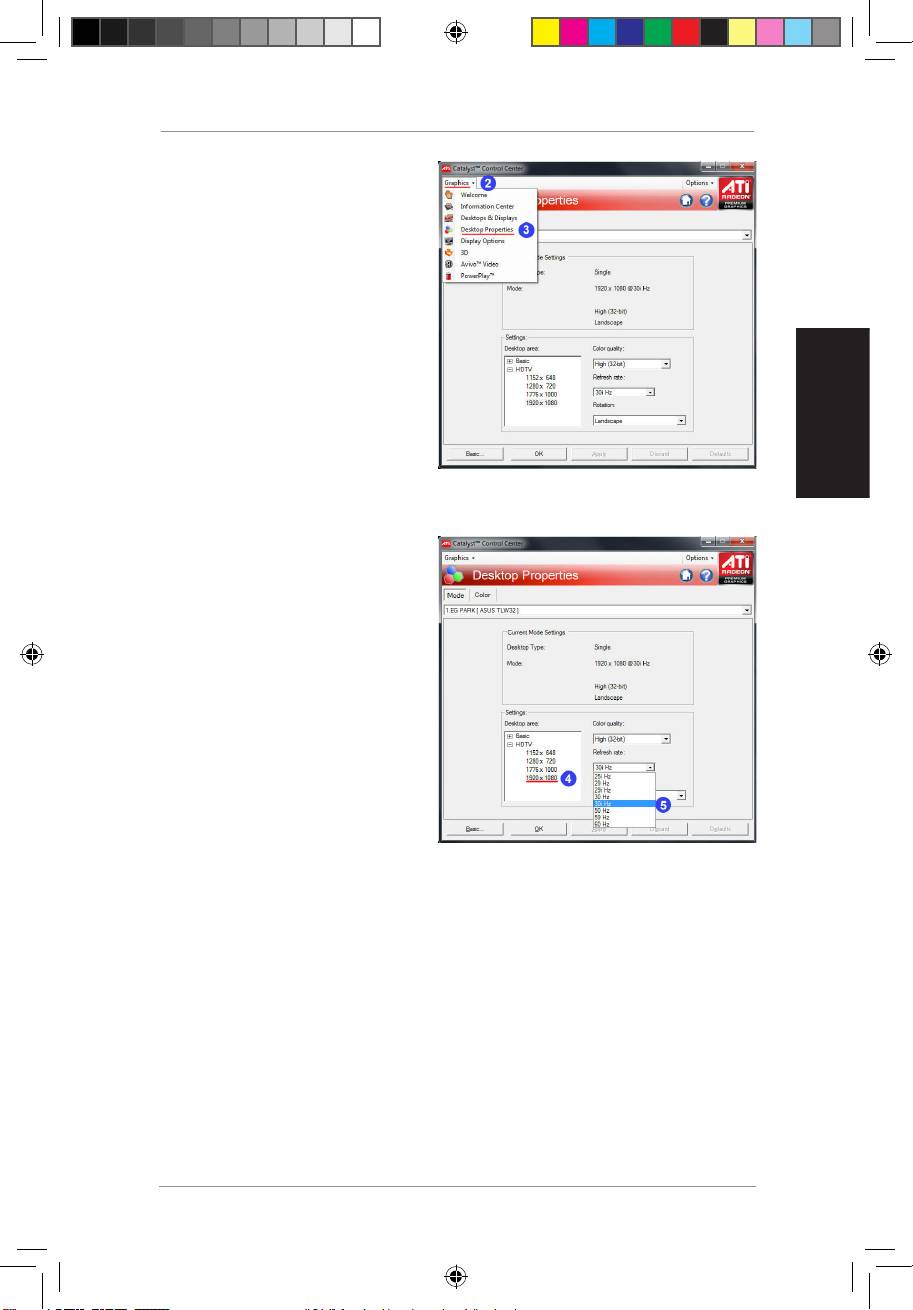
- 2. Click Graphics 3. Select Desktop Properties 4. From the Desktop area field, select 1920 X 1080 5. FromtheRefreshratedropdown list,select 30i Hz

Index
1. English .................................................................................1
2. FrançaisFrançais ...............................................................................8
3.
Deutsch
................................................................................15
4. Italiano................................................................................22
5. Русский .............................................................................29
6. Español ..............................................................................36
7. Čeština ...............................................................................43
8.
Nederlands
........................................................................50
9. Português ...........................................................................57
10.
繁體中文
.............................................................................64
11.
ไทย
.....................................................................................71
12. Türkçe ................................................................................78
13. Notice .................................................................................85
Q5328_BR-HD3_FAQ.indb 1 2/9/10 3:29:23 PM
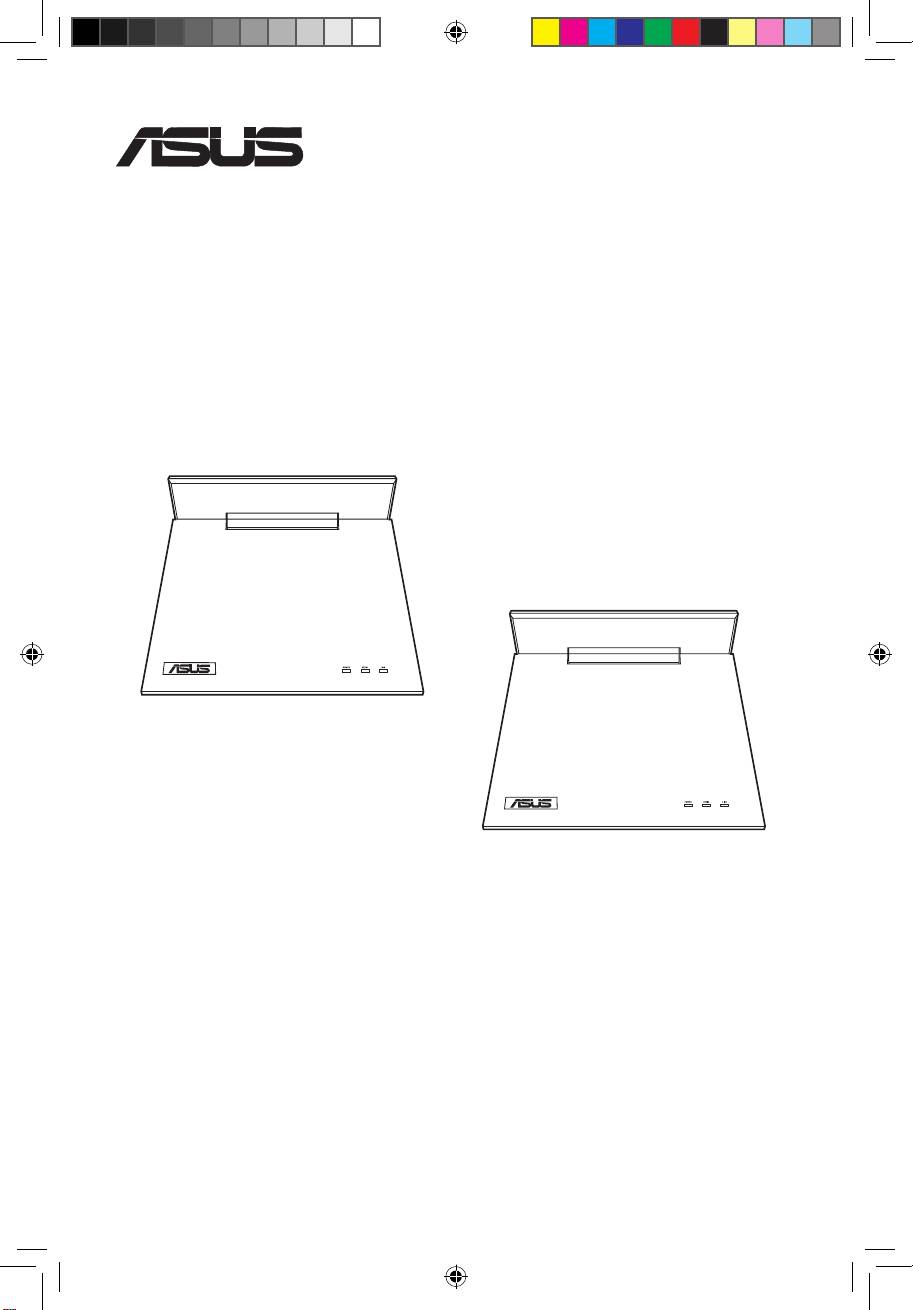
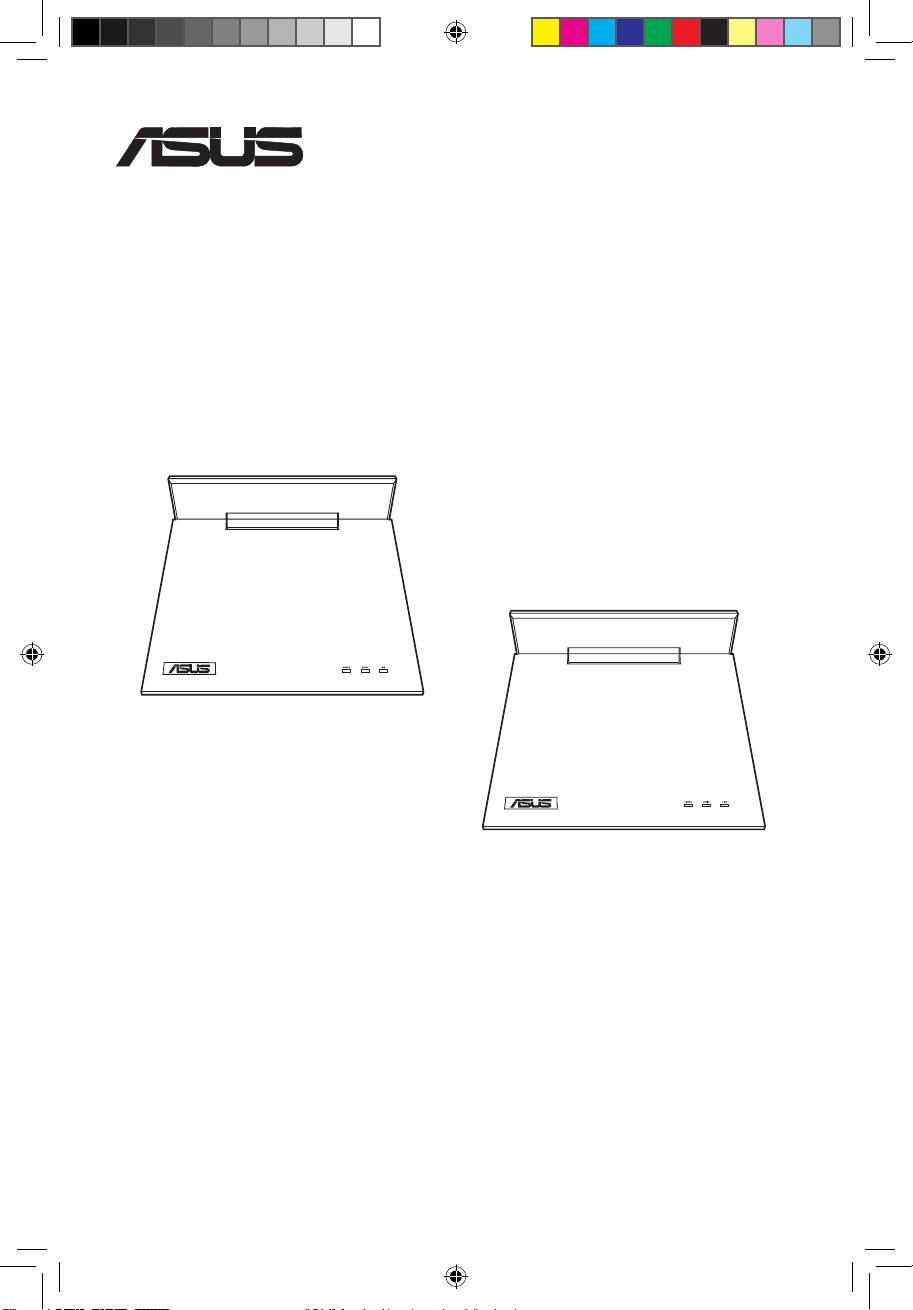
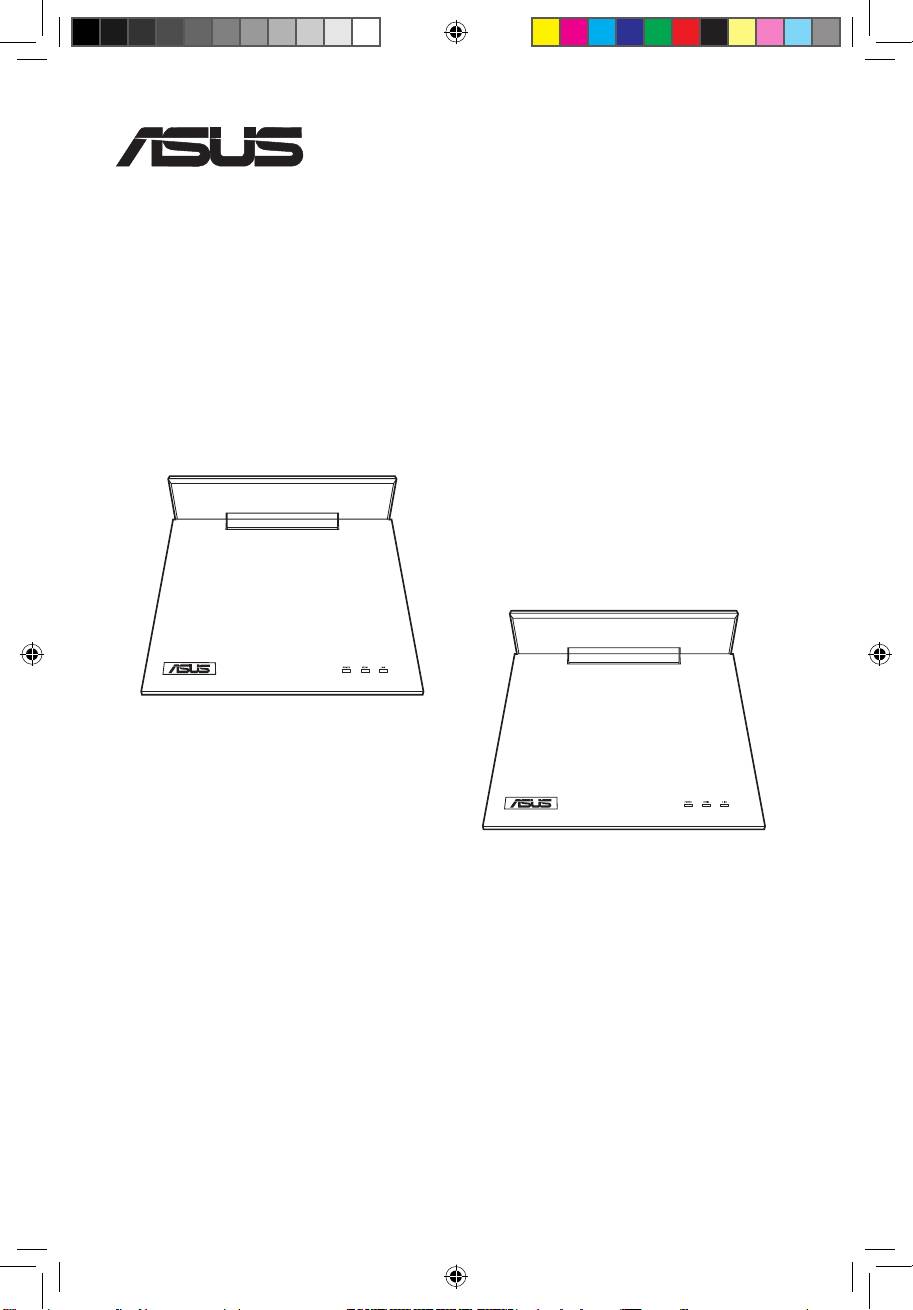
BR-HD3 Wireless HDMI Kit
ASUS BR-HD3 receiver
ASUS BR-HD3 transmitter
Supplementary Guide
E5328 / January 2010
First Edition
®
Q5328_BR-HD3_FAQ.indb 1 2/9/10 3:29:26 PM

BR-HD3 Wireless HDMI Kit Supplementary Guide
English
2
Setting up PS3 and XBox to 1080i output
BeforeusingtheBR-HD3WirelessHDMIKit,ensurethatyourPS3orXBox360’sscreen
resolutionissetto
1080i
.Refertothefollowingsectionsformoredetails.
Setting up PS3 to 1080i output
To set up PS3 to 1080i output:
1. UsinganHDMIcable,connectthePS3toahigh-denitionexternaldisplay.
2. Go to
My PS3
>
System Settings
>
Display
>
Video output settings
>
HDMI
>
Customer
,thenchoose
1080i
or
720P
.
3. TurnoffthePS3.
4. ConnecttheHDMItransmittertothePS3andtheHDMIreceivertotheexternal
display.
5. Turnonallthedevices.
Setting up XBox 360 to 1080i output
1. UsinganHDMIcable,connecttheXBox360 to a high-definition external
display.
2. Go to
My XBOX
>
System Settings
>
Console Settings
>
Display
>
HDTV
Settings
,thenchoose
1080i
or
720P
.
3. TurnofftheXBox360.
4. UsingthebundledHDMIcables,connecttheHDMI transmittertotheXBox360
andtheHDMI receivertotheexternaldisplay.
5. Turnonallthedevices.
Q5328_BR-HD3_FAQ.indb 2 2/9/10 3:29:27 PM
BR-HD3 Wireless HDMI Kit Supplementary Guide
English
3
Setting up your computer to 1080i output
• Ensurethatyourcomputerisconnectedtoahigh-denitionexternaldisplayusingan
HDMIcable.
• BeforeusingtheBR-HD3WirelessHDMIKit,ensurethatyourcomputer’sscreen
resolutionissetto1080i.Refertothefollowingsectionsformoredetails.
®
Using Windows
utility
To use Windows utility:
1. Right-click anywhere on Windows
desktop,andclick
Screen resolution
.
2. Click
Advanced settings
.
Q5328_BR-HD3_FAQ.indb 3 2/9/10 3:29:27 PM
BR-HD3 Wireless HDMI Kit Supplementary Guide
English
4
3. Click List All Modes.
4. Select
1920 by 1080, True
color (32 Bit), 30Hertz
(Interlaced)
.
Q5328_BR-HD3_FAQ.indb 4 2/9/10 3:29:28 PM
BR-HD3 Wireless HDMI Kit Supplementary Guide
English
5
®
Using NVIDIA
utility
To use NVIDIA utility:
1. LaunchtheNVIDIAControlPanel.Select
Video &Television
.
2. Select
Change the signal or HD format
3. Select
1080i HDTV
signalformat.
®
Using ATI
utility
To use ATI utility:
1. L a u n c h t h e ATi C o n t r ol
Center.Select
Advanced
.
Q5328_BR-HD3_FAQ.indb 5 2/9/10 3:29:28 PM
BR-HD3 Wireless HDMI Kit Supplementary Guide
English
6
2. Click
Graphics
.
3. Select
Desktop Properties
.
4. From the Desktop area field,
select
1920 X 1080
.
5. FromtheRefreshratedropdown
list,select
30i Hz
.
Q5328_BR-HD3_FAQ.indb 6 2/9/10 3:29:29 PM
BR-HD3 Wireless HDMI Kit Supplementary Guide
English
7
Troubleshooting
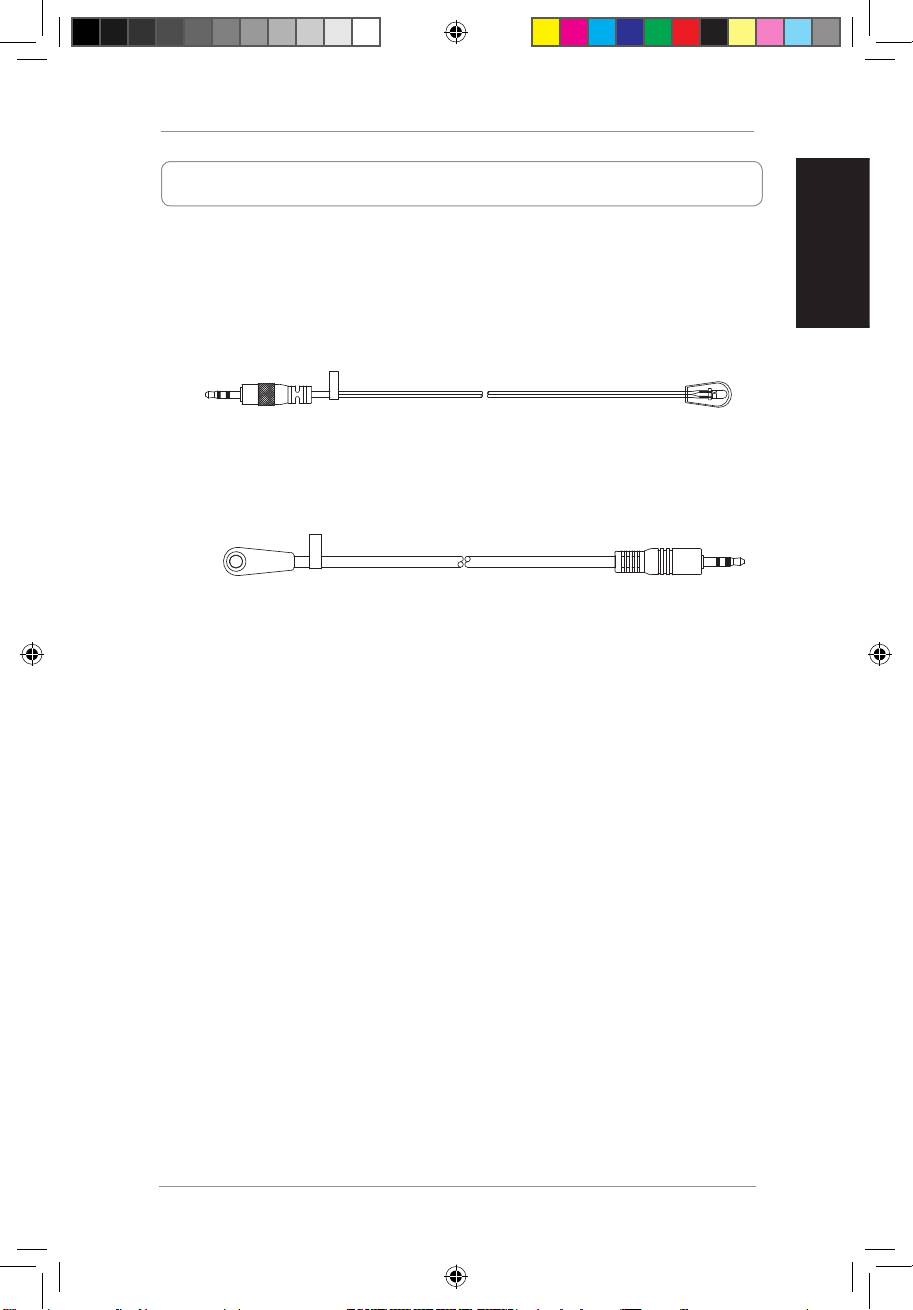
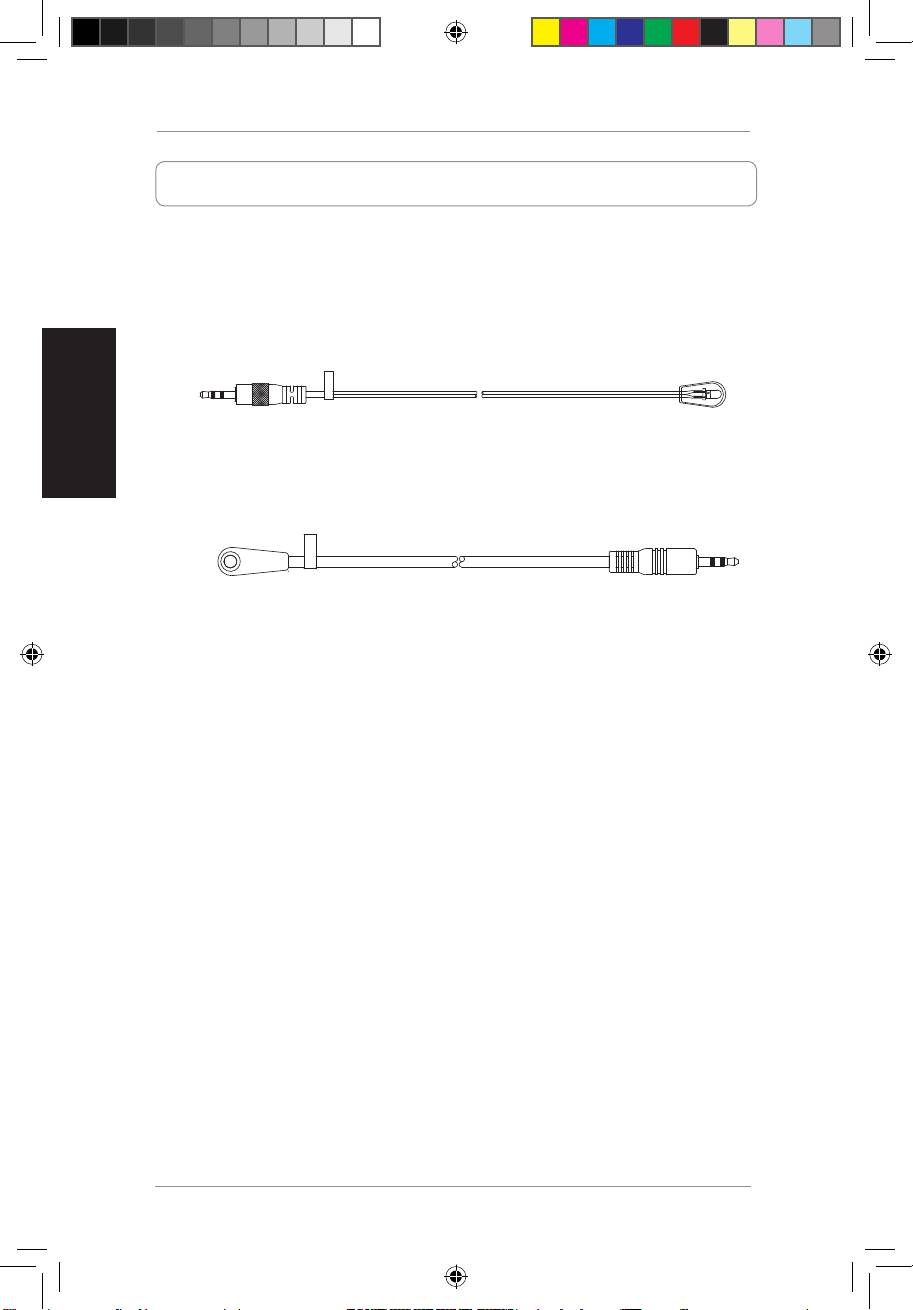
IR relay does not work.
1. ChecktheIRcableconnection.
a. The part ofthe IRBlaster with the
Player side
sticker on it mustbe
connectedtotheBR-HD3transmitter.
Player Side
b. ThepartoftheIRReceiverwiththeTV sidestickeronitmustbeplaced
ontheBR-HD3receiver.
2. EnsurethattheIRReceiverandIRBlasterarenotplaceddirectlyfacingeach
other.
PlacingtheIRReceiverandIRBlasterdirectlyfacingeachotherresultstoan
innitesignalloop,whichcausestheIRrelayfunctiontofail.
TV Side
Q5328_BR-HD3_FAQ.indb 7 2/9/10 3:29:30 PM
Kit HDMI sans l BR-HD3
Récepteur ASUS BR-HD3
Émetteur ASUS BR-HD3
Guide complémentaire
F5328/Janvier2010
Premièreédition
®
Q5328_BR-HD3_FAQ.indb 8 2/9/10 3:29:31 PM

BR-HD3 Wireless HDMI Kit Supplementary Guide
Congurer une PS3/XBox en sortie 1080i
Avantd'utiliserlekitHDMIsanslBR-HD3,assurez-vousquelarésolutiondevotrePS3ou
XBox360estdéniesur
1080i
.Référez-vousauxsectionssuivantespourplusdedétails.
Sortie 1080i sur PS3
Pour congurer la PS3 sur une sortie vidéo de 1080i :
1. Àl'aided'uncâbleHDMI,connectezlaPS3àunpériphériqued'afchageHD.
2. Sélectionnez
Paramètres
>
Paramètres afchage
>
Paramètres de sortie
Français
vidéo
>
HDMI
>
Personnalisé
,puissélectionnez
1080i
ou
720P
.
3. ÉteignezlaPS3.
4. Connectezl'émetteurHDMIàlaPS3etlerécepteuraupériphérique
d'afchage.
5. Allumeztouslespériphériques.
Sortie 1080i sur XBox 360
1. Àl'aided'uncâbleHDMI,connectezlaXBox360àunpériphériqued'afchage
HD.
2. Sélectionnez
Ma Xbox > Paramètres système
>
Paramètres de la console
>
Afchage
>
Paramètres TVHD
,puissélectionnez
1080i
ou
720P
.
3. ÉteignezlaXBox360.
4. AveclescâblesHDMIfournis,connectezl'émetteurHDMI àlaXBox360etle
récepteurHDMIaupériphériqued'afchage.
5. Allumeztouslespériphériques.
9
Q5328_BR-HD3_FAQ.indb 9 2/9/10 3:29:32 PM
BR-HD3 Wireless HDMI Kit Supplementary Guide
Français
10
Congurer votre PC en sortie 1080i
• Vériezquevotreordinateurestconnectéàunpériphériqued’afchageHDviauncâble
HDMI.
• Avantd'utiliserlekitHDMIsanslBR-HD3,assurez-vousquelarésolutiondevotre
écranestdéniesur1080i.Référez-vousàlasectionsuivantepourplusdedétails.
®
Utiliser l’utilitaire Windows
Pour utiliser l’utilitaire d’afchage Windows :
1. FaitesunclicdroitsurleBureaude
Windows,puiscliquezsur
Résolution
d’écran
.
2. Cliquezsur
Paramètres
avancés
.
Q5328_BR-HD3_FAQ.indb 10 2/9/10 3:29:32 PM
BR-HD3 Wireless HDMI Kit Supplementary Guide
Français
11
3. CliquezsurLister tous les
modes.
4. Sélectionnez
1920 x 1080,
Couleurs vraies (32 bits),
30Hertz (Intrelacé)
.
Q5328_BR-HD3_FAQ.indb 11 2/9/10 3:29:33 PM

BR-HD3 Wireless HDMI Kit Supplementary Guide
Français
12
®
Utiliser l'utilitaire NVIDIA
Pour utiliser l'utilitaire d'afchage NVIDIA :
1. OuvrezlePanneaudecontrôleNVIDIA.Sélectionnez
Video &Television
(Vidéo
&Télévision).
2. Sélectionnez
Change the signal or HD format
(Modierleformatdusignalou
HD).
3. Sélectionnezleformat
1080i HDTV
(HDTV1080i).
®
Utiliser l'utilitaire ATI
Pour utiliser l'utilitaire
d'afchage ATI :
1. Ouvrezl'utilitaireATiControl
Center.Sélectionnez
Advanced
(Avancé).
Q5328_BR-HD3_FAQ.indb 12 2/9/10 3:29:33 PM
BR-HD3 Wireless HDMI Kit Supplementary Guide
Français
13
2. Cliquezsur
Graphics
(Graphiques)
3. Sélectionnez
Desktop Properties
(PropriétésduBureau).
4. Danslechamp
Desktop
(Bureau),sélectionnez
1920 X
1080
.
5. Danslemenudéroulant
Refresh
rate
(Tauxderafraîchissement),
sélectionnez
30i Hz
.
Q5328_BR-HD3_FAQ.indb 13 2/9/10 3:29:34 PM
BR-HD3 Wireless HDMI Kit Supplementary Guide
Dépannage
Le relais infrarouge ne fonctionne pas.
1. Vériezlaconnexionducâbledurelaisinfrarouge.
a. L’extrémitédecâbledel’émetteurinfrarougecomportantl’étiquette
Player
side
doitêtreconnectéeàl’émetteurBR-HD3.
Français
14
Player Side
b. L’extrémitédecâbledurécepteurinfrarougecomportantl’étiquetteTV side
doitêtreconnectéeaurécepteurBR-HD3.
2. Assurez-vousquelerécepteuretl’émetteurinfrarougenesoientpas
directementplacésfaceàface.
Placerlerécepteuretl’émetteurinfrarougefaceàfacecréerauneboucledu
signalinnie,cequiempêcheralerelaisinfrarougedefonctionner.
TV Side
Q5328_BR-HD3_FAQ.indb 14 2/9/10 3:29:34 PM
BR-HD3 Wireless HDMI Kit
ASUS BR-HD3 Empfänger
ASUS BR-HD3 Transmitter
Ergänzungshandbuch
G5328/Februar2010
ErsteAusgabe
®
Q5328_BR-HD3_FAQ.indb 15 2/9/10 3:29:35 PM

BR-HD3 Wireless HDMI Kit Ergänzungshandbuch
Deutsch
16
PS3 und XBox für 1080i-Ausgabe einrichten
Bevor Sie denBR-HD3 Wireless HDMI kit einsetzen, sollte IhrePS3 oder XBox 360
Auösung auf
1080i
gestellt sein. BeziehenSiesichauf folgendeAbschnitte für weitere
Details.
PS3 für 1080i-Ausgabe einrichten
So bereiten Sie eine PS3 für die 1080i-Ausgabe vor:
1. VerbindenSie diePS3 miteinem externenHigh-DenitionBildschirm mithilfe
einesHDMI-Kabels.
2. GehenSiezu
System Settings (Systemeinstellungen)
>
Display (Anzeige)
>
Video output settings (Videoausgabe-Einstellungen)
>
HDMI
>
Customer
undwählenSie
1080i
oder
720P
.
3. SchaltenSiediePS3aus.
4. Verbinden Sie den HDMI-Transmittermit der PS3 und den HDMI-Empfänger
mitdemexternenBildschirm.
5. SchaltenSiealleGerätewiederein.
XBox 360 für 1080i-Ausgabe einrichten
1. Verbinden Sie die XBox360mit einemexternen High-Definition Bildschirm
mithilfeeinesHDMI-Kabels.
2. Gehen Sie zu
My XBOX
>
System Settings
(Systemeinstellungen)
>
Console Settings (Konsoleneinstellungen)
>
Display (Anzeige)
>
HDTV
Settings (HDTV-Einstellungen)
undwählenSie
1080i
oder
720P
.
3. SchaltenSiedieXBox360aus.
4. Mithilfe dergebündeltenHDMI-Kabeln, verbindenSie den HDMI-Transmitter
mitderXBox360unddenHDMI-EmpfängermitdemexternenBildschirm.
5. SchaltenSiealleGerätewiederein.
Q5328_BR-HD3_FAQ.indb 16 2/9/10 3:29:36 PM
BR-HD3 Wireless HDMI Kit Ergänzungshandbuch
Deutsch
17
Ihren Computer für 1080i-Ausgabe einrichten
• StellenSiesicher,dassIhrComputermiteinemexternenHIgh-DenitionBildschirm
mithilfeeinesHDMI-Kabelsverbundenist.
• BevorSiedenBR-HD3WirelessHDMIkiteinsetzen,solltedieBildschirmauösung
IhresComputersauf1080igestelltsein.BeziehenSiesichauffolgendeAbschnittefür
weitereDetails.
®
Windows
Programm
In Windows Programm:
1. KlickenSie mit der rechtenMaustaste
irgendwo au f de m De s k t o p un d
wä h l e n Si e
Sc r e e n Re s o l u ti o n
(Bildschirmauösung)
.
2. KlickenSieauf
Advanced
se t t i n gs (E rw e i t e rt e
Einstellungen)
.
Q5328_BR-HD3_FAQ.indb 17 2/9/10 3:29:37 PM

BR-HD3 Wireless HDMI Kit Ergänzungshandbuch
Deutsch
18
3. KlickenSieaufList
All Modes (Alle Modi
Anzeigen).
4. WählenSie
1920 by 1080,
True color (32 Bit), 30Hertz
(Interlaced)
.
Q5328_BR-HD3_FAQ.indb 18 2/9/10 3:29:37 PM

BR-HD3 Wireless HDMI Kit Ergänzungshandbuch
Deutsch
19
®
NVIDIA
-Anwendung
In der NVIDIA-Anwendung:
1. StartenSiedieNVIDIA-Steuerung.WählenSie
Video & Television
.
2. WählenSie
Change the signal or HD format (Signal oder HD-Format
ändern)
3. Wählen
1080i HDTV
Signalformat.
®
ATI
-Anwendung
In der ATI-Anwendung:
1. StartenSiedasATiControl
Center.WählenSie
Advanced (Erweitert)
.
Q5328_BR-HD3_FAQ.indb 19 2/9/10 3:29:37 PM
