
Asus USB-BT400: Using the Bluetooth 4.0 USB Dongle
Using the Bluetooth 4.0 USB Dongle: Asus USB-BT400
Table of contents
- Bluetooth 4.0 USB Dongle Before you proceed Installing the Bluetooth driver
- Using the Bluetooth 4.0 USB Dongle

Using the Bluetooth 4.0 USB Dongle
1. Insert the Bluetooth 4.0 USB Dongle into your computer’s USB port.
2. To begin pairing Bluetooth devices, do one of the following:
• Right-click on the Bluetooth icon on the System Tray and select Add a device.
®
• Windows
XP SP3: Click Start > Control Panel > Bluetooth Devices > Add
®
• Windows
7: Click Start > Control Panel > Hardware and Sound > Add a Bluetooth device
®
• Windows
8: 1. Click + I and then click Change PC settings. Click Devices > Add a device
2. Click + W, type “bluetooth” in the search box, and click Add Bluetooth device

USB-BT400
Bluetooth 4.0 USB ключ за порт
© Всички права запазени.
Всички имена на търговски марки са регистрирани търговски марки собственост на съответния производител.
Името Bluetooth и търговските марки Bluetooth са собственост на Bluetooth SIG, Inc.
Преди да започнете
ЗАБЕЛЕЖКА: Изтрийте вече инсталирания Bluetooth софтуер от вашия компютър.
®
1. Windows
XP SP3: Натиснете Start (Старт) > Control Panel (Контролен панел) > Add or Remove Programs
(Добавяне или Изтриване на програми).
®
Windows
7: Натиснете Start (Старт) > Control Panel (Контролен панел) > Programs (Програми)
> Programs and Features (Програми и Характеристики) > Uninstall a program
(Деинсталиране на програма Програми).
®
Windows
8: Натиснете + I > Control Panel (Контролен панел) > Programs (Програми) >
Programs and Features (Програми и Характеристики) > Uninstall a program
(Деинсталиране на програма Програми).
2. Отстранете Bluetooth софтуера от списъка с приложения.
Инсталиране на Bluetooth драйвер
1. Поставете CD диска поддръжка в четящото устройство на Вашия компютър. Ако CD диска не се стартира
автоматично, разгледайте съдържанието на CD за поддръжка и щракнете двукратно върху Autorun.exe файла.
2. На екрана за инсталиране на Bluetooth софтуера щракнете върху Agree and Install Bluetooth Software
(Съгласете се и инсталирайте Bluetooth софтуера).
3. Следвайте инструкциите на екрана и поставете Bluetooth 4.0 USB ключ за порт щом бъдете подканени да
направите това.
4. Щом процесът на инсталиране приключи, щракнете върху Finish (Край). Рестартирайте системата, за да
приключите инсталацията.
®

Използване на Bluetooth 4.0 USB ключ за порт
1. Включете Bluetooth 4.0 USB ключ за порт в USB порта на компютъра.
2. За да започнете сдвояването на Bluetooth устройства, направете едно от следните неща:
•Щракнете с десния бутон на мишката върху Bluetooth иконата в системната тава и изберете Add a device (Добави
устройство).
®
• Windows
XP SP3: Натиснете Start (Старт) > Control Panel (Контролен панел) > Bluetooth Devices
(Bluetooth устройства) > Add (Добави)
®
• Windows
7: Натиснете Start (Старт) > Control Panel (Контролен панел) > Hardware and Sound
(Хардуер и звук) > Add a Bluetooth device (Добавяне на Bluetooth устройства)
®
• Windows
8: 1. Щракнете върху + I и щракнете върху Change PC settings (Промяна на
настройките на компютъра). Щракнете върху Devices (Устройства) > Add a device
(Добави устройства)
2. Щракнете върху + W, напишете “bluetooth” в полето за търсене и щракнете
върху Add Bluetooth device (Добави Bluetooth устройство)

USB-BT400
Bluetooth 4.0 USB hardwarový klíč
© Všechna práva vyhrazena.
Veškeré obchodní názvy jsou registrované ochranné známky příslušných výrobců.
Vlastníkem názvu Bluetooth a ochranných známek Bluetooth je společnost Bluetooth SIG, Inc.
Než začnete
POZNÁMKA: Odinstalujte veškerý software Bluetooth, který byl dříve nainstalován v počítači.
®
1. Windows
XP SP3: Klepněte na tlačítko Start > Control Panel (Ovládací panely) > Add or Remove
Programs (Přidat nebo odebrat programy).
®
Windows
7: Klepněte na tlačítko Start > Control Panel (Ovládací panely) > Programs (Programy)
> Programs and Features (Programy a funkce) > Uninstall a program (Odinstalovat
program).
®
Windows
8: Klepněte na tlačítko + I > Control Panel (Ovládací panely) > Programs
(Programy) > Programs and Features (Programy a funkce) > Uninstall a program
(Odinstalovat program).
2. Odstraňte Bluetooth software v seznamu aplikací.
Instalování ovladače Bluetooth
1. Vložte podpůrný disk CD do optické jednotky počítače. Pokud se disk CD nespustí automaticky, v obsahu
podpůrného disku CD vyhledejte a poklepejte na soubor Autorun.exe.
2. Na obrazovce instalace softwaru Bluetooth klepněte na Agree and Install Bluetooth Software (Přijmout a
nainstalovat software Bluetooth).
3. Postupujte podle zobrazených pokynů a po vyzvání připojte Bluetooth 4.0 USB hardwarový klíč.
4. Po dokončení instalace klepněte na tlačítko Finish (Dokončit). Dokončete instalaci restartováním systému.
®

Používání Bluetooth 4.0 USB hardwarového klíče
1. Připojte Bluetooth 4.0 USB hardwarový klíč k portu USB počítače.
2. Chcete-li zahájit párování zařízení Bluetooth, proveďte jeden z následujících kroků:
• Klepněte pravým tlačítkem na ikonu Bluetooth na hlavním panelu a vyberte možnost Add a device (Přidat
zařízení).
®
• Windows
XP SP3: Klepněte na tlačítko Start > Control Panel (Ovládací panely) > Bluetooth
Devices (Zařízení Bluetooth) > Add (Přidat)
®
• Windows
7: Klepněte na tlačítko Start > Control Panel (Ovládací panely) > Hardware and
Sound (Hardware a zvuk) > Add a Bluetooth device (Přidat zařízení Bluetooth)
®
• Windows
8: 1. Klepněte na + I a potom klepněte na Change PC settings (Změnit nastavení
PC). Klepněte na Devices (Zařízení) > Add a device (Přidat zařízení)
2. Klepněte na + W, do pole vyhledávání zadejte „bluetooth“ a klepněte na Add
Bluetooth device (Přidat zařízení Bluetooth)

USB-BT400
Bluetooth 4.0 USB-dongle
© Alle rechten voorbehouden.
Alle handelsnamen zijn gedeponeerde handelsmerken van de respectievelijk weergegeven fabrikanten.
De naam Bluetooth en de Bluetooth-handelsmerken zijn eigendom van Bluetooth SIG, Inc.
Voordat u begint
OPMERKING: Verwijder eventueel eerder geïnstalleerde Bluetooth software van uw computer.
®
1. Windows
XP SP3: Klik op Start > Control Panel (Conguratiescherm) > Add or Remove Programs
(Programma’s toevoegen of verwijderen).
®
Windows
7: Klik op Start > Control Panel (Conguratiescherm) > Programs (Programma’s) >
Programs and Features (Programma’s en functies) > Uninstall a program (Een
programma deïnstalleren).
®
Windows
8: Klik op + I > Control Panel (Conguratiescherm) > Programs (Programma’s)
> Programs and Features (Programma’s en functies) > Uninstall a program (Een
programma deïnstalleren).
2. Verwijder alle Bluetooth-software in de lijst van toepassingen.
Het Bluetooth-stuurprogramma installeren
1. Plaats de ondersteunings-cd in het optische station van uw computer. Als de cd niet automatisch start, bladert u
door de inhoud van de ondersteunings-cd en dubbelklikt u op het bestand Autorun.exe.
2. Klik op het installatiescherm van de Bluetooth-software op Agree and Install Bluetooth Software (Akkoord en
Bluetooth-software installeren).
3. Volg de instructies op het scherm en plaats de Bluetooth 4.0 USB-dongle wanneer u dat wordt gevraagd.
4. Klik op Finish (Voltooien) wanneer het installatieproces is voltooid. Start het systeem opnieuw op om de
installatie te voltooien.
®

De Bluetooth 4.0 USB-dongle gebruiken
1. Stop de Bluetooth 4.0 USB-dongle in de USB-poort van uw computer.
2. Voer een van de volgende bewerkingen uit om het koppelen van Bluetooth-apparaten te starten:
• Klik met de rechtermuisknop op het Bluetooth-pictogram in het systeemvak en selecteer Add a Device (Een
apparaat toevoegen).
®
• Windows
XP SP3: Klik op Start > Control Panel (Conguratiescherm) > Bluetooth Devices
(Bluetooth-apparaten) > Add (Toevoegen)
®
• Windows
7: Klik op Start > Control Panel (Conguratiescherm) > Hardware and Sound
(Hardware en geluiden) > Add a Bluetooth device (Een Bluetooth-apparaat
toevoegen)
®
• Windows
8: 1. Klik op + I en klik vervolgens op Change PC settings (Pc-instellingen
wijzigen). Klik op Devices (Apparaten) > Add a device (Een apparaat
toevoegen).
2. Klik op + W, typ “bluetooth” in het zoekvak en klik op Add Bluetooth device
(Bluetooth-apparaat toevoegen).

USB-BT400
Bluetooth 4.0 USB dongel
© Kõik õigused on reserveeritud.
Kõik ärinimed on registreeritud kaubamärgid, mis kuuluvad loendis nimetatud vastavatele tootjatele.
Bluetooth'i nimi ja Bluetooth'i kaubamärgid kuuluvad ettevõttele Bluetooth SIG, Inc.
Enne alustamist
MÄRKUS: Eemaldage arvutist eelnevalt installitud Bluetoothi tarkvara.
®
1. Windows
XP SP3: Valige Start (Start) > Control Panel (Juhtpaneel) > Add or Remove Programs
(Programmide lisamine või eemaldamine).
®
Windows
7: Valige Start (Start) > Control Panel (Juhtpaneel) > Programs (Programmid)>
Programs and Features (Programmid ja funktsioonid) > Uninstall a program
(Programmi desinstallimine).
®
Windows
8: Valige + I > Control Panel (Juhtpaneel) > Programs (Programmid)> Programs
and Features (Programmid ja funktsioonid) > Uninstall a program (Programmi
desinstallimine).
2. Eemaldage rakenduste loendist mis tahes Bluetooth-tarkvara.
Bluetooth-draiveri installimine
1. Sisestage tugi-CD arvuti optilisse draivi. Kui CD ei käivitu automaatselt, siis sirvige tugi-CD faile ja topeltklõpsake
faili Autorun.exe.
2. Bluetooth-tarkvara installimise ekraanil klõpsake käsku Agree and Install Bluetooth Software (Nõustu ja installi
Bluetooth-tarkvara).
3. Järgige ekraanijuhiseid ja sisestage Bluetooth 4.0 USB dongel, kui seda palutakse teha.
4. Kui häälestusprotsess on lõpule viidud, siis klõpsake käsku Finish (Lõpeta). Taaskäivitage süsteem, et
installimine lõpule viia.
®

Bluetooth 4.0 USB dongli kasutamine
1. Sisestage Bluetooth 4.0 USB dongel arvuti USB porti.
2. Bluetooth-seadmete paaritamiseks tehke ühte järgmistest:
• Paremklõpsake Bluetoothi ikooni süsteemisalves, seejärel valige käsk Add a device (Lisa seade).
®
• Windows
XP SP3: Valige Start (Start) > Control Panel (Juhtpaneel) > Bluetooth Devices
(Bluetooth-seadmed) > Add (Lisa)
®
• Windows
7: Valige Start (Start) > Control Panel (Juhtpaneel) > Hardware and Sound
(Riistvara ja heli) > Add a Bluetooth device (Lisa Bluetooth-seade)
®
• Windows
8: 1. Klõpsake + I, seejärel klõpsake käsku Change PC settings (Muuda arvuti
sätteid). Klõpsake Devices (Seadmed) > Add a device (Lisa seade)
2. Click + W, tippige otsinguboksi sõna “bluetooth” ja klõpsake käsku Add
Bluetooth device (Lisa Bluetooth-seade)

USB-BT400
Bluetooth 4.0 USB -käyttöavain
© Kaikki oikeudet pidätetään.
Kaikki tavaramerkit ovat lueteltujen valmistajien rekisteröityjä tavaramerkkejä.
Bluetooth-nimen ja Bluetooth-tavaramerkit omistaa Bluetooth SIG, Inc.
Ennen aloittamista
HUOMAUTUS: Poista mahdolliset aiemmin asennetut Bluetooth-ohjelmistot tietokoneesta.
®
1. Windows
XP SP3: Napsauta Start (Käynnistä) > Control Panel (Ohjauspaneeli) > Add or Remove
Programs (Lisää tai poista ohjelmia).
®
Windows
7: Napsauta Start (Käynnistä) > Control Panel (Ohjauspaneeli) > Programs (Ohjelmat)
> Programs and Features (Ohjelmat ja ominaisuudet) > Uninstall a program
(Poista ohjelman asennus).
®
Windows
8: Napsauta + I > Start (Käynnistä) > Control Panel (Ohjauspaneeli) > Programs
(Ohjelmat) > Programs and Features (Ohjelmat ja ominaisuudet) > Uninstall a
program (Poista ohjelman asennus).
2. Poista Bluetooth-ohjelmisto sovellusluettelosta.
Bluetooth-ohjaimen asentaminen
1. Aseta tuki-CD-levy tietokoneen optiseen asemaan. Jos CD-levy ei käynnisty automaattisesti, selaa tuki-CD-levyn
sisältöä ja kaksoisnapsauta Autorun.exe-tiedostoa.
2. Napsauta Bluetooth-ohjelmiston asennusnäytössä Agree and Install Bluetooth Software (Hyväksy ja asenna
Bluetooth-ohjelmisto).
3. Noudata näytön ohjeita ja liitä Bluetooth 4.0 USB -käyttöavain kehotettaessa.
4. Kun asetus on valmis, valitse Finish (Valmis). Käynnistä järjestelmä uudelleen asennuksen suorittamiseksi
loppuun.
®

Bluetooth 4.0 USB -käyttöavaimen käyttö
1. Liitä Bluetooth 4.0 USB -käyttöavain tietokoneen USB-porttiin.
2. Aloita laiteparin muodostaminen Bluetooth-laitteista tekemällä jonkin seuraavista:
• Napsauta hiiren oikealla painikkeella ilmaisinalueen Bluetooth-kuvaketta ja valitse Add a device (Lisää laite).
®
• Windows
XP SP3: Napsauta Start (Käynnistä) > Control Panel (Ohjauspaneeli) > Bluetooth
Devices (Bluetooth-laitteet) > Add (Lisää)
®
• Windows
7: Napsauta Start (Käynnistä) > Control Panel (Ohjauspaneeli) > Hardware and
Sound (Laitteisto ja ääni) > Add a Bluetooth device (Lisää Bluetooth-laite)
®
• Windows
8: 1. Napsauta + I ja napsauta sitten Change PC settings (Vaihda
tietokoneasetuksia) -valintaa. Napsauta Devices (Laitteet) > Add a device (Lisää
laite)
2. Napsauta + W, näppäile hakuruutuun "bluetooth" ja napsauta Add Bluetooth
device (Lisää Bluetooth-laite) -valintaa

USB-BT400
Dongle USB Bluetooth 4.0
© Tous droits réservés.
Toutes les appellations commerciales sont des marques déposées des fabricants listés ci-dessous.
Le nom Bluetooth et les marques de commerce Bluetooth sont la propriété de Bluetooth SIG,Inc.
Avant de commencer
REMARQUE : Désinstallez tout logiciel et/ou pilote Bluetooth pré-installé sur votre ordinateur.
®
1. Windows
XP SP3 : Cliquez sur Démarrer > Panneau de conguration > Ajout/Suppression de
programmes.
®
Windows
7 : Cliquez sur Démarrer > Panneau de conguration > Programmes > Programmes et
fonctionnalités > Désinstaller un programme.
®
Windows
8 : Cliquez sur + I > Panneau de conguration > Programmes > Programmes et
fonctionnalités > Désinstaller un programme.
2. Supprimez les logiciels/pilotes Bluetooth apparaissant dans la liste.
Installer le pilote Bluetooth
1. Insérez le CD de support dans votre lecteur optique. Le programme d’installation démarre automatiquement. Si
ce n’est pas le cas, parcourez le contenu du CD et double-cliquez sur le chier Autorun.exe.
2. À l’apparition de l’écran d’installation Bluetooth, cliquez sur Accepter et installer le logiciel Bluetooth.
3. Suivez les instructions apparaissant à l’écran et insérez le dongle USB Bluetooth sur l’un des ports USB de votre
ordinateur.
4. Une fois terminé, cliquez sur Terminé. L’ordinateur redémarrer pour naliser le processus d’installation.
®
Utiliser le dongle Bluetooth USB
1. Insérez le dongle USB Bluetooth 4.0 sur l’un des ports USB de votre ordinateur.
2. Suivez les instructions ci-dessous pour jumeler deux appareils Bluetooth :
• Faites un clic droit sur l’icône Bluetooth située dans la zone de notication du Bureau et sélectionnez l’option
Ajouter un dispositif.
®
• Windows
XP SP3 : Cliquez sur Démarrer > Panneau de conguration > Périphériques Bluetooth >
Ajouter.
®
• Windows
7 : Cliquez sur Démarrer > Panneau de conguration > Matériel et sons > Ajouter
un périphérique Bluetooth.
®
• Windows
8 : 1. Cliquez sur + I puis sur Modier les paramètres du PC. Cliquez sur
Périphériques > Ajouter un périphérique.
2. Cliquez sur + W, entrez “bluetooth” dans la zone de recherche, et cliquez sur Ajouter un
périphérique Bluetooth.

USB-BT400
Bluetooth 4.0-USB-Dongle
© Alle Rechte vorbehalten. Alle Rechte vorbehalten.
Alle Markennamen sind registrierte Warenzeichen ihrer entsprechenden Eigentümer.
Der Name Bluetooth und das Bluetooth-Warenzeichen sind Eigentum der Bluetooth SIG, Inc.
Bevor Sie beginnen
HINWEIS: Entfernen Sie jede vorher installierte Bluetooth-Software von Ihren Computer.
®
1. Windows
XP SP3: Klicken Sie aufKlicken Sie auf Start > Systemsteuerung > Programme hinzufügen/entfernen.
®
Windows
7: Klicken Sie aufKlicken Sie auf Start > Systemsteuerung > Programme > Programme und
Funktionen > Ein Programm deinstallieren.
®
Windows
8: Klicken Sie aufKlicken Sie auf + I > Systemsteuerung > Programme > Programme undSystemsteuerung > Programme > Programme und
Funktionen > Ein Programm deinstallieren.
2. Entfernen Sie zunächst sämtliche sonstige installierte Bluetooth-Software.
Bluetooth-Treiber installieren
1. Legen Sie die Unterstützungs-CD in das optische Laufwerk des Computers ein. Falls die CD nicht automatisch
starten sollte, öffnen Sie die CD (beispielsweise mit dem Explorer) und doppelklicken auf die Datei Autorun.exe.
2. Im Bluetooth-Software-Installationsbildschirm klicken Sie auf Agree and Install Bluetooth Software (Zustimmen
und Bluetooth-Software installieren).
3. Folgen Sie den Anweisungen auf dem Bildschirm, schließen Sie das Bluetooth 4.0-USB-Dongle an, sobald Sie
dazu aufgefordert werden.
4. Klicken Sie am Ende der Einrichtung auf Finish (Fertigstellen). Starten Sie das System zum Abschluss der
Installation neu.
®

Bluetooth 4.0-USB-Dongle verwenden
1. Verbinden Sie das Bluetooth 4.0-USB-Dongle mit einem freien USB-Port Ihres Computers.
2. Zum Koppeln von Bluetooth-Geräten führen Sie einen der folgenden Schritte aus:
• Klicken Sie mit der rechten Maustaste auf das Bluetooth-Symbol im Systemtray, klicken Sie dann auf Add a
device (Gerät hinzufügen).
®
• Windows
XP SP3: Klicken Sie aufKlicken Sie auf Start > Systemsteuerung > Bluetooth Devices (Bluetooth-
Geräte)> Add (Hinzufügen)
®
• Windows
7: Klicken Sie aufKlicken Sie auf Start > Systemsteuerung > Hardware and Sound (Hardware
und Sound) > Add a Bluetooth device (Bluetooth-Gerät hinzufügen)
®
• Windows
8: 1. Drücken Sie + I, klicken Sie dann auf Change PC settings (PC-Einstellungen
ändern). Klicken Sie auf Devices (Geräte) > Add a device (Gerät hinzufügen).
2. Drücken Sie + W, geben Sie „Bluetooth“ in das Suchfeld ein, klicken Sie dann
auf Add Bluetooth device (Bluetooth-Gerät hinzufügen).

USB-BT400
Bluetooth 4.0 USB Dongle
© Με την επιφύλαξη παντός δικαιώματος.
Όλα τα εμπορικά ονόματα είναι κατοχυρωμένα εμπορικά σήματα των αντίστοιχων κατασκευαστών.
Η ονομασία Bluetooth και τα εμπορικά σήματα Bluetooth αποτελούν ιδιοκτησία της Bluetooth SIG, Inc.
Πριν να ξεκινήσετε
ΣΗΜΕΙΩΣΗ: Αφαιρέστε το ήδη εγκαταστημένο λογισμικό Bluetooth από τον υπολογιστή σας.
®
1. Windows
XP SP3: Κάντε κλικ στο εικονίδιο Start (Έναρξη) > Control Panel (Πίνακας ελέγχου) > Add
or Remove Programs (Προσθαφαίρεση προγραμμάτων).
®
Windows
7: Κάντε κλικ στο εικονίδιο Start (Έναρξη) > Control Panel (Πίνακας ελέγχου)
> Programs (Προγράμματα) > Programs and Features (Προγράμματα και
δυνατότητες) > Uninstall a program (Κατάργηση εγκατάστασης ενός
προγράμματος).
®
Windows
8: Κάντε κλικ στο εικονίδιο + I > Control Panel (Πίνακας ελέγχου) > Programs
(Προγράμματα) > Programs and Features (Προγράμματα και δυνατότητες) >
Uninstall a program (Κατάργηση εγκατάστασης ενός προγράμματος).
2. Διαγράψτε οποιοδήποτε λογισμικό Bluetooth που βρίσκεται στη λίστα εφαρμογών.
Εγκατάσταση του προγράμματος οδήγησης Bluetooth
1. Εισαγάγετε το CD υποστήριξης στη μονάδα οπτικού δίσκου του υπολογιστή. Αν η εκτέλεση του CD δεν ξεκινήσει
αυτόματα, κάντε αναζήτηση στα περιεχόμενα του CD υποστήριξης και κάντε διπλό κλικ στο αρχείο Autorun.exe.
2. Στην οθόνη εγκατάστασης λογισμικού Bluetooth, κάντε κλικ στο Agree and Install Bluetooth Software (Συμφωνία και
εγκατάσταση του λογισμικού Bluetooth).
3. Ακολουθήστε τις οδηγίες που εμφανίζονται στην οθόνη και εισαγάγετε το Bluetooth 4.0 USB Dongle όταν σας ζητηθεί.
4. Μόλις ολοκληρωθεί η διαδικασία εγκατάστασης, κάντε κλικ στο Finish (Τέλος). Επανεκκινήστε το σύστημα για να
ολοκληρώσετε την εγκατάσταση.
®

Χρήση του Bluetooth 4.0 USB Dongle
1. Εισαγάγετε το Bluetooth 4.0 USB Dongle στη θύρα USB του υπολογιστή σας.
2. Για να ξεκινήσετε τη ζεύξη συσκευών Bluetooth, κάντε ένα από τα ακόλουθα:
• Κάντε δεξί κλικ στο εικονίδιο Bluetooth στη γραμμή συστήματος και επιλέξτε Add a device (Προσθήκη συσκευής).
®
• Windows
XP SP3: Κάντε κλικ στο εικονίδιο Start (Έναρξη) > Control Panel (Πίνακας ελέγχου) >
Bluetooth Devices (Συσκευές Bluetooth) > Add (Προσθήκη)
®
• Windows
7: Κάντε κλικ στο εικονίδιο Start (Έναρξη) > Control Panel (Πίνακας ελέγχου)
> Hardware and Sound (Υλικό και ήχος) > Add a Bluetooth device (Προσθήκη
συσκευής Bluetooth)
®
• Windows
8: 1. Κάντε κλικ στο + I και στη συνέχεια κάντε κλικ στο Change PC settings (Αλλαγή
ρυθμίσεων Η/Υ). Κάντε κλικ στο Devices (Συσκευές) > Add a device (Προσθήκη
συσκευής)
2. Κάντε κλικ στο + W, πληκτρολογήστε “bluetooth” στο πλαίσιο αναζήτησης και κάντε
κλικ στο Add Bluetooth device (Προσθήκη συσκευής Bluetooth)

USB-BT400
Bluetooth 4.0 USB-kulcs
© Minden jog fenntartva!
Minden kereskedelmi név az adott vállalat bejegyzett védjegye.
Az Bluetooth elnevezés és a Bluetooth védjegyei a Bluetooth SIG, Inc. tulajdonában állnak.
Használat előtt
MEGJEGYZÉS: Távolítson el minden korábban feltelepített Bluetooth szoftvert a számítógépéről.
®
1. Windows
XP SP3: Kattintson a Start > Control Panel (Vezérlőpult) > Add or Remove Programs
(Programok Hozzáadása vagy Eltávolítása).
®
Windows
7: Kattintson Start > Control Panel (Vezérlőpult) > Programs (Programok) > Programs
and Features (Programok és Jellemzők) > Uninstall a program (Program
eltávolítása).
®
Windows
8: Kattintson + I > Control Panel (Vezérlőpult) > Programs (Programok) >
Programs and Features (Programok és Jellemzők) > Uninstall a program (Program
eltávolítása).
2. Távolítsa el a Bluetooth szoftvert az alkalmazáslistáról.
A Bluetooth illesztőprogram telepítése
1. Helyezze be a támogató CD-t a számítógép optikai meghajtójába. Amennyiben a CD nem indul el
automatikusan, keresse meg az Autorun.exe fájlt a támogató CD-n, és kattintson rá kétszer az indításához.
2. A Bluetooth szoftver telepítő képernyőjén kattintson az Agree and Install Bluetooth Software (A feltételek
elfogadása és a Bluetooth szoftver telepítése) elemre.
3. Kövesse a képernyőn megjelenő utasításokat a Bluetooth 4.0 USB-kulcs telepítéséhez, amikor felszólítják.
4. A telepítés végén kattintson a Finish (Befejezés) gombra. Indítsa újra a rendszert a telepítés befejezéséhez.
®

A Bluetooth 4.0 USB-kulcs használata
1. Csatlakoztassa a Bluetooth 4.0 USB-kulcsot a számítógép USB-portjához.
2. A Bluetooth-eszközök párosításához hajtsa végre az alábbiak valamelyikét:
• Jobb gombbal kattintson a Bluetooth ikonra a Tálcán, majd jelölje ki az Add a device (Eszköz hozzáadása)
elemet.
®
• Windows
XP SP3: Kattintson Start > Control Panel (Vezérlőpult) > Bluetooth Devices (Bluetooth-
eszközök) > Add (Hozzáadás)
®
• Windows
7: Kattintson Start > Control Panel (Vezérlőpult) > Hardware and Sound (Hardver
és hang) > Add a Bluetooth device (Bluetooth-eszköz hozzáadása)
®
• Windows
8: 1.Kattintson a + I, majd a Change PC Settings (A PC beállításainak
módosítása) elemre. Kattintson a Devices (Eszközök) > Add a device (Eszköz
hozzáadása) elemre.
2. Kattintson a + W elemre, gépelje a „bluetooth” szöveget a keresődobozba,
majd kattintson az Add Bluetooth device (Bluetooth-eszköz hozzáadása) elemre

USB-BT400
Dongle USB Bluetooth 4.0
© Semua Hak Dilindungi Undang-Undang.
Semua nama dagang adalah merek dagang terdaftar dari produsen masing-masing yang terdaftar.
Nama Bluetooth dan merek dagang Bluetooth adalah milik Bluetooth SIG, Inc.
Sebelum Anda mulai
CATATAN: Hapus perangkat lunak Bluetooth apapun yang telah diinstal di komputer.
®
1. Windows
XP SP3: Klik ikon Start (Mulai) > Control Panel (Panel Kontrol) > Add or Remove Programs
(Tambah atau Hapus Program).
®
Windows
7: Klik ikon Start (Mulai) > Control Panel (Panel Kontrol) > Programs (Program) >
Programs and Features (Program dan Fitur) > Uninstall a program (Hapus instalan
program).
®
Windows
8: Klik ikon + I > Control Panel (Panel Kontrol) > Programs (Program) > Programs
and Features (Program dan Fitur) > Uninstall a program (Hapus instalan program).
2. Hapus perangkat lunak Bluetooth pada daftar aplikasi.
Menginstal driver Bluetooth
1. Masukkan CD dukungan ke dalam drive optik komputer. Jika CD tidak berjalan secara otomatis, telusuri konten
CD dukungan, lalu klik dua kali le Autorun.exe.
2. Pada layar penginstalan Perangkat Lunak Bluetooth, klik Agree and Install Bluetooth Software (Setujui dan
Instal Perangkat Lunak Bluetooth).
3. Ikuti petunjuk di layar dan masukkan Dongle USB Bluetooth 4.0 saat diminta.
4. Setelah proses kongurasi selesai, klik Finish (Selesai). Jalankan boot ulang sistem untuk menyelesaikan
penginstalan.
®

Menggunakan Dongle USB Bluetooth 4.0
1. Masukkan Dongle USB Bluetooth 4.0 ke dalam port USB komputer.
2. Untuk mulai memasangkan perangkat Bluetooth, lakukan salah satu tindakan berikut ini:
• Klik kanan ikon Bluetooth pada Baki Sistem, lalu pilih Add a device (Tambah perangkat).
®
• Windows
XP SP3: Klik ikon Start (Mulai) > Control Panel (Panel Kontrol) > Bluetooth Devices
(Perangkat Bluetooth) > Add (Tambah)
®
• Windows
7: Klik ikon Start (Mulai) > Control Panel (Panel Kontrol) > Hardware and Sound
(Perangkat Keras dan Suara) > Add a Bluetooth device (Tambah perangkat
Bluetooth)
®
• Windows
8: 1. Klik + I, lalu klik Change PC settings (Ubah pengaturan PC). Klik Devices
(Perangkat) > Add a device (Tambah perangkat)
2. Klik + W, ketik “bluetooth” dalam kotak pencarian, lalu klik Add Bluetooth
device (Tambah perangkat Bluetooth)

USB-BT400
Dongle USB Bluetooth 4.0
© Tutti i diritti riservati.
Tutti i nomi commerciali sono marchi di fabbrica registrati dei rispettivi produttori.
Il nome Bluetooth e i marchi di fabbrica Bluetooth sono di proprietà di Bluetooth SIG,Inc.
Procedura Preliminare
NOTA: Rimuovere qualunque software Bluetooth precedentemente installato nel computer.
®
1. Windows
XP SP3: Cliccare Start > Pannello di Controllo > Aggiungi/Rimuovi programmi.
®
Windows
7: Cliccare Start > Pannello di Controllo > Programmi > Programmi e Funzionalità >
Rimuovi un programma.
®
Windows
8: Cliccare + I > Pannello di Controllo > Programmi > Programmi e Funzionalità >
Rimuovi un programma.
2. Rimuovere il software Bluetooth nell'elenco delle applicazioni.
Installazione del driver Bluetooth
1. Inserire il CD di supporto nell'unità ottica del computer. Se il CD non si esegue automaticamente, sfogliare i
contenuti del CD di supporto e fare doppio clic sul le Autorun.exe.
2. Nella schermata di installazione del software Bluetooth, fare clic su Agree and Install Bluetooth Software
(Accetta e installa il software Bluetooth).
3. Attenersi alle istruzioni sullo schermo e, quando viene richiesto, inserire il Dongle USB Bluetooth 4.0.
4. Al termine della procedura di installazione, fare clic su Finish (Fine). Per completare l'installazione, riavviare il
sistema.
®

Uso del dongle USB Bluetooth 4.0
1. Inserire il dongle USB Bluetooth 4.0 nella porta USB del computer.
2. Per iniziare l'associazione di dispositivi Bluetooth, agire come segue:
• Fare clic con il tasto destro sull'icona Bluetooth nell’area di notica e selezionare Add a device (Aggiungi
dispositivo).
®
• Windows
XP SP3: Cliccare Start > Pannello di Controllo > Bluetooth Devices (Dispositivi
Bluetooth) > Add (Aggiungi)
®
• Windows
7: Cliccare Start > Pannello di Controllo > Hardware and Sound (Hardware e
suoni) > Add a Bluetooth device (Aggiungi dispositivo Bluetooth)
®
• Windows
8: 1. Fare clic su + I, quindi fare clic su Change PC settings (Modica
impostazioni PC). Fare clic su Devices (Dispositivi) > Add a device (Aggiungi
dispositivo).
2. Fare clic su + W, digitare “bluetooth” nella casella di ricerca e fare clic su Add
Bluetooth device (Aggiungi dispositivo Bluetooth).

USB-BT400
Bluetooth 4.0 USB sargspraudnis
© Visas tiesības paturētas.
Visi preču vārdi ir reģistrētas atbilstoši minēto ražotāju prečzīmes.
Bluetooth vārds un Bluetooth prečzīmes ir Bluetooth SIG, Inc īpašums.
Pirms sākšanas
PIEZĪME: Noņemiet jebkuru agrāk jūsu datorā uzstādītu Bluetooth programmatūru.
®
1. Windows
XP SP3: Klikšķiniet ikonu Start (Sākt) > Control Panel (Vadības panelis) > Add or Remove
Programs (Pievienot vai noņemt programmas).
®
Windows
7: Klikšķiniet ikonu Start (Sākt) > Control Panel (Vadības panelis) > Programs
(Programmas) > Programs and Features (Programmas un Funkcijas) > Uninstall a
program (Atinstalēt programmu).
®
Windows
8: Klikšķiniet ikonu + I > Control Panel (Vadības panelis) > Programs (Programmas)
> Programs and Features (Programmas un Funkcijas) > Uninstall a program
(Atinstalēt programmu).
2. Noņemiet jebkādu Bluetooth programmatūru, kas atrodas lietojumprogrammu sarakstā.
Bluetooth draivera instalēšana
1. Ievietojiet datora optiskajā diskdzinī atbalsta CD. Ja CD nepalaižas automātiski, pārlūkojiet atbalsta CD saturu un
ar dubultklikšķi nospiediet uz Autorun.exe faila.
2. Ekrānā Bluetooth programmatūras instalācija nospiediet Agree and Install Bluetooth Software (Piekrītu un
instalēt Bluetooth programmatūru).
3. Sekojiet instrukcijām uz ekrāna un pēc uzaicinājuma ievietojiet Bluetooth 4.0 USB sargspraudni.
4. Pēc iestatīšanas procesa pabeigšanas nospiediet Finish (Pabeigt). Atsāknējiet sistēmu, lai pabeigtu
instalēšanu.
®

Bluetooth 4.0 USB sargspraudņa lietošana
1. Ievietojiet Bluetooth 4.0 USB sargspraudni sava datora USB slotā.
2. Lai sāktu Bluetooth ierīču sapārošanu, veiciet kādu no sekojošām darbībām:
• Ar labo peles pogu nospiediet uz sistēmas teknes esošās Bluetooth ikonas un izvēlieties Add a device
(Pievienot ierīci).
®
• Windows
XP SP3: Klikšķiniet ikonu Start (Sākt) > Control Panel (Vadības panelis) > Bluetooth
Devices (Bluetooth ierīces) > Add (Pievienot)
®
• Windows
7: Klikšķiniet ikonu Start (Sākt) > Control Panel (Vadības panelis) > Hardware and
Sound (Aparatūra un skaņa) > Add a Bluetooth device (Pievienot Bluetooth
ierīci)
®
• Windows
8: 1. Nospiediet + I un tad nospiediet Change PC settings (Mainīt datora
iestatījumus). Nospiediet Devices (Ierīces) > Add a device (Pievienot ierīci)
2. Nospiediet + W, meklēšanas lodziņā ierakstiet “bluetooth” un nospiediet Add
Bluetooth device (Pievienot Bluetooth ierīci)

USB-BT400
„Bluetooth 4.0“ USB aparatinis saugumo raktas
© Visas tiesības paturētas.
Visi preču vārdi ir reģistrētas atbilstoši minēto ražotāju prečzīmes.
Bluetooth vārds un Bluetooth prečzīmes ir Bluetooth SIG, Inc īpašums.
Pirms sākšanas
PIEZĪME: Noņemiet jebkuru agrāk jūsu datorā uzstādītu Bluetooth programmatūru.
®
1. Windows
XP SP3: Klikšķiniet ikonu Start (Sākt) > Control Panel (Vadības panelis) > Add or Remove
Programs (Pievienot vai noņemt programmas).
®
Windows
7: Klikšķiniet ikonu Start (Sākt) > Control Panel (Vadības panelis) > Programs
(Programmas) > Programs and Features (Programmas un Funkcijas) > Uninstall a
program (Atinstalēt programmu).
®
Windows
8: Klikšķiniet ikonu + I > Control Panel (Vadības panelis) > Programs (Programmas)
> Programs and Features (Programmas un Funkcijas) > Uninstall a program
(Atinstalēt programmu).
2. Pašalinkite visas „Bluetooth“ programas iš programėlių sąrašo.
„Bluetooth“ tvarkyklės įdiegimas
1. Į kompiuterio optinį diskasukį įdėkite palaikymo kompaktinį diską. Jei kompaktinis diskas nepaleidžiamas
automatiškai, naršykite palaikymo CD turinį ir du kartus spustelėkite failą Autorun.exe.
2. „Bluetooth“ programinės įrangos įdiegimo ekrane spustelėkite Agree and Install Bluetooth Software (sutikti ir
įdiegti „Bluetooth“ programinę įrangą).
3. Laikykitės ekrane pateikiamų nurodymų ir paraginus įkiškite „Bluetooth 4.0“ USB aparatinį saugumo raktą.
4. Kai sąrankos procesas bus baigtas, spustelėkite Finish (baigti). Įkelkite sistemą iš naujo, kad užbaigtumėte
diegimą.
®

„Bluetooth 4.0“ USB aparatinio saugumo rakto naudojimas
1. Įkiškite „Bluetooth 4.0 USB“ aparatinį saugumo raktą į kompiuterio USB jungtį.
2. Kad pradėtumėte jungti „Bluetooth“ įrenginius, atlikite vieną iš šių veiksmų
• Dešiniuoju pelės klavišu spustelėkite „Bluetooth“ piktogramą sistemos dėkle ir pasirinkite Add a device (pridėti
įrenginį).
®
• Windows
XP SP3: Klikšķiniet ikonu Start (Sākt) > Control Panel (Vadības panelis) > Bluetooth
Devices („Bluetooth“ įrenginiai) > Add (Pridėti)
®
• Windows
7: Klikšķiniet ikonu Start (Sākt) > Control Panel (Vadības panelis) > Hardware
and Sound (Programinė aparatinė įranga ir garsas) > Add a Bluetooth device
(Pridėti „Bluetooth“ įrenginį)
®
• Windows
8: 1. Spustelėkite + I, tada spustelėkite Change PC settings (keisti kompiuterio
nuostatas). Spustelėkite Devices (Įrenginiai) > Add a device (Pridėti įrenginį)
2. Spustelėkite + W, paieškos laukelyje įrašykite „bluetooth“ ir spustelėkite Add
Bluetooth device (pridėti „Bluetooth“ įrenginį)

USB-BT400
Anak Kunci USB Bluetooth 4.0
© Hak cipta terpelihara.
emua nama dagangan adalah tanda dagangan berdaftar pengilangnya masing-masing.
Nama Bluetooth dan tanda dagangan Bluetooth milik Bluetooth SIG, Inc.
Sebelum anda meneruskan
NOTA: Keluarkan sebarang perisian Bluetooth yang dipasang sebelumnya pada komputer anda.
®
1. Windows
XP SP3: Klik Start (Mula) > Control Panel (Panel Kawalan) > Add or Remove Programs
(Tambah atau Keluarkan Atur Cara).
®
Windows
7: Klik Start (Mula) > Control Panel (Panel Kawalan) > Programs (Atur Cara) >
Programs and Features (Atur Cara dan Ciri-Ciri) > Uninstall a program (Nyahpasang
atur cara).
®
Windows
8: Klik + I > Start (Mula) > Control Panel (Panel Kawalan) > Programs (Atur Cara) >
Programs and Features (Atur Cara dan Ciri-Ciri) > Uninstall a program (Nyahpasang
atur cara).
2. Keluarkan sebarang perisian Bluetooth pada senarai aplikasi.
Memasang pemacu Bluetooth
1. Masukkan CD sokongan ke dalam pemacu optik komputer anda. Jika CD tidak berjalan secara automatik, semak
imbas kandungan CD sokongan dan dwiklik fail Autorun.exe.
2. Pada skrin pemasangan Perisian Bluetooth, klik Agree and Install Bluetooth Software (Setuju dan Pasang
Perisian Bluetooth).
3. Ikuti arahan pada skrin dan masukkan Anak Kunci USB Bluetooth 4.0 apabila diminta.
4. Setelah proses persediaan telah selesai, klik Finish (Selesai). But semula sistem untuk melengkapkan
pemasangan.
®

Menggunakan Anak Kunci USB Bluetooth 4.0
1. Masukkan Anak Kunci USB Bluetooth 4.0 ke dalam port USB komputer anda.
2. Untuk memulakan menjadikan peranti Bluetooth berpasangan, lakukan satu daripada yang berikut:
• Klik kanan pada ikon Bluetooth pada System Tray (Talam Sistem) dan pilih Add a device (Tambah peranti).
®
• Windows
XP SP3: Klik Start (Mula) > Control Panel (Panel Kawalan) > Bluetooth Devices (Peranti
Bluetooth) > Add (Tambah)
®
• Windows
7: Klik Start (Mula) > Control Panel (Panel Kawalan) > Hardware and Sound
(Perkakasan dan Bunyi) > Add a Bluetooth device (Tambah peranti Bluetooth)
®
• Windows
8: 1. Klik + I dan kemudian klik Change PC settings (Tukar tetapan PC). Klik
Devices (Peranti) > Add a device (Tambah peranti)
2. Klik + W, taipkan “bluetooth” dalam kotak carian, dan klik Add Bluetooth
device (Tambah peranti Bluetooth)

USB-BT400
Klucz USB Bluetooth 4.0
© Wszelkie prawa zastrzeżone.
Wszystkie nazwy handlowe to zastrzeżone znaki towarowe odpowiednich wymienionych producentów.
Nazwa Bluetooth i znaki towarowe Bluetooth są własnością Bluetooth SIG, Inc.
Przed uruchomieniem
UWAGA: Usuń ze swojego komputera poprzednio zainstalowane oprogramowanie Bluetooth.
®
1. Windows
XP SP3: Kliknij Start > Control Panel (Panel sterowania) > Add or Remove Programs (Dodaj
lub usuń programy).
®
Windows
7: Kliknij Start > Control Panel (Panel sterowania) > Programs (Programy) > Programs
and Features (Programy i funkcje) > Uninstall a program (Odinstaluj program).
®
Windows
8: Kliknij + I > Control Panel (Panel sterowania) > Programs (Programy) >
Programs and Features (Programy i funkcje) > Uninstall a program (Odinstaluj
program).
2. Usuń wszelkie oprogramowanie Bluetooth na liście aplikacji.
Instalacja sterownika Bluetooth
1. Włóż pomocniczą płytę CD do napędu optycznego komputera. Jeśli płyta CD nie uruchomi się automatycznie,
przejrzyj zawartość pomocniczej płyty CD i kliknij dwukrotnie plik Autorun.exe.
2. Na ekranie instalacji oprogramowania Bluetooth, kliknij Agree and Install Bluetooth Software (Zgadzam się i
zainstaluj oprogramowanie Bluetooth).
3. Wykonaj instrukcje ekranowe i po wyświetleniu polecenia włóż klucz USB Bluetooth 4.0.
4. Po zakończeniu procesu instalacji, kliknij Finish (Zakończ). Uruchom ponownie system, aby dokończyć
instalację.
®

Używanie klucza USB Bluetooth 4.0
1. Włóż klucz USB Bluetooth 4.0 do portu USB komputera.
2. Aby rozpocząć parowanie urządzeń Bluetooth, wykonaj jedną z następujących czynności:
• Kliknij prawym przyciskiem ikonę Bluetooth w zasobniku systemu i wybierz Add a device (Dodaj urządzenie).
®
• Windows
XP SP3: Kliknij Start > Control Panel (Panel sterowania) > Bluetooth Devices
(Urządzenia Bluetooth) > Add (Dodaj)
®
• Windows
7: Kliknij Start > Control Panel (Panel sterowania) > Hardware and Sound (Sprzęt
i dźwięk) > Add a Bluetooth device (Dodaj urządzenie Bluetooth)
®
• Windows
8: 1. Kliknij + I a następnie kliknij Change PC settings (Zmień ustawienia PC).
Kliknij Devices (Urządzenia) > Add a device (Dodaj urządzenie)
2. Kliknij + W, wpisz w polu wyszukiwania “bluetooth” i kliknij Add Bluetooth
device (Dodaj urządzenie Bluetooth)

USB-BT400
Adaptador Bluetooth 4.0 USB
© Todos os direitos reservados.
Todos os nomes comerciais são marcas comerciais registadas dos respectivos fabricantes enunciados.
O nome Bluetooth e as marcas comerciais Bluetooth são propriedade da Bluetooth SIG, Inc.
Antes de iniciar
NOTA: Remova qualquer software Bluetooth instalado anteriormente no seu computador.
®
1. Windows
XP SP3: Clique em Start (Iniciar) > Control Panel (Painel de controlo) > Add or Remove
Programs (Adicionar ou remover programas).
®
Windows
7: Clique em Start (Iniciar) > Control Panel (Painel de controlo) > Programs
(Programas) > Programs and Features (Programas e Funcionalidades) > Uninstall
a program (Desinstalar um programa).
®
Windows
8: Clique em + I > Control Panel (Painel de controlo) > Programs (Programas) >
Programs and Features (Programas e Funcionalidades) > Uninstall a program
(Desinstalar um programa).
2. Remova qualquer software Bluetooth na lista de aplicações.
Instalar o controlador Bluetooth
1. Insira o CD de suporte na unidade óptica do seu computador. Se o CD não for executado automaticamente,
procure no conteúdo do CD de suporte e faça duplo clique no cheiro Autorun.exe.
2. No ecrã de instalação do Software Bluetooth, clique em Agree and Install Bluetooth Software (Concordar e
instalar o software Bluetooth).
3. Siga as instruções apresentadas no ecrã e insira a Adaptador Bluetooth 4.0 USB quando lhe for solicitado.
4. Quando o processo de instalação terminar, clique em Finish (Concluir). Reinicie o sistema para concluir a
instalação.
®

Utilizar o Adaptador Bluetooth 4.0 USB
1. Insira o Adaptador Bluetooth 4.0 USB na porta USB do seu computador.
2. Para começar a emparelhar dispositivos Bluetooth, escolha uma das seguintes opções:
• Clique com o botão direito do rato no ícone de Bluetooth na área de noticação e seleccione Add a device
(Adicionar um dispositivo).
®
• Windows
XP SP3: Clique em Start (Iniciar) > Control Panel (Painel de controlo) > Bluetooth
Devices (Dispositivos Bluetooth) > Add (Adicionar)
®
• Windows
7: Clique em Start (Iniciar) > Control Panel (Painel de controlo) > Hardware and
Sound (Hardware e Som) > Add a Bluetooth device (Adicionar um dispositivo
Bluetooth)
®
• Windows
8: 1. Clique em + I e depois clique em Change PC settings (Alterar denições
do PC). Clique em Devices (Dispositivos) > Add a device (Adicionar um
dispositivo)
2. Clique em + W, introduza “bluetooth” na caixa de pesquisa e clique em Add
Bluetooth device (Adicionar dispositivo Bluetooth)

USB-BT400
Cheie hardware Bluetooth USB 4.0
© Toate drepturile rezervate.
Toate numele mărcilor sunt mărci comerciale înregistrate ale producătorilor respectivi.
Numele Bluetooth şi mărcile comerciale Bluetooth sunt proprietatea Bluetooth SIG, Inc.
Înainte de utilizare
NOTĂ: Eliminaţi software-ul Bluetooth instalat anterior pe computer.
®
1. Windows
XP SP3: Faceţi clic pe pictograma Start (Start) > Control Panel (Panou de control) > Add or
Remove Programs (Adăugare sau eliminare programe).
®
Windows
7: Faceţi clic pe pictograma Start (Start) > Control Panel (Panou de control) >
Programs (Programe) > Programs and Features (Programe şi caracteristici) >
Uninstall a program (Dezinstalare program).
®
Windows
8: Faceţi clic pe pictograma + I > Control Panel (Panou de control) > Programs
(Programe) > Programs and Features (Programe şi caracteristici) > Uninstall a
program (Dezinstalare program).
2. Eliminaţi orice software Bluetooth din lista aplicaţiilor.
Instalarea driverului Bluetooth
1. Introduceţi CD-ul de asistenţă în unitatea optică a computerului. Dacă CD-ul nu se execută automat, răsfoiţi
conţinutul CD-ului de asistenţă şi faceţi clic dublu pe şierul Autorun.exe.
2. În ecranul de instalare Bluetooth Software, faceţi clic pe Agree and Install Bluetooth Software (Sunt de acord
şi instalez software-ul Bluetooth).
3. Urmaţi instrucţiunile de pe ecran şi introduceţi cheia hardware Bluetooth USB 4.0 când vi se solicită.
4. După terminarea congurării, faceţi clic pe Finish (Terminare). Reporniţi sistemul pentru a naliza instalarea.
®

Utilizarea cheii hardware Bluetooth USB 4.0
1. Introduceţi cheia hardware Bluetooth USB 4.0 în portul USB al computerului.
2. Pentru a începe împerecherea dispozitivelor Bluetooth, efectuaţi una dintre acţiunile următoare:
• Faceţi clic dreapta pe pictograma Bluetooth din bara de sistem şi selectaţi Add a device (Adăugare
dispozitiv).
®
• Windows
XP SP3: Faceţi clic pe pictograma Start (Start) > Control Panel (Panou de control) >
Bluetooth Devices (Dispozitive Bluetooh) > Add (Adăugare)
®
• Windows
7: Faceţi clic pe pictograma Start (Start) > Control Panel (Panou de control)
> Hardware and Sound (Hardware şi sunete) > Add a Bluetooth device
(Adăugare dispozitiv Bluetooth)
®
• Windows
8: 1. Faceţi clic pe + I şi pe Change PC settings (Modicare setări pentru PC).
Faceţi clic pe Devices (Dispozitive) > Add a device (Adăugare dispozitiv)
2. Faceţi clic pe + W, introduceţi „bluetooth” în caseta de căutare şi faceţi clic pe
Add Bluetooth device (Adăugare dispozitiv Bluetooth)

USB-BT400
USB Bluetooth адаптер
© Все права защищены.
Все название и торговые марки являются собственностью их владельцев.
Название Bluetooth и торговый знак Bluetooth являются собственностью Bluetooth SIG, Inc.
Подготовка
ПРИМЕЧАНИЕ: Удалите с компьютера любое установленное программное обеспечение Bluetooth.
1. Windows XP SP3: Нажмите Пуск > Панель управления > Установка и Удаление программ.
Windows 7: Нажмите Пуск > Панель управления > Программы > Программы и компоненты > Uninstall a program.
Windows 8: Нажмите + I > Control Panel > Programs > Programs and Features > Uninstall a program.
2. В списке приложений удалите любое программное обеспечение Bluetooth.
Установка драйвера Bluetooth
1. Вставьте компакт-диск в оптический привод компьютера. Если автозапуск выключен, найдите на диске файл Autorun.
exe и дважды щелкните по нему.
2. На экране установки программного обеспечения Bluetooth, Выберите Agree and Install Bluetooth Software.
3. Следуйте инструкциям на экране и вставьте USB Bluetooth адаптер при появлении соответствующего запроса.
4. После завершения процесса нажмите Finish. Перезагрузите систему для завершения установки.
®

Использование USB Bluetooth адаптера
1. Подключите USB Bluetooth адаптер к разъему USB компьютера.
2. Для сопряжения устройств Bluetooth выполните одно из следующих действий:
• Нажмите правой кнопкой иконку Bluetooth в панели задач и выберите Add a device.
• Windows XP SP3: Нажмите Пуск > Панель управления > Устройства Bluetooth > Add
• Windows 7: Нажмите Пуск > Панель управления > Оборудование и звук > Добавить устройство
Bluetooth
• Windows 8: 1. Нажмите + I, затем нажмите Change PC settings. Нажмите Devices > Add a
device
2. Нажмите + W, введите "Bluetooth" в поле поиска и нажмите Add Bluetooth device

USB-BT400
Hardvérový kľúč Bluetooth 4.0 USB Dongle
© Všetky práva sú vyhradené.
Všetky obchodné názvy sú registrovanými obchodnými značkami patričných uvedených výrobcov.
Názov Bluetooth a obchodné značky Bluetooth sú majetkom spoločnosti Bluetooth SIG, Inc.
Skôr ako začnete
POZNÁMKA: Z počítača odinštalujte akýkoľvek predtým nainštalovaný Bluetooth softvér.
®
1. Windows
XP SP3: Kliknite na Start (Štart) > Control Panel (Ovládací panel) > Add or Remove
Programs (Pridanie alebo odinštalovanie programov).
®
Windows
7: Kliknite na Start (Štart) > Control Panel (Ovládací panel) > Programs (Programy) >
Programs and Features (Programy a funkcie) > Uninstall a program (Odinštalovať
program).
®
Windows
8: Kliknite na + I > Control Panel (Ovládací panel) > Programs (Programy) >
Programs and Features (Programy a funkcie) > Uninstall a program (Odinštalovať
program).
2. Zo zoznamu aplikácií odstráňte každý softvér Bluetooth.
Inštalácia ovládača Bluetooth
1. Do optickej jednotky počítača vložte podporný disk CD. Ak sa disk CD nespustí automaticky, prehľadajte obsah
podporného disku CD a dvakrát kliknite na súbor Autorun.exe.
2. Na inštalačnej obrazovke softvéru Bluetooth kliknite na tlačidlo Agree and Install Bluetooth Software
(Súhlasím a nainštalovať softvér Bluetooth)
3. Postupujte podľa pokynov na obrazovke a po výzve vložte hardvérový kľúč Bluetooth 4.0 USB Dongle.
4. Po vykonaní procesu inštalácie kliknite na tlačidlo Finish (Dokončiť). Aby sa inštalácia dokončila, reštartujte
systém.
®

Používanie hardvérového kľúča Bluetooth 4.0 USB Dongle
1. Hardvérový kľúč Bluetooth 4.0 USB Dongle vložte do portu USB v počítači.
2. Ak chcete začať párovanie zariadení Bluetooth, vykonajte jednu z nasledujúcich činností:
• Pravým tlačidlom myši kliknite na ikonu Bluetooth na systémovej lište a vyberte možnosť Add a device (Pridať
zariadenie).
®
• Windows
XP SP3: Kliknite na Start (Štart) > Control Panel (Ovládací panel) > Bluetooth Devices
(Zariadenia Bluetooth) > Add (Pridať)
®
• Windows
7: Kliknite na Start (Štart) > Control Panel (Ovládací panel) > Hardware and
Sound (Hardvér a zvuk) > Add a Bluetooth device (Pridať zariadenie
Bluetooth)
®
• Windows
8: 1. Kliknite na tlačidlo + I a potom kliknite na možnosť Change PC settings
(Zmeniť nastavenia počítača). Kliknite na možnosť Devices (Zariadenia) > Add
a device (Pridať zariadenie)
2. Kliknite na tlačidlo + W, do vyhľadávacieho okienka napíšte „bluetooth“ a
kliknite na možnosť Add Bluetooth device (Pridať zariadenie Bluetooth).

USB-BT400
Llave USB Bluetooth 4.0
© Todos los derechos reservados.
Todos los nombres comerciales son marcas comerciales registradas de los fabricantes respectivos.
El nombre y la marca Bluetooth son propiedad de Bluetooth SIG, Inc.
Antes de empezar
NOTA: Desinstale todo el software Bluetooth que haya instalado con anterioridad en su ordenador.
®
1. Windows
XP SP3: Haga clic en Start (Inicio) > Control Panel (Panel de control) > Add or Remove
Programs (Agregar o quitar programas).
®
Windows
7: Haga clic en Start (Inicio) > Control Panel (Panel de control) > Programs
(Programas) > Programs and Features (Programas y características) > Uninstall a
program (Desinstalar un programa).
®
Windows
8: Haga clic en + I > Control Panel (Panel de control) > Programs (Programas)
> Programs and Features (Programas y características) > Uninstall a program
(Desinstalar un programa).
2. Quite cualquier software Bluetooth de la lista de aplicaciones.
Instalar el controlador Bluetooth
1. Inserte el CD de soporte en la unidad óptica del equipo. Si el CD no se ejecuta automáticamente, busque el
contenido del mismo y haga doble clic en el archivo Autorun.exe.
2. En la pantalla de instalación de software Bluetooth, haga clic en Agree and Install Bluetooth Software
(Aceptar e instalar el software Bluetooth).
3. Siga las instrucciones de la pantalla que inserte la llave USB Bluetooth 4.0 cuando se le pida.
4. Cuando el proceso de instalación se complete, haga clic en Finish (Finalizar). Reinicie el sistema para
completar la instalación.
®

Utilizar la llave USB Bluetooth 4.0
1. Inserte la llave USB Bluetooth 4.0 al puerto USB del equipo.
2. Para iniciar la asociación de dispositivos Bluetooth, realice uno de los siguientes procedimientos:
• Haga clic con el botón secundario en el icono Bluetooth de la bandeja del sistema y seleccione Add a Device
(Agregar un dispositivo).
®
• Windows
XP SP3: Haga clic en Start (Inicio) > Control Panel (Panel de control) > Bluetooth
Devices (Dispositivos Bluetooth) > Add (Agregar)
®
• Windows
7: Haga clic en Start (Inicio) > Control Panel (Panel de control) > Hardware and
Sound (Hardware y sonido) > Add a Bluetooth device (Agregar un dispositivo
Bluetooth)
®
• Windows
8: 1. Haga clic en + I y, a continuación, haga clic en Change PC settings (Cambiar
conguración de PC). Haga clic en Devices (Dispositivos) > Add a device
(Agregar un dispositivo).
2. Haga clic en + W, escriba “bluetooth” en el cuadro de búsqueda y, a
continuación, haga clic en Add a device (Agregar dispositivo Bluetooth).

USB-BT400
ด็องเกิลบลูทูธ 4.0 USB
© สงวนลิขสิทธิ์
ชื่อการค้าทั้งหมดเป็นเครื่องหมายการค้าจดทะเบียนของผู้ผลิตแต่ละแห่งที่แสดงในที่นี้
ชื่อบลูทูธ และเครื่องหมายการค้าบลูทูธ เป็นของ Bluetooth SIG, Inc.
ก่อนที่จะเริ่มต้น
หมายเหตุ: ถอนการติดตั้งซอฟต์แวร์บลูทูธที่ติดตั้งไว้ก่อนหน้านี้บนคอมพิวเตอร์ของคุณ
®
1. Windows
XP SP3: คลิกไอคอน Start (เริ่ม) > Control Panel (แผงควบคุม) > Add or Remove Programs
(เพิ่มหรือลบโปรแกรม)
®
Windows
7: คลิกไอคอน Start (เริ่ม) > Control Panel (แผงควบคุม) > Programs (โปรแกรม)
> Programs and Features (โปรแกรมและคุณสมบัติ) > Uninstall a program
(ถอนการติดตั้งโปรแกรม)
®
Windows
8: คลิกไอคอน + I > Control Panel (แผงควบคุม) > Programs (โปรแกรม) >
Programs and Features (โปรแกรมและคุณสมบัติ) > Uninstall a program
(ถอนการติดตั้งโปรแกรม)
2. ลบซอฟต์แวร์บลูทูธบนรายการแอปพลิเคชั่นออก
การติดตั้งไดรเวอร์บลูทูธ
1. ใส่แผ่น CD สนับสนุนลงในออปติคัลไดรฟ์ของคอมพิวเตอร์ของคุณ ถ้า CD ไม่รันโดยอัตโนมัติ ให้เรียกดูเนื้อหาของแผ่น
CD สนับสนุน และดับเบิลคลิกที่ไฟล์ Autorun.exe
2. บนหน้าจอการติดตั้งซอฟต์แวร์บลูทูธ, คลิก Agree and Install Bluetooth Software
(ยอมรับและติดตั้งซอฟต์แวร์บลูทูธ)
3. ทำตามขั้นตอนบนหน้าจอ และเสียบด็องเกิลบลูทูธ 4.0 USB เมื่อระบบบอก
4. เมื่อกระบวนการตั้งค่าสมบูรณ์, คลิก Finish (เสร็จ) บูตระบบใหม่เพื่อทำการติดตั้งให้สมบูรณ์
®

การใช้ด็องเกิลบลูทูธ 4.0 USB
1. เสียบด็องเกิลบลูทูธ 4.0 USB ลงในพอร์ต USB ของคอมพิวเตอร์ของคุณ
2. ในการเริ่มการจับคู่อุปกรณ์บลูทูธ ให้ดำเนินการอย่างใดอย่างหนึ่งต่อไปนี้:
• คลิกขวาที่ไอคอนบลูทูธบนถาดระบบ และเลือก Add a device (เพิ่มอุปกรณ์)
®
• Windows
XP SP3: คลิกไอคอน Start (เริ่ม) > Control Panel (แผงควบคุม) > Bluetooth Devices
(อุปกรณ์บลูทูธ) > Add (เพิ่ม)
®
• Windows
7: คลิกไอคอน Start (เริ่ม) > Control Panel (แผงควบคุม) > Hardware and Sound
(ฮาร์ดแวร์และเสียง) > Add a Bluetooth device (เพิ่มอุปกรณ์บลูทูธ)
®
• Windows
8: 1. คลิก + I จากนั้นคลิก Change PC settings (เปลี่ยนแปลงการตั้งค่า PC)
คลิก Devices (อุปกรณ์) > Add a device (เพิ่มอุปกรณ์)
2. คลิก + W, พิมพ์ “bluetooth” ในกล่องค้นหา และคลิก
Add Bluetooth device (เพิ่มอุปกรณ์บลูทูธ)

USB-BT400
Bluetooth 4.0 USB Donanım Anahtarı
© Tüm hakları saklıdır.
Tüm ticari adlar listelenen üreticilerin tescilli ticari markalarıdır.
Bluetooth adı ve Bluetooth ticari markaları Bluetooth SIG, Inc.’e aittir.
Başlamadan önce
NOT: Bilgisayarınızda önceden yüklü olan Bluetooth yazılımı varsa bu yazılımı kaldırın.
®
1. Windows
XP SP3: Start (Başlat) > Control Panel (Denetim Masası) > Add or Remove Programs
(Program Ekle veya Kaldır).
®
Windows
7: Start (Başlat) > Control Panel (Denetim Masası) > Programs (Programlar) >
Programs and Features (Programlar ve Özellikler) > Uninstall a program (Bir
programı kaldır).
®
Windows
8: + I > Control Panel (Denetim Masası) > Programs (Programlar) > Programs and
Features (Programlar ve Özellikler) > Uninstall a program (Bir programı kaldır).
2. Uygulamalar listesindeki herhangi bir Bluetooth yazılımını kaldırın.
Bluetooth sürücüyü yükleme
1. Destek CD’sini bilgisayarınızın optik sürücüsüne yerleştirin. Eğer CD otomatik çalışmazsa, destek CD’sinin
içeriğine göz atın ve Autorun.exe dosyasına iki kez tıklayın.
2. Bluetooth Yazılımı kurulum ekranında, Agree and Install Bluetooth Software (Kabul et ve Bluetooth
Yazılımını Kur) üzerine tıklayın.
3. Ekranda verilen talimatları izleyin ve Bluetooth 4.0 USB Donanım anahtarını uyarı verildiğinde takın.
4. Kurulum süreci tamamlandığında, Finish (Bitir) üzerine tıklayın. Kurulumu tamamlamak için sistemi yeniden
başlatın.
®

Bluetooth 4.0 USB Donanım Anahtarını Kullanma
1. Bluetooth 4.0 USB Donanım anahtarını bilgisayarınızın USB girişine takın.
2. Bluetooth aygıtlarını eşleştirmeye başlamak için, aşağıdakilerden birini yerine getirin:
• Sistem Tepsisinde Bluetooth simgesine sağ tıklayın ve Add a device (Bir aygıt seç) üzerine tıklayın.
®
• Windows
XP SP3: Start (Başlat) > Control Panel (Denetim Masası) > Bluetooth Devices
(Bluetooth Aygıtları) > Add (Ekle)
®
• Windows
7: Start (Başlat) > Control Panel (Denetim Masası) > Hardware and Sound
(Donanım ve Ses) > Add a Bluetooth device (Bir Bluetooth aygıtı ekle)
®
• Windows
8: 1. + I üzerine tıklayın ve ardından Change PC settings (PC ayarlarını değiştir)
üzerine tıklayın. Devices (Aygıtlar) > Add a device (Bir aygıt ekle) üzerine
tıklayın
2. + W, üzerine tıklayın, arama kutusuna “bluetooth” girin ve Add Bluetooth
device (Bluetooth aygıtı ekle) üzerine tıklayın

USB-BT400
Заглушка Bluetooth 4.0 USB
© Всі права застережені.
Всі торгівельні марки є зареєстрованими торгівельними марками відповідних згаданих виробників.
Назва Bluetooth та торгівельні марки Bluetooth є власністю Bluetooth SIG, Inc.
Перш ніж почати
ПРИМІТКА: Видаліть будь-яке попередньо інстальоване на комп’ютері ПЗ Bluetooth.
®
1. Windows
XP SP3: Клацніть по піктограмі Start (Старт) > Control Panel (Контрольна панель) > Add or
Remove
Programs (Додати або видалити програми).
®
Windows
7: Клацніть по піктограмі Start (Старт) > Control Panel (Контрольна панель) > Programs
(Програми) > Programs and Features (Програми та особливі характеристики)>
Uninstall a program (Деінсталювати програму).
®
Windows
8: Клацніть по піктограмі + I > Control Panel > Programs > Programs and Features >
Uninstall a program.
2. Видаліть будь-яке ПЗ Bluetooth зі списку задач.
Інсталяція драйвера Bluetooth
1. Вставте CD підтримки до оптичного дисководу на комп’ютері. Якщо CD не запускається автоматично, перегляньте
зміст підтримки CD і двічі клацніть по файлу Autorun.exe.
2. На екрані інсталяції ПЗ Bluetooth клацніть по Agree and Install Bluetooth Software (Погоджуюся та інсталюю ПЗ
Bluetooth).
3. Виконуйте інструкції на екрані та вставте заглушку Bluetooth 4.0 USB, коли буде підказано.
4. Коли завершиться процес налаштування, клацніть Finish (Завершити). Перезавантажте систему, щоб завершити
інсталяцію.
®

Користування заглушкою Bluetooth 4.0 USB
1. Вставте заглушку Bluetooth 4.0 USB до порту USB на комп’ютері.
2. Щоб почати поєднання в пару пристроїв Bluetooth, зробіть одне з наступних:
• Правою кнопкою клацніть по піктограмі Bluetooth на системному лотку і виберіть Add a device (Додати
пристрій).
®
• Windows
XP SP3: Клацніть по піктограмі Start (Старт) > Control Panel (Контрольна панель) >
Bluetooth Devices (Пристрої Bluetooth) > Add (Додати)
®
• Windows
7: Клацніть по піктограмі Start (Старт) > Control Panel (Контрольна панель) >
Hardware and Sound (Мікропрограма і звук) > Add a Bluetooth device (Додати
пристрій Bluetooth)
®
• Windows
8: 1. Клацніть + I , а потім - Change PC settings (Змінити налаштування ПК).
Клацніть Devices (Пристрої) > Add a device (Додати пристрій)
2. Клацніть + W, наберіть у вікні пошуку “bluetooth” і клацніть по Add Bluetooth
device (Додати пристрій Bluetooth)
Federal Communications Commission Statement
This device complies with Part 15 of the FCC Rules. Operation is subject to the following two conditions:
• This device may not cause harmful interference.
• This device must accept any interference received, including interference that may cause undesired operation.
This equipment has been tested and found to comply with the limits for a class B digital device, pursuant to Part
15 of the FCC Rules. These limits are designed to provide reasonable protection against harmful interference in a
residential installation.
This equipment generates, uses and can radiate radio frequency energy and, if not installed and used in accordance
with the instructions, may cause harmful interference to radio communications. However, there is no guarantee that
interference will not occur in a particular installation. If this equipment does cause harmful interference to radio or
television reception, which can be determined by turning the equipment off and on, the user is encouraged to try to
correct the interference by one or more of the following measures:
• Reorient or relocate the receiving antenna.
• Increase the separation between the equipment and receiver.
• Connect the equipment into an outlet on a circuit different from that to which the receiver is connected.
• Consult the dealer or an experienced radio/TV technician for help.
CAUTION:
Any changes or modications not expressly approved by the party responsible for
compliance could void the user’s authority to operate the equipment.
Prohibition of Co-location
This device and its antenna(s) must not be co-located or operating in conjunction with any other antenna or transmitter.
FCC Radiation Exposure Statement
This equipment complies with FCC radiation exposure limits set forth for an uncontrolled environment. This euipment
shhould be installed and operated with minimum distance 20cm between the radiator and your body.
CE Mark Warning

This is a Class B product, in a domestic environment, this product may cause radio interference, in which case the
user may be required to take adequate measures.
NCC Warning Statement
Article 12
Without permission, any company, rm or user shall not alter the frequency, increase the power, or change the
characteristic and functions of the original design of the certied lower power frequency electric machinery.
Article 14
The application of lower power frequency electric machineries shall not affect the navigation safety nor interfere a
legal communication, if an interference is found, the service will be suspended until improvement is made and the
interference no longer exists.
低功率電波輻射性電機管理辦法
(1)「經型式認證合格之低功率射頻電機,非經許可,公司、商號或使用者均不得擅自變更頻率、加大功率或變更原設計
之特性及功能」以及(2)「低功率射頻電機之使用不得影響飛航安全及干擾合法通信;經發現有干擾現象時,應立即停
用,並改善至無干擾時方得繼續使用。前項合法通信,指依電信法規定作業之無線電通信。低功率射頻電機須忍受合法
通信或工業、科學及醫療用電波輻射性電機設備之干擾」。
IC Warning Statement
Under Industry Canada regulations, this radio transmitter may only operate using an antenna of a type and maximum
(or lesser) gain approved for the transmitter by Industry Canada. To reduce potential radio interference to other users,
the antenna type and its gain should be so chosen that the equivalent isotropically radiated power (e.i.r.p.) is not more
than that necessary for successful communication.
This radio transmitter(IC: 3568A-USBBT400) has been approved by Industry Canada to operate with the antenna
types listed below with the maximum permissible gain and required antenna impedance for each antenna type
indicated. Antenna types not included in this list, having a gain greater than the maximum gain indicated for that type,

are strictly prohibited for use with this device.
This Class [B] digital apparatus complies with Canadian ICES-003.
Cet appareil numérique de la classe [B] est conforme à la norme NMB-003 du Canada.
IC Radiation Exposure Statement:
This equipment complies with IC RSS-102 radiation exposure limits set forth for an uncontrolled environment. This
equipment should be installed and operated with minimum distance 20cm between the radiator & your body.
Operation is subject to the following two conditions: (1) this device may not cause interference, and (2) this device must
accept any interference, including interference that may cause undesired operation of the device.
REACH
Complying with the REACH (Registration, Evaluation, Authorisation, and Restriction of Chemicals) regulatory
framework, we published the chemical substances in our products at ASUS REACH website at http://csr.asus.
com/english/REACH.htm.
Manufacturer
ASUSTeK Computer Inc.
Tel: +886-2-2894-3447
Address: No. 150, LI-TE RD., PEITOU, TAIPEI 112, TAIWAN
Authorised representative in Europe
ASUS Computer GmbH
Address: HARKORT STR. 21-23, D-40880 RATINGEN, DEUTSCHLAND
Authorised distributors in Turkey
BOGAZICI BIL GISAYAR SAN. VE TIC. A.S.
Tel: +90 212 3311000
Address: AYAZAGA MAH. KEMERBURGAZ CAD. NO.10 AYAZAGA/ISTANBUL
CIZGI Elektronik San. Tic. Ltd. Sti.
Tel: +90 212 3567070
Address: CEMAL SURURI CD. HALIM MERIC IS MERKEZI
No: 15/C D:5-6 34394 MECIDIYEKOY/ISTANBUL
EEE Yönetmeliğine Uygundur.
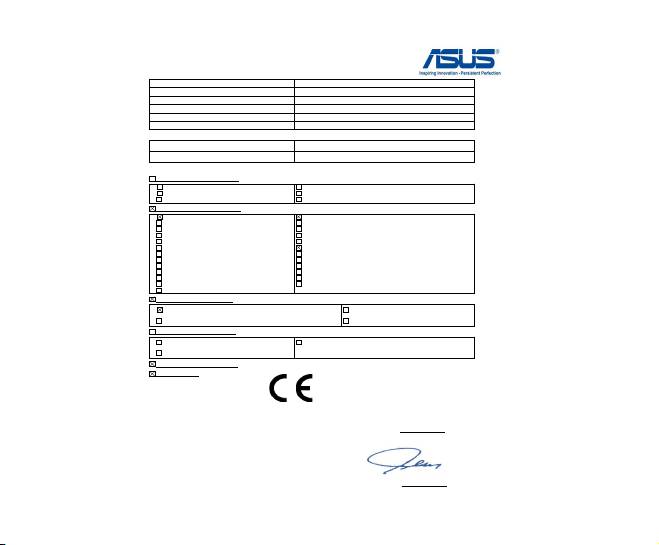
EC Declaration of Conformity
We, the undersigned,
Manufacturer:
ASUSTeK COMPUTER INC.
Address, City:
4F, No. 150, LI-TE Rd., PEITOU, TAIPEI 112, TAIWAN
Country:
TAIWAN
Authorized representative in Europe:
ASUS COMPUTER GmbH
Address, City:
HARKORT STR. 21-23, 40880 RATINGEN
Country:
GERMANY
declare the following apparatus:
Product name : Bluetooth 4.0 USB Dongle
Model name : USB-BT400
conform with the essential requirements of the following directives:
2004/108/EC-EMC Directive
EN 55022:2010
EN 55024:2010
EN 61000-3-2:2006+A2:2009
EN 61000-3-3:2008
EN 55013:2001+A1:2003+A2:2006
EN 55020:2007+A11:2011
1999/5/EC-R &TTE Directive
EN 300 328 V1.7.1(2006-10)
EN 301 489-1 V1.9.2(2011-09)
EN 300 440-1 V1.6.1(2010-08)
EN 301 489-3 V1.4.1(2002-08)
EN 300 440-2 V1.4.1(2010-08)
EN 301 489-4 V1.4.1(2009-05)
EN 301 511 V9.0.2(2003-03)
EN 301 489-7 V1.3.1(2005-11)
EN 301 908-1 V5.2.1(2011-05)
EN 301 489-9 V1.4.1(2007-11)
EN 301 908-2 V5.2.1(2011-07)
EN 301 489-17 V2.1.1(2009-05)
EN 301 893 V1.6.1(2011-11)
EN 301 489-24 V1.5.1(2010-09)
EN 302 544-2 V1.1.1(2009-01)
EN 302 326-2 V1.2.2(2007-06)
EN 302 623 V1.1.1(2009-01)
EN 302 326-3 V1.3.1(2007-09)
EN 300 330-1 V1.7.1(2010-02)
EN 301 357-2 V1.4.1(2008-11)
EN 300 330-2 V1.5.1(2010-02)
EN 50385:2002
EN 50360:2001
EN 62311:2008
EN 62479:2010
2006/95/EC-LVD Directive
EN 60950-1 :2006+A1:2010+A11:2009+A12:2011
EN 60065:2002 / A2:2010
EN 60950-1 / A12:2011
EN 60065:2002 / A12:2011
2009/125/EC-ErP Directive
Regulation (EC) No. 1275/2008
Regulation (EC) No. 278/2009
Regulation (EC) No. 642/2009
2011/65/EU-RoHS Directive
Ver. 121001
CE marking
(EC conformity marking)
Position : CEO
Name : Jerry Shen
Declaration Date: Nov. 16, 2012
Year to begin affixing CE marking:2012
Signature :
__________
