
Asus P1-PH1: Installing an expansion card Installing optical and storage drives
Installing an expansion card Installing optical and storage drives: Asus P1-PH1
Table of contents
- Front panel features Rear panel features
- Internal components Removing the cover
- Removing the front panel cover Removing the storage drive assembly Removing the CPU fan and heatsink
- Installing the CPU Installing a DIMM
- Installing an expansion card Installing optical and storage drives
- Reinstalling the storage drive assembly Installing the foot stand
- Reinstalling the front panel cover Reinstalling the cover
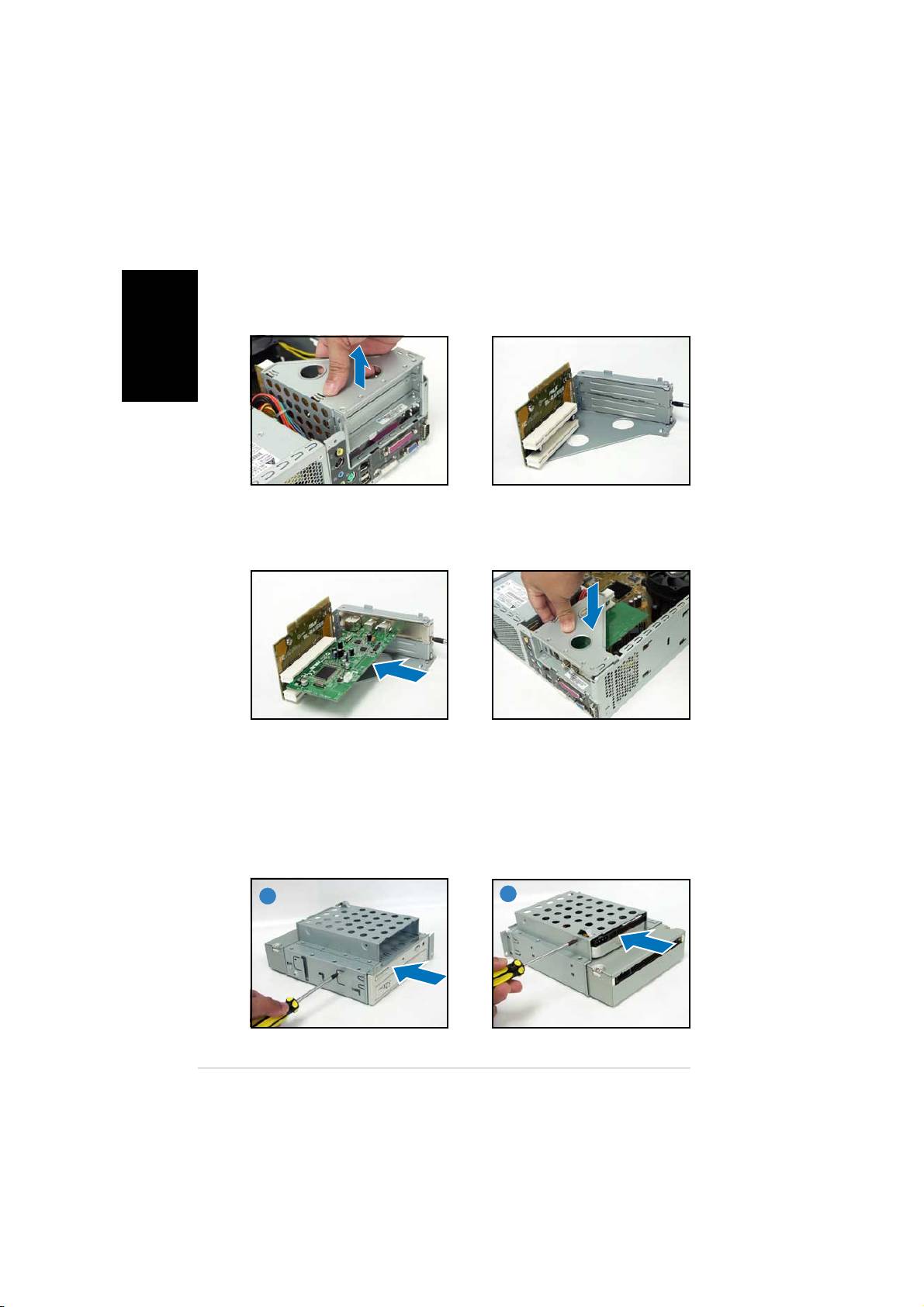
Installing an expansion card
1. Lift the PCI riser card
2. Remove the metal cover
English
assembly to remove.
opposite the slot that you
intend to use.
3. Insert the card connector to
4. Reinstall the PCI riser card
the slot, then press the card
assembly. Make sure that the
firmly until it fits in place.
riser card connector sits properly
Secure the card with a screw.
on the motherboard PCI slot.
Installing optical and storage drives
1. Turn the storage drive assembly upside down with the 3.5-inch bay on
top of the 5.25-inch bay.
2. Insert the optical drive upside down to the 5.25-inch bay, then secure
it with two screws on both sides.
3. Turn the storage drive assembly, insert the hard disk drive upside down to
the 3.5-inch bay, then secure it with two screws on both sides.
22
22
2
3
33
33
66
66
6
Quick installation guideQuick installation guide
Quick installation guideQuick installation guide
Quick installation guide
