
Asus GigaX1116B: Connecting network devices
Connecting network devices: Asus GigaX1116B
Table of contents
Connecting network devices
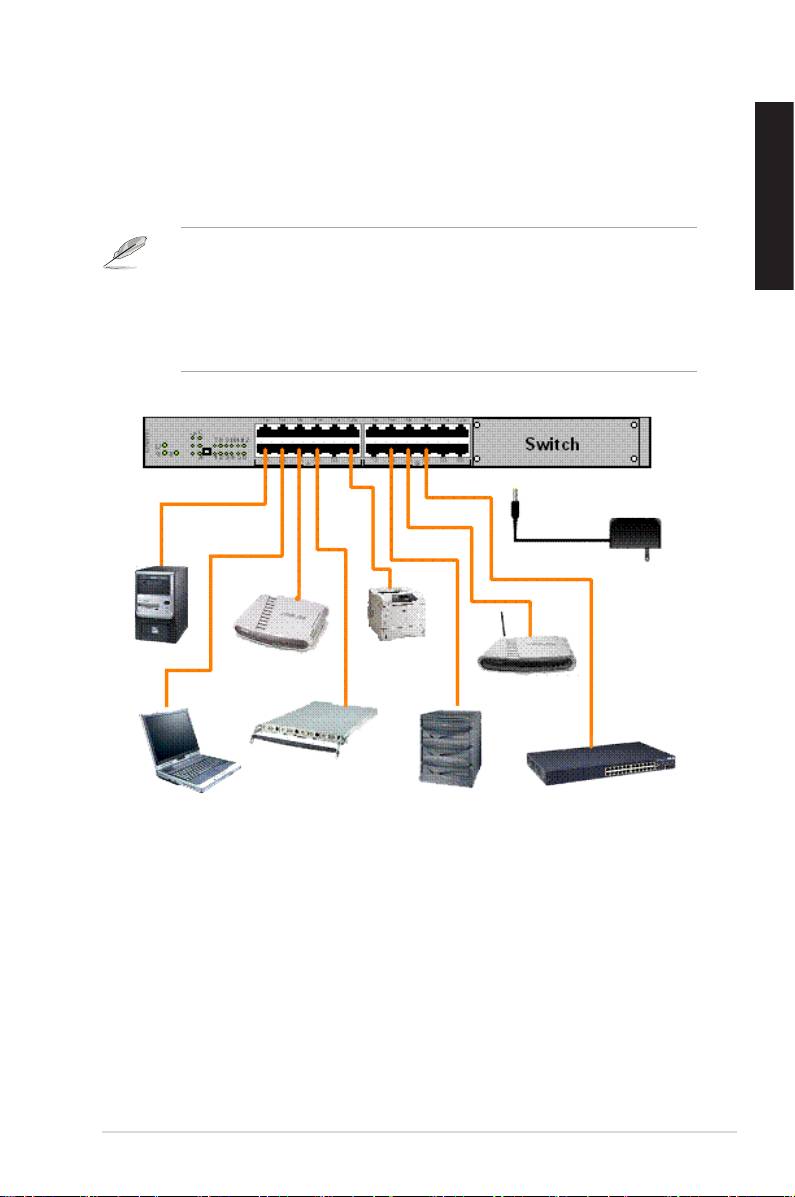
To connect network devices to the GigaX1116B or GigaX1124B switch:
1. Connect one end of the Ethernet cable to an Ethernet port on the switch
rear panel. Connect the other end to the Ethernet port of the network
device. Repeat this step to connect additional network devices.
English
NOTES
• Use Category 5 straight-through Ethernet cables for wiring so as to
ensure connection speed between the switch and the network devices.
• You can use either corssover or straight-through cable to connect other
network devices such as bridges, switches, hubs and PCs.
AC Adapter
Desktop
Printer
Router
Server
Wireless
AP
Server
Notebook
NAS
Switch/Hub
Figure 4. Network Device Connctions
2. Plug one end of the power cable to the power connector on the switch rear
panel, then plug the other end to a power outlet.
3. The Power LED indicator and the LAN LED indicators of active Ethernet
ports light up when the switch is powered on, and active nodes are
connected to the LAN ports. Refer to the front panel illustrations and LED
table in page 4 for the meaning of LED indicators.
Quick Start Guide 5
