
Asus Asteio D20: Asus Media Center PC Quick Start Guide
Asus Media Center PC Quick Start Guide: Asus Asteio D20
Table of contents
- Asus Media Center PC Quick Start Guide
- Asus Media Center PC Quick Start Guide
- Asus Media Center PC Quick Start Guide
- Asus Media Center PC Quick Start Guide
Asus Media Center PC Quick Start Guide
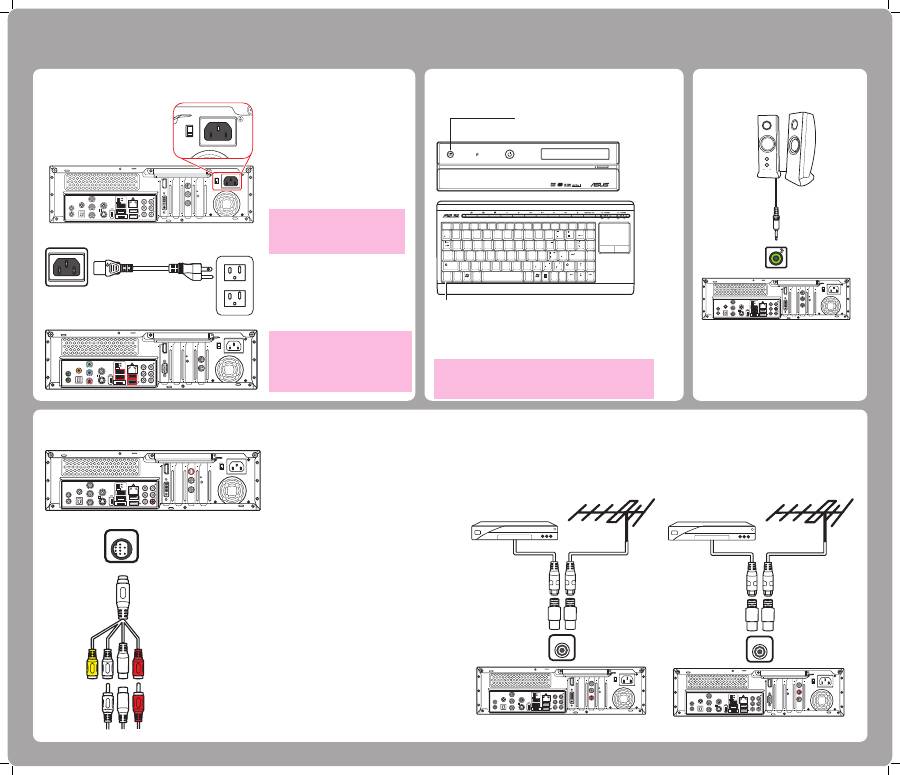
Connecting and Turning On The Power
Connecting Wireless Keyboard and Mouse
Press the Connect button on the front panel of your Media
Center PC and the ID Link button on your wireless keyboard
to establish a link.
Connecting Speakers
Connect the speakers to the Audio Out
jack (green) as shown. Speakers may be
sold separately.
This guide explains how to quickly get started using your Media Center PC. Please refer to the User’s Manual for more detailed installation and safety instructions.
1. Connect the power cable to the AC
IN jack on the rear panel of the
Media Center PC.
2. Plug the power cable into a power
socket.
3. Press the Power button on the
front panel to turn on the Media
Center PC.
Connecting the TV Signal Source
Connecting to TV Signal Source Using S-video
1. Connect an S-video cable from a video
source to the Video In adapter cable and
connect it to the Video In port.
2. Connect a RCA cable from the Audio Out
jacks on the video device to the Line In
(red) jack.
Connecting to TV Signal/Coaxial TV
Connect a coaxial cable from a video device to the TV jack.
TV
15
2.0
2.0
2.0
E - S ATA
VIDEO OUT
REAR
CENTER
HDMI
VIDEO-IN
SIDE
S / P D I F
Y
P b
P r
I R 1
I R 2
S / P D I F
s
TV1
TV2
15
2.0
2.0
2.0
E-SATA
VIDEO OUT
REAR
CENTER
HDMI
VIDEO-IN
SIDE
S / P D I F
Y
P b
P r
I R 1
I R 2
S / P D I F
s
TV1
TV2
VIDEO-IN
TV
15
2.0
2.0
2.0
E - S ATA
VIDEO OUT
REAR
CENTER
HDMI
TV1
TV2
SIDE
S / P D I F
Y
P b
P r
I R 1
I R 2
S / P D I F
s
VIDEO-IN
Asteio D20
Asteio D22
E82405S
P
R
15
2 . 0
2 . 0
2 . 0
E - S ATA
V I D E O O U T
R E A R
C E N T E R
H D M I
V I D E O - I N
S I D E
S / P D I F
Y
P b
P r
I R 1
I R 2
S / P D I F
s
T V 1
T V 2
15
15
2 . 0
2 . 0
2 . 0
E - S ATA
V I D E O O U T
R E A R
C E N T E R
H D M I
T V 2
S I D E
S / P D I F
Y
P b
P r
I R 1
I R 2
S / P D I F
s
V I D E O - I N
Asteio D20
Asteio D22
RECORDER
D V D + R D L
Digital HOME
HIGH DEFINITION MULTIMEDIA INTERFACE
Connect button
Esc
Tab
F1
F2
F3
F4
F5
F6
F7
F8
F9
F10
F11
F12
Num
Lock
Caps
Lock
ID Fn
Link
PrtSc
SysRq
Scroll
Lock
Back
Space
Pause
Break
Home
PgUp
PgDn
Enter
End
Shift
~
!
@
#
$
^
&
(
)
*
*
%
0
9
9
8
8
7
5
4
3
2
1
Q
7
4
6
5
2
3
1
6
0
Shift
Ctrl
Alt
W
E
R
T
Y
U
I
O
P
A
S
D
F
G
H
J
K
L
Z
X
C
V
B
N
M
Alt
Ins
Del
"
<
>
?
{
[
}
]
ID Link
button
15
2 . 0
2 . 0
2 . 0
E - S ATA
V I D E O O U T
R E A R
C E N T E R
H D M I
V I D E O - I N
S I D E
S / P D I F
Y
P b
P r
I R 1
I R 2
S / P D I F
s
T V 1
T V 2
1
15G06J0080K0
Note:
Ensure you use the correct voltage as rec-
ommended by the manufacturer before
turning on your Media Center PC. Check
the voltage label located on the left of the
Power In jack.
Warning:
• Openings in the computer case are provided
for ventilation. Do not block or cover these
openings.
• Do not set up the system in an enclosed
cabinet as it may cause overheat.
• Make sure you provide adequate space
around the system for ventilation.
Note:
When the wireless keyboard is left idle for more than three minutes, it
enters the power saving mode to reduce power consumption. Press any
key (excluding the touch pad and the left/right click button) to return to
normal mode.
English
