
Pioneer VSX-LX70: Playback with Home Media Gallery
Playback with Home Media Gallery: Pioneer VSX-LX70
VSX_LX70_net.book Page 4 Tuesday, June 5, 2007 10:47 AM
03
Playback with Home Media Gallery
Chapter 3:
Playback with Home Media Gallery
DLNA
Introduction
The Home Media Gallery allows you to play music on
media servers connected on an identical Local Area
Network (LAN) as the receiver. This unit allows for the
playing of files stored on the following:
• PCs running Microsoft Windows XP with Windows
Media Connect installed
DLNA CERTIFIED™ Audio Player
• PCs running Microsoft Windows Vista or XP with
The Digital Living Network Alliance (DLNA) is a cross-
Windows Media Player 11 installed
industry organization of consumer electronics,
• DLNA-compatible digital media servers (on PCs or
computing industry and mobile device companies.
other components)
Digital Living provides consumers with easy sharing of
To play back audio files stored on components on the
digital media through a wired or wireless network in the
network or listen to Internet radio stations, you must turn
home.
on the DHCP server function of your router. In case your
The DLNA certification logo makes it easy to find
router does not have the built-in DHCP server function, it
products that comply with the DLNA Interoperability
is necessary to set up the network manually. Otherwise,
Guidelines. This unit complies with DLNA Interoperability
you cannot play back audio files stored on components
Guidelines v1.0.
on the network or listen to Internet radio stations. See
When a PC running DLNA server software or other DLNA
Setting up the network on page 10 for more on this.
compatible device is connected to this player, some
setting changes of software or other devices may be
required. Please refer to the operating instructions for
About network playback
the software or device for more information.
The network playback function of this unit uses the
following technologies:
DLNA and DLNA CERTIFIED are trademarks and/or service marks of
Digital Living Network Alliance.
Windows Media Connect
Content playable over a network
See Windows Media Player 11/ Windows Media Connect
• Even when encoded in a compatible format, some
on page 17 for more on this.
files may not play correctly.
Windows Media DRM
• Movie and photo files cannot be played back.
Microsoft Windows Media Digital Rights Management
• There are cases where you cannot listen to an
(WMDRM) is a platform to protect and securely deliver
Internet radio station even if the station can be
content for playback on computers, portable devices and
selected from a list of radio stations.
network devices. Home Media Gallery functions as a
• Some functions may not be supported depending on
WMDRM 10 for networked devices. WMDRM protected
the server type or version used.
content can only be played on media servers supporting
• Supported file formats vary by server. As such, files
WMDRM.
not supported by your server are not displayed on this
Content owners use WMDRM technology to protect their intellectual
unit. For more information check with the
property, including copyrights. This device uses WMDRM software to
manufacturer of your server.
access WMDRM protected content. If the WMDRM software fails to
protect the content, content owners may ask Microsoft to revoke the
software’s ability to use WMDRM to play or copy protected content.
Revocation does not affect unprotected content. When you download
licenses for protected content, you agree that Microsoft may include a
revocation list with the licenses. Content owners may require you to
upgrade WMDRM to access their content. If you decline an upgrade,
you will not be able to access content that requires the upgrade.
This product is protected by certain intellectual property rights of
Microsoft. Use or distribution of such technology outside of this
product is prohibited without a license from Microsoft.
4
En

VSX_LX70_net.book Page 5 Tuesday, June 5, 2007 10:47 AM
Playback with Home Media Gallery
03
About playback behavior over a network
• Playback may stall when the PC is switched off or any
Playback
media files stored on it are deleted while playing
CD
CD-R
HDMI
content.
DVD TV
BD TV CTRL
TV VOL
INPUT
SELECT
TV CH
VOL
HOME MEDIA
• If there are problems within the network environment
DVR2
GALLERY
ZONE2/3
DVR1
i Pod
TUNER
RECEIVER
(heavy network traffic, etc.) content may not be
TV/DTV
REC
INFO
SLEEP
DIMMER
ANALOG
A
MUTE
displayed or played properly (playback may be
ATT
MPX
EON
REC STOP
JUKEBOX
BCDE
interrupted or stalled). For best performance, a
SR
+
GENRE
100BASE-TX connection between player and PC is
AUDIO SUBTITLE
HDD
DVD
DISP
CH
CH
recommended.
PHOTO
T.DISP
STEREO/
STATUSSTATUS
SIGNAL SEL
SBch
F.S.SURR
D.ACCESS
CLASS
CLEAR
DISC
• If several clients are playing simultaneously, as the
+
10
CH
ENTER
LEVEL
MULTI OPE
THX
STANDARD
ADV.SURR
case may be, playback is interrupted or stalled.
A PARAMETER
V PARAMETER
TOP MENU
MENU T.EDIT
TUNE
SHIFT
PHASE
MCACC S.DIRECT
• Depending on the security software installed on a
BAND
ST ST
ENTER
connected PC and the setting of such software,
SETUPSETUP
RETURNRETURN
network connection may be blocked.
PROGRAM
TUNE
PTY SEARCH
GUIDE
TV CONTROL
RECEIVER
Pioneer is not responsible for any malfunction of the
player and/or the Home Media Gallery features due to
communication error/malfunctions associated with your
Important
network connection and/or your PC, or other connected
equipment. Please contact your PC manufacturer or
• For the names of folders, files, and Internet radio
Internet service provider.
stations, up to 21 characters are displayed on the
“Windows Media™” is a trademark of Microsoft Corporation.
folder/file list screen of the Home Media Gallery while
This product includes technology owned by Microsoft Corporation and
up to 24 characters are displayed on the playback
cannot be used or distributed without a license from Microsoft
screen.
Licensing, Inc.
• When you play back audio files, ‘Connecting...’ is
®
®
®
®
Microsoft
, Windows
Vista, Windows
XP, Windows
2000,
displayed before playback starts. The display may
®
®
®
Windows
Millennium Edition, Windows
98, and WindowsNT
are
continue for several seconds depending on the type
either registered trademarks or trademarks of Microsoft Corporation in
of file.
the United States and/or other countries.
• In case a domain is configured in a Windows network
Authorizing this receiver
environment, you cannot access a PC on the network
while you are logged onto the domain. Instead of
In order to be able to play with Home Media Gallery, this
logging onto the domain, log onto the local machine.
receiver must be authorized. This happens automatically
when the receiver makes a connection over the network
• This receiver can play back audio files compressed in
to the PC. If not, please authorize this receiver manually
VBR (Variable Bit rate) mode, but there are cases
on the PC. The authorization (or permission) method for
where the time elapsed may not be correctly
access varies depending on the type of server currently
displayed.
being connected. For more information on authorizing
this receiver, refer to the instruction manual of your
server.
5
En
VSX_LX70_net.book Page 6 Tuesday, June 5, 2007 10:47 AM
03
Playback with Home Media Gallery
1 Press
HOME MEDIA GALLERY
(press
iPod
while
4 Repeat Step 3 to play back the desired song.
you press and hold
SHIFT
) to select
HMG
as the input
You can perform the following operations with the remote
source.
control of this receiver. Note that some buttons are not
It may take several seconds for this receiver to access the
available for operation depending on the category currently
network. The following screen appears when the Home
being played back.
Media Gallery is selected as the input source.
Button(s) Function
Home Media G
-
55.0
dB
Top Menu
Play
Pre 001/009
[ USB ]
Pause
[ Internet Radio ]
[ Neural Music Direct ]
[ Server1 ]
Stop
[ Server2 ]
[ Server3 ]
[ Server4 ]
/ Skip forward and backward
[ Favorites ]
Next
: All repeat (available only
The server without the mark cannot be accessed.
during playback)
2Use
/
to select the category you want to play
1
: Repeat one song (available
only during playback)
back, and then press
ENTER
.
Shuffle
Select a category from the following list:
• USB – USB memory device
DISP Display
• Internet Radio – Internet radio
/ Scroll up and down
• Neural Music Direct – Internet radio that supports
ENTER Select and confirm an item in the
selected list.
Neural Surround
• Server Name – Server components on the network
RETURN Previous Menu
• Favorites – Favorite songs currently being registered
Depending on the selected category, the names of
TOP MENU Top Menu
folders, files, and Internet radio stations are displayed.
Playing back audio files stored on
3Use
/
to select the folder, music file or Internet
components on the network
radio station to play back, and then press
ENTER
.
Press the / buttons to scroll up and down the list and
select the desired item. When you press ENTER, playback
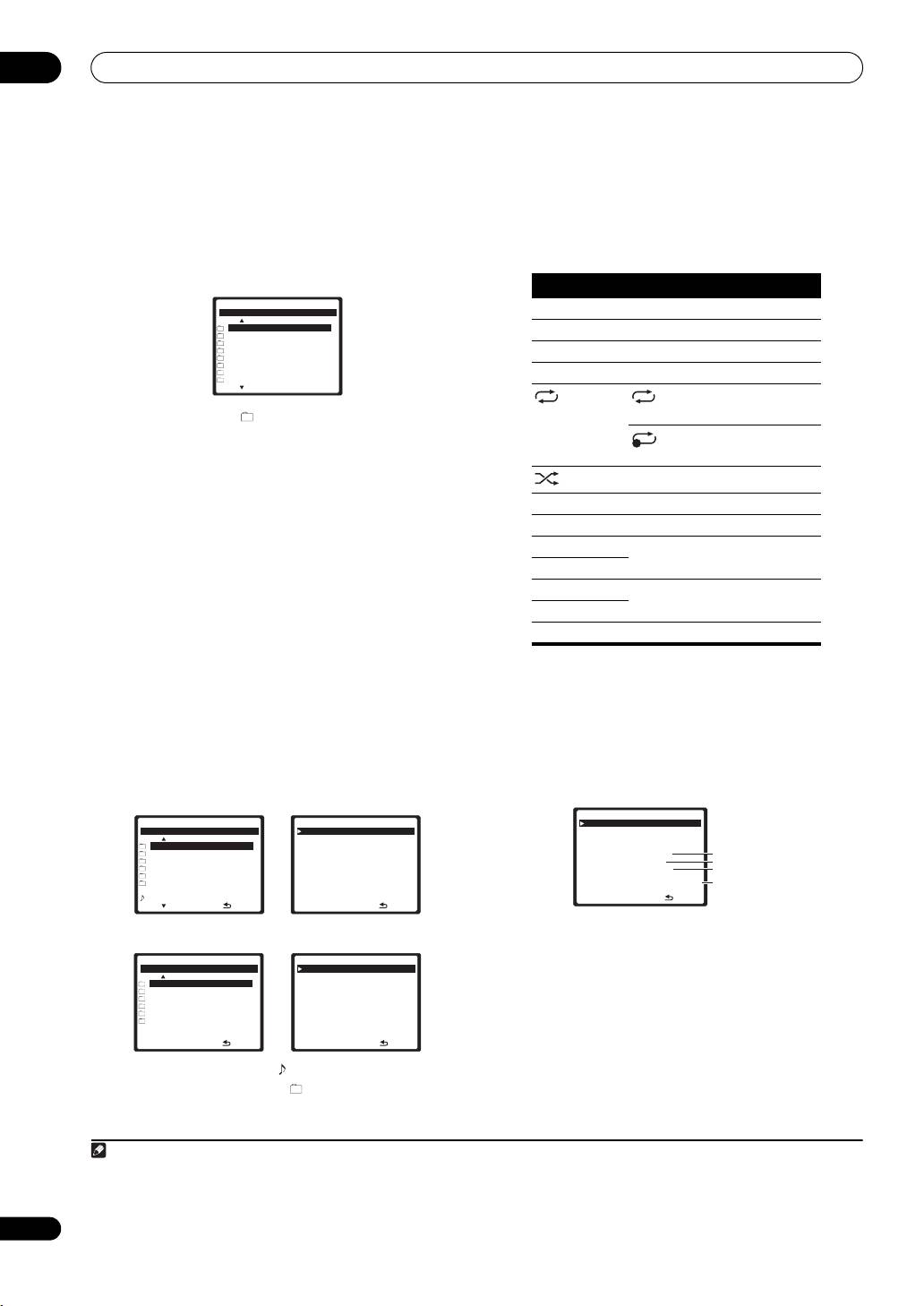
About the playback screen
starts with the playback screen being displayed for the
The following screen appears when you play back audio
selected item. To return to the list screen, press RETURN.
files. Note that some items may not be displayed
depending on the type of file.
• In case of a USB memory device or a server
Home Media G
-
55.0
dB
Home Media G
-
55.0
dB
Home Media G
-
55.0
dB
Play
Server1
Play
Pre 001/012
[ Group1 ]
[ Group2 ]
We are all one
Song
[ Group3 ]
Song1
Beat Band
Artist
[ Group4 ]
Artist1
PRIDE of LIFE
Album
[ Group5 ]
Album1
[ Group6 ]
3:36
Time elapsed
[ File1 ]
3:36
[ Song0 ]
Return
Next Return
Return
• In case of Internet radio
Playing back audio files stored on a USB
Home Media G
-
55.0
dB
Home Media G
-
55.0
dB
memory device
Internet Radio
Play
Pre 001/006
[ Location ]
The maximum number of levels that you can select in
[ Genre ]
[ Podcasts By Location ]
Song1
Steps 3 and 4 is 8. Also, you can display and play back up
[ Podcasts By Genre ]
Artist1
[ New Stations ]
Album1
1
[ Most Popular Station ]
to 2000 folders and files within a single folder.
3:36
Return
Return
Only the audio files with the mark can be played back.
In case of the folders with the mark, use / and
ENTER to select the desired folder and audio file.
Note
1 • Playback stops when the last song in a folder is played back to the end.
• When a USB memory device with a large capacity is connected, it may take some time to read all the contents.
• This receiver does not support a USB hub.
• Copyrighted audio files cannot be played back on this receiver.
6
En

VSX_LX70_net.book Page 7 Tuesday, June 5, 2007 10:47 AM
Playback with Home Media Gallery
03
Listening to Internet radio stations
Listening to Neural Music Direct
About Internet radio
About Neural Music Direct
Internet radio is an audio broadcasting service
Neural Music Direct is an Internet radio station managed
transmitted via the Internet. There are a large number of
and operated by Neural THX. Neural radio stations deliver
Internet radio stations broadcasting a variety of services
multichannel surround sound. The Neural-THX Surround
from every corner of the world. Some are hosted,
mode is automatically selected and lets you enjoy a rich
managed, and broadcast by private individuals while
multichannel surround sound experience. For details
others are by the corresponding traditional terrestrial
about Neural THX, see the operation manual supplied
radio stations or radio networks. Whereas terrestrial, or
separately.
OTA (over-the-air), radio stations are geographically
restricted on the range of radio waves broadcast from a
transmitter through the air, Internet radio stations are
accessible from anywhere in the world, as long as there
is a connection to the Internet, as services are not
Neural Surround is a trademark owned by Neural Audio Corporation,
THX is a trademark of THX Ltd., which may be registered in some
transmitted through the air but are delivered over the
jurisdictions. All rights reserved.
World Wide Web. On this receiver you can select Internet
radio stations by genre as well as by region.
Playing back your favorite songs
About the playback screen
About the Favorites folder
The following screen appears when audio streams from
You can register up to 20 of your favorite songs in the
an Internet radio station are received.
Favorites folder. Note that only the audio files stored on
Home Media G
-
55.0
dB
components on the network can be registered.
Play
We are all one
Song
Registering and deleting audio files and Internet
Beat Band
Artist
PRIDE of LIFE
Album
radio stations in and from the Favorites folder
3:36
Time elapsed
Press PROGRAM while a song is being played back or
Return
stopped. The selected song is then registered in the
Favorites folder.
About list of Internet radio
Up to 20 songs or Internet radio stations can be
The list of Internet radio stations on this receiver is
registered. Songs stored on a USB memory device
created, edited, and managed by the vTuner database
cannot be registered.
service exclusively for use with this receiver.
To delete a registered song, select the Favorites folder,
Saving and retrieving Internet radio stations
select the song you want to delete from the folder, and
You can easily save and retrieve saved Internet radio
press CLEAR. The selected song is then deleted from the
stations. See Advanced operations for Internet radio on
Favorites folder.
1
page 9 for more on this.
Note
1 • To listen to Internet radio stations, you must have high-speed broadband Internet access. With a 56 K or ISDN modem, you may not enjoy the full
benefits of Internet radio.
• The port number varies depending on the Internet radio station. Check the firewall settings.
• A list of Internet radio stations provided by the vTuner database service is subject to change or deletion without notice due to various reasons.
• Broadcasts may be stopped or interrupted depending on the Internet radio station. In this case, you cannot listen to a radio station selected from the
list of Internet radio stations.
7
En

VSX_LX70_net.book Page 8 Tuesday, June 5, 2007 10:47 AM
03
Playback with Home Media Gallery
About playable file formats
The Home Media Gallery feature of this receiver supports the following file formats. Note that some file formats are not
available for playback although they are listed as playable file formats. Also, the compatibility of file formats varies depending
on the type of server. Check with your server to ensure the compatibility of file formats supported by your server.
Category Extension Stream
MP3 .mp3 MPEG-1 Audio Layer-3 Sampling frequency 8 kHz to 48 kHz
Quantization bitrate 16 bit
Channel 2 ch
Bitrate 8 kbps to 320 kbps
VBR/CBR Supported/Supported
LPCM — LPCM Sampling frequency 8 kHz to 44.1 kHz
Quantization bitrate 16 bit, 20 bit, 24 bit
Channel 2 ch
WAV .wav LPCM Sampling frequency 8 kHz to 44.1 kHz
Quantization bitrate 16 bit, 20 bit, 24 bit
Channel 2 ch
WMA .wma WMA2/7/8 Sampling frequency 8 kHz to 48 kHz
Quantization bitrate 16 bit
Channel 2 ch
Bitrate 5 kbps to 320 kbps
VBR/CBR Supported/Supported
WMA9 Sampling frequency 8 kHz to 48 kHz
Quantization bitrate 16 bit
Channel 2 ch
Bitrate 5 kbps to 320 kbps
VBR/CBR Supported/Supported
AAC .m4a
MPEG-4 AAC LC
Sampling frequency 32 kHz to 48 kHz
.aac
MPEG-4 HE AAC (aacPlus v1/2)
Quantization bitrate 16 bit
.3gp
.3g2
Channel 2 ch
Bitrate 16 kbps to 320 kbps
VBR/CBR Supported/Supported
FLAC .flac FLAC Sampling frequency 8 kHz, 16 kHz, 22 kHz, 32 kHz,
44.1 kHz, 48 kHz
Quantization bitrate 8 bit, 16 bit
Channel 2 ch (8-bit monaural audio is
not supported)
Bitrate —
VBR/CBR Not supported/Supported
“MPEG Layer-3 audio decoding technology licensed from
Fraunhofer IIS and Thomson multimedia.”
8
En
VSX_LX70_net.book Page 9 Tuesday, June 5, 2007 10:47 AM
Playback with Home Media Gallery
03
Retrieving saved Internet radio stations
Advanced operations for Internet radio
You need to save Internet radio stations first before
retrieving them. If there are no Internet radio stations
currently being saved, see Saving Internet radio stations
D.ACCESS
CLASS
CLEAR
DISC
above and save at least one Internet radio station before
+
10
CH
ENTER
LEVEL
proceeding with the following steps.
A PARAMETER
V PARAMETER
TOP MENU
MENU T.EDIT
TUNE
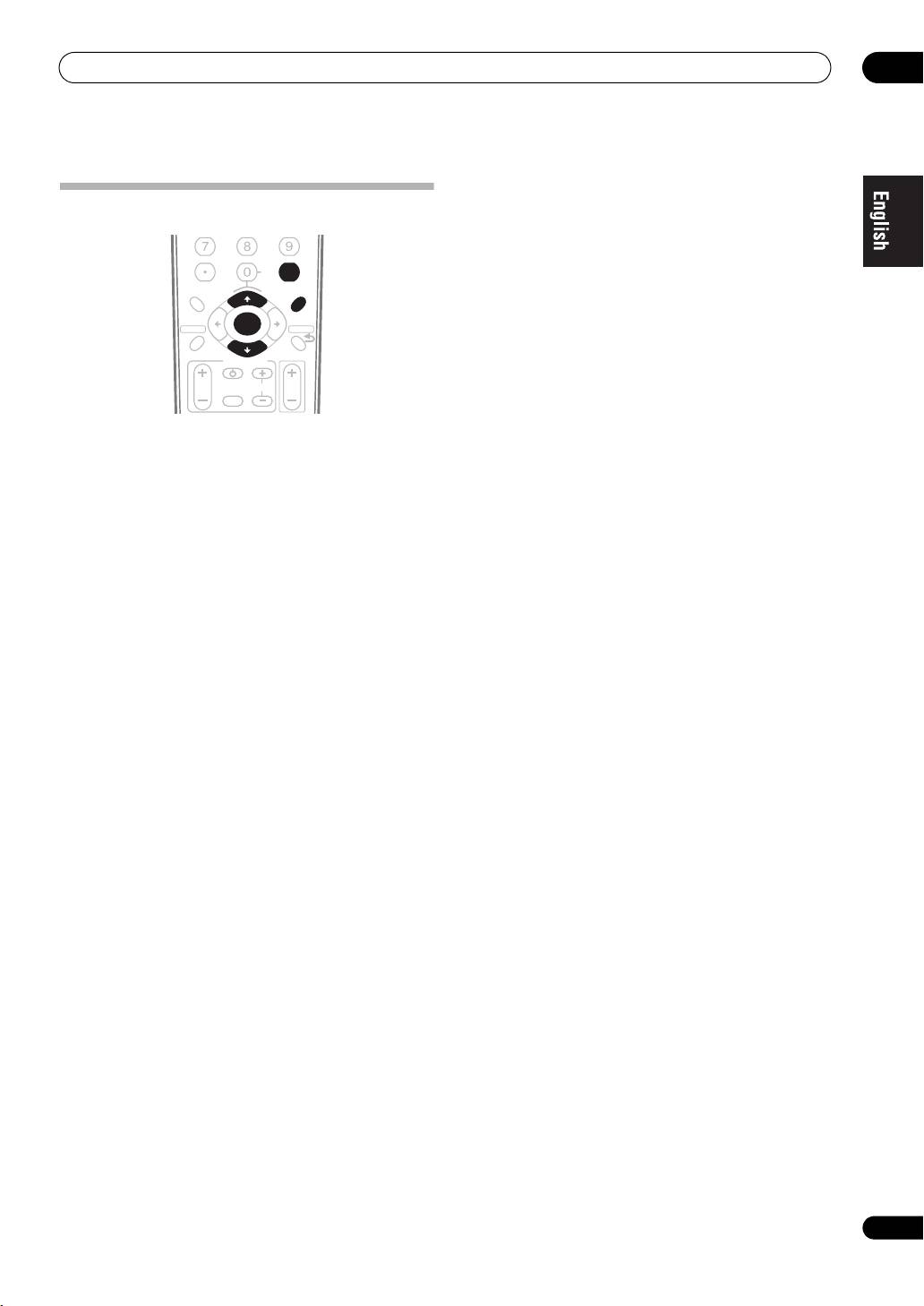
1 Select the class that you want to retrieve an
BAND
ST ST
ENTER
SETUPSETUP
RETURNRETURN
Internet radio station from.
TUNE
Each time you press CLASS, the class switches to A, B,
PROGRAM
PTY SEARCH
GUIDE
TV CONTROL
and C in turn.
TV VOL
INPUT
SELECT
TV CH
VOL
2Use
/
to select the station number that you
want to retrieve.
You can also select the station number by using the
number buttons.
Saving Internet radio stations
This receiver can remember the Internet radio stations
‘Preset Not Stored’ appears when you select an Internet
that you often listen to in 3 classes (A, B, and C) with up
radio station currently not being saved.
to 10 stations in each class to make the total of 30
stations at its maximum capacity.
Before proceeding with the following steps, check
whether you have followed Steps 1 to 3 on page 6.
1 Tune into the Internet radio station that you want
to save.
Tune into the desired Internet radio station by following
Steps 1 to 3 on page 6.
2Press
T.EDIT
to switch to the station-saving mode.
3Press
CLASS
to select the class that you want to
save the station in.
Select the desired class from A, B, and C.
4Use
/
to select the number that you want to
save the station as, and then press
ENTER
.
You can also select the station number by using the
number buttons. Select the desired number from 0 to 9.
9
En
Table of contents
- Features
- Connection
- Playback with Home Media Gallery
- Setup
- Additional information
- Caractéristiques
- Raccordement
- Lecture avec Home Media Gallery
- Paramétrage
- Informations supplémentaires
- Merkmale
- Anschlüsse
- Wiedergabe mit Home Media Gallery
- Einstellung
- Zusätzliche Informationen
- Funzionalità
- Collegamento
- Riproduzione con Home Media Gallery
- Impostazione
- Informazioni aggiuntive
- Características
- Conexión
- Reproducción con Home Media Gallery
- Configuración
- Información adicional
- Kenmerken
- Aansluiting
- Afspelen met Home Media Gallery
- Instellingen
- Aanvullende informatie
- Особенности
- Подключение
- Воспроизведение через Home Media Gallery
- Настройка
- Дополнительная информация


