
Asus Xonar Essence ST: 3.2. Card installation
3.2. Card installation: Asus Xonar Essence ST
Table of contents
English
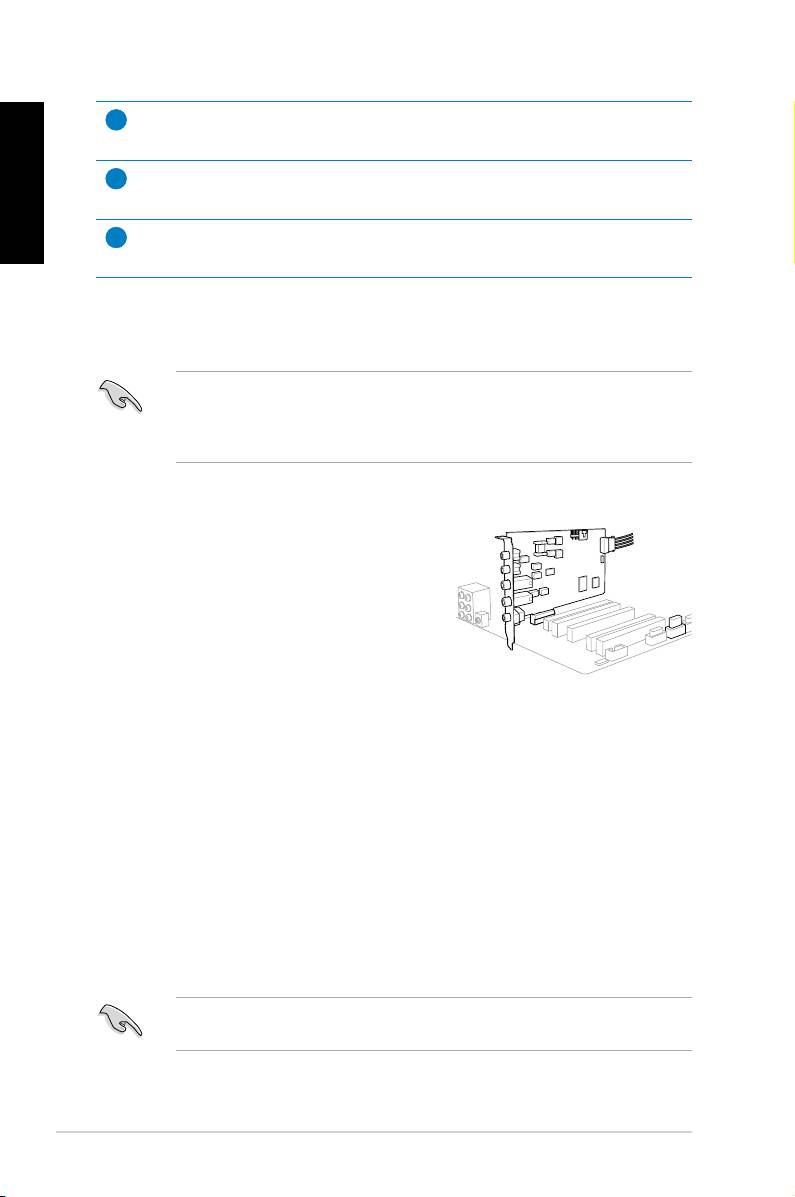
Installing the Xonar Essence ST card
1. Turn off your computer and disconnect all
peripherals connected to it.
2. Unplug the computer’s power cord from
the power outlet.
3. Touch the metal back or side panel of the
computer to avoid static electricity.
4. Remove the chassis cover.
5. Remove the metal bracket of a PCI slot.
6. Carefully insert the audio card into the PCI slot. Ensure that the audio card
sits properly in place.
7. Secure the audio card with the screw you removed from the PCI slot’s metal
bracket.
8. Connect the power cable of your power supply unit to the power connector of
the audio card.
9. Replace the chassis cover.
10. Reconnect all peripherals to your computer.
11. Plug the power cord to a power outlet.
12. Power ON the computer.
4
ASUS Xonar Essence ST Quick Start Guide
2
Power connector
8
Connects to the power cable of your power supply unit.
Main audio processor
9
ASUS Xonar AV100 Audio Processing Unit (Duplex HD 192K/24bit)
PCI Bus golden ngers
10
Connects to the PCI slot on your motherboard.
3.2. Card installation
Before you install the Xonar Essence ST card, disable your onboard audio
device in your BIOS settings, or uninstall any other audio cards on your
computer. For BIOS setting or uninstallation of other sound cards, refer to the
user manuals of your motherboard and audio card.
The PCI high-quality audio card requires additional power from your computer.
If the power cable is not connected properly, the audio card will not work at all.
