
Asus WL-107G: Inserting the ASUS WLAN card ASUS WLAN Utility Quick Start
Inserting the ASUS WLAN card ASUS WLAN Utility Quick Start: Asus WL-107G
Table of contents
- System Requirements Installation Procedures
- Quick Start Guide
- Inserting the ASUS WLAN card ASUS WLAN Utility Quick Start
- Quick Start Guide
- Soft AP (Windows XP Only) Reading the ASUS WLAN Status Indicators
Quick Start Guide
Inserting the ASUS WLAN card
English
Follow these instructions to install the ASUS WLAN card into your computer.
1. Turn ON your computer and enter Windows.
2. Insert the ASUS WLAN card into your
computer’s PCMCIA slot until it is
firmly seated.
3. Windows will automatically detect the
ASUS WLAN card. The “Found New
Hardware” wizard dialog will appear
and begin installing the driver. (Windows 98SE / Me users: During in-
stallation, Windows may prompt you to insert the “ Windows 98SE /
Me CD-ROM” which contains some driver files. Insert your “Windows
98SE / Me CD-ROM” and click Yes.)
4. When the ASUS WLAN card setup is completed you can start up the
WLAN utility to configure your ASUS WLAN card. Please refer to the
User’s Manual for more information.
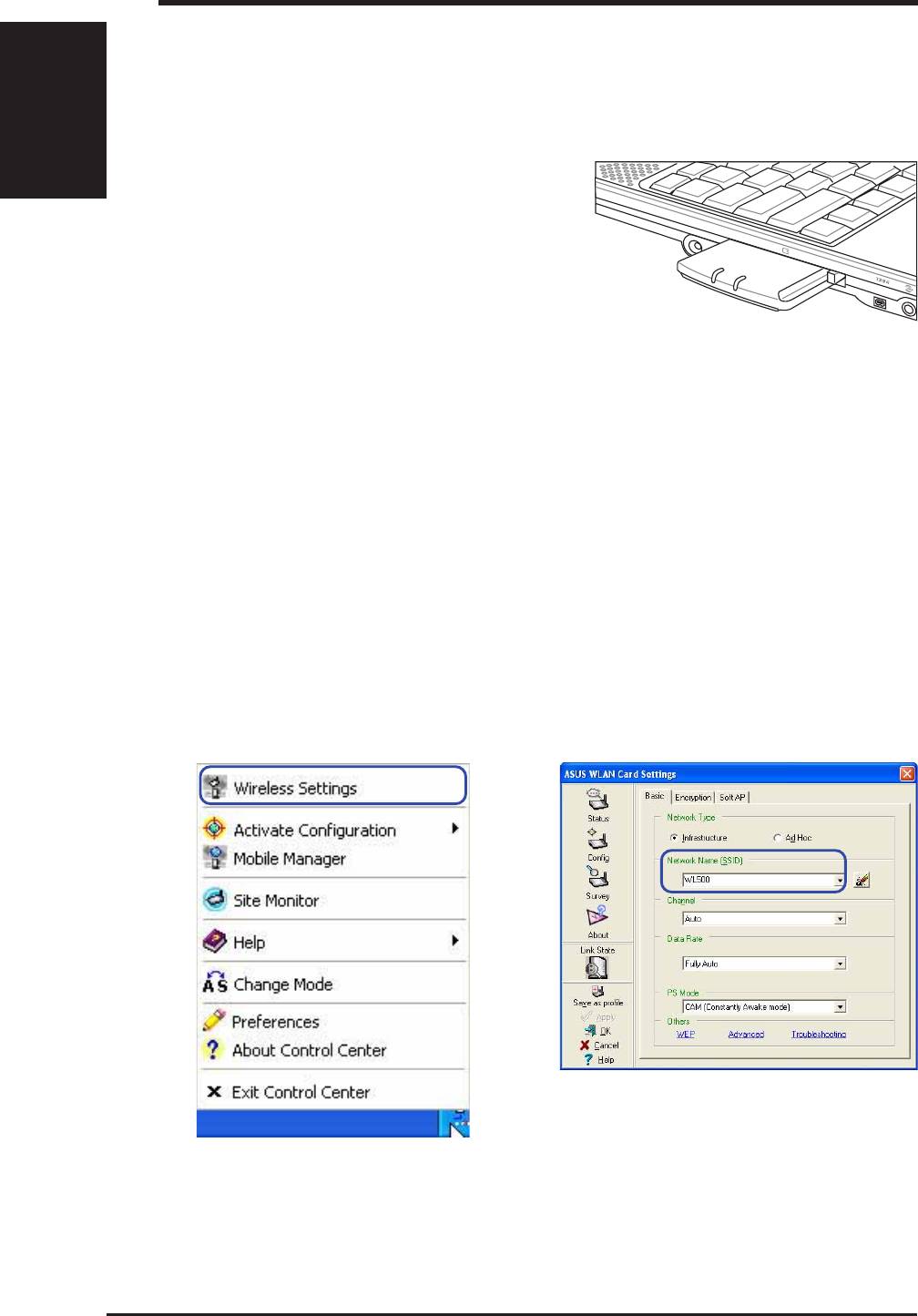
ASUS WLAN Utility Quick Start
After installing the ASUS WLAN Card Utilities, you may need to make some
settings before being able to use your wireless connection.
1. Right-click the ASUS WLAN icon and se-
2. Set the Network Name (SSID) to the same
lect “Wireless Settings”
name as the SSID set in your wireless ac-
cess point.
4
ASUS WLAN Card


