
Asus CT1410: Contents
Contents: Asus CT1410
Table of contents
- Contents

Contents
Notices ....................................................................................................4
Safety information ..............................................................................6
English
Notes for this manual ........................................................................7
Welcome ................................................................. 8
Package contents ................................................................................8
Knowing your Desktop PC .................................... 9
Front / Rear panel features ..............................................................9
Setting up your Desktop PC ................................ 12
Connecting devices .........................................................................12
Connecting the power ...................................................................13
Pressing the power button to turn on the system ...............13
Using the Media Center remote (optional) .............................14
Recovering your system ...................................... 16
Using the recovery DVD ................................................................16
Troubleshooting .................................................. 18
ASUS Essentio Desktop PC 3

Notices
English
Federal Communications Commission Statement
This device complies with Part 15 of the FCC Rules. Operation is
subject to the following two conditions:
• This device may not cause harmful interference, and
• This device must accept any interference received including
interference that may cause undesired operation.
This equipment has been tested and found to comply with the
limits for a Class B digital device, pursuant to Part 15 of the FCC
Rules. These limits are designed to provide reasonable
protection against harmful interference in a residential
installation. This equipment generates, uses and can radiate radio
frequency energy and, if not installed and used in accordance
with manufacturer’s instructions, may cause harmful
interference to radio communications. However, there is no
guarantee that interference will not occur in a particular
installation. If this equipment does cause harmful interference to
radio or television reception, which can be determined by
turning the equipment off and on, the user is encouraged to
try to correct the interference by one or more of the following
measures:
• Reorient or relocate the receiving antenna.
• Increase the separation between the equipment and receiver.
• Connect the equipment to an outlet on a circuit different from
that to which the receiver is connected.
• Consult the dealer or an experienced radio/TV technician for
help.
The use of shielded cables for connection of the monitor to
the graphics card is required to assure compliance with FCC
regulations. Changes or modifications to this unit not expressly
approved by the party responsible for compliance could void
the user’s authority to operate this equipment.
4 ASUS Essentio Desktop PC

Canadian Department of Communications
Statement
This digital apparatus does not exceed the Class B limits for radio
English
noise emissions from digital apparatus set out in the Radio
Interference Regulations of the Canadian Department of
Communications.
This class B digital apparatus complies with Canadian ICES-003.
Macrovision Corporation Product Notice
This product incorporates copyright protection technology that
is protected by method claims of certain U.S. patents and other
intellectual property rights owned by Macrovision Corporation
and other rights owners. Use of this copyright protection
technology must be authorized by Macrovision Corporation, and
is intended for home and other limited viewing uses only unless
otherwise authorized by Macrovision Corporation. Reverse
engineering or disassembly is prohibited.
Lithium-Ion Battery Warning
CAUTION: Danger of explosion if battery is incorrectly replaced. Replace
only with the same or equivalent type recommended by the manufactur-
er. Dispose of used batteries according to the manufacturer’s instructions.
VORSICHT: Explosionsgetahr bei unsachgemäßen Austausch der Batterie.
Ersatz nur durch denselben oder einem vom Hersteller empfohlenem
ähnljchen Typ. Entsorgung gebrauchter Batterien nach Angaben des
Herstellers.
ASUS Essentio Desktop PC 5

Safety information
English
Your ASUS Desktop PC is designed and tested to meet the latest
standards of safety for information technology equipment.
However, to ensure your safety, it is important that you read the
following safety instructions.
Setting up your system
• Read and follow all instructions in the documentation before
you operate your system.
• Do not use this product near water or a heated source such as
a radiator.
• Set up the system on a stable surface.
• Openings on the chassis are for ventilation. Do not block or
cover these openings. Make sure you leave plenty of space
around the system for ventilation. Never insert objects of any
kind into the ventilation openings.
• Use this product in environments with ambient temperatures
between 0˚C and 35˚C.
• If you use an extension cord, make sure that the total ampere
rating of the devices plugged into the extension cord does
not exceed its ampere rating.
Care during use
• Do not walk on the power cord or allow anything to rest on it.
• Do not spill water or any other liquids on your system.
• When the system is turned off, a small amount of
electrical current still flows. Always unplug all power, modem,
and network cables from the power outlets before cleaning
the system.
• If you encounter the following technical problems with the
product, unplug the power cord and contact a qualified
service technician or your retailer.
• The power cord or plug is damaged.
• Liquid has been spilled into the system.
6 ASUS Essentio Desktop PC
• The system does not function properly even if you follow
the operating instructions.
• The system was dropped or the cabinet is damaged.
English
• The system performance changes.
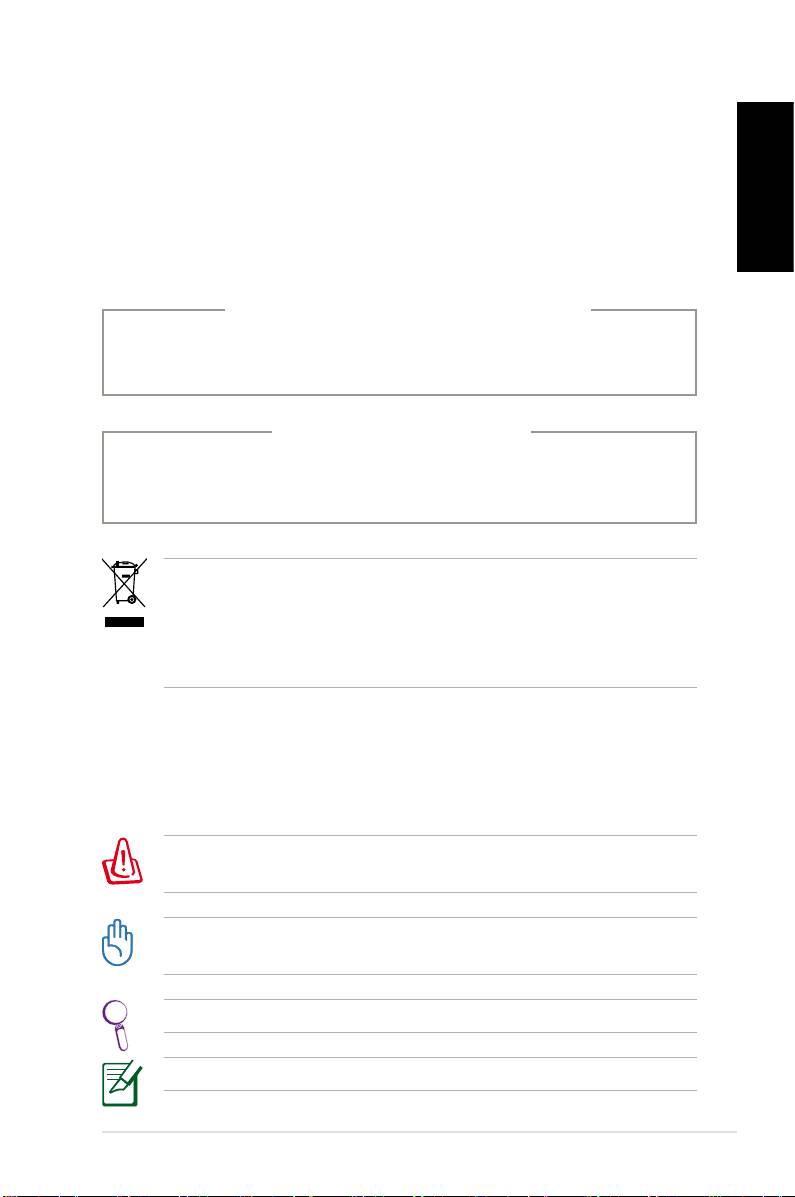
LASER PRODUCT WARNING
CLASS 1 LASER PRODUCT
NO DISASSEMBLY
The warranty does not apply to the products that
have been disassembled by users
This symbol of the crossed out wheeled bin indicates that
the product (electrical, electronic equipment, and mercury-
containing button cell battery) should not be placed in
municipal waste. Check local regulations for disposal of
electronic products.
Notes for this manual
To make sure that you perform certain tasks properly, take note
of the following symbols used throughout this manual.
WARNING: Vital information that you MUST follow to prevent
injury to yourself.
IMPORTANT: Instructions that you MUST follow to complete a
task.
TIP: Tips and useful information that help you complete a task.
NOTE: Additional information for special situations.
ASUS Essentio Desktop PC 7

Welcome
Congratulations on your purchase of the ASUS Desktop PC. The
English
package contents of your new Desktop PC are listed below but
may vary with models. ASUS reserves the right to replace
components or accessories to provide optimum serviceability.
Contact your retailer if any item is damaged or missing.
Package contents
• ASUS Desktop PC x1
• Keyboard x1
• Mouse x1
• Power cord x1
• Support DVD x1
• Recovery DVD x1
• Installation Guide x1
• Warranty card x1
• Remote control (optional) x1
Visit the ASUS website at http://support.asus.com for any
updates.
8 ASUS Essentio Desktop PC
Knowing your Desktop PC
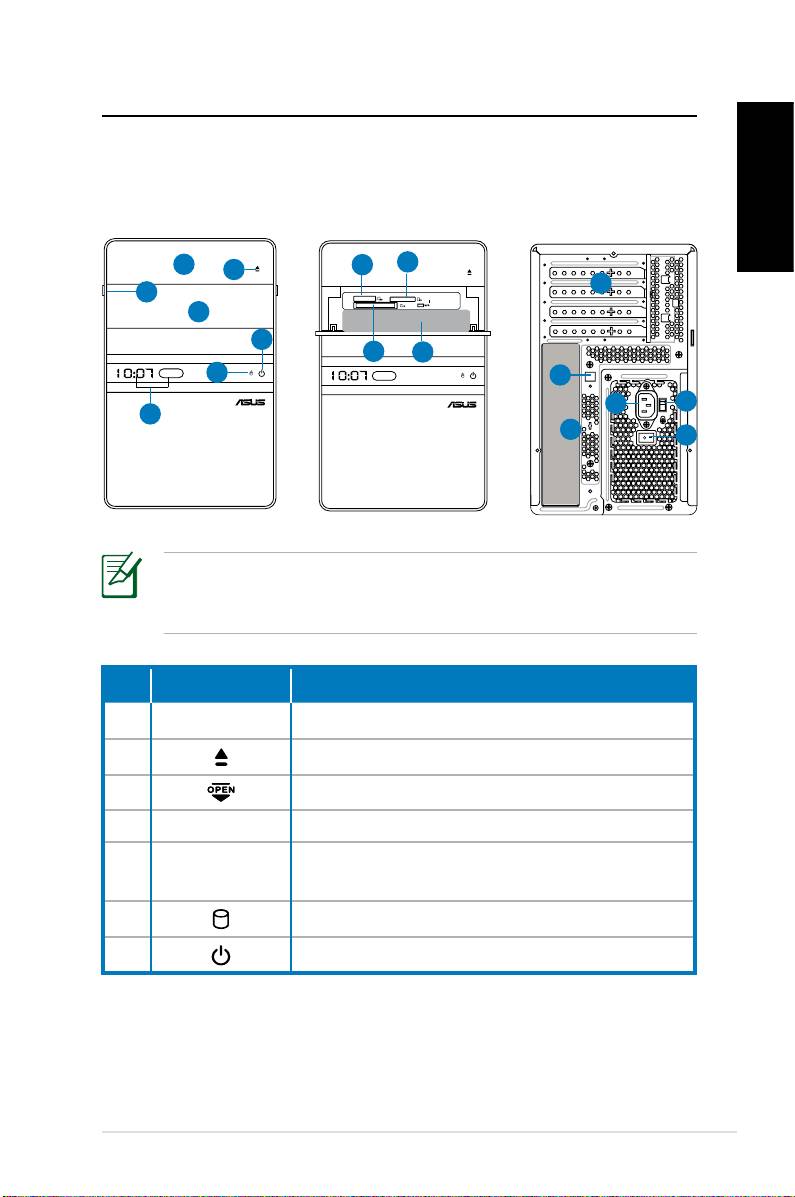
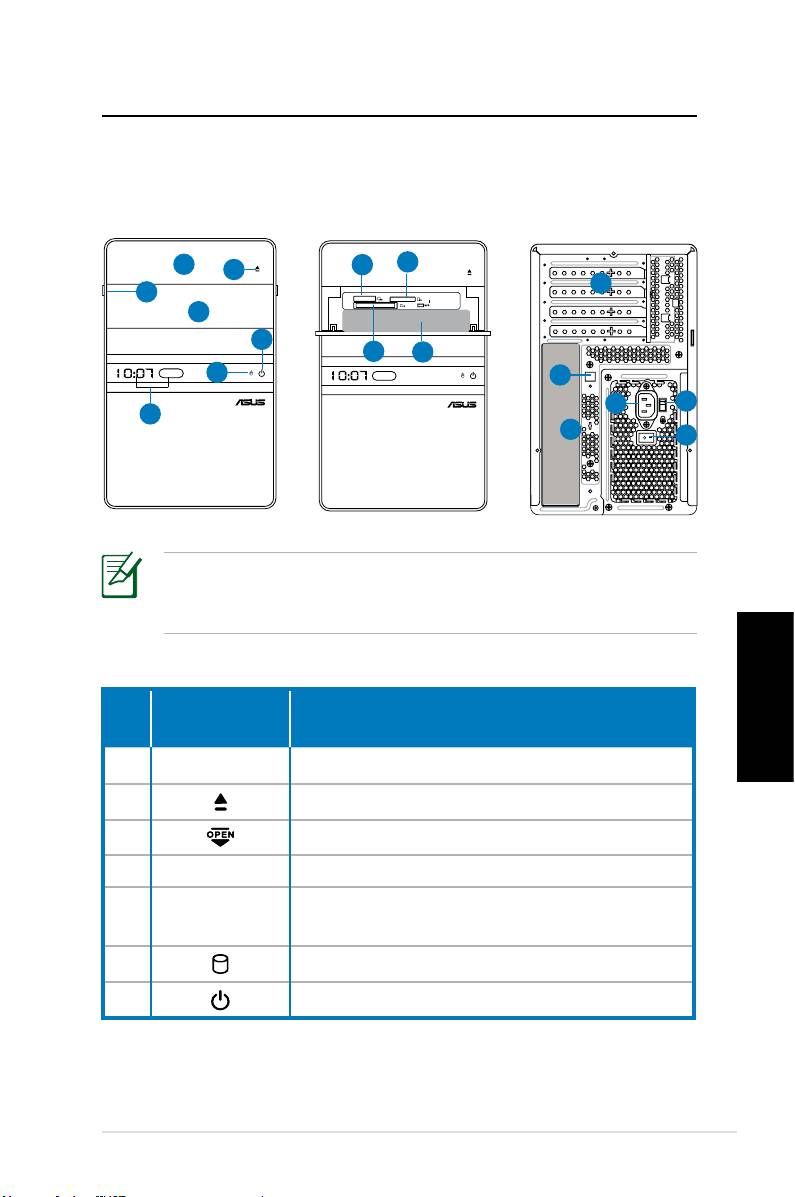
Front / Rear panel features
Front (Close)
Front (Open)
Rear
English
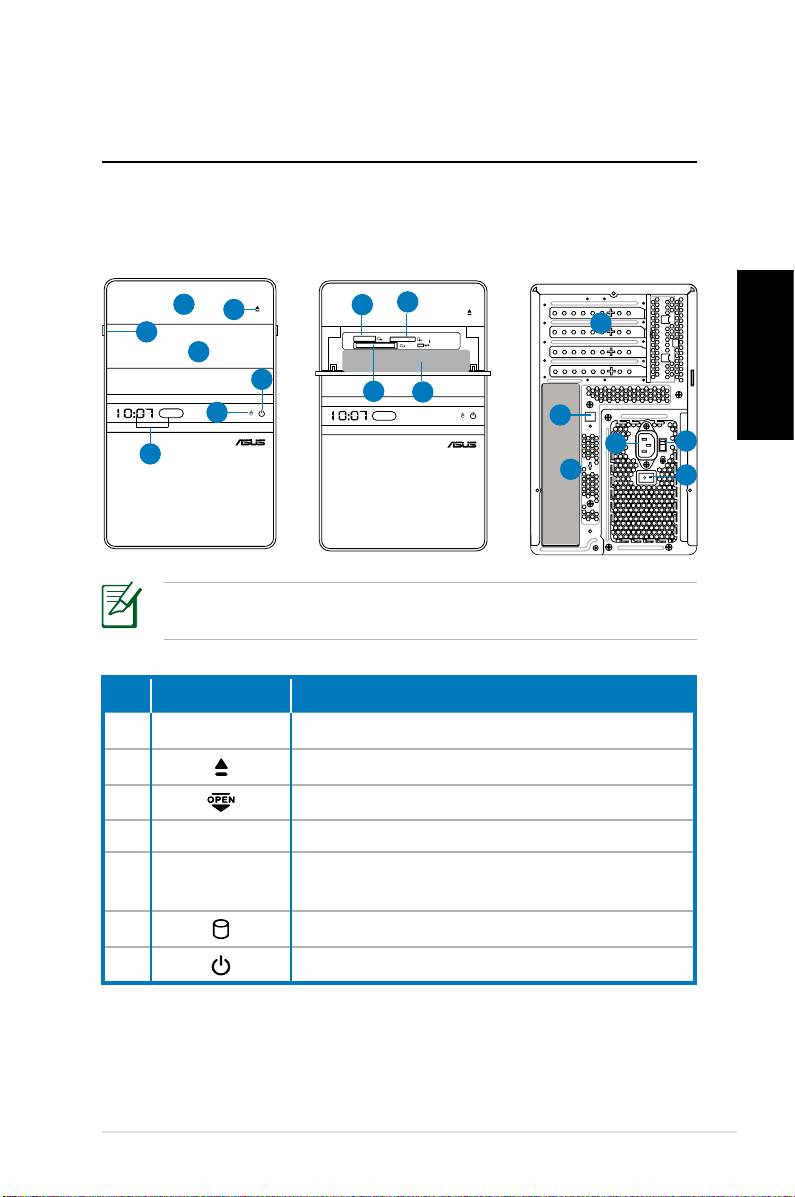
*The gray areas contain front/rear panel ports.These portsThe gray areas contain front/rear panel ports. These ports
and their locations may vary, depending on the model of your
system.
No. Button/LED Description
1.
Optical drive bay cover.
2. Optical drive eject button.
3. Open the front panel cover.
4. Front panel cover.
Time display and IR (for some models
5.
only).
6. Hard disk drive LED.
7. Power button (touch-sensitive).
continued on the next page
ASUS Essentio Desktop PC 9
S P K
SIDE
S P K
REAR
BASS
C T R
MIC IN
FRONT
IN
LINE
1
8
9
2
12
3
4
7
10
11
6
13
14
15
5
17
16
English
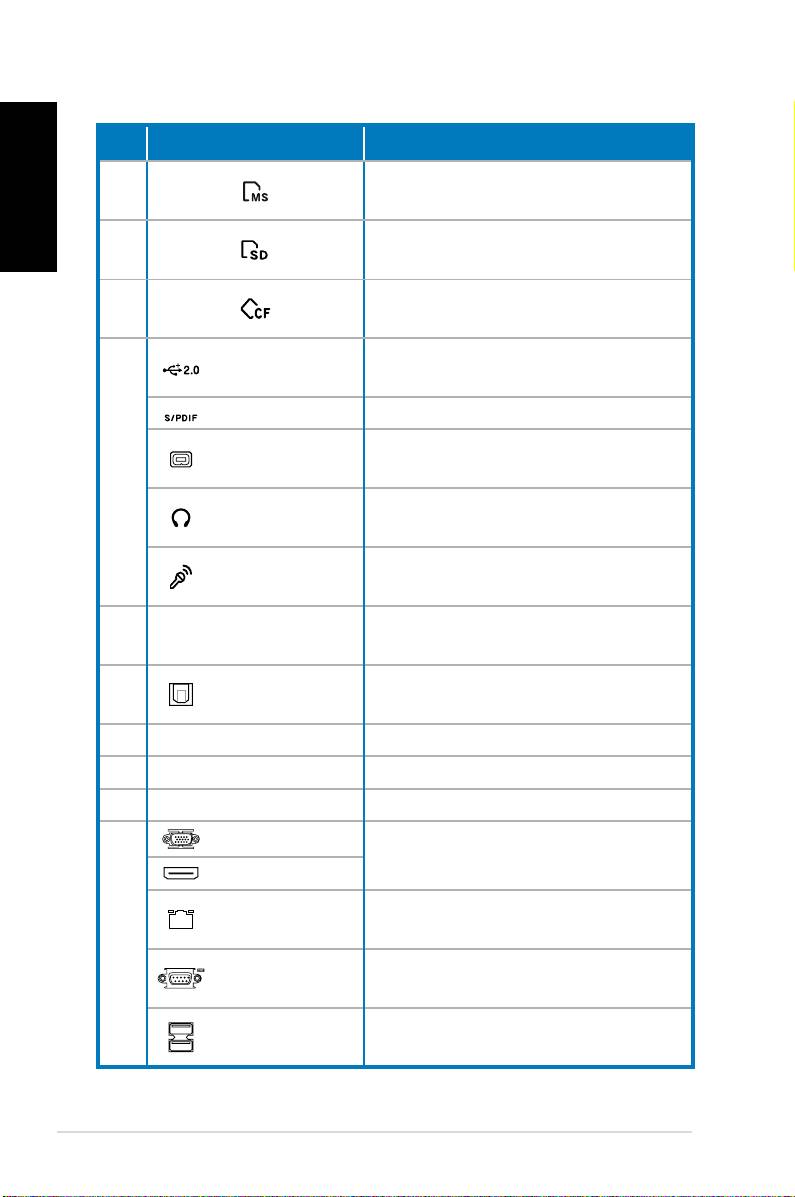
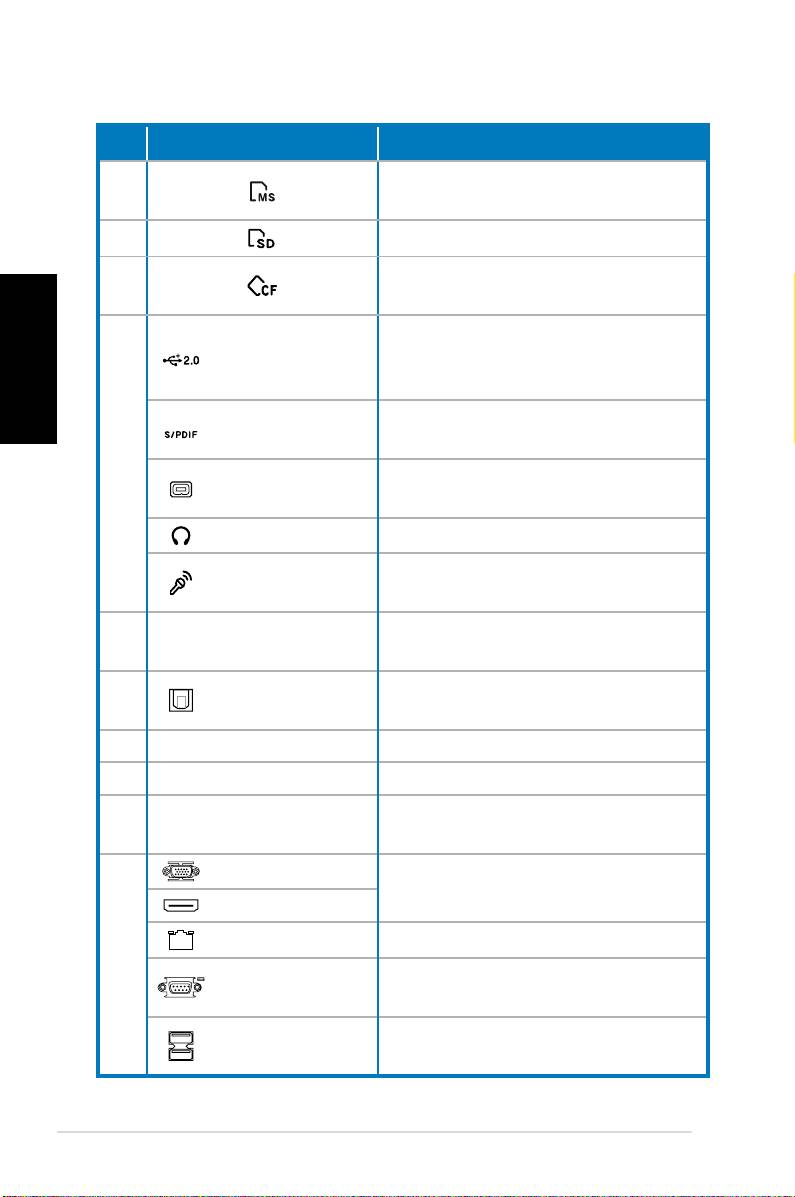
No. Slot/Port Description
®
Memory Stick
/Memory Stick
8.
Pro™ card slot.
Secure Digital™/MultimediaCard
9.
slot.
CompactFlash®/Microdrive™ card
10.
slot.
Connect to USB devices such as a
USB 2.0 ports
mouse, keyboard, or camera.
S/PDIF In port Connects to digital audio source.
4-pin IEEE
Connects to an IEEE 1394 device
11.
1394a port
such as a digital camrecorder.
Headphone
Plug a stereo or headphones into
jack
this jack.
Microphone
Plug a microphone into this jack.
jack
Use the slots when installing
12. Expansion slots
expansion cards.
Optical S/PDIF
Connects to an amplifier for
13.
Out port
digital audio output.
14. Power connector Connects power cable.
15. Voltage selector Selects input voltage.
16. Power Switch Switches on/off the power supply.
VGA port
Connects to a TV or monitor with
different video output.
HDMI port
LAN (RJ-45)
Plug a network cable into this
port
port.
17.
Connects to devices that
COM port
conforms with serial specification.
Connect to USB devices such as a
USB 2.0 ports
mouse, keyboard, or camera.
continued on the next page
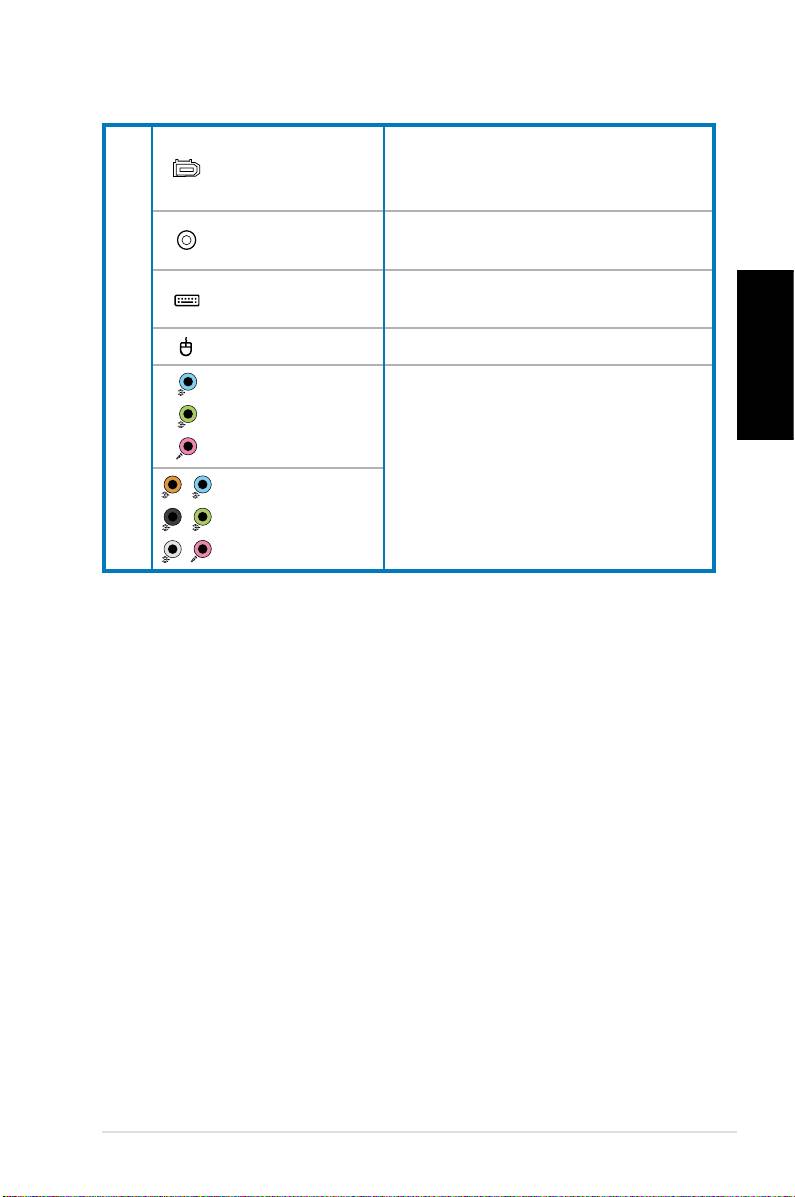
10 ASUS Essentio Desktop PC
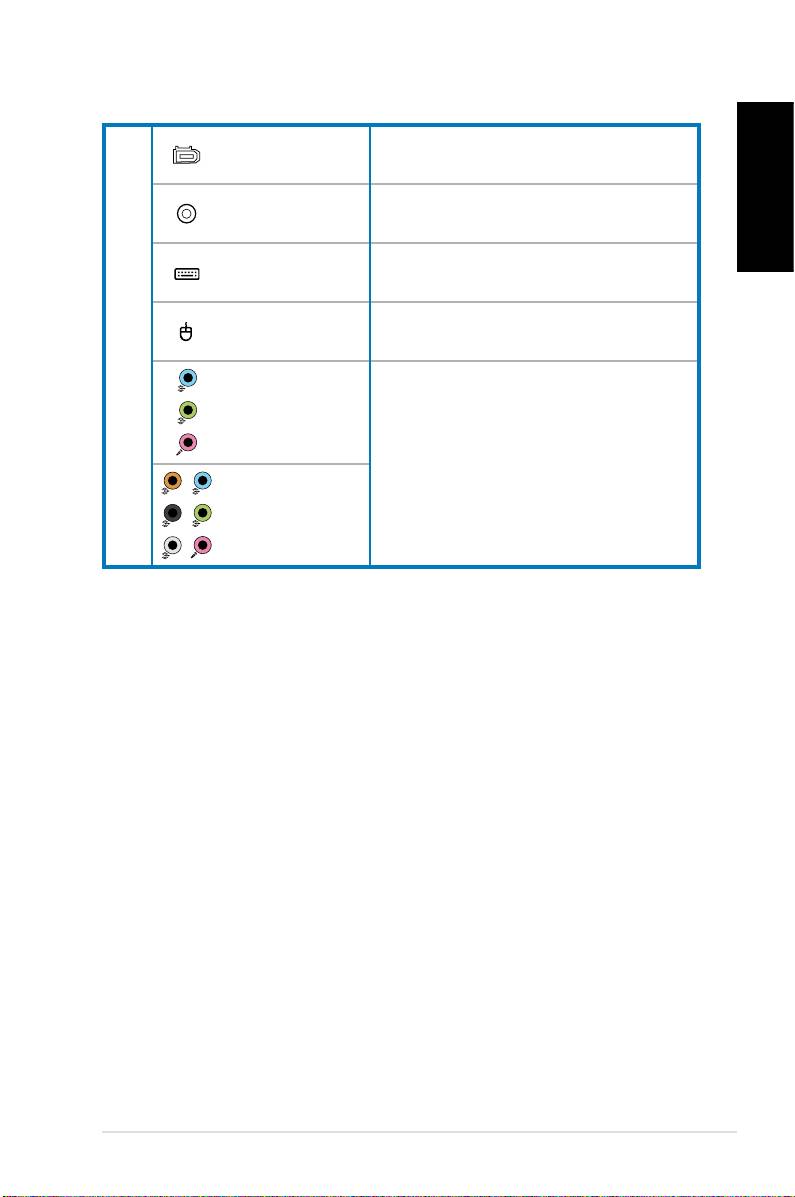
6-pin IEEE
Connects to an IEEE 1394 device
1394a port
such as a digital camrecorder.
Coaxial S/PDIF
Connects to an amplifier for digi-
English
Out port
tal audio output.
PS/2 Key-
Connects to a PS/2 keyboard.
board port
PS/2 mouse
Connects to a PS/2 mouse.
17.
port
5.1(6)-channel
audio ports
Connect to a 5.1(6) or
7.1(8)-channel speaker system.
7.1(8)-channel
audio ports
ASUS Essentio Desktop PC 11
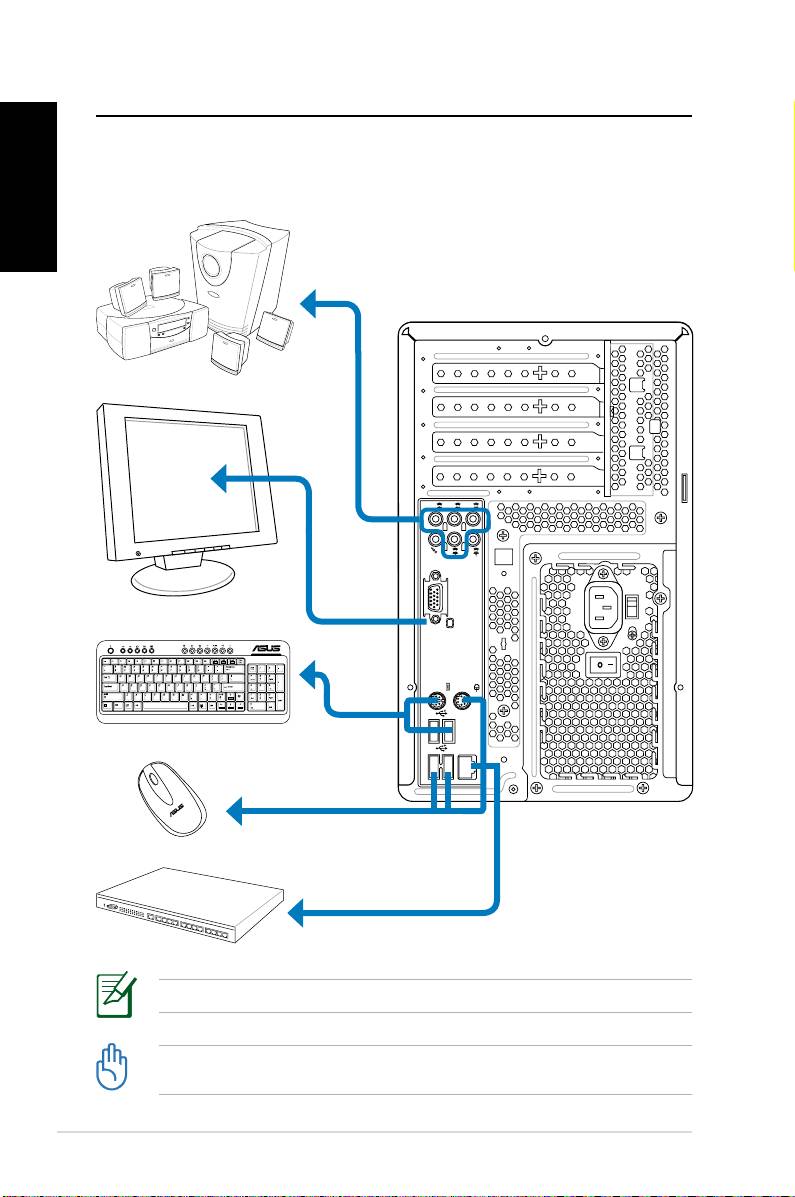
Setting up your Desktop PC
English
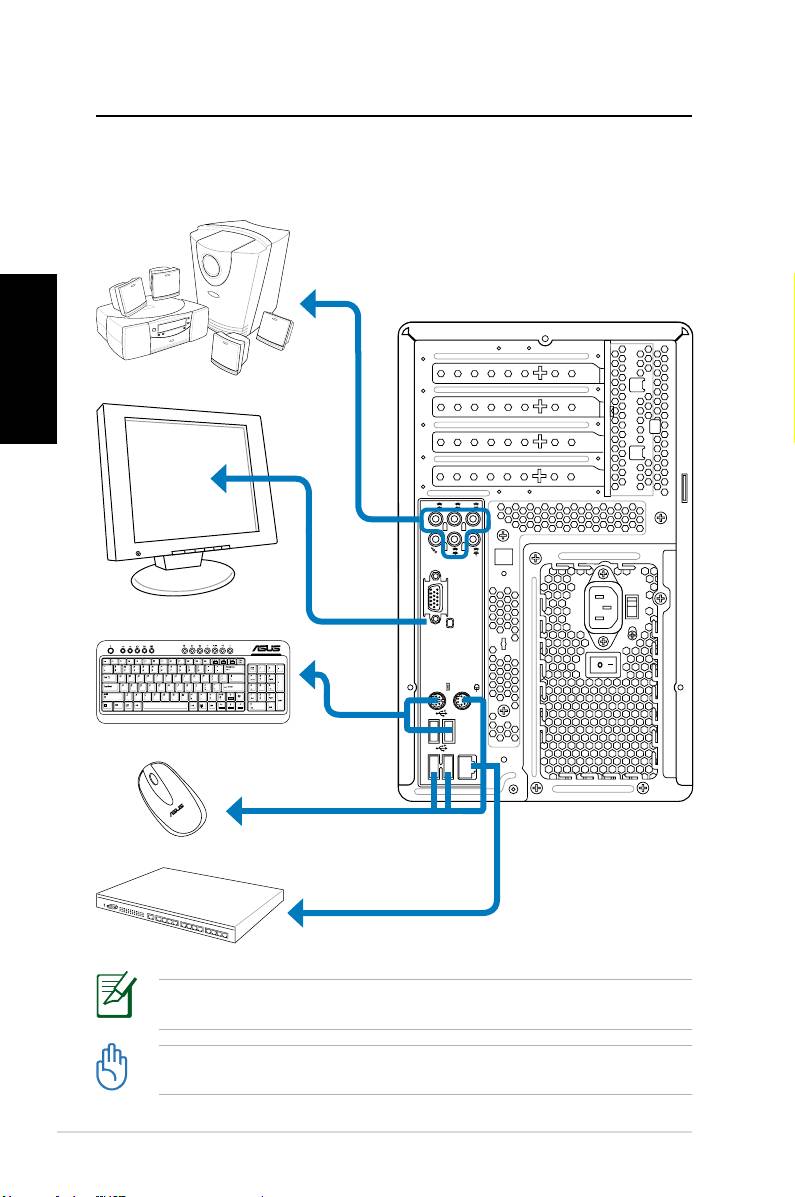
Connecting devices
12 ASUS Essentio Desktop PC
S P K
SIDE
S P K
REAR
BASS
C T R
MIC IN
FRONT
IN
LINE
Illustrations are for reference only. Actual product specifications may vary.
• Use this product in ambient temperature below 35˚C.
• Do not block or cover these vents.
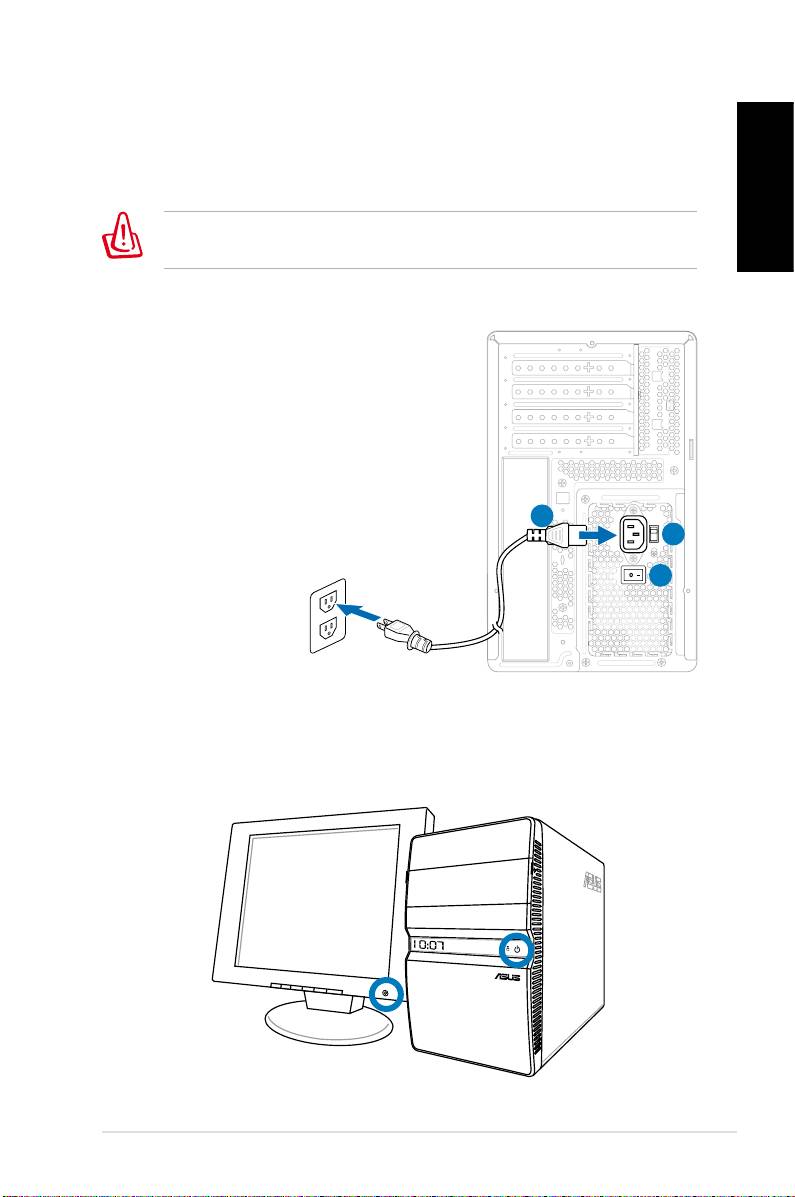
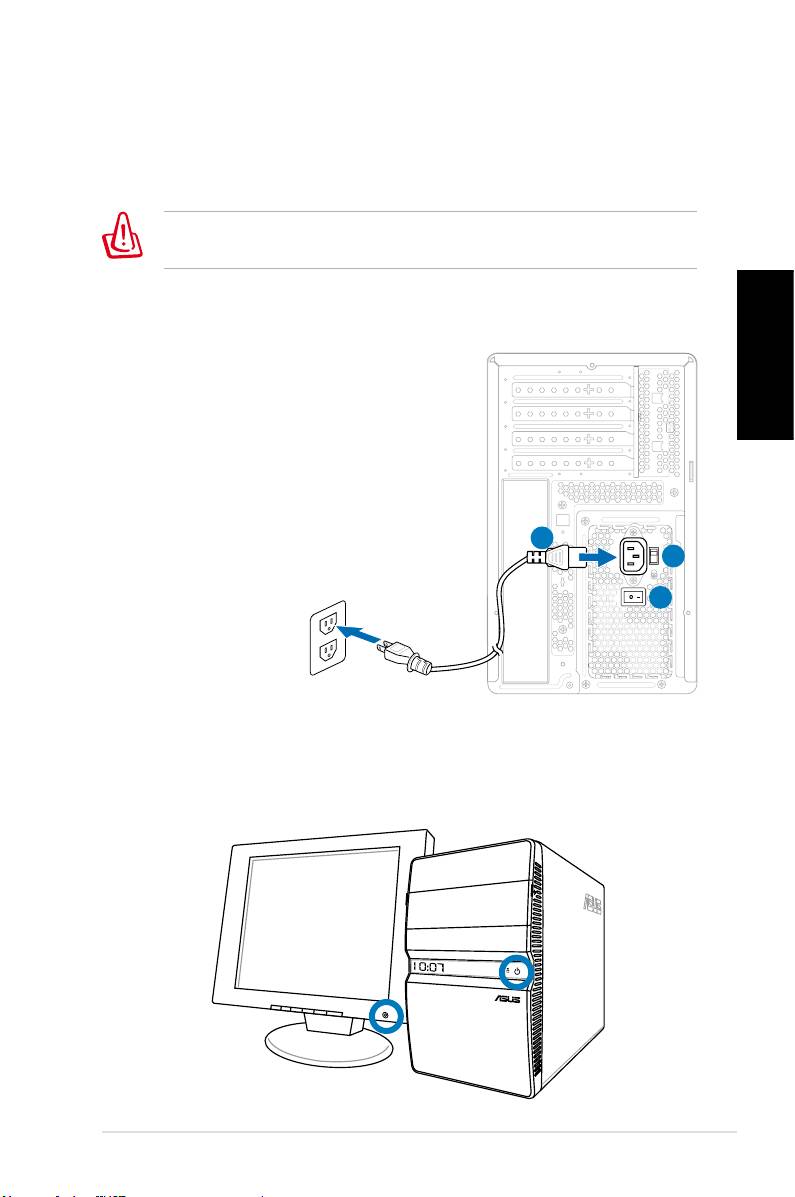
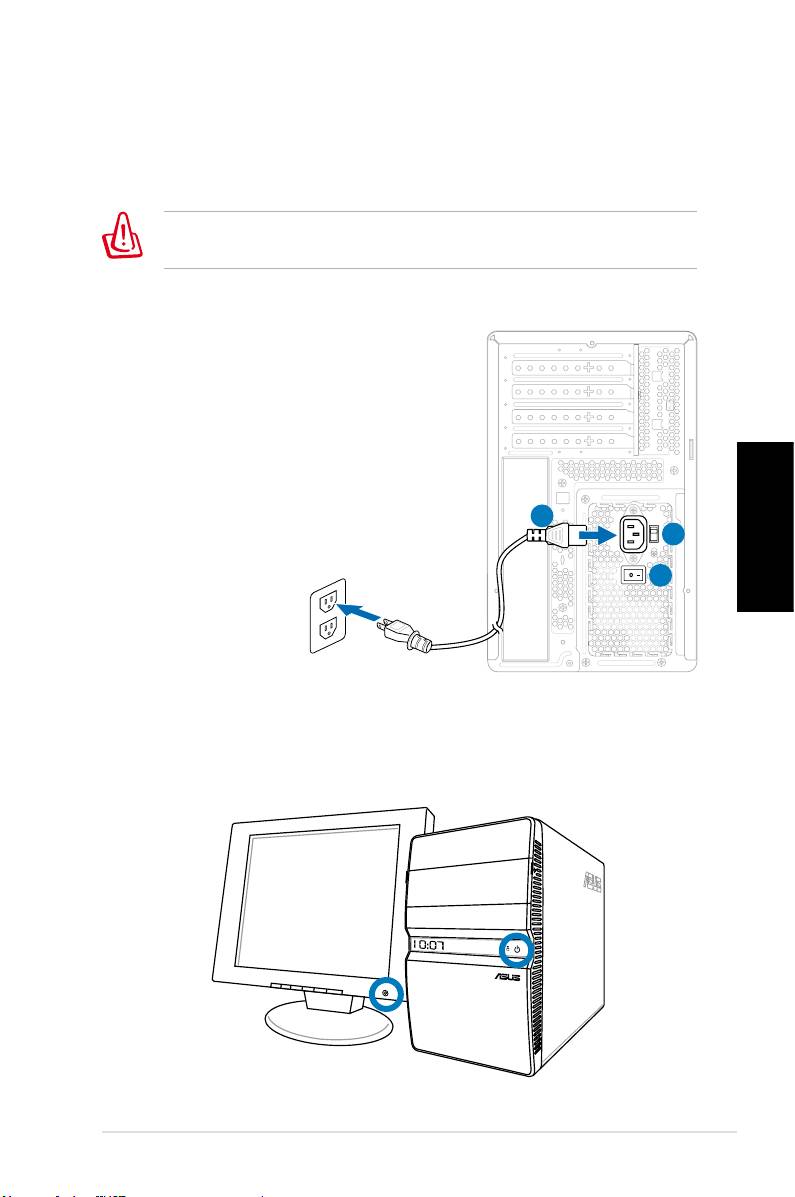
Connecting the power
1. Switch the Voltage selector to select the appropriate input
voltage according to the voltage supply in your area.
English
Setting the voltage selector to 115V in a 230V area will damage
your system!
2. Connect the power cord to the power connector and plug it
into the wall socket.
3. Press the Power Switch.
2
1
3
Pressing the power button to turn
on the system
ASUS Essentio Desktop PC 13
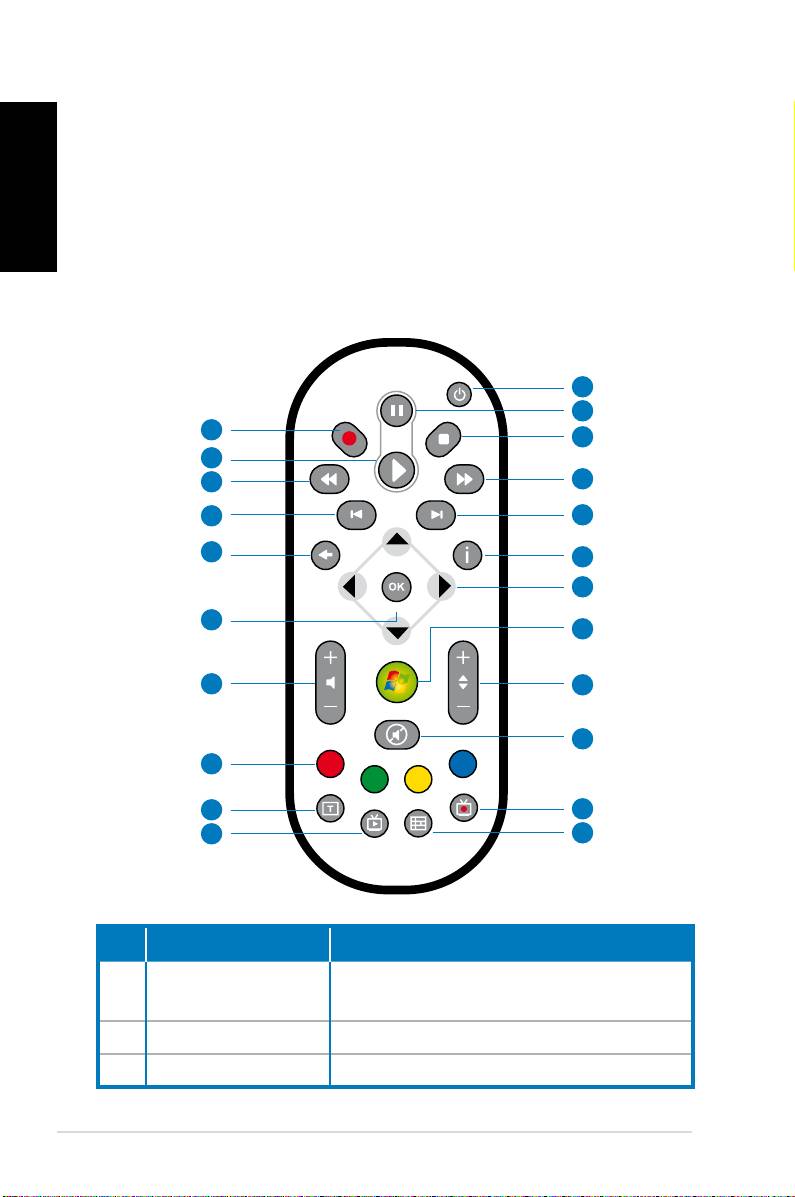
Using the Media Center remote
English
(optional)
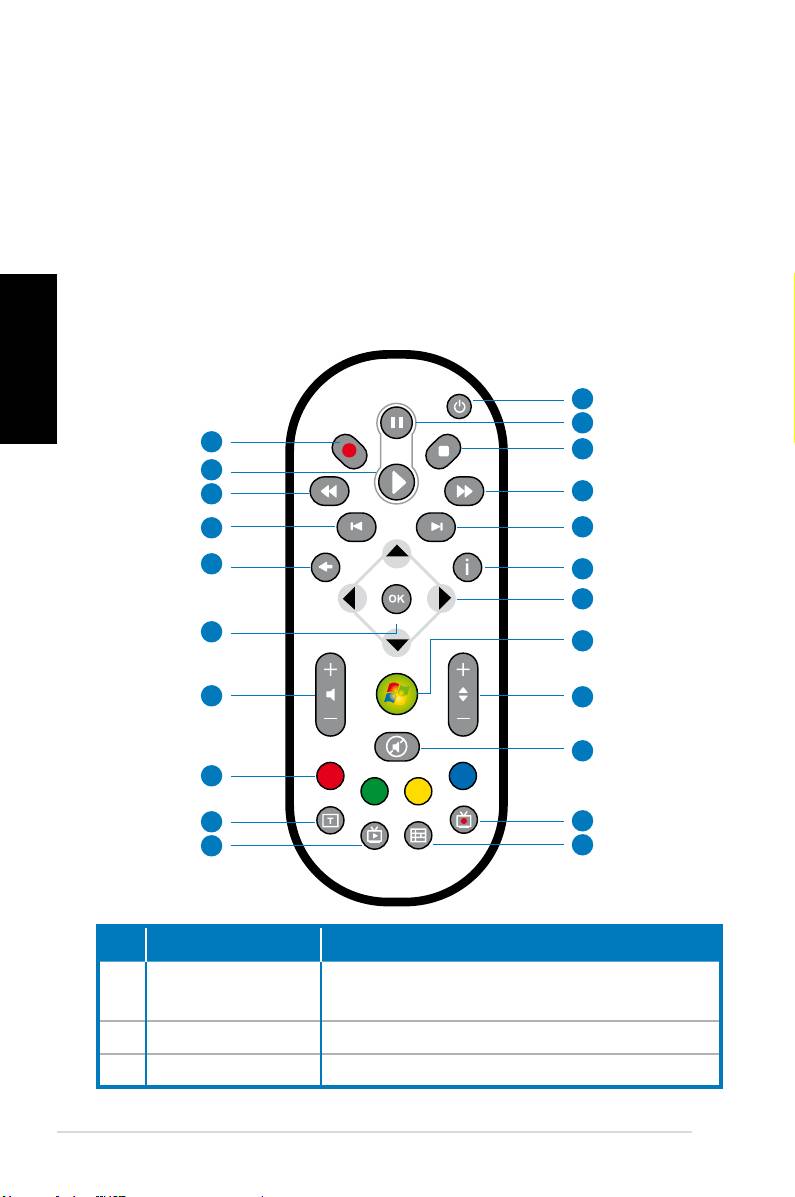
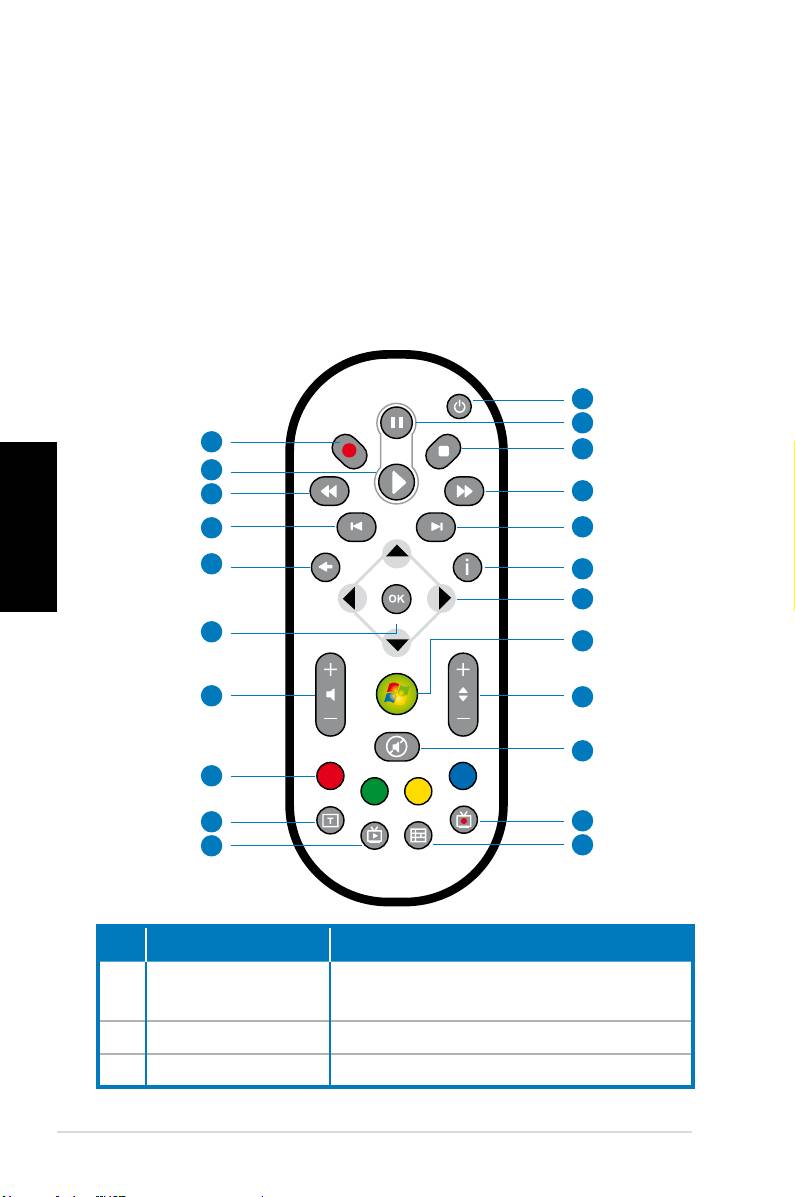
Use the remote to launch the Media Center program to play
media files such as music and movies. You can also install an
external TV box to watch TV and record TV programs.
Refer to the table below to familiarize yourself with the functions
of the remote control buttons.
1
2
22
3
21
20
4
19
5
18
6
7
17
8
16
9
10
15
14
11
13
12
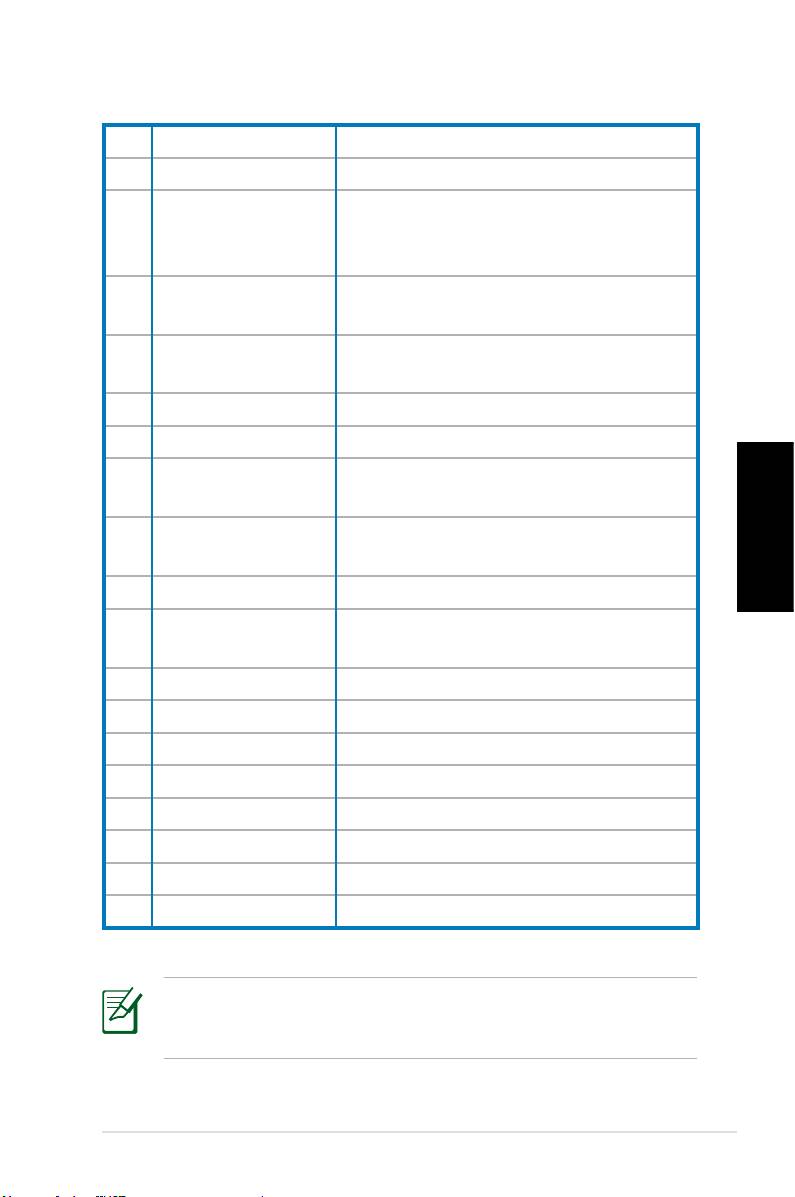
No. Button Description
Press to turn on/off the power of the
1. Power
screen and the speakers.
2. Pause Press to pause a playback.
3. Stop Press to stop playing a media file.
14 ASUS Essentio Desktop PC
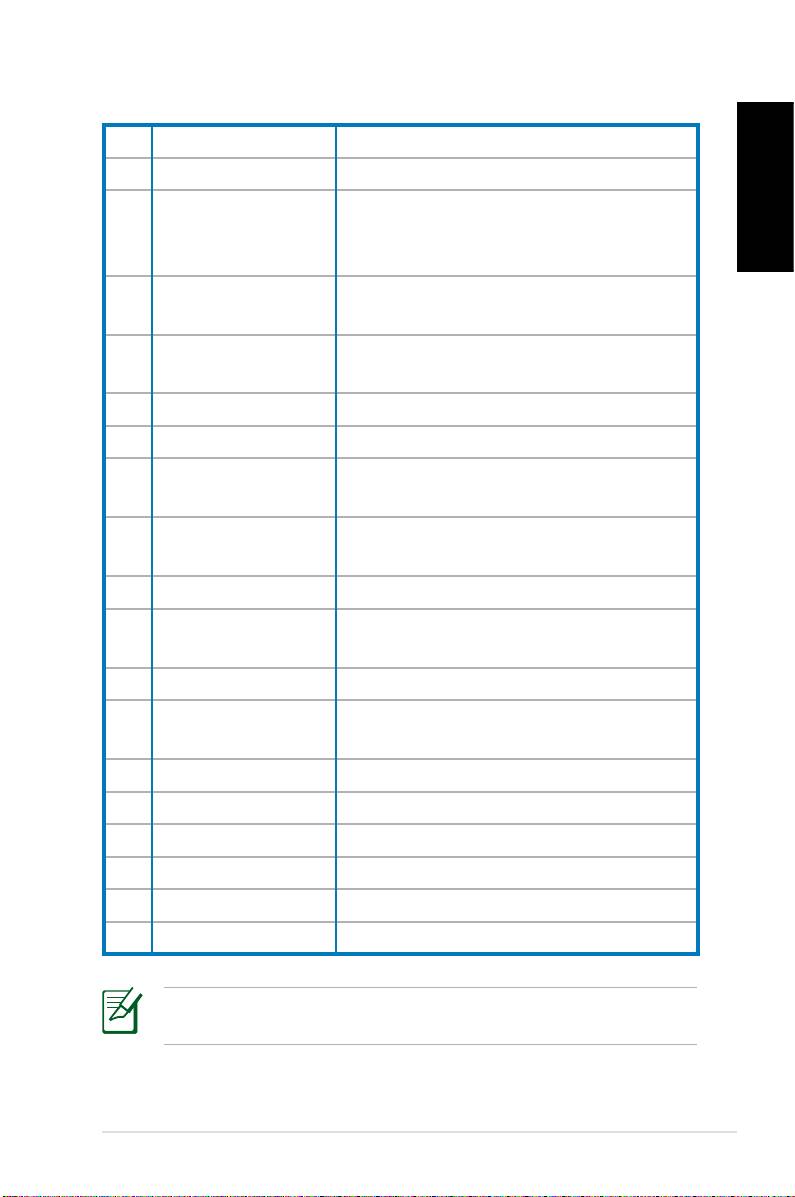
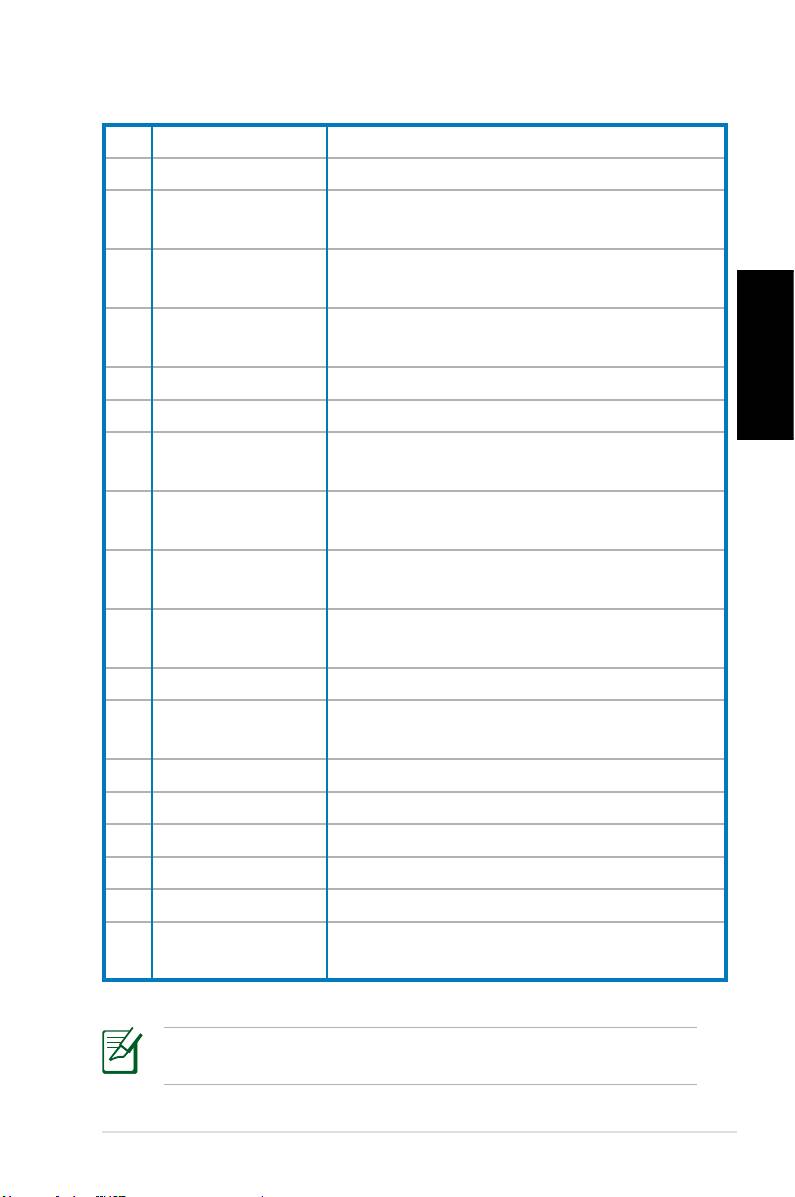
4. Fast-foward Press to fast-forward a media file.
5. Next track Press to go to the next track.
Press to display program information
English
6. Information
under Media Center or other menu
options.
Four-way
Press to scroll through on-screen
7.
navigation keys
display menus.
Windows® Media
Press to launch the Media Center
8.
Center
program.
9. Channel up/down Press to change TV channels.*
10. Mute Press to disable audio output.
Press to display a list of your recorded
11. Recorded TV
TV programs.*
EPG (Electronic
Press to display the electronic
12.
Program Guide)
program guide screen.*
13. Live TV button Press to watch live TV programs. *
Toggles between numerical and
14. Shift
alphabetical input.
15. Teletext buttons Available on European models only.
Press to increase/decrease the
16 Volume up/down
volume.
17. OK Press to confirm an action.
18. Return Press to return to the previous page.
19. Previous track Press to go back to the previous track.
20. Rewind Press to rewind a media file.
21. Play Press to play a media file
22 Record Press to start recording TV.
*The system does not come with built-in TV tuner. To use the TV
function, purchase an external TV box first.
ASUS Essentio Desktop PC 15

Recovering your system
English
Using the recovery DVD
The recovery DVD includes an image of the operating system
installed on your system at the factory. The recovery DVD,
working with the support DVD, provides a comprehensive
recovery solution that quickly restores your system to its original
working state, provided that your hard disk drive is in good
working order. Before using the recovery DVD, copy your data
files (such as Outlook PST files) to a USB device or to a network
drive and make note of any customized configuration settings
(such as network settings).
1. Turn on your ASUS Desktop PC and the ASUS logo appears.
Press F8 to enter the Please select boot device menu.
2. Insert the recovery DVD into the optical drive and select the
optical drive (“CDROM:XXX”) as the boot device. Press Enter
and then press any key to continue.
3. The Windows Boot Manager window appears. Select
Windows Setup [EMS Enabled] and press Enter. Wait when
the Windows is loading files message appears.
4. Select where to install a new system. Options are:
Recover system to a partition
This option will delete only the partition you select from
below, allowing you to keep other partitions, and create a
new system partition as drive “C.” Select a partition and click
NEXT.
Recover system to entire HD
This option will delete all partitions from your hard disk drive
and create a new system partition as drive “C.” Select and
click Yes.
5. Follow the on-screen instructions to complete the recovery
process.
You will lose all your data during the system recovery. Make
sure that you make a backup of it before recovering the system.
16 ASUS Essentio Desktop PC

6. After the system recovery is completed, you will be asked to
insert the support DVD into the optical drive. Click OK and
the system reboots.
English
7. After the system reboots, Windows® Vista™ will begin
system configurations. Follow the on-screen instructions to
complete the process, and then restart the computer.
This recovery DVD is for ASUS Desktop PC only. DO NOT use it
on other computers. Visit the ASUS website www.asus.com for
any updates.
ASUS Essentio Desktop PC 17
Troubleshooting
Read the following Q&As for troubleshooting guide. If these do
English
not give you answers, you may contact us directly at the contact
information provided in the support DVD.
What can I do if my Desktop PC cannot be powered on?
Check if the power LED on the front panel lights up. It does not
light up if no power is supplied to the system.
• Find out if the power cord is plugged in.
• When you use an extension cord or a voltage regulator,
ensure that you have plugged it into the wall socket and
switched it on.
What can I do if my Desktop PC cannot enter the operating
system?
• Make sure that you use memory modules that the system
supports and that you install them properly on the sockets.
• Check if your peripheral devices are compatible with the
system. Some USB storage devices, for example, are with
different disk drive structure and enter sleep mode easily.
If the above steps do not solve the problem, contact your retailer
or perform system recovery using the supplied recovery DVD.
You will lose all your data during the system recovery. Make
sure that you make a backup of it before recovering the system.
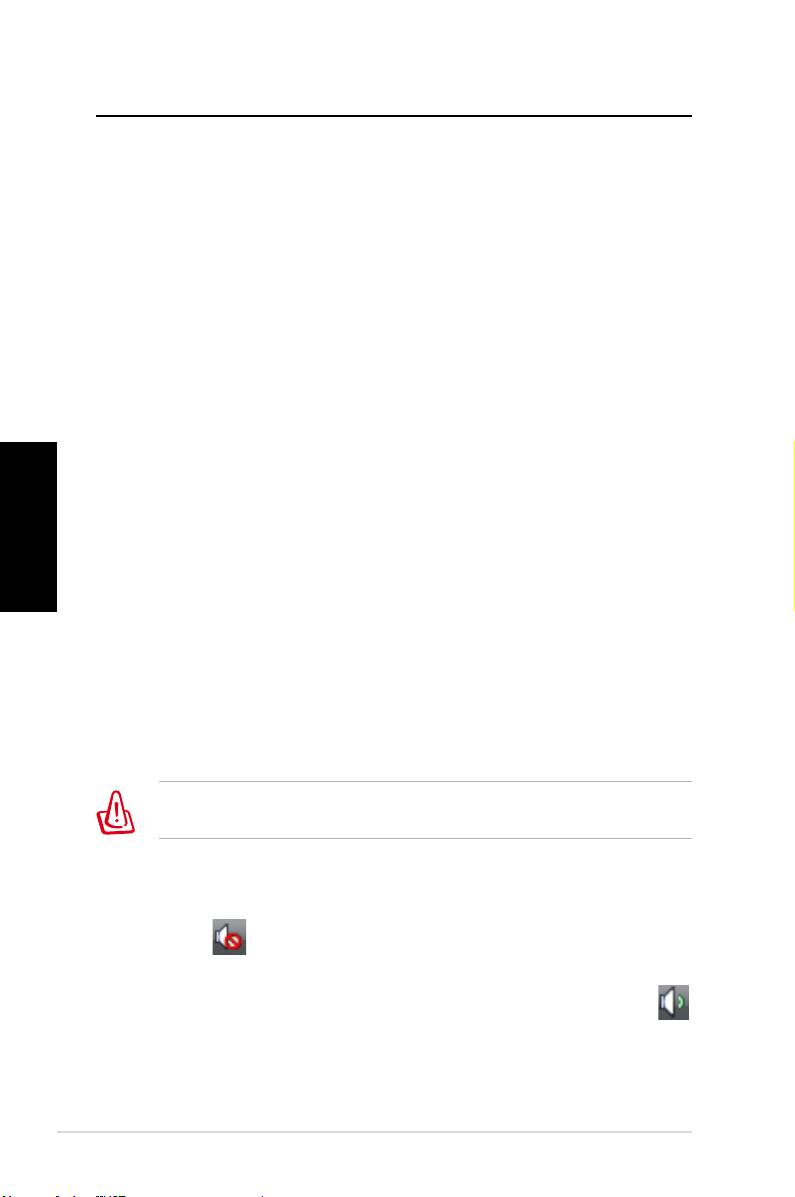
Why is it that I cannot hear anything from my speakers/
headphones?
Check the volume icon on the Windows® taskbar to see if it is set
to mute . If so, double-click this icon to display the volume bar,
and then click the mute icon under the bar to cancel the muted
mode .
18 ASUS Essentio Desktop PC

Why is it that a CD/DVD cannot be read from or written to?
• Make sure that you use a disc compatible with the optical
drive.
English
• Check if you insert the disc properly or if there is any scratch
on the disc.
• Find out if the disc is with write protection.
ASUS Essentio Desktop PC 19

English
20 ASUS Essentio Desktop PC
Ordinateur de bureau
Français
ASUS Essentio
Manuel d’utilisation

F3716
Première édition V1
Avril 2008
Français
Copyright © 2008 ASUSTeK COMPUTER INC. Tous droits réservés.
Aucun extrait de ce manuel, incluant les produits et logiciels qui y sont décrits,
ne peut être reproduit, transmis, transcrit, stocké dans un système de restitution,
ou traduit dans quelque langue que ce soit sous quelque forme ou quelque
moyen que ce soit, à l’exception de la documentation conservée par l’acheteur
dans un but de sauvegarde, sans la permission écrite expresse de ASUSTeK
COMPUTER, INC. (“ASUS”).
Les produits et noms de sociétés qui apparaissent dans ce manuel ne sont utili-
sés que dans un but d’identification ou d’explication dans l’intérêt du proprié-
taire, sans intention de contrefaçon. Toutes les marques mentionnées dans ce
manuel sont la propriété de leur propriétaires respectifs.
Des efforts particuliers ont été faits pour garantir que le contenu de ce manuel
soit correct et à jour. Cependant, le fabricant n’offre aucune garantie sur l’exacti-
tude de son contenu et se réserve le droit d’effectuer tout changement, et ce, à
tout moment et sans avertissement.

Table des matières
Notes ........................................................................................................4
Consignes de sécurité .......................................................................6
Notes pour ce manuel .......................................................................7
Bienvenue .............................................................. 8
Contenu de la boîte ............................................................................8
Faire connaissance avec votre PC de bureau ....... 9
Caractéristiques avants/arrières ....................................................9
Français
Configurer votre PC de bureau ........................... 12
Connecter des périphériques ......................................................12
Connecter l’adaptateur d’alimentation ...................................13
Appuyer sur le bouton d’alimentation pour allumer le
système ................................................................................................13
Utiliser la télécommande Media Center (optionnel) ...........14
Restaurer le système ........................................... 16
Utiliser le DVD de restauration ....................................................16
Dépannage ........................................................... 18
Ordinateur de bureau ASUS Essentio 3

Notes
Rapport de la Commission Fédérale des Communications
Ce dispositif est conforme à l’alinéa 15 des règles établies par la
FCC. L'opération est sujette aux 2 conditions suivantes:
• Ce dispositif ne peut causer d'interférence nuisible, et
• Ce dispositif se doit d'accepter toute interférence reçue, incluant
Français
toute interférence pouvant causer des résultats indésirés.
Cet équipement a été testé et s'est avéré être conforme aux limi-
tes établies pour un dispositif numérique de classe B, conformé-
ment à l'alinéa 15 des règles de la FCC. Ces limites sont conçues
pour assurer une protection raisonnable contre l’interférence
nuisible à une installation réseau. Cet équipement génère, utilise
et peut irradier de l'énergie à fréquence radio et, si non installé et
utilisé selon les instructions du fabricant, peut causer une inter-
férence nocive aux communications radio. Cependant, il n'est
pas exclu qu'une interférence se produise lors d'une installation
particulière. Si cet équipement cause une interférence nuisible
au signal radio ou télévisé, ce qui peut-être déterminé par l'arrêt
puis le réamorçage de celui-ci, l'utilisateur est encouragé à es-
sayer de corriger l'interférence en s'aidant d'une ou plusieurs des
mesures suivantes:
• Réorientez ou replacez l'antenne de réception.
• Augmentez l'espace de séparation entre l'équipement et le
récepteur.
• Reliez l’équipement à une sortie sur un circuit différent de
celui auquel le récepteur est relié.
• Consultez le revendeur ou un technicien expérimenté radio/
TV pour de l’aide.
L’utilisation de câbles protégés pour le raccordement du
moniteur à la carte de graphique est exigée pour assurer la
conformité aux règlements de la FCC. Les changements ou les
modifications apportés à cette unité n'étant pas expressément
approuvés par la partie responsable de la conformité pourraient
annuler l’autorité de l’utilisateur à manipuler cet équipement.
4 Ordinateur de bureau ASUS Essentio

Rapport du Département Canadien des Communications
Cet appareil numérique ne dépasse pas les limites de classe B en
terme d'émissions de nuisances sonore, par radio, par des ap-
pareils numériques, et ce conformément aux régulations d’in-
terférence par radio établies par le département canadien des
communications.
(Cet appareil numérique de la classe B est conforme à la norme
ICES-003 du Canada.)
Français
Note relative aux produits de Macrovision
Corporation
Ce produit comprend une technologie de protection de copy-
right protégée par certains brevets déposés aux U.S.A. et autres
droits de propriété intellectuelle appartenant à Macrovision
Corporation et autres détenteurs de droits. L’usage de cette tech-
nologie doit être autorisé par Macrovision Corporation, et n’est
destiné qu’à un usage familial ou autres usages limités de même
sorte à moins d’une autorisation par Macrovision Corpora-
tion. Rétro-ingénierie et démontage sont interdits.
Lithium-Ion Battery Warning
CAUTION: Danger of explosion if battery is incorrectly replaced. Replace
only with the same or equivalent type recommended by the manufactur-
er. Dispose of used batteries according to the manufacturer’s instructions.
VORSICHT: Explosionsgetahr bei unsachgemäßen Austausch der Batterie.
Ersatz nur durch denselben oder einem vom Hersteller empfohlenem
ähnljchen Typ. Entsorgung gebrauchter Batterien nach Angaben des
Herstellers.
Ordinateur de bureau ASUS Essentio 5

Consignes de sécurité
Votre ordinateur de bureau ASUS a été conçu et testé poura été conçu et testé pour
satisfaire aux standards de sécurité les plus récents en matière
d’équipements informatiques. Toutefois, afin de garantir une
utilisation sans risque de ce produit, il est important que vous
respectiez les consignes de sécurité présentées dans ce manuel.
Français
Configurer votre système
• Avant d’utiliser votre système, lisez et suivez les instructions
de la documentation.
• N’utilisez pas ce produit à proximité de liquides ou d’une
source de chaleur, tel qu’un radiateur.
• Positionnez le système sur une surface stable.
• Les ouvertures situées sur le boîtier de l’ordinateur sontLes ouvertures situées sur le boîtier de l’ordinateur sont
destinées à la ventilation. Veillez à ne pas les bloquer ou les
recouvrir. N’insérez jamais d’objet dans les ouvertures de
ventilation
• Utilisez ce produit dans un environnement avec une
température ambiante comprise entre 0˚C et 35˚C.
• Si vous utilisez une rallonge pour connecter votre PCSi vous utilisez une rallonge pour connecter votre PC
Multimédia, vérifiez que la somme des intensités nominales
des équipements connectés à la rallonge ne dépasse pas celle
supportée par cette dernière.
Précautions à suivre lors de l’utilisation
• Ne pas marcher ni poser d’objets sur le cordon d’alimentation.
• Ne pas renverser d’eau ou tout autre liquide sur votre système.
• Lorsque le système est éteint, une certaine quantité de courant
résiduel continue à circuler dans le système. Débranchez
systématiquement tous les câbles d’alimentation, de modems
et de réseau, des prises murales avant de nettoyer le système.
• Déconnecter le système du secteur, et demander conseil à
votre revendeur ou à un technicien qualifié si :
• La prise ou le câble d’alimentation est endommagé.
6 Ordinateur de bureau ASUS Essentio
• Du liquide a été renversé sur le système.
• Le système ne fonctionne pas correctement alors que les
consignes ont été respectées.
• Le système est tombé ou le boîtier est endommagé.
• Les performances système s’altèrent.
Avertissement de sécurité relatif au lecteur de CD-ROM
PRODUIT LASER DE CLASSE 1
Français
PAS DE DÉMONTAGE
La garantie ne couvre pas les appareils ayant été
désassemblés par les utilisateurs
Le symbole représentant une benne à roue barrée, indique que
le produit (équipement électrique et électronique contenant une
batterie au mercure) ne doit pas être placé dans un conteneur à
ordures ménagères. Veuillez consulter les réglementations locales
en matière de recyclage de produits électriques.
Notes pour ce manuel
Pour être certains que vous effectuiez certaines tâches
correctement, veuillez prendre notes des symboles suivants. Ces
symboles possèdent différents degrés d’importance:
AVERTISSEMENT: Ces informations vous permettront d’éviter
de vous blesser lors de la réalisation d’une tâche.
IMPORTANT: Instructions que vous devez suivre pour terminerInstructions que vous devez suivre pour terminer
une tâche..
ASTUCE: Trucs et informations additionnelles pour vous aider à
mener une tâche à bien.
NOTE: Informations additionnelles destinées à certaines
situations spécifiques..
Ordinateur de bureau ASUS Essentio 7
Bienvenue
Félicitations pour votre achat d’un ordinateur de bureau ASUS.
Le contenu de la boîte de votre ordinateur de bureau est listé
ci-dessous mais peut varier selon les modèles. ASUS se réserve
le droit de remplacer les composants ou accessoires pour une
meilleure qualité de service.
Si l’un des éléments ci-dessous était manquant ou endommagé,
contactez votre revendeur.
Français
Contenu de la boîte
• Ordinateur de bureau ASUS x1
• Clavier x1
• Souris x1
• Cordon d’alimentation x1
• DVD de support x1
• DVD de restauration x1
• Guide d’installation x1
• Carte de garantie x1
• Télécommande (optionnel) x1
Visitez le site Web d’ASUS sur http://support.asus.com pour les
mises à jour.
8 Ordinateur de bureau ASUS Essentio
Faire connaissance avec
votre PC de bureau
Caractéristiques avants/arrières
Avant (fermé)
Avant (ouvert)
Arrière
Français
*Les parties grisées contiennent les ports avants et arrières. Ces
ports et leur emplacement peuvent varier selon les modèles.
No. Bouton/LED Description
1.
Couvercle de la baie pour lecteur optique.
2. Bouton d’éjection du lecteur optique.
3. Ouvre le couvercle du lecteur optique.
4. Couvercle du panneau avant.
Ecran d’affichage de l’heure et récepteur
5.
infrarouge (sur une sélection de modèles).
6. LED d’activité du disque dur.
7. Bouton d’alimentation (tactile).
continue à la page suivante
Ordinateur de bureau ASUS Essentio 9
S P K
SIDE
S P K
REAR
BASS
C T R
MIC IN
FRONT
IN
LINE
1
8
9
2
12
3
4
7
10
11
6
13
14
15
5
17
16
No. Slot/Port Description
®
Slot pour carte Memory Stick
/
8.
Memory Stick Pro™ .
9. Slot carte Secure Digital™/MMC.
Slot pour carte CompactFlash®/
10.
Microdrive™.
Français
Se connecte à des périphériques
Ports USB 2.0
USB (ex: souris, clavier, ou appareil
photo).
Se connecte à une source audio
Port S/PDIF In
numérique.
11.
Port IEEE 1394a
Se connecte à un périphérique IEEE
4 broches
1394 (ex: caméscope numérique).
Port casque Se connecte à des écouteurs stéréo.
Port
Se connecte à microphone.
microphone
Utilisez ces slots lors de l’installa-
12. Slot d’extension
tion de cartes d’extension.
Port S/PDIF Out
Se connecte à un amplificateur
13.
optique
pour une sortie audio numérique.
14. Port d’alimentation
Se connecte au cordon d’alimentation.
15. Sélecteur de tension Sélectionne un type de voltage.
Interrupteur
Met le bloc d’alimentation hors/
16.
d’alimentation
sous tension.
Port VGA
Se connecte à une TV ou un moniteur.
Port HDMI
Port LAN (RJ-45) Branchez un câble réseau sur ce port.
17.
Se connecte à un périphérique
Port COM
supportant la norme série.
Se connecte à des périphériques USB
Ports USB 2.0
(souris, clavier, ou appareil photo).
continue à la page suivante
10 Ordinateur de bureau ASUS Essentio
Se connecte à un périphérique
Port IEEE 1394a
IEEE 1394 (ex: caméscope numé-
6 broches
rique).
Port S/PDIF Out
Se connecte à un amplificateur
coaxial
pour une sortie audio numérique.
Port clavier
Se connecte à un clavier PS/2.
PS/2
17.
Port souris PS/2 Se connecte à une souris PS/2.
Français
Ports audio
5.1(6) canaux
Se connectent à un système de
haut-parleurs 5.1(6) ou 7.1(8)
canaux.
Ports audio
7.1(8) canaux
Ordinateur de bureau ASUS Essentio 11
Congurer votre PC de bureau
Connecter des périphériques
Français
12 Ordinateur de bureau ASUS Essentio
S P K
SIDE
S P K
REAR
BASS
C T R
MIC IN
FRONT
IN
LINE
Les illustrations sont seulement données à titre indicatif. Les spécifications du produit
peuvent varier selon les modèles
• Utilisez ce produit dans une température ambiante inférieure à 35˚C.
• Ne pas bloquer ni couvrir les trous d’aération.
Connecter le cordon d’alimentation
1. Utilisez le sélecteur de tension pour choisir le voltage appro-
prié selon votre région.
Le réglage du sélecteur de tension sur 115V dans une région de
230V endommagera le système !
2. Connectez une extrémité du cordon d’alimentation au
connecteur d’alimentation et l’autre extrémité à une prise
électrique.
3. Appuyez sur l’interrupteur
Français
d’alimentation.
2
1
3
Appuyer sur le bouton d’alimentation
pour allumer le système
Ordinateur de bureau ASUS Essentio 13
Utiliser la télécommande Media
Center (optionnel)
Utilisez la télécommande pour lancer le programme Media
Center pour lire des fichiers multimédia comme de la musique
ou des films. Vous pouvez aussi installer un décodeur TV externe
pour regarder et enregistrer vos émissions TV favorites.
Référez-vous à l’illustration ci-dessous pour vous familiariser avec
Français
les fonctions de chacun des boutons de la télécommande.
1
2
22
3
21
20
4
19
5
18
6
7
17
8
16
9
10
15
14
11
13
12
No. Bouton Description
Pressez pour éteindre l’écran et les haut-
1. Alimentation
parleurs.
2. Pause Pressez pour mettre en pause la lecture.
3. Arrêt Pressez pour arrêter la lecture.
14 Ordinateur de bureau ASUS Essentio
4. Avance rapide Pressez pour effectuer une avance rapide.
5. Piste suivante Pressez pour aller à la piste suivante.
Pressez pour afficher les informations des
6. Informations
programmes ou les options d’autres menus.
Touches quadri-
Pressez pour naviguer dans les menus à
7.
directionnelles
l’écran.
Windows® Media
Pressez pour lancer le programme
8.
Center
Windows Media Center.
9. Chaîne suiv/préc Pressez pour changer de chaîne.**
Français
10. Muet Pressez pour désactiver le son.
Programmes TV
Pressez pour afficher la liste des
11.
enregistrés
programmes TV enregistrés.
Guide des
Pressez pour afficher le guide des
12.
programmes TV
programmes TV.
Pressez pour regarder des programmes
13. Live TV
TV en direct.**
Bascule entre une saisie numérique et
14. Shift
alphabétique.
15. Télétexte Uniquement disponible en Europe.
Aug/dim le
Pressez pour augmenter ou diminuer le
16
volume
volume.
17. OK Pressez pour confirmer une action.
18. Retour Pressez pour retourner à la page précédente.
19. Piste précédente Pressez pour revenir à la piste précédente.
20. Retour rapide Pressez pour faire un retour arrière rapide.
21. Lecture Pressez pour lire un fichier multimédia.
Pressez pour démarrer l’enregistrement
22 Enregistrer
d’un programme TV.
*Le système n’intègre pas de tuner TV. Pour utiliser la fonction
TV, veuillez faire l’achat d’un décodeur TV.
Ordinateur de bureau ASUS Essentio 15

Restaurer le système
Utiliser le DVD de restauration
Le DVD de restauration contient une image du système
d'exploitation installé sur votre système en usine. Le DVD de
restauration, en plus du DVD de support, offre une solution de
restauration complète permettant de restaurer rapidement votre
système dans son état de fonctionnement d'origine, à condition
Français
que votre disque dur soit en bon état. Avant d'utiliser le DVD de
restauration, copiez vos données sur une disquette ou un lecteur
réseau et prenez note de tous vos paramètres de configuration
personnalisés (tels que vos paramètres réseau).
1. Allumez votre ordinateur ASUS et à l’apparition du logo
ASUS appuyez sur F8 pour accéder au menu de sélection du
périphérique de démarrage:
2. Insérez le DVD de restauration dans le lecteur optique
et sélectionnez le lecteur optique (normalement identifié
“DVDROM:XXXX”) comme périphérique de boot primaire.
Appuyez sur <Entrée> puis appuyez sur une touche
quelconque pour continuer:
3. La fenêtre Windows Boot Manager apparaît. Sélectionnez
Windows Setup [EMS Enabled] et appuyez sur Entrée.
Patientez lorsque le message Windows is loading files
apparaît.
4. Sélectionnez l’emplacement d’installation. Options de
partitionnage :
Recover system to a partition.
(Restaurer le système sur une partition)
Cette option ne supprimera que la partition sélectionnée,
vous permettant ainsi de conserver d’autres partitions et de
créer une nouvelle partition système nommée Lecteur (C:).
Sélectionnez une partition et cliquez sur NEXT.
Recover system to entire HD.
(Restaurer la totalité du disque dur)
Cette option supprimera toutes les partitions de votre disque
dur pour créer une nouvelle partition système nommée
Lecteur (C:). Sélectionnez cette option et cliquez sur Yes.
16 Ordinateur de bureau ASUS Essentio
5. Suivez les instructions apparaissant à l’écran pour terminer
le processus de restauration.
Toutes vos données seront perdues lors du processus de
restauration. Assurez-vous d'avoir fait une copie de sauvegarde
de vos données avant de restaurer le système.
6. Une fois le processus de restauration terminé, insérez le
DVD de support dans le lecteur optique. Cliquez sur OK. Le
système redémarre.
7. Au redémarrage du système, Windows® Vista™ lancera le
Français
processus de configuration du système. Suivez les instruc-
tions apparaissant à l’écran pour terminer le processus, puis
redémarrez l’ordinateur.
Le DVD de restauration est réservé aux ordinateurs de bureau
ASUS. Ne l’utilisez pas sur d’autres ordinateurs. Visitez le site
Web d’ASUS (www.asus.com) pour toute mise à jour.
Ordinateur de bureau ASUS Essentio 17
Dépannage
Lisez attentivement les questions/réponses suivantes si vous
rencontrez un problème lors de l’utilisation du PC de bureau
ASUS. Si cette section ne possède pas la réponse à votre problème,
contactez directement le service après-vente par le biais des
informations de contact contenues dans le DVD de support.
Que faire lorsque mon PC de bureau ne démarre pas ?
Français
Vérifiez que la LED d’alimentation est allumée. Celle-ci ne
s’allume pas si aucun courant électrique n’est fourni au système.
• Assurez-vous que le cordon d’alimentation est bien raccordé.
• Lors de l’utilisation d’une rallonge ou d’un régulateur de
voltage, vérifiez leur connexion à une prise électrique murale.
Que faire lorsque mon PC de bureau ne peut pas accéder au
système d’exploitation ?
• Assurez-vous d’utiliser des modules mémoire supportés par le
système et que ceux-ci sont correctement installés.
• Vérifiez si vos périphériques externes sont compatibles avec
le système. Certains périphériques de stockage USB peuvent
rapidement basculer en mode veille.
Si les suggestions suivantes ne résolvent pas votre problème,
contactez votre revendeur ou restaurez le système grâce au DVD
de restauration accompagnant votre ordinateur.
Toutes vos données seront perdues lors du processus de
restauration. Assurez-vous d'avoir fait une copie de sauvegarde
de vos données avant de restaurer le système.
Pourquoi aucun son ne sort des haut-parleurs ou du casque ?
Vérifiez que l’icône de volume de la zone de notification de
Windows® ne soit pas en mode muet . Si c’est le cas, double-Si c’est le cas, double-
cliquez sur cette icône pour afficher la barre de volume, et
cliquez sur l’icône pour annuler le mode muet .
18 Ordinateur de bureau ASUS Essentio

Pourquoi le lecteur optique ne parvient-il pas à lire le CD/DVD
inséré ?
• Assurez-vous que le format du disque est compatible avec le
lecteur optique.
• Vérifiez que le disque est correctement inséré ou que celui-ci
n’est pas rayé.
• Vérifiez que le disque n’est pas protégé en écriture.
Français
Ordinateur de bureau ASUS Essentio 19

Français
20 Ordinateur de bureau ASUS Essentio
ASUS Essentio Desktop-PC
Benutzerhandbuch
Deutsch

G3716
Erste Ausgabe V1
April 2008
Deutsch
Copyright © 2008 ASUSTeK COMPUTER INC. Alle Rechte vorbehalten.
Kein Teil dieses Handbuchs, einschließlich der darin beschriebenen Produkte
und Software, darf ohne ausdrückliche, schriftliche Genehmigung von ASUSTeK
COMPUTER INC. (“ASUS”) in irgendeiner Form, ganz gleich auf welche Weise,
vervielfältigt, übertragen, abgeschrieben, in einem Wiedergewinnungssystem
gespeichert oder in eine andere Sprache übersetzt werden.
In diesem Handbuch angegebene Produkt- und Firmennamen können u.U.
eingetragene Warenzeichen oder Urheberrechte der entsprechenden Firmen
sein und dienen nur der Identifizierung oder Erklärung zu Gunsten des
Eigentümers, ohne Rechte verletzen zu wollen.
Es wurden keine Mühen gescheut, den Inhalt dieses Handbuchs korrekt
und aktuell zu gestalten. Dennoch kann für die Richtigkeit des Inhalts keine
Haftbarkeit übernommen werden. Der Hersteller behält sich das Recht vor,
jederzeit ohne Vorankündigung Änderungen am Handbuch vorzunehmen.

Inhalt
Erklärungen ...........................................................................................4
Sicherheitsinformationen ................................................................6
Hinweise zu diesem Handbuch .....................................................7
Willkommen ........................................................... 8
Paketinhalt .............................................................................................8
Kennenlernen Ihres Desktop-PCs ........................ 9
Funktionen der Vorder-/Rückseite ................................................9
Einrichten Ihres Desktop-PCs ............................. 12
Anschluss der Geräte ......................................................................12
Anschluss der Stromversorgung ................................................ 13
Einschalten über den Netzschalter ............................................13
Verwenden der Media Center-Fernbedienung
(optional) .............................................................................................14
Deutsch
Wiederherstellen des Systems ........................... 16
Benutzen der Wiederstellungs-DVD .........................................16
Fehlerbehebung .................................................. 18
ASUS Essentio Desktop-PC 3

Erklärungen
Erklärung der Federal Communications Commission
Dieses Gerät entspricht den FCC-Vorschriften, Teil 15. Sein Betrieb
unterliegt den folgenden zwei Bedingungen:
• Dieses Gerät darf keine schädigenden Interferenzen erzeugen,
und
• Dieses Gerät muss alle empfangenen Interferenzen
aufnehmen, einschließlich derjenigen, die einen
unerwünschten Betrieb erzeugen.
Dieses Gerät ist auf Grund von Tests für Übereinstimmung mit
den Einschränkungen eines Digitalgeräts der Klasse B, gemäß
Teil 15 der FCC-Vorschriften, zugelassen. Diese Einschränkungen
sollen bei Installation des Geräts in einer Wohnumgebung auf
Deutsch
angemessene Weise gegen schädigende Interferenzen schützen.
Dieses Gerät erzeugt und verwendet Hochfrequenzenergie und
kann, wenn es nicht gemäß den Anweisungen des Herstellers
installiert und bedient wird, den Radio- und Fernsehempfang
empfindlich stören. Es wird jedoch nicht garantiert, dass bei einer
bestimmten Installation keine Interferenzen auftreten. Wenn
das Gerät den Radio- oder Fernsehempfang empfindlich stört,
was sich durch Aus- und Einschalten des Geräts feststellen lässt,
ist der Benutzer ersucht, die Interferenzen mittels einer oder
mehrerer der folgenden Maßnahmen zu beheben:
• Empfangsantenne neu ausrichten oder an einem anderen Ort
aufstellen.
• Den Abstand zwischen dem Gerät und dem Empfänger
vergrößern.
• Das Gerät an die Steckdose eines Stromkreises anschließen,
an die nicht auch der Empfänger angeschlossen ist.
• Den Händler oder einen erfahrenen Radio-/Fernsehtechniker
um Hilfe bitten.
Um Übereinstimmung mit den FCC-Vorschriften zu
gewährleisten, müssen abgeschirmte Kabel für den
Anschluss des Monitors an die Grafikkarte verwendet werden.
Änderungen oder Modifizierungen dieses Geräts, die nicht
ausdrücklich von der für Übereinstimmung verantwortlichen
Partei genehmigt sind, können das Recht des Benutzers, dieses
Gerät zu betreiben, annullieren.
4 ASUS Essentio Desktop-PC

Erklärung des kanadischen Ministeriums für
Telekommunikation
Dieses Digitalgerät überschreitet keine Grenzwerte für
Funkrauschemissionen der Klasse B, die vom kanadischen
Ministeriums für Telekommunikation in den Funkstörvorschriften
festgelegt sind.
Dieses Digitalgerät der Klasse B stimmt mit dem kanadischen
ICES-003 überein.
Macrovision Corporation-Produktanmerkung
Dieses Produkt verfügt über Kopierschutztechnologie, die durch
methodische Anforderungen bestimmter U.S.A.-Patente und
anderer geistiger Eigentumsrechte der Macrovision Corporation
und anderer Parteien geschützt sind. Die Verwendung dieser
Kopierschutztechnologie muss von Macrovision Corporation
Deutsch
genehmigt werden und ist, wenn nicht anderweitig von der
Macrovision Corporation genehmigt, nur für private oder
eingeschränkte Vorführungszwecke vorgesehen. Reverse-
Engineering oder Demontage ist verboten.
Lithium-Ion Battery Warning
CAUTION: Danger of explosion if battery is incorrectly replaced. Replace
only with the same or equivalent type recommended by the manufactur-
er. Dispose of used batteries according to the manufacturer’s instructions.
VORSICHT: Explosionsgetahr bei unsachgemäßen Austausch der Batterie.
Ersatz nur durch denselben oder einem vom Hersteller empfohlenem
ähnljchen Typ. Entsorgung gebrauchter Batterien nach Angaben des
Herstellers.
ASUS Essentio Desktop-PC 5

Sicherheitsinformationen
Ihr ASUS Desktop-PC wurde auf die neuesten
Sicherheitsstandards für Informationstechnologie geprüft und
für gut befunden. Um allerdings die sichere Handhabung des
Produkts zu gewährleisten, sollten Sie den Anweisungen in
diesem Dokument unbedingt Folge leisten.
Einstellen des Systems
• Lesen und befolgen Sie alle Anweisungen des Handbuchs,
bevor Sie den Asteio Media Center PC in Betrieb nehmen.
• Benutzen Sie das Produkt nicht in der Nähe von Wasser oder
Hitzequellen, z.B. Heizungen.
• Platzieren Sie das System auf einer stabilen Oberfläche.
• Die Öffnungen am Computergehäuse dienen der Belüftung
Deutsch
und sollten keinesfalls versperrt oder abgedeckt werden.
Vergewissern Sie sich, dass rund um den Computer genügend
Abstand (mind. 15 cm) zur optimalen Belüftung vorhanden
ist. Stecken Sie keine Gegenstände in die Luftschlitze.
• Benutzen Sie dieses Produkt in einer Umgebung, deren
Temperatur zwischen 0˚C und 35˚C liegt.
• Wenn Sie ein Verlängerungskabel mit mehreren Steckdosen
für den Media Center PC verwenden, vergewissern Sie sich,
dass die zulässige Stromstärke insgesamt nicht überschritten
wird.
Vorsicht bei der Benutzung
• Treten Sie nicht auf das Stromkabel und stellen Sie nichts
darauf ab.
• Halten Sie den Media Center PC von Wasser und anderen
Flüssigkeiten fern.
• Wenn das System ausgeschaltet ist, fließen immer noch
geringe Mengen an Strom. Ziehen Sie immer alle Stecker von
Strom- und Modemkabeln ab, bevor Sie das System reinigen.
• Ziehen Sie den Stromstecker ab und geben Sie den PC zur
Reparatur an qualifiziertes Personal, wenn:
• das Stromkabel oder der Stromstecker beschädigt wurden
• Flüssigkeit im System verschüttet wurde
6 ASUS Essentio Desktop-PC
• das System nicht ordnungsgemäß funktioniert, auch
wenn alle Betriebsanleitungen befolgt werden
• der PC fallen gelassen wurde oder das Gehäuse
beschädigt ist
• sich die Systemleistung drastisch verändert
LASER-PRODUKTWARNUNG
LASER-PRODUKT DER KLASSE 1
ttthbfkjhskjhgdfkjhgsdkjhfkjsdhfgkjhs
NICHT AUSEINANDERNEHMEN
Die Garantie verfällt, wenn das Produkt vom
Benutzer auseinandergenommen wurde
Das durchgestrichene Symbol der Mülltonne zeigt an, dass
Deutsch
das Produkt (elektrisches und elektronisches Zubehör) nicht
im normalen Hausmüll entsorgt werden darf. Bitte erkundigen
Sie sich nach lokalen Regelungen zur Entsorgung von
Elektroschrott.
Hinweise für dieses Handbuch
Um sicherzustellen, dass Sie bestimmte Aufgaben richtig
ausführen, beachten Sie bitte die folgenden Symbole, die in
diesem Handbuch verwendet werden.
GEFAHR/WARNUNG: Informationen zum Vermeiden von
Verletzungen beim Ausführen einer Aufgabe.
WICHTIG: Anweisungen, die Sie beim Ausführen einer Aufgabe
befolgen müssen.
TIPP: Tipps und nützliche Informationen zur Durchführung
einer Aufgabe.
ANMERKUNG: Tipps und nützliche Informationen für
besondere Umstände.
ASUS Essentio Desktop-PC 7
Willkommen
Herzlichen Glückwunsch zu Ihrem Kauf eines ASUS Desktop-PCs.
Der Inhalt des Produktpakets ist im Folgenden aufgeführt und
kann je nach Modell unterschiedlich ausfallen. ASUS behält sich
das Recht vor, Komponenten und Zubehör ggf. zu ersetzen, um
optimale Betriebsfähigkeit zu ermöglichen.
Sollten folgende Artikel beschädigt oder nicht vorhanden sein,
wenden Sie sich bitte an Ihren Händler.
Paketinhalt
• ASUS Desktop-PC
• Tastatur
• Maus
Deutsch
• Netzkabel
• Support-DVD
• Wiederherstellungs-DVD
• Installationsanweisung
• Garantiekarte
• Fernbedienung (optional)
Aktuelle Informationen finden Sie auf der ASUS-Webseite unter
http://support.asus.com.
8 ASUS Essentio Desktop-PC
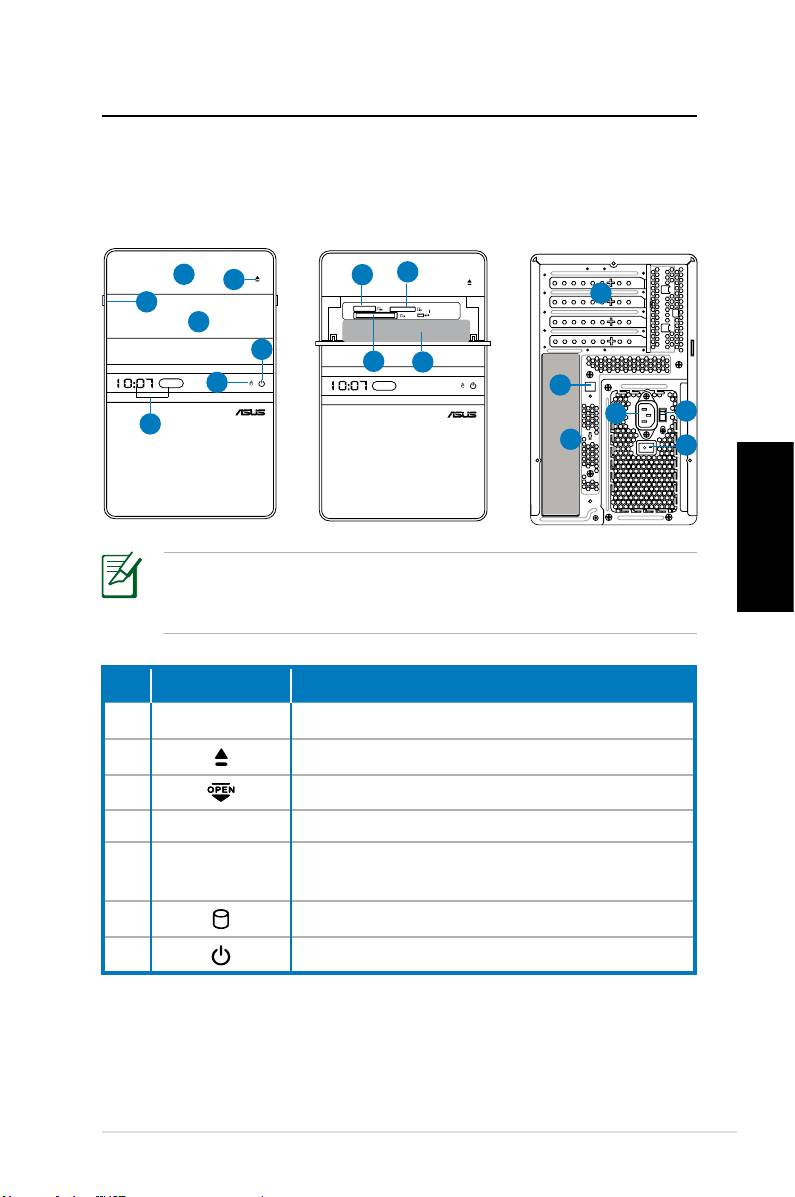
Kennenlernen Ihres Desktop-PCs
Funktionen der Vorder-/Rückseite
Vorderseite
Vorderseite
Rückseite
(geschlossen)
(offen)
Deutsch
*In den grauen Bereichen befinden sich die Anschlüsse der
Vorder- und Rückseite. Die Position dieser Anschlüsse kann je
nach Modell variieren.
Nr. Taste/LED Beschreibung
1.
Abdeckung optisches Laufwerk
2. Auswurftaste optisches Laufwerk
3. Öffnen der Gehäusevorderseite
4. Fronttafelabdeckung
Zeitanzeige und IR (nicht in allen
5.
Modellen)
6. Festplatten-LED
7. Netzschalter (mit Berührungs-Sensor)
Fortsetzung auf der nächsten Seite
ASUS Essentio Desktop-PC 9
S P K
SIDE
S P K
REAR
BASS
C T R
MIC IN
FRONT
IN
LINE
1
8
9
2
12
3
4
7
10
11
6
13
14
15
5
17
16
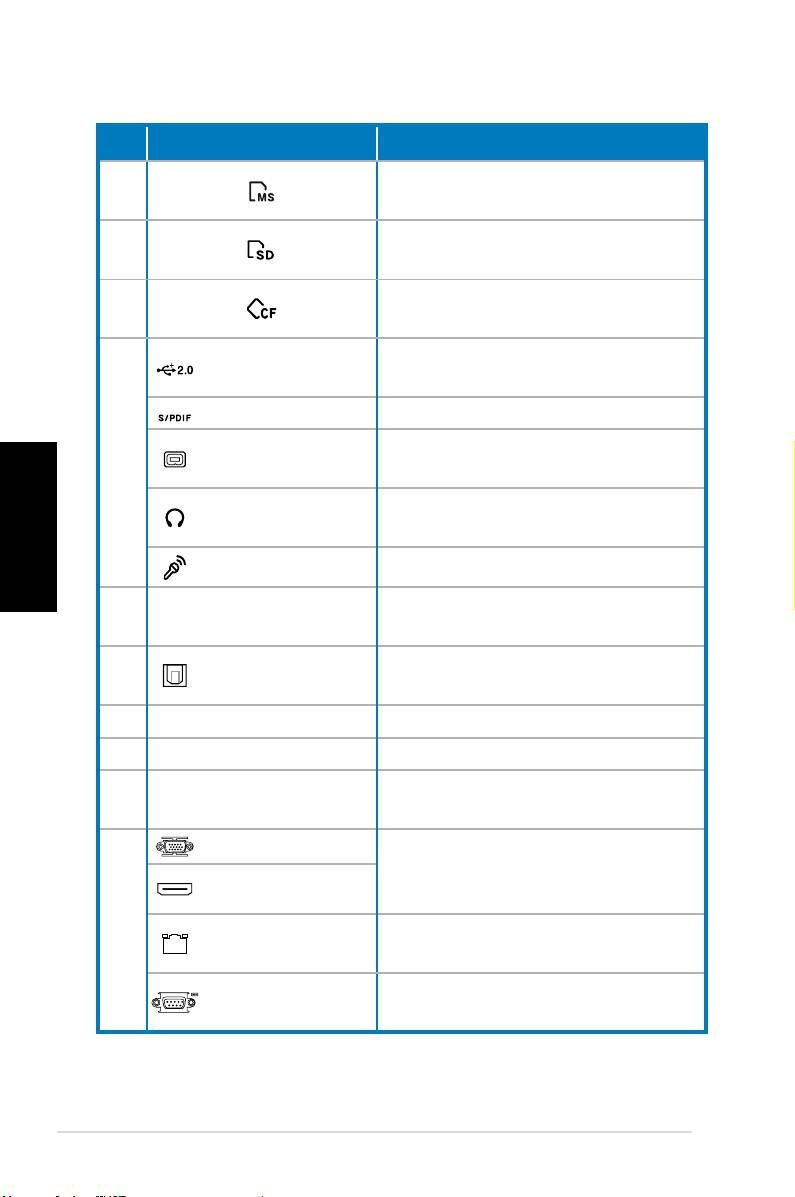
Nr. Steckplatz/Anschluss Beschreibung
®
Memory Stick
/Memory Stick
8.
Pro™-Kartensteckplatz
Secure Digital™/MultimediaCard-
9.
Steckplatz
CompactFlash®/Microdrive™-
10.
Kartensteckplatz
Anschluss für USB-Geräte wie
USB 2.0-Ports
Maus, Tastatur oder Kamera
S/PDIF-Eingang Für digitale Audioquellen
4-pol. IEEE
Für IEEE 1394-Geräte wie z.B.
11.
1394a-Anschluss
digitale Camcorder
Deutsch
Kopfhörer-
Für Stereo-Kopfhörer
buchse
Mikrofonbuchse Für Mikrofone
Erweiterungs-
12.
Für Erweiterungskarten
steckplätze
Optischer
Für Verstärker bei digitaler Audio-
13.
S/PDIF-Ausgang
Ausgabe
14. Netzanschluss Nimmt das Netzkabel auf
15. Spannungsauswahl Wählt die Eingangsspannung
Schaltet die Stromversorgung
16. Netzschalter
ein/aus
VGA-Anschluss
Für Geräte mit anderer Video-
Ausgabe (z.B. Fernseher oder
HDMI-Anschluss
Monitor)
17.
LAN (RJ-45)-
Für Netzwerkkabel
Anschluss
Für Geräte, die den seriellen
COM-Anschluss
Spezifikationen entsprechen.
Fortsetzung auf der nächsten Seite
10 ASUS Essentio Desktop-PC
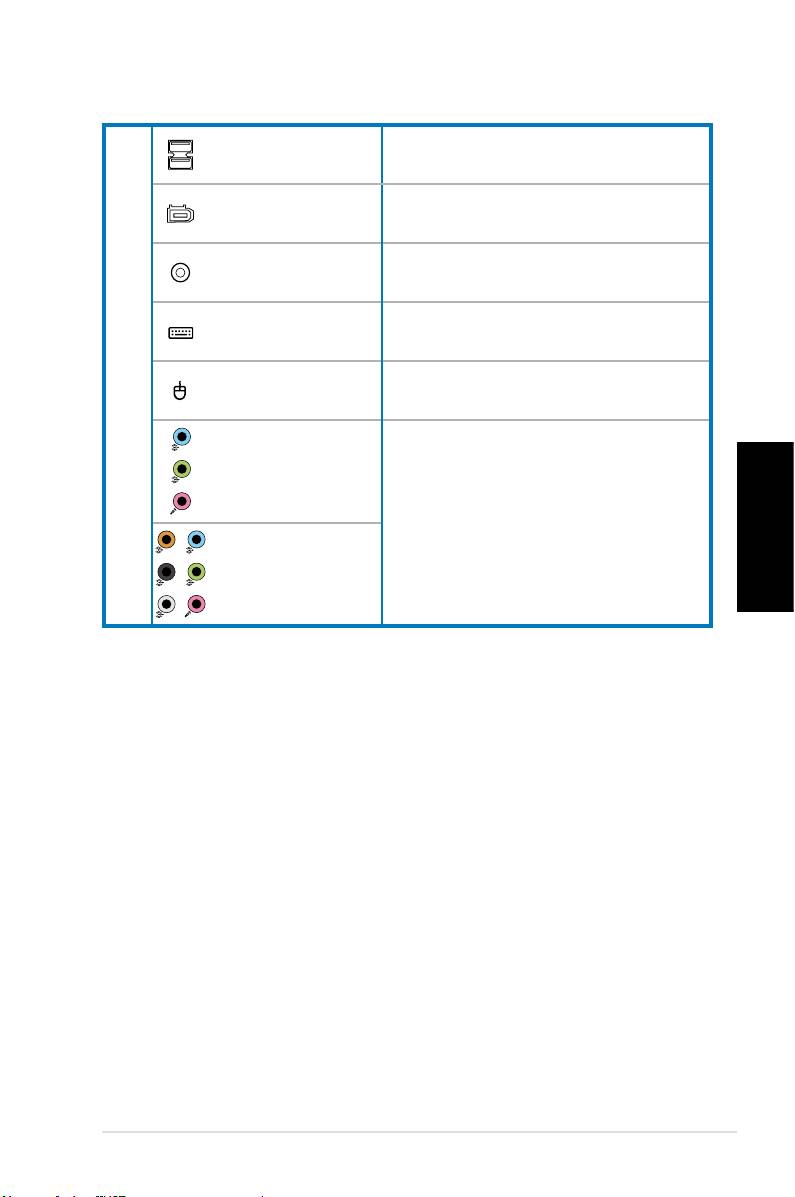
Anschluss für USB-Geräte wie
USB 2.0-Ports
Maus, Tastatur oder Kamera
6-pol. IEEE
Für IEEE 1394-Geräte wie z.B.
1394a-Anschluss
digitale Camcorder
Koaxialer S/PDIF-
Für Verstärker bei digitaler Audio-
Ausgang
Ausgabe
PS/2-Tastatur-
Für eine PS/2-Tastatur
anschluss
17.
PS/2-Maus-An-
Für eine PS/2-Maus
schluss
5.1(6)-Kanal
Audio-
Anschlüsse
Für ein 5.1(6) oder 7.1(8)-Kanal-
Lautsprechersystem
7.1(8)-Kanal
Deutsch
Audio-
Anschlüsse
ASUS Essentio Desktop-PC 11
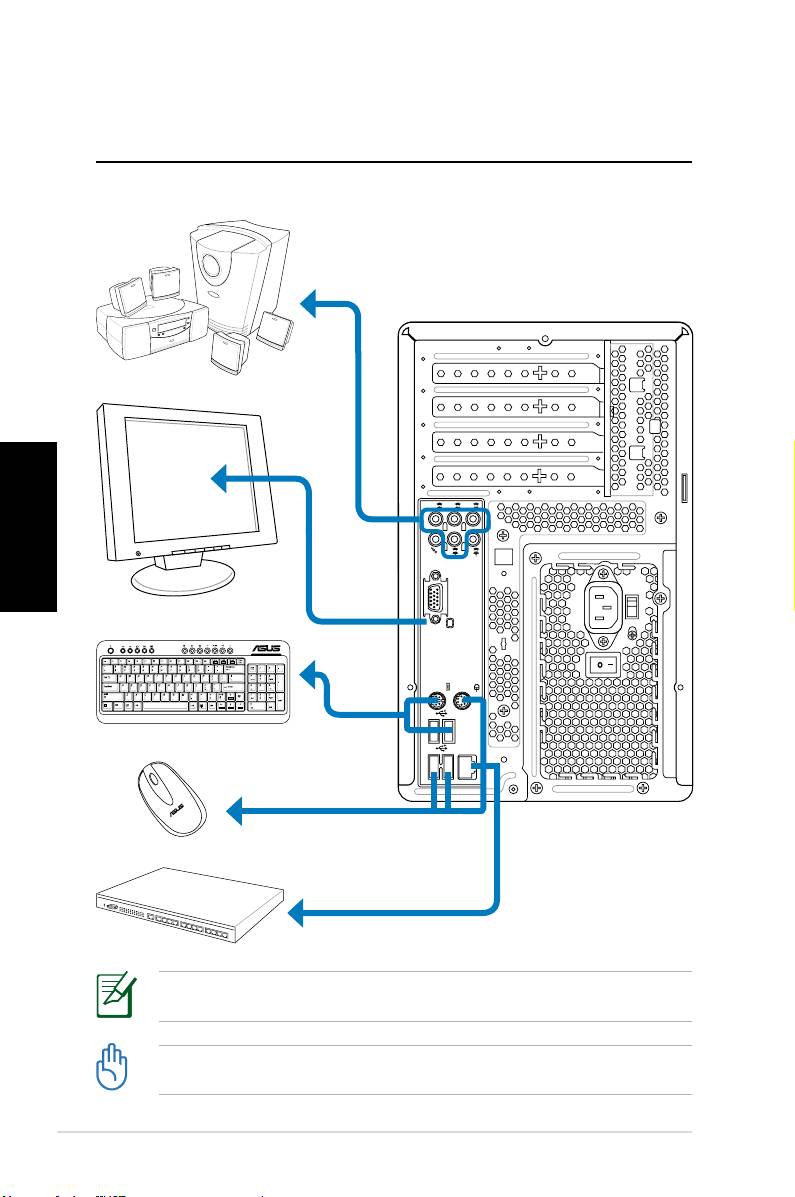
Einrichten Ihres
Desktop-PCs
Anschluss der Geräte
Deutsch
12 ASUS Essentio Desktop-PC
S P K
SIDE
S P K
REAR
BASS
C T R
MIC IN
FRONT
IN
LINE
Die Abbildungen sind nur zur Referenz gedacht. Die tatsächlichen technischen Daten des
Produkts können unterschiedlich ausfallen.
• Benutzen Sie dieses Produkt in einer Umgebungstemperatur von 0 bis 35˚C.
• Verdecken Sie auf keinen Fall die Belüftungsschlitze.
Anschluss der Stromversorgung
1. Geben Sie die richtige Spannung Ihrer Region über die
Spannungsauswahl ein.
Die Auswahl einer Spannung von 115V in einer Umgebung mit
230V kann das System beschädigen!
2. Stecken Sie das Netzkabel in den Netzanschluss und
verbinden Sie es mit einer Steckdose.
3. Drücken Sie den Netzschalter.
2
1
Deutsch
3
Einschalten über den Netzschalter
ASUS Essentio Desktop-PC 13
Verwenden der Media Center-
Fernbedienung (optional)
Mit dieser Fernbedienung können Sie das Media Center-
Programm bedienen, um Mediendateien wie Musik und Filme
abzuspielen. Sie können auch eine externe TV-Box installieren,
um TV-Sendungen aufzuzeichnen und anzusehen.
Die Tastenfunktionen der Fernbedienung werden in der
folgenden Tabelle beschrieben.
1
2
22
3
21
Deutsch
20
4
19
5
18
6
7
17
8
16
9
10
15
14
11
13
12
Nr. Taste Beschreibung
Schaltet Bildschirm und Lautsprecher
1. Ein/Aus
ein/aus
2. Pause Hält die Wiedergabe an
3. Stop Beendet die Wiedergabe
14 ASUS Essentio Desktop-PC
4. Schneller Vorlauf Startet den schnellen Vorlauf
5. Nächster Titel Übergang zum nächsten Titel
Zeigt Programm-Informationen im
6. Informationen
Media Center oder andere Menü-
Optionen an
Richtungs-
7.
Zur Navigation in Menüs
Navigationstasten
Windows® Media
8.
Startet das Media Center-Programm
Center
9. Kanal auf/ ab Wechselt den TV-Kanal*
10. Stummschaltung Schaltet die Audioausgabe ab
Aufgenommene
Zeigt eine Liste aufgenommener TV-
11.
Sendungen
Sendungen*
EPG (Electronic
Zeigt die elektronische Programm-
12.
Program Guide)
vorschau*
Deutsch
13. Live TV-Taste Gibt TV-Sendungen live wieder*
Wechselt zwischen Zahlen- und
14. Umschalt-Taste
Buchstabentasten
15. Videotext-Tasten Nur in europäischen Modellen
16 Lautstärke auf/ab Steigert/senkt die Lautstärke
17. OK Bestätigt eine Aktion
18. Zurück Übergang zur letzten Seite
19. Vorheriger Titel Übergang zum vorherigen Titel
20. Rücklauf Startet den Rücklauf
21. Wiedergabe Gibt eine Mediendatei wieder
22 Aufnahme Startet die TV-Aufnahme.
*Dieses System verfügt nicht über einen integrierten TV-Tuner.
Um die TV-Funktionen nutzen zu können, muss zuerst eine
externe TV-Box erworben werden.
ASUS Essentio Desktop-PC 15

Wiederherstellen des Systems
Benutzen der Wiederherstellungs-DVD
Die Wiederherstellungs-DVD beinhaltet ein Image des
Betriebssystems, das am Werk auf Ihrem System installiert
wurde. Die Wiederherstellungs-DVD bietet eine umfassende
Wiederherstellungslösung zur schnellen Wiederherstellung
in den originalen Arbeitszustand, sofern sich Ihre Festplatte in
einem guten Zustand befindet. Bevor Sie die Wiederherstellungs-
DVD verwenden, sollten Sie Ihre Dateien (z.B. Outlook PST-
Dateien) auf Disketten oder einem Netzwerklaufwerk speichern
und sich persönlich eingestellte Systemkonfigurationen (z.B.
Netzwerkeinstellungen) notieren.
1. Schalten Sie Ihren ASUS Desktop-PC ein und das ASUS-Logo
Deutsch
wird angezeigt. Drücken Sie F8, um das Menü Please select
boot device zu öffnen.
2. Legen Sie die Wiederherstellungs-DVD in das optische
Laufwerk und wählen Sie das optische Laufwerk (“CDROM:
XXX”) als Boot-Laufwerk. Drücken Sie Enter und dann eine
beliebige Taste, um fortzufahren.
3. Der Windows Boot Manager wird angezeigt. Wählen Sie
Windows Setup [EMS Enabled] und drücken Sie Enter. Warten
Sie, bis die Nachricht “Windows is loading files“ erscheint.
4. Wählen Sie, wo das neue System installiert werden soll. Die
folgenden Optionen stehen zur Auswahl:
Auf einer Partition wiederherstellen
Diese Option löscht nur die von Ihnen gewählte Partition,
andere können beibehalten werden. Sie können eine
neue Partition als Laufwerk “C:” einrichten. Wählen Sie eine
Partition und klicken Sie auf NEXT (Weiter).
Auf gesamter Festplatte wiederherstellen
Diese Option lösche alle Partitionen und erstellt eine neue als
Laufwerk “C:”. Wählen Sie diese Option und klicken Sie auf Yes.
5. Folgen Sie den Anweisungen, um den Prozess fertigzustellen.
Bei einer Systemwiederherstellung werden alle Daten gelöscht.
Vergessen Sie nicht, die wichtigsten Daten vorher zu sichern.
16 ASUS Essentio Desktop-PC

6. Wenn die Wiederherstellung beendet ist, werden Sie dazu
aufgefordert, die Support-DVD ins optische Laufwerk zu
legen. Klicken Sie auf OK und das System wird neu gestartet.
7. Nach dem Neustart beginnt Windows® Vista™ sofort mit
der Systemkonfiguration. Folgen Sie den Anweisungen
auf Ihrem Bildchirm, um den Vorgang fertigzustellen, und
starten Sie dann den Computer neu.
Diese Wiederherstellungs-DVD ist nur für den ASUS Desktop-
PC gedacht. Benutzen Sie sie NICHT auf anderen Computern.
Aktuelle Informationen finden Sie auf der ASUS-Webseite unter
www.asus.com.
Deutsch
ASUS Essentio Desktop-PC 17
Fehlerbehebung
Lesen Sie die folgenden Fragen und Antworten zur
Fehlerbehebung. Falls diese Ihr Problem nicht lösen, wenden Sie
sich über die auf der Support-DVD enthaltenen Kontaktdaten an
ASUS.
Was ist zu tun, wenn sich der Desktop-PC nicht einschalten lässt?
Prüfen Sie, ob die Strom-LED an der Vorderseite leuchtet. Falls
nicht, wird dem System kein Strom zugeführt.
• Prüfen Sie, ob der Netzstecker richtig eingesteckt ist.
• Falls Sie eine Verlängerungsschnur oder einen
Spannungsregler benutzen, vergewissern Sie sich, dass diese
an die Steckdose angeschlossen und eingeschaltet sind.
Deutsch
Was ist zu tun, wenn das Betriebssystem nicht hochfährt?
• Vergewissern Sie sich, dass die installierten Speichermodule
vom System unterstützt werden und richtig eingesteckt sind.
• Prüfen Sie, ob die Peripheriegeräte mit dem System
kompatibel sind. Einige USB-Speichergeräte verfügen über
eine andere Laufwerksstruktur und werden einfacher in den
Schlafmodus versetzt.
Falls die oben genannten Schritte das Problem nicht lösen,
wenden Sie sich an den Hersteller oder stellen Sie mit der
Wiederherstellungs-DVD das System wieder her.
Bei einer Systemwiederherstellung werden alle Daten gelöscht.
Vergessen Sie nicht, die wichtigsten Daten vorher zu sichern.
Warum ist nichts von den Lautsprechern/Kopfhörern zu hören?
Prüfen Sie, ob das Lautstärkesymbol in der Windows®-Taskleiste
auf „stumm“ steht. Falls dies der Fall ist, doppelklicken Sie auf
das Symbol, um die Lautstärkeregelung zu öffnen, und klicken Sie
dann auf das „stumm“-Symbol, um diesen Zustand aufzuheben .
18 ASUS Essentio Desktop-PC

Warum kann eine CD/DVD nicht gelesen oder beschrieben
werden?
• Vergewissern Sie sich, dass der verwendete Datenträger mit
dem optischen Laufwerk kompatibel ist.
• Prüfen Sie, ob der Datenträger richtig eingelegt wurde oder
beschädigt ist.
• Finden Sie heraus, ob sich auf dem Datenträger ein
Schreibschutz befindet.
Deutsch
ASUS Essentio Desktop-PC 19

Deutsch
20 ASUS Essentio Desktop-PC
ASUS Essentio Desktop PC
Manuale Utente
Italiano

I3716
Prima Edizione V1
Aprile 2008
Italiano
Copyright © 2008 ASUSTeK COMPUTER INC. Tutti i Diritti Riservati.
Alcuna parte di questo manuale, compresi i prodotti e i software in esso descritti,
può essere riprodotta,trasmessa, trascritta, archiviata in un sistema di recupero o
tradotta in alcuna lingua, in alcuna forma e in alcun modo, fatta eccezione per la
documentazione conservata dall’ acquirente, a scopi di backup, senza l’ espressa
autorizzazione scritta di ASUSTeK COMPUTER INC. (“ASUS”).
I prodotti e nomi delle aziende che compaiono in questo manuale possono o
meno essere marchi registrati o diritti d’ autore delle rispettive aziende, e sono
usati solo a scopo identificativo. Tutti i marchi sono di proprietà dei rispettivi
proprietari.
E’ stato compiuto ogni sforzo per assicurare la correttezza e l’ aggiornamento dei
contenuti di questo manuale. Tuttavia, il produttore non offre alcuna garanzia in
merito all’ accuratezza di tali contenuti e si riserva il diritto di modificarli senza
preavviso.

Condizioni e Limiti di Copertura
della Garanzia sul Prodotto
Le condizioni di garanzia variano a seconda del tipo di prodotto e sono
specificatamente indicate nel Certificato di Garanzia allegato, cui si fa espresso
rinvio.
Inoltre la presente garanzia non è valida in caso di danni o difetti dovuti ai
seguenti fattori: (a) uso non idoneo, funzionamento o manutenzione improprio,
incluso senza limitazioni l’ utilizzo del prodotto con una finalità diversa da quella
conforme alle istruzioni di ASUSTeK COMPUTER INC. in merito all’ idoneità di
utilizzo e alla manutenzione; (b) installazione o utilizzo del prodotto in modo
non conforme aglli standard tecnici o di sicurezza vigenti nell’ Area Economica
Europea e in Svizzera; (c) collegamento a rete di alimentazione con tensione
non corretta; (d) utilizzo del prodotto con accessori di terzi, prodotti o dispositivi
ausiliari o periferiche; (e) tentativo di riparazione effettuato da una qualunque
terza parte diversa dai centri di assistenza ASUSTeK COMPUTER INC. autorizzati;
(f) incidenti,fulmini,acqua, incendio o qualsiasi altra causa il cui controllo non
dipende da ASUSTeK COMPUTER INC.; abuso, negligenza o uso commerciale.
La presente Garanzia non è valida per l’ assistenza tecnica o il supporto per
l’ utilizzo del prodotto, compreso l’ utilizzo dell’ hardware o del software. L’
assistenza e il supporto disponibili (se previsti), nonchè le spese e gli altri
termini relativi all’ assistenza e al supporto (se previsti) verranno specificati nella
documentazione destinata al cliente fornita a corredo con il Prodotto.
E’ responsabilità dell’ utente, prima ancora di richiedere l’ assistenza, effettuare
il backup dei contenuti presenti sul Prodotto, inclusi i dati archiviati o il
software installato nel prodotto. ASUSTeK COMPUTER INC. non è in alcun modo
responsabile per qualsiasi danno, perdita di programmi, dati o altre informazioni
Italiano
archiviate su qualsiasi supporto o parte del prodotto per il quale viene richiesta
l’ assistenza; ASUSTeK COMPUTER INC.non è in alcun modo responsabile
delle conseguenze di tali danni o perdite, incluse quelle di attività, in caso di
malfunzionamento di sistema, errori di programmi o perdita di dati.
E’ responsabilità dell’ utente, prima ancora di richiedere l’ assistenza, eliminare
eventuali funzioni, componenti, opzioni, modifiche e allegati non coperti
dalla presente Garanzia, prima di far pervenire il prodotto a un centro servizi.
ASUSTeK COMPUTER INC. ASUSTeK COMPUTER INC. non è in alcun modo
responsabile di qualsiasi perdita o danno ai componenti sopra descritti.
ASUSTeK COMPUTER INC. non è in alcun modo responsabile di eliminazioni,
modifiche o alterazioni ai contenuti presenti sul Prodotto compresi eventuali
dati o applicazioni prodottesi durante le procedure di riparazione del Prodotto
stesso. Il Prodotto verrà restituito all’ utente con la configurazione originale di
vendita, in base alle disponibilità di software a magazzino.
ASUS Essentio Desktop PC 3

Licenza Software
I prodotti ASUS possono essere corredati da software, secondo la tipologia del
prodotto. I software, abbinati ai prodotti, sono in versione “OEM”: il software OEM
viene concesso in licenza all’ utente finale, come parte integrante del prodotto;
ciò significa che non può essere trasferito ad altri sistemi hardware e che, in caso
di rottura, di furto o in ogni altra situazione che lo renda inutilizzabile, anche la
possibilità di utilizzare il prodotto OEM viene compromessa.
Chiunque acquisti, unitamente al prodotto, un software OEM, è tenuto ad
osservare i termini e le condizioni del contratto di licenza tra il proprietario del
software e l’ utente finale, denominato “EULA”(End User Licence Agreement),
visualizzato a video, durante la fase di installazione del software stesso. Si avvisa
che l’ accettazione, da parte dell’ utente, delle condizioni dell’ EULA, ha luogo al
momento dell’ installazione del software stesso.
Italiano
4 ASUS Essentio Desktop PC

Sommario
Comunicazioni .....................................................................................6
Informazioni in materia di Sicurezza ............................................8
Note sul Manuale ................................................................................9
Benvenuti ............................................................. 10
Contenuto della Confezione ........................................................10
Descrizione di Desktop PC .................................. 11
Caratteristiche Fronte/Retro.........................................................11
Installazione di Desktop PC ................................ 14
Collegare le periferiche .................................................................. 14
Collegare l’ adattatore AC ..............................................................15
Premere il Pulsante di Accensione per Attivare il Sistema 15
Telecomando Media Center (Opzionale) .................................16
Ripristino del Sistema ......................................... 18
Tramite DVD di Ripristino ..............................................................18
Risoluzione dei Problemi .................................... 20
Italiano
ASUS Essentio Desktop PC 5

Comunicazioni
Federal Communications Commission Statement
This device complies with Part 15 of the FCC Rules. Operation is
subject to the following two conditions:
• This device may not cause harmful interference, and
• This device must accept any interference received including
interference that may cause undesired operation.
This equipment has been tested and found to comply with
the limits for a Class B digital device, pursuant to Part 15 of the
FCC Rules. These limits are designed to provide reasonable
protection against harmful interference in a residential
installation. This equipment generates, uses and can radiate
radio frequency energy and, if not installed and used in
accordance with manufacturer’s instructions, may cause harmful
interference to radio communications. However, there is no
guarantee that interference will not occur in a particular
installation. If this equipment does cause harmful interference
to radio or television reception, which can be determined by
Italiano
turning the equipment off and on, the user is encouraged to
try to correct the interference by one or more of the following
measures:
• Reorient or relocate the receiving antenna.
• Increase the separation between the equipment and receiver.
• Connect the equipment to an outlet on a circuit different from
that to which the receiver is connected.
• Consult the dealer or an experienced radio/TV technician for
help.
The use of shielded cables for connection of the monitor to
the graphics card is required to assure compliance with FCC
regulations. Changes or modifications to this unit not expressly
approved by the party responsible for compliance could void the
user’s authority to operate this equipment.
6 ASUS Essentio Desktop PC

Canadian Department of Communications
Statement
This digital apparatus does not exceed the Class B limits for
radio noise emissions from digital apparatus set out in the Radio
Interference Regulations of the Canadian Department of
Communications.
This class B digital apparatus complies with Canadian ICES-003.
Macrovision Corporation Product Notice
This product incorporates copyright protection technology that
is protected by method claims of certain U.S. patents and other
intellectual property rights owned by Macrovision Corporation
and other rights owners. Use of this copyright protection
technology must be authorized by Macrovision Corporation, and
is intended for home and other limited viewing uses only unless
otherwise authorized by Macrovision Corporation. Reverse
engineering or disassembly is prohibited.
Lithium-Ion Battery Warning
Italiano
CAUTION: Danger of explosion if battery is incorrectly replaced. Replace
only with the same or equivalent type recommended by the manufactur-
er. Dispose of used batteries according to the manufacturer’s instructions.
VORSICHT: Explosionsgetahr bei unsachgemäßen Austausch der Batterie.
Ersatz nur durch denselben oder einem vom Hersteller empfohlenem
ähnljchen Typ. Entsorgung gebrauchter Batterien nach Angaben des
Herstellers.
ASUS Essentio Desktop PC 7

Informazioni in materia di Sicurezza
ASUS Desktop PC è stato realizzato e testato per soddisfare i
nuovissimi standard di sicurezza per apparecchiature IT . Tuttavia,
per garantirne l’ osservanza, è importante leggere le seguenti
norme di sicurezza.
Installazione del Sistema
• Prima di mettere in funzione il sistema, leggere e seguire tutte
le istruzioni contenute nella documentazione.
• Non utilizzare questo prodotto in prossimità di acqua o di
sorgenti di calore, come un radiatore.
• Installare il sistema su una superficie stabile.
• I fori e le scanalature sul telaio servono per la ventilazione. Non
ostruire o coprire tali aperture. Assicurarsi di lasciare un ampio
spazio intorno al sistema. Mai inserire oggetti di alcun tipo
sulle scanalature/fori destinati alla ventilazione.
• Utilizzare il prodotto in ambienti con temperatura comprese
fra 0˚C e 35˚C.
• IIn caso di impiego di un cavo di estensione, assicurarsi che l’
Italiano
amperaggio totale dei dispositivi inseriti nel cavo non superi
quello del Desktop PC.
Precauzioni d’ Uso
• Non camminare sul cavo di alimentazione e non lasciare alcun
oggetto su di esso.
• Non versare acqua o altri liquidi sul sistema.
• Quando il sistema è spento, continua a circolare un
seppur minimo quantitativo di corrente elettrica.
Prima di pulire il sistema, disinserire sempre tutti i cavi
(alimentazione, modem e di rete) dalle prese elettriche.
• Se si verificano i seguenti problemi tecnici, disinserire il cavo di
alimentazione e contattare un tecnico qualificato o il proprio
rivenditore.
• La spina o il cavo di alimentazione sono danneggiati.
• Un liquido è stato rovesciato nel sistema.
8 ASUS Essentio Desktop PC
• Il sistema non funziona correttamente, pur attenendosi
alle istruzioni operative.
• Il sistema è caduto o il cabinet è stato danneggiato.
• Le prestazioni del sistema hanno subito variazioni.
AVVERTENZA PRODOTTO LASER
PRODOTTO LASER DI CLASSE 1
NON DISASSEMBLARE
La garanzia non si applica a prodotti
disassemblati dall’ utente
Il simbolo del bidone con la croce, come da figura, indica che il
prodotto (apparecchio elettrico o elettronico e batterie a bottone
contenenti mercurio) non deve essere gettato nei rifiuti comunali.
Controllare le normative locali in materia di smaltimento dei
prodotti elettronici.
Note sul Manuale
Italiano
Per essere sicuri di eseguire correttamente determinate operazioni,
ricordare la seguente simbologia ricorrente nel manuale:
AVVERTENZA: Istruzioni da osservare OBBLIGATORIAMENTE per
evitare di farsi male.
IMPORTANTE: Istruzioni da seguire OBBLIGATORIAMENTE per il
completamento di un’ operazione.
SUGGERIMENTO: Suggerimenti e informazioni utili per il
completamento di un ‘ operazione.
NOTA: Informazioni aggiuntive per situazioni particolari.
ASUS Essentio Desktop PC 9
Benvenuti
Complimenti per l’ acquisto del Desktop PC ASUS. Il contenuto
della confezione del nuovo Desktop PC è indicata di seguito,
ma potrebbe variare in base al modello. ASUS si riserva il diritto
di sostituire i componenti o gli accessori per offrire un’ ottima
assistenza tecnica.
Contattare il rivenditore in caso di smarrimento o guasto di uno
degli articoli.
Contenuto della Confezione
• ASUS Desktop PC x1
• Tastiera x1
• Mouse x1
• Cavo di Alimentazione x1
• DVD di Supporto x1
• DVD di Ripristino x1
• Guida all’ Installazione x1
• Certificato di Garanzia x1
Italiano
• Telecomando (opzionale) x1
Per gli aggiornamenti,visitare il sito ufficiale ASUS: http://support.
asus.com
10 ASUS Essentio Desktop PC
Descrizione del Desktop PC
Caratteristiche Fronte / Retro
Fronte (Chiuso)
Fronte (Aperto)
Retro
* Nelle aree grigie sono contenute le porte del pannello frontale /Nelle aree grigie sono contenute le porte del pannello frontale /
posteriore. Tali porte e la rispettiva posizione potrebbero variare,
in base al modello del sistema.
Pulsante
No.
Descrizione
Italiano
LED
1. Copertura vano unità ottica
2. Pulsante di Espulsione dell’ Unità OtticaUnità Ottica
3. Apertura copertura pannello frontale.
4. Copertura del pannello frontale.
Visualizzazione ora e IR (solo per alcuni
5.
modelli).
6. LED HDD.
7. Pulsante di Accensione (tattile).
continua alla pagina seguente
ASUS Essentio Desktop PC 11
S P K
SIDE
S P K
REAR
BASS
C T R
MIC IN
FRONT
IN
LINE
1
8
9
2
12
3
4
7
10
11
6
13
14
15
5
17
16
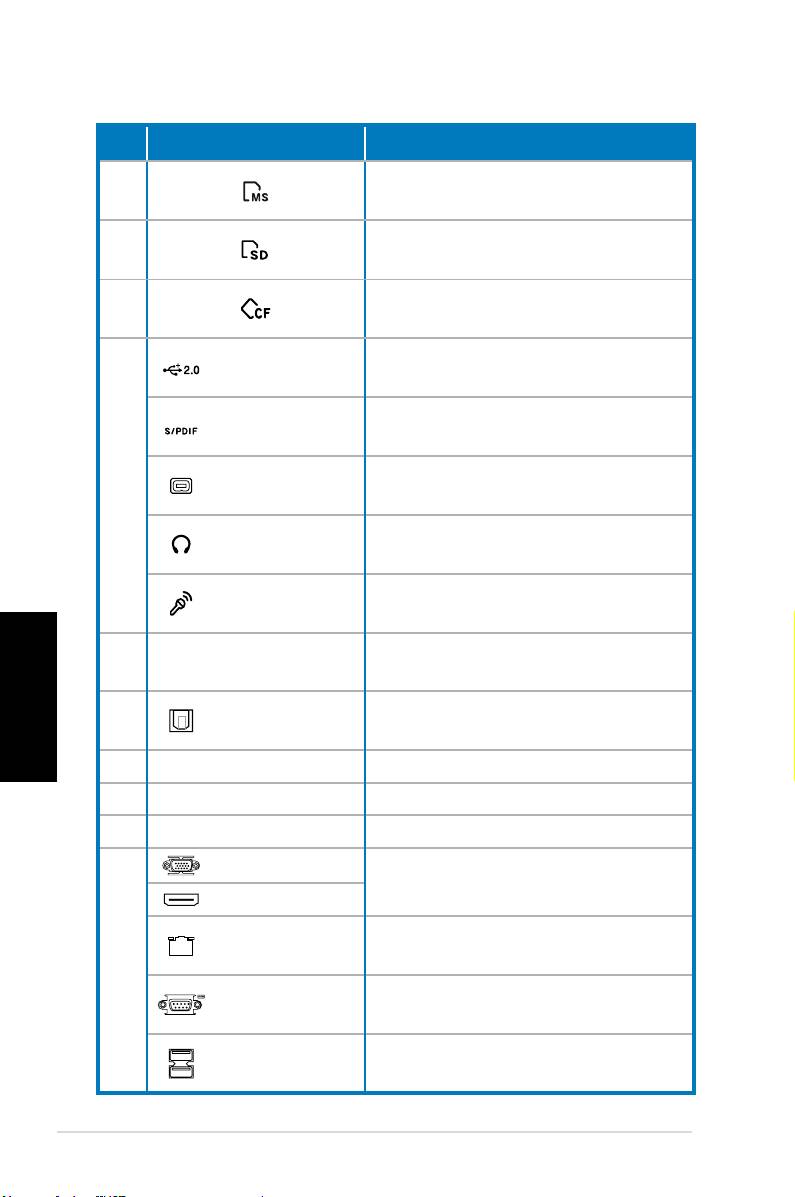
No. Slot/Porta Descrizione
®
Slot per schede Memory Stick
/
8.
Memory Stick Pro™.
Secure Digital™/MultimediaCard
9.
slot.
Slot per schede CompactFlash®/
10.
Microdrive™.
Collegano a dispositivi USB
Porte USB 2.0
(mouse, tastiere o fotocamere)
Collega ad una sorgente audio
Porta S/PDIF In
digitale.
Porta 4-pin
Collega a un dispositivo IEEE 1394
11.
IEEE 1394a
come un camrecorder digitale.
Connettore per l’inserimento di
Jack Cuffie
cuffie o stereo.
Jack
Connettore per l’inserimento di un
Microfono
microfono.
Italiano
Slot per l’ installazione di schede
12. Slot di Espansione
di espansione.
Porta uscita
Collega ad un amplificatore per
13.
ottica S/PDIF
uscita audio digitale.
14. Connettore Aliment. Collega il cavo di alimentazione
15. Selettore Voltaggio Selects input voltage.
16. Interruttore Accens. Attiva/disattiva l’ alimentazione
Porta VGA
Collega a TV o monitor con
differente uscita video.
Porta HDMI
Porta LAN
Porta per l’ inserimento di un cavo
(RJ-45)
di rete.
17.
Collega a dispositivi conformi alle
Porta COMCOM
specifiche seriali.
Collegano a dispositivi USB
Porte USB 2.0
(mouse, tastiere o fotocamere)
continua alla pagina seguente
12 ASUS Essentio Desktop PC
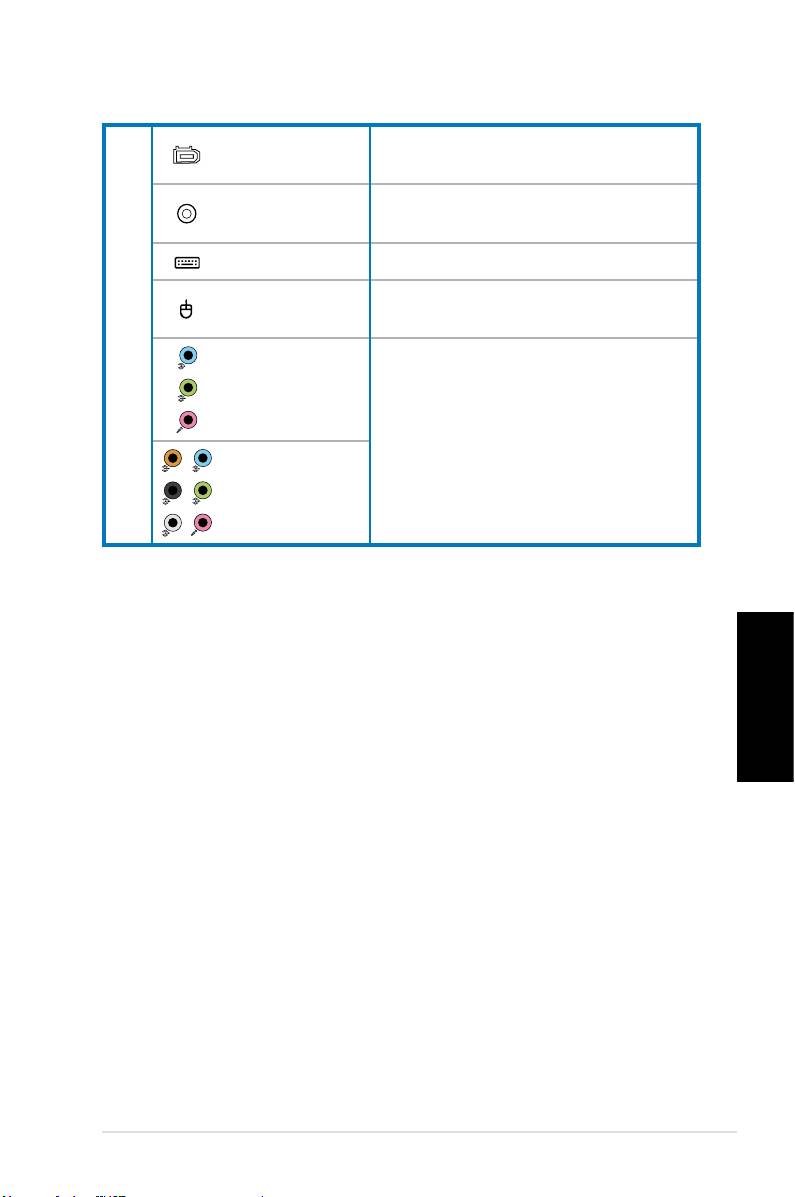
Porta IEEE
Collega a un dispositivo IEEE 1394
1394a a 6-pin
come un camrecorder digitale.
Porta uscita S/S/
Collega ad un amplificatore per
PDIF coassiale
uscita audio digitale.
Tastiera PS/2 Collega a una tastiera PS/2.
Porta mouse
Collega a un mouse PS/2.
PS/2
17.
Porte audio a
5.1(6) canali
Collega ad un sistema di
altoparlanti a 5.1(6) o 7.1(8)-canali
Porte audio a
7.1(8) canali
Italiano
ASUS Essentio Desktop PC 13
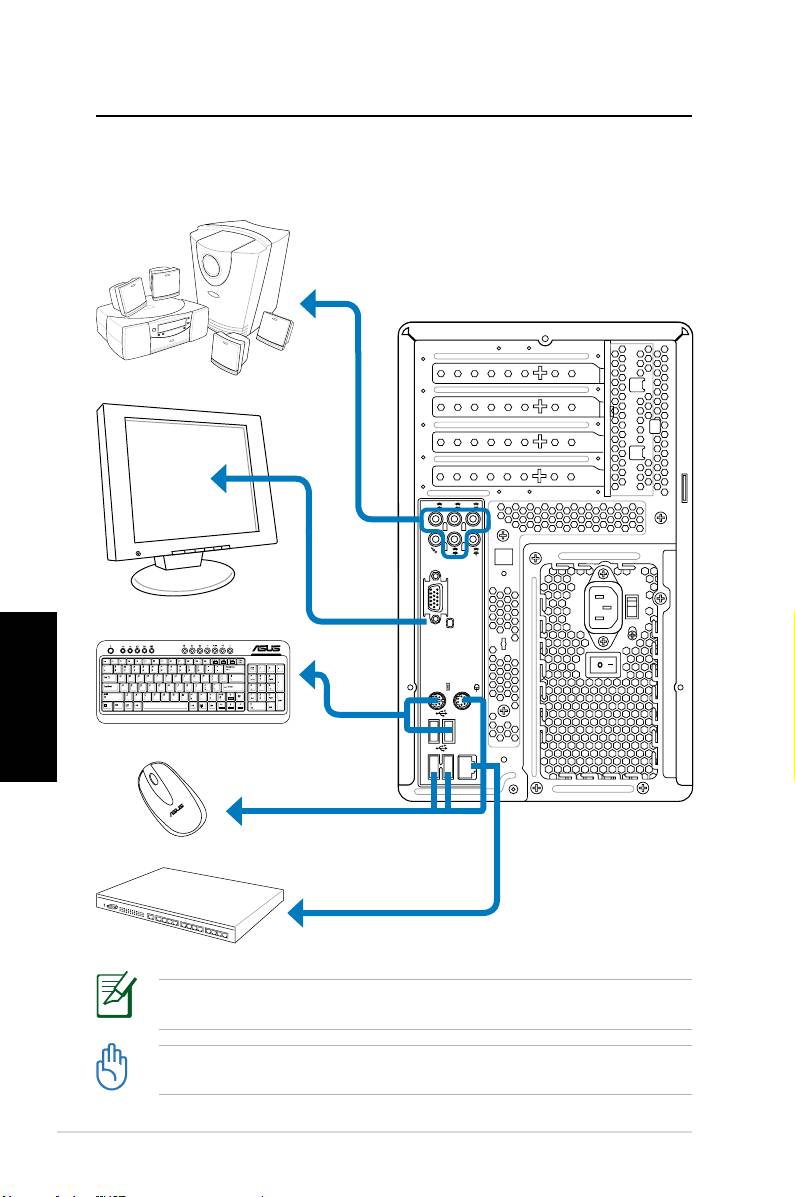
Installazione Desktop PC
Collegare le Periferiche
Italiano
14 ASUS Essentio Desktop PC
S P K
SIDE
S P K
REAR
BASS
C T R
MIC IN
FRONT
IN
LINE
Le illustrazioni sono a titolo esemplificativo. Il reale prodotto potrebbe presentare alcune
differenze.
• Utilizzare il prodotto a temperatura ambiente inferiore a 35˚C.
• Non ostruire o coprire le griglie di aerazione.
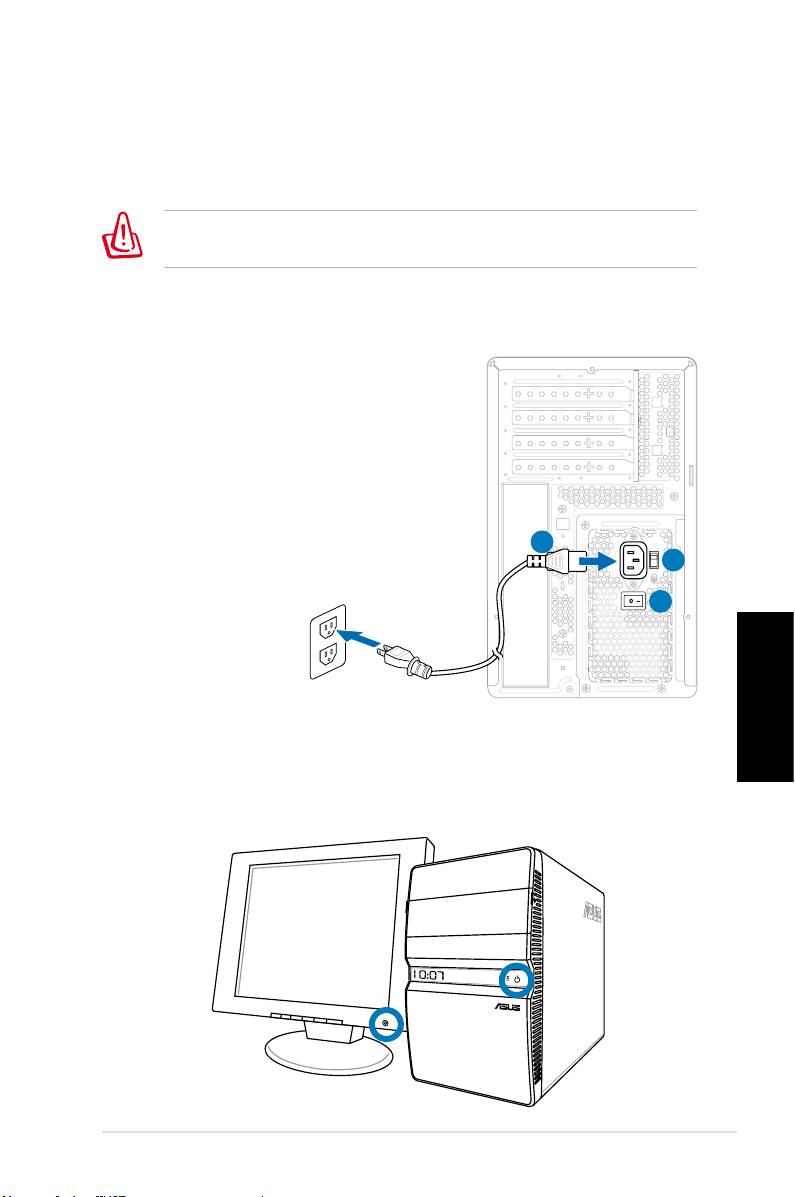
Collegare l’ adattatore AC
1. Mediante l’ apposito selettore, impostare il corretto voltaggio,
in base alla zona.
L’ impostazione del selettore di voltaggio su 115V in un’ area a
230V danneggia il sistema!
2. Collegare il cavo di alimentazione al connettore di
alimentazione e inserirlo nella presa a muro.
3. Premere l’ interuttore di
alimentazione.
2
1
3
Italiano
Premere il Pulsante di Accensione
per Attivare il Sistema
ASUS Essentio Desktop PC 15
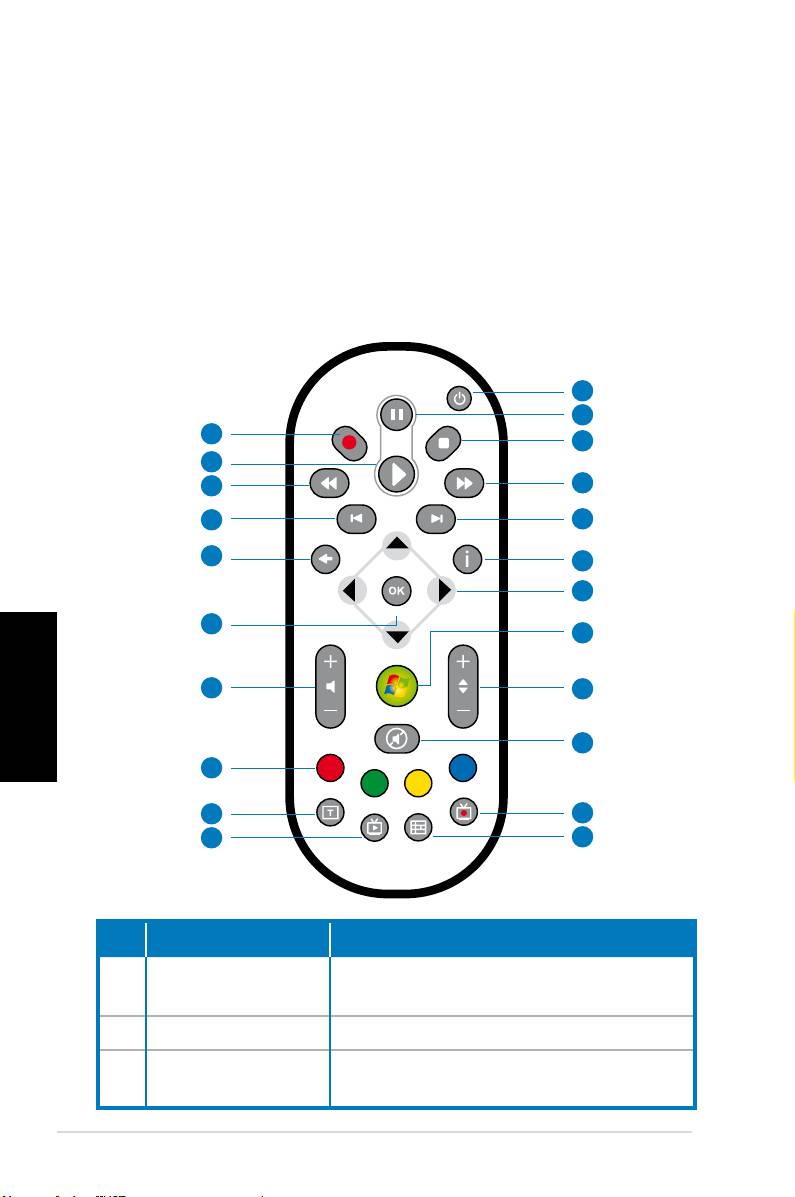
Telecomando Media Center
(Opzionale)
Utilizzare il telecomando per avviare il programma Media Center e
riprodurre file multimediali, quali musica e film. E’ inoltre possibile
installare un TV box esterno per guardare la TV e registrare i
programmi televisivi.
Riferirsi alle pagine seguenti per familiarizzare con le funzioni dei
pulsanti del telecomando.
1
2
22
3
21
20
4
19
5
18
6
7
17
8
Italiano
16
9
10
15
14
11
13
12
No. Pulsante Descrizione
Pulsante per accendere/spegnere lo
1. Accensione
schermo e gli altoparlanti
2. Pausa Mette in pausa una riproduzione
Termina la riproduzione di un file
3. Stop
multimediale.
16 ASUS Essentio Desktop PC
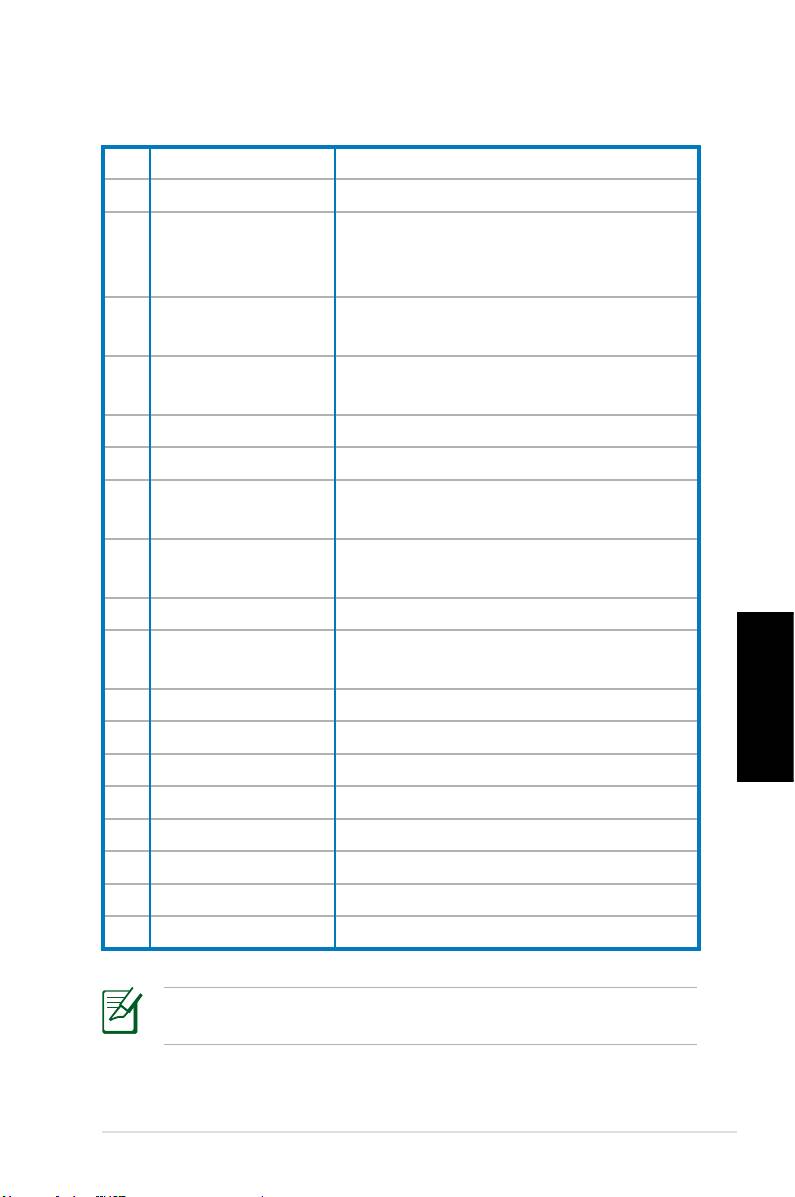
4. Avanti rapido Scorre rapidamente un file multimediale.
5. Traccia successiva Passa alla traccia successiva.
Visualizza le informazioni sui
6. Informazioni
programmi con Media Center o altre
opzioni menu.
Tasto navigazione
Scorre attraverso i menu OSD (on-
7.
a 4 direzioni
screen display).
Windows® Media
8.
Avvia il programma Media Center.
Center
9. Canale su/giù Pulsante per il cambio dei canali TV.*
10. Silenzio Disattiva l’ uscita audio.
Visualizza l’ elenco delle registrazioni
11. Registrazioni TV
TV.*
EPG (Electronic
12.
Visualizza la schermata EPG.*
Program Guide)
13. Pulsante Live TV Pulsante per guardare i programmi TV*.
Consente il passaggio fra immissione
14. Shift
numerica e alfabetica.
15. Pulsanti Teletesto Disponibili soltanto nei modelli Europei.
Italiano
16 Volume su/giù Aumenta/riduce l' audio.
17. OK Pulsante per confermare un’azione.
18. Indietro Torna alla pagina precedente.
19. Traccia Prec. Riporta alla traccia precedente
20. Indietro veloce Riavvolge un file multimediale.
21. Play Riproduce un file multimediale
22 Registrazione Avvia una registrazione TV.
*Il sistema non è dotato di sintonizzatore TV integrato. Per
utilizzare la funzione TV , acquistare un TV box esterno.
ASUS Essentio Desktop PC 17

Ripristino del Sistema
Tramite DVD di Ripristino
Il DVD di Ripristino contiene un' immagine del sistema operativo
installato dal fabbricante. Il DVD di Ripristino, insieme al DVD di
Supporto, offre una soluzione completa per il ripristino del sistema,
che è così riportato rapidamente allo stato operativo originario,
purchè il disco rigido sia in buone condizioni. Prima di utilizzare
il DVD di Ripristino, copiare i file dati (p.e. file PST Outlook) su un
dispositivo USB o su un disco di rete e annotare le impostazioni di
configurazione personalizzate (p.e. impostazioni di rete).
1. Accendere il Desktop PC ASUS e si vedrà visualizzato il logo
ASUS. Premere F8 per accedere al menu Please select boot
device.
2. Inserire il DVD di Ripristino nell’ unità ottica e selezionare tale
unità (“CDROM:XXX”) come dispositivo da avviare. Premere
Enter (Accedi), quindi cliccare su un tasto qualsiasi per
continuare.
3. Appare la finestra Windows Boot Manager. Selezionare
Windows Setup [EMS Enabled] e premere Enter. Attendere
Italiano
la comparsa del messaggio Windows is loading files .
4. Selezionare dove installare un nuovo sistema. Le opzioni sono:
Recover system to a partition
Questa opzione eliminerà soltanto una delle partizioni da
selezionare di seguito, mantenendo le altre e creerà una
nuova partizione del sistema come disco “C.” Selezionare una
partizione e cliccare NEXT (AVANTI).
Recover system to entire HD
Questa opzione eliminerà tutte le partizioni dall’ unità disco
rigido e creerà una nuova partizione del sistema, come disco
“C”. Selezionare e cliccare Yes (Sì).
5. Seguire le istruzioni sullo schermo per completare il processo
di ripristino.
In fase di ripristino del sistema, saranno persi tutti i dati. Prima
dell' operazione, assicurarsi di eseguire una copia di riserva dei
dati importanti.
18 ASUS Essentio Desktop PC

6. Al termine del ripristino del sistema, si richiede di inserire il
DVD di supporto nell’ unità ottica. Cliccare OK e sarà riavviato
il sistema.
7. Dopo aver riavviato il sistema, Windows® Vista™ inizia
le configurazioni. Seguire le istruzioni sullo schermo per
completare il processo e poi riavviare il computer.
Questo DVD di Ripristino è esclusivamente per il Desktop PC ASUS.
NON utilizzarlo su altri computer. Visitare il sito web ASUS www.
asus.com per gli aggiornamenti.
Italiano
ASUS Essentio Desktop PC 19
Risoluzione dei Problemi
Leggere le seguenti Domande & Risposte come guida alla
risoluzione dei problemi. Se non sono in grado di risolvere
gli interrogativi, consultare direttamente la Sezione Contatti
per informazioni sui centri di assistenza, presente nel DVD di
Supporto.
Cosa posso fare se non riesco ad accendere il Desktop PC ?
Controllare se si illumina il LED dell’ alimentazione sul pannello
frontale. Se il sistema non è alimentato, la spia non si accende.
• Verificare che il cavo di alimentazione sia inserito.
• Quando si utilizza un cavo di estensione o un regolatore di
tensione, accertarsi che sia inserito nella presa a muro e funzioni.
Cosa posso fare se il Desktop PC non riesce ad accedere al
sistema operativo?
• Assicurarsi di utilizzare moduli di memoria supportati dal
sistema e che siano stati correttamente installati nei socket.
• Verificare che le periferiche siano compatibili con il sistema.
Determinati dispositivi di archiviazione USB, per esempio, sono
caratterizzati da differenti strutture dell’ unità disco ed entrano
Italiano
facilmente in modalità sospensione.
Se la suddetta procedura non è di aiuto, contattare il rivenditore
oppure eseguire un ripristino del sistema tramite il DVD di
Ripristino in dotazione.
In fase di ripristino del sistema, saranno persi tutti i dati. Prima
dell' operazione, assicurarsi di eseguire una copia di riserva dei
dati importanti.
Perchè non riesco a sentire niente dagli altoparlanti / cuffie?
Controllare l’ icona volume sulla barra delle applicazioni di
Windows® per vedere se è impostata su “silenzio” . In questo
caso, cliccare due volte sull’ icona per visualizzare la barra del
volume, quindi premere sull’ icona “silenzio” per annullare tale
modalità .
20 ASUS Essentio Desktop PC

Perchè non è possibile leggere o scrivere su un CD/DVD?
• Assicurarsi che il disco utilizzato sia compatibile con l’ unità
ottica.
• Controllare che il disco sia stato inserito correttamente e che
non ci siano graffi sulla sua superficie.
• Scoprire se sul disco è attivata la protezione da scrittura.
Italiano
ASUS Essentio Desktop PC 21

Italiano
22 ASUS Essentio Desktop PC
PC de sobremesa ASUS
Manual del usuario
Español

S3716
Primera edición V1
Abril de 2008
Copyright © 2008 ASUSTeK COMPUTER INC. Todos los derechos reservados.
No se permite la reproducción, transmisión, transcripción o almacenamiento en sistemas
de recuperación de ninguna parte de este manual, incluyendo los productos y el software
descritos en él, así como la traducción total o parcial de este manual a cualquier idioma de
Español
ninguna forma o medio sin la autorización expresa y por escrito de ASUSTeK COMPUTER
INC. (“ASUS”), a excepción de aquellas partes de este manual que el usuario conserve para
fines de copia de seguridad.
Los productos y nombres de empresas que aparecen en este manual pueden o no ser
marcas registradas o propiedad intelectual de sus respectivas compañías y solamente se
usan para identificación o explicación y en beneficio de los propietarios sin intención de
infringir ningún derecho. Todas las marcas comerciales son propiedad de sus respectivos
propietarios.
Se han realizado todos los esfuerzos posibles para asegurar que el contenido de este
manual sea correcto y esté actualizado. Sin embargo, no se garantiza la precisión de los
contenidos y el fabricante se reserva el derecho de realizar cambios sin previo aviso.

Contenidos
Notices ....................................................................................................4
Información de seguridad ...............................................................6
Notas sobre este manual ..................................................................7
Bienvenido ............................................................. 8
Contenido del paquete .....................................................................8
Familiarizarse con el equipo Desktop PC ............ 9
Características de los paneles frontal y posterior ....................9
Configurar su Desktop PC ................................... 12
Conectar dispositivos .....................................................................12
Conectar la alimentación ..............................................................13
Presionar el botón de alimentación para encender
el sistema ............................................................................................13
Usar el mando a distancia de Media Center (opcional) ......14
Recuperar el sistema ........................................... 16
Utilizar el DVD de recuperación ..................................................16
Solucionar problemas ......................................... 18
Español
PC de sobremesa ASUS 3 3

Notices
Federal Communications Commission Statement
This device complies with Part 15 of the FCC Rules. Operation is
subject to the following two conditions:
• This device may not cause harmful interference, and
• This device must accept any interference received including
interference that may cause undesired operation.
This equipment has been tested and found to comply with the
limits for a Class B digital device, pursuant to Part 15 of the FCC
Rules. These limits are designed to provide reasonable
protection against harmful interference in a residential
installation. This equipment generates, uses and can radiate radio
frequency energy and, if not installed and used in accordance
with manufacturer’s instructions, may cause harmful
interference to radio communications. However, there is no
guarantee that interference will not occur in a particular
installation. If this equipment does cause harmful interference to
radio or television reception, which can be determined by
turning the equipment off and on, the user is encouraged to
try to correct the interference by one or more of the following
measures:
• Reorient or relocate the receiving antenna.
• Increase the separation between the equipment and receiver.
• Connect the equipment to an outlet on a circuit different from
Español
that to which the receiver is connected.
• Consult the dealer or an experienced radio/TV technician for
help.
The use of shielded cables for connection of the monitor to
the graphics card is required to assure compliance with FCC
regulations. Changes or modifications to this unit not expressly
approved by the party responsible for compliance could void
the user’s authority to operate this equipment.
4 PC de sobremesa ASUS

Canadian Department of Communications
Statement
This digital apparatus does not exceed the Class B limits for radio
noise emissions from digital apparatus set out in the Radio
Interference Regulations of the Canadian Department of
Communications.
This class B digital apparatus complies with Canadian ICES-003.
Advertencia sobre Productos de Macrovision Corporation
Este producto incorpora una tecnología de protección de
los derechos de autor que está protegida por métodos de
reclamo de ciertas patentes de los EE.UU. y por otros derechos
internacionales de propiedad intelectual poseídos por
Macrovision Corporation y otros propietarios de derechos. El uso
de esta tecnología de protección de los derechos de autor debe
estar autorizado por Macrovision Corporation, y está destinado
al uso en el hogar y a otros usos limitados a menos que de otro
modo sea autorizado por Macrovision Corporation. Las copias
de ingeniería o el desmontaje están prohibidas.
Lithium-Ion Battery Warning
CAUTION: Danger of explosion if battery is incorrectly replaced. Replace
only with the same or equivalent type recommended by the manufactur-
er. Dispose of used batteries according to the manufacturer’s instructions.
VORSICHT: Explosionsgetahr bei unsachgemäßen Austausch der Batterie.
Ersatz nur durch denselben oder einem vom Hersteller empfohlenem
ähnljchen Typ. Entsorgung gebrauchter Batterien nach Angaben des
Herstellers.
Español
PC de sobremesa ASUS 5 5

Información de seguridad
El dispositivo ASUS Desktop PC se ha diseñado y comprobado para
cumplir las normativas más recientes de seguridad para equipos
de tecnología de la información. No obstante, para garantizar su
seguridad, es importante que lea las siguientes instrucciones de
seguridad.
Configurar el sistema
• Lea y siga todas las instrucciones de la documentación antes
de usar el sistema.
• No utilice este producto junto a zonas con agua o fuentes de
calor, como por ejemplo radiadores.
• Coloque el sistema en una superficie estable.
• Use la base de soporte si desea poner de pie el sistema NOVA.
Si lo pone de pie sin dicha base, dificultará la ventilación y el
sistema podría resultar dañado.
• Las aberturas de la carcasa son parte del sistema de ventilación
del producto. No las bloquee. Asegúrese de dejar suficiente
espacio alrededor del sistema para proporcionarle la
ventilación adecuada. Nunca inserte objetos de ningún tipo en
las aberturas de ventilación.
• Si usa un alargador, asegúrese de que el valor nominal de la
corriente de los dispositivos enchufados no supera el de dicho
alargador.
Consideraciones a tener en cuenta durante el uso
• No camine sobre el cable de alimentación ni coloque nada
sobre él.
Español
• No derrame agua ni ningún otro líquido en el sistema.
• Cuando el sistema está apagado, sigue consumiendo una
pequeña cantidad de corriente eléctrica.
Desenchufe siempre todas las tomas de corriente, el módem y
los cables de red antes de limpiar el sistema.
• Si detecta los siguientes problemas técnicos en el producto,
desenchufe el cable de alimentación y póngase en contacto
con un técnico profesional o con su proveedor.
• El cable o el enchufe de alimentación está dañado.
• Se ha derramado líquido dentro del sistema.
6 PC de sobremesa ASUS
• El sistema no funciona correctamente aunque se hayan segui-
do las instrucciones de funcionamiento.
• El sistema se ha dejado caer o la carcasa está dañada.
• El rendimiento del sistema cambia.
ADVERTENCIA de seguridad
relacionada con la unidad de CD-ROM
PRODUCTO LÁSER DE CLASE 1
NO DESMONTAR
La garantía no se aplica a productos desmontados
por los usuarios
Este símbolo de la papelera con ruedas tachada indica que el
producto (equipo eléctrico y electrónico y pila de botón que
contiene mercurio) no se debe arrojar a la basura municipal.
Consulte las normas locales sobre desecho de productos
electrónicos.
Notas sobre este manual
A lo largo de esta guía se usan algunas notas y advertencias
que debe tener en cuenta para llevar a cabo ciertas tareas de
forma segura y completa. Estas notas tienen diferentes grados de
importancia según se describe a continuación:
!ADVERTENCIA¡ Información importante que debe seguir para
usar el producto de forma segura.
Español
¡IMPORTANTE! Información fundamental que debe seguir para
no dañar los datos, los componentes o a las personas.
SUGERENCIA: Consejos para completar tareas.
NOTA: Información para situaciones especiales.
PC de sobremesa ASUS 7 7
Bienvenido
Enhorabuena por la compra del dispositivo ASUS Desktop PC.
El contenido del paquete de nuevo Desktop PC se muestra a
continuación, pero puede variar en función del modelo. ASUS se
reserva el derecho de reemplazar los componentes y accesorios
para proporcionar un servicio al cliente óptimo.
Póngase en contacto con su proveedor si alguno de estos com-
ponentes falta o está dañado.
Contenido del paquete
• ASUS Desktop PC x1
• Teclado x1
• Ratón x1
• Cable de alimentación x1
• DVD de soporte x1
• DVD de recuperación x1
• Guía de instalación x 1
• Tarjeta de garantía x1
• Mando a distancia (opcional) x1
Visite el sitio Web de ASUS en http://support.asus.com para
obtener cualquier actualización.
Español
8 PC de sobremesa ASUS
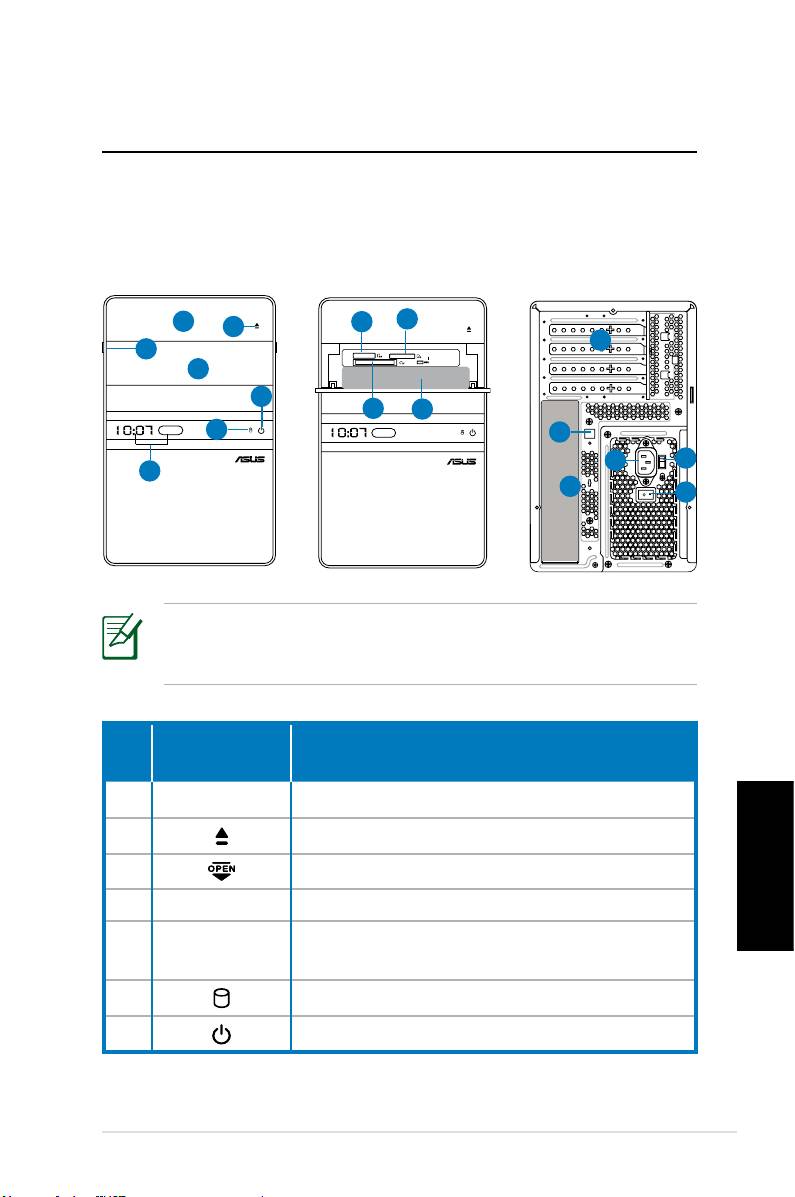
Familiarizarse con el equipo
Desktop PC
Características de los paneles
frontal y posterior
Panel frontal
Panel frontal
Panel posterior
(cerrado)
(abierto)
*Las áreas de color gris contienen los puertos de los paneles
frontal y posterior. Estos puertos y sus ubicaciones pueden
variar en función del modelo del sistema.
Español
continúa en la página siguiente
PC de sobremesa ASUS 9 9
S P K
SIDE
S P K
REAR
BASS
C T R
MIC IN
FRONT
IN
LINE
1
8
9
2
12
3
4
7
10
11
6
13
14
15
5
17
16
Botón/
Nº
Descripción
Indicador LED
1. Cubierta del zócalo de la Unidad Óptica
2. Botón de expulsión de la unidad óptica
3. Desplazar la tapa del panel frontal para abrir
4. Tapa del panel frontal
Pantalla de hora y LED IR
5.
(solo en algunos modelos)
6. LED de la unidad de disco duro
7. Botón de encendido (táctil)
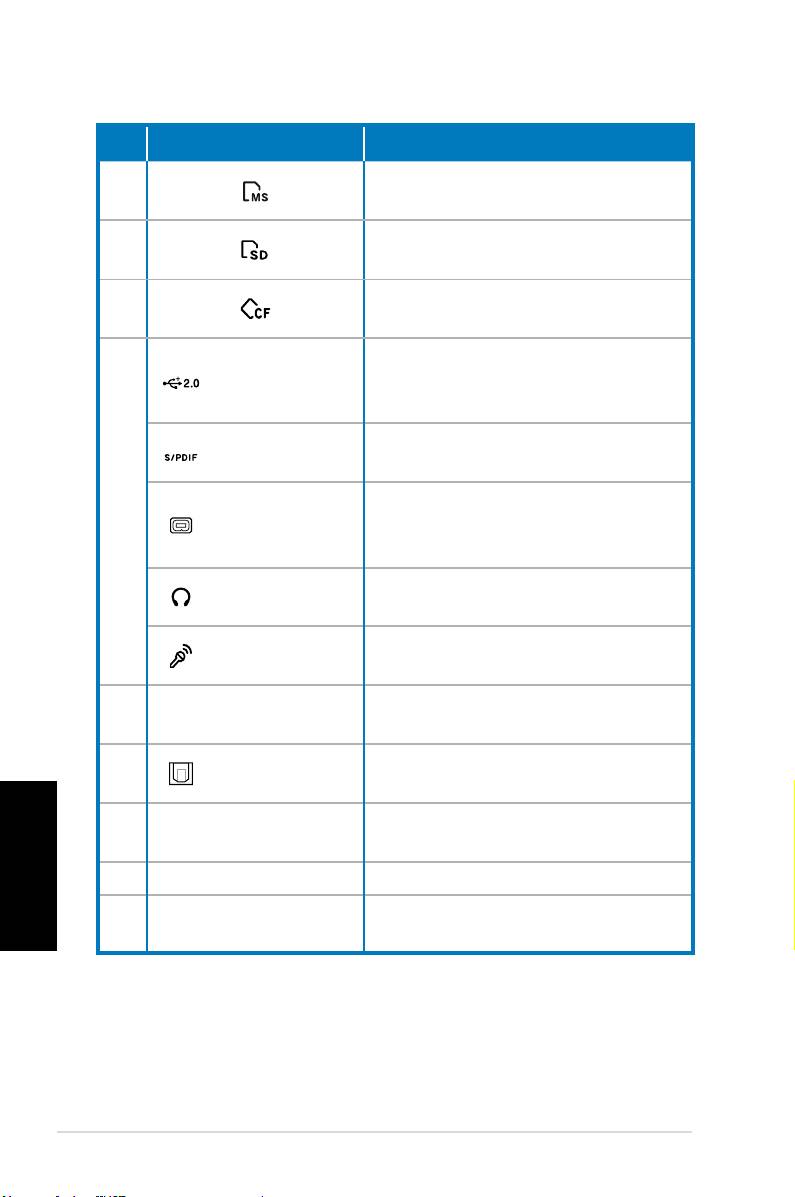
Nº Ranura/Puerto Descripción
®
Ranura para tarjeta Memory Stick
8.
/Memory Stick Pro™
Ranura para tarjeta
9.
Secure Digital™/MultiMedia
Ranura para tarjeta
10.
CompactFlash®/Microdrive™
Conecta dispositivos USB como
Puertos USB
por ejemplo, ratones, teclados o
2.0
cámaras.
Puerto de en-
Conecta fuentes de audio
trada S/PDIF
digitales.
Puerto IEEE
Conecta un dispositivo IEEE 1394
11.
1394a de 4
como por ejemplo una videogra-
contactos
badora digital.
Conector para
Enchufe un dispositivo estéreo o
auriculares
auriculares en este conector.
Conector para
Enchufe un micrófono en este
micrófono
conector.
Use las ranuras cuando instale
12. Ranuras de expansión
tarjetas de expansión.
Puerto Salida
Conecta un amplificador para
13.
S/PDIF óptico
salida de audio digital.
Español
Conector de
Permite conectar el cable de
14.
alimentación
alimentación.
15. Selector de voltaje Selecciona el voltaje de entrada.
Interruptor de
Enciende y apaga la fuente de
16.
encendido
alimentación.
continúa en la página siguiente
10 PC de sobremesa ASUS
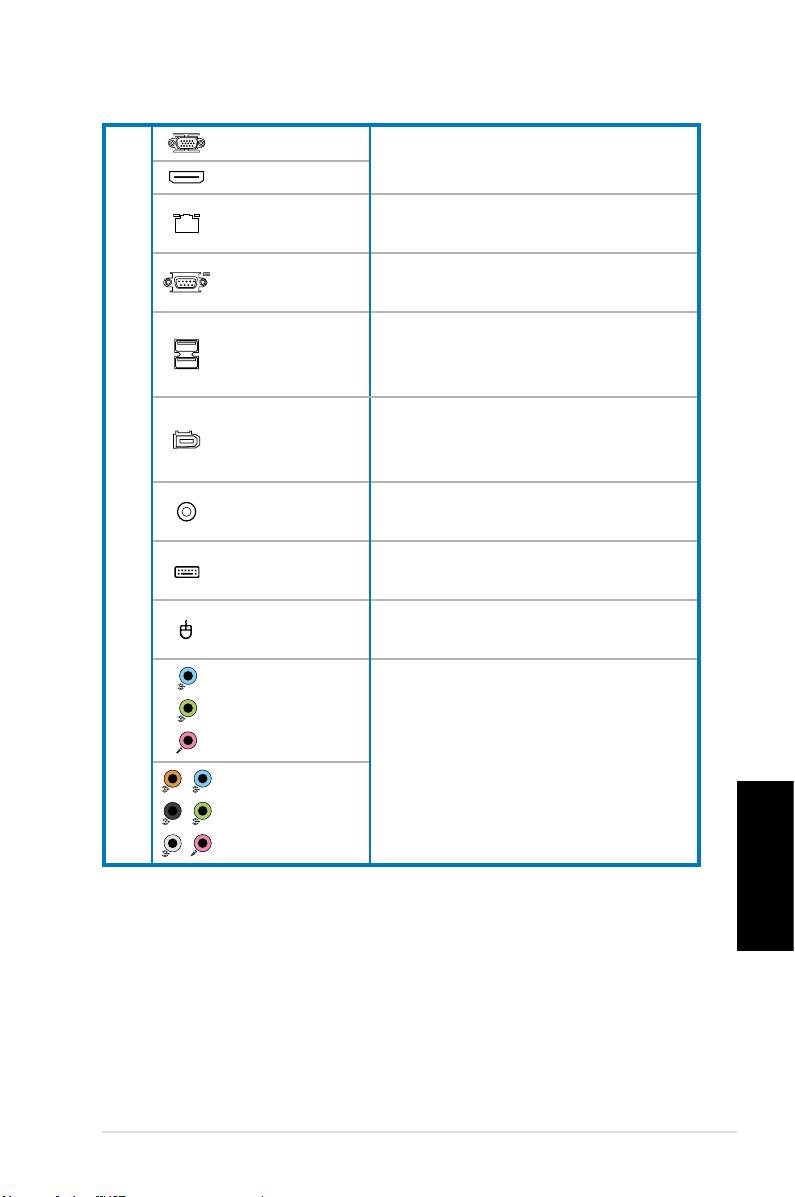
Puerto VGA
Conecta un televisor o monitor
con salida de vídeo diferente.
Puerto HDMI
Puerto LAN
Enchufe un cable de red a este
(RJ-45)
puerto.
Permite conectar dispositivos que
Puerto COM
cumplan la especificación serie.
Conecta dispositivos USB como
Puertos USB
por ejemplo, ratones, , teclados o
2.0
17
cámaras.
Puerto IEEE
Conecta un dispositivo IEEE 1394
1394a de 6
como por ejemplo una videogra-
contactos
badora digital.
Puerto Salida
Conecta un amplificador para
S/PDIF coaxial
salida de audio digital.
Puerto para
Permite conectar un teclado PS/2.
teclado PS/2
Puerto para
Permite conectar un ratón PS/2.
ratón PS/2
Puertos de
audio de 5.1
(6) canales
Conecta un sistema de altavoces
de 5.1 (6) o 7.1 (8) canales.
Puertos de
audio de 7.1
(8) canales
Español
PC de sobremesa ASUS 11 11
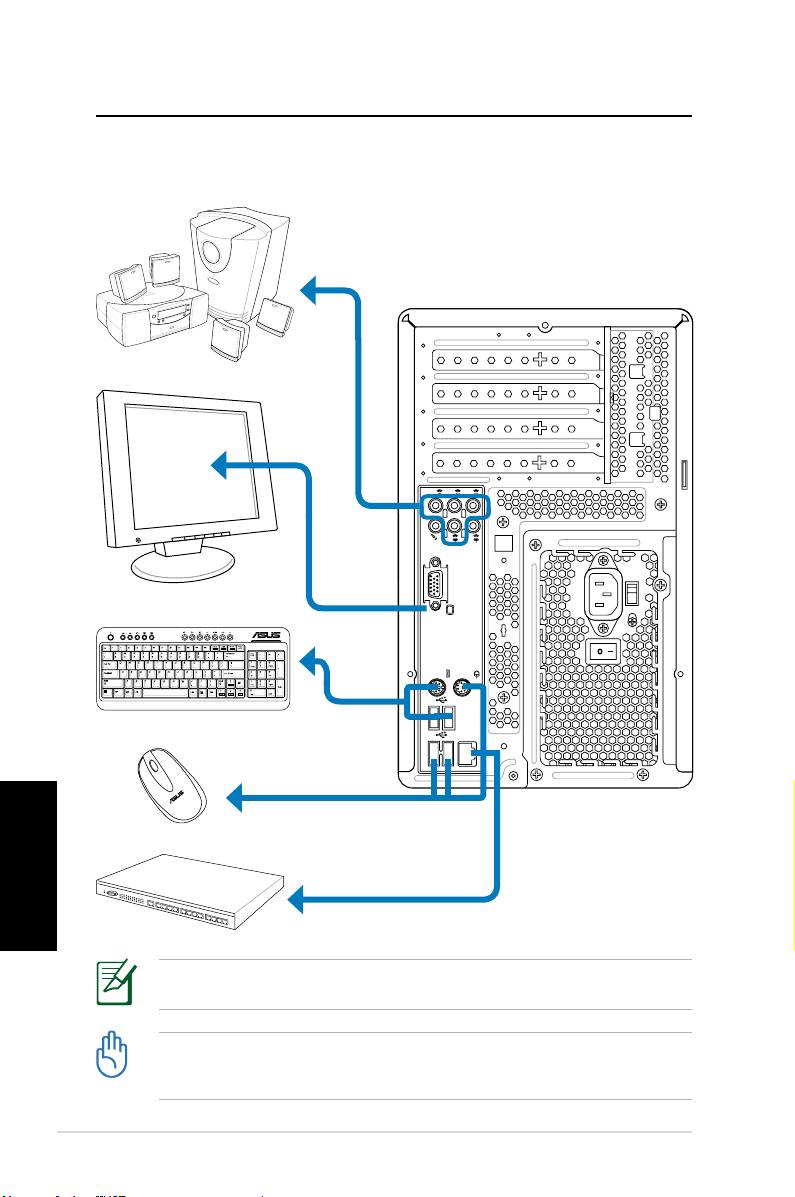
Congurar su Desktop PC
Conectar dispositivos
Español
12 PC de sobremesa ASUS
S P K
SIDE
S P K
REAR
BASS
C T R
MIC IN
FRONT
IN
LINE
Las ilustraciones son solamente para referencia. Las especificaciones del producto real
pueden variar.
• Use este producto en entornos donde la temperatura ambiente no supere los
35 ˚C.
• No bloquee ni tape estas aberturas.
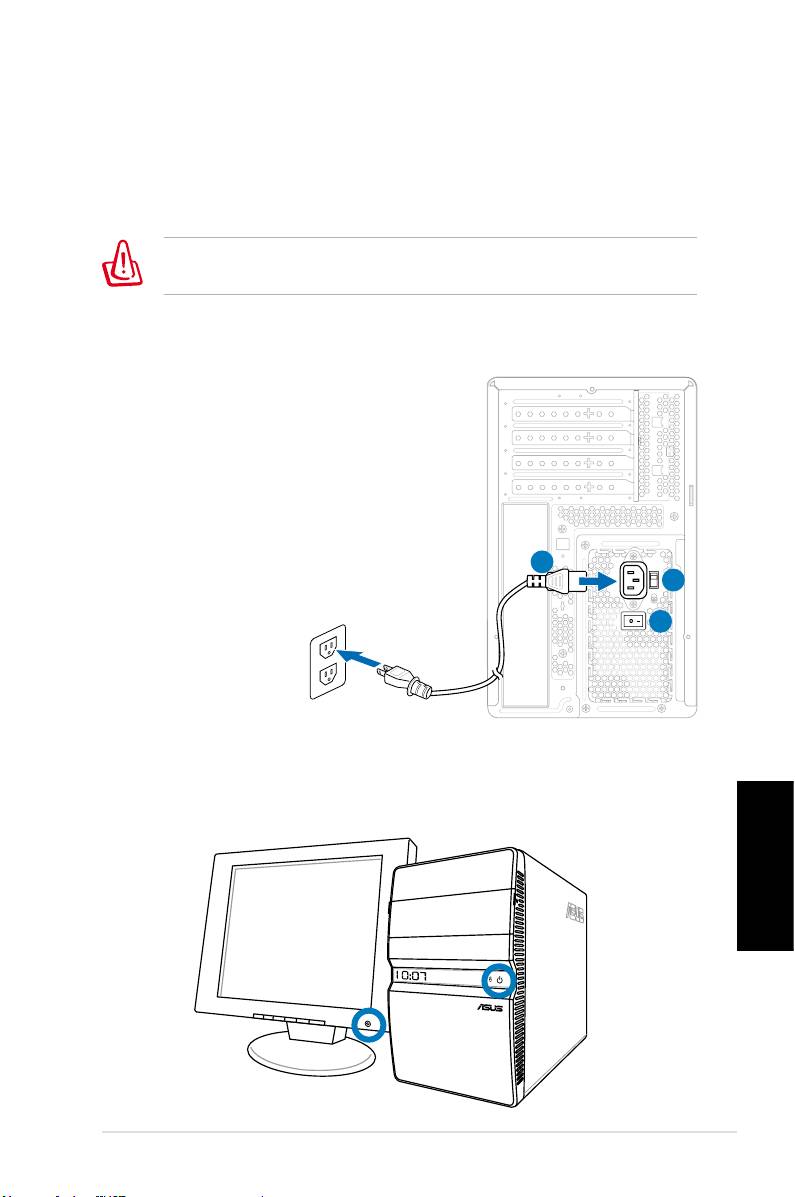
Conectar la alimentación
1. Coloque el selector de voltaje en la posición correcta para
seleccionar el voltaje de entrada adecuado en función de la
tensión utilizada en su región.
¡El sistema resultará dañado si establece el selector de voltaje
en 115 V en una zona en la que se usan 230 V!
2. Enchufe el cable de alimentación entre conector de
alimentación y la toma de corriente eléctrica.
3. Presione el botón de encendido.
2
1
3
Presionar el botón de alimentación
para encender el sistema
Español
PC de sobremesa ASUS 13 13
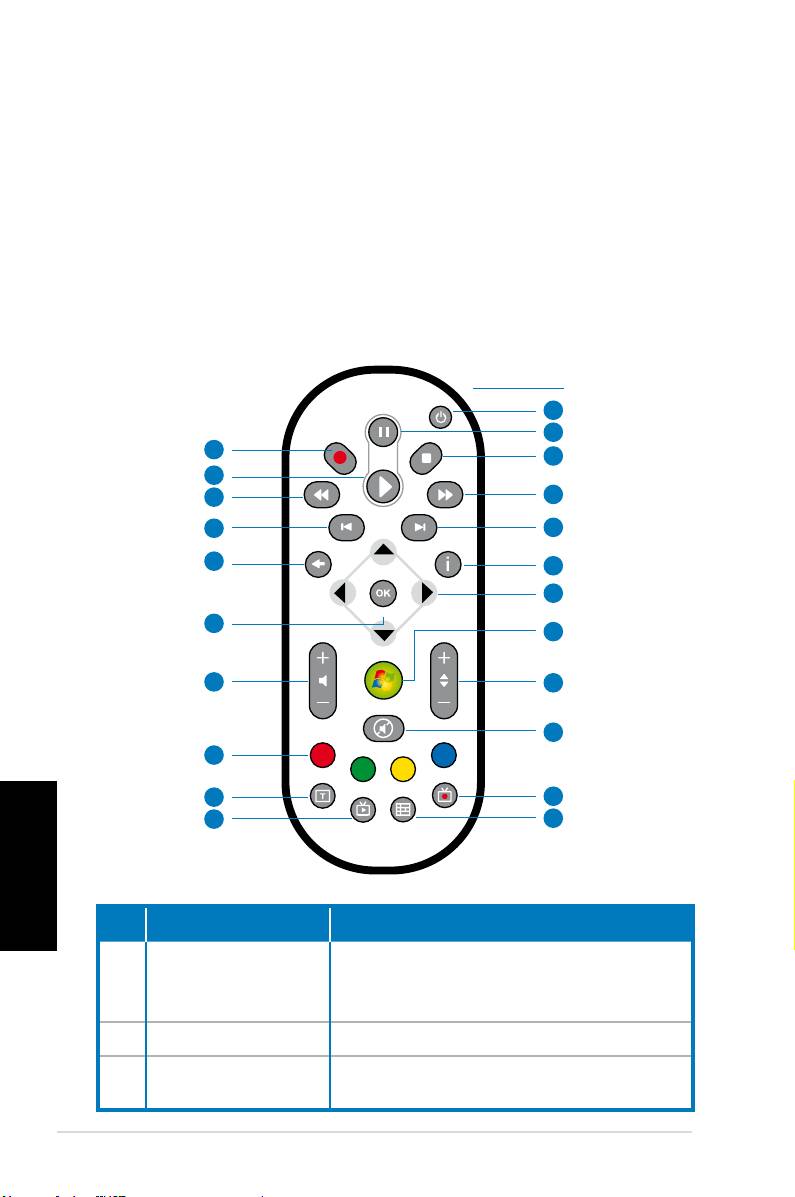
Usar el mando a distancia de Media
Center (opcional)
Use el mando a distancia para iniciar el programa Media Center
para reproducir archivos multimedia, como por ejemplo música y
películas. También puede instalar un televisor externo para ver la
televisión y grabar programas de televisión.
Consulte la tabla siguiente para familiarizarse con las funciones
de los botones especiales del mando a distancia.
1
2
22
3
21
20
4
19
5
18
6
7
17
8
16
9
10
15
14
11
Español
13
12
Nº Botón Descripción
Presiónelo para conectar y desconec-
1. Alimentación
tar la alimentación de la pantalla y los
altavoces.
2. Pausa Permite pausar una reproducción.
Permite detener la reproducción de
3. Detener
un archivo multimedia.
14 PC de sobremesa ASUS
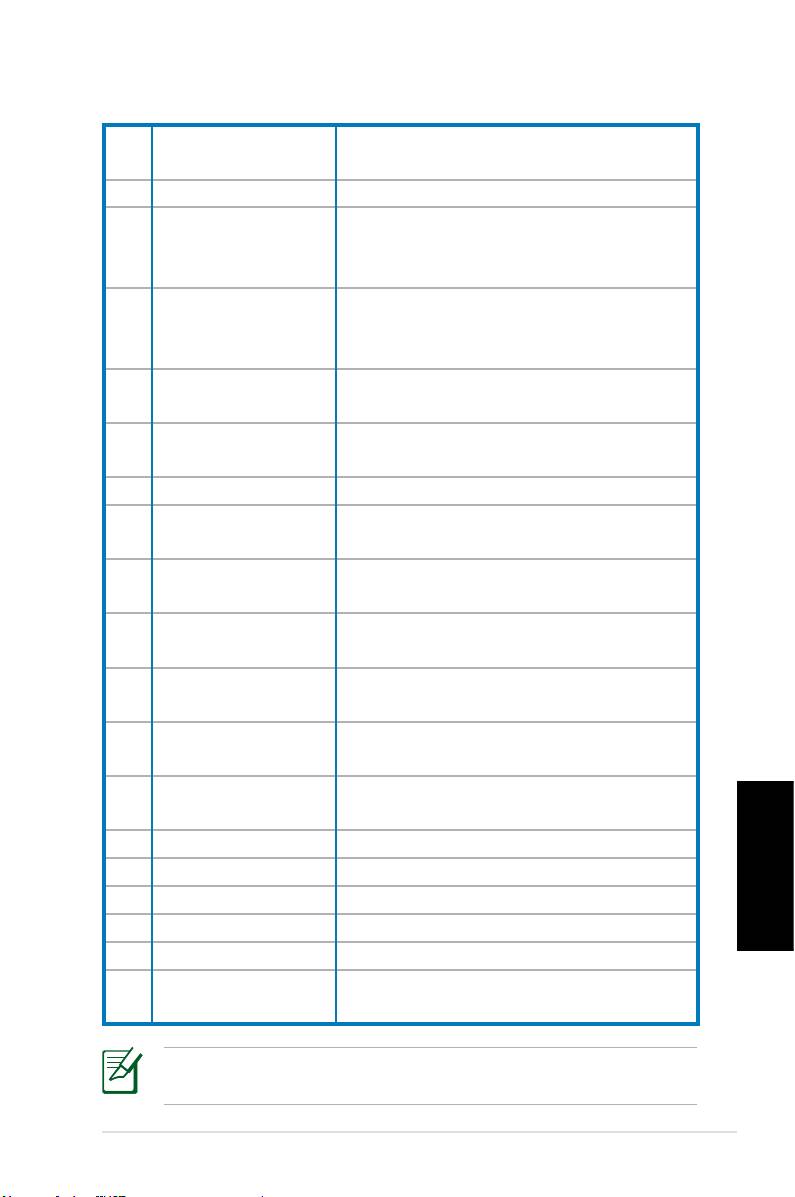
Hace avanzar rápidamente un archivo
4. Avance rápido
multimedia.
5. Pista siguiente Permite ir a la pista siguiente.
Permite mostrar información del
6. Información
programa bajo Media Center u otras
opciones de menú.
Botones de des-
7.
plazamiento de 4
Permiten recorrer los menús OSD.
direcciones
Windows® Media
Permite iniciar el programa Media
8.
Center
Center.
Subir o bajar
Permiten cambiar de canal de televi-
9.
canales
sión.*
10. Desactivar audio Permite deshabilitar la salida de audio.
Programas de TV
Permite mostrar una lista de los pro-
11.
grabados
gramas de TV grabados.*
EPG (Guía electró-
Permite mostrar la pantalla de la Guía
12.
nica de programas)
electrónica de programas.*
Botón TV en
Presiónelo para ver programas de TV
13.
directo
en directo. *
Permite alternar entre la entrada
14. Mayús
numérica y alfanumérica.
Botones de tele-
Solamente están disponibles en los
15.
texto
modelos europeos.
Subir o bajar
16
Permite subir o bajar el volumen.
volumen
17. Aceptar Permite confirmar una acción.
18. Volver Permite volver a la página anterior.
19. Pista anterior Permite volver a la pista anterior.
Español
20. Rebobinar
Permite rebobinar un archivo multimedia.
21. Reproducir
Permite reproducir un archivo multimedia.
Presiónelo para iniciar la grabación
22 Grabar
de programas de TV.
*El sistema no incluye sintonizador de TV integrado. Para usar la
función de televisión, adquiera antes un televisor externo.
PC de sobremesa ASUS 15 15

Recuperar el sistema
Utilizar el DVD de recuperación
El DVD de recuperación incluye una imagen del sistema opera-
tivo, instalada en el equipo portátil en la propia fábrica. El DVD
de recuperación, junto con el DVD de soporte, proporciona una
solución de recuperación total que restaura rápidamente sistema
a su estado de trabajo original siempre que la unidad de disco
duro se encuentre en buen estado de funcionamiento. Antes
de utilizar el DVD de recuperación, copie los archivos de datos
(como por ejemplo los archivos PST de Outlook) en un dispo-
sitivo USB o en una unidad de red y anote las configuraciones
personalizadas (como por ejemplo la configuración de red).
1. Encienda el equipo ASUS Desktop PC. Aparecerá el logotipo
de ASUS. Presione F8 para entrar en el menú Seleccione el
dispositivo de arranque.
2. Inserte el DVD de recuperación en la unidad óptica y selec-
cione esta unidad (“CDROM:XXX”) como el dispositivo de
arranque. Presione Entrar y, a continuación, cualquier letra
para continuar.
3. Aparecerá la ventana Administrador de arranque de Win-
dows. Seleccione Programa de instalación de Windows
[EMS habilitado] y presione Entrar. Espere cuando aparezca
el mensaje Windows está cargando archivos.
4. Seleccione la ubicación en la que desea instalar un nuevo
sistema. Opciones disponibles:
Recuperar el sistema en una partición
Esta opción eliminará solamente la partición seleccionada,
Español
permitiendo conservar otras opciones y creará una nueva
partición del sistema como unidad “C”. Seleccione una parti-
ción y haga clic en SIGUIENTE.
Recuperar el sistema en toda la unidad de disco duro
Esta opción eliminará todas las particiones de la unidad de
disco duro y creará una nueva partición como unidad “C”.
Realice la selección y haga clic en Sí.
5. Siga las instrucciones que aparezcan en la pantalla para
completar el proceso de recuperación.
Se perderán todos los datos durante la recuperación del
sistema. Asegúrese de hacer una copia de seguridad de dichos
datos antes de recuperar el sistema.
16 PC de sobremesa ASUS

6. Cuando la recuperación del sistema se haya completado, se
le pedirá que inserte el DVD de soporte en la unidad óptica.
Haga clic en Aceptar y el sistema se reiniciará.
7. Cuando el sistema se reinicie, Windows® Vista™ iniciará las
configuraciones de dicho sistema. Siga las instrucciones de la
pantalla para completar el proceso y reinicie el equipo.
Este DVD de recuperación solamente se puede aplicar
al equipo ASUS Desktop PC. NO lo use en otros equipos.
Visite el sitio Web de ASUS www.asus.com para obtener las
actualizaciones.
Español
PC de sobremesa ASUS 17 17

Solucionar problemas
Las siguientes preguntas y respuestas constituyen una guía para
solucionar problemas. Si sigue sin encontrar respuesta a sus pro-
blemas, puede ponerse en contacto directamente con nosotros
mediante la información proporcionada en el DVD de soporte.
¿Qué puedo hacer si mi equipo Desktop PC no se puede encender?
Compruebe si el indicador LED de alimentación situado en el
panel frontal se ilumina. No se iluminará si no se proporciona
alimentación al sistema.
• Compruebe si el cable de alimentación está enchufado.
• Cuando use un alargador o un regulador de voltaje, asegúrese
de que lo ha enchufado a la toma de corriente eléctrica y de
que lo ha activado.
¿Qué puedo hacer si mi equipo Desktop PC no puede activar el
sistema operativo?
• Asegúrese de que usa módulos que admita el sistema y de
que los instala correctamente en los zócalos.
• Compruebe si los dispositivos periféricos son compatibles con
el sistema. Algunos dispositivos de almacenamiento USB, por
ejemplo, tienen una estructura de unidad de disco diferente y
entran en el modo de suspensión con mucha facilidad.
Si los pasos anteriores no solucionan el problema, póngase en
contacto con su distribuidor o realice la recuperación del sistema
usando el DVD de recuperación proporcionado.
Español
Se perderán todos los datos durante la recuperación del
sistema. Asegúrese de hacer una copia de seguridad de dichos
datos antes de recuperar el sistema.
18 PC de sobremesa ASUS
¿Por qué no suenan los altavoces o los auriculares?
Compruebe el icono de volumen en la barra de tareas de Windows®
para ver si está establecido en el modo de silencio . Si es así, haga
doble clic en este icono para mostrar la barra de volumen y, a conti-
nuación, haga clic en el icono de silencio bajo la barra para cancelar
el modo de silencio .
¿Por qué no se pueden realizar operaciones de lectura o escri-
tura en un CD o DVD?
• Asegúrese de que usa un disco compatible con la unidad
óptica.
• Compruebe si ha insertado el disco correctamente o si está
rayado.
• Compruebe si el disco está protegido contra escritura.
Español
PC de sobremesa ASUS 19 19

Español
20 PC de sobremesa ASUS
Настольый ПК ASUS Essentio
Руководство пользователя
Русский

Copyright © 2008 ASUSTeK COMPUTER INC. Все права защищены.
Русский

Содержание
Уведомления .........................................................................4
Техника безопасности ..........................................................6
Примечания к руководству..................................................7
Приветствие .............................................................8
Комплект поставки ..............................................................8
Знакомство с компьютером ...................................9
Передняя / задняя панели .....................................................9
Установка компьютера ........................................12
Подключение устройств ....................................................12
Подключение блока питания .............................................1
Нажатие кнопки питания для включения системы .........1
Использование пульта ДУ (опция) ...................................14
Восстановление системы ......................................16
Использование диска восстановления ..............................16
Устранение неисправностей ................................18
Русский
Настольный ПК ASUS Essentio

Удостоверение Федеральной комиссии по средствам связи
Русский
4 Настольный ПК ASUS Essentio

Удостоверение Департамента по средствам связи Канады
Информация об изделии корпорации Macrovision
Lithium-Ion Battery Warning
CAUTION: Danger of explosion if battery is incorrectly replaced. Replace
only with the same or equivalent type recommended by the manufactur-
er. Dispose of used batteries according to the manufacturer’s instructions.
VORSICHT: Explosionsgetahr bei unsachgemäßen Austausch der Batterie.
Ersatz nur durch denselben oder einem vom Hersteller empfohlenem
ähnljchen Typ. Entsorgung gebrauchter Batterien nach Angaben des
Herstellers.
Русский
Настольный ПК ASUS Essentio

Установка системы
Эксплуатация
Русский
6 Настольный ПК ASUS Essentio
CD-ROM
Лазерный продукт класса 1
Не разбирать
Гарантия не распространяется на продукты,
разобранные пользователями
Внимание:
Важно:
Совет:
Примечание:
Русский
Настольный ПК ASUS Essentio 7

Русский
8 Настольный ПК ASUS Essentio
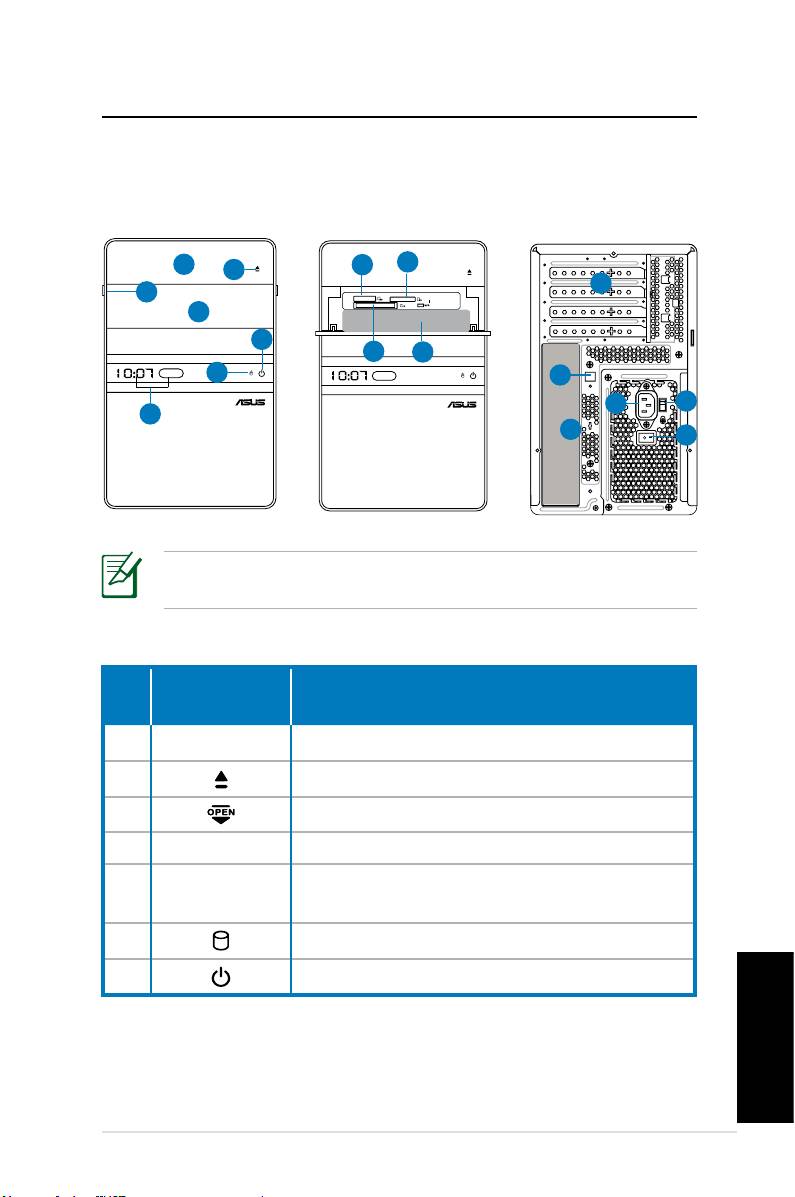
Передняя
Передняя
Задняя
(закрыто)
(открыто)
Кнопка/
No.
Описание
индикатор
Продолжение на следующей странице
Русский
Настольный ПК ASUS Essentio 9
S P K
SIDE
S P K
REAR
BASS
C T R
MIC IN
FRONT
IN
LINE
1
8
9
2
12
3
4
7
10
11
6
13
14
15
5
17
16
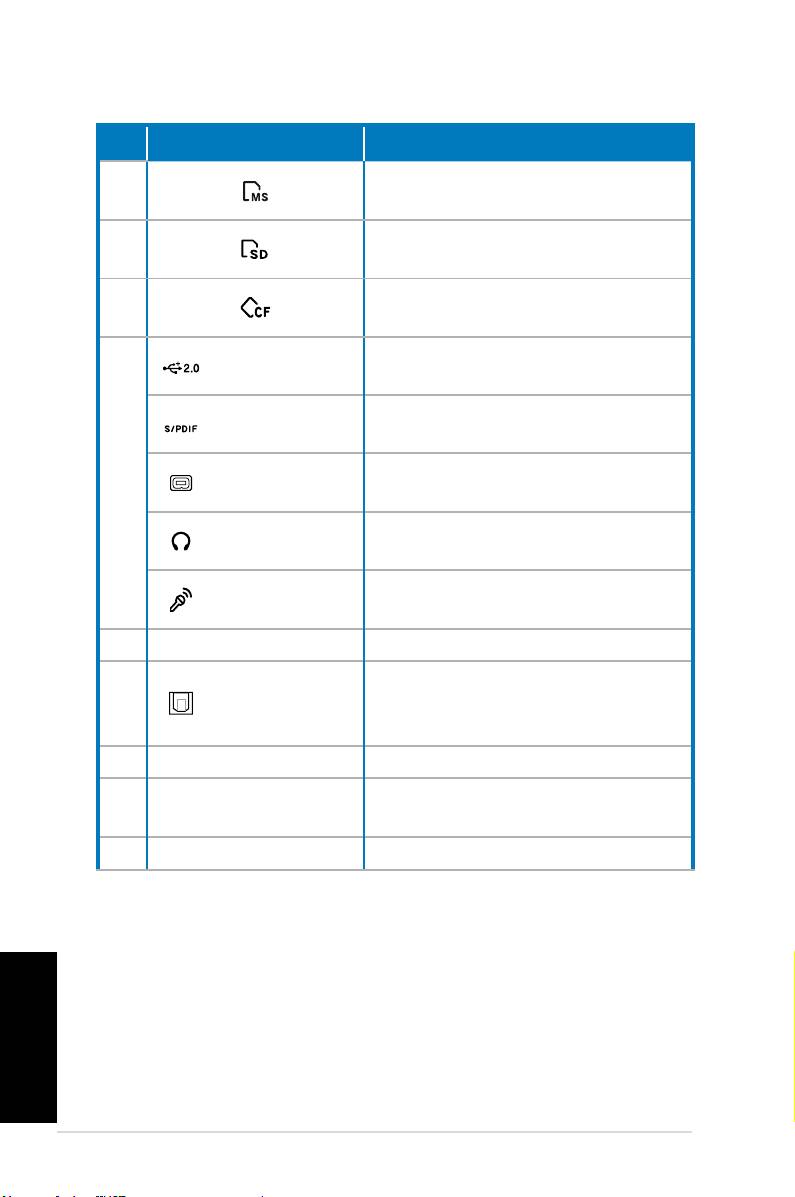
No. Слот/порт Описание
Русский
Продолжение на следующей странице
10 Настольный ПК ASUS Essentio
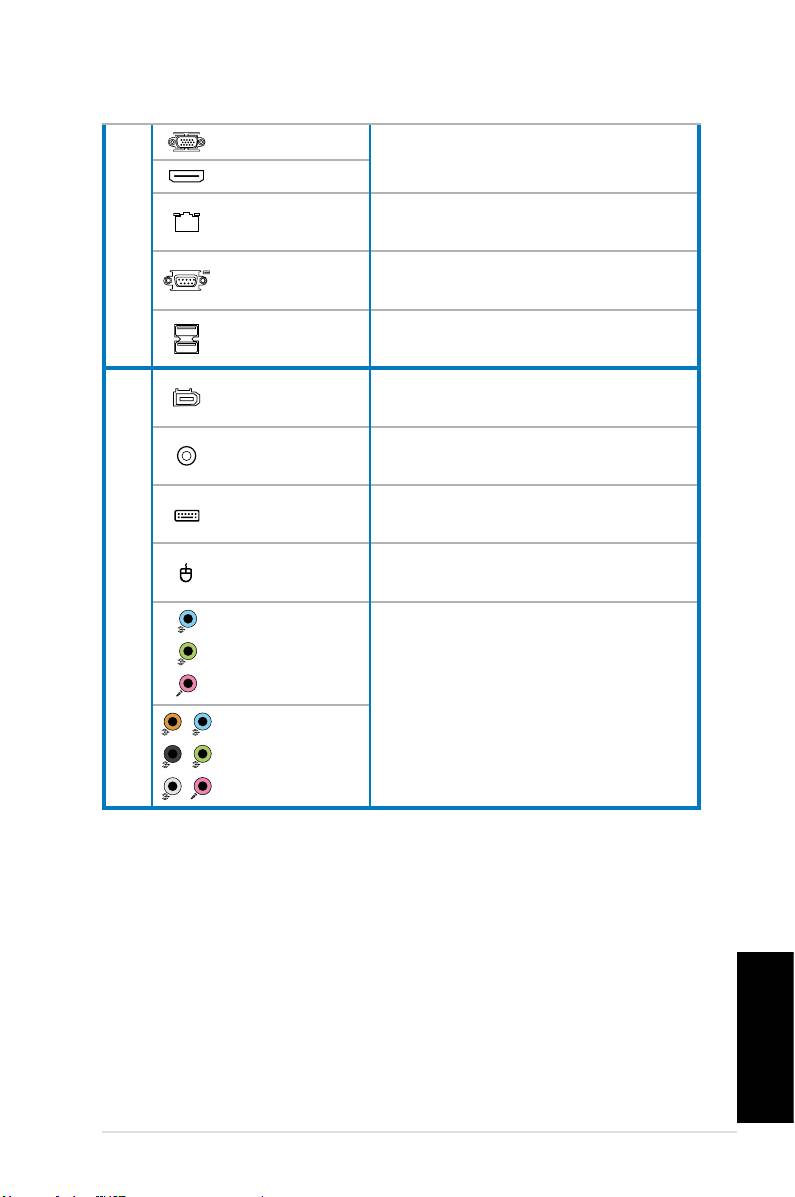
Русский
Настольный ПК ASUS Essentio 11
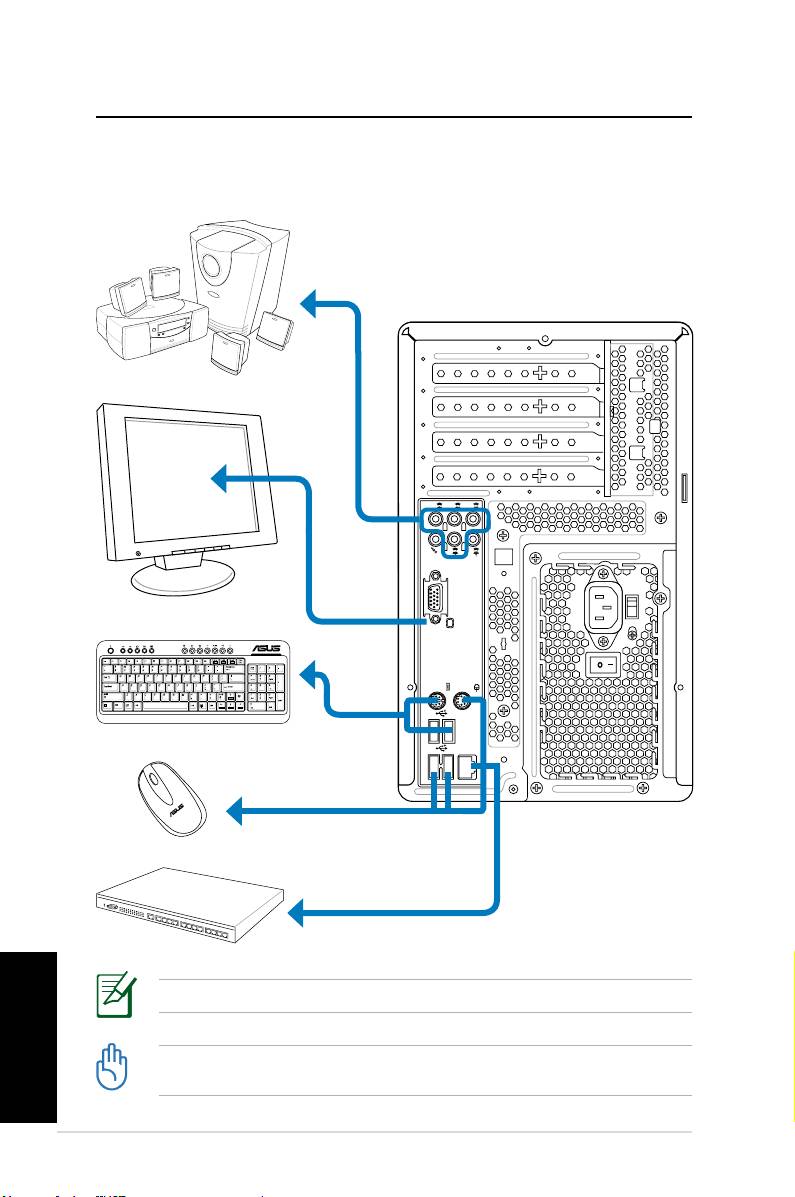
Русский
12 Настольный ПК ASUS Essentio
S P K
SIDE
S P K
REAR
BASS
C T R
MIC IN
FRONT
IN
LINE
˚
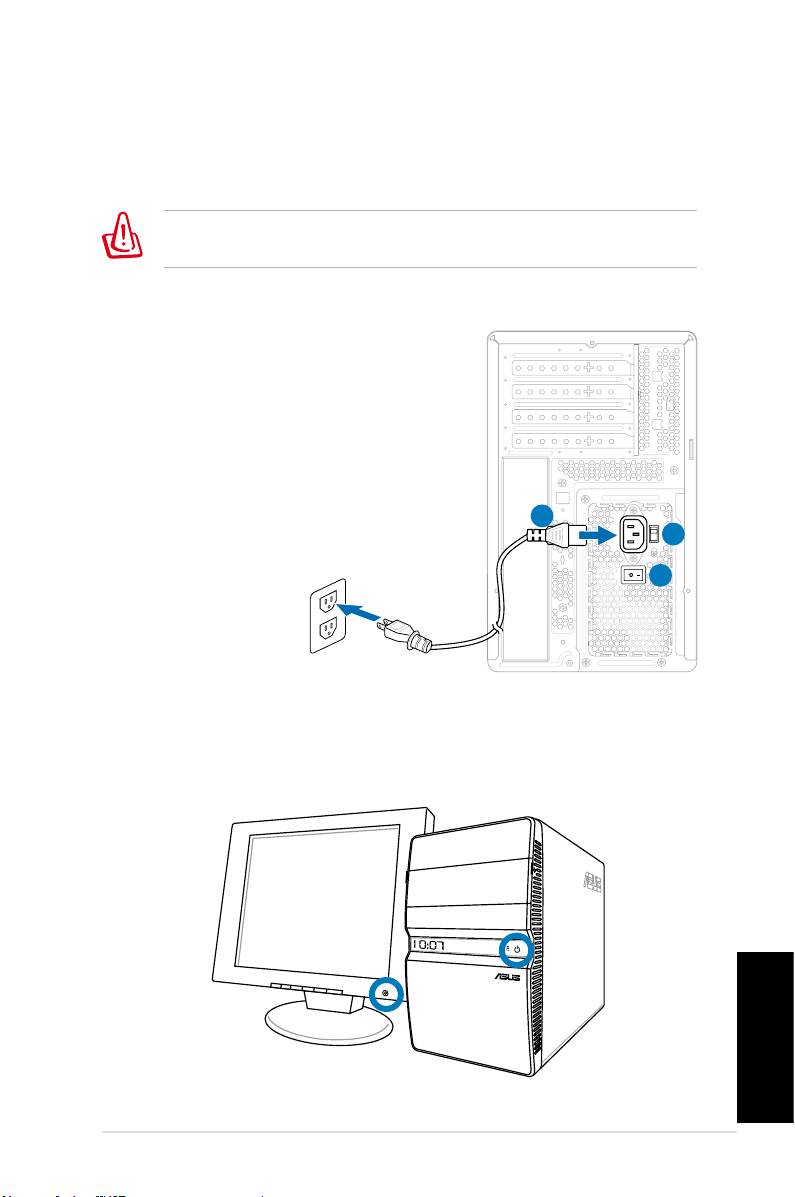
2
1
3
Русский
Настольный ПК ASUS Essentio 1
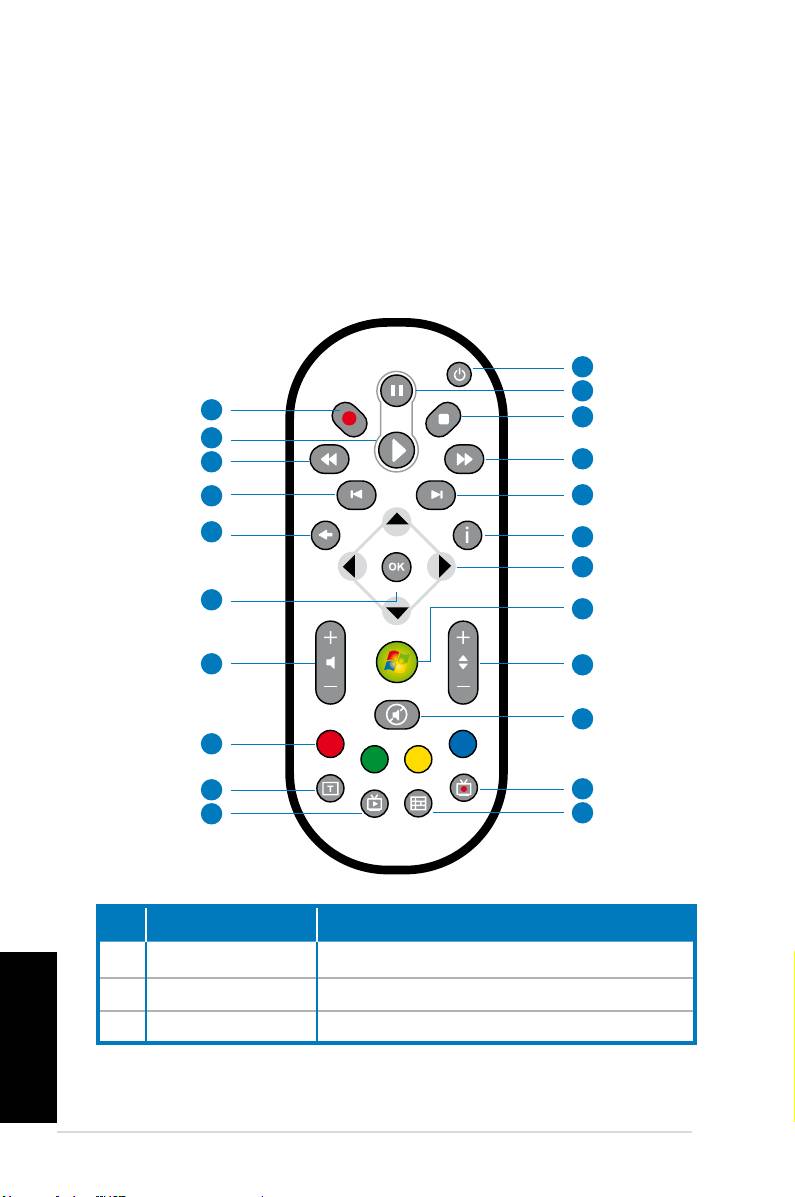
1
2
22
3
21
20
4
19
5
18
6
7
17
8
16
9
10
15
14
11
13
12
No. Кнопка Описание
Питание
Русский
Пауза
Стоп
14 Настольный ПК ASUS Essentio

Русский
Настольный ПК ASUS Essentio 1

F8
Enter,
Windows Boot ManagerWindows
Setup [EMS Enabled]Enter
Windows is loading files
Recover system to a partition
NEXT
Recover system to entire HD
Yes
Русский
16 Настольный ПК ASUS Essentio

OK
Русский
Настольный ПК ASUS Essentio 17
Что делать если я не могу включить Desktop?
Что делать если не загружается операционная система?
Почему я ничего не слышу из динамиков/наушников?
Почему CD/DVD не может читать или писать?
Русский
18 Настольный ПК ASUS Essentio

Русский
Настольный ПК ASUS Essentio 19

Русский
20 Настольный ПК ASUS Essentio
Português
ASUS Essentio Desktop PC
Manual do utilizador

Português
PG3716
Primeira Edição V1
Abril de 2008 2008
Copyright © 2008 ASUSTeK COMPUTER INC. Reservados todos os direitos.
Nenhuma parte deste manual, incluindo os produtos e software aqui descritos, pode
ser reproduzida, transmitida, transcrita, armazenada num sistema de recuperação, ou
traduzida para outro idioma por qualquer forma ou por quaisquer meios, excepto a
documentação mantida pelo comprador como cópia de segurança, sem o consenti-
mento expresso e por escrito da ASUSTeK COMPUTER INC. (“ASUS”).
Os nomes dos produtos e das empresas mencionados neste manual podem ou não
ser marcas registadas ou estarem protegidos por direitos de autor que pertencem às
respectivas empresas. Estes nomes são aqui utilizados apenas para fins de identificação
ou explicação, para benefício dos proprietários e sem qualquer intenção de violação dos
direitos de autor. Todas as marcas registadas pertencem aos respectivos proprietários.
Foram feitos todos os esforços para assegurar que o conteúdo deste manual está
correcto e actualizado. No entanto, não podemos garantir a precisão do conteúdo do
mesmo e o fabricante reserva-se o direito de fazer alterações sem aviso prévio.

Índice
Notices ....................................................................................................4
Macrovision Corporation Product Notice ............................5
Informações de segurança ..............................................................6
Notas acerca deste manual .............................................................7
Português
Bem-vindo .............................................................. 8
Conteúdos da embalagem ..............................................................8
Conhecer o seu Desktop PC .................................. 9
Características dos painéis frontal / posterior ..........................9
Montar o seu Desktop PC .................................... 12
Ligar os Dispositivos .......................................................................12
Ligar a alimentação .........................................................................13
Premir o botão de alimentação para ligar o sistema ........... 13
Utilizar o controlo remoto Media Center (opcional) ...........14
Recuperar o seu sistema ..................................... 16
Utilizar o DVD de recuperação ....................................................16
Resolução de problemas ..................................... 18
ASUS Essentio Desktop PC 3

Notices
Português
Federal Communications Commission Statement
This device complies with Part 15 of the FCC Rules. Operation is
subject to the following two conditions:
• This device may not cause harmful interference, and
• This device must accept any interference received including
interference that may cause undesired operation.
This equipment has been tested and found to comply with the
limits for a Class B digital device, pursuant to Part 15 of the FCC
Rules. These limits are designed to provide reasonable
protection against harmful interference in a residential
installation. This equipment generates, uses and can radiate radio
frequency energy and, if not installed and used in accordance
with manufacturer’s instructions, may cause harmful
interference to radio communications. However, there is no
guarantee that interference will not occur in a particular
installation. If this equipment does cause harmful interference to
radio or television reception, which can be determined by
turning the equipment off and on, the user is encouraged to
try to correct the interference by one or more of the following
measures:
• Reorient or relocate the receiving antenna.
• Increase the separation between the equipment and receiver.
• Connect the equipment to an outlet on a circuit different from
that to which the receiver is connected.
• Consult the dealer or an experienced radio/TV technician for
help.
The use of shielded cables for connection of the monitor to
the graphics card is required to assure compliance with FCC
regulations. Changes or modifications to this unit not expressly
approved by the party responsible for compliance could void
the user’s authority to operate this equipment.
4 ASUS Essentio Desktop PC

Canadian Department of Communications Statement
This digital apparatus does not exceed the Class B limits for radio
noise emissions from digital apparatus set out in the Radio
Interference Regulations of the Canadian Department of
Português
Communications.
This class B digital apparatus complies with Canadian ICES-003.
Macrovision Corporation Product Notice
This product incorporates copyright protection technology that
is protected by method claims of certain U.S. patents and other
intellectual property rights owned by Macrovision Corporation
and other rights owners. Use of this copyright protection
technology must be authorized by Macrovision Corporation, and
is intended for home and other limited viewing uses only unless
otherwise authorized by Macrovision Corporation. Reverse
engineering or disassembly is prohibited.
Lithium-Ion Battery Warning
CAUTION: Danger of explosion if battery is incorrectly replaced. Replace
only with the same or equivalent type recommended by the manufactur-
er. Dispose of used batteries according to the manufacturer’s instructions.
VORSICHT: Explosionsgetahr bei unsachgemäßen Austausch der Batterie.
Ersatz nur durch denselben oder einem vom Hersteller empfohlenem
ähnljchen Typ. Entsorgung gebrauchter Batterien nach Angaben des
Herstellers.
ASUS Essentio Desktop PC 5

Informações de segurança
Português
O ASUS Desktop PC foi concebido e testado de forma a satisfazer as
mais recentes normas de segurança aplicáveis aos equipamentos de
tecnologia de informação. No entanto, para garantir a sua segurança, é
importante que leia as seguintes normas de segurança.
Instalação do seu sistema
• Leia e siga todas as instruções incluídas na documentação
antes de começar a utilizar o seu sistema.
• Não utilize este produto próximo de água ou de fontes de
calor, tais como radiadores.
• Instale o sistema sobre uma superfície estável.
• Utilize o suporte se quiser empilhar o seu NOVA. O empilhamento
do sistema sem o suporte pode dificultar a ventilação do PC e
danificá-lo.
• As aberturas existentes no chassis destinam-se a permitir a
ventilação do PC. Não bloqueie ou tape estas aberturas. Certi-
fique-se de que o espaço em redor do sistema é suficiente para
permitir a ventilação do mesmo. Nunca introduza qualquer
tipo de objectos através das aberturas de ventilação.
• Se utilizar uma extensão com este produto, certifique-se de
que a amperagem total dos dispositivos ligados à extensão
não excede a amperagem da mesma.
Cuidados a ter durante a utilização
• Não pise o cabo de alimentação e não coloque quaisquer
objectos sobre o mesmo.
• Não derrame água ou outros líquidos sobre o sistema.
• Quando o sistema está desligado, continua a existir passagem
de uma pequena quantidade de corrente eléctrica.
Antes de limpar o sistema, desligue sempre todos os cabos de
alimentação, do modem e de rede das tomadas eléctricas.
• Se o produto apresentar os seguintes problemas técnicos,
desligue o cabo de alimentação e contacte um técnico
qualificado ou a loja onde comprou o produto.
• O cabo de alimentação ou a ficha apresentam danos.
• Se tiver derramado líquido para o interior do sistema.
6 ASUS Essentio Desktop PC
• Se o sistema não funcionar normalmente mesmo
quando são seguidas as instruções de funcionamento.
• Se tiver deixado cair o sistema ou se a caixa externa deste
estiver danificada.
Português
• Se o desempenho do sistema sofrer alguma alteração.
AVISO relativo à segurança da unidade de CD-ROM
PRODUTO LASER CLASSE 1
NÃO DESMONTAR
A garantia não é aplicável para os produtos que
foram desmontados pelos utilizadores
O símbolo do caixote do lixo com uma cruz por cima indica que o
produto (equipamento eléctrico e electrónico e bateria contendo
mercúrio) não deve ser depositado junto do lixo doméstico.
Consulte os regulamentos locais relativamente à eliminação de
equipamentos electrónicos.
Notas acerca deste manual
Existem algumas notas e avisos neste manual que deve ter em
atenção de maneira a concluir totalmente determinadas tarefas
de forma segura. Estas notas têm diferentes níveis de importân-
cia conforme descrito a seguir:
AVISO! Informação importante que deve ser seguida para uma
utilização segura.
IMPORTANTE! Informação vital que deve seguir para evitar danos ao nível
dos dados e dos componentes do PC e ainda ferimentos pessoais.
SUGESTÃO: Sugestões para a conclusão de tarefas.
NOTA: Informação para situações especiais.
ASUS Essentio Desktop PC 7

Bem-vindo
Português
Parabéns pela sua aquisição do ASUS Desktop PC. Os conteúdos
da embalagem do seu novo Desktop PC estão listados abaixo
mas podem variar consoante os modelos. A ASUS reserva o direi-
to de substituir componentes ou acessórios de forma a providen-
ciar um serviço optimizado.
Contacte o seu vendedor se algum dos itens estiver danificado
ou em falta.
Conteúdos da embalagem
• ASUS Desktop PC x1
• Teclado x1
• Rato x1
• Cabo de alimentação x1
• DVD de suporte x1
• DVD de recuperação x1
• Guia de Instalação x1
• Cartão de garantia x1
• Controlo remoto (opcional) x1
Visite o sítio Web da ASUS em http://support.asus.com para
quaisquer actualizações.
8 ASUS Essentio Desktop PC
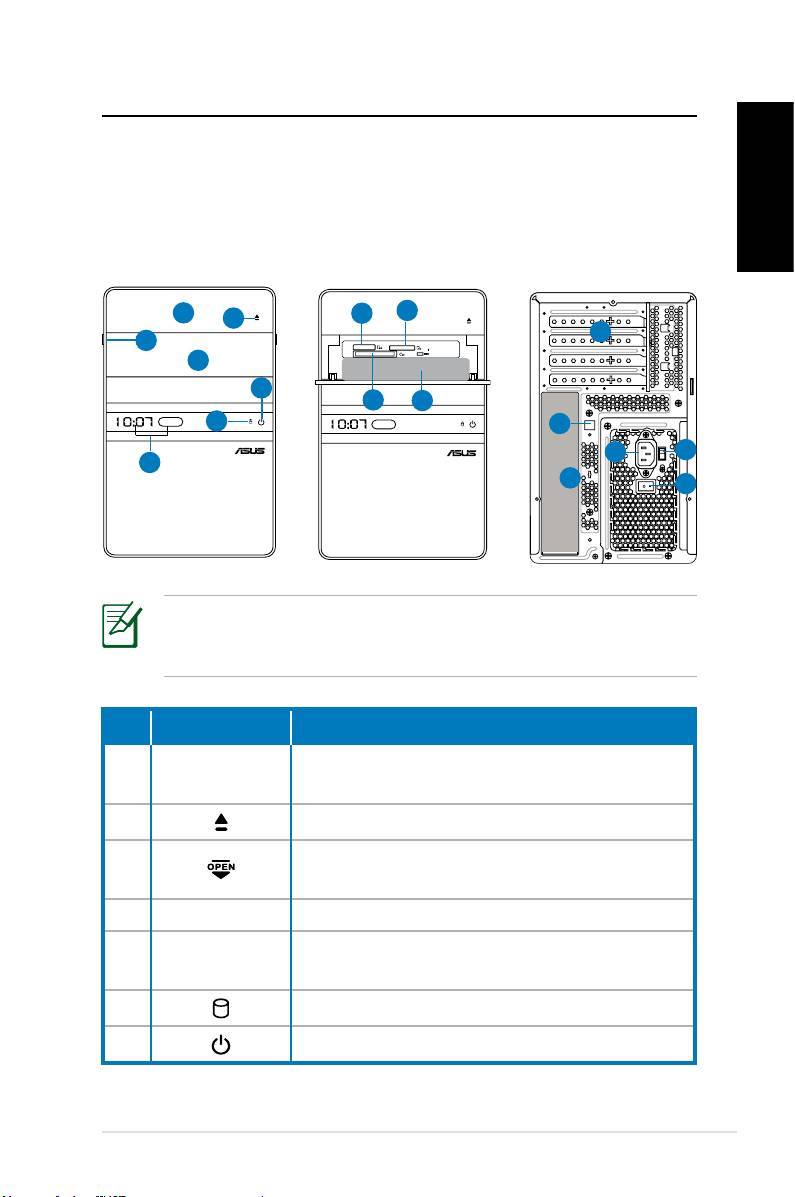
Conhecer o seu Desktop PC
Características dos painéis frontal /
posterior
Frontal
Frontal
Português
Posterior
(Fechado)
(Aberto)
*As áreas a cinzento contém portas dos painéis frontal/
posterior. Estas portas e as suas localizações podem variar
consoante o modelo do seu sistema.
Continua na próxima página
ASUS Essentio Desktop PC 9
S P K
SIDE
S P K
REAR
BASS
C T R
MIC IN
FRONT
IN
LINE
1
8
9
2
12
3
4
7
10
11
6
13
14
15
5
17
16
Nº. Botão/LED Descrição
Tampa do compartimento da unidade
1.
óptica
2. Botão de ejecção da unidade óptica
Fazer deslizar a tampa do painel frontal
3.
para abrir
4. Tampa do painel frontal
Apresentação de Hora e LED IV (apenas
5.
alguns modelos)
6. LED unidade de Disco Rígido
7. Botão de alimentação (táctil)
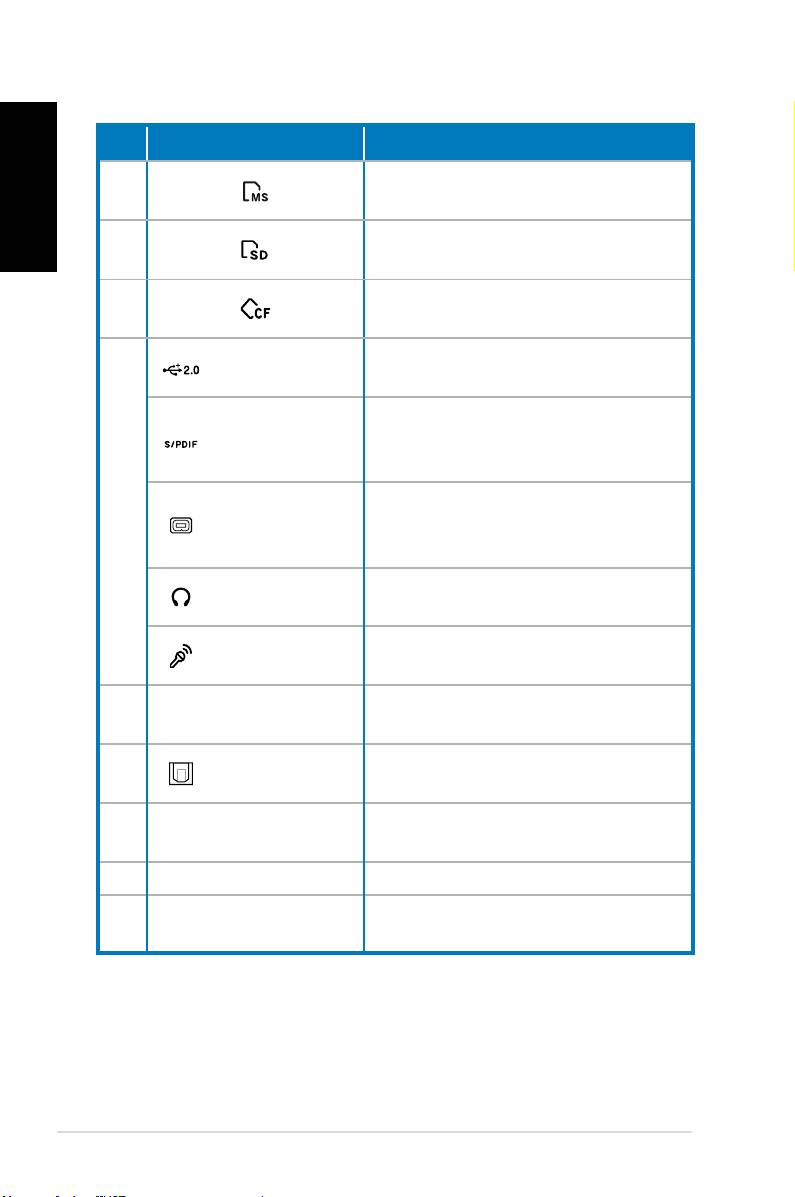
Português
Nº. Botão/LED Descrição
Ranhura para cartão de memória
8.
®
Memory Stick
/Memory Stick Pro™
Ranhura para cartão de memória
9.
Secure Digital™/MultiMediaCard
Ranhura para cartão de memória
10.
CompactFlash®/Microdrive™
Portas de USB
Conectar a dispositivos USB tais
2.0
como um rato, teclado, ou câmara.
Porta de
Conectar a uma fonte de áudio
entrada
digital.
S/PDIF
Porta IEEE
Conectar a um dispositivo IEEE
11.
1394a de 4
1394 com uma câmara de vídeo
pinos
digital.
Entrada
Ligar auscultadores ou altifalantes
auscultadores
a esta entrada.
Entrada
Ligar um microfone a esta
microfone
entrada.
Ranhuras de
Utilize as ranhuras para instalar
12.
expansão
placas de expansão.
Porta saída
Conectar a um amplificador para
13.
S/PDIF Óptico
saída de áudio digital.
Conector de
14.
Liga o cabo de alimentação.
alimentação
15. Selector de voltagem Selecciona a voltagem de entrada.
Liga/Desliga a fonte de
16. Botão de alimentação
alimentação.
Continua na próxima página
10 ASUS Essentio Desktop PC
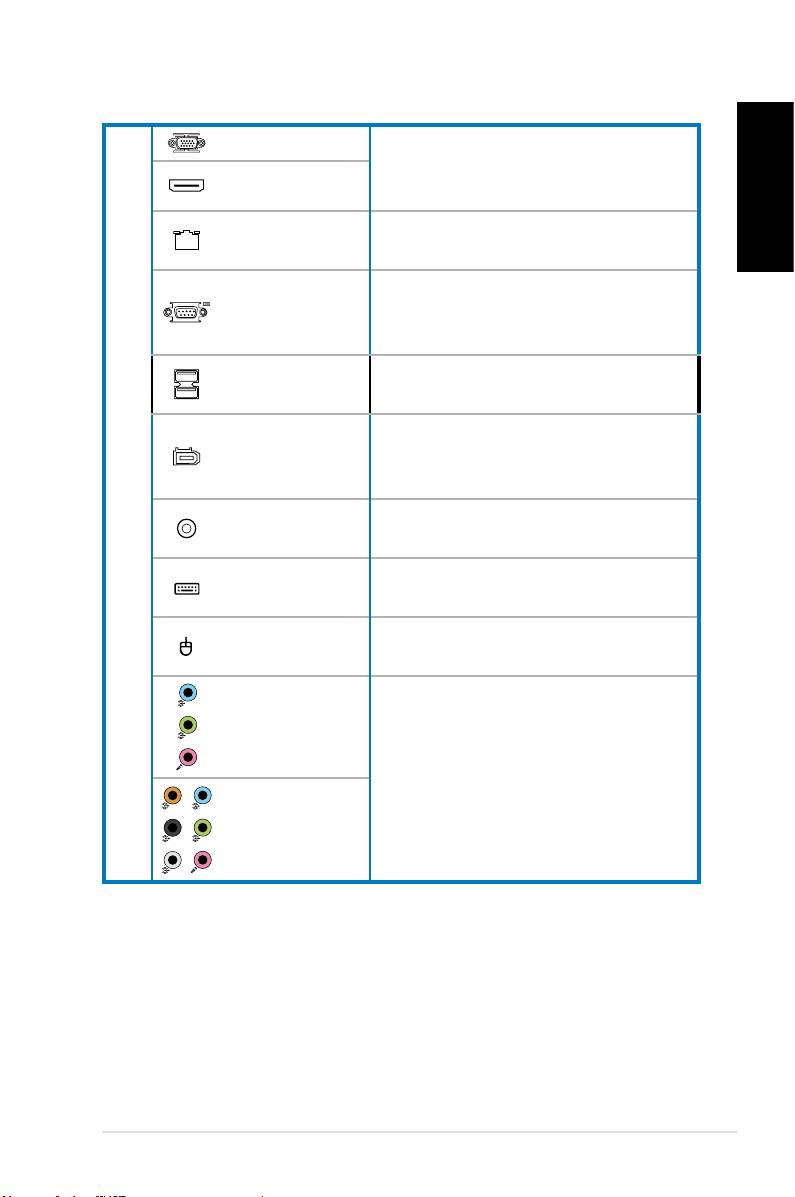
Porta VGA
Conectar a uma televisão ou
monitor com saída de vídeo dife-
Porta HDMI
rente.
Porta LAN
Ligar um cabo de rede a esta
Português
(RJ-45)
porta.
Liga a dispositivos que estão em
Porta COM
conformidade com as
especificações de série.
Portas de USB
Conecta a dispositivos USB tais
17.
2.0
como um rato, teclado, ou câmara.
Porta IEEE
Conecta a um dispositivo IEEE
1394a de 6
1394 com uma câmara de vídeo
pinos
digital.
Porta saída
Conectar a um amplificador para
S/PDIF Coaxial
saída de áudio digital.
Porta para
Liga a um teclado PS/2.
teclado PS/2
Porta para
Liga a um rato PS/2.
rato PS/2
Portas de
5.1 (6)-canal
áudio
Conectar a um sistema de som 5.1
(6) ou 7.1 (8).
Portas de
7.1 (8)-canal
áudio
ASUS Essentio Desktop PC 11
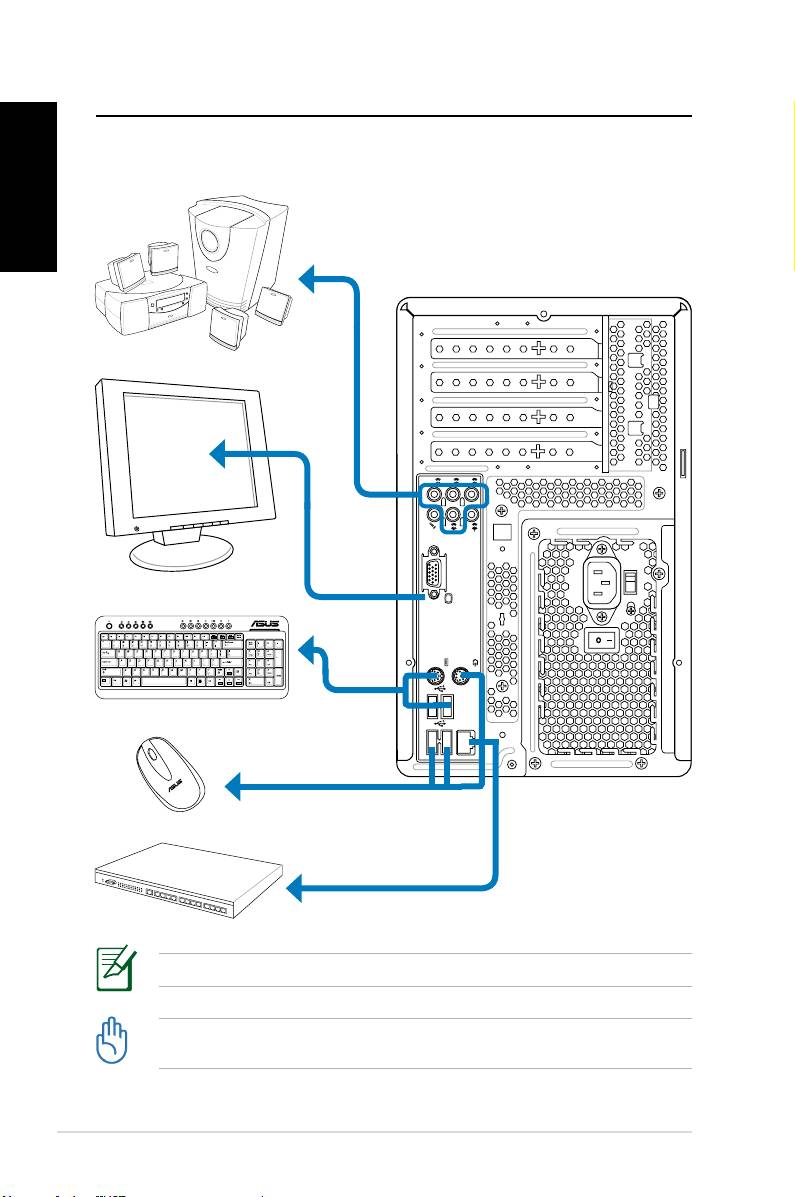
Montar o seu Desktop PC
Português
Ligar os Dispositivos
12 ASUS Essentio Desktop PC
S P K
SIDE
S P K
REAR
BASS
C T R
MIC IN
FRONT
IN
LINE
As ilustrações são unicamente para referência. As especificações do produto podem variar.
• Utilize este produto a uma temperatura ambiente abaixo de 35˚C.
• Não bloqueie ou tape estas entradas de ar.
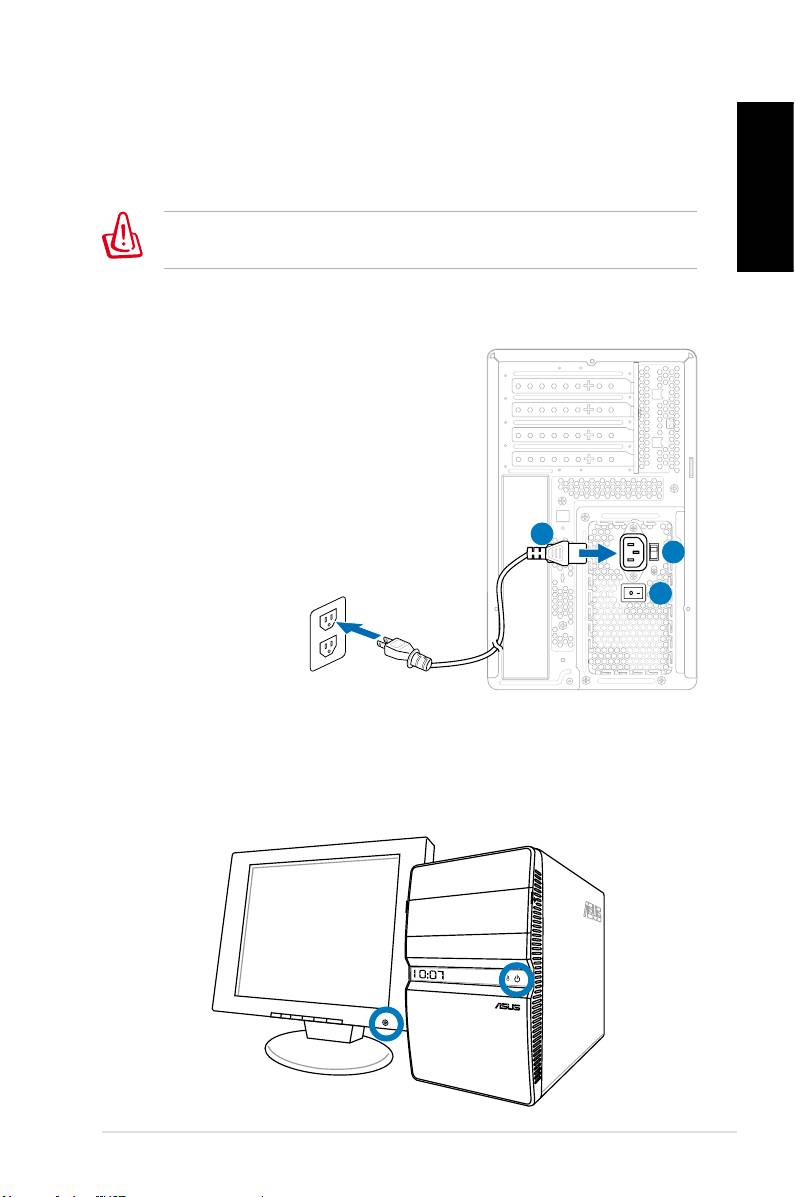
Ligar a alimentação
1. Coloque o selector de voltagem na voltagem de entrada
apropriada de acordo com a voltagem na sua área.
A definição do selector de voltagem para 115 V numa área de
Português
230 V irá danificar o sistema!
2. Ligue o cabo de alimentação ao conector de alimentação e
depois faça a ligação a uma tomada eléctrica.
3. Prima o Comutador de Alimentação.
2
1
3
Premir o botão de alimentação para
ligar o sistema
ASUS Essentio Desktop PC 13
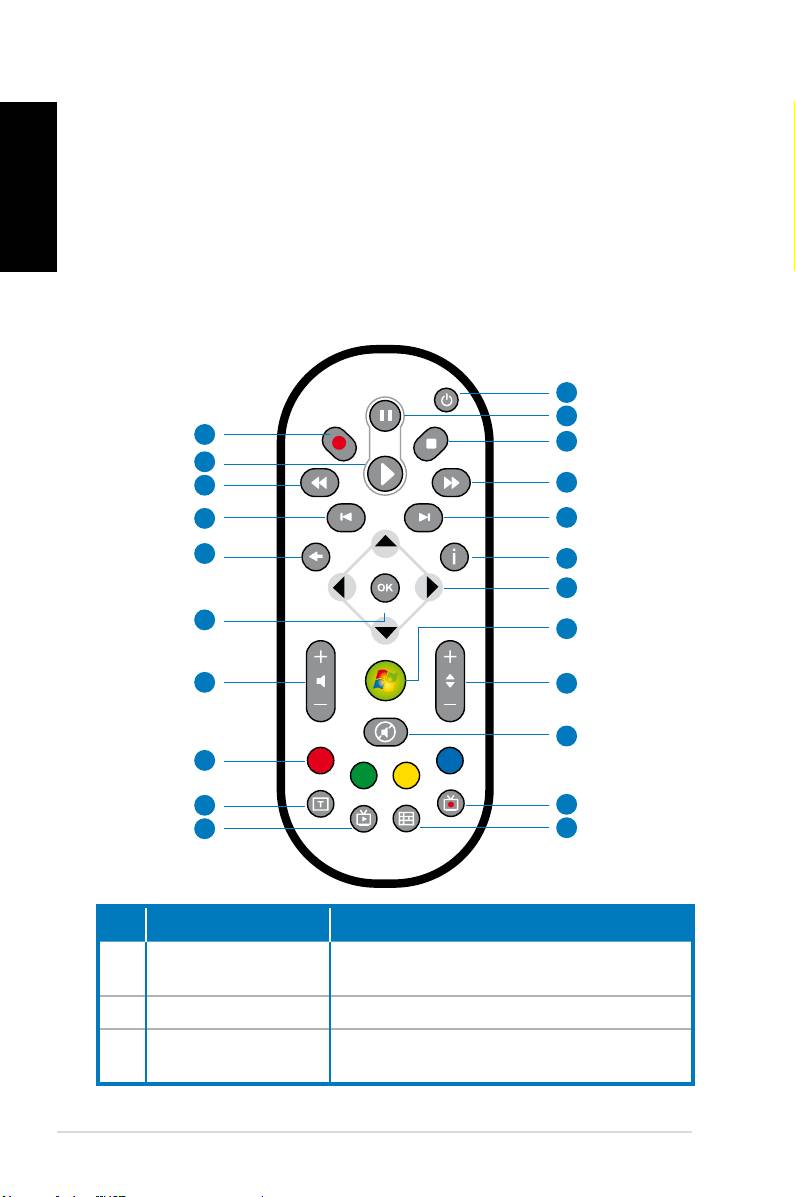
Utilizar o controlo remoto Media
Português
Center (opcional)
Utilizar o controlo remoto para iniciar o programa Media Center
para reproduzir ficheiros de media tais como música e filmes.
Também pode instalar uma caixa de TV externa para ver TV e gra-
var programas de TV.
Consulte a tabela abaixo para familiarizar-se com as funções dos
botões do controlo remoto.
1
2
22
3
21
20
4
19
5
18
6
7
17
8
16
9
10
15
14
11
13
12
Nº. Botão Descrição
Botão de
Prima para ligar/desligar a alimenta-
1.
alimentação
ção do ecrã e dos altifalantes.
2. Pausa Prima para pausar a reprodução.
Prima para parar a reprodução de um
3. Parar
ficheiro de media.
14 ASUS Essentio Desktop PC
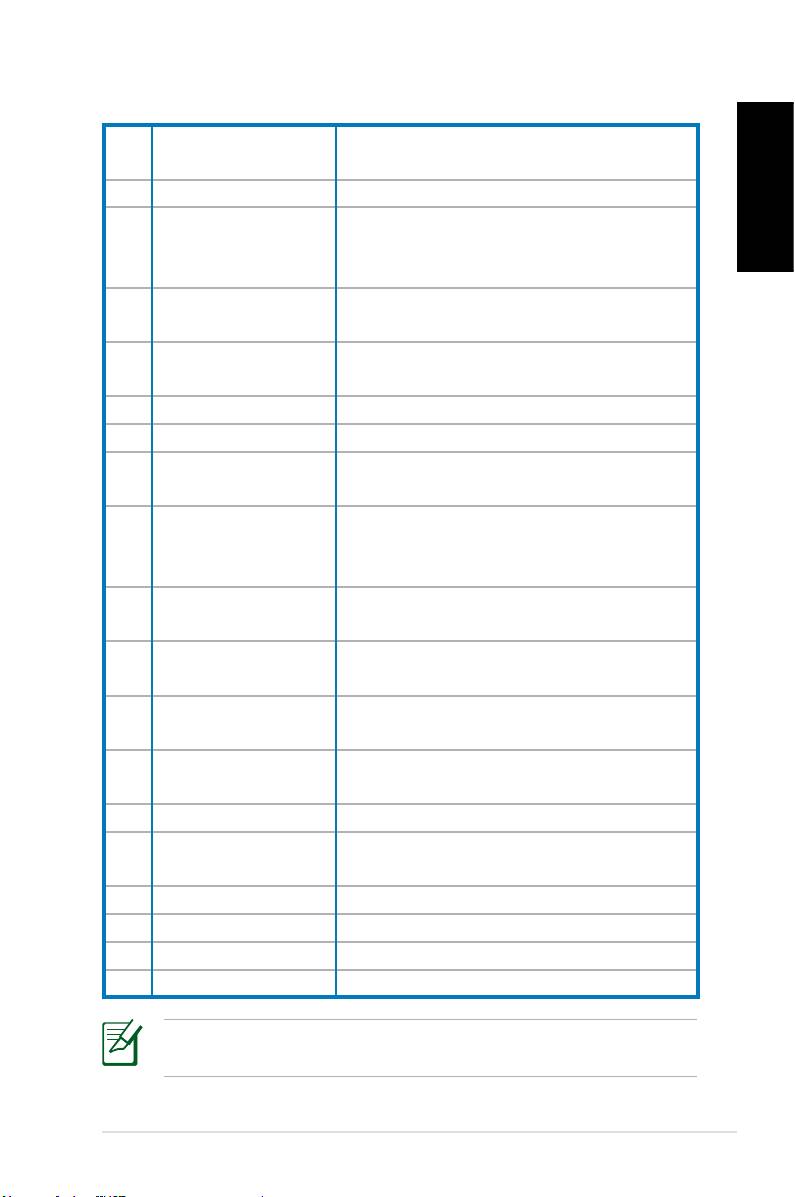
Prima para fazer avançar um ficheiro
4. Avançar rápido
de media.
5. Faixa Seguinte Prima para ir para a faixa seguinte.
Prima para apresentar informação do
Português
6. Informação
programa no Media Center ou outro
menu de opções.
Tecla de navegação
7.
Prima para percorrer menus.
multi-direccional
Windows® Media
Prima para iniciar o programa Media
8.
Center
Center.
9. Canal acima/abaixo Prima para mudar os canais de TV.*
10. Cortar o som Prima para desactivar a saída de áudio.
Prima para apresentar uma lista dos
11. TV Gravada
seus programas de TV gravados.*
EPG (Guia de
Prima para apresentar o ecrã do guia
12.
Programação
de programação electrónica.*
Electrónica)
Prima para visualizar programas de
13. Botão TV ao vivo
TV ao vivo. *
Alterna entre digitação numérica e
14. Alternar
digitação alfabética.
Disponível somente nos modelos
15. Botões teletexto
Europeus.
Aumentar/
16
Prima para aumentar/diminuir o volume.
diminuir volume
17. OK Prima para confirmar uma acção.
Prima para retroceder para a página
18. Retroceder
anterior.
19. Faixa anterior Prima para regressar à faixa anterior.
20. Rebobinar
Prima para rebobinar um ficheiro de media.
21. Reproduzir
Prima para reproduzir um ficheiro de media.
22 Gravar Prima para iniciar a gravação de TV.
*O sistema não dispõe de sintonizador de TV integrado. Para
utilizar a função de TV, adquira uma caixa de TV externa primeiro.
ASUS Essentio Desktop PC 15

Recuperar o seu sistema
Português
Utilizar o DVD de recuperação
O DVD de recuperação inclui uma imagem do sistema operativo ins-
talado no seu sistema na fábrica. O DVD de recuperação, em conjun-
to com o DVD de suporte, providencia uma solução de recuperação
compreensiva que restaura rapidamente o seu sistema para o seu
estado inicial de funcionamento, considerando que a sua unidade
de disco rígido esteja em boas condições de funcionamento. Antes
de utilizar DVD de recuperação, copie os seus ficheiros de dados (tais
como os ficheiros PST do Outlook) para um dispositivo USB ou uma
unidade de rede e tome nota de quaisquer definições de configura-
ção personalizadas (tais como definições de rede).
1. Ligue o seu ASUS Desktop PC e aparecerá o logótipo ASUS.
Prima F8 para aceder ao menu Por favor seleccione o dis-
positivo de arranque.
2. Insira o DVD de recuperação na unidade óptica e seleccione
a unidade (“CDROM:XXX”) como dispositivo de arranque.
Prima Enter e depois prima qualquer tecla para continuar.
3. Aparecerá a janela Gestor de Arranque do Windows. Selec-
cione Configuração do Windows [EMS Enabled] e prima
Enter. Aguarde enquanto a mensagem O Windows está a
carregar ficheiros estiver apresentada.
4. Seleccione onde instalar o novo sistema. As opções são:
Recuperar o sistema para uma partição
Esta opção apagará apenas a partição que seleccionar
abaixo, permitindo-lhe manter outras partições, e criar uma
nova partição do sistema como unidade “C.” Seleccione uma
partição e clique em Seguinte.
Recuperar o sistema para todo o Disco Rígido
Esta opção apagará todas as partições no seu disco rígido
e criará uma nova partição do sistema como unidade “C.”
Seleccione e clique em Sim.
5. Siga as instruções no ecrã para completar o processo de
recuperação.
Perderá todos os dados guardados no disco rígido durante a
recuperação do sistema. Certifique-se de que faz uma cópia de
segurança dos mesmos antes de iniciar a recuperação do sistema.
16 ASUS Essentio Desktop PC

6. Depois de completada a recuperação do sistema, ser-lhe-á
pedido que insira o DVD de suporte na unidade óptica. Cli-
que OK e o sistema reiniciará.
7. Após o reinício, o Windows® Vista iniciará as configurações
Português
do sistema. Siga as instruções no ecrã para completar o pro-
cesso, e depois reinicie o computador.
Este DVD de recuperação é de utilização exclusiva com o
ASUS Desktop PC. NÃO o utilize em outros computadores.
Visite o sítio Web da ASUS em www.asus.com para quaisquer
actualizações.
ASUS Essentio Desktop PC 17
Resolução de problemas
Português
Leia as seguintes P&Rs para uma orientação de resolução de
problemas. Se estas não lhe facultarem as respostas pretendidas,
pode contactar-nos directamente para as informações de con-
tactos facultadas no DVD de suporte.
O que posso fazer se o meu Desktop PC não puder ser ligado?
Verifique se o LED de alimentação no painel frontal acende. Este
não acende se não houver qualquer alimentação do sistema.
• Verifique se o cabo de alimentação está conectado.
• Ao utilizar uma extensão ou um regulador de voltagem, certi-
fique-se de que os conectou à tomada de rede e os ligou.
O que posso fazer se o meu Desktop PC não conseguir aceder
ao sistema operativo?
• Certifique-se de que utiliza módulos de memória que o siste-
ma suporte e que os instalou devidamente nas ranhuras.
• Verifique se os seus dispositivos periféricos são compatíveis
com o sistema. Alguns dispositivos de armazenamento USB,
por exemplo, têm uma estrutura de unidade de disco e en-
tram no modo de suspensão facilmente.
Se os passos acima não resolverem o problema, contacte o seu
vendedor ou proceda a uma recuperação do sistema usando o
DVD de recuperação facultado.
Perderá todos os dados guardados no disco rígido durante a
recuperação do sistema. Certifique-se de que faz uma cópia de
segurança dos mesmos antes de iniciar a recuperação do sistema.
Porque razão não consigo ouvir nenhum som nos meus altifa-
lantes/auscultadores?
Verifique o ícone do volume na barra de tarefas do Windows®
para ver se está definido para sem som . Se assim for, faça du-
plo clique sobre este ícone para apresentar a barra de volume, e
depois clique no ícone sem som na barra de tarefas para cancelar
o modo sem som .
18 ASUS Essentio Desktop PC

Porque razão é que não consigo ler/gravar um CD/DVD?
• Certifique-se de que utiliza um disco compatível com a unida-
de óptica.
• Verifique se inseriu o disco devidamente ou se existem alguns
Português
riscos no disco.
• Verifique se o disco não tem protecção contra escrita.
ASUS Essentio Desktop PC 19

Português
20 ASUS Essentio Desktop PC
ASUS Essentio Desktop PC
Česky
Uživatelská příručka

CZ3716
První vydání V1 V1
Prosinec 2008
Česky
Copyright© 2008 ASUSTeK COMPUTER INC. Všechna práva vyhrazena.
Žádná část této příručky, včetně popsaných výrobků a softwaru, nesmí být
kopírována, přenášena, přepisována, ukládána do paměťového zařízení
nebo překládána do jakéhokoliv jazyka v žádné formě ani žádnými prostředky
vyjma dokumentace, které kupující vytvoří jako zálohu, bez výslovného
písemného souhlasu společnosti ASUSTeK COMPUTER INC. (“ASUS”).
Názvy produktů a společností uvedené v této příručce mohou nebo nemusí
být registrované ochranné známky nebo autorská práva příslušných
společností a jsou použity pouze identikaci nebo vysvětlení a pro dobro
vlastníka bez úmyslu porušit tyto značky nebo práva. Všechny ochranné
známky jsou majetkem příslušných vlastníků.
Věnovali jsme maximální snahu tomu, aby obsah této příručky byl správný
a aktuální. Nicméně neposkytujeme žádnou záruku ohledně přesnosti jejího
obsahu. Výrobce si vyhrazuje právo provádět změny bez předchozího
upozornění.

Obsah
Notices ......................................................................... 4
Bezpečnostní zásady ................................................... 6
Poznámky k této příručce ............................................ 7
Vítejte .................................................................8
Obsah krabice .............................................................. 8
Popis stolního počítače ...................................9
Části předního / zadního panelu .................................. 9
Nastavení stolního počítače ..........................12
Česky
Připojení zařízení ....................................................... 12
Jak připojit napájení ................................................... 13
Stisknutím vypínače zapněte systém ........................ 13
Používání dálkového ovladače Media Center (volitelné)
.. 14
Obnovení systému .........................................16
Použití disku DVD pro obnovení ................................ 16
Odstraňování problémů .................................18
ASUS Essentio Desktop PC 3

Notices
Federal Communications Commission Statement
This device complies with Part 15 of the FCC Rules. Opera-
tion is subject to the following two conditions:
• This device may not cause harmful interference, and
• This device must accept any interference received
including interference that may cause undesired operation.
Česky
This equipment has been tested and found to comply with the
limits for a Class B digital device, pursuant to Part 15 of the
FCC Rules. These limits are designed to provide reasonable
protection against harmful interference in a residential installation.
This equipment generates, uses and can radiate radio frequency
energy and, if not installed and used in accordance with
manufacturer’s instructions, may cause harmful interference
to radio communications. However, there is no guarantee
that interference will not occur in a particular installation. If this
equipment does cause harmful interference to radio or television
reception, which can be determined by turning the equipment off
and on, the user is encouraged to try to correct the interference
by one or more of the following measures:
• Reorient or relocate the receiving antenna.
• Increase the separation between the equipment and receiver.
• Connect the equipment to an outlet on a circuit different
from that to which the receiver is connected.
• Consult the dealer or an experienced radio/TV technician
for help.
The use of shielded cables for connection of the monitor
to the graphics card is required to assure compliance with
FCC regulations. Changes or modications to this unit not
expressly approved by the party responsible for compliance
could void the user’s authority to operate this equipment.
4 ASUS Essentio Desktop PC

Canadian Department of Communications
Statement
This digital apparatus does not exceed the Class B limits for
radio noise emissions from digital apparatus set out in the
Radio Interference Regulations of the Canadian Department
of Communications.
This class B digital apparatus complies with Canadian ICES-003.
Česky
Macrovision Corporation Product Notice
This product incorporates copyright protection technology that
is protected by method claims of certain U.S. patents and other
intellectual property rights owned by Macrovision Corporation
and other rights owners. Use of this copyright protection
technology must be authorized by Macrovision Corporation,
and is intended for home and other limited viewing uses only
unless otherwise authorized by Macrovision Corporation.
Reverse engineering or disassembly is prohibited.
Lithium-Ion Battery Warning
CAUTION: Danger of explosion if battery is incorrectly replaced. Replace
only with the same or equivalent type recommended by the manufactur-
er. Dispose of used batteries according to the manufacturer’s instructions.
VORSICHT: Explosionsgetahr bei unsachgemäßen Austausch der Batterie.
Ersatz nur durch denselben oder einem vom Hersteller empfohlenem
ähnljchen Typ. Entsorgung gebrauchter Batterien nach Angaben des
Herstellers.
ASUS Essentio Desktop PC 5

Bezpečnostní zásady
Tento stolní počítač ASUS byl zkonstruován a otestován, aby
splňoval nejaktuálnější bezpečnostní normy pro technologii
IT. Pro zajištění bezpečnosti je však nutné, abyste si přečetli
následující bezpečnostní instrukce.
Instalace počítače
• Před používáním počítače si přečtěte a dodržujte veškeré
Česky
pokyny v dokumentaci.
• Tento počítač nepoužívejte v blízkosti vody nebo zdroje
tepla, například radiátoru.
• Tento počítač umístěte na stabilní povrch.
• Chcete-li umístit počítač NOVA na jiné zařízení, použijte sto-
jan. V případě umístění tohoto počítače na jiné zařízení bez
stojanu může dojít k omezení větrání a poškození počítače.
• Otvory ve skříni slouží k větrání. Tyto otvory neucpávejte
ani nezakrývejte. Okolo počítače zajistěte dostatečný
prostor pro větrání. Do větracích otvorů počítače
nezasunujte žádné předměty.
• Používáte-li prodlužovací kabel, ujistěte se, že celkové množství
proudu odebírané zařízeními připojenými k prodlužovacímu
kabelu nepřekročí maximální hodnotu pro daný kabel.
Péče během používání
• Na napájecí kabel nestoupejte ani nepokládejte žádné
předměty.
•
Zabraňte potřísnění počítače vodou nebo jinými tekutinami.
• Počítačem stále prochází malé množství elektrického
proudu, i když je vypnutý.
Před čistěním počítače vždy odpojte veškeré napájecí,
modemové a síťové kabely z elektrických zásuvek.
• Pokud se u počítače setkáte s některým z následujících
technických problémů, odpojte napájecí kabel a obraťte
se na kvalikovaného servisního technika nebo prodejce.
• Je poškozen napájecí kabel nebo zástrčka.
• Do počítače vnikla tekutina.
6 ASUS Essentio Desktop PC
• Počítač nefunguje správně, přestože se řídíte
návodem k použití.
• Došlo k pádu počítače nebo k poškození skříně.
• Změnil se výkon počítače.
Bezpečnost jednotky CD-ROM - VAROVÁNÍ
LASEROVÉ ZAŘÍZENÍ 1. TŘÍDY
NEDEMONTUJTE
Česky
Záruka se nevztahuje na výrobky, které byly
uživateli demontovány
Tento symbol přeškrtnutého kontejneru ukazuje, že tento
produkt (elektrické nebo elektronické zařízení a knoíková
baterie s obsahem rtuti) nesmí být likvidován společně s
komunálním odpadem. Seznamte se s místními vyhláškami
pro likvidaci elektronických produktů.
Poznámky k této příručce
V této uživatelské příručce je uvedeno několik poznámek a
varování, které je třeba dodržovat, aby bylo možné některé
postupy provést bezpečně a úplně. Tyto poznámky mají
různou úroveň důležitosti (viz níže):
VAROVÁNÍ!
Důležité informace, které musí být dodržovány
v zájmu bezpečného provozu.
DŮLEŽITÉ! Důležité informace, které musí být dodržovány,
aby se zabránilo poškození dat, součástí nebo osob.
TIP: Tipy pro provádění úkolů.
POZNÁMKA: Informace pro zvláštní situace.
ASUS Essentio Desktop PC 7

Vítejte
Blahopřejeme vám k zakoupení stolního počítače ASUS.
Níže je uveden obsah krabice s vaším novým stolním počí-
tačem, ale jednotlivé položky se mohou lišit podle modelů.
Společnost ASUS si vyhrazuje právo na změnu dílů nebo pří-
slušenství pro zajištění optimální použitelnosti pro zákazníky.
Pokud je některá položka poškozena nebo chybí, obraťte se
na prodejce.
Česky
Obsah krabice
• Stolní počítač ASUS x1
• Klávesnice x1
• Myš x1
• Napájecí kabel x1
• Podpůrný disk DVD x1
• Disk DVD pro obnovu x1
• Instalační příručka x1
• Záruční karta x1
• Dálkový ovladač (volitelný) x1
Veškeré aktuální informace najdete na webových stránkách
společnosti ASUS na adrese http://support.asus.com.
8 ASUS Essentio Desktop PC
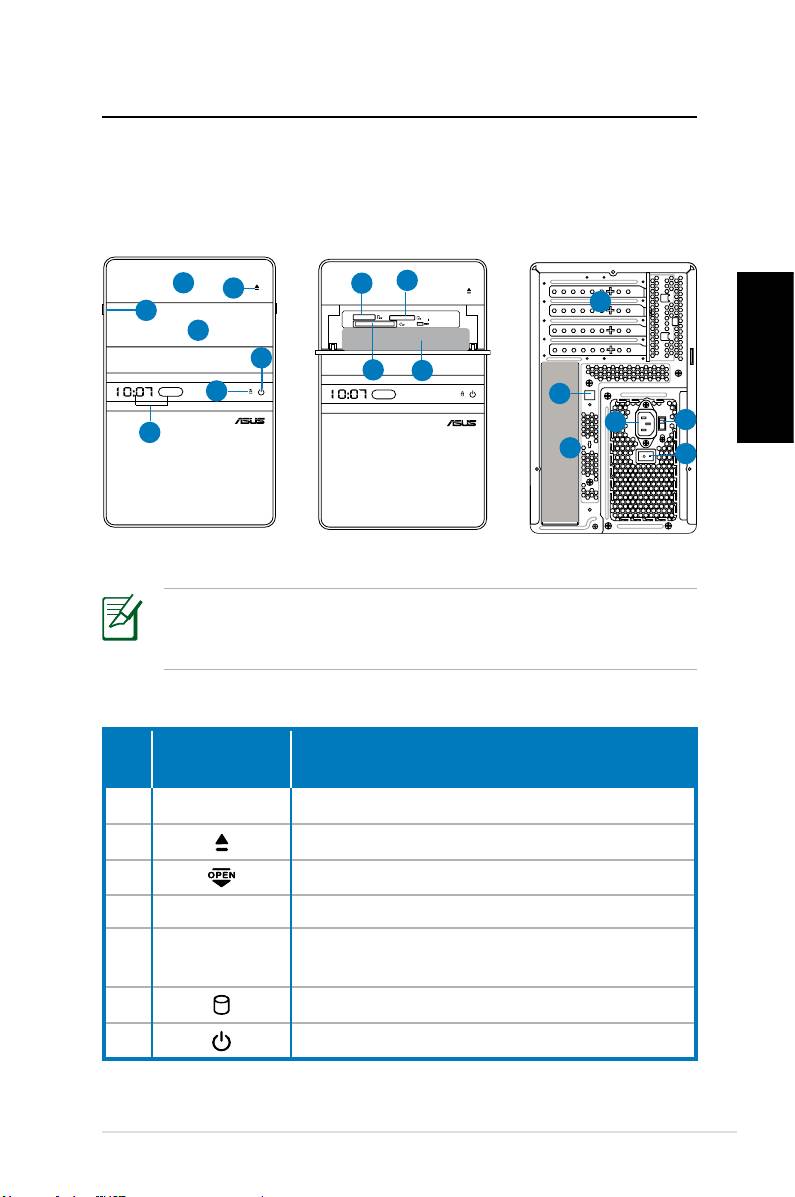
Popis stolního počítače
Části předního / zadního panelu
Přední strana
Přední strana
Zadní strana
(zavřená)
(otevřená)
Česky
*Šedé části obsahují porty předního/zadního panelu. Tyto
porty a jejich umístění se mohou lišit v závislosti na modelu
vašeho počítače.
pokračování na další straně
ASUS Essentio Desktop PC 9
S P K
SIDE
S P K
REAR
BASS
C T R
MIC IN
FRONT
IN
LINE
1
8
9
2
12
3
4
7
10
11
6
13
14
15
5
17
16
Tlačítko/
Č.
Popis
indikátor LED
1.
Kryt pozice optické jednotky
2. Tlačítko pro vysunutí optické jednotky
3. Posunutím otevřete kryt předního panelu
4. Kryt předního panelu
Zobrazení času a indikátoru IR LED
5.
(pouze některé modely)
6. Indikátor LED pevného disku
7.
Vypínač (dotykový)
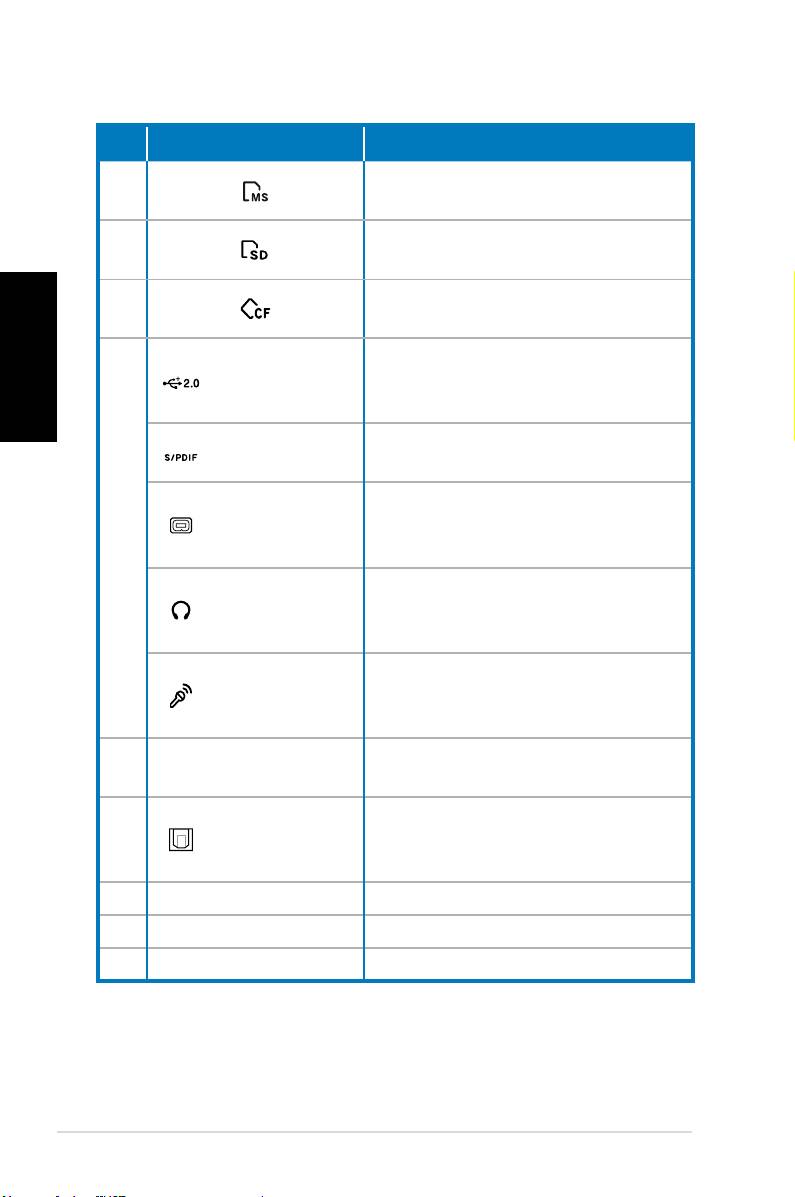
Č. Solt/Port Popis
®
Slot pro kartu Memory StickMemory Stick
/
8.
Memory Stick Pro™ .
Slot pro kartu Secure Digital™/Secure Digital™/
9.
Multimedia.
Slot pro kartu CompactFlash�/CompactFlash�/
10.
Česky
Microdrive™ .
Slouží k připojení zařízení USB,
Porty rozhraní
například myši, klávesnice nebo
USB 2.0
fotoaparátu.
Vstupní port
Slouží k připojení zdroje digitál-
S/PDIF
ního zvuku.
4kolíkový
Slouží k připojení zařízení IEEE
port IEEE
1394, například digitálního kam-
11.
1394a
kordéru.
Zdířka pro
Slouží k připojení stereofonních
připojení
reproduktorů nebo sluchátek.
sluchátek
Zdířka pro
připojení
Slouží k připojení mikrofonu.
mikrofonu
Tyto štěrbiny použijte k instalaci
12.
Rozšiřovací štěrbiny
rozšiřovacích karet.
Port optické-
Slouží k připojení zesilovače
13.
ho výstupu
pro výstup digitálního zvuku.
S/PDIF
14.
Konektor napájení
Připojení napájecího kabelu.
15. Volič napětí Slouží k volbě vstupního napětí.
16.
Vypínač napájení
Zapíná a vypíná napájecí zdroj.
pokračování na další straně
10 ASUS Essentio Desktop PC
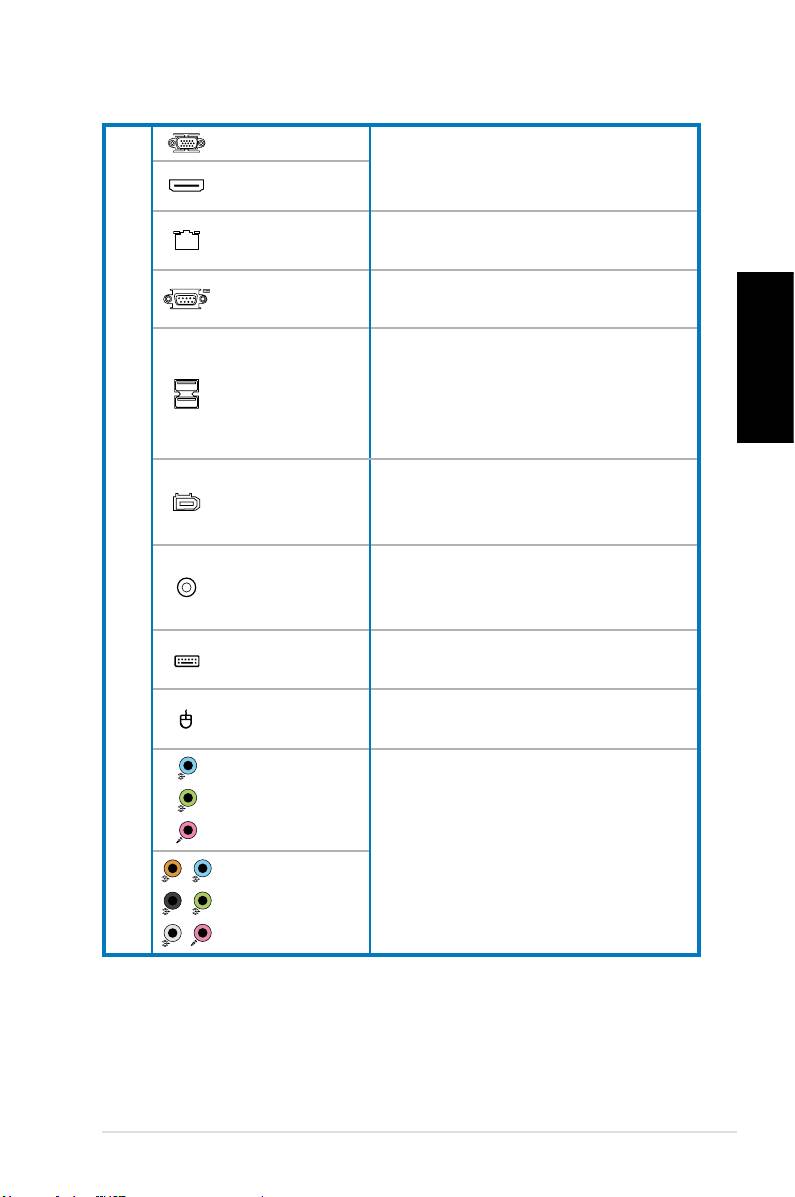
Port VGA
Slouží k připojení televizo-
ru nebo monitoru s odlišným
Port HDMI
výstupem videa.
Port LAN
Slouží k připojení síťového
(RJ-45)
kabelu.
Umožňuje připojení zařízení
COM port
vyhovujících sériové normě.
Slouží k připojení zařízení USB,
Porty rozhraní
Česky
například myši, klávesnice nebo
USB 2.0
fotoaparátu.
17.
6kolíkový
Slouží k připojení zařízení IEEE
port IEEE
1394, například digitálního kam-
1394a
kordéru.
Port koaxiál-
Slouží k připojení zesilovače
ního výstupu
pro výstup digitálního zvuku.
S/PDIF
Port klávesn-
Připojuje se k PS/2 klávesnici.
ice PS/2
Port myši
Připojuje se k PS/2 myši.
PS/2
Porty 5.1
(6)kanálové-
ho zvuku
Slouží k připojení 5.1 (6) nebo
7.1 (8)kanálového reprodukto-
Porty 7.1
rového systému.
(8)kanálové-
ho zvuku
ASUS Essentio Desktop PC 11
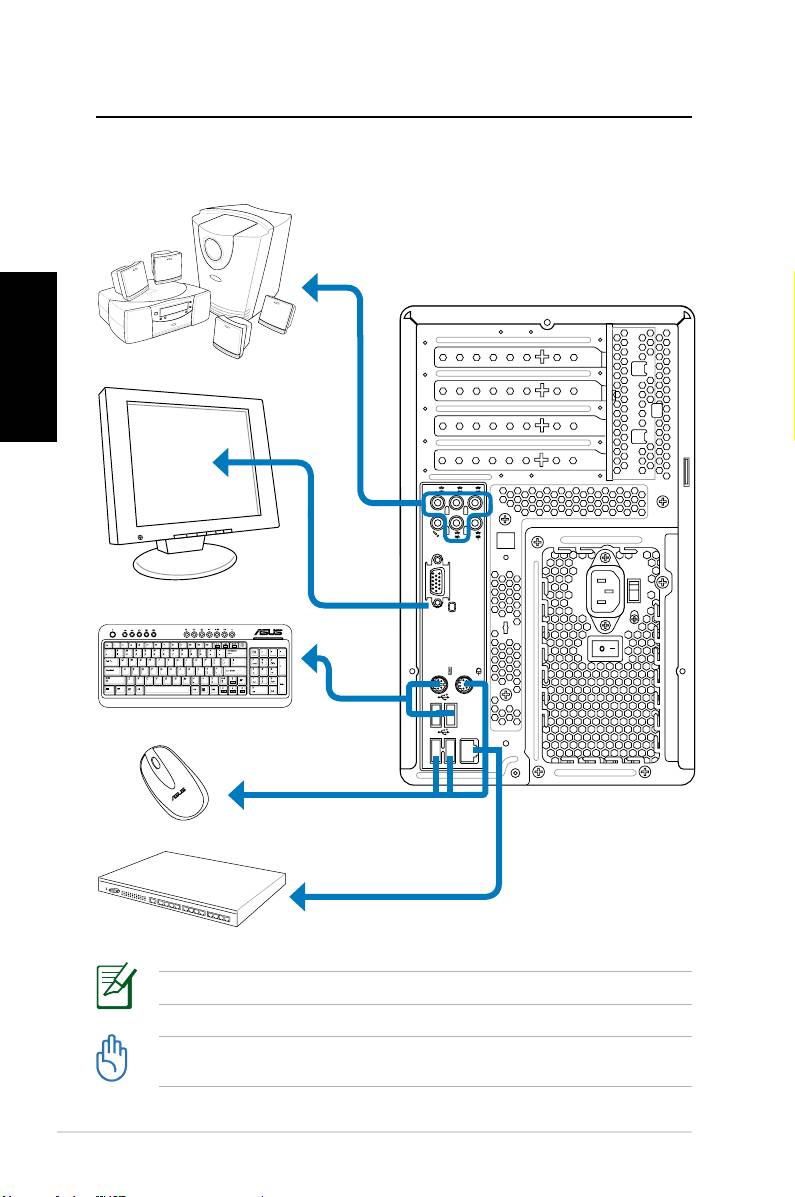
Nastavení stolního počítače
Připojení zařízení
Česky
12 ASUS Essentio Desktop PC
S P K
SIDE
S P K
REAR
BASS
C T R
MIC IN
FRONT
IN
LINE
Obrázky jsou jen informační. Skutečné technické údaje se mohou lišit.
• Tento výrobek používejte při okolní teplotě do 35°C.
• Tyto ventilační otvory nezakrývejte.
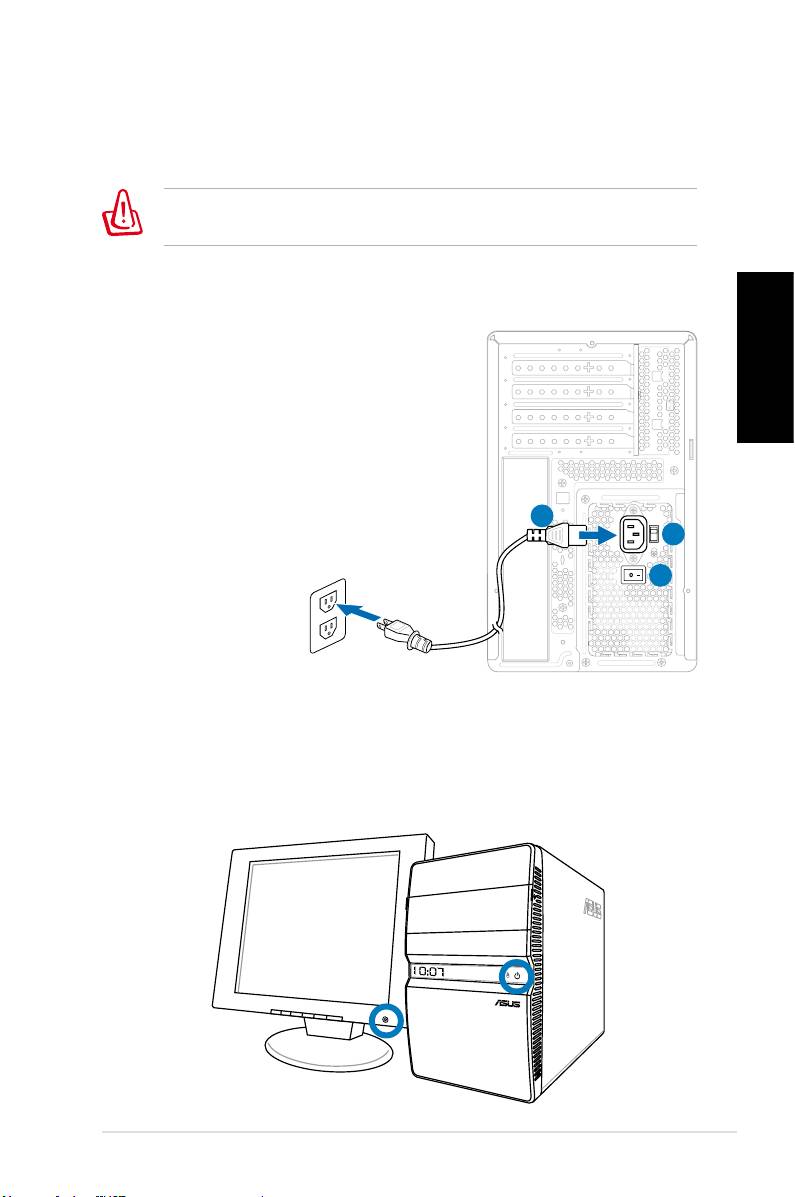
Jak připojit napájení
1. Přepnutím nastavte volič napětí na příslušné vstupní
napětí používané ve vaší zemi.
Nastavení voliče napěti na 115 V ve státě, kde se používá
230 V poškodí váš systém!
2. Připojte napájecí kabel k napájecímu konektoru a
zasuňte jej do zásuvky ve zdi.
3. Stiskněte vypínač.
Česky
2
1
3
Stisknutím vypínače zapněte systém
ASUS Essentio Desktop PC 13
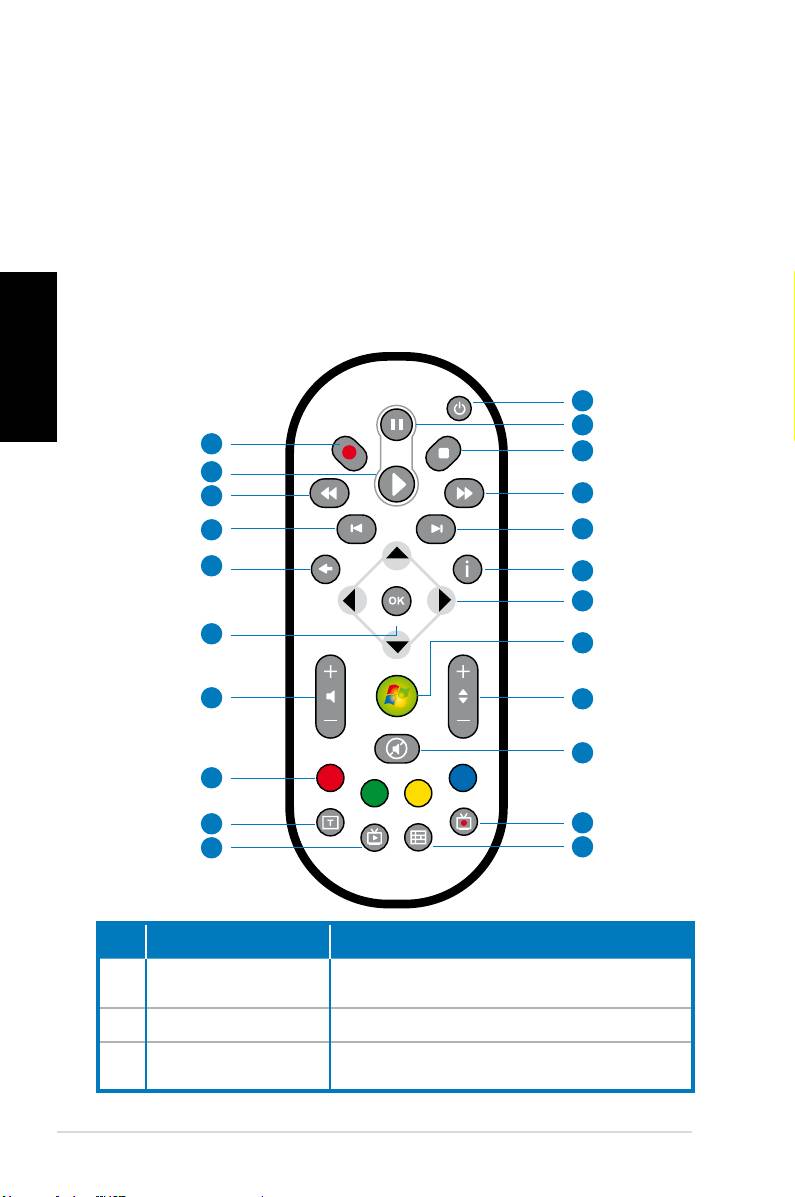
Používání dálkového ovladače Media
Center (volitelné)
Dálkový ovladač můžete používat ke spuštění programu
Media Center a přehrávání multimediálních souborů, např.
hudebních či lmových. Rovněž můžete nainstalovat externí
TV box pro sledování a nahrávání televizních programů.
Seznamte se s funkcemi tlačítek dálkového ovladače, které
Česky
jsou popsány v následující tabulce.
1
2
22
3
21
20
4
19
5
18
6
7
17
8
16
9
10
15
14
11
13
12
Č. Tlačítko Popis
Stisknutím zapnete/vypnete obra-
1. Napájení
zovku a reproduktory.
2. Pozastavit Stisknutím pozastavíte přehrávání.
Stisknutím přerušíte přehrávání
3. Zastavit
multimediálního souboru.
14 ASUS Essentio Desktop PC
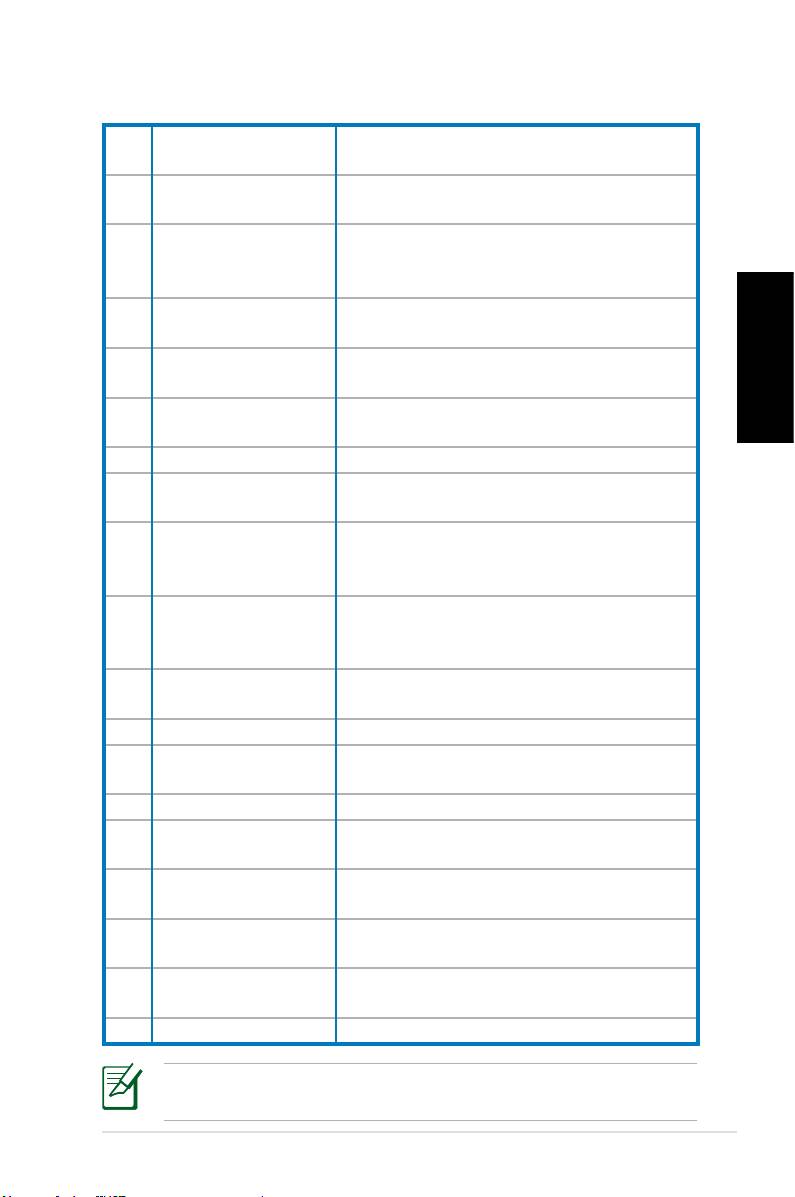
Rychle posunout
Stisknutím tohoto tlačítka rychle
4.
dopředu
posunete soubor s médii dopředu.
Stisknutím tohoto tlačítka přejdete
5. Další skladba
na další skladbu.
Stisknutím zobrazíte informace o
6. Informace
programu v rámci Media Center
nebo jiných nabídek.
Čtyřsměrná navi-
Slouží k procházení zobrazených
7.
gační tlačítka
nabídek.
®
Windows
Media
Stisknutím spustíte program Media
8.
Center
Center.
Česky
O kanál nahoru/
Stisknutím můžete přepínat mezi
9.
dolů
televizními kanály.*
10. Ztlumit Stisknutím vypnete výstup zvuku.
Stisknutím zobrazíte seznam s
11. Nahrávky TV
nahranými televizními pořady.*
EPG (Elektronic-
Stisknutím tohoto tlačítka se zob-
12.
ký programový
razí obrazovka s elektronickým
průvodce)
programovým průvodcem.*
Tlačítko živého
Stisknutím tohoto tlačítka můžete
13.
televizního vysí-
sledovat programy živého televizní-
lání
ho vysílání. *
Slouží k přepínání mezi zadáváním
14. Přepnout
číslic a abecedních znaků.
15. Tlačítka teletextu
K dispozici pouze u evropských modelů.
Zvýšit/snížit hla-
16
Stisknutím zvýšíte/snížíte hlasitost.
sitost
17. OK
Stisknutím tohoto tlačítka potvrdíte akci.
Stisknutím tohoto tlačítka se vrátíte
18. Zpět
na předchozí stránku.
Stisknutím tohoto tlačítka přejdete
19. Předchozí skladba
na předchozí stránku.
Stisknutím tohoto tlačítka posunete
20. Převíjení
soubor s médii dozadu.
Stisknutím přehrajete multimediální
21. Přehrát
soubor.
22 Záznam
Stisknutím spustíte nahrávání z televize.
*Tento počítač není dodáván se zabudovaným TV tunerem.
Chcete-li používat funkci TV, nejdříve zakupte externí TV box.
ASUS Essentio Desktop PC 15

Obnovení systému
Použití disku DVD pro obnovení
Disk DVD pro obnovení obsahuje bitovou kopii operačního
systému nainstalovaného do počítače během výroby. Disk DVD
pro obnovení společně s podpůrným diskem DVD představují
komplexní řešení obnovení, které rychle obnoví počítač do
původního funkčního stavu za předpokladu, že je v pořádku váš
Česky
pevný disk. Před použitím disku DVD pro obnovení zkopírujte
vaše datové soubory (například soubory PST aplikace Outlook)
do zařízení USB nebo na síťovou jednotku a zapište si vlastní
nastavení kongurace (například síťová nastavení).
1. Zapněte stolní počítač ASUS. Zobrazí se logo ASUS.
Stisknutím klávesy F8 přejděte do nabídky Vyberte
spouštěcí zařízení.
2. Vložte disk DVD pro obnovení do optické jednotky a
vyberte optickou jednotku („CDROM:XXX“) jako spouště-
cí zařízení. Stiskněte klávesu Enter a potom pokračujte
stisknutím libovolné klávesy.
3. Zobrazí se okno Správce spouštění Windows. Vyberte
možnost Instalace Windows [EMS povoleno] a stisk-
něte klávesu Enter. Počkejte, dokud bude zobrazena
zpráva Systém Windows načítá soubory.
4. Vyberte umístění instalace nového systému. K dispozici
jsou následující možnosti:
Obnovit systém do oddílu
Tato volba odstraní pouze oddíl, který jste vybrali níže, umožní
vám zachovat ostatní oddíly a vytvoří nový systémový oddíl
jako jednotku „C“. Vyberte oddíl a klepněte na tlačítko DALŠÍ.
Obnovit systém na celý pevný disk
Tato volba odstraní z vašeho pevného disku všechny
oddíly a vytvoří nový systémový oddíl jako jednotku „C“.
Vyberte a klepněte na tlačítko Ano.
5. Při obnovování postupujte podle zobrazených pokynů.
Během obnovení systému budou ztracena veškerá data.
Před obnovením systému nezapomeňte provést zálohování.
16 ASUS Essentio Desktop PC
6. Po dokončení obnovení systému budete vyzváni, abyste
vložili podpůrný disk DVD do optické jednotky. Klepnutím
na tlačítko OK se počítač restartuje.
7. Po restartování počítače začne systém Windows�
Vista™ provádět kongurace systému. Při kongurování
postupujte podle zobrazených pokynů a potom restartuj-
te počítač.
Tento disk DVD pro obnovení je určen pouze pro stolní
počítač ASUS. NEPOUŽÍVEJTE jej s jinými počítači.
Česky
Veškeré aktualizace jsou k dispozici na webu společnosti
ASUS www.asus.com.
ASUS Essentio Desktop PC 17
Odstraňování problémů
Přečtěte si následující otázky a odpovědi, které vám mohou
pomoci při odstraňování problémů. Pokud nenajdete odpovědi
na vaše otázky, můžete nás kontaktovat přímo prostřednictvím
kontaktních informací na podpůrném disku DVD.
Co mám dělat, když stolní počítač nelze spustit?
Zkontrolujte, zda svítí indikátor napájení LED na předním
Česky
panelu. Pokud počítač není napájen, tento indikátor nesvítí.
• Zkontrolujte, zda je připojený napájecí kabel.
• Používáte-li prodlužovací kabel nebo regulátor napětí,
zkontrolujte, zda je připojený do elektrické zásuvky a
zapnutý.
Co mám dělat, když stolní počítač nemůže spustit ope-
rační systém?
• Zkontrolujte, zda používáte paměťové moduly podporova-
né systémem a zda jsou správně nainstalovány v paticích.
• Zkontrolujte, zda jsou periferní zařízení kompatibilní se
systémem. Například některá paměťová zařízení USB
mají odlišnou diskovou strukturu a snadněji přecházejí do
režimu spánku.
Pokud se problém nepodaří odstranit pomocí výše uvede-
ných pokynů, obraťte se na prodejce nebo proveďte obnove-
ní systému pomocí dodaného disku DVD pro obnovení.
Během obnovení systému budou ztracena veškerá
data. Před obnovením systému nezapomeňte provést
zálohování.
Proč není slyšet z reproduktorů/sluchátek žádný zvuk?
Podle ikony hlasitosti na hlavním panelu systému Windows�
zkontrolujte, zda není ztlumený zvuk . Pokud ano, pokle-
páním na tuto ikonu zobrazte indikátor hlasitosti a potom
klepnutím na ikonu ztlumení pod indikátorem zrušte režim
ztlumení .
18 ASUS Essentio Desktop PC

Proč nelze načítat ani zapisovat na disk CD/DVD?
• Zkontrolujte, zda používáte disk, který je kompatibilní s
optickou jednotkou.
• Zkontrolujte, zda je disk správně vložen či zda není
poškrábaný.
• Zjistěte, zda není disk chráněn proti zápisu.
Česky
ASUS Essentio Desktop PC 19

Česky
20 ASUS Essentio Desktop PC
Komputer ASUS Essentio
Desktop PC
Podręcznik użytkownika
Polski

PL3716
Wydanie pierwsze V1
Kwiecień 2008
Polski
Copyright © 2008 ASUSTeK COMPUTER INC. Wszelkie prawa zastrzeżone.
Żadnej z części tego podręcznika, włącznie z opisem produktów i opro-
gramowania, nie można powielać, przenosić, przetwarzać, przechowywać
w systemie odzyskiwania danych lub tłumaczyć na inne języki, w jak-
iejkolwiek formie lub w jakikolwiek sposób, za wyjątkiem wykonywania
kopii zapasowej dokumentacji otrzymanej od dostawcy, bez wyraźnego,
pisemnego pozwolenia ASUSTeK COMPUTER INC. (“ASUS”).
Żadnej z części tego podręcznika, włącznie z opisem produktów
i oprogramowania, nie można powielać, przenosić, przetwarzać,
przechowywać w systemie odzyskiwania danych lub tłumaczyć na inne
języki, w jakiejkolwiek formie lub w jakikolwiek sposób, za wyjątkiem
wykonywania kopii zapasowej dokumentacji otrzymanej od dostawcy, bez
wyraźnego, pisemnego pozwolenia producenta.
Produkty i nazwy firm pojawiające się w tym podręczniku mogą, ale nie
muszą być zastrzeżonymi znakami towarowymi lub prawami autorskimi
ich odpowiednich właścicieli i używane są wyłącznie w celu identyfikacji
lub wyjaśnienia z korzyścią dla ich właścicieli i bez naruszania ich praw.
Wszystkie znaki towarowe sa własnością ich odpowiednich właścicieli.

Spis treści
Spis treści .................................................................... 3
Notices ......................................................................... 4
Informacje dotyczące bezpieczeństwa ........................ 6
Uwagi do tego podręcznika ......................................... 7
Witamy ...............................................................8
Zawartość opakowania ................................................ 8
Poznanie budowy komputera typu desktop ..9
Elementy na panelu przednim/tylnym .......................... 9
Ustawienia komputera typu desktop ............12
Podłączanie urządzeń ............................................... 12
Podłączenie zasialnia ................................................ 13
W celu włączenia systemu należy nacisnąć przycisk
zasilania ..................................................................... 13
Polski
Używanie pilota zdalnego sterowania Media Center
(opcjonalny) ............................................................... 14
Przywracanie systemu ...................................16
Używanie dysku recovery DVD ................................. 16
Rozwiązywanie problemów ...........................18
Komputer ASUS Essentio Desktop PC 3

Notices
Federal Communications Commission Statement
This device complies with Part 15 of the FCC Rules. Opera-
tion is subject to the following two conditions:
• This device may not cause harmful interference, and
• This device must accept any interference received includ-
ing interference that may cause undesired operation.
This equipment has been tested and found to comply with
the limits for a Class B digital device, pursuant to Part 15 of
the FCC Rules. These limits are designed to provide reason-
able protection against harmful interference in a residential
installation. This equipment generates, uses and can radiate
radio frequency energy and, if not installed and used in ac-
Polski
cordance with manufacturer’s instructions, may cause harm-
ful interference to radio communications. However, there is
no guarantee that interference will not occur in a particular
installation. If this equipment does cause harmful interfer-
ence to radio or television reception, which can be de-
termined by turning the equipment off and on, the user is
encouraged to try to correct the interference by one or more
of the following measures:
• Reorient or relocate the receiving antenna.
• Increase the separation between the equipment and re-
ceiver.
• Connect the equipment to an outlet on a circuit different
from that to which the receiver is connected.
• Consult the dealer or an experienced radio/TV technician
for help.
The use of shielded cables for connection of the monitor
to the graphics card is required to assure compliance with
FCC regulations. Changes or modications to this unit not
expressly approved by the party responsible for compliance
could void the user’s authority to operate this equipment.
4 Komputer ASUS Essentio Desktop PC

Canadian Department of Communications
Statement
This digital apparatus does not exceed the Class B limits for
radio noise emissions from digital apparatus set out in the
Radio Interference Regulations of the Canadian Department
of Communications.
This class B digital apparatus complies with Canadian ICES-003.
Macrovision Corporation Product Notice
This product incorporates copyright protection technology
that is protected by method claims of certain U.S. patents
and other intellectual property rights owned by Macrovision
Corporation and other rights owners. Use of this copyright
Polski
protection technology must be authorized by Macrovision
Corporation, and is intended for home and other limited view-
ing uses only unless otherwise authorized by Macrovi-
sion Corporation. Reverse engineering or disassembly is
prohibited.
Lithium-Ion Battery Warning
CAUTION: Danger of explosion if battery is incorrectly replaced. Replace
only with the same or equivalent type recommended by the manufactur-
er. Dispose of used batteries according to the manufacturer’s instructions.
VORSICHT: Explosionsgetahr bei unsachgemäßen Austausch der Batterie.
Ersatz nur durch denselben oder einem vom Hersteller empfohlenem
ähnljchen Typ. Entsorgung gebrauchter Batterien nach Angaben des
Herstellers.
Komputer ASUS Essentio Desktop PC 5

Informacje dotyczące bezpieczeństwa
Urządzenie ASUS NOVA P20/P22 jest zaprojektowane i przetes-
towane zgodnie z najnowszymi standardami bezpieczeństwa
dotyczącymi urządzeń technologii informatycznych. Dla za-
pewnienia bezpieczeństwa, ważne jest jednak, aby przeczytać
następujące informacje dotyczące bezpieczeństwa.
Instalacja systemu
• Przed rozpoczęciem obsługi systemu należy przeczytać
wszystkie instrukcje dostępne w dokumentacji i postępować
zgodnie z nimi.
• Urządzenia nie można używać w pobliżu wody lub źródeł
ciepła, np. radiatorów.
• System należy ustawić na stabilnej powierzchni.
Polski
• Aby ustawić system NOVA jako wieżę należy wykorzystać
stojak. Ustawienie systemu bez wykorzystania stojaka utrud-
ni wentylację i może spowodować uszkodzenie systemu.
• Otwory w obudowie służą do wentylacji. Nie można ich
blokować lub przykrywać. Należy pamiętać, aby wokół
systemu zostawić odpowiednią przestrzeń umożliwiającą
wentylację. Do otworów wentylacyjnych nie można wkładać
żadnych przedmiotów.
• Przy używaniu przedłużacza należy sprawdzić, czy prąd
znamionowy urządzenia nie przekracza prądu znamion-
owego przedłużacza.
Ostrożność podczas używania
• Na kablu nie można stawać jak też kłaść na nim żadnych
przedmiotów.
• System nie może być oblany wodą lub inną cieczą.
• Po wyłączeniu systemu pobiera on w dalszym ciągu
niewielką ilość prądu. Przed czyszczeniem systemu należy
zawsze odłączyć zasilanie, modem i kable sieciowe.
• Po wystąpieniu następujących problemów technicznych
należy odłączyć kabel zasilający i skontaktować się z
wykwalikowanym technikiem serwisu lub sprzedawcą.
• Uszkodzenie kabla zasilającego lub wtyczki.
6 Komputer ASUS Essentio Desktop PC
• Oblanie systemu cieczą.
• Nieprawidłowe funkcjonowanie systemu nawet przy
przestrzeganiu instrukcji .
• System uległ uszkodzeniu mechanicznemu.
• Zmieniły się parametry pracy systemu.
OSTRZEŻENIE dotyczące
bezpieczeństwa napędu CD-ROM
PRODUKT LASEROWY KLASY 1
NIE ROZBIERAĆ
Gwarancja nie obejmuje produktów, które
zostały rozmontowane przez użytkownika
Polski
Symbol przekreślonego pojemnika na śmieci oznacza, że
produkt (urządzenie elektryczne, elektroniczne oraz baterie
zawierające rtęć) nie mogą być wyrzucane jako odpady
komunalne. Utylizację produktów elektronicznych należy
prowadzić zgodnie z lokalnymi przepisami.
Uwagi do tego podręcznika
Kilka uwag i ostrzeżeń związanych z wykonaniem pewnych
czynności w sposób bezpieczny i prawidłowy. Uwagi te mają
różną ważność zgodnie z poniższym opisem:
OSTRZEŻENIE!
Ważne informacje, które muszą być
przestrzegane dla bezpieczeństwa.
WAŻNE! Znaczące informacje, które muszą być przestrzegane, aby
uniknąć uszkodzeń danych, elementów lub osób.
WSKAZÓWKA: Wskazówka dla wykonania zadania.
UWAGA: Informacje dotyczące specycznych sytuacji.
Komputer ASUS Essentio Desktop PC 7
Witamy
Gratulujemy zakupienia komputera ASUS Desktop. Wymie-
niona poniżej zawartość opakowania nowego komputera
typu desktop może się różnić w zależności od modelu. Firma
ASUS zastrzega sobie prawo do zamiany dostarczonych
komponentów lub akcesoriów w celu zapewnienia optymal-
nego działania.
Jeśli któregokolwiek elementu brakuje lub jest on uszkodzo-
ny należy skontaktować się ze sprzedawcą.
Zawartość opakowania
• Komputer ASUS Desktop x1
• Klawiatura x1
Polski
• Mysz x1
• Przewód zasilający x1
• Pomocniczy dysk DVD x1
• Dysk DVD Recovery x1
• Instrukcja instalacji x1
• Karta gwarancyjna x1
• Pilot zdalnego sterowania (opcjonalny) x1
W celu uzyskania aktualizacji należy odwiedzić stronę sieci
web ASUS, pod adresem http://support.asus.com.
8 Komputer ASUS Essentio Desktop PC
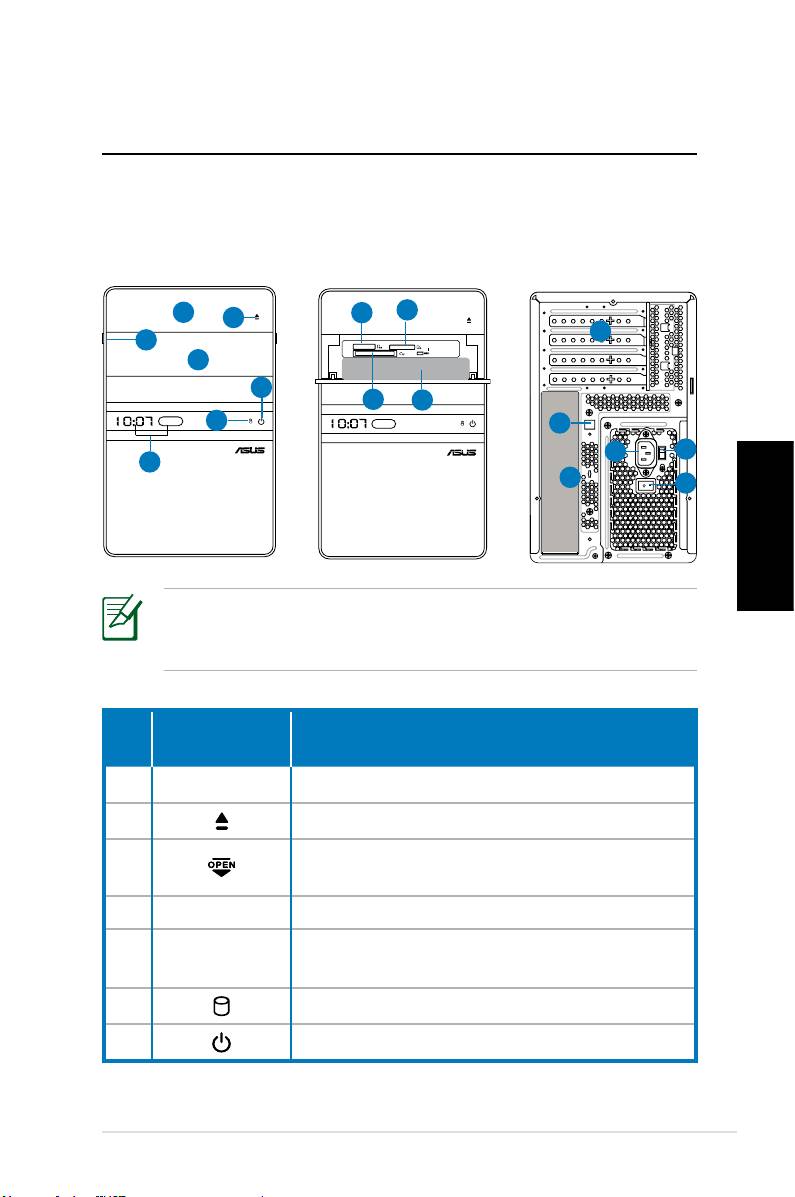
Poznanie budowy komputera
typu desktop
Elementy na panelu przednim/tylnym
Przód
Przód
Tył
(Zamknięty)
(Otwarty)
Polski
*Szare miejsca zawierają porty paneli przedniego/tylnego.
Porty te i ich lokalizacje mogą być różne, w zależności od
modelu systemu.
ciąg dalszy na następnej stronie
Komputer ASUS Essentio Desktop PC 9
S P K
SIDE
S P K
REAR
BASS
C T R
MIC IN
FRONT
IN
LINE
1
8
9
2
12
3
4
7
10
11
6
13
14
15
5
17
16
Przycisk/
Nr
Opis
LED
1. Pokrywa wnęki napędu optycznego.
2. Przycisk wysuwania napędu optycznego.
Przesuwanie pokrywy panela przednie-
3.
go do pozycji otwarcia.
4. Pokrywa panela przedniego.
Wyświetlacz czasu i LED podczerwieni
5.
(wyłącznie niektóre modele).
6. Dioda LED dysku twardego.
7. Przycisk zasilania (dotykowy)
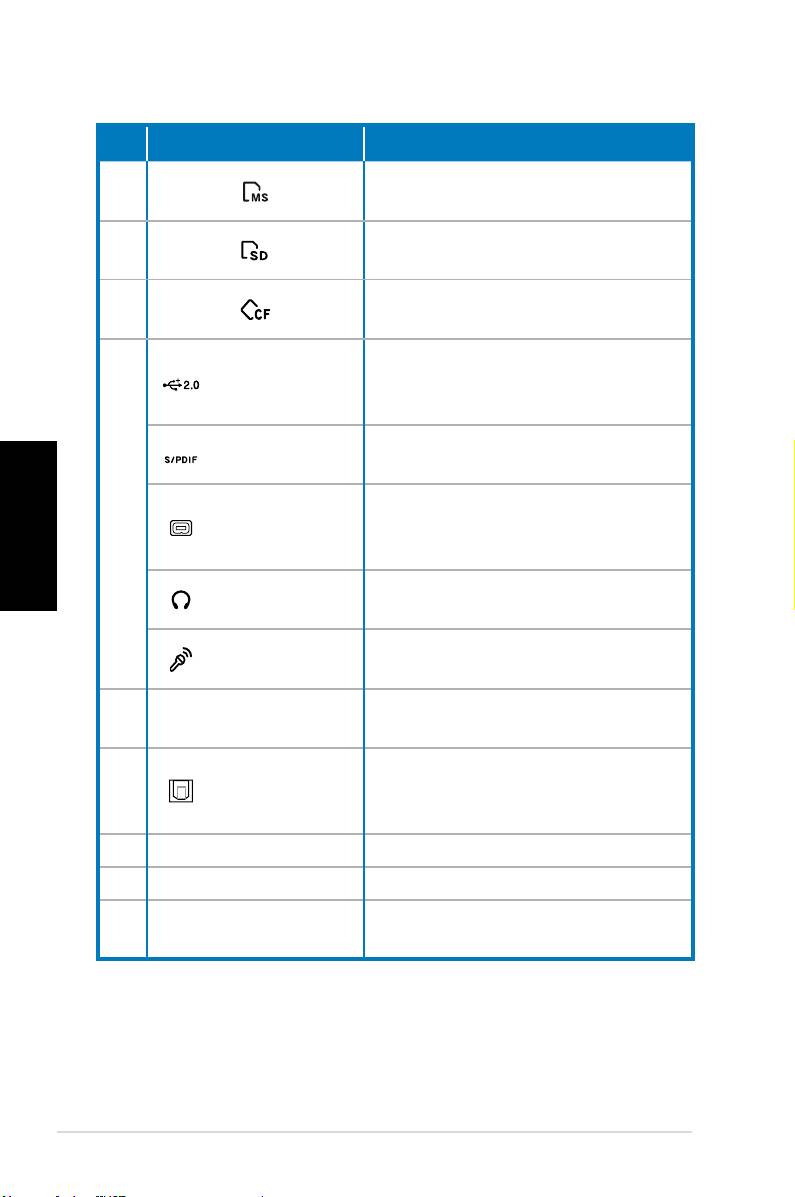
Nr Gniazdo/Port Opis
®
Gniazdo karty Memory Stick
/
8.
Memory Stick Pro™.
Gniazdo karty Secure Digital™/
9.
Multimedia.
®
Gniazdo karty CompactFlash
/
10.
Microdrive™.
Do podłączenia urządzeń USB
Porty USB
takich jak mysz, klawiatura lub
2.0
aparat.
Port wejścia
Do podłączenia cyfrowego
S/PDIF
źródła audio.
Polski
Podłączanie urządzenia IEEE
11.
4-pinowy port
1394 takiego jak kamera cyfro-
IEEE 1394a
wa.
Gniazdo
Podłączanie stereo lub słucha-
słuchawek
wek.
Gniazdo
Podłączanie mikrofonu.
mikrofonu
Użyj gniazd do instalacji kart
12. Gniazda rozszerzeń
rozszerzenia.
Port wyjścia
Do podłączenia wzmacniacza
13.
optycznego
dla cyfrowego wyjścia audio.
S/PDIF
14. Złącze zasilania Podłączenie kabla zasilania.
15. Selektor napięcia Wybór napięcia wejścia.
Przełącznik
Przełączanie włączenia/
16.
zasilania
wyłączenia zasilania.
ciąg dalszy na następnej stronie
10 Komputer ASUS Essentio Desktop PC
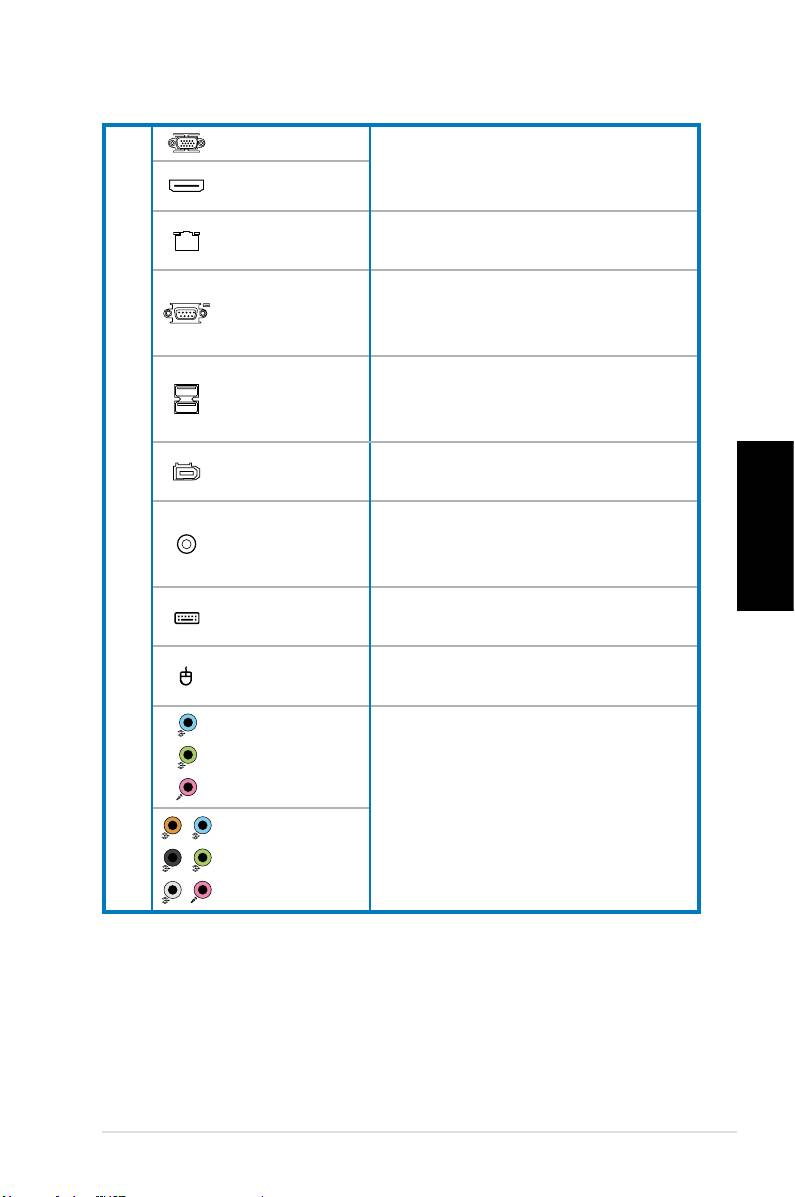
Port VGA
Podłączanie do telewizora lub
monitora z innym wyjściem
Port HDMI
video.
Port LAN
Podłączanie kabla sieciowego.
(RJ-45)
Podłączenie do urządzeń,
Port COM
które spełniają specykacje
połączenia szeregowego.
Do podłączenia urządzeń USB
Porty USB
takich jak mysz, klawiatura lub
17.
2.0
aparat.
6-pinowy port
Podłączanie urządzenia IEEE
IEEE 1394a
1394 takiego jak kamera cyfrowa.
Port wyjścia
Do podłączenia wzmacniacza
koncentrycz-
Polski
dla cyfrowego wyjścia audio.
nego S/PDIF
Port klawia-
Podłączenie do klawiatury
tury PS/2
PS/2.
Port myszy
Podłączenie do myszy PS/2.
PS/2
Porty 5.1 (6)-
kanałowego
audio
Do podłączenia z systemem
głośników 5.1 (6) lub 7.1 (8)-
Porty 7.1 (8)-
kanałowym.
kanałowego
audio
Komputer ASUS Essentio Desktop PC 11
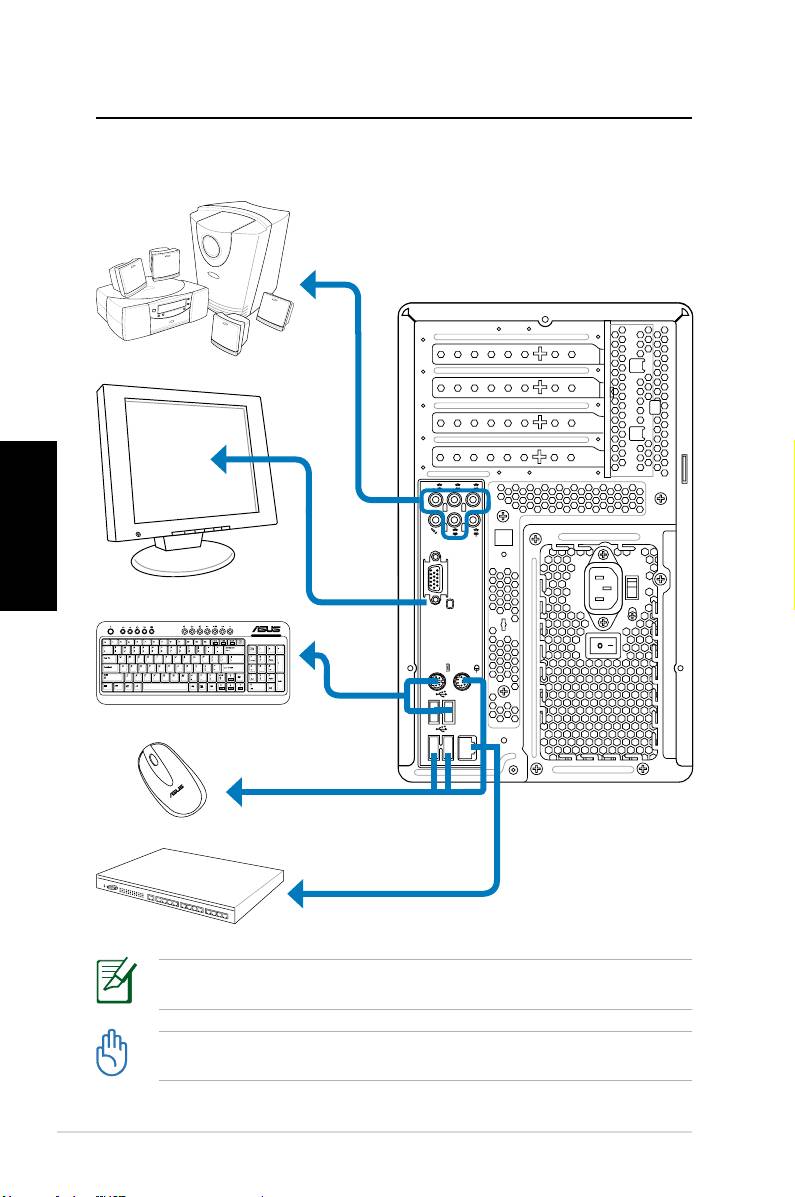
Ustawienia komputera typu desktop
Podłączanie urządzeń
Polski
12 Komputer ASUS Essentio Desktop PC
S P K
SIDE
S P K
REAR
BASS
C T R
MIC IN
FRONT
IN
LINE
Ilustracje służą wyłącznie jako odniesienie. Rzeczywiste specykacje produktu mogą
być inne.
• Produkt można używać przy temperaturze otoczenia poniżej 35˚C.
• Nie należy blokować lub przykrywać tych szczelin.
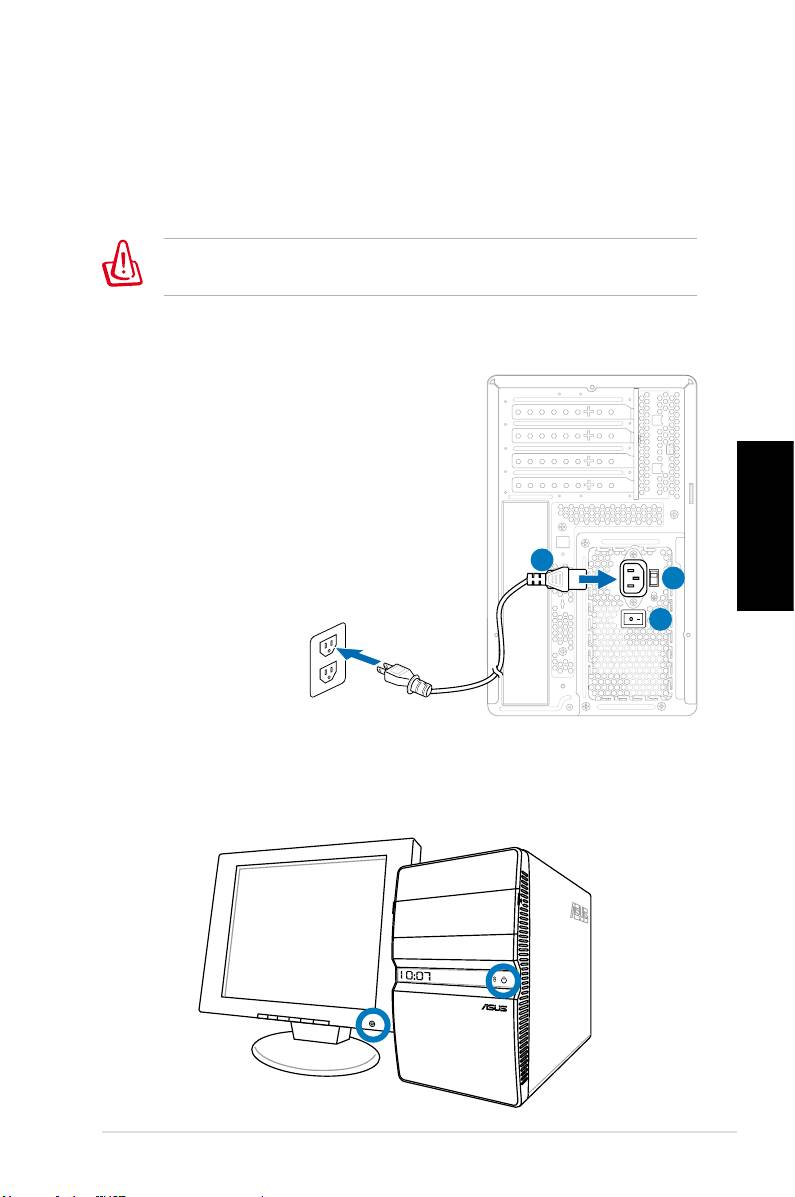
Podłączenie zasialnia
1. Przełącz selektor napięcia na odpowiednie napięcie
wejścia, zgodnie z napięciem stosowanym w danym
regionie.
Ustawienie selektora napięcia na 115V w regionie gdzie
stosowane jest napięcie 230V spowoduje uszkodzenie systemu!
2. Podłącz przewód zasilający do złącza zasilania i podłącz
go do ściennego gniazda zasilania.
3. Naciśnij przełącznik zasilania.
Polski
2
1
3
W celu włączenia systemu należy nacis-
nąć przycisk zasilania
Komputer ASUS Essentio Desktop PC 13
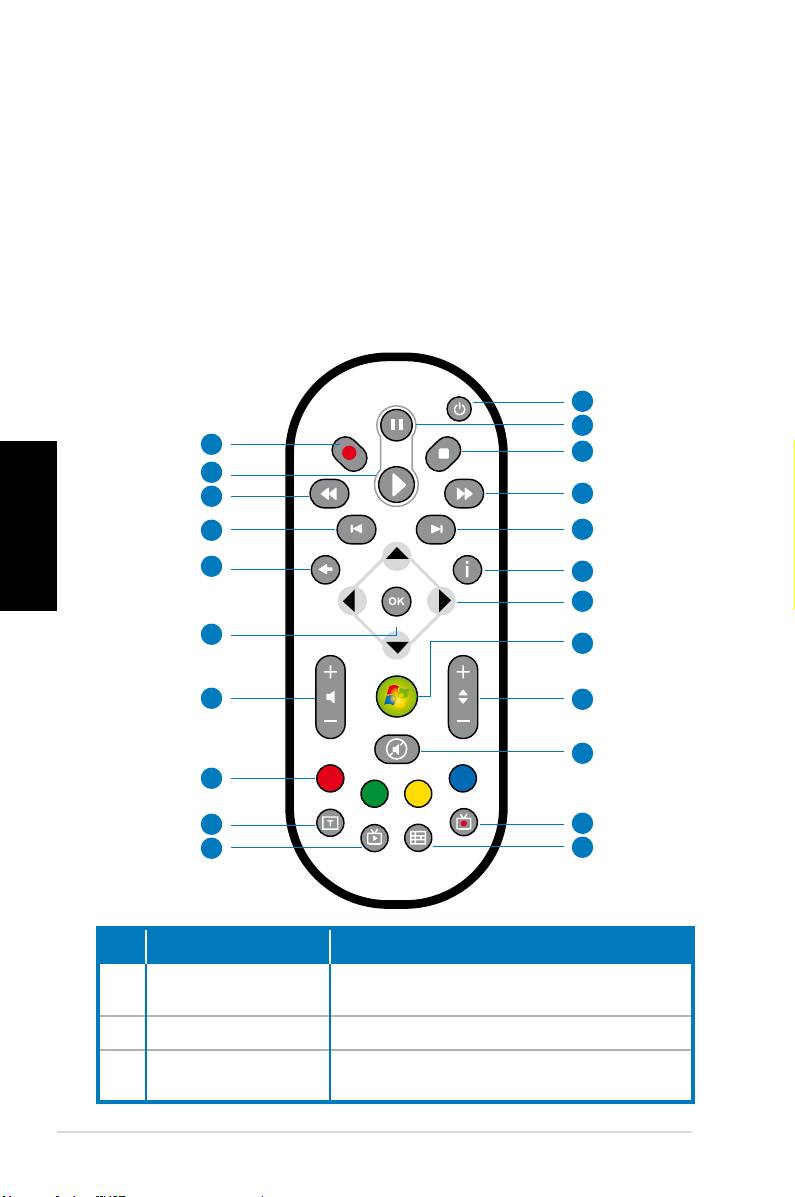
Używanie pilota zdalnego sterowania
Media Center (opcjonalny)
Użyj pilota zdalnego sterowania do uruchomienia programu Me-
dia Center w celu odtwarzania plików multimedialnych i lmów.
Do oglądania telewizji i nagrywania programów telewizyjnych
można także zainstalować zewnętrzną przystawkę telewizyjną.
Sprawdź tabelę poniżej w celu zapoznania użytkownika z
funkcjami przycisków pilota zdalnego sterowania.
1
2
22
3
21
Polski
20
4
19
5
18
6
7
17
8
16
9
10
15
14
11
13
12
Nr Przycisk Opis
Naciśnij w celu włączenia/wyłączenia
1.
Zasilanie
zasilania ekranu i głośników.
2.
Pauza Naciśnij w celu wstrzymania odtwarzania.
Naciśnij, aby zatrzymać odtwarzanie
3.
Zatrzymaj
pliku multimediów.
14 Komputer ASUS Essentio Desktop PC
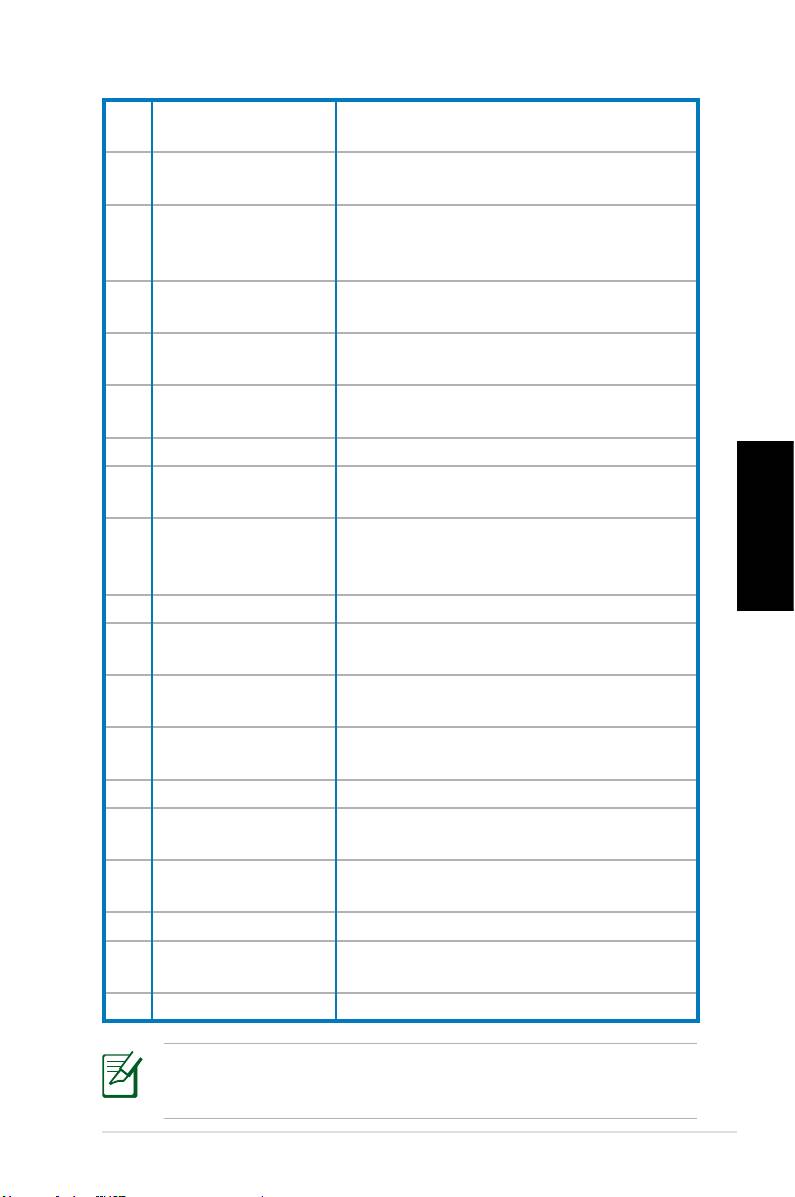
Szybkie przewijanie
Naciśnij w celu szybkiego przewinięcia
4.
do przodu
do przodu pliku multimediów.
Naciśnij w celu przejścia do następnej
5.
Następna ścieżka
ścieżki.
Naciśnij w celu wyświetlenia informacji o
6.
Informacje
programie w Media Center lub w innym
menu opcji.
Cztery przyciski
Naciśnij w celu przewinięcia menu ekra-
7.
nawigacji
nowych.
Windows� Media
Naciśnij w celu uruchomienia programu
8.
Center
Media Center.
Naciśnij w celu zmiany kanałów telewizyj-
9.
Kanał w górę/w dół
nych.*
10.
Wyciszenie Naciśnij w celu wyłączenia wyjścia audio.
Naciśnij w celu wyświetlenia listy nagra-
11.
Nagrane TV
nych porogramów TV.*
EPG (Elektroniczny
Naciśnij w celu wyświetlenia ekranu
Polski
12.
przewodnik progra-
elektronicznego przewodnika programo-
mowy)
wego.*
13.
Przycisk Live TV
Naciśnij w celu oglądania telewizji na żywo.*
Przełączenie pomiędzy wprowadzaniem
14.
Przełącz
wartości numerycznych i alfabetycznych.
Dostępne jedynie w modelach na rynek
15.
Przyciski teletekstu
europejski.
Głośność w górę/w
Naciśnij w celu zwiększenia/zmniejszenia
16
dół
głośności.
17.
OK Naciśnij w celu potwierdzenia akcji.
Naciśnij w celu powrotu do poprzedniej
18.
Powrót
strony.
Naciśnij w celu przejścia do poprzedniej
19.
Poprzednia ścieżka
ścieżki.
20.
Przewiń Naciśnij, aby przewinąć plik multimediów.
Naciśnij w celu odtworzenia pliku multi-
21.
Odtwarzaj
mediów.
22
Nagrywaj
Naciśnij w celu rozpoczęcia nagrywania TV.
*System nie jest dostarczany z wbudowanym tunerem
TV. W celu użycia funkcji TV należy zakupić najpierw
zewnętrzną przystawkę TV.
Komputer ASUS Essentio Desktop PC 15

Przywracanie systemu
Używanie dysku recovery DVD
Dysk recovery DVD zawiera obraz systemu operacyjnego
zainstalowanego w systemie fabrycznie. Dysk recovery DVD,
działa przy obsłudze DVD, zapewniając pełne rozwiązanie
przywracania, umożliwiające szybkie przywrócenie systemu
do stanu oryginalnego, przy założeniu, że dysk twardy działa
prawidłowo. Przed użyciem dysku recovery DVD należy
skopiować pliki z danymi (takie jak pliki PST programu Outlo-
ok) do urządzenia USB lub do napędu sieciowego i zapisać
własne ustawienia konguracji (takie jak ustawienia sieci).
1. Włącz komputer ASUS Desktop, po czym pojawi się logo
ASUS. Naciśnij F8, aby przejść do menu Wybierz urzą-
dzenie rozruchowe.
Polski
2. Włóż dysk recovery DVD do napędu optycznego i wy-
bierz napęd optyczny (“CDROM:XXX”) jako urządzenie
rozruchowe. Naciśnij Enter, a następnie naciśnij dowol-
ny przycisk w celu kontynuacji.
3. Pojawi się okno Menedżer uruchomienia Windows.
Wybierz Instalacja Windows [Włączone EMS] i naciśnij
Enter. Zaczekaj na wyświetlenie komunikatu Ładowanie
plików przez system Windows.
4. Wybierz miejsce instalacji nowego systemu. Dostępne
opcje to:
Przywracanie partycji systemowej
Ta opcja umożliwia powoduje usunięcie wyłącznie
wybranej poniżej partycji, umożliwiając pozostawienie
innych partycji i utworzenie nowej partycji systemowej
jako napędu “C.” Wybierz partycję i kliknij DALEJ.
Przywrócenie systemu na cały dysk twardy
Ta opcja usuwa z dysku twardego wszystkie partycje i
tworzy nową partycję systemową, jako napęd “C.” Wy-
bierz i kliknij Tak.
5. Wykonaj wyświetlone na ekranie instrukcje w celu do-
kończenia procesu przywracania.
Podczas przywracania systemu, utracone zostaną
wszystkie dane. Przed wykonaniem przywracania systemu
należy upewnić się, że utworzona została kopia zapasowa.
16 Komputer ASUS Essentio Desktop PC

6. Po zakończeniu przywracania systemu, pojawi się
polecenie włożenia do napędu optycznego pomocnicze-
go dysku DVD. Kliknij OK, po czym nastąpi ponowne
uruchomeinie systemu.
7. Po ponownym uruchomieniu systemu, system Win-
dows� Vista™ rozpocznie wykonywanie konguracji
systemu. Wykonaj instrukcje ekranowe w celu dokończe-
nia procesu, a następnie uruchom ponownie komputer.
Ten dysk recovery DVD może być używany wyłącznie w
komputerach ASUS Desktop. NIE NALEŻY go używać
w innych komputerach. W celu wykonania jakichkolwiek
aktualizacji należy odwiedzić stronę sieci web ASUS, pod
adresem www.asus.com.
Polski
Komputer ASUS Essentio Desktop PC 17

Rozwiązywanie problemów
Przeczytaj podaną poniżej część Q&A (Pytania i odpowiedzi)
pomocną w rozwiązywaniu problemów. Jeśli zamieszczone
informacje nie rozwiązują problemu, można skontaktować
się bezpośrednio, wykorzystując informacje kontaktowe do-
starczone na pomocniczym dysku DVD.
Co można zrobić, jeśli nie można włączyć zasilania kom-
putera typu desktop?
Sprawdź, czy świeci się wskaźnik LED na panelu przednim.
Wskaźnik nie świeci się, gdy do systemu nie jest podłączone
zasilanie.
• Sprawdź, czy jest podłączony przewód zasilający.
• Gdy używany jest przedłużacz lub regulator napięcia
Polski
należy upewnić się, że został on podłączony do gniazdka
ściennego oraz, że jest włączony.
Co można zrobić, jeśli nie można uruchomić systemu
operacyjnego komputera typu desktop?
• Upewnij się, że używane są moduły pamięci obsługiwane
przez system oraz, że zostały one prawidłowo zainstalo-
wane w gniazdach.
• Sprawdź, czy urządzenia peryferyjne są zgodne z syste-
mem. Niektóre urządzenia pamięci USB, na przykład,
mają różną strukturę dysku i łatwo przechodzą do trybu
uśpienia.
Jeśli wymienione wyżej czynności nie rozwiązują problemu,
skontaktuj się z dostawcą lub wykonaj przywracanie syste-
mu, wykorzystując dostarczony dysk recovery DVD.
Podczas przywracania systemu, utracone zostaną
wszystkie dane. Przed wykonaniem przywracania systemu
należy upewnić się, że utworzona została kopia zapasowa.
18 Komputer ASUS Essentio Desktop PC
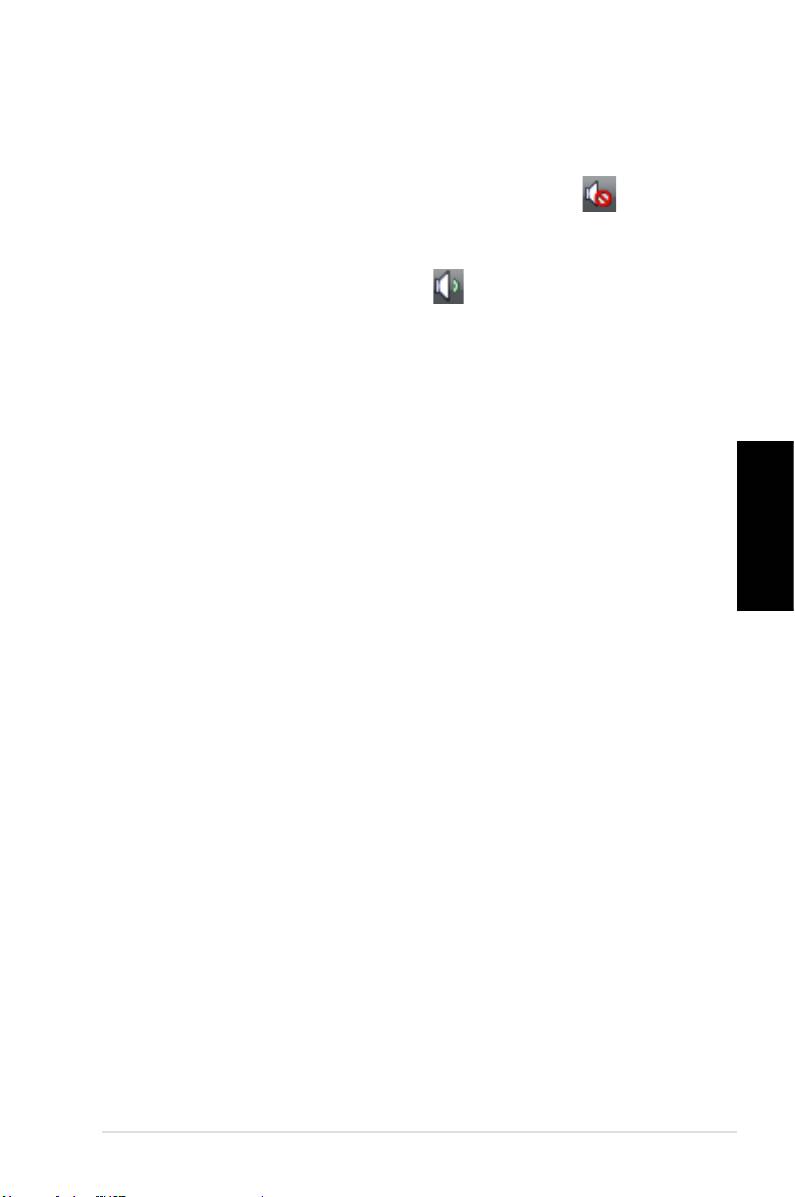
Dlaczego nie słychać dźwięków z głośników/słuchawek?
®
Sprawdź ikonę głośności na pasku zadań Windows
, aby
przekonać się, czy ustawione zostało wyciszenie . Jeśli
tak, kliknij dwukrotnie tę ikonę w celu wyświetlenia paska
głośności, a następnie kliknij ikonę wyciszenia na pasku w
celu anulowania trybu wyciszenia .
Dlaczego nie można odczytywać lub zapisywać danych
na dysku CD/DVD?
• Upewnij się, że używany jest dysk zgodny z napędem
optycznym.
• Sprawdź, czy dysk został włożony prawidłowo lub, czy nie
jest zarysowany.
• Sprawdź, czy dysk nie jest zabezpieczony przed zapisem.
Polski
Komputer ASUS Essentio Desktop PC 19

Polski
20 Komputer ASUS Essentio Desktop PC
ASUS Essentio asztali PC
Felhasználói kézikönyv
Magyar

HUG3716
Első kiadás, 1. verzió
Április 2008
Magyar
Copyright © 2008 ASUSTeK COMPUTER INC, Minden jog fenntartva
Az alábbi tájékoztató, valamint a benne ismertetett szoftverek és egyéb
termékek semelyike nem másolható, terjeszthető, rögzíthető adattároló
rendszereken, vagy fordítható le bármely más nyelvre semmilyen for-
mában és módon - kivéve a termék vásárlója által készített biztonsági
másolatokat – anélkül, hogy erről előzetesen az ASUSTeK COMPUTER
INC. (ASUS) cég írásos engedélyt ne adna.
A jelen kézikönyvben megemlített termékek és cégnevek az birtokos cé-
gek bejegyzett védjegye vagy szerzői jogok által védett tulajdona lehet, és
csak azonosítási célra használtuk. Az összes védjegy az illető védjegyek
tulajdonosainak birtoka.
Minden tőlünk telhetőt megtettünk, hogy a kézikönyv tartalma helyes és
aktuális legyen. Azonban a gyártó nem garantálja a kézikönyv tartalmának
helyességét, és fenntartja a jogot, hogy azt előzetes bejelentés nélküli
módosítása.

Tartalomjegyzék
Tartalomjegyzék ........................................................... 3
Notices ......................................................................... 4
A biztonságos üzemeltetéssel kapcsolatos információk
.. 6
Megjegyzések a kézikönyvhöz .................................... 7
Üdvözöljük ........................................................8
A csomag tartalma ....................................................... 8
Asztali PC jének megismerése ........................9
Első / Hátsó panelek jellemzői ..................................... 9
Asztali PC jének beállítása ............................12
A készülékek összekapcsolása ................................. 12
A tápfeszültség csatlakoztatása ................................. 13
Nyomja meg a „power” gombot a rendszer
elindításához .............................................................. 13
A média center távoli használata (opcionális) ............ 14
A rendszer helyreállítása ...............................16
Helyreállító DVD használata ...................................... 16
Problémamegoldás ........................................18
Magyar
ASUS Essentio asztali PC 3

Notices
Federal Communications Commission State-
ment
This device complies with Part 15 of the FCC Rules. Opera-
tion is subject to the following two conditions:
• This device may not cause harmful interference, and
• This device must accept any interference received includ-
ing interference that may cause undesired operation.
This equipment has been tested and found to comply with
the limits for a Class B digital device, pursuant to Part 15 of
the FCC Rules. These limits are designed to provide reason-
able
protection against harmful interference in a residential
installation. This equipment generates, uses and can radi-
ate radio frequency energy and, if not installed and used
in accordance with manufacturer’s instructions, may cause
harmful
interference to radio communications. However, there is no
guarantee that interference will not occur in a particular
Magyar
installation. If this equipment does cause harmful interfer-
ence to radio or television reception, which can be deter-
mined by
turning the equipment off and on, the user is encouraged to
try to correct the interference by one or more of the following
measures:
• Reorient or relocate the receiving antenna.
• Increase the separation between the equipment and re-
ceiver.
• Connect the equipment to an outlet on a circuit different
from that to which the receiver is connected.
• Consult the dealer or an experienced radio/TV technician
for help.
4 ASUS Essentio asztali PC

Canadian Department of Communications
Statement
This digital apparatus does not exceed the Class B limits for
radio noise emissions from digital apparatus set out in the
Radio Interference Regulations of the Canadian Department
of Communications.
This class B digital apparatus complies with Canadian ICES-
003.
Macrovision Corporation Product Notice
This product incorporates copyright protection technology
that is protected by method claims of certain U.S. patents
and other intellectual property rights owned by Macrovision
Corporation and other rights owners. Use of this copyright
protection
technology must be authorized by Macrovision Corporation,
and is intended for home and other limited viewing uses only
Lithium-Ion Battery Warning
Magyar
CAUTION: Danger of explosion if battery is incorrectly replaced. Replace
only with the same or equivalent type recommended by the manufactur-
er. Dispose of used batteries according to the manufacturer’s instructions.
VORSICHT: Explosionsgetahr bei unsachgemäßen Austausch der Batterie.
Ersatz nur durch denselben oder einem vom Hersteller empfohlenem
ähnljchen Typ. Entsorgung gebrauchter Batterien nach Angaben des
Herstellers.
ASUS Essentio asztali PC 5

A biztonságos üzemeltetéssel kapc-
solatos információk
Az Ön ASUS NOVA P20/P22 készülékét az informatikai beren-
dezésekre vonatkozó legújabb szabványok szerint tervezték
és tesztelték. Az Ön biztonsága érdekében azonban ne feledje
elolvasni az alábbi biztonsági információkat.
A rendszer üzembe helyezése
• Olvassa el alaposan és tartsa be a dokumentáció összes
utasítását, mielőtt működtetné a rendszert.
• Ne használja a terméket víz vagy hőforrások, például
fűtőtest közelében.
• A rendszert stabil felületre állítsa.
• Használja az állványt, ha egymásra kívánja helyezni a
NOVA komponenseit. A rendszer alkotóelemeinek egymás-
ra helyezése az állvány nélkül akadályozza a szellőzést és
a rendszer károsodását okozhatja.
• A készülékházon található nyílások a szellőztetést szol-
gálják. Ne zárja el vagy fedje le a szellőzőnyílásokat.
Győződjön meg arról, hogy elegendő hely van a rendszer
Magyar
körül a megfelelő szellőzéshez. Semmiféle idegen tárgyat
ne dugjon a szellőzőnyílásokba!
• Ha hosszabbító kábelt használ, ellenőrizze, hogy a hossz-
abbítóhoz csatlakoztatott berendezések teljes áramfelvé-
tele nem haladja-e meg a hosszabbító kábel névleges
teljesítményét.
Használat közben
• Ne lépjen a hálózati kábelre, és ne tegyen rá tárgyakat.
• Ne öntsön vizet vagy más folyadékot a rendszerre.
• Annakl ellenére, hogy a rendszer ki van kapcsolva, csekély
mennyiségű áram még folyik a tápkábelen.
A rendszer tisztítása előtt mindig húzza ki az összes tápká-
belt, modemkábelt és hálózati kábelt a hálózati csatlakozóból.
• Ha az alábbi műszaki problémákat tapasztalja a termékkel
kapcsolatban, húzza ki a tápkábelt és lépjen kapcsolatba
egy szerviz szakemberrel vagy a kiskereskedővel.
• A tápkábel vagy a csatlakozó dugó sérült.
6 ASUS Essentio asztali PC
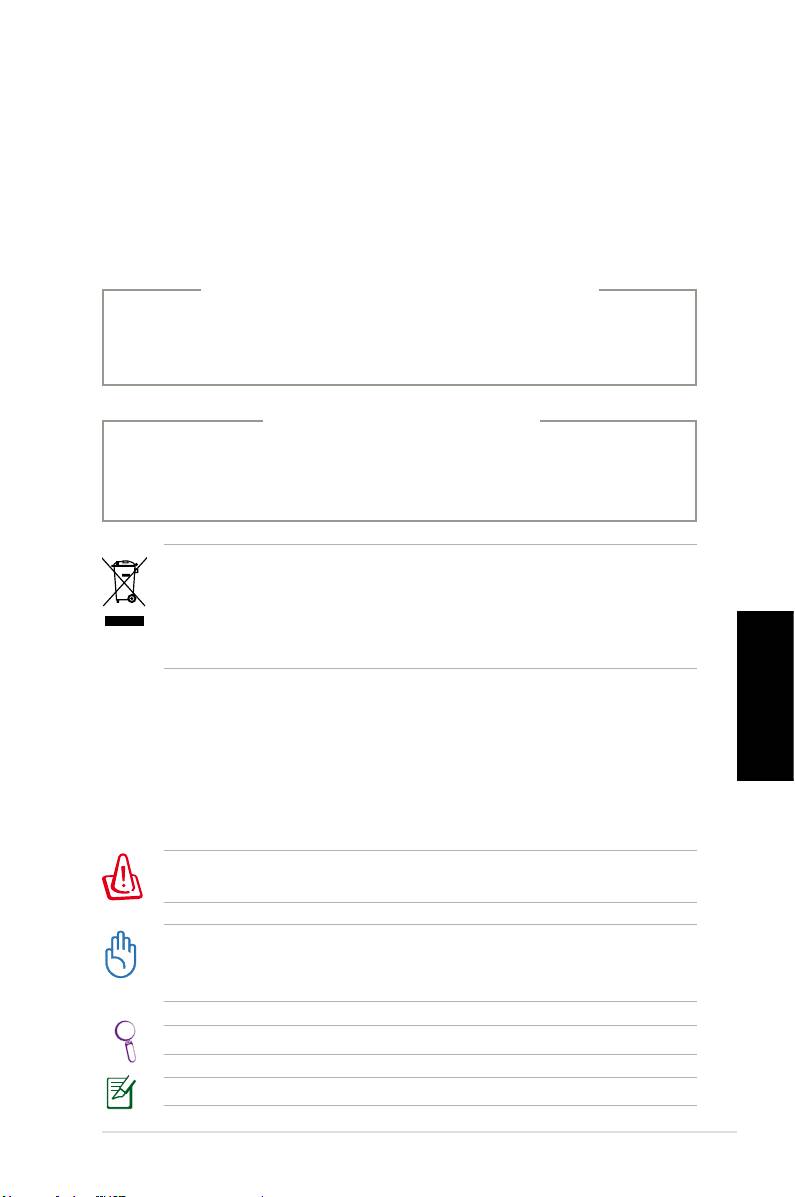
• Folyadék ömlött a készülékbe.
• A rendszer nem működik normálisan annak ellenére,
hogy betartotta az összes használati utasítást.
• A rendszert elejtették, vagy a burkolata megsérült.
• A rendszer teljesítménye megváltozik.
FIGYELMEZTETÉS a CD-ROM
meghajtó biztonságával kapcsolatban
I. OSZTÁLYÚ LÉZERTERMÉK
TILOS SZÉTSZERELNI!
A garancia nem vonatkozik olyan termékekre,
amelyeket a felhasználó szétszerelt
Az áthúzott kerekes szeméttárolót ábrázoló jelzéssel
ellátott terméket (elektromos és elektronikus berendezések
és higanytartalmú gombelemek) nem szabad háztartási
szemétként kezelni. Az elektronikus termékek elhelyezését
illetően tájékozódjon a helyi hatóságoknál.
Megjegyzések a kézikönyvhöz
Magyar
Néhány megjegyzést és figyelmeztetést a az útmutatóban
figyelembe kell venni bizonyos feladatok biztonságos és
teljes végrehajtásához. Ezek a megjegyzések az alábbiak
szerint eltérő fontossággal bírnak:
FIGYELMEZTETÉS!
Fontos információ, amelyet be kell
tartani a biztonságos üzemeltetés érdekében.
FONTOS! Elengedhetetlen tájékoztatás, amelyet be kell
tartani a rögzített adatok, alkatrészek vagy személyek
épségének megóvása érdekében.
Tipp: Tanácsok a feladatok elvégzéséhez.
MEGJEGYZÉS: Információ különleges helyzetekre.
ASUS Essentio asztali PC 7
Üdvözöljük
Gratulálunk az ASUS asztali PC megvásárlásához. Az Ön
új asztali PC csomagjának tartalmát lentebb láthatja, de ez
modeltől is függ. ASUS fenntartja a jogot, hogy kicserélje az
alkatrészeket és tartozékokat az optimális hatás érdekében.
Lépjen kapcsolatba a viszonteladóval, amennyiben bárme-
lyik cikk sérült vagy hiányzik.
A csomag tartalma
• ASUS asztali PC x1
• Billentyűzet x1
• Egér x1
• Tápkábel x1
• DVD támogatás x1
• DVD helyreállítás x1
• Telepítési útmutató x1
• Garancia kártya x1
• Távirányító (választható) x1
Magyar
Nézze meg ASUS honlapot http://support.asus.com a
frissítésekért.
8 ASUS Essentio asztali PC
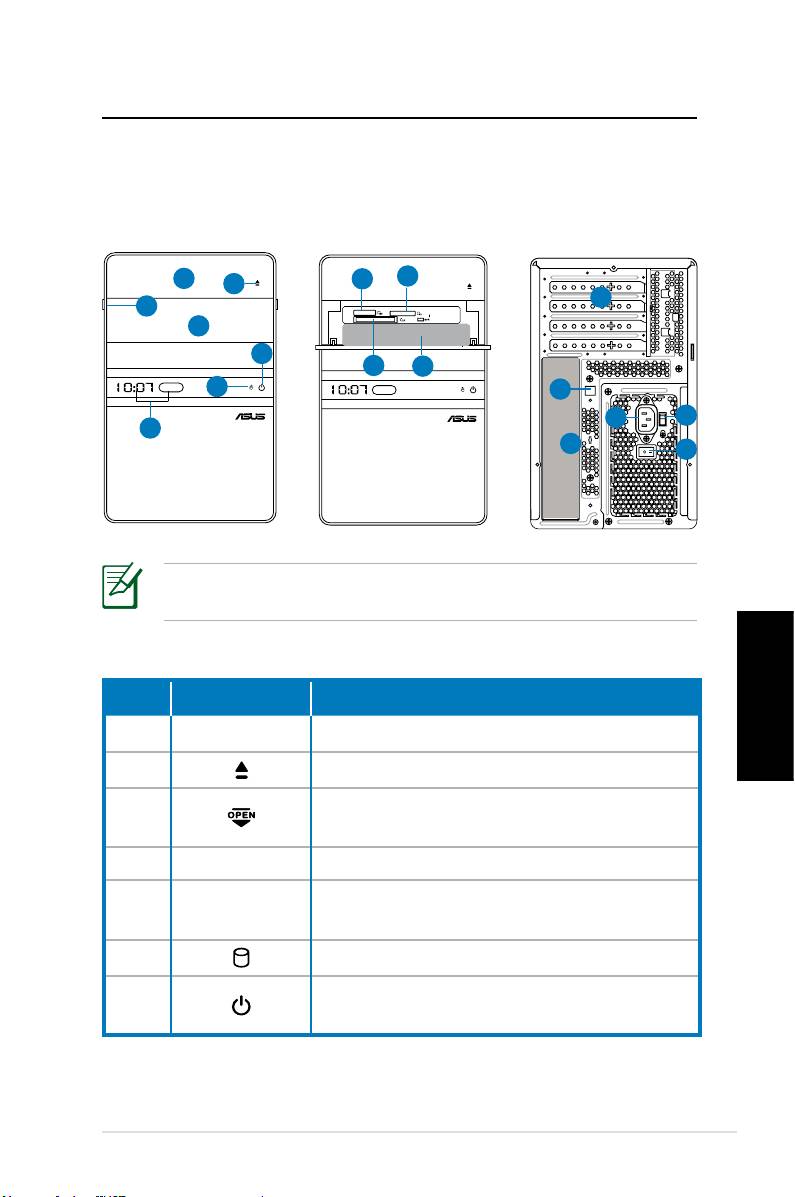
Asztali PC jének megismerése
Első / Hátsó panelek jellemzői
Első (Záró)
Első (Nyitó) Hátsó
*A szürke területek tartalmazzák az első/hátsó panelekA szürke területek tartalmazzák az első/hátsó panelek
portjait. Ezek a portok és helyük változhat a model alapján.
Magyar
Folytatás a következő oldalon
ASUS Essentio asztali PC 9
S P K
SIDE
S P K
REAR
BASS
C T R
MIC IN
FRONT
IN
LINE
1
8
9
2
12
3
4
7
10
11
6
13
14
15
5
17
16
Nem.
Jelzőlámpa Leírás
1. Optikai meghajtó rekesz-fedél.
2. Optikai meghajtó kidobó gomb.
Csúsztassa el az első takaró panelt a
3.
kinyitáshoz.
4. Első takaró panel.
Idő és IR LED kijelző (csak egyes
5.
modelleken)
6. Merevlemez jelző lámpa (LED)
Bekapcsoló gomb
7.
(érintésre érzékeny)
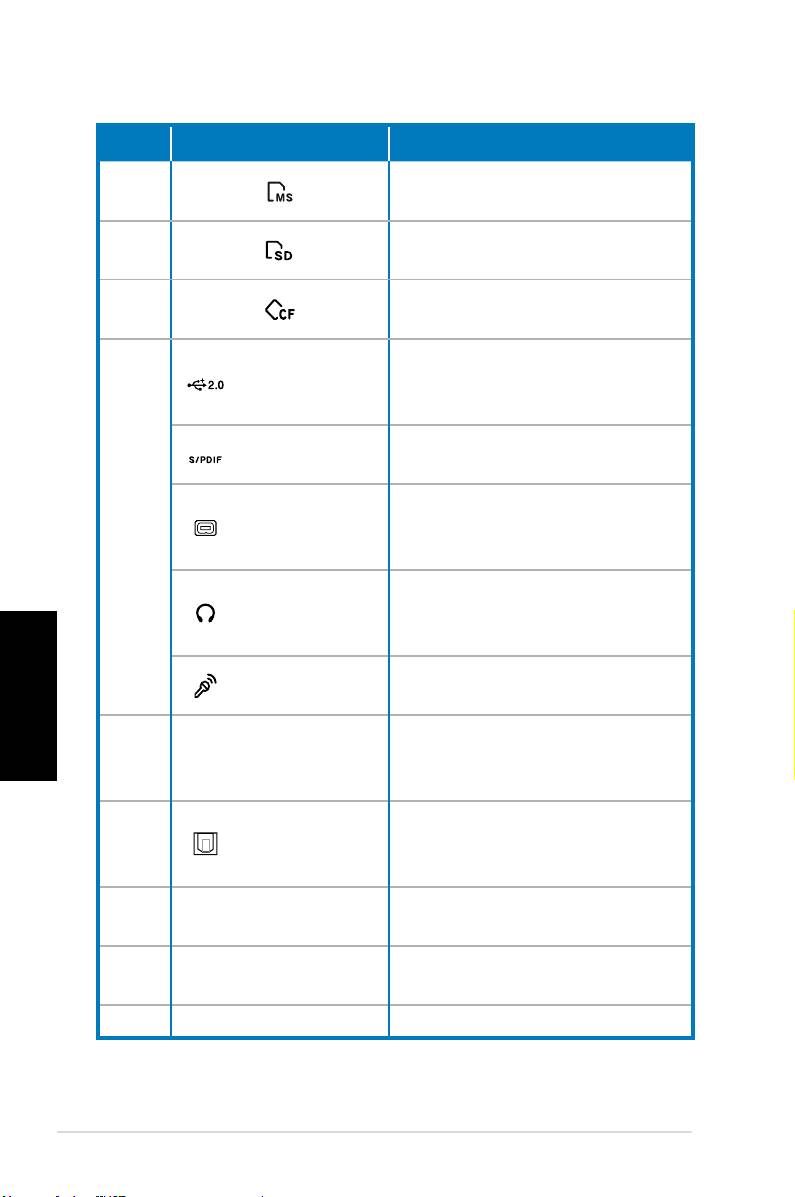
Nem.
Nyílás/Port Leírás
®
Memory Stick
/Memory Stick
8.
Pro™ kártyanyílás.
Secure Digital™/Multime-
9.
diakártyanyílás.
®
CompactFlash
/Microdrive™
10.
kártyanyílás.
USB készülékekhez
USB 2.0 port
csatlakozik, mint pl. az egér,
billentyűzet, vagy kamera.
S/PDIF In
Digitális audioforráshoz
port
csatlakozik.
Egy IEEE 1394 készülékhez,
4-pin IEEE
11.
mint pl. digitális kamera, csat-
1394a port
lakozik
Csatlakoztassa a sztereo
Fejhallgató
hangfalat vagy a fülhallgatót
dugó
ebbe az aljzatba.
Magyar
Mikrofon
Csatlakoztassa a mikrofont
aljzat
ebbe az aljzatba.
A bővítőnyílásokat
12. Bővítőnyílások
bővítőkártyák telepítésére
lehet használni.
Optikai
Egy digitális audio kimeneti
13.
S/PDIF kim
erősítőhöz csatlakoztatható.
port
A tápkábel csatlakozta-
14. Tápcsatlakozó
tásához.
A bemeneti feszültség
15. Feszültségválasztó
kiválasztásához.
16. Üzemkapcsoló Be-/kikapcsolja a tápegységet.
Folytatás a következő oldalon
10 ASUS Essentio asztali PC
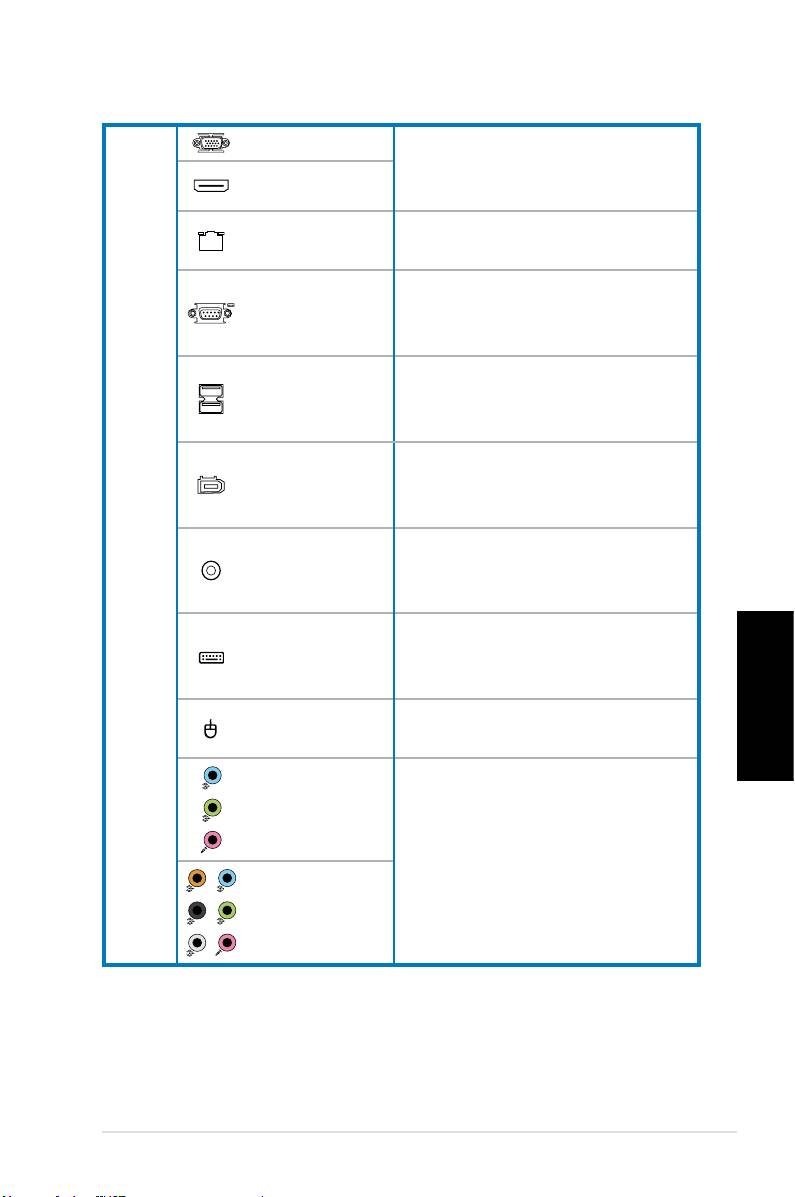
VGA port
Különböző TV vagy monitor
video kimenetekhez csatla-
HDMI port
koztatható
LAN (RJ-45)
Dugja be a hálózati kábelt
port
ebbe a portba.
A soros specikációnak
COM port
megfelelő eszközök
csatlakoztatásához.
USB készülékekhez
USB 2.0
csatlakozik, mint pl. az egér,
17.
portok
billentyűzet, vagy kamera.
Egy IEEE 1394 készülékhez,
6-pin IEEE
mint pl. digitális kamera, csat-
1394a port
lakozik
Koaxiális
Egy digitális audio kimeneti
S/PDIF kim
erősítőhöz csatlakoztatható.
port
PS/2
PS/2 billentyűzet csatlakozta-
billentyűzet
tásához.
port
PS/2
PS/2 egér csatlakozta-
Magyar
egérport
tásához.
5.1 (6)-
csatornás au-
dio port
Egy 5.1 (6) or 7.1 (8)-
csatornás hangszóró
7.1 (8)-
rendszerhez csatlakozik.
csatornás au-
dio port
ASUS Essentio asztali PC 11
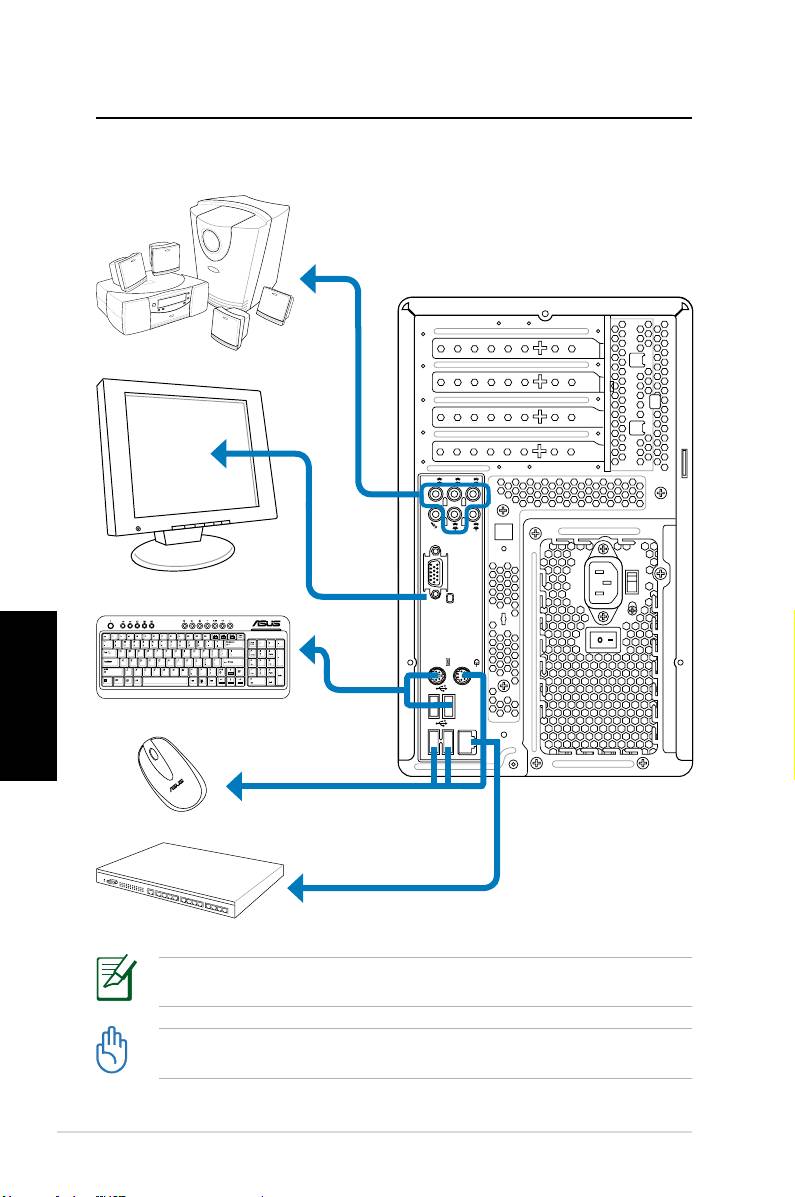
Asztali PC jének beállítása
A készülékek összekapcsolása
Magyar
12 ASUS Essentio asztali PC
S P K
SIDE
S P K
REAR
BASS
C T R
MIC IN
FRONT
IN
LINE
Az ábrák kizárólag hivatkozás célját szolgálják. A termék tényleges műszaki adatai
eltérhetnek.
• A terméket 35˚C alatti hőmérsékleten használja.
• Ne zárja el vagy fedje le a szellőzőnyílásokat.
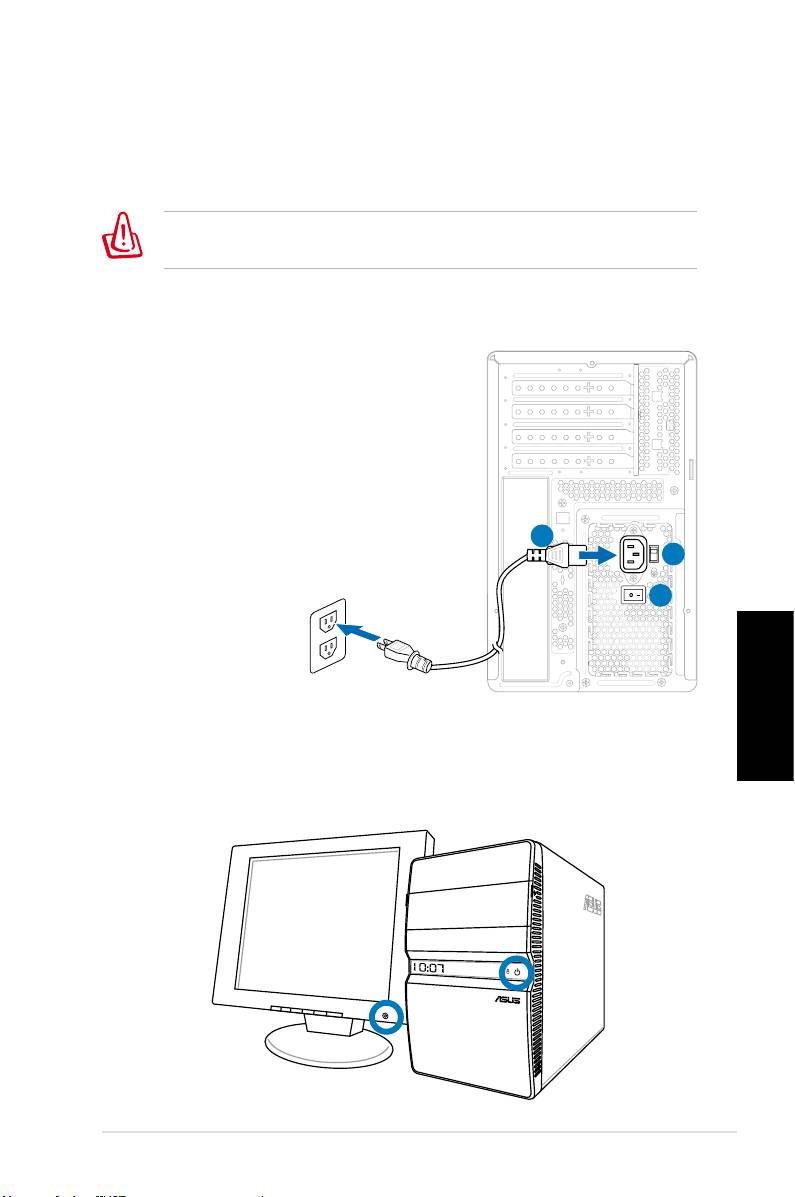
A tápfeszültség csatlakoztatása
1. Állítsa a feszültségválasztó kapcsolót a területének
megfelelő bemeneti tápfeszültségre.
A kapcsoló 115 V-ra állítása 230 V-os hálózati feszültséget
alkalmazó területen súlyosan károsítja a rendszert!
2. Csatlakoztassa a hálózati tápkábelt a tápcsatlakozó
aljzathoz, a dugót pedig a fali aljzatba.
3. Nyomja meg az üzemkapcsoló
gombot.
2
1
3
Magyar
Nyomja meg a „power” gombot a
rendszer elindításához
ASUS Essentio asztali PC 13
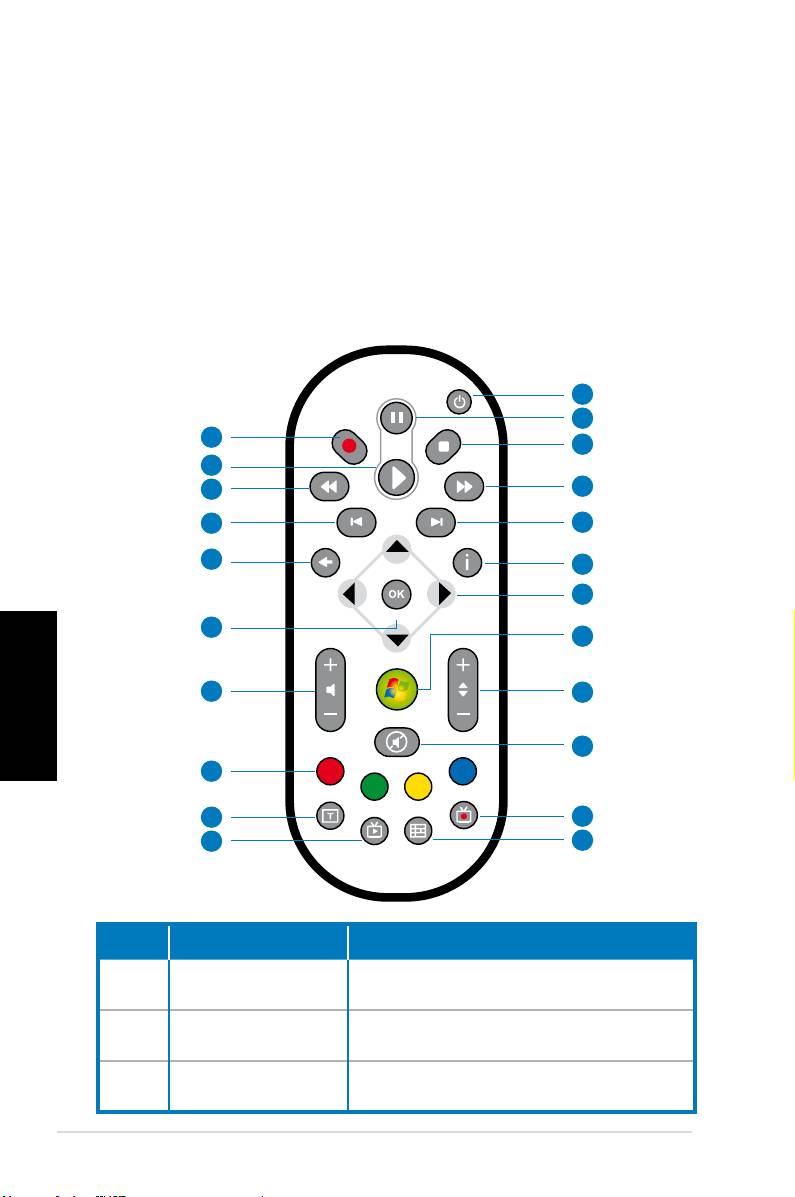
A média center távoli használata
(opcionális)
Használja a távírányítót a Média Központ program elindí-
tásához, így le tud majd játszani zenéket és lmeket. Szintén
feltelepíthet egy külső TV csatlakozót, mellyel nézheti a TV-t,
és fel is vehet TV programokat.
Nézze meg a lenti táblát, hogy jobban megismerje a távírányító
nyomógombjainak funkcióit.
1
2
22
3
21
20
4
19
5
18
6
7
17
8
Magyar
16
9
10
15
14
11
13
12
Nem. Gomb Leírás
Nyomja meg a be/kikapcsológombot
1. Áramforrás
a képernyőn és a hangfalakon.
Nyomja meg a lejátszás megszakí-
2. Pillanatállj
tásához.
Nyomja meg a média fájl
3. Állj
lejátszásának megállításához.
14 ASUS Essentio asztali PC
Nyomja meg a média fájl
4. Előre tekerés
előretekeréséhez.
Nyomja meg hogy a következő
5. Következő szám
számra lépjen.
Nyomja meg, hogy a Média Köz-
6. Információ
pont kijelezze a program vagy más
menüopciók információit.
Négy irányú
Nyomja meg, hogy a képernyős
7.
navigációs
menükön végighaladjon.
gombok
®
Windows
Media
Nyomja meg, hogy elindítsa a Mé-
8.
Center
dia Center programot.
Nyomja meg a TV csatornák
9. Csatorna fel/le
váltásához.
10. Elnémít
Nyomja meg a hang elnémításához.
Nyomja meg a felvett TV programok
11. Felvett műsor
listájának megtekintéséhez.*
EPG (elektroni-
Nyomja meg, hogy megjelenjen az
12.
kus Műsorfüzet)
Elektronikus műsorújság.*
Nyomja meg, hogy élő TV műsort
13. Élő TV gomb
nézhessen.*
Váltás numerikus és alfanumerikus
14. Váltás
bemenet között.
15. Teletext gombok Csak európai modeleken érhető el.
Nyomja meg a hangerő növelése/
Magyar
16 Hangerő fel/le
csökkentése érdekében.
17. OK Nyomja meg a megerősítéshez
Nyomja meg, hogy visszamenjen
18. Visszatérés
az előző oldalra.
Nyomja meg, hogy visszamenjen
19. Előző szám
az előző számra.
Nyomja meg a média fájl vissza-
20. Visszatekerés
tekeréséhez.
Nyomja meg a média fájl
21. Lejátszás
lejátszásához.
Nyomja meg a TV műsor felvételé-
22 Felvétel
nek elkezdéséhez.
*A rendszerben nincs előre beépített TV tuner. A TV funkció
használatához vegyen egy külső TV csatlakozót először.
ASUS Essentio asztali PC 15

A rendszer helyreállítása
Helyreállító DVD használata
A helyreállító DVD tartalmazza a gyári beállításokat. A
helyreállító DVD, együtt a támogató DVDvel egy hatékony
megoldást nyújt a rendszer eredeti, gyári helyreállításához,
feltéve hogy a merevlemeze jó állapotban van. Mielőtt
használná a helyreállító DVD-t, másolja át az adatfájljait
(mint pl. az Outlook pst fájlok) egy USB készülékre vagy egy
hálózati meghajtóra, és írja fel az egyéb speciális beállításo-
kat (mint pl. hálózati beállítások).
1. Kapcsolja be az ASUS PC –jét, ekkor az ASUS logo
megjelenik. Nyomja meg az F8-at, hogy beléphessen a
Boot menübe.
2. Helyezze be a ROM:XXX”), mint bootoló készüléket.
Nyomja meg a Bevitel gombot, majd bármelyik gombot
a folytatáshoz.
3. A Windows Boot Manager ablak megjelenik. Válassza
a Windows Beállításokat (EMS Enabled) és nyomja
meg a Beviitelt. Várjon, amíg a Windows betölti a
fájlokat felirat megjelenik.
Magyar
4. Válassza ki, hogy hova telepíti az új rendszert. A
lehetőségek:
A rendszer helyreállítása particionálva (megosztva)
Ez az opció lehetővé teszi, hogy csak azt a részt törölje
lentről, így megőrizheti a többi részt, és létrehozhat egy
új rendszerrészt, mint pl. a “c” meghajtót. Válassza a
megosztást (Particionálás) és kattintson a Tovább-ra.
A teljes merevlemez helyreállítása
Ez az opció lehetővé teszi, hogy az összes részt törölje a
merevlemezről, és létrehozzon egy új rendszerrészt, mint
pl. a “c” meghajtót. Válassza és kattintson az Igen-re.
5. Kövesse a képernyőn megjelenő utasításokat, hogy
befejezze a helyreállítási folyamatot.
Minden adata el fog veszni a helyreállítás során.
Győződjön meg arról, hogy készített másolatot, mielőtt
nekikezdene rendszere helyreállításához.
16 ASUS Essentio asztali PC

6. Miután a helyreállítás befejeződött, tegye be a támogató
DVD-t az optikai meghajtóba. Kattintson az OK-ra és a
rendszer újraindul.
®
7. Miután a rendszer újraindult, a Windows
Vista™ elkezdi
a rendszerbeállítások elvégzését Kövesse a képernyőn
megjelenő utasításokat, hogy befejezze a folyamatot,
majd indítsa újra a számítógépet.
Ez a helyreállító DVD, csak az ASUS asztali gépekhez
használható. NE HASZNÁLJA más számítógépeken.
Látogasson el az ASUS honlapjára információkért www.
asus.com.
Magyar
ASUS Essentio asztali PC 17

Problémamegoldás
Olvassa el a következő Q&A (Kérdések és Válaszok)-t a
problémamegoldó útmutatóból. Amennyiben ezek nem
segítenek, lépjen kapcsolatba velünk a támogató DVD-n
található kontakt információk valamelyikén.
Mit tehetek, ha az asztali PC-met nem tudom bekapcsolni?
Ellenőrizze, hogy a bekapcsolva lámpa az gép első részén
világít-e. Ha nem világít, akkor nincs áram alatt a rendszer.
• Nézze meg, hogy a tápkábel be van e dugva.
• Amennyiben elosztót használ nlzze meg, hogy az be van
e dugva a konnektorba és be van e kapcsolva.
Mit tehetek, ha az asztali PC-m nem tud belépni az
operációs rendszerbe?
• Győződjön meg róla, hogy olyan memória modu-
lokat használ, melyeket a rendszer támogat és ezeket
megfelelően csatlakoztatta az áramforrásokhoz.
• Ellenőrizze a perifériás készülékeket, kompatibilisek e a
rendszerrel. Néhány USB készülék, például, különböző
Magyar
lemezmeghajtó-struktúrákkal épülnek fel és könnyen alvó
üzemmódba kapcsolnak.
Amennyiben a fenti lépések nem oldották meg a problémáját,
lépjen kapcsolatba kereskedőjével, vagy végezze el a rend-
szer helyreállítást a mellékelt helyreállító DVD segítségével.
Minden adata el fog veszni a helyreállítás során.
Győződjön meg arról, hogy készített másolatot, mielőtt
nekikezdene rendszere helyreállításához.
Miért nem hallok hangot a hangfalakból/fejhallgatóból?
Ellenőrizze a hangerő ikont a Windows� tálcán, nincs e
elnémítva . Amennyiben igen, kattinson kétszer az ikonra,
ekkor megjelenik a hangerősség skála, kattintson az elnémít
négyzetbe, hogy törölje az elnémítást .
18 ASUS Essentio asztali PC

Miért nem tudok CD/DVD-t írni vagy olvasni?
• Győződjön meg róla, hogy olyan lemezt használ, mely
kompatibilis az optkai meghajtóval.
• Ellenőrizze, hogy megfelelően helyezte be a lemezt, vagy
nem sérült a lemez.
• Nézze meg, hogy a lemez nem írásvédett-e.
Magyar
ASUS Essentio asztali PC 19

Magyar
20 ASUS Essentio asztali PC
