
Pioneer DJM-900SRT: Using the FADER START function Using the SOUND COLOR FX function Using the BEAT EFFECT function Using the LINK MONITOR function
Using the FADER START function Using the SOUND COLOR FX function Using the BEAT EFFECT function Using the LINK MONITOR function: Pioneer DJM-900SRT
Table of contents
- Contents
- Before start
- Installing the software
- Installation Procedure (Windows) Installing the Serato DJ software Installation procedure (Mac OS X)
- Installation Procedure (Windows) Installation procedure (Mac OS X) 9 Log in.
- 11 Read the terms of the license agreement carefully, and if you agree, click [Agree].
- Connections Rear panel
- Connecting input terminals Connecting output terminals
- Connecting to the control panel Connecting this unit and computer
- Operation Control Panel
- Basic Operation
- Advanced Operations About PRO DJ LINK Using the QUANTIZE function
- Using the FADER START function Using the SOUND COLOR FX function Using the BEAT EFFECT function Using the LINK MONITOR function
- Operating DJ software using the MIDI function Operating the [X-PAD]
- Operating an external MIDI sequencer
- Types of effects Types of SOUND COLOR FX effects Types of BEAT EFFECT
- MIDI assignment map Category
- Category
- Changing the settings About the auto standby function About the talk over function Setting preferences About the setting utility software
- Adjusting the buffer size (when using Windows ASIO) Setting the audio data output from this unit to the computer Checking the version of the driver software Checking the latest information on the driver software
- Additional information Troubleshooting
- Block Diagram
- Acquiring the manual About trademarks and registered trademarks
- Specifications
Depending on the playing status of Serato DJ or the DJ player (off air, scratch-
1 Connect headphones to the [PHONES] terminal.
ing, playing in reverse, etc.), it may not be possible to receive the GRID
information.
2 Connect a computer on which rekordbox is installed.
For instructions on connections, see Connecting input terminals on page 11.
2 Press the [ON/OFF] button of [BEAT EFFECTS] or touch the
[X-PAD].
3 Selecting the track to be monitored with rekordbox.
The effect is added to the sound in tempo with the track being played.
4 Press the [CUE] button for [LINK].
When the [QUANTIZE] button is pressed again, the QUANTIZE function turns
The track selected with rekordbox is output from the headphones.
off.
When the [CUE] button is pressed again, monitoring is canceled.
The same operation as at Monitoring sound with headphones (steps 3 to 5) can
be performed.
Using the FADER START function
When this unit and a computer on which Serato DJ is running are connected by
USB cable, such operations as starting playback of tracks in Serato DJ can be con-
Using the SOUND COLOR FX function
trolled using this unit’s fader.
These are effects that change in association with the [COLOR] control.
Connect this unit and a computer on which Serato DJ is running beforehand.
In the same way, when this unit and a Pioneer DJ player are connected by LAN
1 Press one of the [SOUND COLOR FX] selection buttons.
cable, such operations as starting playback of the DJ player can be controlled using
This selects the type of effect.
this unit’s fader.
The button that was pressed flashes.
Connect the Pioneer DJ player and this unit beforehand. For instructions on con-
Even if one of the [SOUND COLOR FX] selection buttons is already selected,
necting, see Connecting input terminals on page 11.
when a different button is selected and pressed, that button is selected.
For instructions on setting the player numbers of Pioneer DJ players, see About PRO
For the types of effects, see Types of SOUND COLOR FX effects on page 19.
DJ LINK on page 15.
The same effect is set for [CH1] to [CH4].
The fader start function can be switched on and off for all DJ players all at once. For
the switching procedure, see Changing the settings on page 24.
2 Turn the [COLOR] control.
The FADER START function cannot be used when attempting to perform
The effect is applied to the channel(s) for which the control(s) was (were) pressed.
DVS control while Serato DJ is set to the Absolute mode. When one of the
[FADER START (1, 2, 3, 4)] buttons is pressed while the Absolute mode is set,
that button flashes then turns off.
䢢 Canceling the SOUND COLOR FX effect
䢢 Start playback using the channel fader
Press the [SOUND COLOR FX] selection button that is flashing.
The effect is canceled.
1 Set the [CROSS FADER ASSIGN (A, THRU, B)] selector switch
to [THRU].
Using the BEAT EFFECT function
2 Press one of the [FADER START (1, 2, 3, 4)] buttons.
This function lets you instantaneously set various effects according to the tempo
Select the channel to be started with the fader start function.
(BPM = Beats Per Minute) of the currently playing track.
For Serato DJ
— [Fader Start 1] button: Selects [DECK 3].
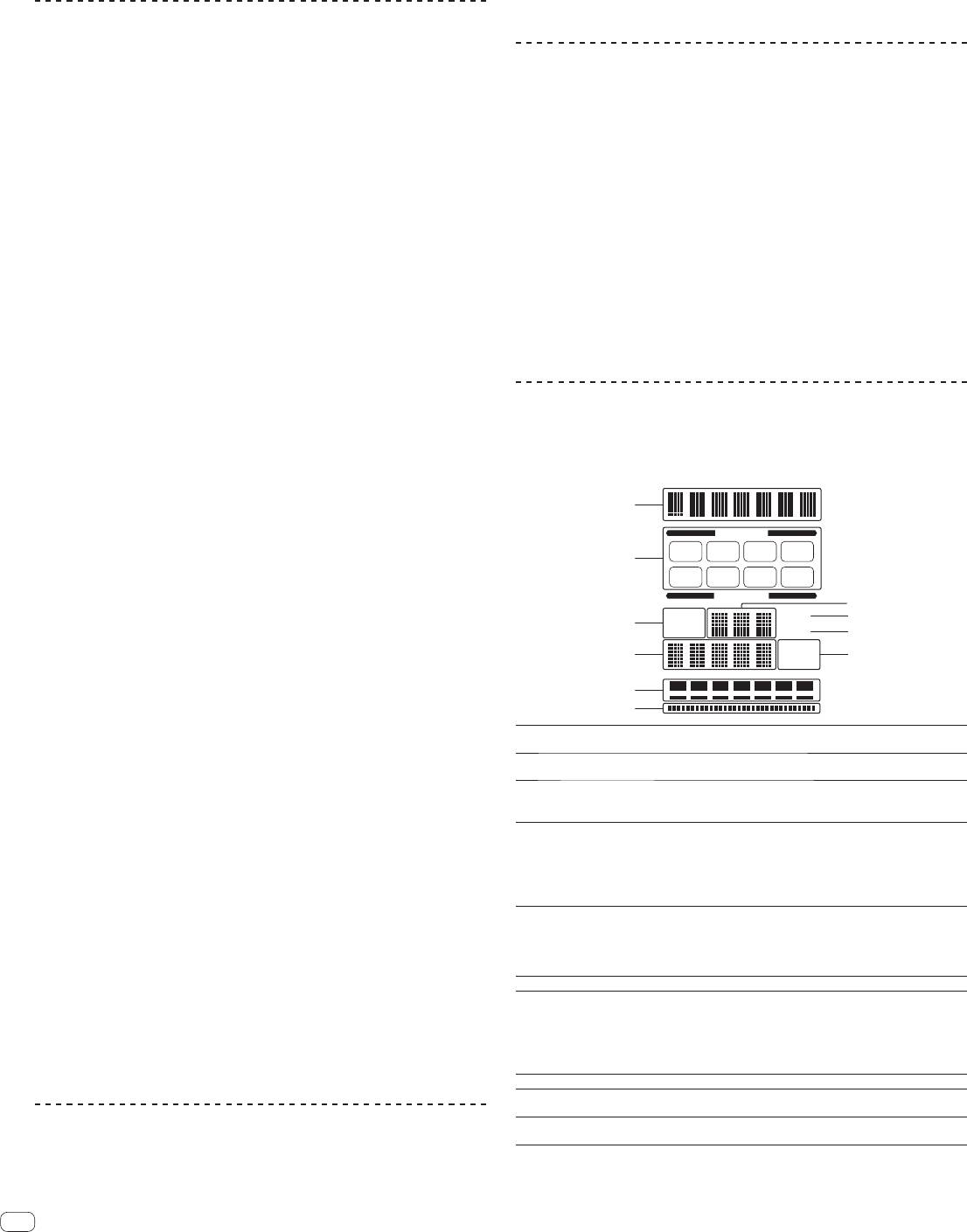
Main unit display
— [Fader Start 2] button: Selects [DECK 1].
— [Fader Start 3] button: Selects [DECK 2].
1
— [Fader Start 4] button: Selects [DECK 4].
CH SELECT
3 Set the channel fader to the nearest position towards you.
2
1 2 3 4
4 Set a cue in Serato DJ or on the DJ player.
MIC MST
A B
The track cues to the cue point and the pause mode is set.
PARAMETER
4
AUTO
5
5 Move the channel fader away from you.
3
GRID
TAP BPM
6
Playback of the track in Serato DJ or the DJ player starts.
%
If you set the channel fader back to the original position, the player instanta-
7
8
ms
neously returns to the cue point already set and pauses playback (back cue).
9
䢢 Start playback using the crossfader
a
Effect display
1
The name of the selected effect is displayed.
1 Set the [CROSS FADER ASSIGN (A, THRU, B)] selector switch
section
Channel select
to [A] or [B].
2
The name of the channel to which the effect is applied is displayed.
display section
[AUTO] lights when the BPM measurement mode is set to the auto
2 Press one of the [FADER START (1, 2, 3, 4)] buttons.
3
AUTO (TAP)
mode.
Select the channel to be started with the fader start function.
[TAP] lights when in the manual input mode.
For Serato DJ
When in the auto mode, this displays the automatically detected
— [Fader Start 1] button: Selects [DECK 3].
BPM value.
— [Fader Start 2] button: Selects [DECK 1].
BPM value display
When the BPM cannot be detected, the previously detected BPM
4
— [Fader Start 3] button: Selects [DECK 2].
(3 digits)
value is displayed and flashes.
When in the manual input mode, this displays the BPM value that
— [Fader Start 4] button: Selects [DECK 4].
was input manually.
This lights when Serato DJ is running and the QUANTIZE func-
3 Set the crossfader.
tion can be used. It also lights when playing a track that has been
Set to the edge opposite the side on which the channel you want to use with the
5
GRID
analyzed with rekordbox and the QUANTIZE function can be used
fader start function is set.
in combination with the DJ player. It flashes or is off when the
QUANTIZE function cannot be used.
4 Set a cue in Serato DJ or on the DJ player.
6
BPM
This is always lit.
The track cues to the cue point and the pause mode is set.
This displays the parameters specified for the individual effects.
When the [BEAT , ] button is pressed, the corresponding beat
5 Set the crossfader.
Parameter display
fraction is displayed for 1 second.
7
Playback of the track in Serato DJ or the DJ player starts.
section
When a value outside the parameter range is specified with the
If you set the crossfader back to the original position, the player instantaneously
[BEAT , ] button, the value does not change and the display
flashes.
returns to the cue point already set and pauses playback (back cue).
8
% (ms) These light according to the units for the different effects.
Beat display
9
This lights according to the selected beat number position.
section
Using the LINK MONITOR function
Touch display
a
This lights when the [X-PAD] is touched.
section
Check [Use “LINK MONITOR” of Pioneer DJ Mixers.] at [File] > [Preferences]
> [Audio] in rekordbox beforehand. Also refer to the rekordbox operating
1 Press [AUTO/TAP] button.
instructions.
Select the BPM measurement mode.
16
En
