
Pioneer DJM-900SRT: Basic Operation
Basic Operation: Pioneer DJM-900SRT
Table of contents
- Contents
- Before start
- Installing the software
- Installation Procedure (Windows) Installing the Serato DJ software Installation procedure (Mac OS X)
- Installation Procedure (Windows) Installation procedure (Mac OS X) 9 Log in.
- 11 Read the terms of the license agreement carefully, and if you agree, click [Agree].
- Connections Rear panel
- Connecting input terminals Connecting output terminals
- Connecting to the control panel Connecting this unit and computer
- Operation Control Panel
- Basic Operation
- Advanced Operations About PRO DJ LINK Using the QUANTIZE function
- Using the FADER START function Using the SOUND COLOR FX function Using the BEAT EFFECT function Using the LINK MONITOR function
- Operating DJ software using the MIDI function Operating the [X-PAD]
- Operating an external MIDI sequencer
- Types of effects Types of SOUND COLOR FX effects Types of BEAT EFFECT
- MIDI assignment map Category
- Category
- Changing the settings About the auto standby function About the talk over function Setting preferences About the setting utility software
- Adjusting the buffer size (when using Windows ASIO) Setting the audio data output from this unit to the computer Checking the version of the driver software Checking the latest information on the driver software
- Additional information Troubleshooting
- Block Diagram
- Acquiring the manual About trademarks and registered trademarks
- Specifications
g COLOR control (page 16)
This changes the parameters of the SOUND COLOR FX of the different channels.
Basic Operation
h Channel Fader (page 14)
Adjusts the level of audio signals output in each channel.
Outputting sound
i CROSS FADER ASSIGN (A, THRU, B) selector switch (page 14)
Sets the output destination of each channel to [A] or [B].
1 Press [POWER] button.
j Crossfader (page 14)
Turn on the power of this unit.
Outputs audio signals assigned by the crossfader assign switch correspond-
ing to the curve characteristics selected by [CROSS FADER] (Crossfader Curve
2 Switch the input selector switches.
Selector Switch).
Selects the input sources for the different channels from among the devices con-
nected to this unit.
k MASTER LEVEL control (page 14)
— [DIGITAL]: Selects the DJ player connected to the [DIGITAL] terminals.
Adjusts the audio level output from the [MASTER1] and [MASTER2] terminals.
— [PHONO]: Selects the analog player connected to the [PHONO] terminals.
— [CD/LINE]: Selects the cassette deck or CD player connected to the [CD/
l Master Level Indicator (page 14)
LINE] terminals.
Displays the audio level output from the [MASTER1] and [MASTER2] terminals.
— [USB]: Selects the sound of the computer connected to the [USB] port.
m BALANCE control (page 15)
3 Turn the [TRIM] control.
Adjusts the left/right balance of the sound output from the [MASTER1] termi-
Adjusts the level of audio signals input in each channel.
nals, etc.
The corresponding channel level indicator lights when audio signals are being
n MONO, STEREO selector switch (page 15)
properly input to that channel.
Switches the sound output from the [MASTER1] terminals, etc., between mon-
4 Move the channel fader away from you.
aural and stereo.
Adjusts the level of audio signals output in each channel.
o BOOTH MONITOR control (page 15)
5 Switch the [CROSS FADER ASSIGN (A, THRU, B)] selector
Adjusts the level of audio signals output from the [BOOTH] terminal.
switch.
p EQ CURVE (ISOLATOR, EQ) selector switch (page 14)
Switches the output destination of each channel.
Switches the function of the [EQ/ISO (HI, MID, LOW)] controls.
— [A]: Assigns to [A] (left) of the crossfader.
— [B]: Assigns to [B] (right) of the crossfader.
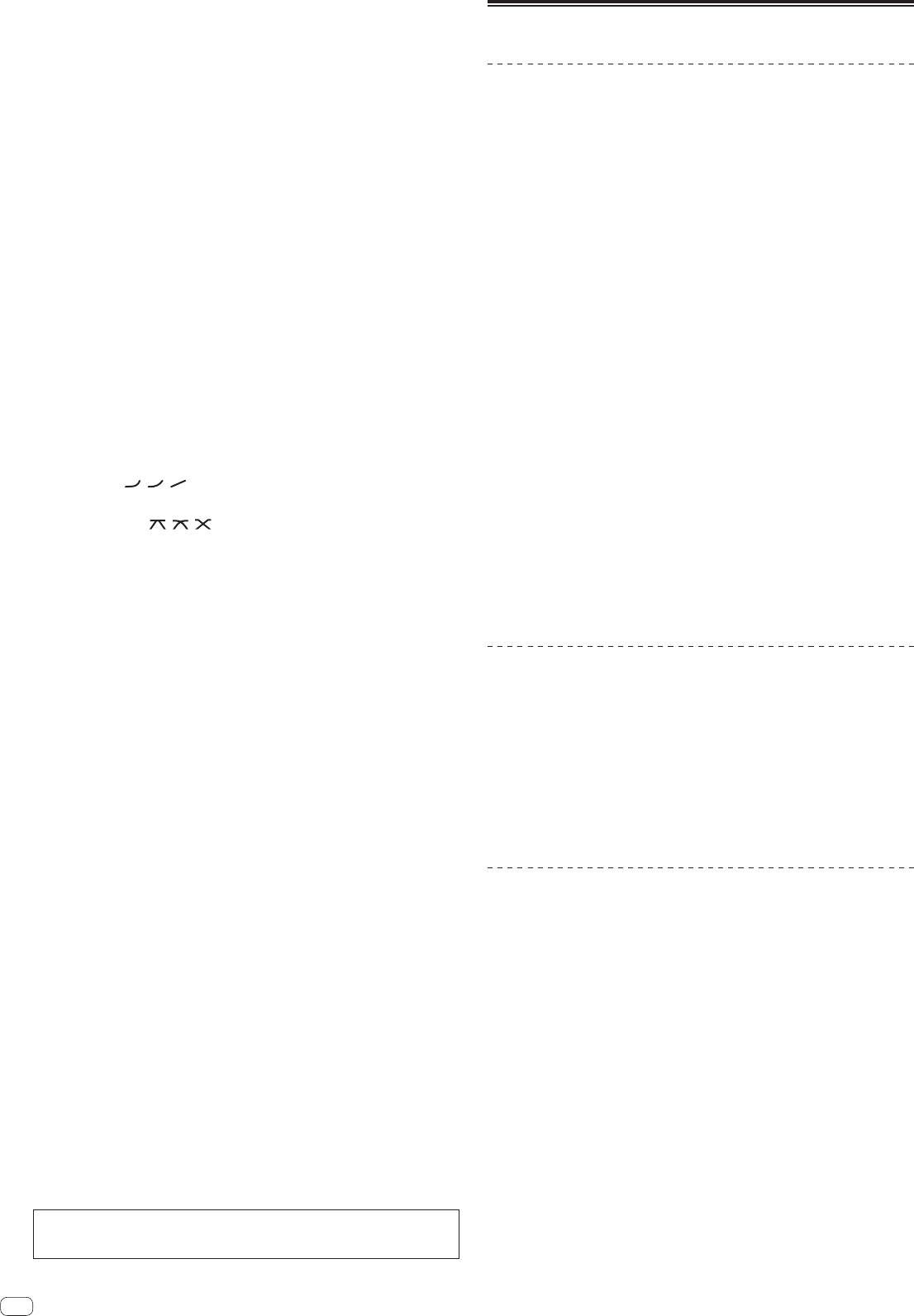
q CH FADER ( , , ) selector switch (page 15)
— [THRU]: Selects this when you do not want to use the crossfader. (The sig-
Switches the channel fader’s curve characteristics.
nals do not pass through the crossfader.)
r CROSS FADER ( , , ) selector switch (page 15)
6 Set the crossfader.
This switches the crossfader curve characteristics.
This operation is not necessary when the [CROSS FADER ASSIGN (A, THRU, B)]
selector switch is set to [THRU].
s ON/OFF (UTILITY) button
— ON/OFF: Turns the MIDI function on/off (page 17).
7 Turn the [MASTER LEVEL] control.
— UTILITY: Displays the [USER SETUP] or [CLUB SETUP] screen (page 24).
Audio signals are output from the [MASTER1] and [MASTER2] terminals.
The master level indicator lights.
t START/STOP button (page 18)
Sends the MIDI start/MIDI stop signals.
u LFO FORM (WAKE UP) button
Adjusting the sound quality
— LFO FORM: When [MIDI LFO] is selected at BEAT EFFECT, the MIDI signal’s
waveform switches each time the button is pressed (page 20).
1 Switch the [EQ CURVE (ISOLATOR, EQ)] selector switch.
— WAKE UP: Cancels the auto standby mode.
— [ISOLATOR]: Functions as an isolator.
— [EQ]: The equalizer function is set.
v Main unit display
2 Turn the [EQ/ISO (HI, MID, LOW)] controls for the respective
w X-PAD (page 17)
Adjusts the quantitative parameter of the BEAT EFFECT function.
channels.
The adjustable ranges for the respective controls are as shown below.
x BEAT , buttons (page 16)
— HI: –26 dB to +6 dB (13 kHz)
Set the beat fraction for synchronizing the effect sound.
— MID: –26 dB to +6 dB (1 kHz)
— LOW: –26 dB to +6 dB (70 Hz)
y TAP (ENTER) button
— TAP: When the BPM measurement mode is set to [TAP], the BPM is input
manually by tapping the button with a finger (page 16).
Monitoring sound with headphones
— ENTER: Used to change this unit’s settings (page 24).
z QUANTIZE button
1 Connect headphones to the [PHONES] terminal.
When the QUANTIZE function is turned on for BEAT EFFECT, the effect is applied
to the sound without going off tempo when the currently playing track. (page 15).
2 Press the [CUE] button(s) for the channel(s) you want to
monitor.
A AUTO/TAP button (page 16)
Switches the BPM measurement mode.
3 Switch the [MONO SPLIT, STEREO] selector switch.
— [MONO SPLIT]: The sound of the channels for which the [CUE] button is
B Beat effect selector switch (page 16)
pressed is output from the headphones output’s left channel, the [MASTER]
Switches the BEAT EFFECT effect type.
channel sound is output from the right channel.
C Effect channel selector switch (page 16)
— [STEREO]: The sound of the channels for which the [CUE] button is pressed
Switches the channel to which the BEAT EFFECT is to be applied.
is output from the headphones in stereo.
D TIME control (page 16)
4 Turn the [MIXING] control.
Adjusts the BEAT EFFECT’s time parameter.
This adjusts the monitor volume balance of the sound of channels for which the
[CUE] button is pressed and the sound of the [MASTER] channel.
E LEVEL/DEPTH control (page 16)
Adjusts the BEAT EFFECT’s quantitative parameter.
5 Turn the [LEVEL] control for [HEADPHONES].
The sound of the channels for which the [CUE] button is pressed is output from the
F ON/OFF button (page 16)
headphones.
Turns the BEAT EFFECT function on/off.
When the [CUE] button is pressed again, monitoring is canceled.
Do not pull on the channel fader and crossfader knobs with excessive force. The
knobs have a structure by which they cannot be pulled off easily. Pulling the knobs
strongly may result in damaging the unit.
14
En
