
Pioneer DJM-900SRT: Operating DJ software using the MIDI function Operating the [X-PAD]
Operating DJ software using the MIDI function Operating the [X-PAD]: Pioneer DJM-900SRT
Table of contents
- Contents
- Before start
- Installing the software
- Installation Procedure (Windows) Installing the Serato DJ software Installation procedure (Mac OS X)
- Installation Procedure (Windows) Installation procedure (Mac OS X) 9 Log in.
- 11 Read the terms of the license agreement carefully, and if you agree, click [Agree].
- Connections Rear panel
- Connecting input terminals Connecting output terminals
- Connecting to the control panel Connecting this unit and computer
- Operation Control Panel
- Basic Operation
- Advanced Operations About PRO DJ LINK Using the QUANTIZE function
- Using the FADER START function Using the SOUND COLOR FX function Using the BEAT EFFECT function Using the LINK MONITOR function
- Operating DJ software using the MIDI function Operating the [X-PAD]
- Operating an external MIDI sequencer
- Types of effects Types of SOUND COLOR FX effects Types of BEAT EFFECT
- MIDI assignment map Category
- Category
- Changing the settings About the auto standby function About the talk over function Setting preferences About the setting utility software
- Adjusting the buffer size (when using Windows ASIO) Setting the audio data output from this unit to the computer Checking the version of the driver software Checking the latest information on the driver software
- Additional information Troubleshooting
- Block Diagram
- Acquiring the manual About trademarks and registered trademarks
- Specifications
— [AUTO]: The BPM is measured automatically from the audio signal that is
䢢 Operating procedure 2
English
being input. The [AUTO] mode is set when this unit’s power is turned on.
— [TAP]: The BPM is input manually by tapping the [TAP] button with a finger.
1 Perform steps 1 to 5 of the Using the BEAT EFFECT function
The [AUTO] BPM measurement range is BPM = 70 to 180. With some tracks it
may not be possible to measure the BPM correctly. If the BPM cannot be mea-
procedure.
sured, the BPM value on the display flashes. In such cases, use the [TAP] button
to input the BPM manually.
2 Touch the [X-PAD].
The [X-PAD] changes the effect’s quantitative parameter.
2 Turn the beat effect selector switch.
This selects the type of effect.
For the types of effects, see Types of BEAT EFFECT on page 19.
Operating DJ software using the MIDI function
To use [SND/RTN], see Using the external effector below.
To use [MIDI LFO], see Using the MIDI LFO on page 17.
This unit outputs the operation information of buttons and controls in universal MIDI
format.
3 Turn the effect channel selector switch.
When connected by USB cable to a computer on which a MIDI-compatible DJ soft-
This selects the channel to which the effect is applied.
ware program is installed, the DJ software can be operated from this unit.
— [1] – [4]: The effect is applied to the sound of the respective channel.
Install the DJ software on your computer in advance. Also, adjust the audio and
— [MIC]: The effect is applied to the sound of [MIC] channel.
MIDI settings for the DJ software.
— [CF.A], [CF.B]: The effect is applied to the sound of the crossfader’s [A] (left)
For MIDI channel setting instructions, see Changing the settings on page 24.
or [B] (right) side.
For the messages output by this unit, see MIDI assignment map on page 22.
— [MASTER]: The effect is applied to the sound of the [MASTER] channel.
This operation is not necessary when [MIDI LFO] is selected.
1 Connect this unit’s [USB] terminal to the computer.
For details about connections, see Connecting to the control panel on page 12.
4 Press the [BEAT , ] button.
Set the beat fraction for synchronizing the effect sound.
2 Launch the DJ software.
The effect time corresponding to the beat fraction is set automatically.
3 Press the [ON/OFF (UTILITY)] button.
5 Press the [ON/OFF] button for [BEAT EFFECTS].
Turn the MIDI function on.
The effect is applied to the sound.
Transmission of the MIDI messages begin.
The effect’s time parameter can be adjusted by turning the [TIME] control.
When a fader or control is moved, a message corresponding to the position is
The effect’s quantitative parameter can be adjusted by turning the [LEVEL/DEPTH]
sent.
control.
When the [START/STOP] button is pressed and held in for more than 2 seconds,
The [ON/OFF] button flashes when the effect is on.
a set of MIDI messages corresponding to the button, fader or control positions is
When the [ON/OFF] button is pressed again, the effect turns off.
sent (Snapshot).
When the [ON/OFF (UTILITY)] button is pressed again, sending of the MIDI mes-
sages is stopped.
䢢 Inputting the BPM manually
The MIDI timing clock (BPM information) is sent regardless of the status of the
[ON/OFF (UTILITY)] button.
Tap the [TAP] button at least 2 times in rhythm with the beat
(in quarter notes) of the sound being played.
䢢 Making the preparations to use the MIDI LFO function
The average value of the interval at which the [TAP] button was tapped by finger is
set as the BPM.
The MIDI-compatible software, devices, etc. (referred to as the “MIDI signal recep-
When the BPM is set using the [TAP] button, the beat fraction is set to [1/1] and
tion side” below) must be prepared (“learned”) before using the MIDI LFO function.
the time of one beat (quarter note) is set as the effect time.
Perform the learning operations on the MIDI signal reception side.
The BPM can be set manually by turning the [TIME] control while pressing the
For the messages output by this unit, see MIDI assignment map on page 22.
[TAP] button.
1 Press the [ON/OFF (UTILITY)] button.
The BPM can be set in units of 0.1 by pressing the [AUTO/TAP] button while
Turn the MIDI function on.
pressing the [TAP] button and turning the [TIME] control while pressing the two
buttons.
2 Turn the beat effect selector switch.
Select [SND/RTN (MIDI LFO)].
䢢 Using the external effector
[S/RELFO] flashes on the effect display section, then [SND/RTN] is displayed.
3 Press the [ON/OFF] button for [BEAT EFFECTS].
1 Connect this unit and external effector.
Learn the [ON/OFF] button’s MIDI message of the [BEAT EFFECTS] in the MIDI
For instructions on connections, see Connecting output terminals on page 11.
signal reception side.
The MIDI message sent from the [ON/OFF] button of the [BEAT EFFECTS] dif-
2 Turn the beat effect selector switch.
fers when [SND/RTN (MIDI LFO)] is selected and when anything other than
Select [SND/RTN (MIDI LFO)].
[SND/RTN (MIDI LFO)] is selected.
The [ON/OFF] button’s MIDI message of [BEAT EFFECTS] when [SND/RTN
3 Turn the effect channel selector switch.
(MIDI LFO)] is selected is only sent when the operation is performed following
This selects the channel to which the effect is applied.
this procedure.
4 Press the [ON/OFF] button for [BEAT EFFECTS].
4 Press the [LFO FORM (WAKE UP)] button.
The sound that has passed through the external effector is output from the
Learn the [LFO FORM (WAKE UP)] button’s MIDI message in the MIDI signal recep-
[MASTER] channel.
tion side.
When the [ON/OFF] button is pressed again, the effect turns off.
[1/7 ] and [1/7 LFO] are displayed alternately on the effect display section.
If necessary, set the MIDI mapping for other buttons and controls.
Because the [LFO FORM (WAKE UP)] button’s MIDI message is sent sequen-
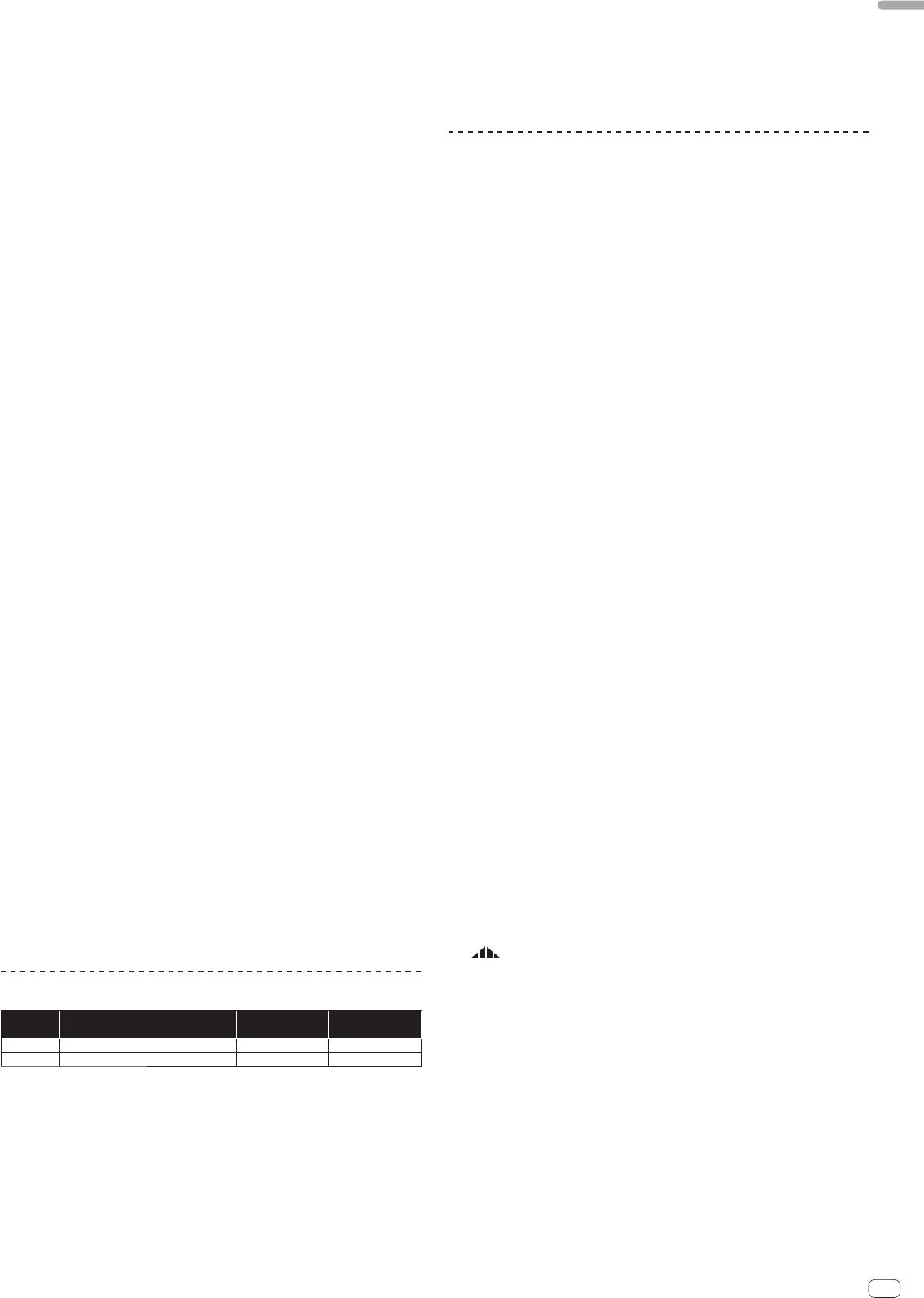
Operating the [X-PAD]
tially, depending on the MIDI signal reception side’s settings, it may not be
possible to learn the MIDI message.
Operating
[ON/OFF] button status of [BEAT
X-PAD
Effect
To set the MIDI mapping for other buttons and controls, press the
procedure
EFFECTS]
[LFO FORM(WAKE UP)] button to switch to [SND/RTN].
1
Off (lit)
Release K Touch Off K On
2
On (flashing)
Release K Touch On K On
䢢 Using the MIDI LFO
䢢 Operating procedure 1
Make the preparations following the procedure at Making the preparations to use the
MIDI LFO function beforehand.
1 Perform steps 1 to 4 of the Using the BEAT EFFECT function
1 Turn the beat effect selector switch.
procedure.
Select [SND/RTN (MIDI LFO)].
[S/RELFO] flashes on the effect display section, then [SND/RTN] is displayed.
2 Touch the [X-PAD].
The [X-PAD] turns the effect on and off and changes the quantitative parameter.
2 Press the [LFO FORM (WAKE UP)] button.
When you release your finger from the [X-PAD], the effect turns off.
Transmission of the MIDI signals begins.
To keep the effect on when you release your finger from the [X-PAD], while
The MIDI signal waveform pattern switches each time the [LFO FORM (WAKE UP)]
touching the [X-PAD] press the [ON/OFF] button of [BEAT EFFECTS], then
button is pressed.
release your finger from the [X-PAD].
En
17
