
Pioneer DJM-900SRT: Advanced Operations About PRO DJ LINK Using the QUANTIZE function
Advanced Operations About PRO DJ LINK Using the QUANTIZE function: Pioneer DJM-900SRT
Table of contents
- Contents
- Before start
- Installing the software
- Installation Procedure (Windows) Installing the Serato DJ software Installation procedure (Mac OS X)
- Installation Procedure (Windows) Installation procedure (Mac OS X) 9 Log in.
- 11 Read the terms of the license agreement carefully, and if you agree, click [Agree].
- Connections Rear panel
- Connecting input terminals Connecting output terminals
- Connecting to the control panel Connecting this unit and computer
- Operation Control Panel
- Basic Operation
- Advanced Operations About PRO DJ LINK Using the QUANTIZE function
- Using the FADER START function Using the SOUND COLOR FX function Using the BEAT EFFECT function Using the LINK MONITOR function
- Operating DJ software using the MIDI function Operating the [X-PAD]
- Operating an external MIDI sequencer
- Types of effects Types of SOUND COLOR FX effects Types of BEAT EFFECT
- MIDI assignment map Category
- Category
- Changing the settings About the auto standby function About the talk over function Setting preferences About the setting utility software
- Adjusting the buffer size (when using Windows ASIO) Setting the audio data output from this unit to the computer Checking the version of the driver software Checking the latest information on the driver software
- Additional information Troubleshooting
- Block Diagram
- Acquiring the manual About trademarks and registered trademarks
- Specifications
English
Switching the fader curve
Audio is output from the [BOOTH] terminal
Turn the [BOOTH MONITOR] control.
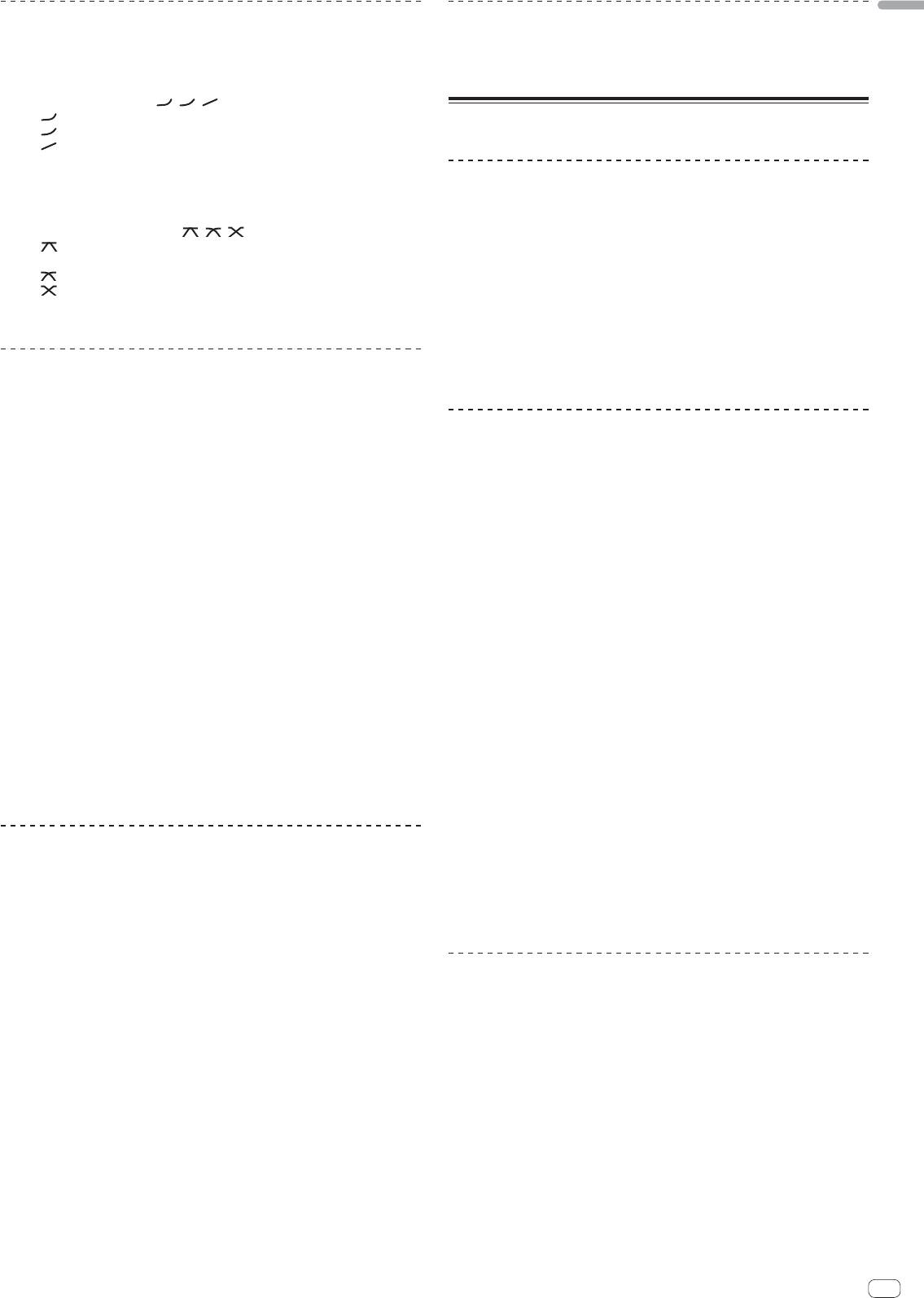
䢢 Select the channel fader curve characteristics
Adjusts the level of audio signals output from the [BOOTH] terminal.
Switch the [CH FADER ( , , )] selector switch.
— [ ]: The curve rises suddenly at the back side.
Advanced Operations
— [ ]: A curve between the ones above and below is set.
— [
]: The curve rises gradually (the sound gradually increases as the chan-
nel fader is moved away from the front side).
Using Serato DJ-supported functions
䢢 Select the crossfader curve characteristics
When this unit and a computer on which Serato DJ is running are connected by
USB cable, the functions below can be used.
Switch the [CROSS FADER ( , , )] selector switch.
— [ ]: Makes a sharply increasing curve (if the crossfader is moved away
䢢 QUANTIZE
from the [A] side, audio signals are immediately output from the [B] side).
— [ ]: Makes a curve shaped between the two curves above and below.
When tracks that have been analyzed with Serato DJ are used, tracks are put on
— [ ]: Makes a gradually increasing curve (if the crossfader is moved away
beat even if the [BEAT EFFECTS] [ON/OFF] button is pressed or the [X-PAD] is
from the [A] side, the sound on the [B] side gradually increases, while the
touched roughly.
sound on the [A] gradually decreases).
䢢 FADER START
Using a microphone
Playback of tracks in Serato DJ can be started by operating this unit’s fader (Fader
Start Play).
1 Connect a microphone to the [MIC1] or [MIC2] terminal.
2 Set the [OFF, ON, TALK OVER] selector switch to [ON] or
About PRO DJ LINK
[TALK OVER].
When a Pioneer DJ player supporting PRO DJ LINK (e.g. CDJ-2000nexus, CDJ-2000,
— [ON]: The indicator lights.
CDJ-900), a computer on which rekordbox is installed and this unit are connected by
— [TALK OVER]: The indicator flashes.
LAN cable, the PRO DJ LINK functions below can be used.
When set to [TALK OVER], the sound of channels other than the [MIC] channel
For more details on the PRO DJ LINK function, also refer to the DJ player’s handling
is attenuated by 18 dB (default) when a sound of –10 dB or greater is input to the
instructions and rekordbox’s operating instructions.
microphone.
For instructions on connections, see Connecting input terminals on page 11.
The [TALK OVER] sound attenuation level can be changed at [USER SETUP]. For
When connected using a switching hub, up to 4 DJ players and 2 computers can
instructions on changing this, see Changing the settings on page 24.
be connected.
The talk over mode can be switched to the normal mode or the advanced mode.
Use a 100Base-TX-compatible switching hub. Some switching hubs may not
For instructions on changing it, see Changing the settings on page 24.
operate properly.
Set the DJ player’s player number to the same number as the channel to which
3 Turn the [MIC1 LEVEL] or [MIC2 LEVEL] control.
the audio cable is connected.
Adjust the level of the sound output from the [MIC] channel.
Pay attention that rotating to the extreme right position outputs a very loud
sound.
䢢 QUANTIZE
When tracks analyzed with rekordbox are used, the track is put on beat even when
4 Input audio signals to the microphone.
the [ON/OFF] button of [BEAT EFFECTS] is pressed or the [X-PAD] is touched
roughly.
䢢 Adjusting the sound quality
䢢 FADER START
Turn the [MIC] channels’ [EQ (HI, LOW)] controls.
Playback on the DJ player can be started by operating this unit’s fader (Fader Start
The adjustable ranges for the respective controls are as shown below.
Play).
— HI: –12 dB to +12 dB (10 kHz)
— LOW: –12 dB to +12 dB (100 Hz)
䢢 LINK MONITOR
With this function, rekordbox music files stored on the computer can be quickly
Switching between monaural and stereo audio
monitored over the headphones.
This switches the sound output from the [MASTER1], [MASTER2], [BOOTH], [REC
OUT], [PHONES], [DIGITAL MASTER OUT] and [USB] terminals between monaural
䢢 STATUS INFORMATION
and stereo.
To adjust the sound output from the [USB] terminals, select [MIX (REC OUT)] at
This function informs the DJ players of the connected channel status (on-air status,
[Mixer Audio Output] in the setting utility.
channel number, etc.).
Switch the [MONO, STEREO] selector switch.
— [MONO]: Outputs monaural audio.
Using the QUANTIZE function
— [STEREO]: Outputs stereo audio.
Effects can be applied to the sound in tempo with the currently playing track
based on the GRID information of tracks that have been analyzed with Serato DJ or
䢢 Adjusting the L/R balance of audio
rekordbox.
The left/right balance of the sound output from the [MASTER1], [MASTER2],
To use the QUANTIZE function with PRO DJ LINK, connect this unit and a PRO DJ
[BOOTH], [REC OUT], [PHONES], [DIGITAL MASTER OUT] and [USB] terminals can
LINK-compatible Pioneer DJ player beforehand. For instructions on connecting, see
be adjusted.
Connecting input terminals on page 11.
To adjust the sound output from the [USB] terminals, select [MIX (REC OUT)] at
In addition, music files must have been analyzed with rekordbox beforehand in order
[Mixer Audio Output] in the setting utility.
to use the QUANTIZE function. For instructions on analyzing music files with rekord-
box, also see rekordbox’s operating instructions.
1 Set the [MONO, STEREO] selector switch to [STEREO].
When using in combination with the CDJ-2000nexus, first update the firmware
to version 1.02 or later.
2 Turn the [BALANCE] control.
To use in combination with the CDJ-2000 or CDJ-900, first update the firmware to
The sound’s left/right balance changes according to the direction in which the
version 4.0 or later.
[BALANCE] control is turned and its position.
Rotating to the rightmost position outputs only the right sound of stereo audio.
1 Press the [QUANTIZE] button.
Rotating to the leftmost position outputs only the left sound of stereo audio.
The QUANTIZE function turns on.
[GRID] lights on this unit’s main unit display when the GRID information has been
properly received from Serato DJ or the DJ player and the QUANTIZE function can
be used. [GRID] flashes if the GRID information has not been properly received.
En
15
