
Pioneer DJM-900SRT: Changing the settings About the auto standby function About the talk over function Setting preferences About the setting utility software
Changing the settings About the auto standby function About the talk over function Setting preferences About the setting utility software: Pioneer DJM-900SRT
Table of contents
- Contents
- Before start
- Installing the software
- Installation Procedure (Windows) Installing the Serato DJ software Installation procedure (Mac OS X)
- Installation Procedure (Windows) Installation procedure (Mac OS X) 9 Log in.
- 11 Read the terms of the license agreement carefully, and if you agree, click [Agree].
- Connections Rear panel
- Connecting input terminals Connecting output terminals
- Connecting to the control panel Connecting this unit and computer
- Operation Control Panel
- Basic Operation
- Advanced Operations About PRO DJ LINK Using the QUANTIZE function
- Using the FADER START function Using the SOUND COLOR FX function Using the BEAT EFFECT function Using the LINK MONITOR function
- Operating DJ software using the MIDI function Operating the [X-PAD]
- Operating an external MIDI sequencer
- Types of effects Types of SOUND COLOR FX effects Types of BEAT EFFECT
- MIDI assignment map Category
- Category
- Changing the settings About the auto standby function About the talk over function Setting preferences About the setting utility software
- Adjusting the buffer size (when using Windows ASIO) Setting the audio data output from this unit to the computer Checking the version of the driver software Checking the latest information on the driver software
- Additional information Troubleshooting
- Block Diagram
- Acquiring the manual About trademarks and registered trademarks
- Specifications
Changing the settings
1 Press the [ON/OFF (UTILITY)] button for over 1 second.
About the auto standby function
The [USER SETUP] mode setting screen is displayed.
To display the [CLUB SETUP] mode setting screen, first turn this unit’s power off,
When [Auto Standby] is set to [ON], the standby mode is set automatically if 4
then press the [POWER] button while pressing the [ON/OFF (UTILITY)] button.
hours pass with all of the conditions shown below met.
— That none of this unit’s buttons or controls are operated.
2 Press the [BEAT , ] button.
— That no audio signals of –10 dB or greater are input to this unit’s input terminals.
Select the setting item.
— That no PRO DJ LINK connections are made.
When the [LFO FORM (WAKE UP)] button is pressed, the standby mode is
3 Press the [TAP] button.
canceled.
The screen switches to the setting item’s setting value change screen.
This unit is shipped with the auto standby function turned on. If you do not want
to use the auto standby function, set [Auto Standby] to [OFF].
4 Press the [BEAT , ] button.
Change the setting value.
5 Press the [TAP] button.
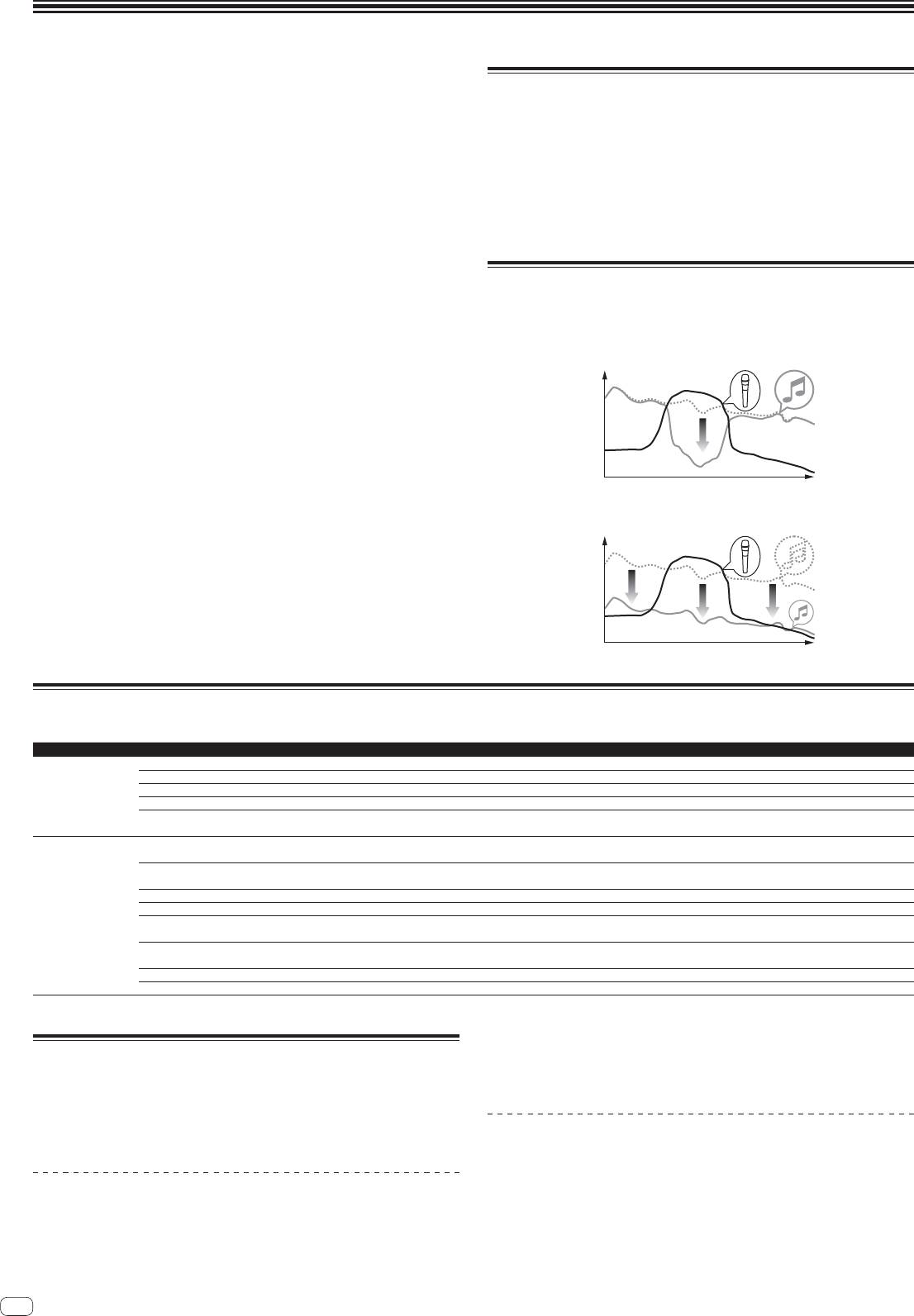
About the talk over function
Enter the setting value.
The talk over function has the two modes described below.
The previous screen reappears.
— [ADV] (advanced talk over): The mid-range only of the sound of channels other
To return to the previous screen without changing the settings, press the
than the [MIC] channel is attenuated according to the [Talk Over LEVEL] setting
[QUANTIZE] button.
value and output.
6 Press the [ON/OFF (UTILITY)] button.
dB
Close the [USER SETUP] mode setting screen.
To close the [CLUB SETUP] mode setting screen, press the [POWER] button to
turn this unit’s power off.
Frequency
— [NOR] (normal talk over): The sound of channels other than the [MIC] channel is
attenuated according to the [Talk Over LEVEL] setting value and output.
dB
Frequency
Setting preferences
*: Setting upon purchase
Mode Options settings Screen display Setting value Descriptions
Fader Start F.S.
ON, OFF* Turns the Fader Start function on and off all at once.
MIDI CH MIDI CH
1* to 16 Sets the MIDI channel.
MIDI Button Type MIDI BT
TGL*, TRG Selects the MIDI signal transmission mode, [TGL (TOGGLE)] or [TRG (TRIGGER)].
USER SETUP
Talk Over Mode TLK MOD
ADV*, NOR Selects the talk over function’s mode, [ADV(ADVANCED)] or [NOR(NORMAL)].
–6 dB, –12 dB,
Talk Over LEVEL TLK LVL
Sets the talk over function’s sound attenuation level.
–18 dB*, –24 dB
Digital Master Out
–19 dB*, –15 dB,
1
DOUT LV
Sets the maximum level of the sound output from the [DIGITAL MASTER OUT] terminals.
Level
–10 dB, –5 dB
Digital Master Out
DOUT FS
48 kHz, 96 kHz* Sets the digital signal’s sampling rate.
Sampling Rate
MASTER ATT. MST ATT
–6 dB, –3 dB, 0 dB* Sets the attenuation level of the sound output from the [MASTER1] and [MASTER2] terminals.
Auto Standby AUTOSTB
ON*, OFF Turns the auto standby function on and off.
CLUB SETUP
Mic Output To Booth
MIC BTH
ON*, OFF Sets whether or not to output the microphone’s audio signals from [BOOTH] terminals.
Monitor
Sets whether or not to launch the computer’s setting utility software automatically when a USB cable is
PC UTILITY PC UTLY
ON, OFF*
connected.
Peak Limiter PKLIMIT
ON*, OFF Lessens sudden, unpleasant digital clipping of the master output.
Factory Reset INITIAL
YES, NO* Restores all the settings to their factory defaults.
1 Note that the output sound may be distorted even if the master level indicator does not light up to the very top.
For Mac OS X
About the setting utility software
Click [Macintosh HD] icon > [Application] > [Pioneer] > [DJM-900SRT] > [DJM-
The setting utility can be used to make the checks and settings described below.
900SRT Settings Utility].
— Checking the status of this unit’s input selector switches
— Setting the audio data output from this unit to the computer
— Adjusting the buffer size (when using Windows ASIO)
Checking the status of this unit’s input selector
— Checking the version of the driver software
switches
Display the setting utility before starting.
Displaying the setting utility
For Windows
Click [Start] menu > [All Programs] > [Pioneer] > [DJM-900SRT] > [DJM-900SRT
Settings Utility].
24
En
