
Pioneer CDJ-400: Relay play using two players Cue point/loop point memory Writing and reading data
Relay play using two players Cue point/loop point memory Writing and reading data: Pioneer CDJ-400
Table of contents
- IMPORTANT VENTILATION CAUTION Operating Environment
- FEATURES
- BEFORE OPERATING (FEATURES) CONTENTS
- DISCS USABLE WITH THIS UNIT Types of discs playable on this unit Playing MP3 files
- BEFORE OPERATING (DISCS USABLE WITH THIS UNIT)
- CAUTIONS REGARDING HANDLING Location Storing Discs Installation Guidelines Condensation Cleaning and Handling Compact Discs Cleaning the Player CD Lens Cleaner
- CONNECTIONS 2. Connecting control cable for relay play
- 3. Connecting to other devices 4. Connecting the power cord
- PANEL FACILITIES 7. HOLD button
- 30. Jog touch indicators Rear Panel
- About TEXT display Removing the jog sheet
- DISC LOADING/UNLOADING
- DJ PLAYER OPERATIONS Starting playback Auto cue function Resume function To stop playback To temporarily interrupt playback
- Track cueing Jog dial functions Rotary search Fast-forward/fast-reverse
- Scratch Jog Effect Digital Jog Break Change playback speed Applying master tempo
- Mixing different tracks Cue point settings
- ADVANCED OPERATIONS Fader start playback Loop playback Scratch play Spin play Reverse play
- Relay play using two players Cue point/loop point memory Writing and reading data
- MIDI SETTING
- TROUBLESHOOTING Symptom
- Error message display
- SPECIFICATIONS
OPERATIONS (ADVANCED OPERATIONS)
¶ Seamless reverse playback cannot be performed with loops of 15
seconds or more.
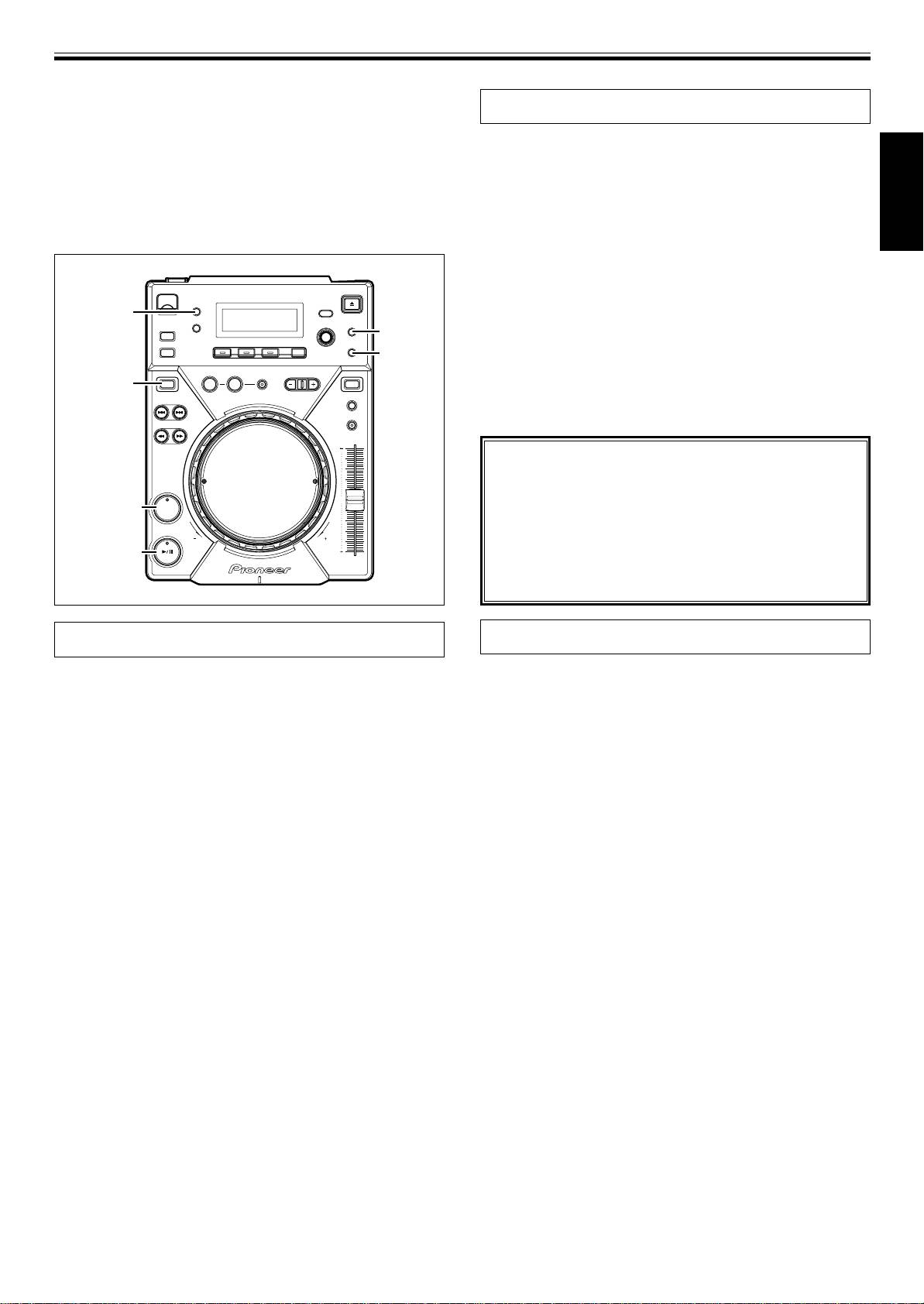
Relay play using two players
¶ If track search or loop play are performed, scratch/reverse opera-
tions may be temporarily disabled.
By using the supplied control cable to connect the CONTROL connec-
¶ In the case of MP3, reverse play that overlaps multiple folders is
tors of two CDJ-400, or other CDJ series CD players, relay play can be
not possible.
performed. ☞P.8
¶ During MP3 play, reverse playback may not occur immediately
¶ Set both players’ auto cue function to ON (The [A.CUE] indicators
with some tracks. (The message [Searching] may appear on the
will light in the displays.)
display while play time information is read into the unit before
¶ Set the DJ mixers Cross Fader control to its center position.
English
playback starts.)
1. Begin playback on the first player.
2. When the currently playing track ends, playback will begin
automatically on the standby player.
3. The first player will enter cue pause mode at the beginning
of the next track on its disc.
AUTO CUE
¶ By repeating this operation, the two players can be used to per-
MEMORY/
form continuous relay play.
DELETE
¶ By loading new discs and choosing desired tracks on the player
CUE/LOOP
in standby, a continuous program of selected tracks can be
CALL
played.
DIRECTION
REV
VINYL
¶ By setting a cue point on the standby player, a relay of any
REV
desired cue point of the selected track can be performed.
☞P.17 “Cue Point Settings”
Note:
¶ Relay play may not operate properly if the AUDIO
OUT jacks on the two players are not connected to
CUE
CUE
the same DJ mixer.
¶ If the power to one player is turned off during its
playback, the other player may begin playback.
PLAY/PAUSE
¶ Fader start and relay play cannot be performed si-
multaneously, since different control cord connec-
tions are required.
Cue point/loop point memory
Writing and reading data
The CDJ-400 is able to save cue points and loop points in memory.
Using a USB memory device, data (cue/loop points) saved from the
One cue/loop point can be saved in memory for each track.
CDJ-400 can be copied to other players.
¶ A single loop is composed of two points (IN/OUT).
7 Writing data to USB memory devices
7 Recording a cue point
1. With no USB memory device or discs inserted into the
1. Use the auto cue function or CUE button to input a cue
player, hold the OUT/OUT ADJUST button depressed for
point.
five seconds or more.
2. Press the CUE/LOOP MEMORY button.
The OUT/OUT ADJUST button will light, and [WRITE MODE] will
¶ The [MEMORY] indicator will light, showing that the cue point
appear in the display.
has been stored.
2. Connect a USB memory device, and press PLAY/PAUSE
7 Recording a loop point
once the USB MEMORY indicator lights.
1. Set a loop-in point and loop-out point and begin loop play-
The playing address section will begin to light, and data will begin
writing to the USB memory device. Once the writing of data fin-
back.
ishes, [END] will appear in the display, and the unit will return to
2. During loop playback, press the CUE/LOOP MEMORY but-
the regular operating mode.
ton.
¶ If [ERROR] appears in the display, the data writing has not been
¶ The [MEMORY] indicator will light, showing that the loop data
completed properly. Turn the unit’s power off then on again,
has been stored.
and restart the process from step 1.
¶ Any data in the USB device will be overwritten, so all previ-
7 To recall a memorized cue/loop point
ously saved data on the device will be lost.
If a cue/loop point is saved, the [MEMORY] indicator will light.
1. Press the CUE/LOOP CALL button.
7 Reading data from a USB memory device
¶ When the CALL button is pressed, the cue/loop point will be
1. With no USB memory device connected or disc inserted,
called up from memory, and the player will enter the standby
hold the IN/REALTIME CUE/HOT LOOP button depressed
mode at that point.
for five seconds or more.
2. Press the PLAY/PAUSE button (6).
The IN/REALTIME CUE/HOT LOOP button will light, and [READ
¶ Play/loop play will begin.
MODE] will appear in the display.
7 To delete cue/loop points
2. Connect the USB memory device, and press PLAY/PAUSE
1. Press the CUE/LOOP CALL button.
once the USB MEMORY indicator lights.
¶ When the CALL button is pressed, the cue/loop point will be
The playing address section will begin to light, and data read-in
called up from memory, and the player will enter the standby
will begin. Once all data has been read, [END] will appear in the
mode at that point.
display, and the unit will return to normal operation mode.
¶ If [ERROR] appears in the display, the reading of data has not
2. Hold down the MEMORY/DELETE button for one second
been properly completed. Turn the unit’s power off then on
or more at the cue/loop point you wish to delete.
again, and restart the process from step 1.
¶ The display will show the [DELETE] message, and the selected
* Any data within the CDJ-400 will be overwritten, so all previously
cue point or loop point data will be erased.
saved data will be lost.
19
<DRB1451>
En


