
Asus Xonar DG: 3.2 Card installation 4. Driver installation
3.2 Card installation 4. Driver installation: Asus Xonar DG
Table of contents
- 1. Package contents 2. System requirements 3. Hardware introduction 3.1 Xonar DG card layout
- No Item Description
- 3.2 Card installation 4. Driver installation
3.2 Card installation
English
Beforeyouproceedwiththefollowinginstallationsteps,it’srecommendedthat
youdisableyouronboardaudiodeviceinyourBIOSsettings,oruninstallany
otheraudioCardsonyourPC.(ForBIOSsettingoruninstallationofothersound
Cards, refer to the user manuals of your motherboard and audio card.)
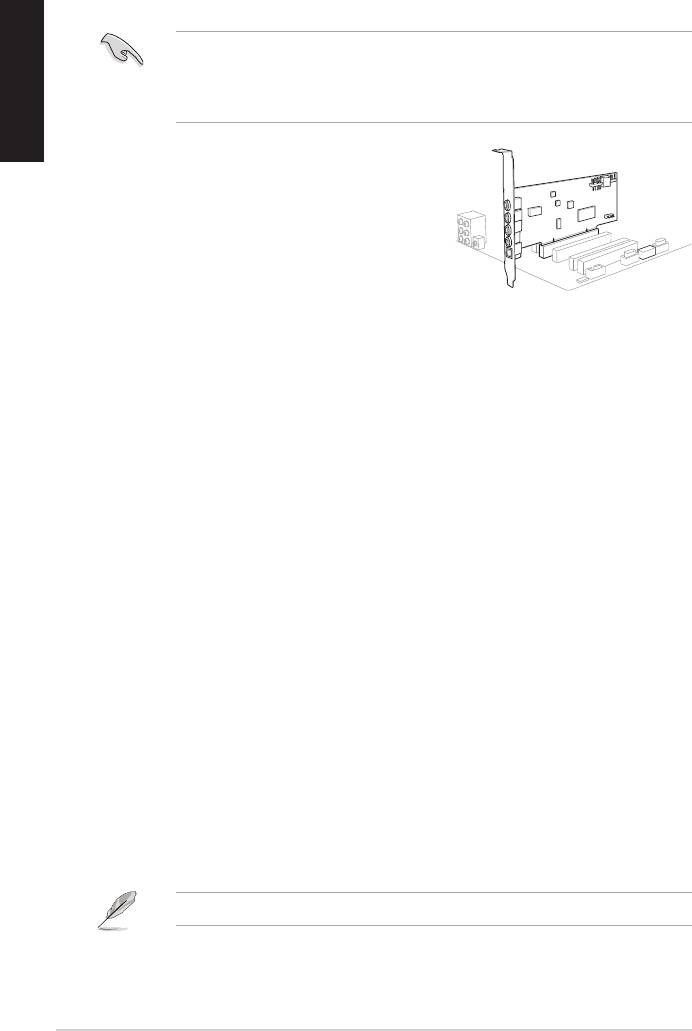
Installing the Xonar DG card
1. Power OFF the computer, the monitor, and
all other peripheral devices connected to
your computer.
2. Unplug the computer power cord from your
computer and power outlet.
3. Touch the metal back or side panel of the
computer to avoid static electricity.
4. Remove the chassis cover.
5. Remove the metal bracket from an available PCI slot for the Xonar DG audio
card.
6. Carefully insert the audio card into the PCI slot. Ensure the audio card sits
properly in place.
7. Secure the audio card with screws and the metal bracket.
8. Put back the chassis cover.
9. Reconnect all cables.
10. Plug the power cord to the computer and to a power outlet.
11. Power ON the computer.
4. Driver installation
Installing the Xonar DG card driver
®
1. After you have installed the Xonar DG card, turn on your computer. Windows
automatically detects the audio card and searches for device drivers. When
prompted for the drivers, click Cancel.
2. Insert the support CD into the optical drive. If Autorun is enabled in your
system, the setup starts automatically. If not, run setup.exe from your
support CD.
3. Followtheonscreeninstructionstonishtheinstallation.
The version and content of the support CD are subject to change without notice.
4
ASUS Xonar DG Quick Start Guide
1
2



