
Asus WL-520gU: 4. EZ Setup
4. EZ Setup: Asus WL-520gU
Table of contents
- English ................................................................................................................ 1
- FCC Warning Statement Prohibition of Co-location Safety Information
- Declaration of Conformity for R&TTE directive 1999/5/EC
- 1. Package Contents 2. Specication summary
- 2) Status indicators 3) Mounting options
- 4. EZ Setup
- English
WL-520GU/GC Broad Range Wireless Family Router Quick Start Guide
4
R
English
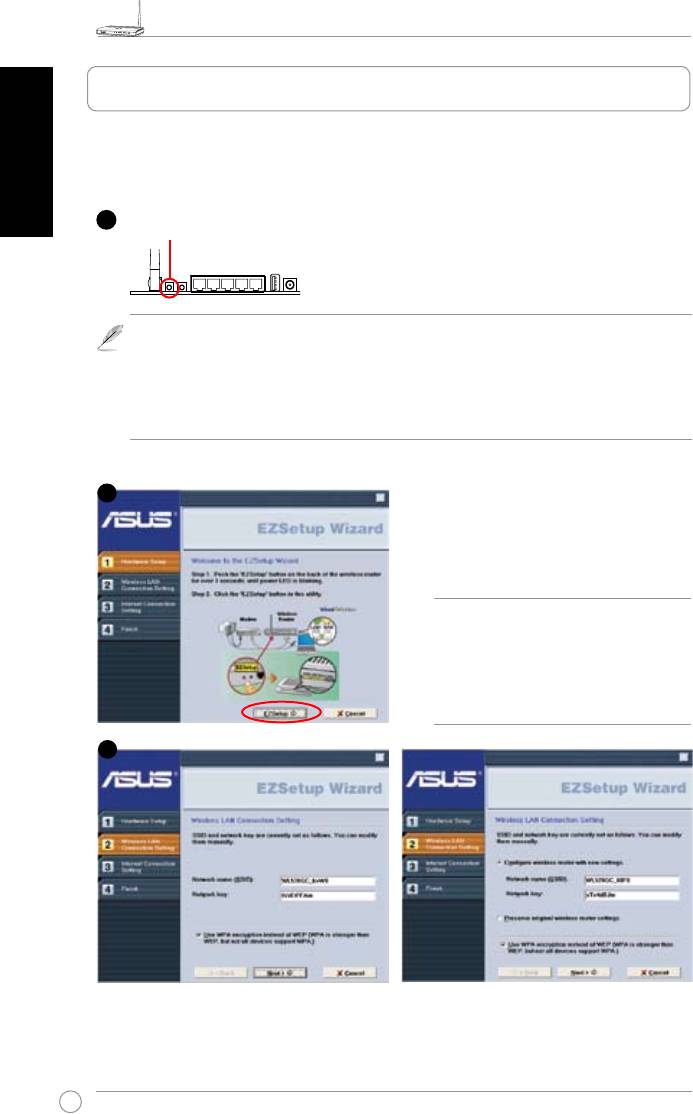
The EZSetup utility enables you to easily complete the wireless LAN setup in just two steps.
First, launch the
EZSetup
from the
Start
menu, then push the EZSetup button, located at the
rear panel, for three seconds.
1) If the setup button is pushed without running the EZsetup wizard utility, the PWR
indicator will ash and Internet connections will pause for a short period but will then
return to normal operation without change.
2) To use EZSetup, we recommend using an ASUS wireless adapter such as WL-106gM,
WL-100gE, and WL-169gE.
Insert the Utility CD into your PC’s CD drive,
and run Install ASUS Wireless Router
Utilities.
After installing the ASUS Wireless Router
Utilities, run the EZSetup Wizard from
[Startup] -> All Utilities [ASUS Utility] ->
[WL-520GU/GC Wireless Router].
Note:
Use EZSetup Wizard with one
wireless client at a time. If the wireless
client computer cannot discover the
wireless router while in EZSetup
mode, shorten the distance between
the client and the router.
Wireless settings, including network name and network keys, are generated automatically.
You can modify these settings manually. Note if your wireless router is congured before,
select
Preserve original wireless router settings
to use the current value. Click
Next
to
continue.
1
Push EZSetup over
3 sec. and release.
2
3


