
Asus VW192SR: Connecting the cables Assembling the monitor base
Connecting the cables Assembling the monitor base: Asus VW192SR
Table of contents
- Safety information
- Connecting the cables Assembling the monitor base
- Adjusting the monitor
3
3
3
3
3
Q u i c k S t a r t G u i d e
Q u i c k S t a r t G u i d e
Q u i c k S t a r t G u i d e
Q u i c k S t a r t G u i d e
Q u i c k S t a r t G u i d e
English
Connecting the cables
1.
Remove the rear cover.
2.
Connect the cables as the following instructions:
• To connect the audio cable:
To connect the audio cable:
To connect the audio cable:
To connect the audio cable:
To connect the audio cable: connect one end of the audio cable to
the monitor’s Audio-in port, and then connect the other end to the
computer multi-media (or audio) card’s audio output.
• To connect the power cord:
To connect the power cord:
To connect the power cord:
To connect the power cord:
To connect the power cord: connect one end of the power cord
securely to the monitor’s AC input port, the other end to a power outlet.
• To connect the VGA/DVI cable:
To connect the VGA/DVI cable:
To connect the VGA/DVI cable:
To connect the VGA/DVI cable:
To connect the VGA/DVI cable:
a.
Plug the VGA/DVI connector to the LCD monitor’s VGA/DVI port.
b. Connect the other end of the VGA/DVI cable to your computer’s
VGA/DVI port.
c.
Tighten the two screws to secure the VGA/DVI connector.
3.
Close the rear cover. Align the cover to the six slots near the ports,
then close the cover carefully. A click indicates that the cover has
been closed successfully.
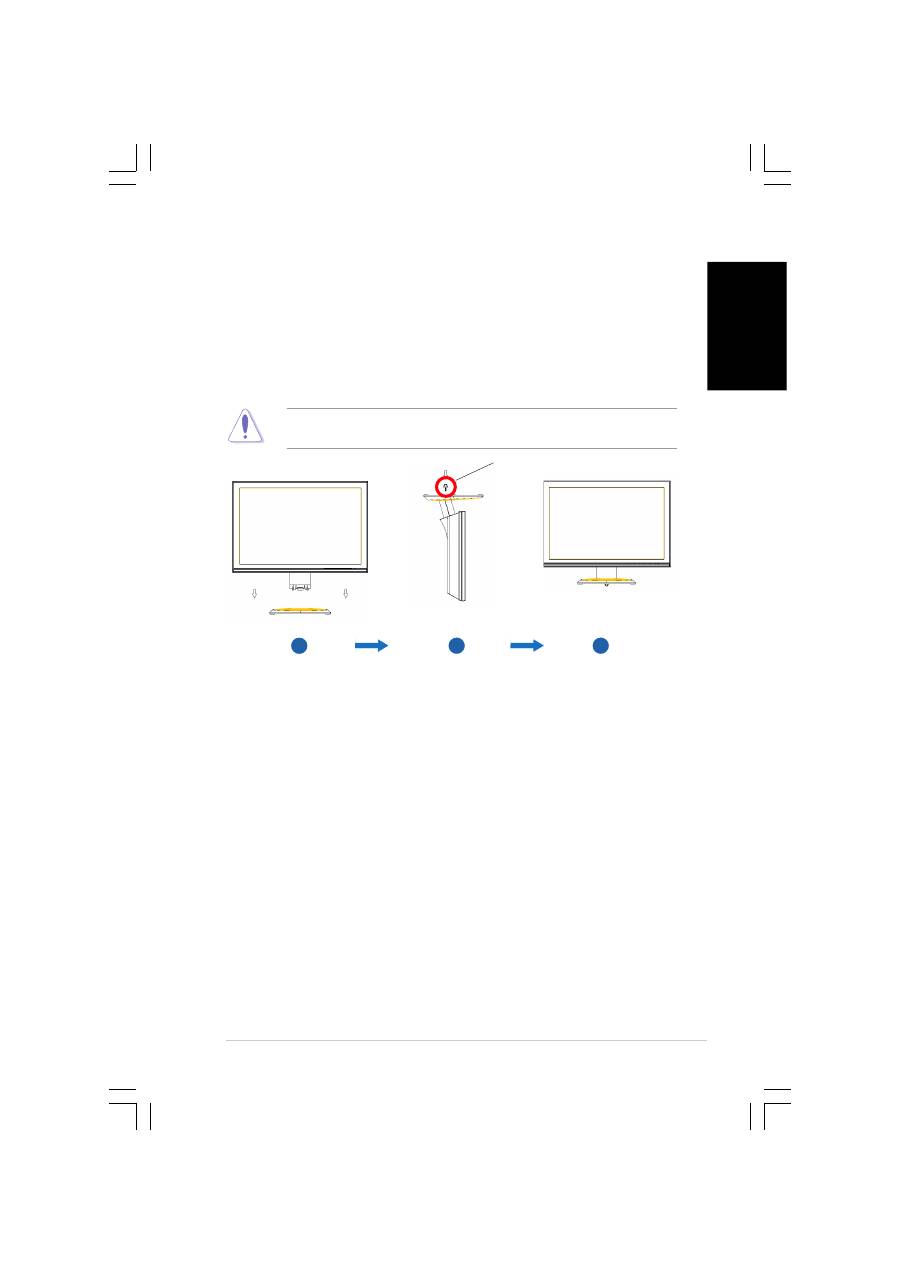
Assembling the monitor base
To assemble the monitor base:
1.
Connect the base with the monitor. A click shows that the base has
been connected successfully.
2.
Tighten the screw as the drawing shows to fix the base.
3.
Adjust the monitor to the angle that is most comfortable for you.
•
We recommend that you cover the table surface with soft cloth to
prevent damage to the monitor.
3
3
3
3
3
2
2
2
2
2
1
1
1
1
1
s c r e w
s c r e w
s c r e w
s c r e w
s c r e w
