
Asus T3-PH2: Lifting the power supply unit Installing a CPU Installing an Intel CPU in the LGA775 package
Lifting the power supply unit Installing a CPU Installing an Intel CPU in the LGA775 package: Asus T3-PH2
Table of contents
- Front/Rear panel features
- Internal components Removing the cover
- Lifting the power supply unit Installing a CPU Installing an Intel CPU in the LGA775 package
- Installing an AMD CPU Installing the CPU fan and heatsink assembly Installing an Intel CPU heatsink and fan
- Installing an AMD CPU heatsink and fan Installing a DIMM
- Installing an expansion card Installing a hard disk drive
- Installing an optical drive Reinstalling the cover
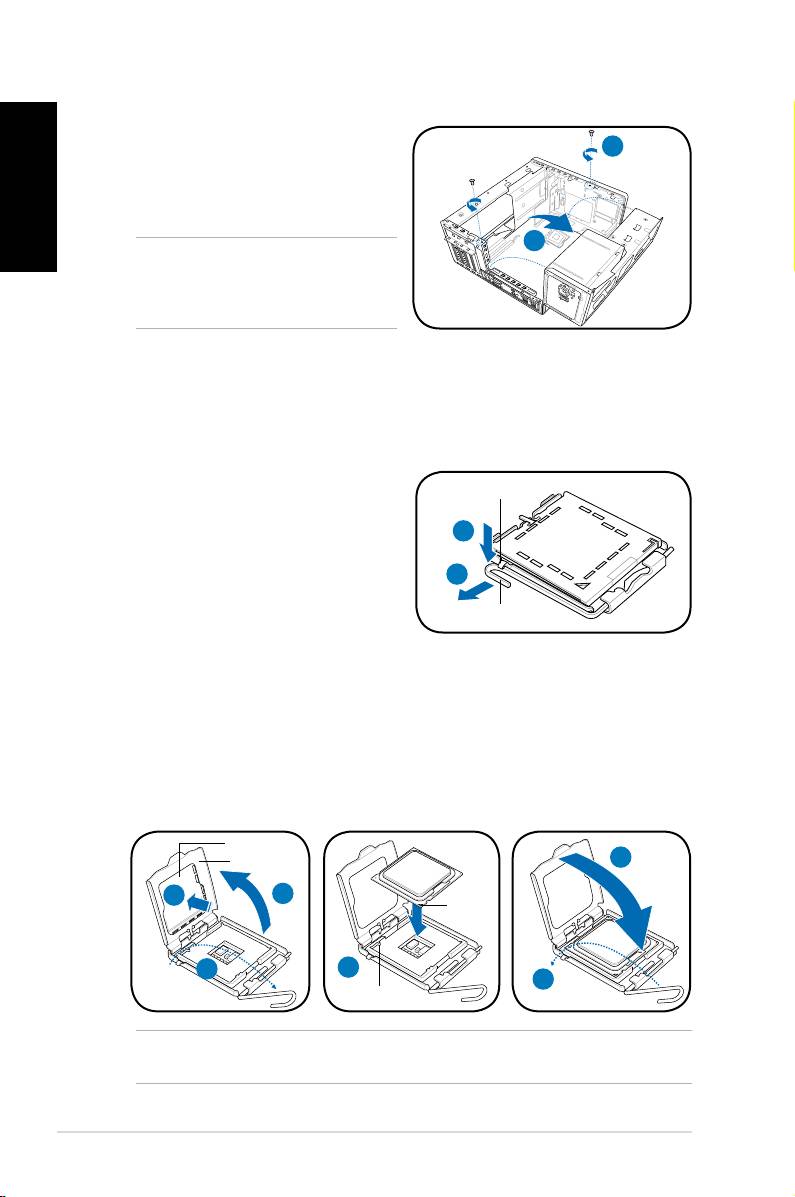
Lifting the power supply unit
1. Locate and remove the two screws.
English
1
2. Lift the PSU in the direction of the
arrow to a 90º angle.
2
CAUTION: When removing the PSU,
makesuretoholdorsupportitrmly.
The unit might accidentally drop and
damage the other system components.
Installing a CPU
®
Installing an Intel
CPU in the LGA775 package
1. Locate the CPU socket on the
Retention tab
motherboard.
2. Press the load lever with your
2A
thumb (2A), then move it to the left
(2B) until it is released from the
2B
retention tab.
Load lever
3. Lift the load lever in the direction of
the arrow to a 135º angle.
4. Lifttheloadplatewithyourthumbandforengertoa100ºangle(4A),then
push the PnP cap from the load plate window to remove (4B).
5. Position the CPU over the socket, making sure that the gold triangle is on the
bottom-left corner of the socket. Fit the socket alignment key into the CPU
notch.
6. Close the load plate (6A), then push the load lever (6B) until it snaps into the
retention tab.
PnP cap
Load plate
6A
Gold
4B
4A
triangle
mark
3
5
6B
Alignment key
CAUTION: Incorrect installation of the CPU into the socket may bend the pins and
severely damage the CPU.
4 Installation manual
