
Asus P2-P5945GC: Installing a CPU Installing an AMD CPU
Installing a CPU Installing an AMD CPU: Asus P2-P5945GC
Table of contents
- Front/Rear panel features
- Internal components Removing the cover Removing the front panel cover
- Removing the storage drive assembly Removing the CPU fan and heatsink assembly
- Installing a CPU Installing an AMD CPU
- Installing a DIMM Installing an expansion card
- Installing optical and storage drives Reinstalling the storage drive assembly
- Installing the foot stand Reinstalling the front panel cover Reinstalling the cover
Installing a CPU
®
Installing an Intel
CPU in the LGA775 package
Retention tab
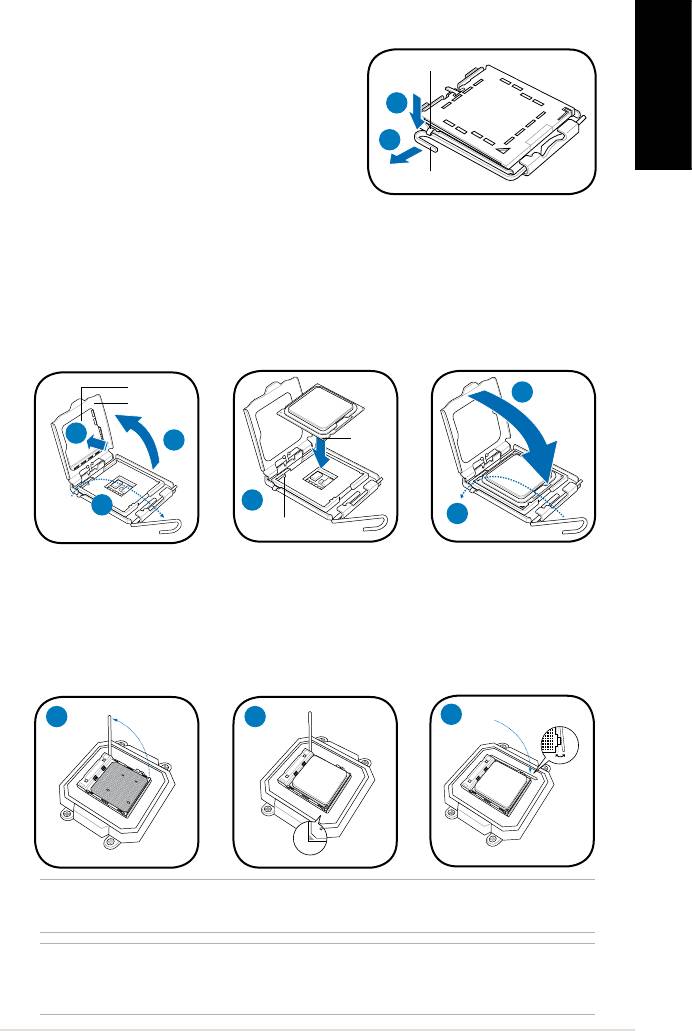
1. Locate the CPU socket on the motherboard.
2. Press the load lever with your thumb
2A
(2A), then move it to the left (2B) until it is
English
released from the retention tab.
2B
3. Lift the load lever in the direction of the
Load lever
arrow to a 135º angle.
4. Lifttheloadplatewithyourthumbandforengertoa100ºangle(4A),then
push the PnP cap from the load plate window to remove (4B).
5. Position the CPU over the socket, making sure that the gold triangle is on the
bottom-left corner of the socket. Fit the socket alignment key into the CPU
notch.
6. Close the load plate (6A), then push the load lever (6B) until it snaps into the
retention tab.
PnP cap
6A
Load plate
Gold
4B
4A
triangle
mark
5
3
6B
Alignment key
Installing an AMD CPU
1. Locate the CPU socket, then lift the socket lever to a 90º angle.
2. Install the CPU to the socket, making sure that the CPU corner with the gold
triangle matches the socket corner with a small triangle.
3. Push down the socket lever to secure the CPU.
1 2
3
®
NOTE: To reinstall an Intel
/ AMD CPU fan and heatsink assembly, follow the
instructions on page 4 in reverse order.
CAUTION: After you reinstall a fan and heatsink assembly, do not forget to connect
the CPU fan connector! Hardware monitoring error can occur if you fail to plug this
connector.
5Installation manual


