
Asus V3-P5945G: Installing storage drives
Installing storage drives: Asus V3-P5945G
Table of contents
- Front panel features Rear panel features
- Internal components
- Selecting the voltage Removing the side cover and front panel assembly
- Installing a CPU
- Installing an AMD CPU Installing the CPU fan and heatsink assembly
- Installing an AMD CPU heatsink and fan
- Installing a DIMM Installing an expansion card
- Installing storage drives
- Removing the bay covers and reinstalling the front panel assembly and side cover
English
Installation manual
9
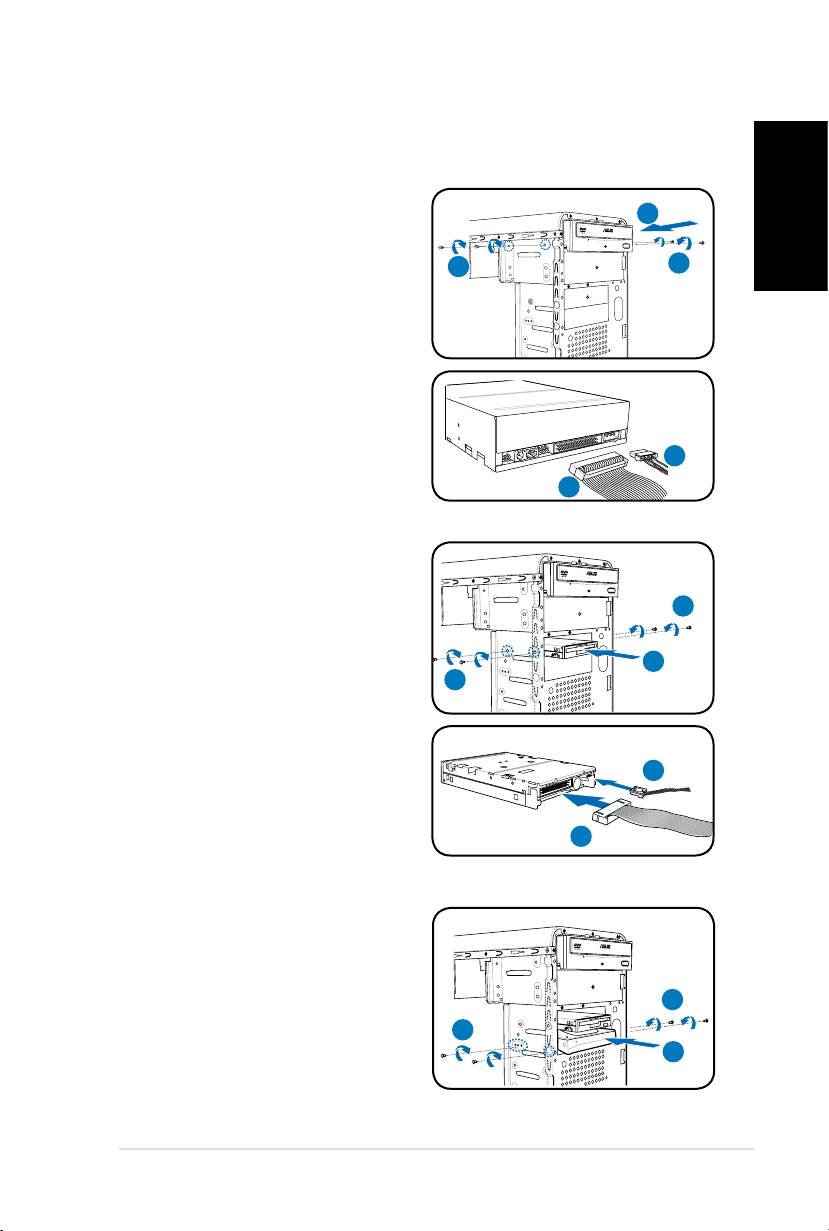
Installing storage drives
Optical drive
1. Place the chassis upright, then
remove the upper 5.25” drive bay
2
metal plate cover.
2. Insert the optical drive to the bay,
3
3
then carefully push the drive until its
screw holes align with the holes on
the bay.
3. Secure the optical drive with two
screws on both sides of the bay.
4. Connect the IDE (A) and power (B)
plugs to connectors at the back of
the drive.
B
A
Floppy disk drive
1. Place the chassis upright, then
remove the lower 3.5” drive bay
metal plate cover.
3
2. Inserttheoppydiskdrivetothe
bay, then carefully push the drive
until its screw holes align with the
2
3
holes on the bay.
3. Securetheoppydiskdrivewith
two screws on both sides of the
bay.
B
4. Connect the signal (A) and power
(B) plugs to connectors at the back
of the drive.
A
Hard disk drive
1. Place the chassis upright, then
remove the upper 3.5” drive bay
metal plate cover.
2. Insert the hard disk drive to the bay,
3
then carefully push the drive until its
screw holes align with the holes on
3
the bay.
2
3. Secure the hard disk drive with two
screws on both sides of the bay.
