
Pioneer PLASMA DISPLAY: SCREEN SIZE Operation with Computer Signals
SCREEN SIZE Operation with Computer Signals: Pioneer PLASMA DISPLAY
Table of contents
- Precautions Important Information Warnings and Safety Precaution
- NOTE:
- Caution
- Contents
- How to use the safety metal fittings and the screws for safety metal fittings Ventilation Requirements for enclosure mounting Installation
- Creating a video wall Cable Management
- Caution on when the plasma monitor is installed vertically How to use the remote control
- Front View Part Names and Function
- Information Rear View/ Terminal Board
- Remote Control
- Basic Operations POWER VOLUME MUTING DISPLAY DIGITAL ZOOM AUTO SET UP OFF TIMER
- SCREEN SIZE Operation WIDE Operations
- SCREEN SIZE Operation with Computer Signals
- Menu Operations OSD (On Screen Display) Controls Setting the language for the menus
- Menu Tree
- Main menu
- Picture Settings Menu
- SOUND Settings Menu SCREEN Settings Menu
- Option1 Settings Menu
- Information
- Option2 Settings Menu
- ORBITER INVERSE
- SCREEN WIPER SOFT FOCUS
- Option3 Settings Menu
- PROGRAM TIMER
- Information
- DIVIDER DISP. MODE
- SCREEN ABL LINK
- REPEAT TIMER Advanced OSD Settings Menu Color System Settings Menu Source Information Menu
- mini D-Sub 15-pin connector (Analog) DVI-D 24-pin connector (Digital) Pin Assignments
- Table of Signals Supported Supported resolution
- Table of Signals Supported
- Troubleshooting
- Specifications
English
WIDE Operations
10
En
Information
Supported resolution
See page 29 for details on the display output of the
various VESA signal standards supported by the
monitor.
When 852 (848) dot
480 line wide VGA*
signals with a vertical frequency of 60 Hz and
horizontal frequency of 31.7 (31.0) kHz are in-
put
Select an appropriate setting for RGB SELECT mode
referring to the“Table of Signals Supported” on page
29.
* “VGA”, “SVGA” and “SXGA” are registered
trademarks of IBM, Inc. of the United States.
Note:
Do not allow the displayed in 4:3 mode or 14:9 mode for
an extended period. This can cause a phosphor burn-in.
SCREEN SIZE Operation with
Computer Signals
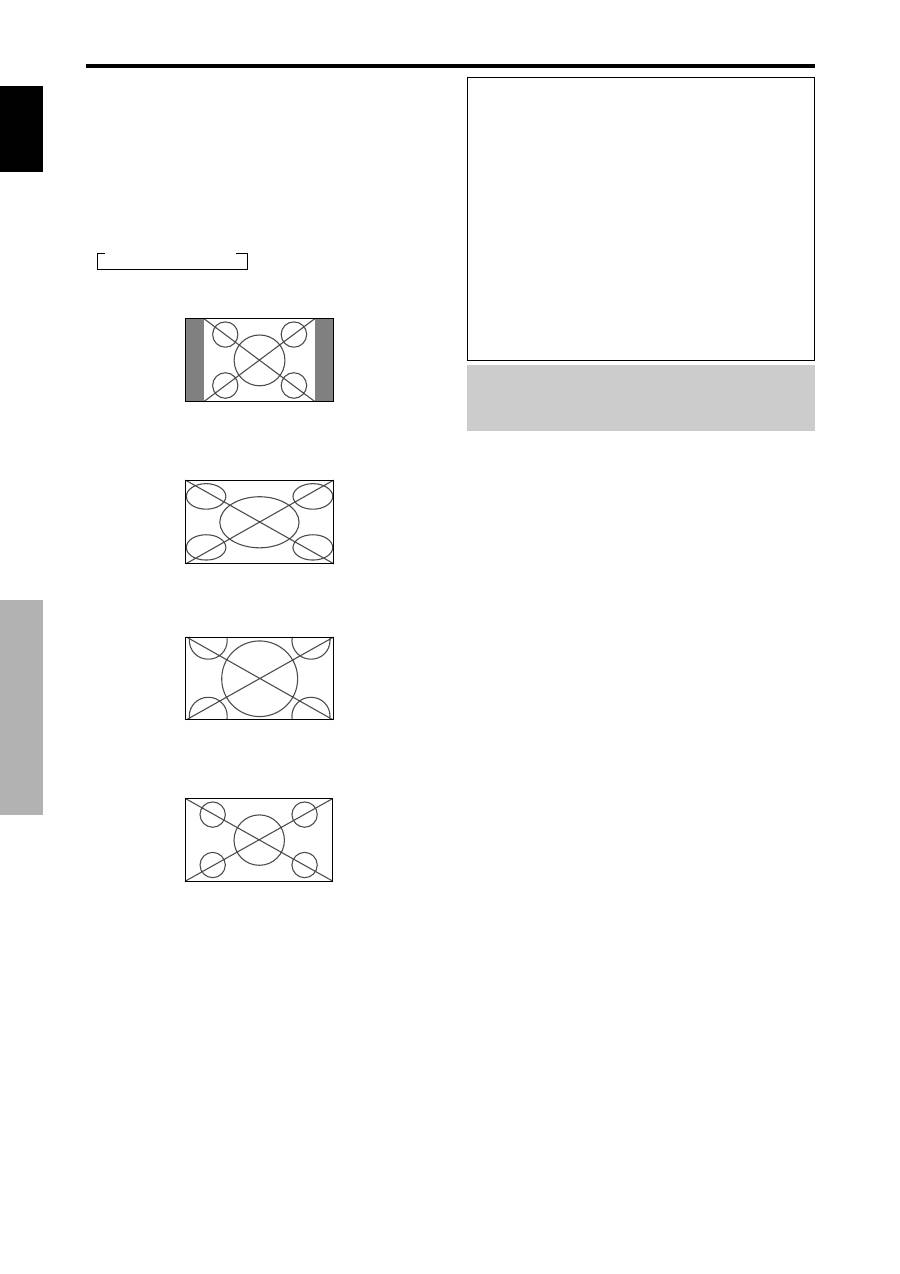
Switch to the wide screen mode to expand the 4 : 3 image
to fill the entire screen.
1. Press the SCREEN SIZE button on the remote control.
2.
Within 3 seconds ...
Press the SCREEN SIZE button again.
The screen size switches as follows:
→
4:3
→
FULL
→
ZOOM
4:3 size screen (4:3 or SXGA 5:4)
The picture has the same size as the normal computer image.
FULL size screen
The image is expanded in the horizontal direction.
ZOOM size screen
When wide signals are input.
FULL size screen
