
Pioneer VSX-520-S: An introduction to RDS
An introduction to RDS: Pioneer VSX-520-S
Table of contents
- IMPORTANT VENTILATION CAUTION
- Operating Environment
- Contents
- Flow of settings on the receiver
- Chapter 1: Before you start
- Before you start01 Ventilation
- Chapter 2: Controls and displays
- Controls and displays02 Operating range of remote control
- Controls and displays 02 Display
- Controls and displays02
- Remote control
- Controls and displays02
- Controls and displays 02
- Chapter 3: Connecting your equipment Placing the speakers
- Hints on the speaker placement
- Connecting the speakers
- Making cable connections
- HDMI cables About HDMI Analog audio cables
- Digital audio cables About video outputs connection
- Connecting a TV and playback components Connecting using HDMI Connecting your component with no HDMI terminal
- Connecting a satellite receiver Connecting an HDD/DVD or other digital set-top box recorder, VCR and other video sources
- Using the component video jacks Connecting other audio components
- Connecting antennas
- Plugging in the receiver
- Chapter 4: Basic Setup Automatically setting up for surround sound (MCACC)
- Basic Setup04
- Chapter 5: Listening to your system Basic playback
- Auto playback Listening in surround sound
- Listening to your system 05
- Using Front Stage Surround Advance Listening in stereo
- Using Stream Direct Better sound using Phase Control Using the Sound Retriever
- Using surround back channel processing Listening with Acoustic Calibration EQ
- Setting the Audio options Setting the Up Mix function
- Setting What it does Option(s)
- Setting What it does Option(s)
- Choosing the input signal Using the headphone
- Chapter 6: The System Setup menu Using the System Setup menu Manual speaker setup
- Speaker setting
- Crossover network Channel level Speaker distance
- The Input Assign menu The Pre Out Setting
- Chapter 7 Using the tuner Listening to the radio Saving station presets
- Using the tuner07
- An introduction to RDS
- Using the tuner07 Displaying RDS information
- Chapter 8: Making recordings Making an audio or a video recording
- Chapter 9: Other connections
- Connecting Optional Bluetooth ADAPTER
- Other connections09
- Chapter 10: Additional information Troubleshooting Problem Remedy
- Problem Remedy
- Additional information 10
- HDMI Symptom Remedy
- Resetting the main unit
- Specifications Cleaning the unit
Using the tuner 07
45
En
English
Français
Español
An introduction to RDS
Radio Data System (RDS) is a system used by
most FM radio stations to provide listeners with
various kinds of information—the name of the
station and the kind of show they’re
broadcasting, for example.
One feature of RDS is that you can search by
type of program. For example, you can search
for a station that’s broadcasting a show with
the program type, JAZZ.
1
You can search the following program types:
Searching for RDS programs
NEWS – News
FINANCE – Stock market
You can search for a program type listed
AFFAIRS – Current Affairs
reports, commerce,
above.
INFO – General
trading, etc.
Information
CHILDREN – Programs for
1Press
TUNER
then press
BAND
to select
SPORT – Sport
children
2
the FM band.
EDUCATE – Educational
SOCIAL – Social affairs
DRAMA – Radio plays, etc.
RELIGION – Programs
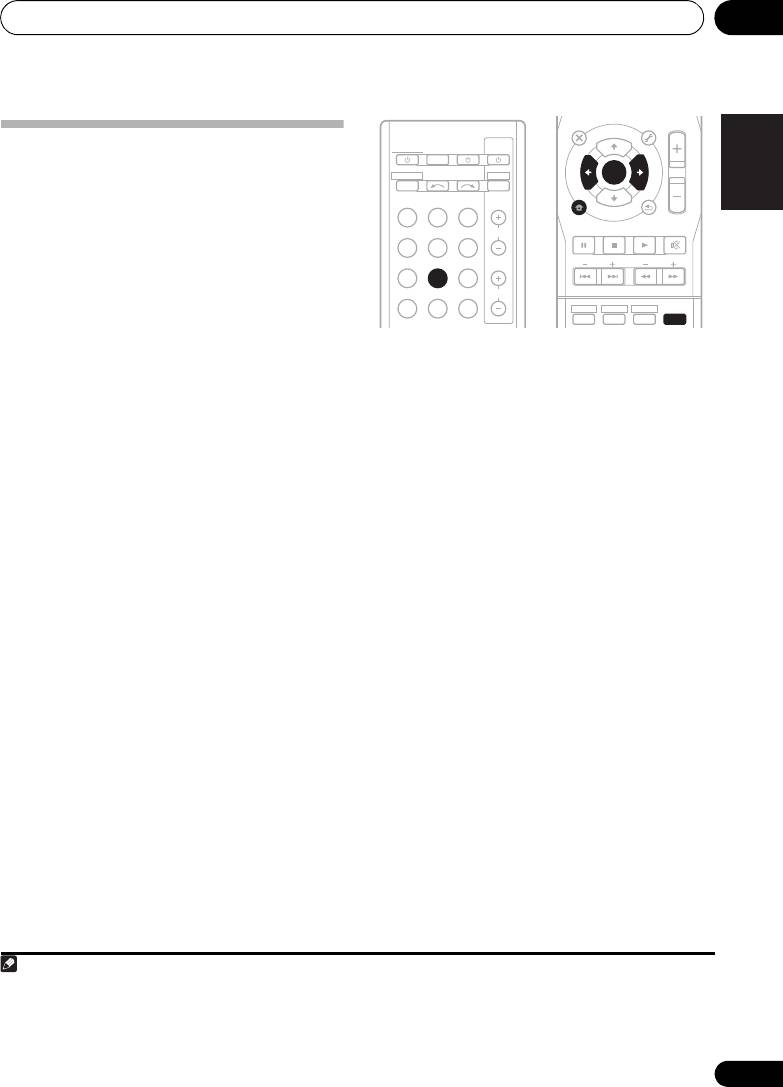
2Press
PTY SEARCH
.
CULTURE – National or
concerning religion
SEARCH shows in the display.
regional culture, theater,
PHONE IN – Public
etc.
expressing their views by
3Press
PRESET /
to select the program
SCIENCE – Science and
phone
type you want to hear.
technology
TRAVEL – Holiday-type
VARIED – Usually talk-
travel rather than traffic
4Press
ENTER
to search for the program
based material, such as
announcements
type.
quiz shows or interviews.
LEISURE – Leisure interests
POP M – Pop music
and hobbies
The system starts searching through the
ROCK M – Rock music
JAZZ – Jazz
station presets for a match, stopping when it
EASY M – Easy listening
COUNTRY – Country
was found one. Repeat to search for other
LIGHT M – ‘Light’ classical
music
stations.
music
NATION M – Popular
CLASSICS – ‘Serious’
music in a language other
If NO PTY is displayed it means the tuner
classical music
than English
couldn’t find that program type at the time of
OTHER M – Music not
OLDIES – Popular music
3
the search.
fitting above categories
from the ’50s and ’60s
WEATHER – Weather
FOLK M – Folk music
reports
DOCUMENT –
Documentary
Note
RECEIVER
TV
SOURCESLEEP
CONTROL
RECEIVER
INPUT SELECT
DTV/TV
INPUT
BD DVD
TV
DVR CD
CD-R
CH
ADAPTER
TUNER
EQ
PHASE
S.RETRIEVER SIGNAL SEL
VOL
1 In addition, there are three other program types, ALARMTST, ALARM, and NO TYPE. ALARM and ALARMTST are used for
emergency announcements. NO TYPE appears when a program type cannot be found.
2 RDS is only possible in the FM band.
3 RDS searches station presets only. If no stations have been preset, or if the program type could not be found among the station
presets NO PTY is displayed. FINISH means the search is complete.
AUDIO
TUNER EDIT
MASTER
PARAMETER
TOOLS
VOLUME
U
N
E
MENU
TOP
T
MENU
T
P
E
R
E
E
S
ENTER
S
R
T
E
P
HOME
MENU
T
U
N
E
BAND
SETUP
RETURN
PTY SEARCH
MUTE
BASS
TRE
HDD
DVD
VCR
1
2
3
DISP
VSX-520_SYXCN_En.book 45 ページ 2010年4月12日 月曜日 午後7時13分
