
Pioneer VSX-520-S – page 2
Manual for Pioneer VSX-520-S
Table of contents
- IMPORTANT VENTILATION CAUTION
- Operating Environment
- Contents
- Flow of settings on the receiver
- Chapter 1: Before you start
- Before you start01 Ventilation
- Chapter 2: Controls and displays
- Controls and displays02 Operating range of remote control
- Controls and displays 02 Display
- Controls and displays02
- Remote control
- Controls and displays02
- Controls and displays 02
- Chapter 3: Connecting your equipment Placing the speakers
- Hints on the speaker placement
- Connecting the speakers
- Making cable connections
- HDMI cables About HDMI Analog audio cables
- Digital audio cables About video outputs connection
- Connecting a TV and playback components Connecting using HDMI Connecting your component with no HDMI terminal
- Connecting a satellite receiver Connecting an HDD/DVD or other digital set-top box recorder, VCR and other video sources
- Using the component video jacks Connecting other audio components
- Connecting antennas
- Plugging in the receiver
- Chapter 4: Basic Setup Automatically setting up for surround sound (MCACC)
- Basic Setup04
- Chapter 5: Listening to your system Basic playback
- Auto playback Listening in surround sound
- Listening to your system 05
- Using Front Stage Surround Advance Listening in stereo
- Using Stream Direct Better sound using Phase Control Using the Sound Retriever
- Using surround back channel processing Listening with Acoustic Calibration EQ
- Setting the Audio options Setting the Up Mix function
- Setting What it does Option(s)
- Setting What it does Option(s)
- Choosing the input signal Using the headphone
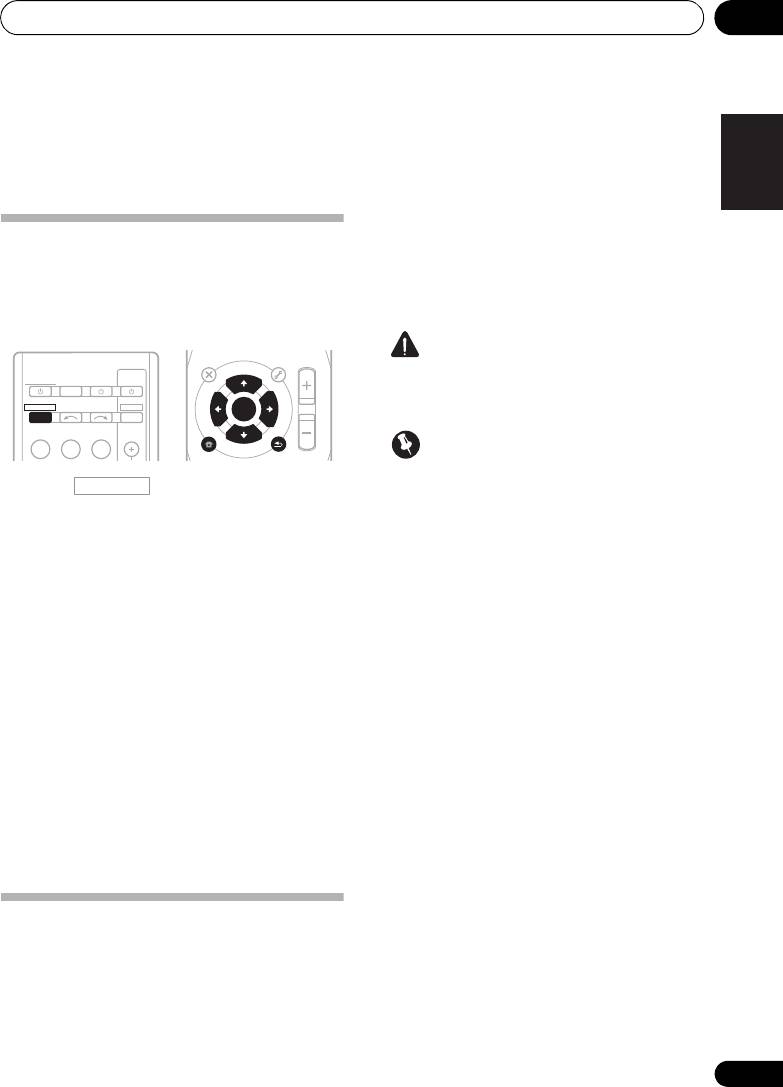
- Chapter 6: The System Setup menu Using the System Setup menu Manual speaker setup
- Speaker setting
- Crossover network Channel level Speaker distance
- The Input Assign menu The Pre Out Setting
- Chapter 7 Using the tuner Listening to the radio Saving station presets
- Using the tuner07
- An introduction to RDS
- Using the tuner07 Displaying RDS information
- Chapter 8: Making recordings Making an audio or a video recording
- Chapter 9: Other connections
- Connecting Optional Bluetooth ADAPTER
- Other connections09
- Chapter 10: Additional information Troubleshooting Problem Remedy
- Problem Remedy
- Additional information 10
- HDMI Symptom Remedy
- Resetting the main unit
- Specifications Cleaning the unit
Connecting your equipment 03
21
En
English
Français
Español
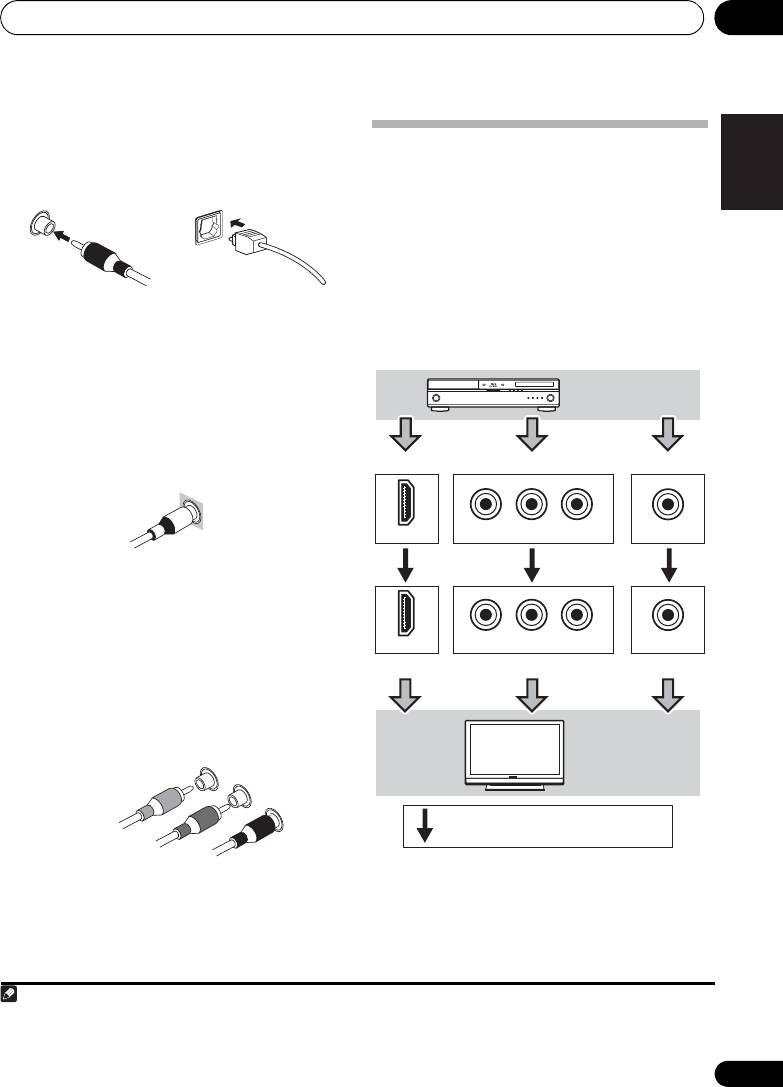
Digital audio cables
Commercially available coaxial digital audio
About video outputs
cables or optical cables should be used to
1
connection
connect digital components to this receiver.
This receiver is not loaded with a video
converter. When you use component video
cables or HDMI cables for connecting to the
input device, the same cables should be used
for connecting to the TV.
The signals input from the analog (composite
and component) video inputs of this unit will
Video cables
not be output from the HDMI OUT.
Standard RCA video cables
These cables are the most common type of
video connection and are used to connect to
the composite video terminals. The yellow
plugs distinguish them from cables for audio.
Component video cables
Use component video cables to get the best
possible color reproduction of your video
source. The color signal of the TV is divided into
the luminance (Y) signal and the color (P
B and
P
R) signals and then output. In this way,
interference between the signals is avoided.
Note
Coaxial digital audio cable Optical cable
1 • When connecting optical cables, be careful when inserting the plug not to damage the shutter protecting the optical socket.
• When storing optical cable, coil loosely. The cable may be damaged if bent around sharp corners.
• You can also use a standard RCA video cable for coaxial digital connections.
Standard RCA video cable
Component video cables
Green (Y)
Blue (P
B
)
Red (P
R
)
P
R
P
B
Y
HDMI IN
COMPONENT VIDEO IN
VIDEO IN
P
R
P
B
Y
HDMI OUT
COMPONENT VIDEO MONITOR OUT
MONITOR OUT
Playback
component
Terminal for connection with source device
Terminal for connection with TV monitor
TV
Video signals can be output.
VSX-520_SYXCN_En.book 21 ページ 2010年4月12日 月曜日 午後7時13分
Connecting your equipment03
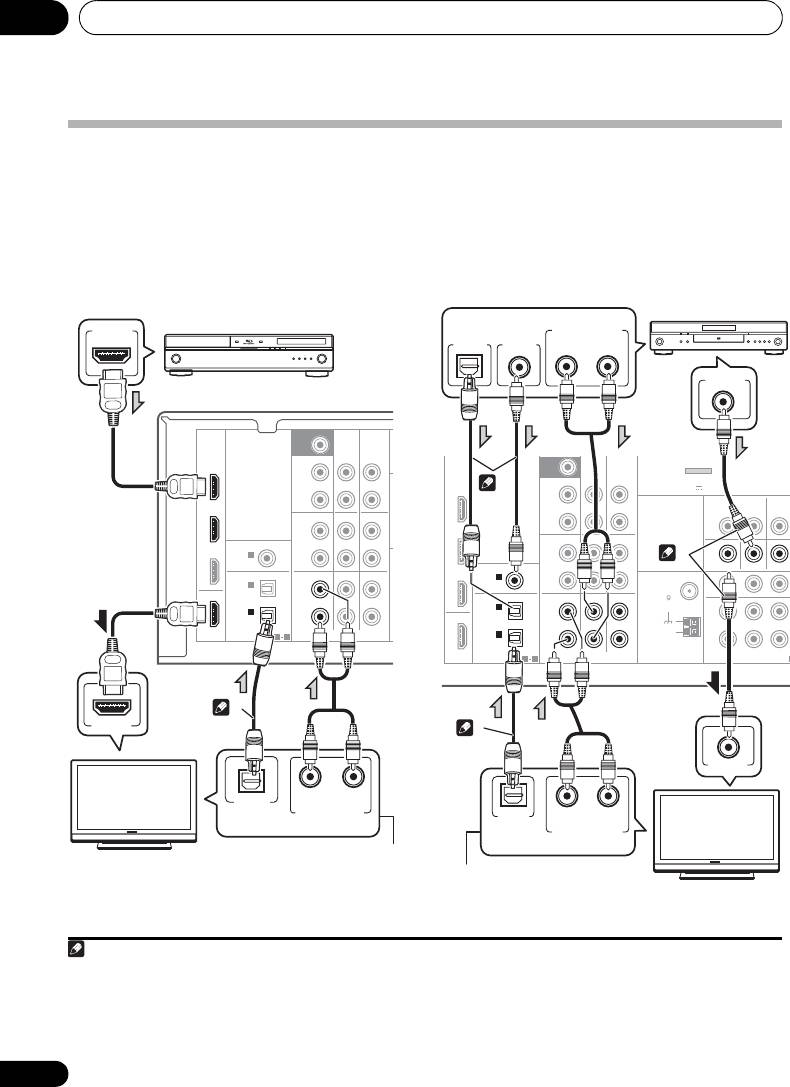
Connecting a TV and playback components
Connecting using HDMI
Connecting your component with no
If you have an HDMI or DVI (with HDCP)
HDMI terminal
equipped component (Blu-ray disc player,
This diagram shows connections of a TV and
etc.), you can connect it to this receiver using a
DVD player (or other playback component)
123
commercially available HDMI cable.
with no HDMI terminal to the receiver.
22
En
Note
SUBWOOFER
PRE OUT
CD-R/TAPE
DVR/VCR
SURR BACK /
FRONT
BD
HEIGHT
L
(
Single
)
OUT
R
DVD
PRE OUT
CD
CD-R/TAPE
DVR/VCR
L
COAXIAL
ASSIGNABLE
IN
IN
TV/SAT
IN
1
R
(
CD
)
OPTICAL
TV/SAT
DVD BD
IN
IN
2
OUT
(
DVR/VCR
)
L
IN
IN
IN
1
(
CD-R/TAPE
)
R
ASSIGNABLE
HDMI
1 2
AUDIO
1 If the connection was made using an optical cable, you’ll need to tell the receiver which digital input you connected the TV to
(see Choosing the input signal on page 38).
2 If the connection was made using an optical or a coaxial cable, you’ll need to tell the receiver which digital input you connected
the DVD player to (see Choosing the input signal on page 38).
3 If both TV and player has a component video jacks, you can connect these too. See Using the component video jacks on page 24
for more on this.
HDMI OUT
HDMI IN
RL
OPTICAL
DIGITAL AUDIO OUT
ANALOG AUDIO OUT
HDMI/DVI-compatible
Blu-ray disc player
1
Select one
This connection is required in
HDMI/DVI-
order to listen to the sound of
compatible TV
the TV over the receiver.
SUBWOOFER
PRE OUT
CD-R/TAPE
DVR/VCR
SURR BACK /
ADAPTER PORT
FRONT
(
)
BD
HEIGHT
OUTPUT 5 V 100 mA MAX
L
(
Single
)
VIDEO
OUT
DVR/VCR
TV/SAT
OUT IN
IN
R
DVD
PRE OUT
CD
CD-R/TAPE
DVR/VCR
L
COAXIAL
ASSIGNABLE
IN
IN
MONITOR OUT
DVD IN BD IN
TV/SAT
IN
1
ANTENNA
P
R
P
B
Y
M
M
R
(
CD
)
FM
UNBAL
OPTICAL
TV/SAT
DVD BD
75
IN
IN
2
OUT
(
DVR/VCR
)
L
IN
IN
AM
IN
1
LOOP
(
CD-R/TAPE
)
R
ASSIGNABLE
ASSIGN
HDMI
1 2
AUDIO
COMPONENT VIDEO
DIGITAL AUDIO OUT
ANALOG AUDIO OUT
OPTICAL
COAXIAL
RL
VIDEO OUT
VIDEO IN
OPTICAL
RL
DIGITAL AUDIO OUT
ANALOG AUDIO OUT
DVD player
Select one
2
3
1
Select one
This connection is required in
order to listen to the sound of
TV
the TV over the receiver.
VSX-520_SYXCN_En.book 22 ページ 2010年4月12日 月曜日 午後7時13分
Connecting your equipment 03
23
En
English
Français
Español
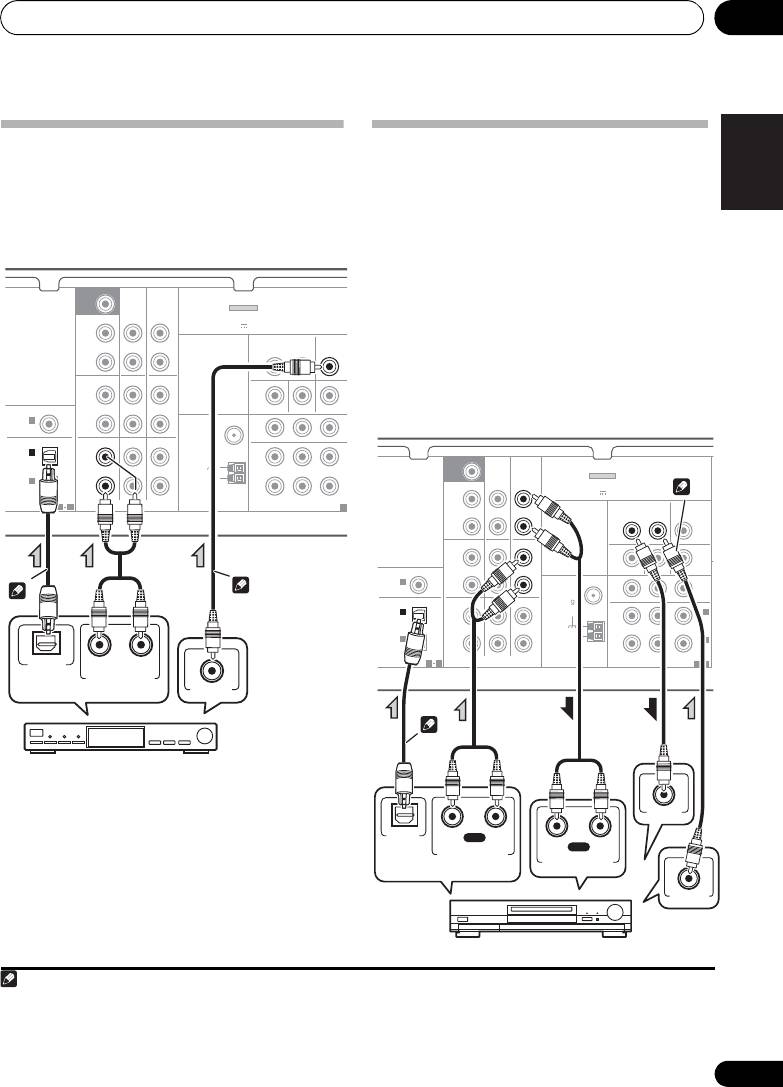
Connecting a satellite receiver
Connecting an HDD/DVD
or other digital set-top box
recorder, VCR and other video
Satellite and cable receivers, and terrestrial
sources
digital TV tuners are all examples of so-called
This receiver has audio/video inputs and
12
‘set-top boxes’.
outputs suitable for connecting analog or
digital video recorders, including HDD/DVD
recorders and VCRs.
• Only the signals that are input to the
VIDEO IN terminal can be output from the
VIDEO OUT terminal.
• Audio signals that are input through the
digital terminal will not be output from the
analog terminal.
Note
1 If the connection was made using an optical cable, you’ll need to tell the receiver which digital input you connected the set-
top box or video component to (see Choosing the input signal on page 38).
2 If the set-top box or video component also has an HDMI or a component video output, you can connect this too. See Connecting
using HDMI on page 22 or Using the component video jacks on page 24 for more on this.
SUBWOOFER
PRE OUT
CD-R/TAPE
DVR/VCR
SURR BACK /
ADAPTER PORT
FRONT
(
HEIGHT
OUTPUT 5 V 100 mA MAX
)
L
VIDEO
(
Single
)
OUT
DVR/VCR
TV/SAT
OUT IN
IN
R
PRE OUT
CD
CD-R/TAPE
DVR/VCR
L
COAXIAL
ASSIGNABLE
IN
IN
MONITOR OUT
DVD IN BD IN
IN
1
ANTENNA
P
R
P
B
Y
MON
R
(
CD
)
FM
OU
UNBAL
OPTICAL
TV/SAT
DVD BD
75
IN
2
IN
(
L
DVR/VCR
)
(
D
IN
IN
AM
IN
1
R
LOOP
IN
(
CD-R/TAPE
)
(
B
ASSIGNABLE
ASSIGNAB
1 2
AUDIO
COMPONENT VIDEO
1
OPTICAL
RL
DIGITAL AUDIO OUT
ANALOG AUDIO OUT
VIDEO OUT
2
1
Select one
STB
SUBWOOFER
PRE OUT
CD-R/TAPE
DVR/VCR
SURR BACK /
ADAPTER PORT
FRONT
(
OUTPUT 5 V 100 mA MAX
)
HEIGHT
L
(
VIDEO
Single
)
OUT
DVR/VCR
TV/SAT
OUT IN
IN
R
PRE OUT
CD
CD-R/TAPE
DVR/VCR
L
COAXIAL
ASSIGNABLE
IN
IN
MONITOR OUT
DVD IN BD IN
IN
1
ANTENNA
P
R
P
B
Y
MONITOR
MONITOR
R
(
CD
)
FM
OUT
OUT
UNBAL
OPTICAL
TV/SAT
DVD BD
75
IN
2
L
IN
2
DVR/VCR
(
)
(
DVD
)
IN
IN
AM
IN
1
CD-R/TAPE
R
LOOP
IN
1
(
)
(
BD
)
ASSIGNABLE
ASSIGNABLE
1 2
AUDIO
COMPONENT VIDEO
1 2
VIDEO IN
OPTICAL
RL
PLAY
DIGITAL
RL
REC
AUDIO OUT
ANALOG AUDIO OUT
ANALOG AUDIO IN
VIDEO OUT
2
1
Select one
DVR, VCR, LD player, etc.
VSX-520_SYXCN_En.book 23 ページ 2010年4月12日 月曜日 午後7時13分
Connecting your equipment03
Important
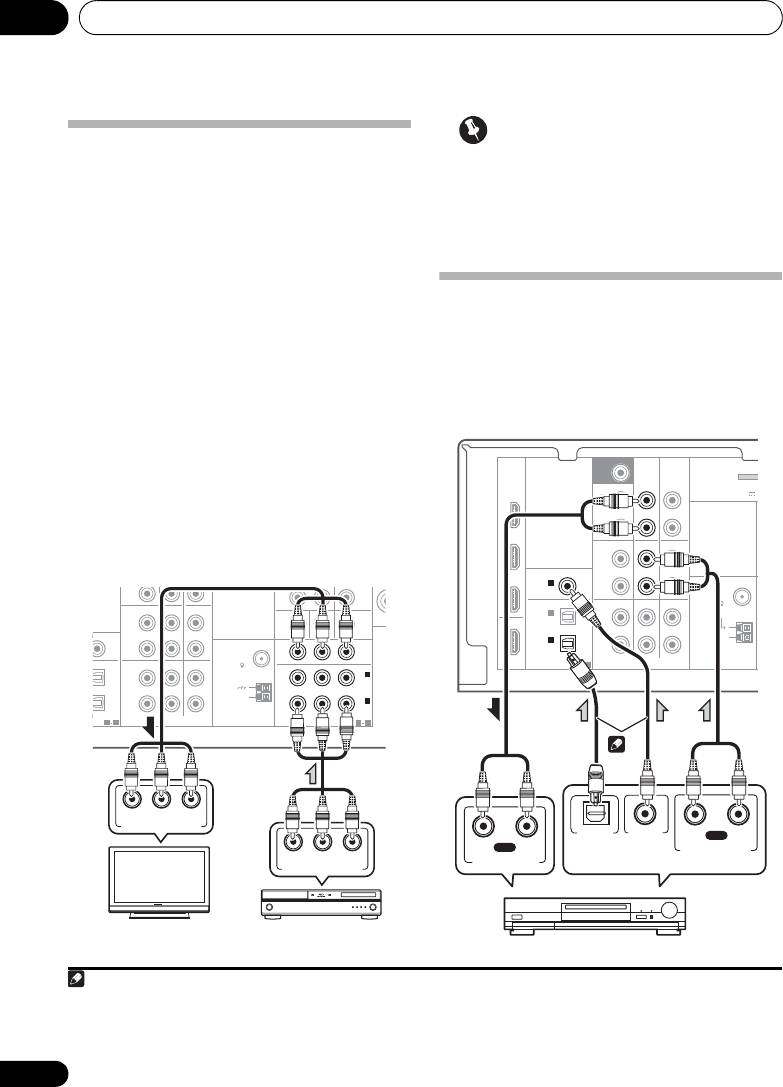
Using the component video jacks
• If you connect any source component to
Component video should deliver superior
the receiver using a component video
picture quality when compared to composite
input, you must also have your TV
video. A further advantage (if your source and
connected to this receiver’s COMPONENT
TV are both compatible) is progressive-scan
VIDEO OUT jacks.
video, which delivers a very stable, flicker-free
picture. See the manuals that came with your TV
and source component to check whether they
Connecting other audio
are compatible with progressive-scan video.
components
• If necessary, assign the component video
The number and kind of connections depends
inputs to the input source you’ve connected.
1
on the kind of component you’re connecting.
This only needs to be done if you didn’t connect
Follow the steps below to connect a CD-R, MD,
according to the following defaults:
2
DAT, tape recorder or other audio component.
• COMPONENT VIDEO IN 1 – BD
• COMPONENT VIDEO IN 2 – DVD
See The Input Assign menu on page 42 for
• For the audio connection, refer to
Connecting your component with no HDMI
terminal
on page 22.
24
En
R
PRE OUT
CD
CD-R/TAPE
DVR/VCR
L
SSIGNABLE
IN
IN
MONITOR OUT
DVD IN BD IN
ANTENNA
P
R
P
B
Y
MONITOR
R
FM
OUT
UNBAL
TV/SAT
DVD BD
75
L
IN
2
DVD
(
)
IN
IN
AM
R
LOOP
IN
1
(
BD
)
SSIGNABLE
ASSIGNABLE
1 2
AUDIO
COMPONENT VIDEO
1 2
MONITOR
OUT
P
R YPB
COMPONENT VIDEO IN
P
R YPB
COMPONENT VIDEO OUT
TV
BD player
Note
SURR BACK /
FRONT
BD
HEIGHT
L
(
Single
)
OUT
R
CD
DVR/VCR
L
IN
IN
R
TV/SAT
DVD BD
IN
L
IN
IN
R
1 Note that you must connect digital components to analog audio jacks if you want to record to/from digital components (like
an MD) to/from analog components.
2 If the connection was made using an optical or a coaxial cable, you’ll need to tell the receiver which digital input you connected
the component to (see Choosing the input signal on page 38).
M
SUBWOOFER
PRE OUT
CD-R/TAPE
DVR/VCR
ADAPTER
(
OUTPUT 5 V
DVD
PRE OUT
CD-R/TAPE
COAXIAL
ASSIGNABLE
TV/SAT
IN
1
ANTENNA
(
CD
)
FM
UNBAL
OPTICAL
75
IN
2
OUT
(
DVR/VCR
)
AM
IN
1
LOOP
(
CD-R/TAPE
)
ASSIGNABLE
HDMI
1 2
AUDIO
1
OPTICAL
COAXIAL
RL
PLAY
RL
REC
DIGITAL AUDIO OUT
ANALOG AUDIO OUT
ANALOG AUDIO IN
2
Select one
CD-R, MD, DAT, Tape recorder, etc.
VSX-520_SYXCN_En.book 24 ページ 2010年4月12日 月曜日 午後7時13分24
Connecting your equipment 03
25
En
English
Français
Español
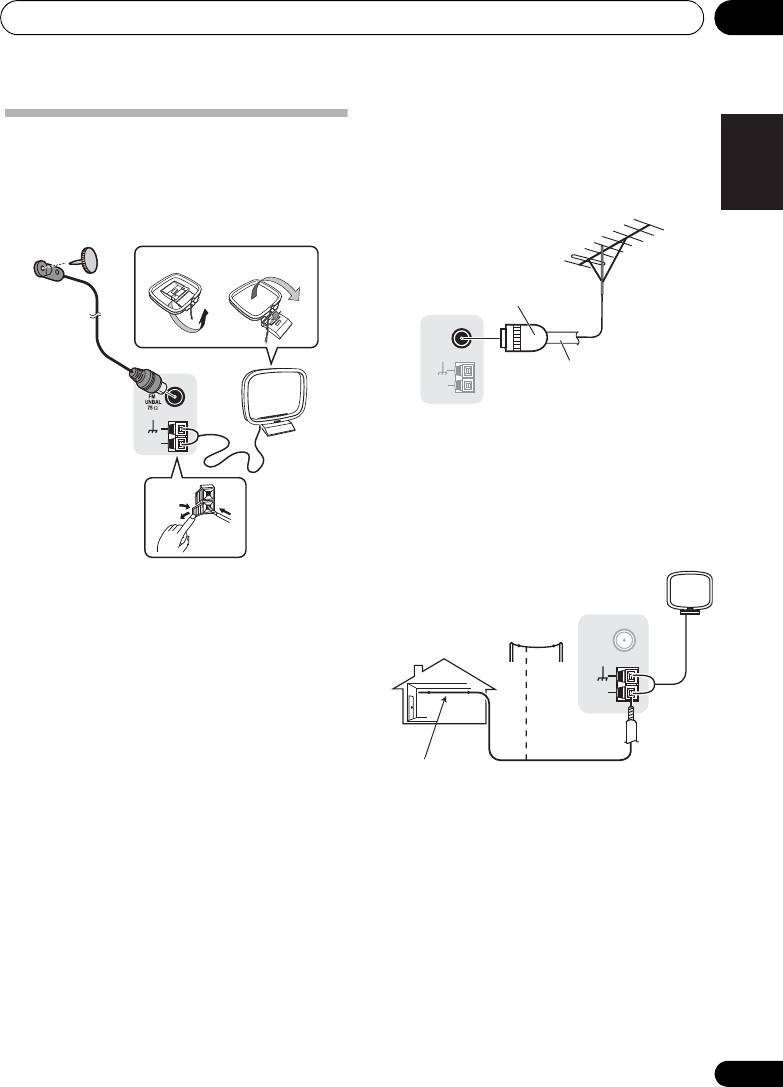
Using external antennas
Connecting antennas
To improve FM reception
Connect the AM loop antenna and the FM wire
Use a PAL connector (not supplied) to
antenna as shown below. To improve reception
connect an external FM antenna.
and sound quality, connect external antennas
(see Using external antennas below).
To improve AM reception
Connect a 5 m to 6 m length of vinyl-coated
wire to the AM antenna terminal without
disconnecting the supplied AM loop antenna.
For the best possible reception, suspend
horizontally outdoors.
1 Push open the tabs, then insert one wire
fully into each terminal, then release the tabs
to secure the AM antenna wires.
2 Fix the AM loop antenna to the attached
stand.
To fix the stand to the antenna, bend in the
direction indicated by the arrow (fig. a) then
clip the loop onto the stand (fig. b).
3 Place the AM antenna on a flat surface
and in a direction giving the best reception.
4 Connect the FM wire antenna into the FM
antenna socket.
For best results, extend the FM antenna fully
and fix to a wall or door frame. Don’t drape
loosely or leave coiled up.
fig. a fig. b
2
4
ANTENNA
AM
LOOP
3
1
ANTENNA
FM
UNBAL
75
Ω
AM
LOOP
One-touch
PAL connector
75 Ω coaxial cable
ANTENNA
FM
UNBAL
75
Ω
AM
LOOP
Outdoor
antenna
Indoor antenna
5 m to 6 m
(vinyl-coated wire)
VSX-520_SYXCN_En.book 25 ページ 2010年4月12日 月曜日 午後7時13分25

VSX-520_SYXCN_En.book 26 ページ 2010年4月12日 月曜日 午後7時13分
Connecting your equipment03
Plugging in the receiver
Only plug in after you have connected all your
components to this receiver, including the
speakers.
CAUTION
• Handle the power cord by the plug part. Do
not pull out the plug by tugging the cord,
and never touch the power cord when your
hands are wet, as this could cause a short
circuit or electric shock. Do not place the
unit, a piece of furniture, or other object on
the power cord or pinch the cord in any
other way. Never make a knot in the cord or
tie it with other cables. The power cords
should be routed so that they are not likely
to be stepped on. A damaged power cord
can cause a fire or give you an electric
shock. Check the power cord once in a
while. If you find it damaged, ask your
nearest Pioneer authorized independent
service company for a replacement.
• Do not use any power cord other than the
one supplied with this unit.
• Do not use the supplied power cord for any
purpose other than that described below.
• The receiver should be disconnected by
removing the mains plug from the wall
socket when not in regular use, e.g., when
on vacation.
1 Plug the supplied power cord into the
AC
IN
socket on the back of the receiver.
2 Plug the other end into a power outlet.
26
En
Basic Setup 04
27
En
English
Français
Español
Chapter 4:
Basic Setup
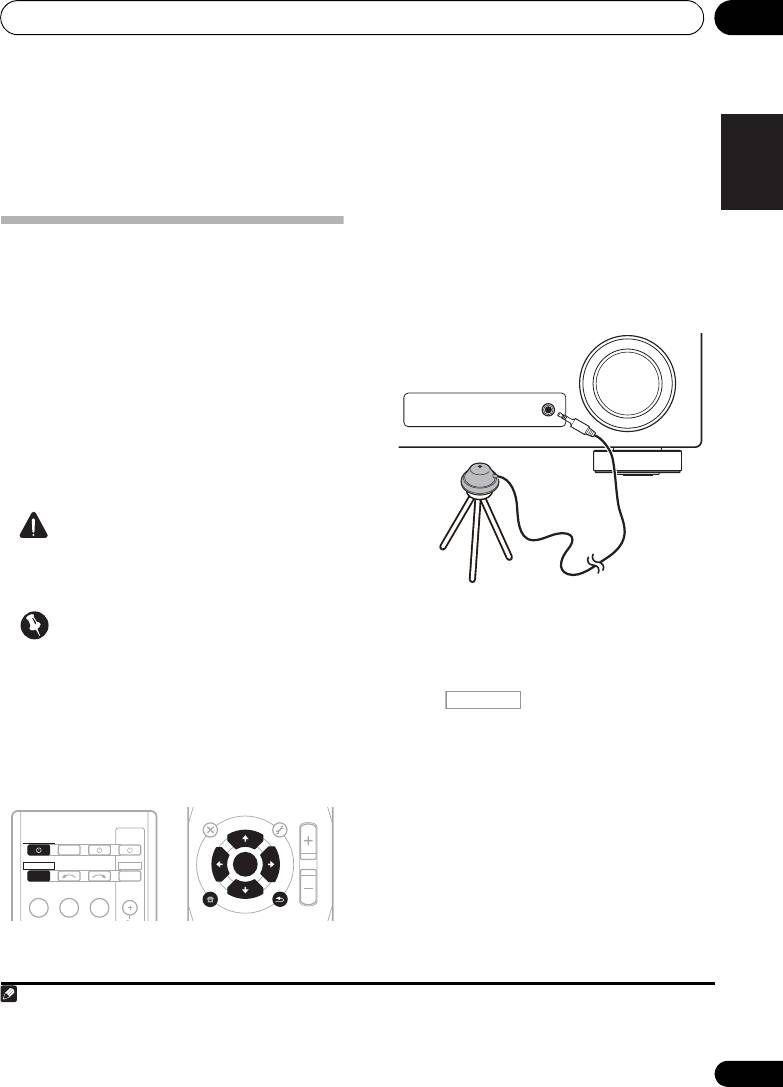
1 Switch on the receiver.
Automatically setting up for
2 Connect the microphone to the
MCACC
SETUP MIC
jack on the front panel.
surround sound (MCACC)
Make sure there are no obstacles between the
The Auto Multi-Channel Acoustic Calibration
speakers and the microphone.
(MCACC) setup measures the acoustic
characteristics of your listening area, taking
into account ambient noise, speaker size and
distance, and tests for both channel delay and
channel level. After you have set up the
microphone provided with your system, the
receiver uses the information from a series of
test tones to optimize the speaker settings and
equalization for your particular room.
CAUTION
• The test tones used in the Auto MCACC
Setup are output at high volume.
If you have a tripod, use it to place the
Important
microphone so that it’s about ear level at your
normal listening position. Otherwise, place the
• The Auto MCACC Setup will overwrite any
microphone at ear level using a table or a chair.
existing speaker settings you’ve made.
• If you connected either the surround back
3 Press on the remote control,
speaker or the front height speaker, make
then press the
SETUP
button.
sure that the Pre Out setting is correctly set
•Press SETUP at any time to exit the System
1
before performing the Auto MCACC Setup
Setup menu.
(see page 42).
4 Select ‘A.MCACC’ from the System
2
Setup menu then press ENTER.
Try to be as quiet as possible after pressing
ENTER. The system outputs a series of test
tones to establish the ambient noise level.
AUDIO
TUNER EDIT
MASTER
PARAMETER
TOOLS
VOLUME
U
N
E
MENU
TOP
T
MENU
E
T
P
R
S
E
E
ENTER
S
R
T
E
P
HOME
MENU
T
U
N
E
BAND
SETUP
RETURN
PTY SEARCH
RECEIVER
TV
SOURCESLEEP
CONTROL
RECEIVER
INPUT SELECT
DTV/TV
INPUT
BD DVD
TV
C
Note
1 The screensaver automatically starts after three minutes of inactivity. If you cancel the Auto MCACC Setup at any time, the
receiver automatically exits and no settings will be made.
2 MIC IN blinks when the microphone is not connected to MCACC SETUP MIC.
MASTER
VOLUME
MCACC SETUP MIC
Microphone
Tripod
VSX-520_SYXCN_En.book 27 ページ 2010年4月12日 月曜日 午後7時13分
RECEIVER

Basic Setup04
If the noise level is too high, NOISY! blinks in
Again, try to be as quiet as possible while this
the display for five seconds. To exit and check
is happening. It may take 1 to 3 minutes.
the noise levels again, press SETUP (see the
7 The Auto MCACC Setup has finished!
notes about ambient noise below) or press
The front panel MCACC indicator lights to
ENTER when you’re prompted to RETRY?.
show the surround settings are complete.
• Do not adjust the volume during the test
The settings made in the Auto MCACC Setup
tones. This may result in incorrect speaker
should give you excellent surround sound from
settings.
your system, but it is also possible to adjust
The system now checks the microphone and
these settings manually using the System
your speaker setup.
1
Setup menu (starting on page 39).
If you see an ERR message in the display, there
may be a problem with your mic or the speaker
Other problems when using the Auto
connections. Turn off the power, and check the
MCACC Setup
problem indicated by the ERR message (see
If the room environment is not optimal for the
below), then try the auto surround setup again.
Auto MCACC Setup (too much background
• ERR Fch – Check front speaker
noise, echo off the walls, obstacles blocking
connections.
the speakers from the microphone) the final
settings may be incorrect. Check for household
• ERR Sch – Check surround speaker
appliances (air conditioner, fridge, fan, etc.),
connections.
that may be affecting the environment and
• ERR SBch – Check surround back or front
switch them off if necessary. If there are any
height speaker connection.
instructions showing in the front panel display,
5 When you see CHECK OK in the display,
please follow them.
confirm your speaker configuration.
• Some older TVs may interfere with the
Use / to check each speaker in turn. YES or
operation of the microphone. If this seems
NO should reflect the actual speakers
to be happening, switch off the TV when
connected. If the speaker configuration
doing the Auto MCACC Setup.
displayed isn’t correct, use / to change
the setting. When you’re finished, go to the
next step.
6 Select CHECK OK in the display then press
ENTER
.
If the display in step 5 is left untouched for 10
seconds, and the ENTER button is not pressed
in Step 6, the Auto MCACC Setup will start
again from the beginning.
The receiver outputs more test tones to
determine the optimum receiver settings for
speaker setting, channel level, speaker
distance, and Acoustic Calibration EQ.
28
En
Note
VSX-520_SYXCN_En.book 28 ページ 2010年4月12日 月曜日 午後7時13分
1 • Depending on the characteristics of your room, sometimes identical speakers with cone sizes of around 12 cm will end up
with different size settings. You can correct the setting manually using the Speaker setting on page 40.
• The subwoofer distance setting may be farther than the actual distance from the listening position. This setting should be
accurate (taking delay and room characteristics into account) and generally does not need to be changed.
Listening to your system 05
29
En
English
Français
Español
Chapter 5:
Listening to your system
3 Press AUTO/DIRECT to select ‘AUTO
Important
SURROUND’ and start playback of the
3
• The listening modes and many features
source.
described in this section may not be
If you’re playing a Dolby Digital or DTS
available depending on the current source,
surround sound DVD disc, you should hear
settings and status of the receiver.
surround sound. If you are playing a stereo
source, you will only hear sound from the front
left/right speakers in the default listening
Basic playback
mode.
Here are the basic instructions for playing a
It is possible to check on the front panel
source (such as a DVD disc) with your home
display whether or not surround sound
theater system.
playback is being performed properly.
1 Switch on your system components and
When using a surround back speaker,
receiver.
2D+PLIIx is displayed when playing Dolby
Start by switching on the playback component
Digital 5.1-channel signals, and DTS+NEO:6 is
1
(for example a DVD player), your TV
and
displayed when playing DTS 5.1-channel
subwoofer (if you have one), then the receiver
signals.
(press RECEIVER).
When not using a surround back speaker, 2D
• Make sure the setup microphone is
is displayed when playing Dolby Digital
disconnected.
signals.
2 Select the input function you want to
If the display does not correspond to the input
play.
signal and listening mode, check the
You can use the input function buttons on the
connections and settings.
remote control, INPUT SELECT, or the front
4 Use the volume control to adjust the
2
panel INPUT SELECTOR dial.
volume level.
Turn down the volume of your TV so that all
sound is coming from the speakers connected
to this receiver.
Note
VSX-520_SYXCN_En.book 29 ページ 2010年4月12日 月曜日 午後7時13分
1 Make sure that the TV’s video input is set to this receiver (for example, if you connected this receiver to the VIDEO jacks on
your TV, make sure that the VIDEO input is now selected).
2 If you need to manually switch the input signal type press SIGNAL SEL (page 38).
3 • You may need to check the digital audio output settings on your DVD player or digital satellite receiver. It should be set to
output Dolby Digital, DTS and 88.2 kHz / 96 kHz PCM (2 channel) audio, and if there is an MPEG audio option, set this to convert
the MPEG audio to PCM.
• Depending on your DVD player or source discs, you may only get digital 2 channel stereo and analog sound. In this case, the
receiver must be set to a multichannel listening mode if you want multichannel surround sound.
Listening to your system05
• While listening to a source, press
STANDARD
.
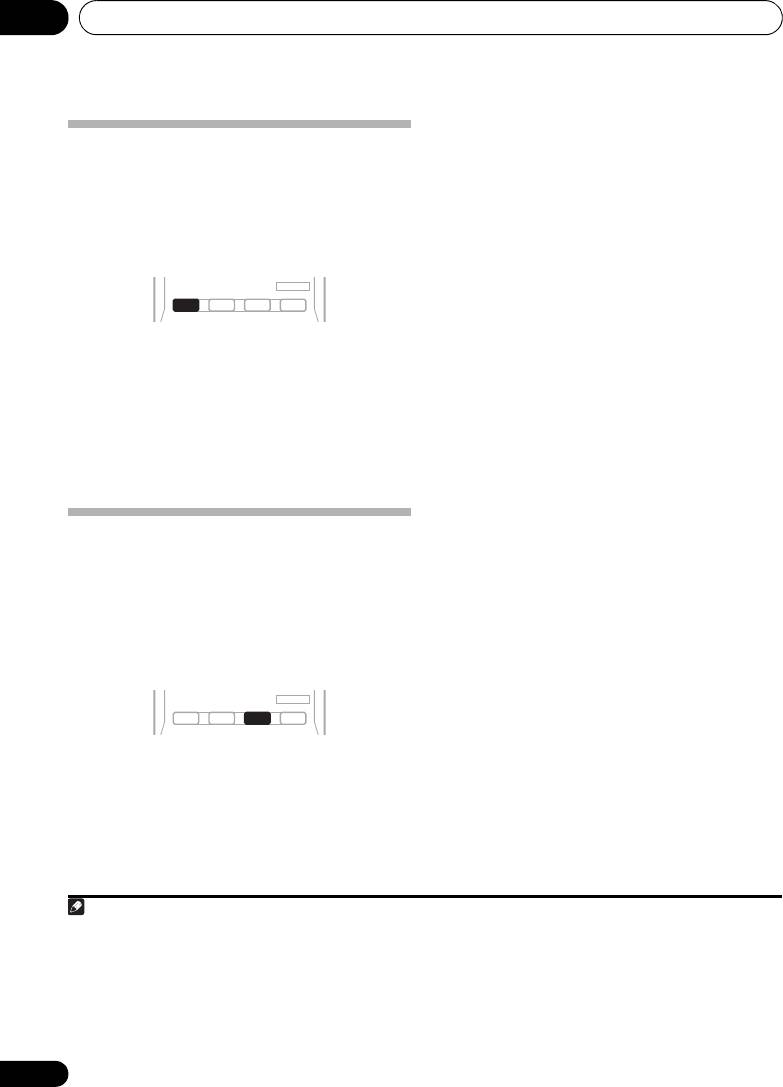
Auto playback
If the source is Dolby Digital, DTS, or Dolby
The simplest, most direct listening option is the
Surround encoded, the proper decoding
Auto Surround feature. With this, the receiver
format will automatically be selected and
automatically detects what kind of source
shows in the display.
you’re playing and selects multichannel or
1
When the surround back and front height
stereo playback as necessary.
speaker are not connected.
With two channel sources, you can select from:
• DOLBY PLII MOVIE – Up to 5.1 channel
sound, especially suited to movie sources
• While listening to a source, press
AUTO/
3
2
• DOLBY PLII MUSIC
– Up to 5.1 channel
DIRECT
for auto playback of a source.
sound, especially suited to music sources
Press repeatedly until AUTO SURROUND
• DOLBY PLII GAME – Up to 5.1 channel
shows briefly in the display (it will then show
sound, especially suited for video games
the decoding or playback format). Check the
digital format indicators in the display to see
• NEO:6 CINEMA – Up to 5.1 channel sound,
how the source is being processed.
especially suited to movie sources
• NEO:6 MUSIC – Up to 5.1 channel sound,
4
especially suited to music sources
Listening in surround sound
• DOLBY PRO LOGIC – 4.1 channel
surround sound
Using this receiver, you can listen to any source
in surround sound. However, the options
When the front height speaker is connected.
available will depend on your speaker setup and
With two channel sources, you can select from:
the type of source you’re listening to.
• DOLBY PLII MOVIE – See above
The following modes provide basic surround
• DOLBY PLII MUSIC – See above
sound for stereo and multichannel sources.
• DOLBY PLII GAME – See above
• DOLBY PLIIz HEIGHT – Up to 7.1 channel
5
sound
• NEO:6 CINEMA – See above
• NEO:6 MUSIC – See above
• DOLBY PRO LOGIC – See above
• Straight Decode – Plays back without the
DOLBY PLII, DOLBY PLIIz HEIGHT and
NEO:6 effects.
30
En
Note
AUTO/
STEREO/
BD MENU
DIRECT
A.L.C.
STANDARD
ADV SURR
1 Stereo surround (matrix) formats are decoded accordingly using NEO:6 CINEMA or DOLBY PLIIx MOVIE (see Listening in
surround sound above for more on these decoding formats).
2 For more options using this button, see Using Stream Direct on page 33.
AUTO/
STEREO/
BD MENU
DIRECT
A.L.C.
STANDARD
ADV SURR
VSX-520_SYXCN_En.book 30 ページ 2010年4月12日 月曜日 午後7時13分
3 When listening to 2-channel sources in DOLBY PLII MUSIC mode, there are three further parameters you can adjust:
C.WIDTH, DIMEN., and PNRM.. See Setting the Audio options on page 35 to adjust them.
4 When listening to 2-channel sources in NEO:6 CINEMA or NEO:6 MUSIC mode, you can also adjust the C.IMG effect (see
Setting the Audio options on page 35).
5 When listening to 2-channel sources in DOLBY PLIIz HEIGHT mode, you can also adjust the H.GAIN effect (see Setting the
Audio options on page 35).

Listening to your system 05
31
En
English
Français
Español
With multichannel sources, you can select
• DOLBY DIGITAL EX – Creates surround
from:
back channel sound for 5.1 channel
sources and provides pure decoding for
• DOLBY PLIIz HEIGHT – Up to 7.1 channel
1
6.1 channel sources (like Dolby Digital
sound
Surround EX)
• Straight Decode – Plays back without the
• DTS-ES – Allows you to hear 6.1 channel
DOLBY PLIIz HEIGHT effects.
playback with DTS-ES encoded sources
When the surround back speaker is
2
•
DTS
NEO:6
– Allows you to hear 6.1 channel
connected.
playback with DTS encoded sources
If you connected surround back speakers, see
also Using surround back channel processing
Using the Advanced surround effects
on page 34.
The Advanced surround feature creates a
With two channel sources, you can select from:
variety of surround effects.
Try different modes
• DOLBY PLIIx MOVIE – Up to 7.1 channel
with various soundtracks to see which you like.
sound, especially suited to movie sources
• DOLBY PLIIx MUSIC – Up to 7.1 channel
3
sound, especially suited to music sources
• DOLBY PLIIx GAME – Up to 7.1 channel
•Press
ADV SURR
repeatedly to select a
sound, especially suited to video games
listening mode.
• NEO:6 CINEMA – Up to 6.1 channel sound,
• ACTION – Designed for action movies with
especially suited to movie sources
dynamic soundtracks.
• NEO:6 MUSIC – Up to 6.1 channel sound,
• DRAMA – Designed for movies with lots of
4
especially suited to music sources
dialog.
• DOLBY PRO LOGIC – 4.1 channel
• ENT.SHOW –
Suitable for musical sources.
surround sound (sound from the surround
• ADVANCED GAME – Suitable for video
speakers is mono)
games.
With multichannel sources, if you have
• SPORTS – Suitable for sports programs.
connected surround back speaker(s) and have
• CLASSICAL – Gives a large concert hall-
selected SB ON, you can select (according to
type sound.
format):
• ROCK/POP – Creates a live concert sound
• DOLBY PLIIx MOVIE – See above (only
for rock and/or pop music.
available when you’re using two surround
back speakers)
• UNPLUGGED – Suitable for acoustic
music sources.
• DOLBY PLIIx MUSIC – See above
Note
VSX-520_SYXCN_En.book 31 ページ 2010年4月12日 月曜日 午後7時13分
AUTO/
STEREO/
BD MENU
DIRECT
A.L.C.
STANDARD
ADV SURR
1 When listening to 2-channel sources in DOLBY PLIIz HEIGHT mode, you can also adjust the H.GAIN effect (see Setting the
Audio options on page 35).
2 • If surround back channel processing (page 34) is switched off, or the surround back speakers are set to NO, DOLBY PLIIx
becomes DOLBY PLII (5.1 channel sound).
• In modes that give 6.1 channel sound, the same signal is heard from both surround back speakers.
3 When listening to 2-channel sources in DOLBY PLIIx MUSIC mode, there are three further parameters you can adjust:
C.WIDTH, DIMEN., and PNRM.. See Setting the Audio options on page 35 to adjust them.
4 When listening to 2-channel sources in NEO:6 CINEMA or NEO:6 MUSIC mode, you can also adjust the C.IMG effect
(see Setting the Audio options on page 35).
Listening to your system05
• EXT.STEREO – Gives multichannel sound
to a stereo source, using all of your
Using Front Stage Surround
speakers.
Advance
The Front Stage Surround Advance function
allows you to create natural surround sound
Listening in stereo
effects using just the front speakers and the
When you select STEREO you will hear the
subwoofer.
source through just the front left and right
speakers (and possibly your subwoofer
depending on your speaker settings). Dolby
Digital and DTS multichannel sources are
downmixed to stereo.
• While listening to a source, press
STEREO/
In the Auto level control stereo mode (ALC),
A.L.C.
to select Front Stage Surround Advance
this unit equalizes playback sound levels if
modes.
each sound level varies with the music source
• STEREO – See Listening in stereo above for
recorded in a portable audio player.
• ALC – See Listening in stereo above for
AUTO/
STEREO/
BD MENU
DIRECT
A.L.C.
STANDARD
ADV SURR
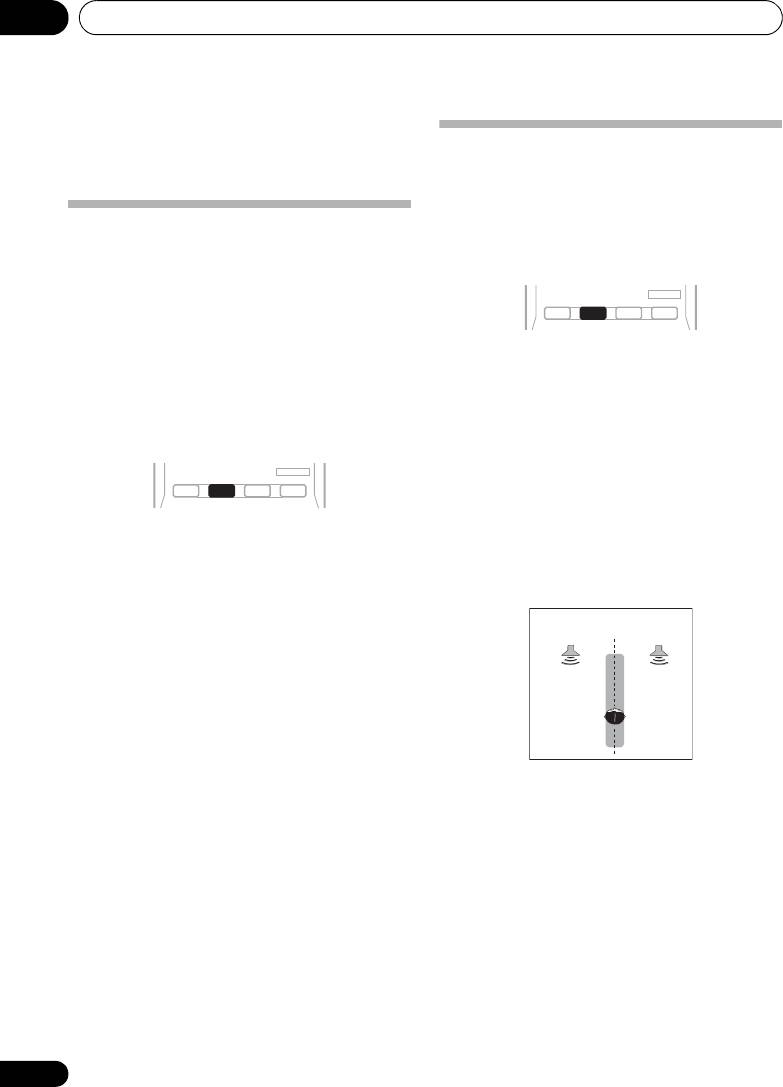
• F.S.S.ADVANCE – Use to provide a rich
surround sound effect directed to the
• While listening to a source, press
center of where the front left and right
STEREO/A.L.C.
for stereo playback.
speakers sound projection area converges.
Press repeatedly to switch between:
• STEREO – The audio is heard with your
surround settings and you can still use the
Midnight, Loudness, Phase Control, Sound
Retriever and Tone functions.
• ALC – Listening in Auto level control stereo
mode.
• F.S.S.ADVANCE – See Using Front Stage
Surround Advance below for more on this.
32
En
AUTO/
STEREO/
BD MENU
DIRECT
A.L.C.
STANDARD
ADV SURR
F.S.S.ADVANCE
position
Front left
Front right
speaker
speaker
VSX-520_SYXCN_En.book 32 ページ 2010年4月12日 月曜日 午後7時13分
Listening to your system 05
33
En
English
Français
Español
Using Stream Direct
Better sound using Phase
Use the Stream Direct modes when you want
Control
to hear the truest possible reproduction of a
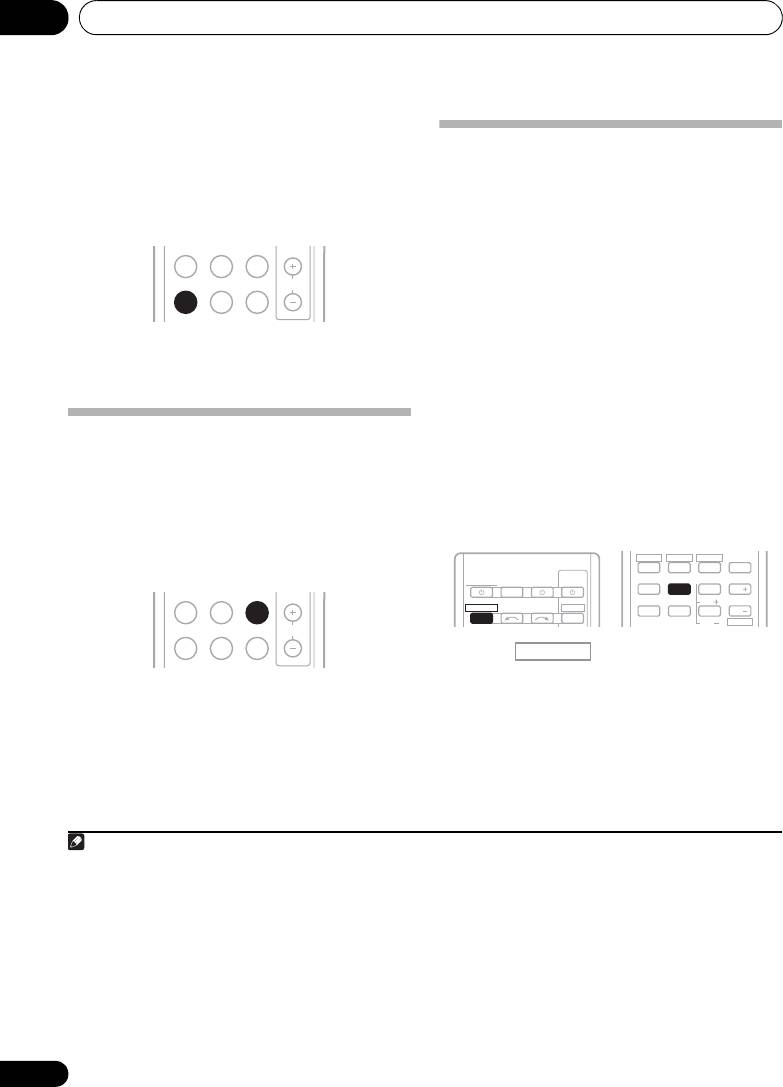
This receiver’s Phase Control feature uses
source. All unnecessary signal processing is
phase correction measures to make sure your
bypassed.
sound source arrives at the listening position
in phase, preventing unwanted distortion and/
or coloring of the sound (see illustration
below).
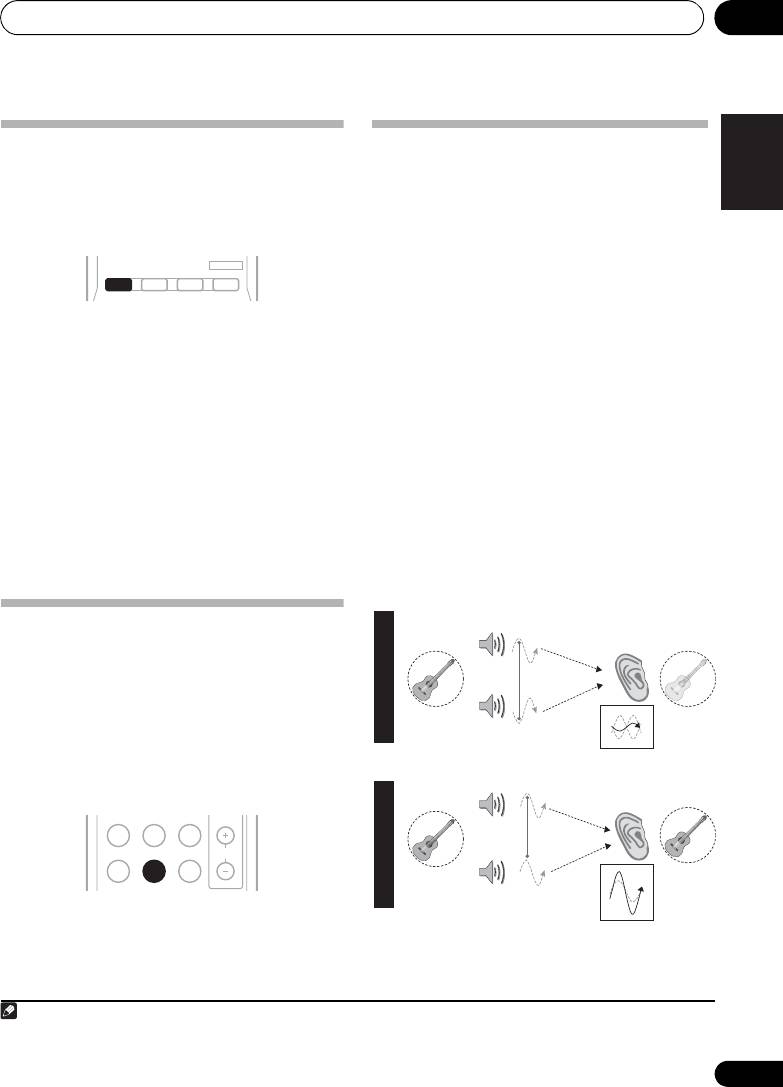
• While listening to a source, press
AUTO/
During multichannel playback, LFE (Low-
DIRECT
to select Stream Direct mode.
Frequency Effects) signals as well as low-
• AUTO SURROUND – See Auto playback on
frequency signals in each channel are
page 30.
assigned to the subwoofer or other the
subwoofer and the most appropriate speaker.
• DIRECT – Sources are heard according to
At least in theory, however, this type of
the settings made in the Surround Setup
processing involves a group delay that varies
(speaker setting, channel level, speaker
with frequency, resulting in phase distortion
distance), as well as with dual mono
1
where the low-frequency sound is delayed or
settings.
You will hear sources according
muffled by the conflict with other channels.
to the number of channels in the signal.
With the Phase Control mode switched on, this
• PURE DIRECT – Analog and PCM sources
receiver can reproduce powerful bass sound
are heard without any digital processing.
without deteriorating the quality of the original
sound (see illustration below).
Using the Sound Retriever
When audio data is removed during the
compression process, sound quality often
suffers from an uneven sound image. The
Sound Retriever feature employs new DSP
technology that helps bring CD quality sound
back to compressed 2-channel audio by
restoring sound pressure and smoothing
2
jagged artifacts left over after compression.
• Press
S.RETRIEVER to switch the sound
retriever on or off.
Note
1In the DIRECT mode, Phase Control, Sound Delay, Auto Delay, LFE Attenuate and Center image functions are available.
2 The Sound Retriever is only applicable to 2-channel sources.
AUTO/
STEREO/
BD MENU
DIRECT
A.L.C.
STANDARD
ADV SURR
VSX-520_SYXCN_En.book 33 ページ 2010年4月12日 月曜日 午後7時13分
P
H
Front speaker
Listening
A
S
position
E
C
?
O
N
T
R
O
L
O
Sound
F
F
source
Subwoofer
Front speaker
Listening
P
H
position
A
S
ADAPTER
TUNER
EQ
E
C
O
N
PHASE
S.RETRIEVER SIGNAL SEL
VOL
T
R
O
L
Sound
O
source
Subwoofer
N
Listening to your system05
Phase Control technology provides coherent
sound reproduction through the use of phase
Using surround back channel
1
matching
for an optimal sound image at your
processing
listening position. The default setting is on and
we recommend leaving Phase Control
You can have the receiver automatically use 6.1
switched on for all sound sources.
or 7.1 decoding for 6.1 encoded sources (for
example, Dolby Digital EX or DTS-ES), or you
can choose to always use 6.1 or 7.1 decoding
(for example, with 5.1 encoded material). With
5.1 encoded sources, a surround back channel
will be generated, but the material may sound
better in the 5.1 format for which it was
•Press
PHASE
to switch on phase to switch
originally encoded (in which case, you can
the Phase Control on or off.
simply switch surround back channel
processing off).
• With a 7.1-channel surround system, audio
Listening with Acoustic
signals that have undergone matrix
Calibration EQ
decoding processing through surround
You can listen to sources using the Acoustic
back channel processing to which the Up
Calibration Equalization set in Automatically
Mix function is added are output from the
setting up for surround sound (MCACC) on
surround back speakers.
page 27. Refer to these pages for more on
Acoustic Calibration Equalization.
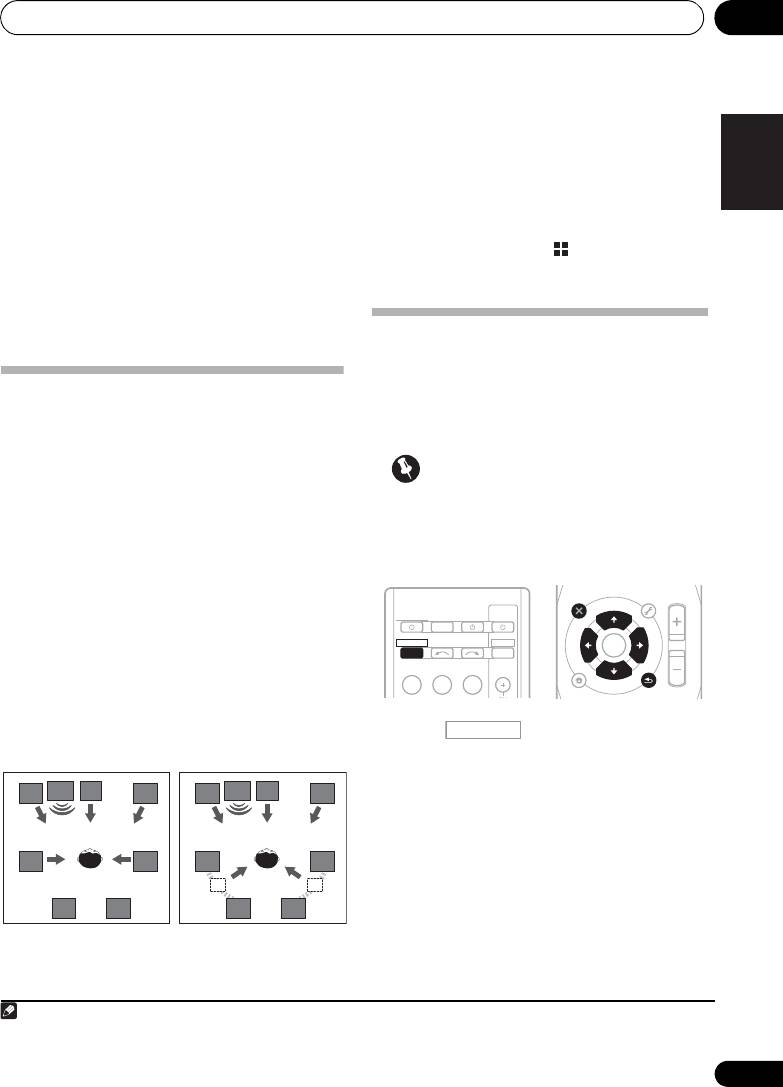
• Press , then press SB CH
repeatedly to cycle the surround back
• While listening to a source, press EQ to
channel options.
switch the Acoustic Calibration EQ on or
Each press cycles through the options as
off.
follows:
The MCACC indicator on the front panel lights
• SB ON –
Matrix decoding processing for
2
when Acoustic Calibration EQ is active.
generating the surround back component
from the surround component is turned on.
34
En
Note
1 Phase matching is a very important factor in achieving proper sound reproduction. If two waveforms are ‘in phase’, they crest
and trough together, resulting in increased amplitude, clarity and presence of the sound signal. If a crest of a wave meets a
trough (as shown in the upper section of the diagram above) then the sound will be ‘out of phase’ and an unreliable sound
image will be produced.
• If your subwoofer has a phase control switch, set it to the plus (+) sign (or 0°). However, the effect you can actually feel when
PHASE CONTROL is set to ON on this receiver depends on the type of your subwoofer. Set your subwoofer to maximize the
effect. It is also recommended you try changing the orientation or the place of your subwoofer.
• Set the built-in lowpass filter switch of your subwoofer to OFF. If this cannot be done on your subwoofer, set the cutoff
frequency to a higher value.
• If the speaker distance is not properly set, you may not have a maximized PHASE CONTROL effect.
• The PHASE CONTROL mode cannot be set to ON in the following cases:
– When the PURE DIRECT mode is switched on.
– When the headphones are connected.
2 You can’t use Acoustic Calibration EQ with Stream Direct mode and it has no effect with headphones.
ADAPTER
TUNER
EQ
PHASE
S.RETRIEVER SIGNAL SEL
VOL
ADAPTER
TUNER
EQ
PHASE
S.RETRIEVER SIGNAL SEL
VOL
HDD
1
2
RECEIVER
TV
SOURCESLEEP
CONTROL
4
5
MIDNIGHT
SPEAKERS
LEV
RECEIVER
INPUT SELECT
DTV/TV
7
8
INPUT
DIMMER
LEV
DVD
VCR
3
DISP
SB CH
CH SELECT
6
CH
9
CH
SHIFT
RECEIVER
VSX-520_SYXCN_En.book 34 ページ 2010年4月12日 月曜日 午後7時13分
Listening to your system 05
35
En
English
Français
Español
• SB AUTO – Matrix decoding processing for
2 While holding down the
PRESET
on
generating the surround back component
the front panel, and hold the
STANDBY/
from the surround component is switched
ON
for about two seconds.
automatically. Matrix decoding processing
UP MIX: OFF appears and the Up Mix function
is only performed when surround back
turns off. If you want to turn this function on,
channel signals are detected in the input
perform steps 1 and 2 again.
signals.
• When set to ON, the (Up Mix) indicator
• SB OFF – Matrix decoding processing for
on the front panel lights.
generating the surround back component
from the surround component is turned
off.
Setting the Audio options
There are a number of additional sound
settings you can make using the AUDIO
Setting the Up Mix function
PARAMETER menu. The defaults, if not
In a 7.1-channel surround system with
stated, are listed in bold.
surround speakers placed directly at the sides
of the listening position, the surround sound of
Important
5.1-channel sources is heard from the side. The
Up Mix function mixes the sound of the
• Note that if a setting doesn’t appear in the
surround speakers with the surround back
AUDIO PARAMETER menu, it is
speakers so that the surround sound is heard
unavailable due to the current source,
1
from diagonally to the rear as it should be.
settings and status of the receiver.
• Using the Up Mix function is effective when
the speakers in the 7.1-channel surround
system are set up as recommended in the
example on page 26.
• Depending on the positions of the speakers
and the sound source, in some cases it
may not be possible to achieve good
results. In this case, set the setting to OFF.
1 Press on the remote control,
then press
AUDIO PARAMETER
button.
2Use
/
to select the setting you want to
adjust.
Depending on the current status/mode of the
receiver, certain options may not be able to be
selected. Check the table below for notes on this.
3Use
/
to set it as necessary.
See the table below for the options available for
each setting.
1 Switch the receiver into standby.
4 Press RETURN to confirm and exit the
menu.
Note
1• Set to ON regardless of this setting when playing DTS-HD signals.
• May automatically be set to OFF even when set to ON, depending on the input signal and listening mode.
UP MIX OFF UP MIX ON
L R
SW
C
L R
SW
C
SL SR
SL SR
SBL SBR SBL SBR
AUDIO
TUNER EDIT
MASTER
PARAMETER
TOOLS
VOLUME
TOP
T
U
N
E
MENU
MENU
T
R
P
E
E
E
S
ENTER
R
E
S
P
T
HOME
MENU
T
U
N
E
BAND
SETUP
RETURN
TV
SOURCESLEEP
CONTROL
INPUT SELECT
INPUT
BD DVD
TV
CH
VSX-520_SYXCN_En.book 35 ページ 2010年4月12日 月曜日 午後7時13分
RECEIVER
RECEIVER
DTV/TV
RECEIVER
VSX-520_SYXCN_En.book 36 ページ 2010年4月12日 月曜日 午後7時13分
Listening to your system05
Setting What it does Option(s)
EQ
Switches on/off the effect of Acoustic Calibration EQ. ON
(Acoustic Calibration
OFF
EQ)
S.DELAY
Some monitors have a slight delay when showing video, so
0.0 to 9.0 (frames)
(Sound Delay)
the soundtrack will be slightly out of sync with the picture.
1 second = 25 frames
By adding a bit of delay, you can adjust the sound to match
(PAL)
the presentation of the video.
Default: 0.0
a
Allows you to hear effective surround sound of movies at
M/L OFF
MIDNIGHT
low volumes.
MIDNIGHT
a
Used to get good bass and treble from music sources at
LOUDNESS
low volumes.
LOUDNESS
b
When audio data is removed during the compression
OFF
S.RTV
process, sound quality often suffers from an uneven sound
(Sound Retriever)
ON
image. The Sound Retriever feature employs new DSP
technology that helps bring CD quality sound back to
compressed 2-channel audio by restoring sound pressure
and smoothing jagged artifacts left over after
compression.
c
Specifies how dual mono encoded Dolby Digital
CH1 –
DUAL MONO
soundtracks should be played.
Channel 1 is heard only
CH2 –
Channel 2 is heard only
CH1 CH2 –
Both channels heard
from front speakers
DRC
Adjusts the level of dynamic range for movie soundtracks
d
AUTO
(Dynamic Range
optimized for Dolby Digital, DTS, Dolby Digital Plus, Dolby
Control)
TrueHD, DTS-HD and DTS-HD Master Audio (you may
MAX
need to use this feature when listening to surround sound
MID
at low volumes).
OFF
LFE ATT
Some Dolby Digital and DTS audio sources include ultra-
0 (0 dB)
(LFE Attenuate)
low bass tones. Set the LFE attenuator as necessary to
5 (–5 dB)
prevent the ultra-low bass tones from distorting the sound
from the speakers.
10 (–10 dB)
The LFE is not limited when set to 0 dB, which is the
15 (–15 dB)
recommended value. When set to –15 dB, the LFE is
limited by the respective degree. When OFF is selected, no
20 (–20 dB)
sound is output from the LFE channel.
** (OFF)
e
Brings out detail in SACDs by maximizing the dynamic
0 (dB)
SACD G.
range (during digital processing).
(SACD Gain)
+6 (dB)
36
En
Listening to your system 05
37
En
English
Français
Español
VSX-520_SYXCN_En.book 37 ページ 2010年4月12日 月曜日 午後7時13分
Setting What it does Option(s)
HDMI
Specifies the routing of the HDMI audio signal out of this
AMP
(HDMI Audio)
receiver (amp) or through to a TV. When THRU is selected,
THRU
no sound is output from this receiver.
A.DLY
This feature automatically corrects the audio-to-video delay
OFF
(Auto Delay)
between components connected with an HDMI cable. The
ON
audio delay time is set depending on the operational status
of the display connected with an HDMI cable. The video
delay time is automatically adjusted according to the audio
f
delay time.
g
Spreads the center channel between the front right and left
0 to 7
C.WIDTH
speakers, making it sound wider (higher settings) or
Default: 3
(Center Width)
narrower (lower settings).
(Applicable only when
using a center speaker)
g
Adjusts the surround sound balance from front to back,
–3 to +3
DIMEN.
making the sound more distant (minus settings), or more
(Dimension)
Default: 0
forward (positive settings).
g
Extends the front stereo image to include surround
OFF
PNRM.
speakers for a ‘wraparound’ effect.
(Panorama)
ON
h
Adjust the center image to create a wider stereo effect with
0 to 10
C.IMG
(Center image)
vocals. Adjust the effect from 0 (all center channel sent to
Default: 3
(Applicable only when
front right and left speakers) to 10 (center channel sent to
(NEO:6 MUSIC),
using a center speaker)
the center speaker only).
10 (NEO:6 CINEMA)
H.GAIN
Adjusts the output from the front height speaker when
L (Low)
(Height Gain)
listening in DOLBY PLIIz HEIGHT mode. If set to H, the
M (Mid)
sound from the top will be more emphasized.
H (High)
a. You can change the MIDNIGHT/LOUDNESS options at any time by using MIDNIGHT button.
b. You can change the Sound Retriever feature at any time by using S.RETRIEVER button.
c. This setting works only with dual mono encoded Dolby Digital and DTS soundtracks.
d. The initial set AUTO is only available for Dolby TrueHD signals. Select MAX or MID for signals other than
Dolby TrueHD.
e. You shouldn’t have any problems using this with most SACD discs, but if the sound distorts, it is best to
switch the gain setting back to 0 dB.
f. This feature is only available when the connected display supports the automatic audio/video synchronizing
capability (‘lip-sync’) for HDMI. If you find the automatically set delay time unsuitable, set A.DLY to OFF and
adjust the delay time manually. For more details about the lip-sync feature of your display, contact the
manufacturer directly.
g. Only available with 2-channel sources in DOLBY PLII MUSIC mode.
h. Only when listening to 2-channel sources in NEO:6 CINEMA and NEO:6 MUSIC mode.

Listening to your system05
Choosing the input signal
Using the headphone
On this receiver, it is possible to switch the
• Insert the headphone into the PHONES
input signals for the different inputs as
1
jack.
described below.
The sound is heard from the headphone and no
•Press
SIGNAL SEL
to select the input
sound is heard from the speakers connected to
signal corresponding to the source
this receiver. The listening mode when the
component.
sound is heard from the headphone can be
When DIGITAL (C1/O1/O2) or HDMI (H) is
selected only from STEREO or ALC.
selected and the selected audio input is not
provided, A (analog) is automatically selected.
Each press cycles through the following:
• A – Selects the analog inputs.
• DIGITAL – Selects the digital input. The
coaxial 1 input is selected for C1, and the
optical 1 or 2 audio input is selected for
O1 or O2.
• HDMI – Selects an HDMI signal. H can be
selected for BD, DVD or TV/SAT input. For
2
other inputs, HDMI cannot be selected.
When set to DIGITAL or HDMI, 2 lights when
a Dolby Digital signal is input, and DTS lights
when a DTS signal is input.
When the HDMI is selected, the A and
DIGITAL indicators are off (see page 12).
38
En
Note
VSX-520_SYXCN_En.book 38 ページ 2010年4月12日 月曜日 午後7時13分38
1 • When digital input (optical or coaxial) is selected, this receiver can only play back Dolby Digital, PCM (32 kHz to 96 kHz) and
DTS (including DTS 96 kHz / 24 bit) digital signal formats. The compatible signals via the HDMI terminals are: Dolby Digital,
DTS, SACD (DSD 2 ch), PCM (32 kHz to 192 kHz sampling frequencies), Dolby TrueHD, Dolby Digital Plus, DTS-EXPRESS, DTS-
HD Master Audio and DVD Audio (including 192 kHz). With other digital signal formats, set to A (analog).
• You may get digital noise when a LD or CD player compatible with DTS is playing an analog signal. To prevent noise, make
the proper digital connections (page 22) and set the signal input to C1/O1/O2 (DIGITAL).
• Some DVD players don’t output DTS signals. For more details, refer to the instruction manual supplied with your DVD player.
2 When the HDMI option in Setting the Audio options on page 35 is set to THRU, the sound will be heard through your TV, not
from this receiver.
The System Setup menu 06
39
En
English
Français
Español
Chapter 6:
The System Setup menu
These settings are designed to fine-tune your
system, but if you’re satisfied with the settings
Using the System Setup menu
made in Automatically setting up for surround
The following section shows you how to make
sound (MCACC) on page 27, it isn’t necessary
detailed settings to specify how you’re using
to make all of these settings.
the receiver. It also explains how to fine-tune
individual speaker system settings.
CAUTION
RECEIVER
TV
• The test tones used in the System Setup
SOURCESLEEP
CONTROL
are output at high volume.
RECEIVER
INPUT SELECT
DTV/TV
INPUT
BD DVD
TV
Important
• Depending on the PRE OUT setting, there
1 Press on the remote control,
will be differences in the speaker items that
then press the
SETUP
button.
can be adjusted.
2Use
/
to select the setting you want to
1 Select ‘SP SETUP’ from the System Setup
adjust then press
ENTER
.
menu.
• A.MCACC – This is a quick and effective
automatic surround setup (see
2Use
/
to select the setting you want to
Automatically setting up for surround
adjust then press
ENTER
.
sound (MCACC) on page 27).
• SP SET – Specify size / number of speakers
connected (see Speaker setting on
• SP SETUP – Specify the size, number,
page 40).
distance and overall balance of the
speakers you’ve connected (see Manual
• X.OVER – Specify which frequencies will
speaker setup below).
be sent to the subwoofer (see Crossover
network on page 41).
• IN ASSIG – Specify what you’ve connected
to the component video inputs (see The
• CH LEVEL – Adjust overall balance of your
Input Assign menu on page 42).
speaker system (see Channel level on
page 41).
• PRE OUT – Specify how to use the PRE
OUT outputs (see The Pre Out Setting on
• SP DISTN – Specify the distance of your
page 42).
speakers from the listening position (see
Speaker distance on page 41).
3Press
RETURN
after making the
Manual speaker setup
adjustments necessary for each setting.
These setting optimize surround sound
performance. You only need to make these
settings once (unless you change the
placement of your current speaker system or
add new speakers).
AUDIO
TUNER EDIT
MASTER
PARAMETER
TOOLS
VOLUME
U
N
E
MENU
TOP
T
MENU
P
R
E
E
S
E
T
ENTER
S
T
E
P
R
HOME
MENU
SETUP
T
U
N
E
BAND
CATEGORY
RETURN
RECEIVER
VSX-520_SYXCN_En.book 39 ページ 2010年4月12日 月曜日 午後7時13分

The System Setup menu06
Speaker setting
• Surround (S) – Select LARGE if your
surround speakers reproduce bass
Use this setting to specify your speaker
frequencies effectively. Select SMALL to
configuration (size, number of speakers). It is a
send bass frequencies to the other
good idea to make sure that the settings made
speakers or subwoofer. If you didn’t
in Automatically setting up for surround sound
connect surround speakers choose NO
(MCACC) on page 27 are correct.
(the sound of the surround channels is
1 Select ‘SP SET’ from the SP SETUP menu.
sent to the other speakers).
3
2Use
/
to choose the speaker(s) that
• Surround Back (SB)
– Select the number
you want to set then select a speaker size.
of surround back speakers you have (one,
4
Use / to select the size (and number) of
two or none).
Select LARGE if your
each of the following speakers:
surround back speakers reproduce bass
frequencies effectively. Select SMALL to
• Front (F) – Select LARGE if your front
send bass frequencies to the other
speakers reproduce bass frequencies
speakers or subwoofer. If you didn’t
effectively, or if you didn’t connect a
connect surround back speakers choose
subwoofer. Select SMALL to send the bass
NO.
1
frequencies to the subwoofer.
• Subwoofer (SW) – LFE signals and bass
• Center (C) – Select LARGE if your center
frequencies of channels set to SMALL are
speaker reproduces bass frequencies
output from the subwoofer when YES is
effectively, or select SMALL to send bass
5
selected.
Choose the PLUS setting if you
frequencies to the other speakers or
want the subwoofer to output bass sound
subwoofer. If you didn’t connect a center
continuously or you want deeper bass (the
speaker, choose NO (the center channel is
bass frequencies that would normally
sent to the other speakers).
come out the front and center speakers are
2
• Front Height (FH)
– Select LARGE if your
also routed to the subwoofer). If you did not
front height speakers reproduce bass
connect a subwoofer choose NO (the bass
frequencies effectively. Select SMALL to
frequencies are output from other
send bass frequencies to the other
speakers).
speakers or subwoofer. If you didn’t
connect front height speakers choose NO.
40
En
Note
VSX-520_SYXCN_En.book 40 ページ 2010年4月12日 月曜日 午後7時13分
1 If you select SMALL for the front speakers, the subwoofer will automatically be fixed to YES. Also, the center, surround,
surround back and front height speakers can’t be set to LARGE if the front speakers are set to SMALL. In this case, all bass
frequencies are sent to the subwoofer.
2 • You can only adjust this setting when PRE OUT is set to HEIGHT.
• If the surround speakers are set to NO, the front height speakers will automatically be set to NO.
3 You can only adjust the this setting when PRE OUT is set to SURR.BACK.
4 • If the surround speakers are set to NO, the surround back speakers will automatically be set to NO.
• If you select one surround back speaker only, make sure that additional amplifier is hooked up to the PRE OUT L (Single)
terminal.
5 If you can’t get good bass results, listen to the bass response with the subwoofer set to PLUS and YES or the front speakers
set to LARGE and SMALL alternatively and let your ears judge which sounds best. If you’re having problems, the easiest option
is to route all the bass sounds to the subwoofer by selecting SMALL for the front speakers.
