
Pioneer DDJ-SX: Installation procedure (Mac OS X)
Installation procedure (Mac OS X): Pioneer DDJ-SX
Table of contents
- Operating Environment IMPORTANT
- POWER-CORD CAUTION WARNING
- Contents
- Before start What’s in the box Installing the software Installation Procedure (Windows)
- Installation procedure (Mac OS X)
- 11 If the following screen appears, drag and drop the [Serato DJ] icon on the [Applications] folder icon.
- Operation Connections
- 6 Connect the AC adapter. 7 Press the [STANDBY/ON] switch on this unit’s rear panel to turn this unit’s power on. 8 Turn on the power of the devices connected to the output terminals (powered speakers, power amplifier, components, etc.).
- Starting the system Launching Serato DJ
- Importing tracks Loading tracks and playing them
- Playing tracks and outputting the sound
- Monitoring sound with headphones Quitting the system Names of Parts
- Deck section Mixer section
- Acquiring the manual Downloading this unit’s operating Downloading the Serato DJ software manual
- About the AC adapter
- Mounting the power plug Removing the power plug Power plug
- Additional information
6
En
—
Once user account registration is completed, you will receive
an e-mail at the e-mail address you have input. Check the
contents of the e-mail sent from “Serato.com”.
Be careful not to forget the e-mail address and password speci-
fied when you performed user registration. They will be required
for updating the software.
The personal information input when registering a new user
account may be collected, processed and used based on the
privacy policy on the Serato website.
9 Click the link in the e-mail message sent from “Serato.
com”.
This takes you to the Serato DJ download page. Proceed to step 11.
10 Log in.
Input the e-mail address and password you have registered to log in to
“Serato.com”.
11 Download the Serato DJ software from the download
page.
Unzip the downloaded file, then double-click the unzipped file to launch
the installer.
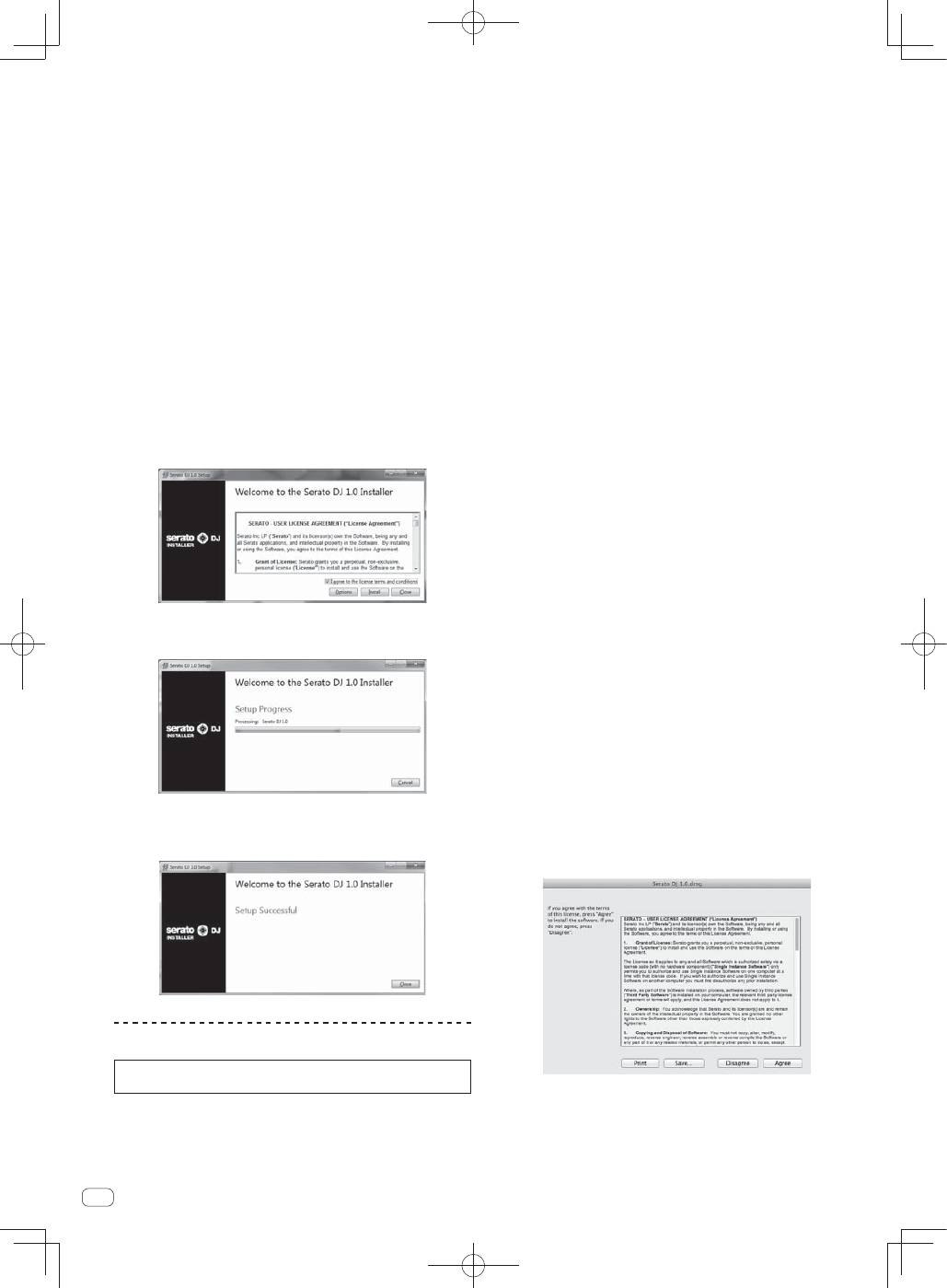
12 Read the terms of the license agreement carefully,
and if you agree, select [I agree to the license terms and
conditions], then click [Install].
If you do not agree to the contents of the usage agreement, click
[
Close
] to cancel installation.
Installation begins.
The message of successful installation appears once installation is
completed.
13 Click [Close] to quit the Serato DJ installer.
Installation procedure (Mac OS X)
Do not connect this unit and the computer until installation is
completed.
If any other programs are running on the computer, quit them.
1 Insert the CD-ROM into the computer’s optical drive.
The CD-ROM menu is displayed.
If the CD-ROM menu does not appear on the screen when the
CD-ROM is inserted, open the optical driver from Finder, then dou-
ble-click the [
CD_menu.app
] icon.
2 Select [Install DJ Software (Serato DJ/Download)]
from the CD-ROM’s menu, then click [Start].
3 “An internet environment is required to access the
site. Connected to the internet?” is displayed. Click [Yes].
The web browser is launched and the Pioneer DJ support site is
displayed.
4 Click [Software Info] under [DDJ-SX] on the Pioneer
DJ support site.
[
Serato DJ Support Information
] is displayed.
5 Click the link to the Serato DJ download page.
The Serato DJ download page is displayed.
6 Log in to your “Serato.com” user account.
If you have already registered a user account on “Serato.com”,
proceed to step 8.
If you have not completed registering your user account, do so
following the procedure below.
—
Following the instructions on the screen, input your e-mail
address and the password you want to set, then select the
region in which you live.
—
If you check [
E-mail me Serato newsletters
], newsletters
providing the latest information on Serato products will be
sent from Serato.
—
Once user account registration is completed, you will receive
an e-mail at the e-mail address you have input. Check the
contents of the e-mail sent from “Serato.com”.
Be careful not to forget the e-mail address and password speci-
fied when you performed user registration. They will be required
for updating the software.
The personal information input when registering a new user
account may be collected, processed and used based on the
privacy policy on the Serato website.
7 Click the link in the e-mail message sent from “Serato.
com”.
This takes you to the Serato DJ download page. Proceed to step 9.
8 Log
in.
Input the e-mail address and password you have registered to log in to
“Serato.com”.
9 Download the Serato DJ software from the download
page.
Unzip the downloaded file, then double-click the unzipped file to launch
the installer.
10 Read the terms of the license agreement carefully,
and if you agree, click [Agree].
If you do not agree to the contents of the usage agreement, click
[
Disagree
] to cancel installation.
