
Pioneer DDJ-SX: Importing tracks Loading tracks and playing them
Importing tracks Loading tracks and playing them: Pioneer DDJ-SX
Table of contents
- Operating Environment IMPORTANT
- POWER-CORD CAUTION WARNING
- Contents
- Before start What’s in the box Installing the software Installation Procedure (Windows)
- Installation procedure (Mac OS X)
- 11 If the following screen appears, drag and drop the [Serato DJ] icon on the [Applications] folder icon.
- Operation Connections
- 6 Connect the AC adapter. 7 Press the [STANDBY/ON] switch on this unit’s rear panel to turn this unit’s power on. 8 Turn on the power of the devices connected to the output terminals (powered speakers, power amplifier, components, etc.).
- Starting the system Launching Serato DJ
- Importing tracks Loading tracks and playing them
- Playing tracks and outputting the sound
- Monitoring sound with headphones Quitting the system Names of Parts
- Deck section Mixer section
- Acquiring the manual Downloading this unit’s operating Downloading the Serato DJ software manual
- About the AC adapter
- Mounting the power plug Removing the power plug Power plug
- Additional information
11
En
English
Importing tracks
The following describes the typical procedure for importing tracks.
There are various ways to import tracks with the Serato DJ software. For details, see the Serato DJ software manual.
If you are already using Serato DJ software (Scratch Live, ITCH or Serato DJ Intro) and have already created track libraries, the track libraries you
have previously created can be used as such.
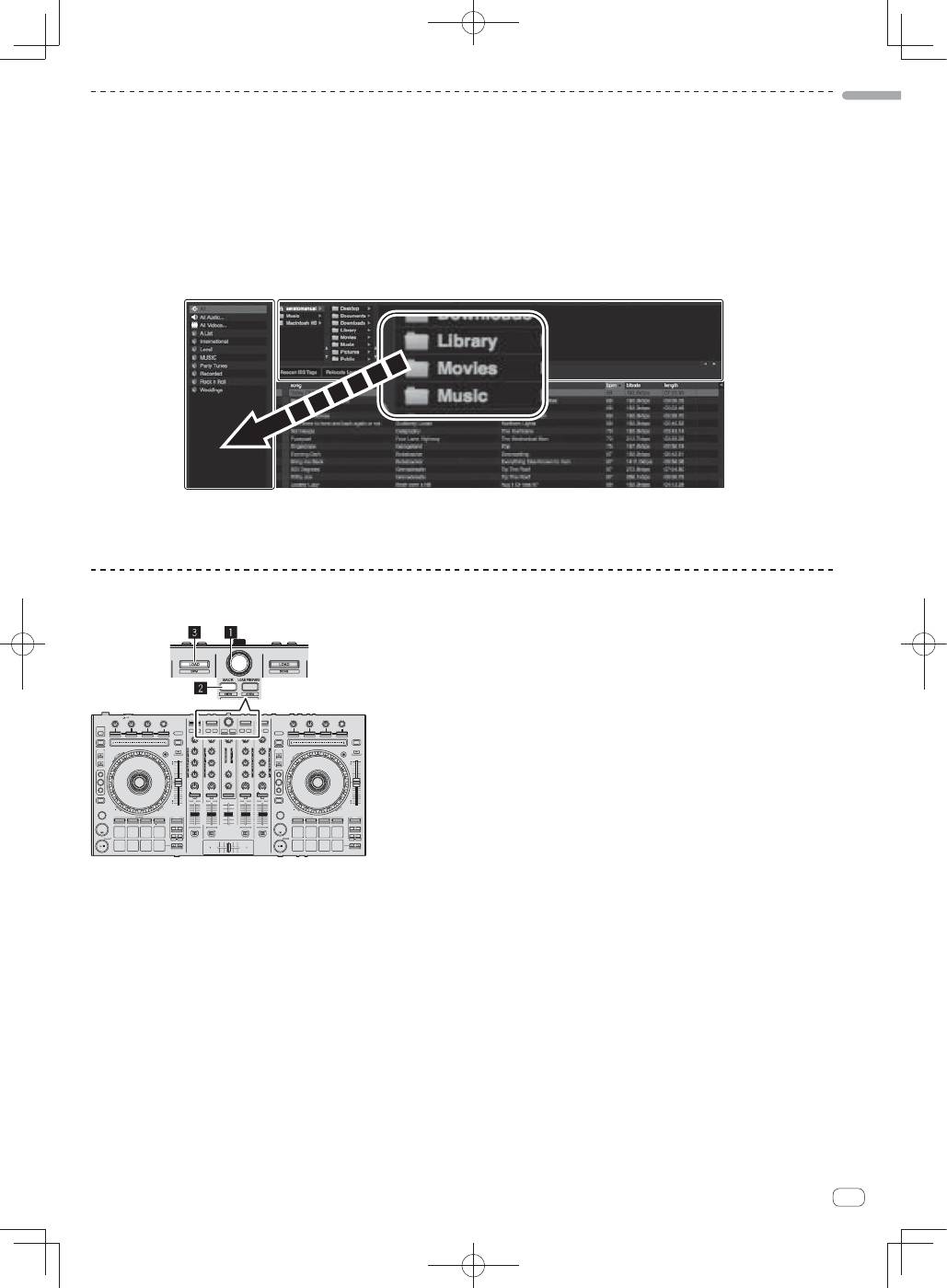
1 Click the [Files] key on the Serato DJ software screen to open the [Files] panel.
The contents of your computer or the peripheral connected to the computer are displayed in the [
Files
] panel.
2 Click the folder on the [Files] panel containing the tracks you want to add to the library to select it.
3 On the Serato DJ software’s screen, drag and drop the selected folder to the crates list panel.
A crate is created and the tracks are added to the library.
a
b
a
[
Files
] panel
b
Crates panel
Loading tracks and playing them
The following describes the procedure for loading tracks into deck [
1
] as an example.
1
Rotary selector
2
BACK button
3
LOAD button
1 Press this unit’s [BACK] button, move the cursor to the crates panel on the computer’s screen, then turn the rotary
selector to select the crate, etc.
