
Pioneer DDJ-S1: Starting the system Launching Serato DJ
Starting the system Launching Serato DJ: Pioneer DDJ-S1
Table of contents
- DJ Controller
- Operating Environment POWER-CORD CAUTION
- IMPORTANT
- The Safety of Your Ears is in Your Hands ESTABLISH A SAFE LEVEL: BE SURE TO OBSERVE THE FOLLOWING GUIDELINES:
- IMPORTANT
- For Europe
- Contents
- Before start What’s in the box Installing the software Before installing the software About the installation procedure About the driver software (Windows) Installation Procedure (Windows) About the Serato DJ software
- Installation procedure (Mac OS X)
- Checking the version of the driver software About the driver software and setting utility software
- Basic Operation 3 Connect this unit to your computer via a USB cable. Connections 1 Connect headphones to one of the [PHONES] terminals. 4 Turn on the computer’s power. 5 Connect the power plug to the AC adapter. 2 Connect powered speakers, a power amplifier, components, etc., to the [MASTER OUT 1] or [MASTER OUT 2] terminals.
- 6 Connect the AC adapter. 7 Slide the [ON/OFF] switch to the [ON] side. 8 Turn on the power of the devices connected to the output terminals (powered speakers, power amplifier, components, etc.).
- Starting the system Launching Serato DJ
- Importing tracks Loading tracks and playing them
- Playing tracks and outputting the sound Monitoring sound with headphones Quitting the system
- Part names and functions Browser section Deck section
- Mixer section Microphone/External input control section Front panel Effect section
- About the AC adapter Safety instructions Mounting the power plug
- Power plug
- Additional information Acquiring the manual Downloading the latest version of these operating instructions About trademarks and registered trademarks Cautions on copyrights Specifications Downloading the Serato DJ software manual
- For U.S.A. and Canada
English
Starting the system
Launching Serato DJ
For Windows
From the Windows [Start] menu, click the [Serato DJ] icon under [All Programs] > [Serato] > [Serato DJ].
For Mac OS X
In Finder, open the [Applications] folder, then click the [Serato DJ] icon.
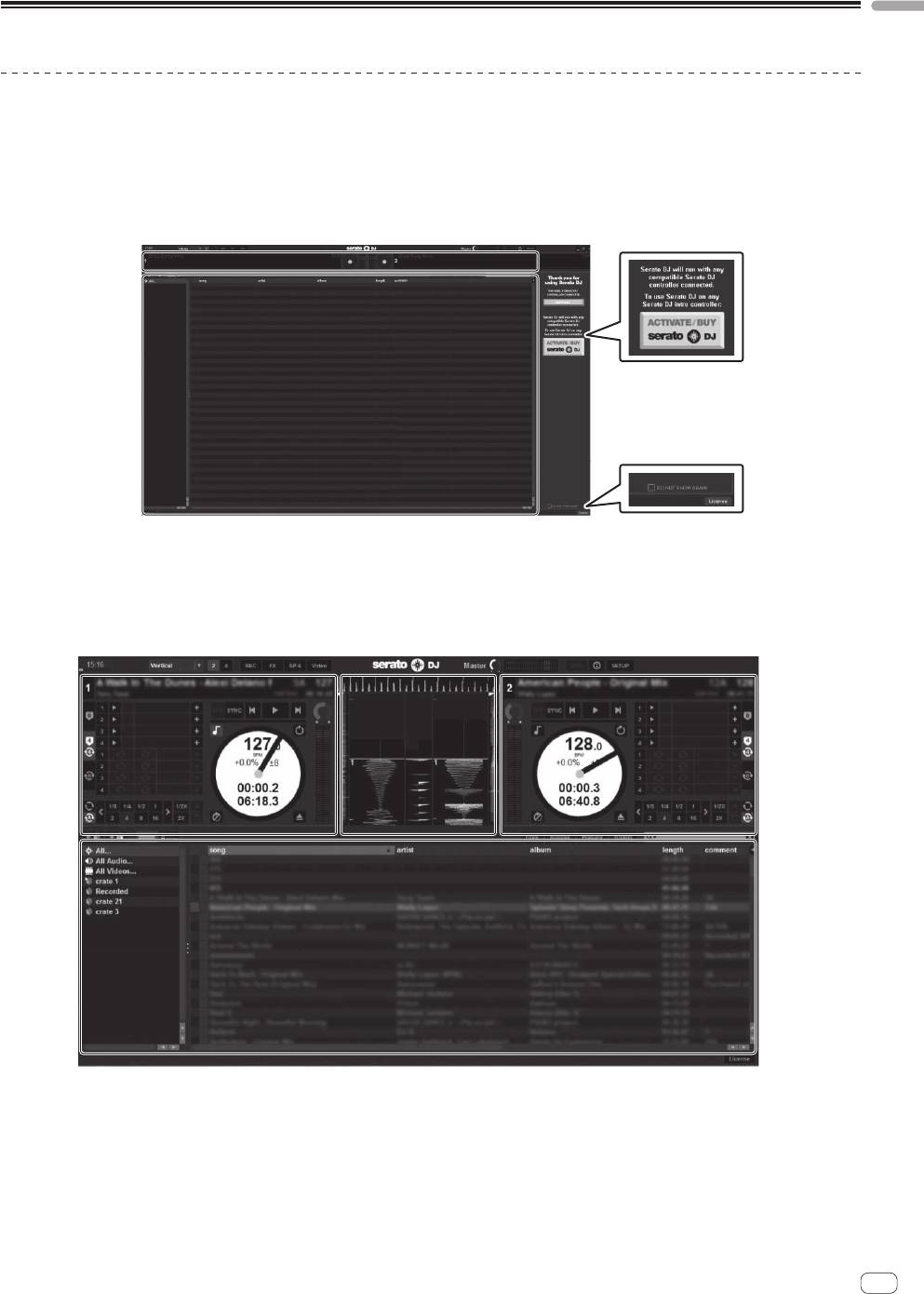
Computer screen directly after the Serato DJ software is launched
A
1
C
2
1 The [ACTIVATE/BUY Serato DJ] icon may appear on the right side of the screen that is displayed when Serato DJ is launched the first time, but
there is no need to activate or purchase a license for those using DDJ-S1 Serato DJ Edition.
2 Check [DO NOT SHOW AGAIN] at the bottom right of the screen, then click [License] and continue to use Serato DJ as such.
Computer screen when a track is loaded in the Serato DJ software
Click [Library] at the upper left of the computer screen, then select [Vertical] from the pull-down menu to switch the Serato DJ screen.
En
13
AAB
C
A Deck section
The track information (the name of the loaded track, artist name, BPM, etc.), the overall waveform and other information is displayed here.
B Waveform display
The loaded track’s waveform is displayed here.
C Browser section
Crates in which tracks in the library or sets of multiple tracks are stored are displayed here.
This manual consists mainly of explanations of functions of this unit as hardware. For detailed instructions on operating the Serato DJ software, see
the Serato DJ software manual.


