
Pioneer DDJ-S1: Checking the version of the driver software About the driver software and setting utility software
Checking the version of the driver software About the driver software and setting utility software: Pioneer DDJ-S1
Table of contents
- DJ Controller
- Operating Environment POWER-CORD CAUTION
- IMPORTANT
- The Safety of Your Ears is in Your Hands ESTABLISH A SAFE LEVEL: BE SURE TO OBSERVE THE FOLLOWING GUIDELINES:
- IMPORTANT
- For Europe
- Contents
- Before start What’s in the box Installing the software Before installing the software About the installation procedure About the driver software (Windows) Installation Procedure (Windows) About the Serato DJ software
- Installation procedure (Mac OS X)
- Checking the version of the driver software About the driver software and setting utility software
- Basic Operation 3 Connect this unit to your computer via a USB cable. Connections 1 Connect headphones to one of the [PHONES] terminals. 4 Turn on the computer’s power. 5 Connect the power plug to the AC adapter. 2 Connect powered speakers, a power amplifier, components, etc., to the [MASTER OUT 1] or [MASTER OUT 2] terminals.
- 6 Connect the AC adapter. 7 Slide the [ON/OFF] switch to the [ON] side. 8 Turn on the power of the devices connected to the output terminals (powered speakers, power amplifier, components, etc.).
- Starting the system Launching Serato DJ
- Importing tracks Loading tracks and playing them
- Playing tracks and outputting the sound Monitoring sound with headphones Quitting the system
- Part names and functions Browser section Deck section
- Mixer section Microphone/External input control section Front panel Effect section
- About the AC adapter Safety instructions Mounting the power plug
- Power plug
- Additional information Acquiring the manual Downloading the latest version of these operating instructions About trademarks and registered trademarks Cautions on copyrights Specifications Downloading the Serato DJ software manual
- For U.S.A. and Canada
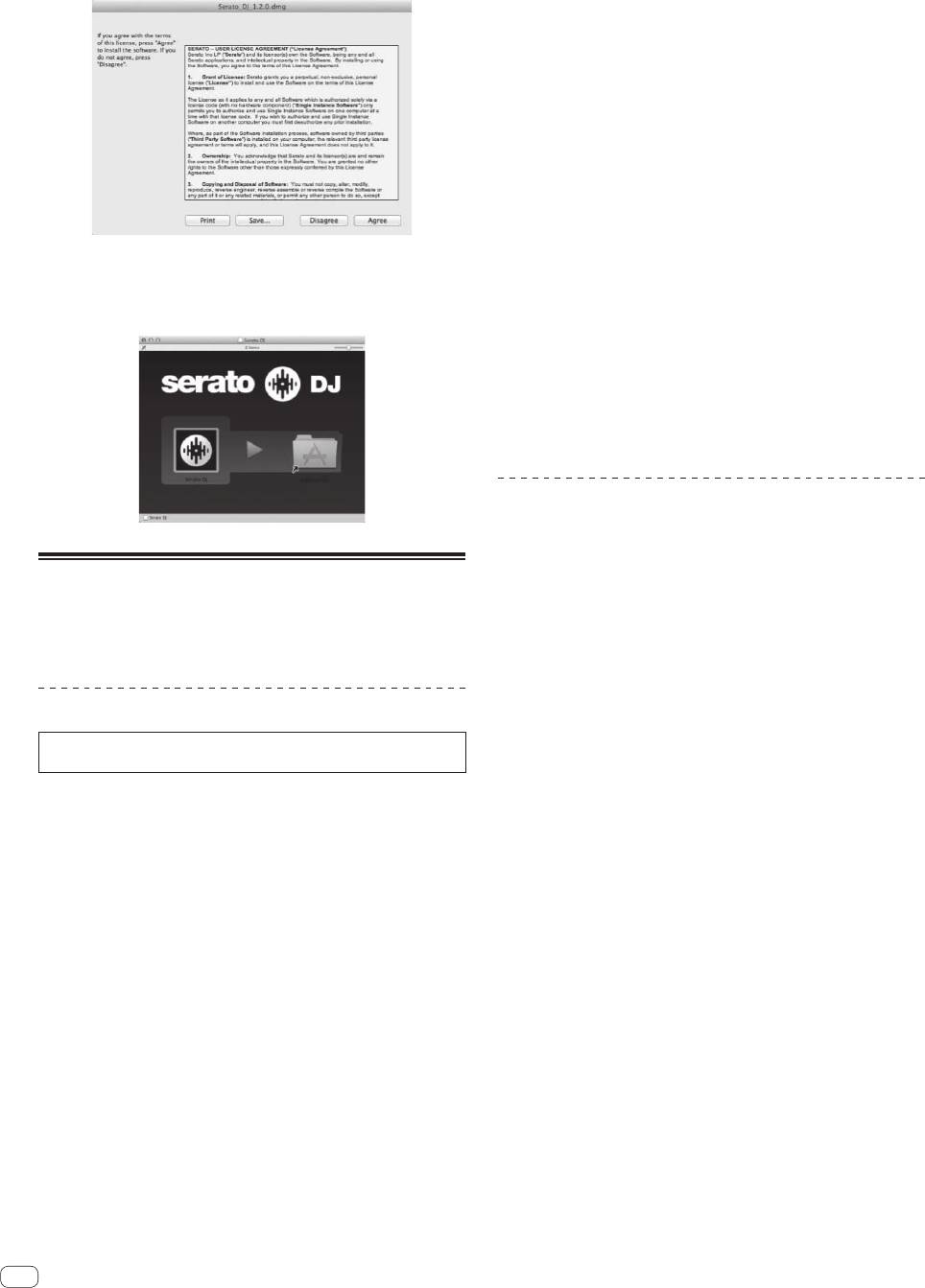
10 Read the terms of the license agreement carefully,
If breaks in the sound occur with the default
and if you agree, click [Agree].
setting
1 Launch [DDJ ASIO Settings Utility] and change [Kernel
Buffers] to [4].
2 Set [USB BUFFER SIZE (LATENCY)] in the Serato DJ
software to the minimum buffer size at which no breaks
in the sound occur.
If no breaks in the sound occur with the default
setting
1 Set [USB BUFFER SIZE (LATENCY)] in the Serato DJ
software to the minimum buffer size at which no breaks
! If you do not agree to the contents of the usage agreement, click
in the sound occur.
[Disagree] to cancel installation.
2 Launch [DDJ ASIO Settings Utility], change [Kernel
11 If the following screen appears, drag and drop the
Buffers] to [2], and check that no breaks in the sound
[Serato DJ] icon on the [Applications] folder icon.
occur.
3 If no breaks in the sound occur, set [USB BUFFER SIZE
(LATENCY)] in the Serato DJ software to the minimum
buffer size at which no breaks in the sound occur. If
breaks in the sound do occur, change [Kernel Buffers] in
the [DDJ ASIO Settings Utility] to [3].
Checking the version of the driver
software
Click the Windows [Start] menu>[All
About the driver software and
Programs]>[Pioneer]>[DDJ]>[DDJ Version Display
setting utility software
Utility].
! You can check the firmware version of this unit on the screen.
This unit functions as an audio device conforming to the ASIO
! The firmware version is not displayed when this unit is not connected
standards.
to the computer or when this unit and computer are not properly
communicating.
Using the settings utility software
This function can only be used by those using a Windows operating
system.
Launching the settings utility software
Click the Windows [Start] menu>[All
Programs]>[Pioneer]>[DDJ]>[DDJ ASIO Settings Utility].
Adjusting the buffer size
In the same way as the buffer size setting in the Serato DJ software,
decreasing the value of the [Kernel Buffers] setting lowers the transfer
delay (latency) of the audio data, while increasing the value reduces the
tendency for dropouts in the audio data (breaks in the sound).
The setting at [USB BUFFER SIZE (LATENCY)] in the Serato DJ soft-
ware’s [SETUP] menu has priority for the buffer size. (The default setting
is 512 samples/10 ms.)
! For details on making the settings on the DJ software, see the Serato
DJ software manual.
! If the [Buffer Size] or [Kernel Buffers] number is made large, drops
in the data (breaks in the sound), etc., occur less easily, but the time
lag due to transmission delays in the audio data (latency) increases.
10
En


