
Pioneer VSX-921: Operation Mode Setup
Operation Mode Setup: Pioneer VSX-921
Table of contents
- IMPORTANT
- Contents
- Before you start
- Remote control
- Connecting your equipment
- Placing the speakers Connecting the speakers
- Bi-amping your speakers Installing your speaker system
- Selecting the Speaker system About the audio connection About the video converter
- About HDMI
- Connecting your TV and playback components Connecting your DVD player with no HDMI output
- Connecting an HDD/DVD recorder, BD recorder and other video sources
- Connecting a satellite/cable receiver or other set-top box Connecting other audio components
- MULTI-ZONE setup Sub Zone Input functions available Sub Zone Input functions available Connecting AM/FM antennas
- Connecting to the network through LAN interface Connecting to a wireless LAN Plugging in the receiver
- Basic Setup Canceling the demo display Automatically conducting optimum sound tuning (Full Auto MCACC)
- Operation Mode Setup
- Operable functions/ Descriptions Page
- Basic playback Playing a source Listening in surround sound Playing an iPod
- Listening to the radio Playing a USB device
- Playback with HOME MEDIA GALLERY inputs Bluetooth ADAPTER for Wireless Enjoyment of Music
En
17
03
Basic Setup
5 Follow the instructions on-screen.
Make sure the microphone is connected, and
if you’re using a subwoofer, make sure it is
switched on and set to a comfortable volume
level.
6 Wait for the test tones to finish, then
confirm the speaker configuration in the
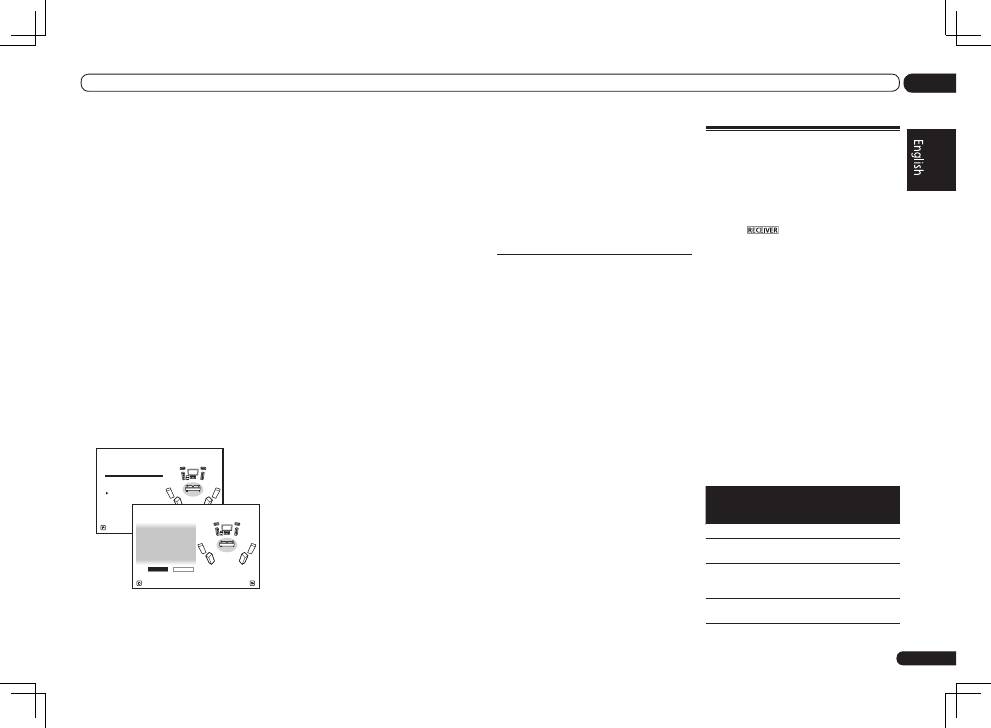
GUI screen.
A progress report is displayed on-screen while
the receiver outputs test tones to determine
the speakers present in your setup. Try to be as
quiet as possible while it’s doing this.
If no operations are performed for 10 seconds
while the speaker configuration check screen
is being displayed, the Full Auto MCACC Setup
will resume automatically. In this case, you
don’t need to select ‘
OK
’ and press
ENTER
in
step 7.
!
With error messages (such as
Too much
ambient noise!
or
Check microphone.
),
select
RETRY
after checking for ambient
noise (see
Problems when using the Auto
MCACC Setup
on page 17 ) and verifying the
mic connection. If there doesn’t seem to be
a problem, you can simply select
GO NEXT
and continue.
Now Analyzing...
2/9
Environment Check
1a.Full Auto MCACC
A/V RECEIVER
Exit
Cancel
Ambient Noise
: OK
Microphone
:
Speaker YES/NO :
L
:
YES
FHL
:
YES
C
:
YES
FHR
:
YES
R
:
YES
SR
:
YES
SBR :
YES
SBL
:
YES
SL
:
YES
SW
:
YES
1a.Full Auto MCACC
10
OK
RETRY
A/V RECEIVER
Exit
Cancel
The configuration shown on-screen should
reflect the actual speakers you have.
!
If you see an
ERR
message (or the speaker
configuration displayed isn’t correct),
there may be a problem with the speaker
connection. If selecting
RETRY
doesn’t work,
turn off the power and check the speaker
connections. If there doesn’t seem to be a
problem, you can simply use
i
/
j
to select
the speaker and
k
/
l
to change the setting
and continue.
!
If the speaker is not pointed to the
microphone (listening position) or when
using speakers that affect the phase
(dipole speakers, reflective speakers, etc.),
Reverse Phase
may be displayed even if the
speakers are properly connected.
If
Reverse Phase
is displayed, the speaker’s
wiring (+ and –) may be inverted. Check the
speaker connections.
—
If the connections were wrong, turn off
the power, disconnect the power cord,
then reconnect properly. After this,
perform the Full Auto MCACC procedure
again.
—
If the connections were right, select
GO NEXT
and continue.
7 Make sure ‘OK’ is selected, then press
ENTER.
A progress report is displayed on-screen while
the receiver outputs more test tones to deter-
mine the optimum receiver settings.
Again, try to be as quiet as possible while this is
happening. It may take 3 to 10 minutes.
8 The Full Auto MCACC Setup procedure
is completed and the Home Menu menu
reappears automatically.
Be sure to disconnect the microphone from
this receiver upon completion of the Full Auto
MCACC Setup.
!
Depending on the characteristics of your
room, sometimes identical speakers with
cone sizes of around 12 cm will end up with
different size settings. You can correct the
setting manually using the
Manual speaker
setup
on Operating Instructions in CD-ROM.
!
The subwoofer distance setting may be
farther than the actual distance from the
listening position. This setting should
be accurate (taking delay and room
characteristics into account) and generally
does not need to be changed.
!
If Full Auto MCACC Setup measurement
results are incorrect due to the interaction of
the speakers and viewing environment, we
recommend adjusting the settings manually.
Problems when using the Auto
MCACC Setup
If the room environment is not optimal for the
Auto MCACC Setup (too much background
noise, echo off the walls, obstacles blocking
the speakers from the microphone) the final
settings may be incorrect. Check for household
appliances (air conditioner, fridge, fan, etc.),
that may be affecting the environment and
switch them off if necessary. If there are any
instructions showing in the front panel display,
please follow them.
!
Some older TVs may interfere with the
operation of the microphone. If this seems to
be happening, switch off the TV when doing
the Auto MCACC Setup.
Operation Mode Setup
This receiver is equipped with a great number
of functions and settings. The Operation Mode
feature is provided for users who find it difficult
to master all these functions and settings.
One of two settings can be selected for the
Operation Mode
:
Expert
and
Basic
.
1 Press
on the remote control,
then press HOME MENU.
A Graphical User Interface (GUI) screen
appears on your TV. Use
i
/
j
/
k
/
l
and
ENTER
to navigate through the screens and
select menu items. Press
RETURN
to exit the
current menu.
2 Select ‘Operation Mode Setup’ from
the Home Menu.
3 Select the Operation Mode setting you
want.
!
Expert
(default) – Users can set all the
functions by themselves.
!
Basic
– The number of operable functions is
restricted, and functions whose operations
are restricted are automatically set to achieve
the Pioneer-recommended sound and
picture quality. The functions that can be
operated are shown below. They can be set
as necessary by referring to the operating
instructions.
Operable
functions/
items
Descriptions
Page
HOME MENU
Full Auto
MCACC
Makes high precision
sound field settings easily.
16
Input Name
Input names can be
changed as desired for
easier use.
*1
Input Skip
Inputs not being used are
skipped (not displayed).
*1
