
Pioneer VSX-921: Basic Setup Canceling the demo display Automatically conducting optimum sound tuning (Full Auto MCACC)
Basic Setup Canceling the demo display Automatically conducting optimum sound tuning (Full Auto MCACC): Pioneer VSX-921
Table of contents
- IMPORTANT
- Contents
- Before you start
- Remote control
- Connecting your equipment
- Placing the speakers Connecting the speakers
- Bi-amping your speakers Installing your speaker system
- Selecting the Speaker system About the audio connection About the video converter
- About HDMI
- Connecting your TV and playback components Connecting your DVD player with no HDMI output
- Connecting an HDD/DVD recorder, BD recorder and other video sources
- Connecting a satellite/cable receiver or other set-top box Connecting other audio components
- MULTI-ZONE setup Sub Zone Input functions available Sub Zone Input functions available Connecting AM/FM antennas
- Connecting to the network through LAN interface Connecting to a wireless LAN Plugging in the receiver
- Basic Setup Canceling the demo display Automatically conducting optimum sound tuning (Full Auto MCACC)
- Operation Mode Setup
- Operable functions/ Descriptions Page
- Basic playback Playing a source Listening in surround sound Playing an iPod
- Listening to the radio Playing a USB device
- Playback with HOME MEDIA GALLERY inputs Bluetooth ADAPTER for Wireless Enjoyment of Music
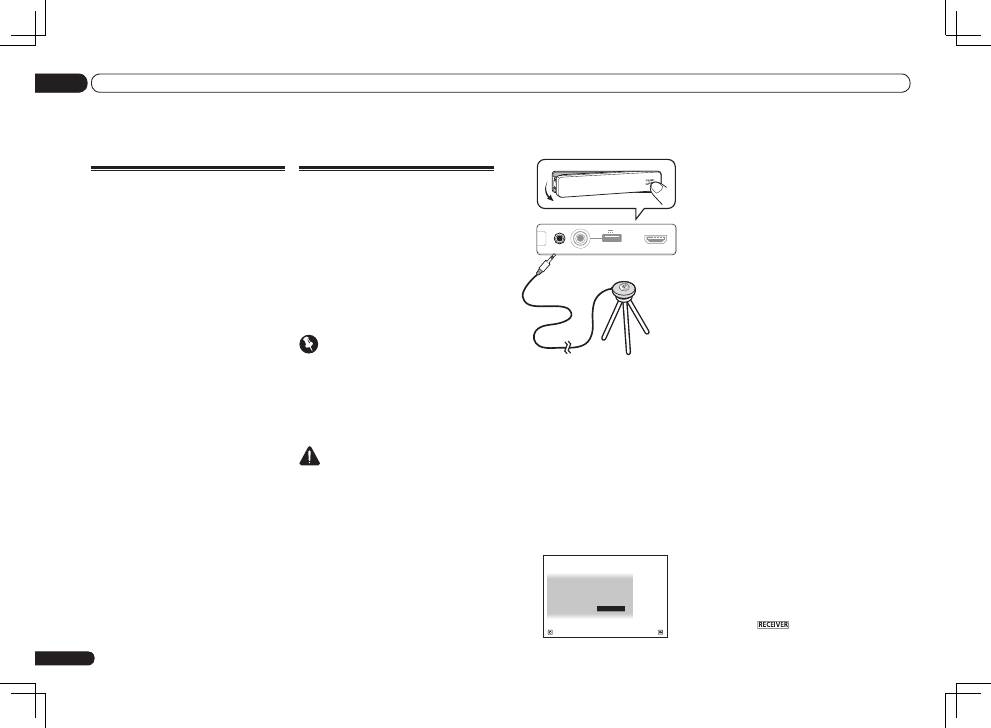
2 Connect the microphone to the MCACC
SETUP MIC jack on the front panel.
CONTROL
ON / OFF
MCACC
SETUP MIC
iPod
iPhone
iPad
USB
5V 2.1 A
HDMI 2 INPUT
Microphone
Tripod
Make sure there are no obstacles between the
speakers and the microphone.
If you have a tripod, use it to place the micro-
phone so that it’s about ear level at your
normal listening position. If you do not have
a tripod, use some other object to install the
microphone.
Install the microphone on a stable floor.
Placing the microphone on any of the following
surfaces may make accurate measurement
impossible:
!
Sofas or other soft surfaces.
!
High places such as tabletops and sofa tops.
The Full Auto MCACC display appears once the
microphone is connected.
Speaker System
: Normal(SB/FH)
1a.Full Auto MCACC
A/V RECEIVER
Exit
Return
START
EQ Type
: SYMMETRY
MCACC
: M1.MEMORY 1
THX Speaker
:
NO
!
If you leave the GUI screen for over five
minutes, the screen saver will appear.
3 Select the parameters you want to set.
!
When data measurement is taken, the
reverb characteristics data (both before- and
after-calibration) that this receiver had been
storing will be overwritten.
!
When measurement is taken of the reverb
characteristics data other than
SYMMETRY
,
the data are not measured after the
correction. If you will need to measure after
correcting data, take the measurement
using the
EQ Professional
menu in the
Manual MCACC
setup.
If the speakers are connected using any setup
other than
Normal(SB/FH)
, be sure to set
Speaker System
before the Full Auto MCACC
Setup. See
Speaker system setting
on Operating
Instructions in CD-ROM.
!
Speaker System
– Shows the current
settings. When this is selected and
ENTER
is
pressed, the speaker system selection screen
appears. Select the proper speaker system,
then press
RETURN
to return.
If you are planning on bi-amping your front
speakers, or setting up a separate speaker
system in another room, read through
Speaker system setting
on Operating
Instructions in CD-ROM and make sure to
connect your speakers as necessary before
continuing to step 4.
!
EQ Type
– This determines how the
frequency balance is adjusted.
!
MCACC
– The six MCACC presets are used
for storing surround sound settings for
different listening positions. Simply choose
an unused preset for now.
!
THX Speaker
– Select
YES
when using THX
speakers (all speakers other than the front
speakers are set to
SMALL
). In other cases,
leave at
NO
.
4 Press
then select START.
En
16
03
Basic Setup
Basic Setup
Canceling the demo display
On this receiver, the demo mode is turned on by
default. When the power is turned on, the demo
display is set and various indications are shown
on the front panel display. To cancel the demo
display, connect the power cord, then perform
the operation below.
!
The demo mode is canceled automatically
when the
Full Auto MCACC
operation is
performed.
1 Switch the receiver into standby.
2 While holding down ENTER on the
front panel, press
u
STANDBY/ON.
The display shows
RESET
c
NO
d
.
3 Select ‘FL DEMO’ using TUNE
i
/
j
.
4 Use PRESET
k
/
l
to select FL DEMO
c
OFF
d
then press ENTER on the front
panel.
Automatically conducting
optimum sound tuning (Full
Auto MCACC)
The Full Auto MCACC Setup measures the
acoustic characteristics of your listening area,
taking into account ambient noise, speaker
connection and speaker size, and tests for both
channel delay and channel level. After you have
set up the microphone provided with your sys-
tem, the receiver uses the information from a
series of test tones to optimize the speaker set-
tings and equalization for your particular room.
Important
!
Make sure the microphone and speakers are
not moved during the Full Auto MCACC Setup.
!
Using the Full Auto MCACC Setup will
overwrite any existing settings for the MCACC
preset you select.
!
Before using the Full Auto MCACC Setup, the
headphones should be disconnected.
CAUTION
!
The test tones used in the Full Auto MCACC
Setup are output at high volume.
THX
®
!
THX is a trademark of THX Ltd., which may
be registered in some jurisdictions. All rights
reserved.
1 Press
u
RECEIVER to switch on the
receiver and your TV.
Make sure that the TV’s video input is set to this
receiver.
