
Pioneer VSX-920-K: Connecting Optional Bluetooth ADAPTER
Connecting Optional Bluetooth ADAPTER: Pioneer VSX-920-K
Table of contents
- IMPORTANT IMPORTANT: THE MOULDED PLUG VENTILATION CAUTION
- Information for users on collection and disposal of old equipment and used batteries Operating Environment
- Contents
- 06 Listening to your system
- 12 Additional information
- Flow of settings on the receiver
- Chapter 1: Before you start Checking what’s in the box Loading the batteries Installing the receiver
- Chapter 2: Controls and displays Front panel
- Controls and displays02
- Display
- Controls and displays02
- Remote control
- Controls and displays02 Operating range of remote control unit
- Chapter 3: Connecting your equipment Rear panel
- Connecting your equipment03
- Determining the speakers’ application
- Connecting your equipment03
- Placing the speakers Some tips for improving sound quality
- Connecting the speakers
- Installing your speaker system
- Bi-amping your speakers Bi-wiring your speakers
- Selecting the Speaker system
- About the audio connection About the video converter
- Connecting your TV and playback components
- About HDMI
- Connecting your DVD player with no HDMI output
- Connecting your TV with no HDMI input
- Connecting a satellite/cable Connecting a HDD/DVD receiver or other set-top box recorder, VCR and other video sources
- Connecting other audio components
- Connecting AM/FM antennas
- MULTI-ZONE setup MULTI-ZONE listening options Sub Zone Input functions available
- Connecting Optional Bluetooth ADAPTER
- Connecting to the network Connecting an HDMI-equipped through LAN interface component to the front panel input
- Connecting to the front panel video terminal Connecting an iPod
- Connecting a USB device Connecting a USB device for Advanced MCACC output
- Connecting an IR receiver Operating other Pioneer components with this unit’s sensor
- Plugging in the receiver
- Chapter 4: Basic Setup Changing the OSD display language (OSD Language) Automatically conducting optimum sound tuning (Auto MCACC)
- Basic Setup04 THX
- Basic Setup 04
- The Input Setup menu
- Input function default and possible settings
- Chapter 5: Basic playback Playing a source
- Playing an iPod
- Finding what you want to play Switching the iPod controls Basic playback controls
- Playing back audio files stored on a Playing a USB device USB memory device
- Playing back photo files stored on a Slideshow Setup USB memory device Basic playback controls Button(s) What it does
- About playable file formats Music files Photo files
- Using Neural Surround Listening to the radio
- Saving station presets Listening to station presets Naming station presets
- An introduction to RDS Searching for RDS programs
- Wireless music play Bluetooth ® ADAPTER for Wireless Enjoyment of Music Remote control operation Pairing the Bluetooth ADAPTER and Bluetooth wireless technology device
- Listening to music contents of a Bluetooth wireless technology device with your system
- Listening to Internet radio stations Programming the Internet radio stations Programming with the GUI screen
- Basic playback05 Programming on the computer screen
- Chapter 6: Listening to your system Auto playback Listening in surround sound
- Listening to your system06
- Using the Advanced surround effects Listening in stereo
- Using Front Stage Surround Using Stream Direct Advance
- Selecting MCACC presets Choosing the input signal
- Better sound using Phase Control
- Chapter 7: Control with HDMI function Making Control with HDMI connections
- HDMI Setup
- Before using synchronization About synchronized operations
- About connections with a product of Setting the PQLS function a different brand that supports the Control with HDMI function
- Cautions on the Control with HDMI function
- Chapter 8: Using other functions Setting the Audio options Setting What it does Option(s)
- Setting What it does Option(s)
- Setting What it does Option(s)
- Setting the Video options Setting What it does Option(s)
- Setting What it does Option(s)
- Switching the speaker terminals Using the MULTI-ZONE controls
- Making an audio or a video recording MULTI-ZONE remote controls Button What it does
- Dimming the display Reducing the level of an analog signal Checking your system settings Using the sleep timer
- Setting Default Resetting the system Default system settings Setting Default
- Chapter 9: Controlling the rest of your system Operating multiple receivers Setting the remote to control other components
- Selecting preset codes directly Programming signals from other remote controls
- Erasing one of the remote control button settings
- Resetting the input assignment Direct function of one of the input function buttons
- Multi operation and System off
- Using System off Erasing the settings for the multi- operation Using multi operations
- Clearing all the remote control settings Default preset codes Controlling components
- Controlling the rest of your system09 Button(s) TV TV (Monitor) BD/DVD HDD/DVR VCR SAT/CATV
- Button(s) LD
- Chapter 10: The Advanced MCACC menu Making receiver settings from the Advanced MCACC menu
- Automatic MCACC (Expert)
- The Advanced MCACC menu10
- The Advanced MCACC menu 10
- Manual MCACC setup
- The Advanced MCACC menu 10 Fine Speaker Distance Fine Channel Level
- Standing Wave
- Acoustic Calibration EQ Adjust Acoustic Calibration EQ Professional
- The Advanced MCACC menu10 Using Acoustic Calibration EQ Professional
- The Advanced MCACC menu 10
- Checking MCACC Data Speaker Setting Channel Level Speaker Distance
- Standing Wave Output MCACC data Acoustic Cal EQ
- Renaming MCACC presets Data Management Copying MCACC preset data
- The Advanced MCACC menu 10
- Chapter 11: The System Setup and Other Setup menus Making receiver settings from the System Setup menu Manual speaker setup
- The System Setup and Other Setup menus 11 Speaker system setting
- Speaker Setting
- Speaker Distance Channel Level
- Network Setup menu IP address/Proxy setting
- Checking the MAC address
- Volume Setup The Other Setup menu
- Remote Control Mode Setup Flicker Reduction Setup
- Chapter 12: Additional information Troubleshooting Symptom Remedy
- Symptom Remedy No sound Symptom Remedy
- Symptom Remedy Other audio problems Symptom Remedy
- Symptom Remedy
- Video Symptom Remedy
- Settings Symptom Remedy
- Professional Calibration EQ graphical output Symptom Remedy Display Symptom Remedy
- Symptom Remedy Remote control Symptom Remedy
- HDMI Symptom Remedy
- Symptom Remedy Important information regarding the HDMI connection
- USB interface Symptoms Causes Remedies
- ADAPTER PORT Symptom Remedy Internet radio Symptoms Causes Remedies
- Symptoms Causes Remedies
- About iPod Surround sound formats
- Auto Surround, ALC and Stream Direct with different input signal formats Stereo (2 channel) signal formats
- Additional information 12 Preset code list
- Additional information12
- Additional information 12
- DVD
- BD DVR (BDR, HDR) VCR
- Satellite Set Top Box
- Additional information 12
- Additional information12 Satellite Set Top Box (SAT/PVR Combination)
- Cable Set Top Box Cable Set Top Box (Cable/PVR Combination) CD CD-R Laser Disc Player Cassete Deck Digital Tape MD
- Specifications
- Cleaning the unit
Connecting your equipment 03
MULTI-ZONE setup using speaker
English
terminals (ZONE 2)
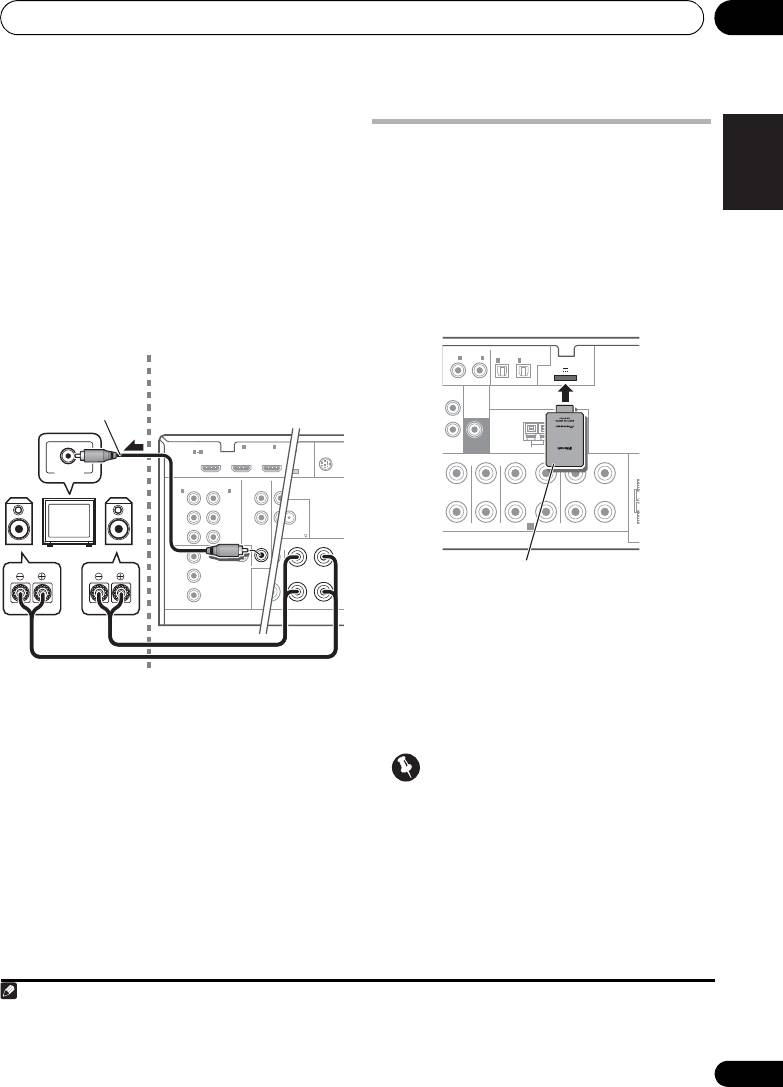
Connecting Optional
Bluetooth
You must select ZONE 2 in Speaker system
ADAPTER
setting on page 101 to use this setup.
When the Bluetooth ADAPTER (Pioneer Model
1 Connect a pair of speakers to the
No. AS-BT100) is connected to this receiver, a
surround back speaker terminals on this
product equipped with Bluetooth wireless
Deutsch
receiver.
technology (portable cell phone, digital music
player, etc.) can be used to listen to music
2
VSX-1020/VSX-1025 only:
Connect a TV
1
wirelessly.
monitor to the
VIDEO ZONE 2 OUT
jacks on
this receiver.
Français
Italiano
Nederlands
• Switch the receiver into standby and
connect
Bluetooth
ADAPTER to the
ADAPTER PORT
.
• For instructions on playing the contents of
Bluetooth wireless technology device, see
Español
Bluetooth® ADAPTER for Wireless
Enjoyment of Music on page 53.
Important
• Do not move the receiver with the
Bluetooth ADAPTER connected. Doing so
could cause damage or faulty contact.
33
En
AL
ABLE
SIRIU
ADAPTER PORT
IN
OUTPUT 5 V 500 mA MAX
)
OP
FM UNBAL 75
D
L RL
SURROUND BACK
(
Single
)
HDMI
BD IN IN IN
1
2
ASSIGNABLE
1 4
COMPONENT VIDEO
IN
1
ASSIGNABLE
AUDIO
IN
2
(
DVD
)
(
DVR/BDR
)
L
Y
Y
P
B
P
B
R
ZONE 2
DVR
P
R
P
R
OUT
OUT
MONITOR
Y
OUT
VIDEO
P
B
P
R
VIDEO IN
RL
Sub zone
Main zone
VSX-1020/VSX-1025 only
VSX-1020/VSX-1025
Note
1• The Bluetooth wireless technology enabled device must supports A2DP profiles.
• Pioneer does not guarantee proper connection and operation of this unit with all Bluetooth wireless technology
enabled devices.
COAXIAL
ASSIGNABLE
OPTICAL
IN
1
IN
2
ASSIGNABLE
IN
1
IN
2
ADAPTER PORT
(
OUTPUT 5 V 100 mA MAX
)
(
DVD
)
(
CD
)
(
TV/SAT
)
(
DVR/BDR
)
PRE OUT
ANTENNA
TAPE
SUBWOOFER
IN
AM LOOP
FM UNBAL 75
ONT CENTER SURROUND
SURROUND BACK
LR LR L
(
Single
)
FRO
SPEAKERS
A
VSX-1020/VSX-1025
Bluetooth
® ADAPTER
VSX-1020_SYXCN.book 33 ページ 2010年3月12日 金曜日 午前9時10分
