
Pioneer VSX-920-K – page 3
Manual for Pioneer VSX-920-K
Table of contents
- IMPORTANT IMPORTANT: THE MOULDED PLUG VENTILATION CAUTION
- Information for users on collection and disposal of old equipment and used batteries Operating Environment
- Contents
- 06 Listening to your system
- 12 Additional information
- Flow of settings on the receiver
- Chapter 1: Before you start Checking what’s in the box Loading the batteries Installing the receiver
- Chapter 2: Controls and displays Front panel
- Controls and displays02
- Display
- Controls and displays02
- Remote control
- Controls and displays02 Operating range of remote control unit
- Chapter 3: Connecting your equipment Rear panel
- Connecting your equipment03
- Determining the speakers’ application
- Connecting your equipment03
- Placing the speakers Some tips for improving sound quality
- Connecting the speakers
- Installing your speaker system
- Bi-amping your speakers Bi-wiring your speakers
- Selecting the Speaker system
- About the audio connection About the video converter
- Connecting your TV and playback components
- About HDMI
- Connecting your DVD player with no HDMI output
- Connecting your TV with no HDMI input
- Connecting a satellite/cable Connecting a HDD/DVD receiver or other set-top box recorder, VCR and other video sources
- Connecting other audio components
- Connecting AM/FM antennas
- MULTI-ZONE setup MULTI-ZONE listening options Sub Zone Input functions available
- Connecting Optional Bluetooth ADAPTER
- Connecting to the network Connecting an HDMI-equipped through LAN interface component to the front panel input
- Connecting to the front panel video terminal Connecting an iPod
- Connecting a USB device Connecting a USB device for Advanced MCACC output
- Connecting an IR receiver Operating other Pioneer components with this unit’s sensor
- Plugging in the receiver
- Chapter 4: Basic Setup Changing the OSD display language (OSD Language) Automatically conducting optimum sound tuning (Auto MCACC)
- Basic Setup04 THX
- Basic Setup 04
- The Input Setup menu
- Input function default and possible settings
- Chapter 5: Basic playback Playing a source
- Playing an iPod
- Finding what you want to play Switching the iPod controls Basic playback controls
- Playing back audio files stored on a Playing a USB device USB memory device
- Playing back photo files stored on a Slideshow Setup USB memory device Basic playback controls Button(s) What it does
- About playable file formats Music files Photo files
- Using Neural Surround Listening to the radio
- Saving station presets Listening to station presets Naming station presets
- An introduction to RDS Searching for RDS programs
- Wireless music play Bluetooth ® ADAPTER for Wireless Enjoyment of Music Remote control operation Pairing the Bluetooth ADAPTER and Bluetooth wireless technology device
- Listening to music contents of a Bluetooth wireless technology device with your system
- Listening to Internet radio stations Programming the Internet radio stations Programming with the GUI screen
- Basic playback05 Programming on the computer screen
- Chapter 6: Listening to your system Auto playback Listening in surround sound
- Listening to your system06
- Using the Advanced surround effects Listening in stereo
- Using Front Stage Surround Using Stream Direct Advance
- Selecting MCACC presets Choosing the input signal
- Better sound using Phase Control
- Chapter 7: Control with HDMI function Making Control with HDMI connections
- HDMI Setup
- Before using synchronization About synchronized operations
- About connections with a product of Setting the PQLS function a different brand that supports the Control with HDMI function
- Cautions on the Control with HDMI function
- Chapter 8: Using other functions Setting the Audio options Setting What it does Option(s)
- Setting What it does Option(s)
- Setting What it does Option(s)
- Setting the Video options Setting What it does Option(s)
- Setting What it does Option(s)
- Switching the speaker terminals Using the MULTI-ZONE controls
- Making an audio or a video recording MULTI-ZONE remote controls Button What it does
- Dimming the display Reducing the level of an analog signal Checking your system settings Using the sleep timer
- Setting Default Resetting the system Default system settings Setting Default
- Chapter 9: Controlling the rest of your system Operating multiple receivers Setting the remote to control other components
- Selecting preset codes directly Programming signals from other remote controls
- Erasing one of the remote control button settings
- Resetting the input assignment Direct function of one of the input function buttons
- Multi operation and System off
- Using System off Erasing the settings for the multi- operation Using multi operations
- Clearing all the remote control settings Default preset codes Controlling components
- Controlling the rest of your system09 Button(s) TV TV (Monitor) BD/DVD HDD/DVR VCR SAT/CATV
- Button(s) LD
- Chapter 10: The Advanced MCACC menu Making receiver settings from the Advanced MCACC menu
- Automatic MCACC (Expert)
- The Advanced MCACC menu10
- The Advanced MCACC menu 10
- Manual MCACC setup
- The Advanced MCACC menu 10 Fine Speaker Distance Fine Channel Level
- Standing Wave
- Acoustic Calibration EQ Adjust Acoustic Calibration EQ Professional
- The Advanced MCACC menu10 Using Acoustic Calibration EQ Professional
- The Advanced MCACC menu 10
- Checking MCACC Data Speaker Setting Channel Level Speaker Distance
- Standing Wave Output MCACC data Acoustic Cal EQ
- Renaming MCACC presets Data Management Copying MCACC preset data
- The Advanced MCACC menu 10
- Chapter 11: The System Setup and Other Setup menus Making receiver settings from the System Setup menu Manual speaker setup
- The System Setup and Other Setup menus 11 Speaker system setting
- Speaker Setting
- Speaker Distance Channel Level
- Network Setup menu IP address/Proxy setting
- Checking the MAC address
- Volume Setup The Other Setup menu
- Remote Control Mode Setup Flicker Reduction Setup
- Chapter 12: Additional information Troubleshooting Symptom Remedy
- Symptom Remedy No sound Symptom Remedy
- Symptom Remedy Other audio problems Symptom Remedy
- Symptom Remedy
- Video Symptom Remedy
- Settings Symptom Remedy
- Professional Calibration EQ graphical output Symptom Remedy Display Symptom Remedy
- Symptom Remedy Remote control Symptom Remedy
- HDMI Symptom Remedy
- Symptom Remedy Important information regarding the HDMI connection
- USB interface Symptoms Causes Remedies
- ADAPTER PORT Symptom Remedy Internet radio Symptoms Causes Remedies
- Symptoms Causes Remedies
- About iPod Surround sound formats
- Auto Surround, ALC and Stream Direct with different input signal formats Stereo (2 channel) signal formats
- Additional information 12 Preset code list
- Additional information12
- Additional information 12
- DVD
- BD DVR (BDR, HDR) VCR
- Satellite Set Top Box
- Additional information 12
- Additional information12 Satellite Set Top Box (SAT/PVR Combination)
- Cable Set Top Box Cable Set Top Box (Cable/PVR Combination) CD CD-R Laser Disc Player Cassete Deck Digital Tape MD
- Specifications
- Cleaning the unit
Basic Setup 04
4 Press and then select
START
.
The configuration shown on-screen should
English
reflect the actual speakers you have.
5 Follow the instructions on-screen.
•If you see an ERR message (or the speaker
Make sure the microphone is connected, and if
configuration displayed isn’t correct),
you’re using a subwoofer, make sure it is
there may be a problem with the speaker
switched on and set to a comfortable volume
connection.
level.
Deutsch
If selecting RETRY doesn’t work, turn off
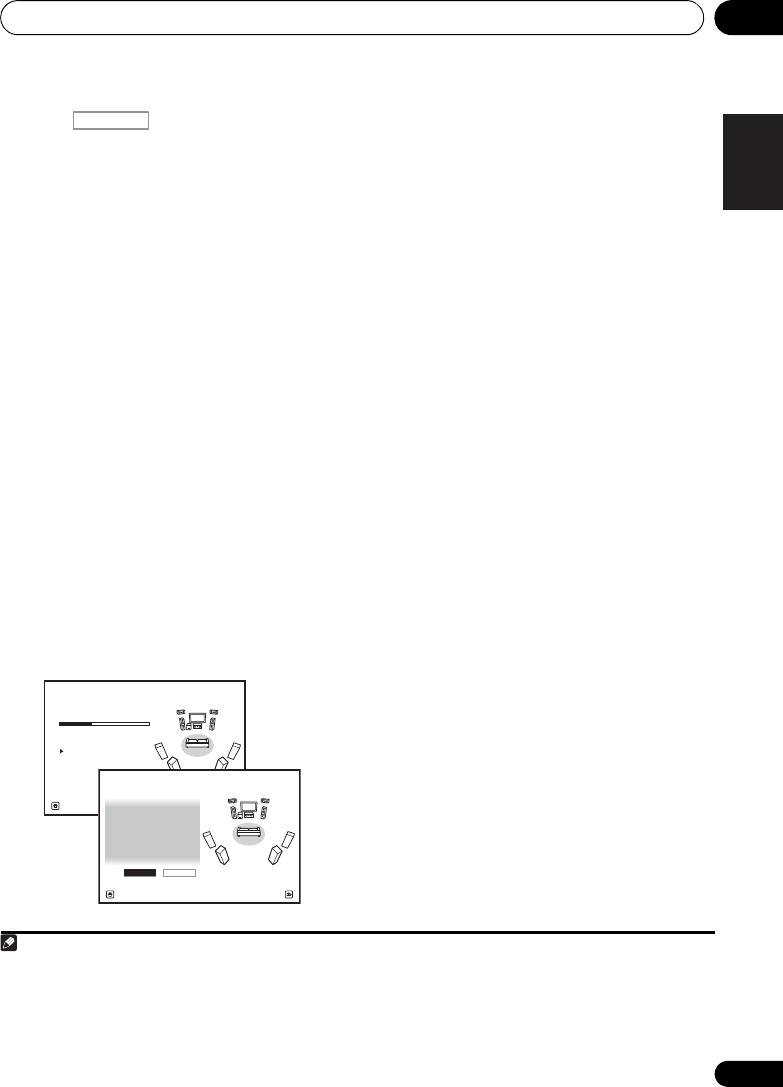
6 Wait for the test tones to finish, then
the power and check the speaker
confirm the speaker configuration in the GUI
connections. If there doesn’t seem to be a
screen.
problem, you can simply use / to
A progress report is displayed on-screen while
select the speaker and / to change
the receiver outputs test tones to determine the
the setting and continue.
Français
speakers present in your setup. Try to be as
•If Reverse Phase is displayed, the
1
quiet as possible while it’s doing this.
speaker’s wiring (+ and –) may be
2
If no operations are performed for 10 seconds
inverted. Check the speaker connections.
while the speaker configuration check screen
– If the connections were wrong, turn off
is being displayed, the Auto MCACC Setup will
the power, disconnect the power cord,
Italiano
resume automatically. In this case, you don’t
then reconnect properly. After this,
need to select ‘OK’ and press ENTER in step 7.
perform the Full Auto MCACC procedure
• With error messages (such as Too much
again.
ambient noise! or Check microphone.),
– If the connections were right, select GO
select RETRY after checking for ambient
NEXT and
continue.
Nederlands
noise (see Problems when using the Auto
7 Make sure ‘
OK
’ is selected, then press
MCACC Setup on page 42) and verifying the
ENTER
.
mic connection. If there doesn’t seem to be
A progress report is displayed on-screen while
a problem, you can simply select GO NEXT
the receiver outputs more test tones to
and continue.
determine the optimum receiver settings for
Channel Level, Speaker Distance, Standing
Español
Wave and Acoustic Cal EQ.
Again, try to be as quiet as possible while this
is happening. It may take 3 to 10 minutes.
8 The Auto MCACC Setup procedure is
completed and the
Home Menu
menu
3
reappears automatically.
Be sure to disconnect the microphone from
this receiver upon completion of the Auto
MCACC Setup.
41
En
Note
1 Do not adjust the volume during the test tones. This may result in incorrect speaker settings.
RECEIVER
1a.Full Auto MCACC
A/V RECEIVER
Now Analyzing... 2/9
Environment Check
Ambient Noise : OK
Microphone :
Speaker YES/NO :
Exit Cancel
VSX-1020_SYXCN.book 41 ページ 2010年3月12日 金曜日 午前9時10分
1a.Full Auto MCACC
A/V RECEIVER
L : YES
FHL : YES
C : YES
FHR : YES
R : YES
SR : YES
SBR : YES
SBL : YES
SL : YES
SW : YES
10
OK RETRY
Exit Cancel
2 If the speaker is not pointed to the microphone (listening position) or when using speakers that affect the phase
(dipole speakers, reflective speakers, etc.), Reverse Phase may be displayed even if the speakers are properly
connected.
3 You can also choose to view the settings from the MCACC Data Check screen. See Checking MCACC Data on page 96
for more on this.
Basic Setup04
The settings made in the Auto MCACC Setup
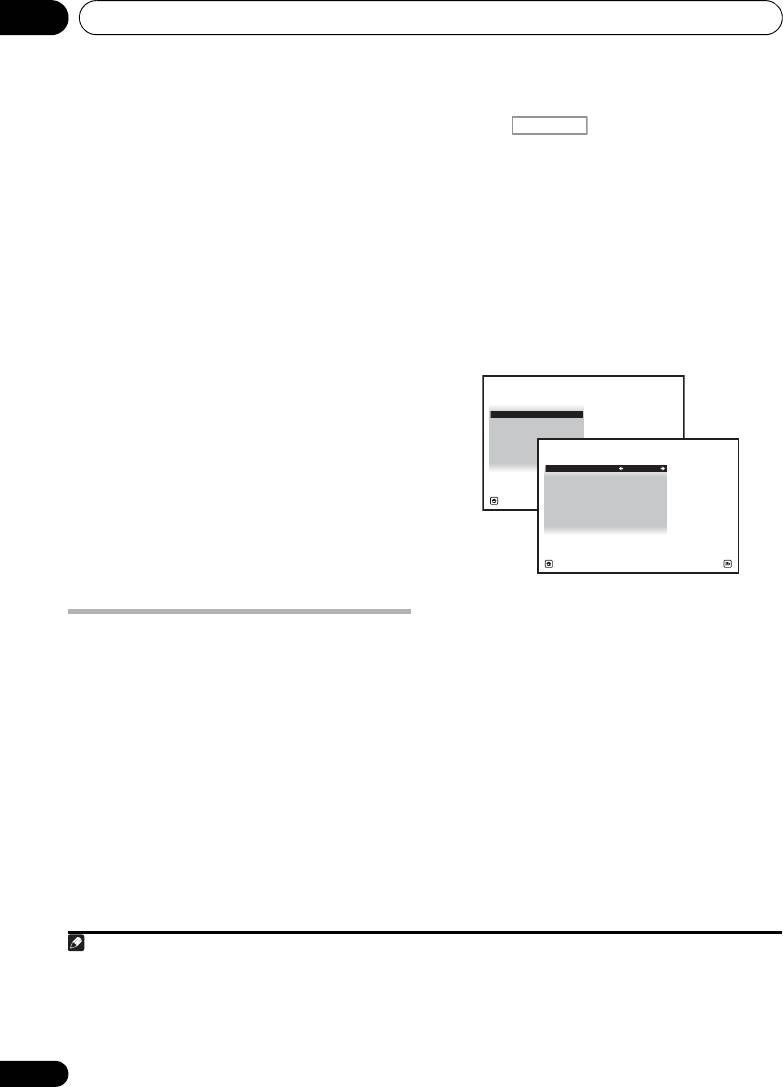
2 Press on the remote control,
should give you excellent surround sound from
then press
HOME MENU
.
your system, but it is also possible to adjust
A Graphical User Interface (GUI) screen
these settings manually using The Advanced
appears on your TV.
Use /// and
MCACC menu on page 86 or The System Setup
ENTER to navigate through the screens and
1
and Other Setup menus on page 100.
select menu items. Press RETURN to confirm
and exit the current menu.
Problems when using the Auto
3Select ‘
System Setup
’ from the
Home
MCACC Setup
Menu
.
If the room environment is not optimal for the
Auto MCACC Setup (too much background
4Select ‘
Input Setup
’ from the
System
noise, echo off the walls, obstacles blocking
Setup
menu.
the speakers from the microphone) the final
settings may be incorrect. Check for household
appliances (air conditioner, fridge, fan, etc.),
that may be affecting the environment and
switch them off if necessary. If there are any
instructions showing in the front panel display,
please follow them.
• Some older TVs may interfere with the
operation of the microphone. If this seems
to be happening, switch off the TV when
doing the Auto MCACC Setup.
5 Select the input function that you want to
set up.
The Input Setup menu
The default names correspond with the names
You only need to make settings in the Input
next to the terminals on the rear panel (such as
Setup menu if you didn’t hook up your digital
DVD) which, in turn, correspond with the
equipment according to the default settings
names on the remote control.
(see Input function default and possible
settings on page 43). In this case, you need to
6 Select the input(s) to which you’ve
tell the receiver what equipment is hooked up
connected your component.
to which terminal so the buttons on the remote
For example, if your DVD player only has an
control correspond to the components you’ve
optical output, you will need to change the
connected.
DVD input function’s Digital In setting from
COAX-1 (default) to the optical input you’ve
1 Switch on the receiver and your TV.
connected it to.The numbering (OPT-1 to 2)
Use RECEIVER to switch on.
corresponds with the numbers beside the
inputs on the back of the receiver.
42
En
Note
1 • Depending on the characteristics of your room, sometimes identical speakers with cone sizes of around 12 cm will
end up with different size settings. You can correct the setting manually using the Manual speaker setup on page 100.
• The subwoofer distance setting may be farther than the actual distance from the listening position. This setting
should be accurate (taking delay and room characteristics into account) and generally does not need to be changed.
• If Auto MCACC Setup measurement results are incorrect due to the interaction of the speakers and viewing
environment, we recommend adjusting the settings manually.
RECEIVER
4.System Setup
A/V RECEIVER
a. Manual SP Setup
b. Input Setup
c. OSD Language
d. Network Setup
e. Other Setup
Exit Return
VSX-1020_SYXCN.book 42 ページ 2010年3月12日 金曜日 午前9時10分
4b.Input Setup
A/V RECEIVER
Input : DVD
Input Name : Rename
Input Skip : OFF
Digital In : COAX-1
HDMI Input :
---
Component In : Comp-1
Exit Finish
Basic Setup 04
• If your component is connected via a
Input function default and possible
English
component video cable to an input
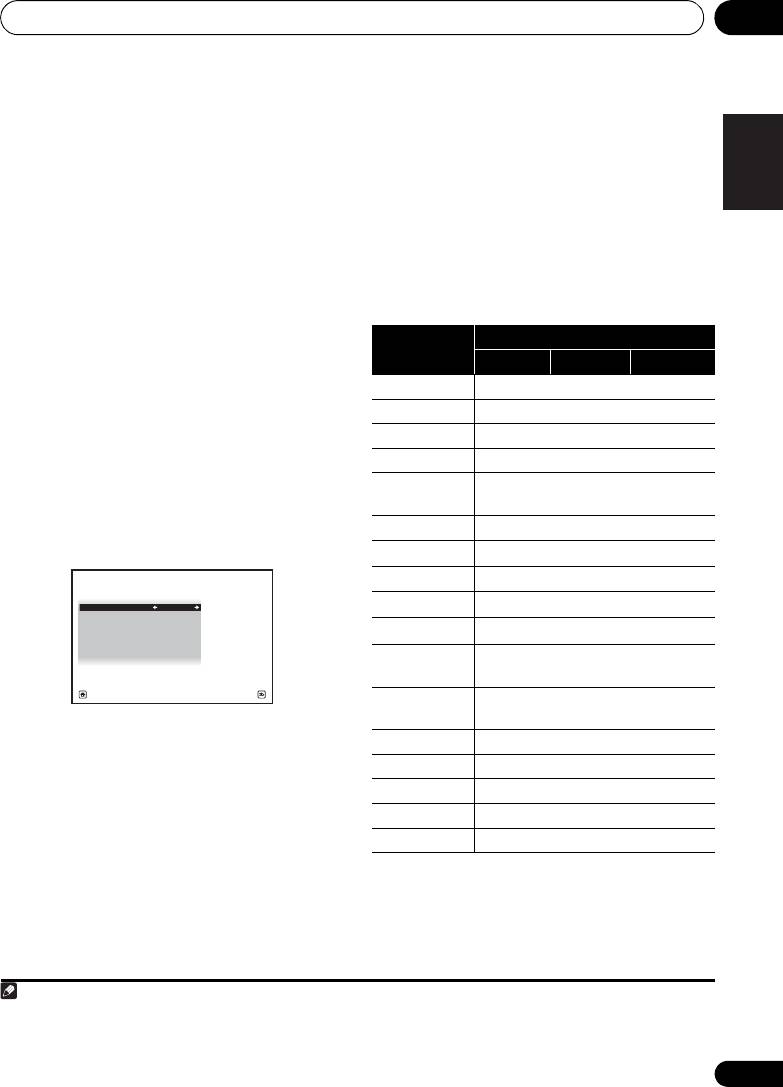
settings
terminal other than the default, you must
The terminals on the receiver generally
tell the receiver which input terminal your
correspond to the name of one of the input
component is connected to, or else you
functions. If you have connected components
may see the composite video signals
to this receiver differently from (or in addition
1
instead of the component video signals.
Deutsch
to) the defaults below, see The Input Setup
7 When you’re finished, proceed to the
menu on page 42 to tell the receiver how
settings for other inputs.
you’ve connected up. The dots () indicate
There are optional settings in addition to the
possible assignments.
assignment of the input jacks:
Français
• Input Name – You can choose to rename
the input function for easier identification.
Select Rename to do so, or Default to
return to the system default.
• Input Skip – When set to ON, that input is
skipped when selecting the input using
Italiano
INPUT SELECT or the front panel INPUT
SELECTOR dial. (DVD and other inputs can
be still be selected directly with the input
function buttons.)
Nederlands
Español
8 When you’re finished, press
RETURN
.
You will return to the System Setup menu.
43
En
Note
VSX-1020_SYXCN.book 43 ページ 2010年3月12日 金曜日 午前9時10分
Input
Input Terminals
function
Digital HDMI
Component
a
DVD COAX-1
IN 1
BD (BD)
a
TV/SAT OPT-1
a
DVR/BDR OPT-2
IN 2
b
a
VIDEO
/
c
VIDEO 1
c
VIDEO 2
HDMI 1
(HDMI-1)
4b.Input Setup
HDMI 2 (HDMI-2)
A/V RECEIVER
Input : DVD
HDMI 3
Input Name : Rename
(HDMI-3)
Input Skip : OFF
b
Digital In : COAX-1
HDMI 4
(HDMI-4)
HDMI Input :
---
Component In : Comp-1
b
HDMI 5
(HDMI-5)
(front panel)
Exit Finish
INTERNET
RADIO
iPod/USB
b
CD COAX-2
CD-R/TAPE
TUNER
ADAPTER PORT
a.With Control set to ON in the HDMI Setup,
assignments cannot be made (see Control with HDMI
function on page 63).
b.VSX-1020/VSX-1025 only
c.VSX-920 only
1 For high-definition video (using component video connections), or when digital video conversion is switched off (in
Setting the Video options on page 71), you must connect your TV to this receiver using the same type of video cable as
you used to connect your video component.

Basic playback05
Chapter 5:
Basic playback
It is possible to check on the front panel display
Playing a source
whether or not multi-channel playback is being
performed properly.
Here are the basic instructions for playing a
source (such as a DVD disc) with your home
When using a surround back speaker, PLIIx
theater system.
MOVIE is displayed when playing Dolby Digital
signals, and DTS+Neo:6 is displayed when
1 Switch on your system components and
playing DTS 5.1-channel signals.
receiver.
If the display does not correspond to the input
Start by switching on the playback component
1
signal and listening mode, check the
(for example a DVD player), your TV
and
connections and settings.
subwoofer (if you have one), then the receiver
(press RECEIVER).
4 Use the volume control to adjust the
• Make sure the setup microphone is
volume level.
disconnected.
Turn down the volume of your TV so that all
sound is coming from the speakers connected
2 Select the input function you want to
to this receiver.
play.
You can use the input function buttons on the
remote control, INPUT SELECT, or the front
2
panel INPUT SELECTOR dial.
3 Press , then press
AUTO/ALC/
DIRECT
(
AUTO SURR
/
ALC
/
STREAM DIRECT
)
to select ‘
AUTO SURROUND
’ and start
3
playback of the source.
If you’re playing a Dolby Digital or DTS surround
sound DVD disc, you should hear surround
sound. If you are playing a stereo source, you
will only hear sound from the front left/right
speakers in the default listening mode.
•See also Listening to your system on
page 57 for information on different ways
of listening to sources.
44
En
Note
1 Make sure that the TV’s video input is set to this receiver (for example, if you connected this receiver to the VIDEO
jacks on your TV, make sure that the VIDEO input is now selected).
2 If you need to manually switch the input signal type press SIGNAL SEL (page 61).
3 • You may need to check the digital audio output settings on your DVD player or digital satellite receiver.
• Depending on your DVD player or source discs, you may only get digital 2 channel stereo and analog sound. In this
case, the receiver must be set to a multichannel listening mode (see Listening in surround sound on page 57 if you
need to do this) if you want multichannel surround sound.
RECEIVER
VSX-1020_SYXCN.book 44 ページ 2010年3月12日 金曜日 午前9時10分
Basic playback 05
Playing a source with HDMI
English
Playing an iPod
connection
This receiver has the iPod/iPhone/USB
•Use
INPUT SELECT
to select the HDMI
terminal that will allow you to control playback
input you’ve connected to (for example,
of audio content from your iPod using the
HDMI 1
).
1
controls of this receiver.
You can also perform the same operation by
Deutsch
1 Switch on the receiver and your TV.
using the INPUT SELECTOR dial on the front
See Connecting an iPod on page 35.
panel or by pressing HDMI on the remote
control repeatedly.
• It is also possible to operate the iPod on
the iPod itself, without using the TV
• Set the HDMI parameter in Setting the
screen. For details, see Switching the iPod
Audio options on page 68 to THROUGH if
Français
controls on page 46.
you want to hear HDMI audio output from
your TV (no sound will be heard from this
2Press
iPod USB
on the remote control to
receiver).
switch the receiver to the
iPod/USB
.
• If the video signal does not appear on your
Loading appears in the GUI screen while the
TV, try adjusting the resolution settings on
receiver verifies the connection and retrieves
Italiano
your component or display. Note that some
data from the iPod.
components (such as video game units)
When the display shows the iPod top menu
have resolutions that may not be
2
you’re ready to playback from the iPod.
converted. In this case, use an analog
video connection.
Playing back files stored on an iPod
Nederlands
To navigate songs on your iPod, you can take
advantage of the GUI screen of your TV
3
connected to this receiver.
You can also
control all operations for music in the front
panel display of this receiver.
Español
45
En
Note
VSX-1020_SYXCN.book 45 ページ 2010年3月12日 金曜日 午前9時10分
1 • This system is compatible with the audio and video of the iPod nano, iPod fifth generation (audio only), iPod classic,
iPod touch and iPhone. However, some of the functions may be restricted for some models. The system is not
compatible with the iPod shuffle.
•
Compatibility may vary depending on the software version of your iPod and iPhone. Please be sure to use the latest
available software version.
• iPod and iPhone are licensed for reproduction of non-copyrighted materials or materials the user is legally permitted
to reproduce.
• Features such as the equalizer cannot be controlled using this receiver, and we recommend switching the equalizer
off before connecting.
• Pioneer cannot under any circumstances accept responsibility for any direct or indirect loss arising from any
inconvenience or loss of recorded material resulting from the iPod failure.
2 • The controls of your iPod will be inoperable when connected to this receiver.
• VSX-1020/VSX-1025 only: The sub zone OSD screen shows the same content as the main zone GUI screen. Note,
however, that characters other than alphanumeric letters and numbers cannot be displayed and will be replaced by #.
• VSX-920 only: iPod/USB function cannot be selected for the MULTI-ZONE feature (page 73).
3 • Note that characters that cannot be displayed on this receiver are displayed as #.
• This feature is not available for photos on your iPod. To display photos, switch iPod operation to the iPod (see
Switching the iPod controls on page 46).
Basic playback05
3
Finding what you want to play
Switching the iPod controls
When your iPod is connected to this receiver,
You can switch over the iPod controls between
you can browse songs stored on your iPod by
the iPod and the receiver.
playlist, artist name, album name, song name,
1 Press
iPod CTRL
to switch the iPod
genre or composer, similar to using your iPod
controls.
directly.
This enables operation and display on your
1Use
/
to select ‘Music’ from the iPod
iPod, and this receiver’s remote control and
top menu.
GUI screen become inactive.
2Use
/
to select a category, then press
2 Press
iPod CTRL
again to switch back to
ENTER
to browse that category.
the receiver controls.
• To return to the previous level any time,
press RETURN.
Tip
3Use
/
to browse the selected category
• Change the receiver’s input to the iPod in
(e.g., albums).
one action by pressing the iPod iPhone
•Use / to move to previous/next levels.
DIRECT CONTROL button on the front
4 Continue browsing until you arrive at
panel to enable iPod operations on the
what you want to play, then press
to start
iPod.
1
playback.
Tip
• You can play all of the songs in a particular
category by selecting the All item at the top
of each category list. For example, you can
play all the songs by a particular artist.
Basic playback controls
This receiver’s remote control buttons can be
used for basic playback of files stored on an
2
iPod.
• Press iPod USB to switch the remote
control to the iPod/USB operation mode.
46
En
Note
VSX-1020_SYXCN.book 46 ページ 2010年3月12日 金曜日 午前9時10分
AUDIO
VIDEO
PGM MENU
PARAMETER
PARAMETER
HDD DVD
LIST
TUNE
TOOLS
PHASE
CTRL STATUS
TOP MENU
T.EDIT
BAND GUIDE
TV
/
DTV MPX PQLS
PRESET
ENTER
PRESET
S.RETRIEVER
MIDNIGHT
AUDIO
PTY
SEARCH
RETURN
213
HOME
SIGNAL SEL
MCACC SLEEP
INFO
MENU
TUNE
546
DISP
iPod CTRL
1 If you’re in the song category, you can also press ENTER to start playback.
2 During Audiobook playback, press / to switch the playback speed: Faster Normal Slower
3 You cannot use this function, when an iPod of fifth generation or iPod nano of first generation is connected.
Basic playback 05
Playing back audio files stored on a
English
Playing a USB device
USB memory device
1
It is possible to play files
using the USB
The maximum number of levels that you can
interface on the front of this receiver.
select in Step 2 (below) is 8. Also, you can
display and play back up to 30 000 folders and
1 Switch on the receiver and your TV.
5
files within a USB memory device.
2
See Connecting a USB device on page 36.
Deutsch
1Use
/
to select ‘Music’ from the
USB
2 Press
iPod USB
on the remote control to
3
Top
menu.
switch the receiver to the
iPod/USB
.
Loading appears in the GUI screen as this
2Use
/
to select a folder, then press
receiver starts recognizing the USB device
ENTER
to browse that folder.
4
connected.
When the display shows the USB
• To return to the previous level any time,
Français
Top menu you’re ready to play from the USB
press RETURN.
device.
3 Continue browsing until you arrive at
what you want to play, then press
to start
Important
6
playback.
If an Over Current message lights in the
Italiano
Basic playback controls
display, the power requirements of the USB
This receiver’s remote control buttons can be
device are too high for this receiver. Try
used for basic playback of files stored on USB
following the points below:
memory devices.
• Switch the receiver off, then on again.
•Press iPod USB to switch the remote
Nederlands
• Reconnect the USB device with the
control to the iPod/USB operation mode.
receiver switched off.
• Use a dedicated AC adapter (supplied with
the device) for USB power.
If this doesn’t remedy the problem, it is likely
your USB device is incompatible.
Español
47
En
Note
VSX-1020_SYXCN.book 47 ページ 2010年3月12日 金曜日 午前9時10分
AUDIO
VIDEO
PGM MENU
PARAMETER
PARAMETER
HDD DVD
LIST
TUNE
TOOLS
PHASE
CTRL STATUS
TOP MENU
T.EDIT
BAND GUIDE
TV
/
DTV MPX PQLS
PRESET
ENTER
PRESET
S.RETRIEVER
MIDNIGHT
AUDIO
PTY
SEARCH
RETURN
213
HOME
SIGNAL SEL
MCACC SLEEP
INFO
MENU
TUNE
546
DISP
iPod CTRL
1 • Compatible USB devices include external magnetic hard drives, portable flash memory drives (particularly key
drives) and digital audio players (MP3 players) of format FAT12/16/32. It is not possible to connect this unit to a
personal computer for USB playback.
• Pioneer cannot guarantee compatibility (operation and/or bus power) with all USB mass storage devices and
assumes no responsibility for any loss of data that may occur when connected to this receiver.
2 Make sure the receiver is in standby when disconnecting the USB device.
3 The iPod/USB function cannot be selected in the main zone when the Internet radio function is selected in the sub
zone. Also, the iPod/USB function cannot be selected in the sub zone when the Internet radio function is selected in
the main zone.
4 When a USB memory device with a large capacity is connected, it may take some time to read all the contents.
5 Note that characters that cannot be displayed on this receiver are displayed as #.
6 • If the file selected cannot be played back, this receiver automatically skips to the next file playable.
• When the file currently being played back has no title assigned to it, the file name is displayed in the GUI screen
instead; when neither the album name nor the artist name is present, the row is displayed as a blank space.
• VSX-920 only: iPod/USB function cannot be selected for the MULTI-ZONE feature (page 73).
• Playback stops when the last song in a USB memory device is played back to the end.
• Copyrighted audio files cannot be played back on this receiver.
• DRM-protected audio files cannot be played back on this receiver.
Basic playback05
Playing back photo files stored on a
Slideshow Setup
1
Make the various settings for playing
USB memory device
slideshows of photo files here.
1Use
/
to select ‘
Photos
’ from the
USB
1Use
/
to select ‘
Slideshow Setup
’
Top
menu.
from the
USB Top
menu.
2Use
/
to select a folder, then press
2 Select the setting you want.
ENTER
to browse that folder.
• Theme – Add various effects to the
• To return to the previous level any time, press
slideshow.
RETURN.
• Interval – Set the interval for switching the
3 Continue browsing until you arrive at
photos. This may not be available
what you want to play, then press
to start
depending on the Theme setting.
2
playback.
• BGM – Play music files stored on the USB
The selected content is displayed in full screen
device while displaying photos.
and a slideshow starts.
• Music Select – Select the folder containing
After a slideshow launches, pressing ENTER
the music files to be played when BGM is
toggles between play and pause (only when
set to ON.
Theme on the Slideshow Setup is set to
Normal (OFF)).
3 When you’re finished, press
RETURN
.
You will return to the USB Top
menu.
Basic playback controls
48
En
Note
VSX-1020_SYXCN.book 48 ページ 2010年3月12日 金曜日 午前9時10分
Button(s) What it does
ENTER, Starts displaying a photo and playing a
slideshow.
RETURN,
Stops the Player and returns to the
previous menu.
a
Displays the previous photo content.
a
Displays the next photo content.
a
Pauses/unpauses the slideshow.
a
DISP
Displays the photo information.
a.You can only use this button when Theme on the
Slideshow Setup is set to Normal (OFF).
1 Photo files cannot be played in the sub zone.
2 If the slideshow is left in the pause mode for five minutes, the list screen reappears.
VSX-1020_SYXCN.book 49 ページ 2010年3月12日 金曜日 午前9時10分
Basic playback 05
About playable file formats
English
The USB function of this receiver supports the following file formats. Note that some file formats are not
available for playback although they are listed as playable file formats.
Music files
Category Extension Stream
Deutsch
a
.mp3 MPEG-1, 2, 2.5 Audio
Sampling frequency 8 kHz to 48 kHz
MP3
Layer-3
Quantization bitrate 16 bit
Channel 2 ch
Bitrate 8 kbps to 320 kbps
VBR/CBR Supported/Supported
Français
WAV .wav LPCM Sampling frequency 32 kHz, 44.1 kHz, 48 kHz
Quantization bitrate 8 bit, 16 bit
Channel 2 ch, Monaural
WMA .wma
b
Sampling frequency 8 kHz to 48 kHz
WMA8/9
Italiano
Quantization bitrate 16 bit
Channel 2 ch
Bitrate 8 kbps to 320 kbps
VBR/CBR Supported/Supported
Nederlands
a.“MPEG Layer-3 audio decoding technology licensed from Fraunhofer IIS and Thomson multimedia.”
b.Files encoded using Windows Media Codec 9 may be playable but some parts of the specification are not supported;
specifically, Pro, Lossless, Voice.
Photo files
Category Extension
Español
JPEG .jpg
Format Meeting the following conditions:
.jpeg
• Baseline JPEG format (including files recorded in Exif/DCF
format)
.jpe
• Y:Cb:Cr - 4:4:4, 4:2:2 or 4:2:0
.jif
.jfif
Resolution 30 to 8184 pixels vertical, 40 to 8184 pixels horizontal
49
En

VSX-1020_SYXCN.book 50 ページ 2010年3月12日 金曜日 午前9時10分
Basic playback05
Using Neural Surround
Listening to the radio
This feature uses Neural Surround™
The following steps show you how to tune in to
technologies to achieve optimal surround
FM and AM radio broadcasts using the
sound from FM radio.
automatic (search) and manual (step) tuning
• While listening to FM radio, press AUTO/
functions. If you already know the frequency of
ALC/DIRECT for Neural Surround
the station you want, see Tuning directly to a
listening.
station below. Once you are tuned to a station
See Auto Surround, ALC and Stream Direct with
you can memorize the frequency for recall
different input signal formats on page 122 for
later—see Saving station presets below for
more on how to do this.
The NEURAL SURROUND mode can be
1Press
TUNER
to select the tuner.
selected also with STANDARD.
2
Use
BAND
to change the band (FM or
Tuning directly to a station
AM),
if necessary.
Sometimes, you’ll already know the frequency
Each press switches the band between FM and
of the station you want to listen to. In this case,
AM.
you can simply enter the frequency directly
3 Tune to a station.
using the number buttons on the remote
There are three ways to do this:
control.
Automatic tuning – To search for stations
1 Press
TUNER
to select the tuner.
in the currently selected band, press and
hold TUNE / for about a second. The
2
Use
BAND
to change the band (FM or
receiver will start searching for the next
AM),
if necessary.
station, stopping when it has found one.
Each press switches the band between FM and
Repeat to search for other stations.
AM.
Manual tuning – To change the frequency
3 Press
D.ACCESS
(Direct Access).
one step at a time, press TUNE /.
4 Use the number buttons to enter the
High speed tuning – Press and hold
frequency of the radio station.
TUNE / for high speed tuning. Release
For example, to tune to 106.00 (FM), press 1, 0,
the button at the frequency you want.
6, 0, 0.
Improving FM sound
If you make a mistake halfway through, press
D.ACCESS twice to cancel the frequency and
If the TUNED or STEREO indicator doesn’t light
start over.
when tuning to an FM station because the
signal is weak, press MPX to switch the
receiver into mono reception mode. This
should improve the sound quality and allow
you to enjoy the broadcast.
50
En

VSX-1020_SYXCN.book 51 ページ 2010年3月12日 金曜日 午前9時10分
Basic playback 05
Saving station presets
3 Input the name you want.
English
Choose from the following characters for a
If you often listen to a particular radio station,
name up to eight characters long.
it’s convenient to have the receiver store the
frequency for easy recall whenever you want to
ABCDEFGHIJKLMNOPQRSTUVWXYZ
listen to that station. This saves the effort of
abcdefghijklmnopqrstuvwxyz
manually tuning in each time. This receiver can
0123456789
Deutsch
memorize up to 63 stations, stored in seven
banks, or classes (A to G) of 9 stations each.
!”#$%&’()
∗+,–./:;<=>?@[ \ ]^_{|} ˜
When saving an FM frequency, the MPX
[space]
setting (see above) is also stored.
Use / to select a character, / to set
1 Tune to a station you want to memorize.
the position, and ENTER to confirm your
Français
See Listening to the radio above for more on
selection.
this.
Tip
2 Press
T.EDIT
(
TUNER EDIT
).
The display shows PRESET MEMORY, then a
• To erase a station name, simply repeat
blinking memory class.
steps 1 to 3 and input eight spaces instead
Italiano
of a name.
3 Press
CLASS
to select one of the seven
• Once you have named a station preset,
classes, then press
PRESET
/
to select the
you can press DISP when listening to a
station preset you want.
station to switch the display between
You can also use the number buttons to select
name and frequency.
a station preset.
Nederlands
4 Press
ENTER
.
Listening to station presets
After pressing ENTER, the preset class and
You will need to have some presets stored to
number stop blinking and the receiver stores
do this. See Saving station presets on page 51
the station.
if you haven’t done this already.
1Press
TUNER
to select the tuner.
Naming station presets
Español
For easier identification, you can name your
2Press
CLASS
to select the class in which
station presets.
the station is stored.
Press repeatedly to cycle through classes A to
1 Choose the station preset you want to
G.
name.
See Listening to station presets below for how
3Press
PRESET
/
to select the station
to do this.
preset you want.
• You can also use the number buttons on
2 Press
T.EDIT
(
TUNER EDIT
).
the remote control to recall the station
The display shows PRESET NAME, then a
preset.
blinking cursor at the first character position.
51
En

Basic playback05
An introduction to RDS
Searching for RDS programs
Radio Data System (RDS) is a system used by
One of the most useful features of RDS is the
most FM radio stations to provide listeners with
ability to search for a particular kind of radio
various kinds of information—the name of the
program. You can search for any of the
station and the kind of show they’re
program types listed above.
broadcasting, for example.
2
1 Press
TUNER
to select the FM band.
One feature of RDS is that you can search by
2 Press
PTY SEARCH
.
type of program. For example, you can search
PTY SEARCH shows in the display.
for a station that’s broadcasting a show with
the program type, JAZZ.
3 Press
PRESET
/
to select the program
1
You can search the following program types:
type you want to hear.
NEWS – News
FINANCE – Stock market
4 Press ENTER to search for the program type.
AFFAIRS – Current Affairs
reports, commerce,
The system starts searching through all
INFO
– General
trading, etc.
frequency for a match. When it finds one, the
Information
CHILDREN – Programs for
SPORT – Sport
children
search stops and the station plays for five
EDUCATE – Educational
SOCIAL – Social affairs
seconds.
DRAMA – Radio plays, etc.
RELIGION – Programs
CULTURE – National or
concerning religion
5 If you want to keep listening to the
regional culture, theater,
PHONE IN – Public
station, press
ENTER
within the five seconds.
etc.
expressing their views by
If you don’t press ENTER, searching resumes.
SCIENCE – Science and
phone
technology
TRAVEL – Holiday-type
If NO PTY is displayed it means the tuner
VARIED – Usually talk-
travel rather than traffic
couldn’t find that program type at the time of
based material, such as
announcements
3
the search.
quiz shows or interviews.
LEISURE – Leisure
POP M – Pop music
interests and hobbies
Displaying RDS information
ROCK M – Rock music
JAZZ – Jazz
Use the DISP button to display the different
EASY M – Easy listening
COUNTRY
– Country
4
types of RDS information available.
LIGHT M – ‘Light’ classical
music
music
NATION M – Popular
• Press
DISP
for RDS information.
CLASSICS – ‘Serious’
music in a language other
Each press changes the display as follows:
classical music
than English
OTHER M – Music not
OLDIES – Popular music
• Radio Text (RT) – Messages sent by the
fitting above categories
from the ’50s and ’60s
radio station. For example, a talk radio
WEATHER – Weather
FOLK M – Folk music
station may provide a phone number as RT.
reports
DOCUMENT
–
Documentary
• Program Service Name (PS) – The name of
the radio station.
•Program Type (PTY) – This indicates the
kind of program currently being broadcast.
• Current tuner frequency.
52
En
Note
VSX-1020_SYXCN.book 52 ページ 2010年3月12日 金曜日 午前9時10分
1 In addition, there are two other program types, TEST and NONE. You can’t search for these.
2 RDS is only possible in the FM band.
3 RDS searches all frequency. If the program type could not be found among all frequency, NO PTY is displayed.
4 • If any noise is picked up while displaying the RT scroll, some characters may be displayed incorrectly.
• If you see NO RT DATA in the RT display, it means no RT data is sent from the broadcast station.
• If you see NO PS DATA in the PS display, it means no PS data can be received.
• If you see NO PTY DATA in the PTY display, it means no PTY data can be received.
Basic playback 05
Wireless music play
English
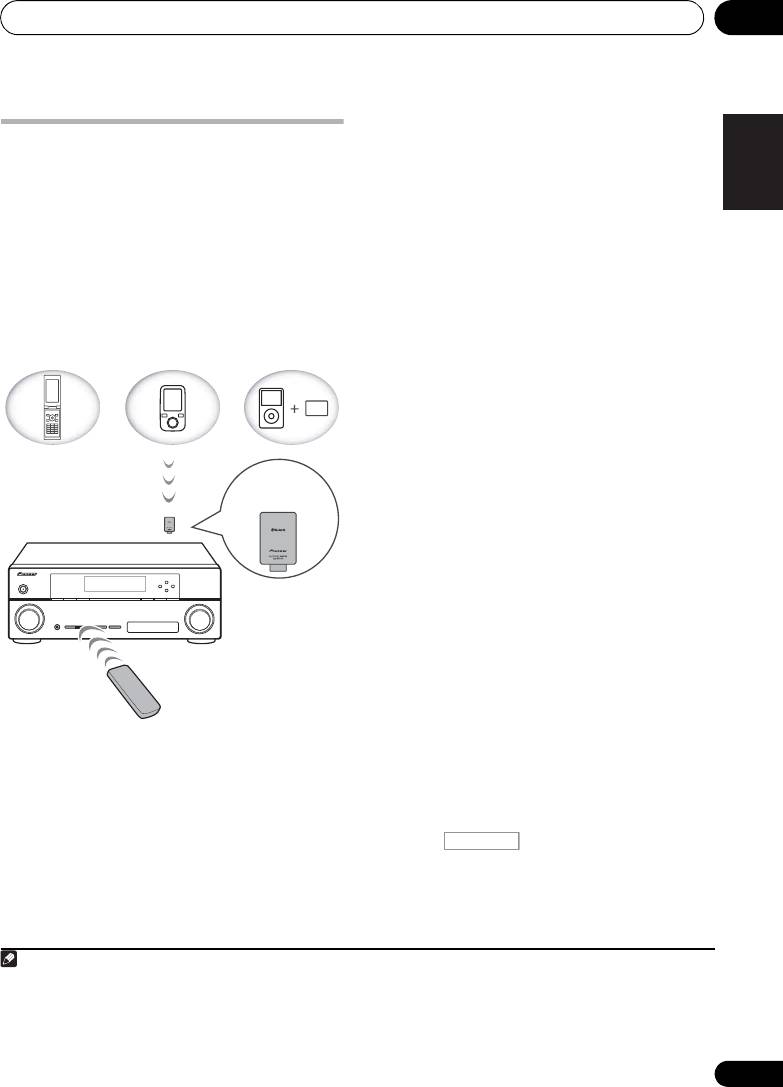
Bluetooth
® ADAPTER for
When the Bluetooth ADAPTER (Pioneer Model
No. AS-BT100) is connected to this unit, a
Wireless Enjoyment of Music
product equipped with Bluetooth wireless
technology (portable cell phone, digital music
player, etc.) can be used to listen to music
Deutsch
wirelessly. Also, by using a commercially
available transmitter supporting Bluetooth
wireless technology, you can listen to music
on a device not equipped with Bluetooth
wireless technology. The AS-BT100 model
supports SCMS-T contents protection, so
Français
music can also be enjoyed on devices
equipped with SCMS-T type Bluetooth wireless
technology.
Remote control operation
The remote control supplied with this unit
Italiano
allows you to play and stop media, and
1
perform other operations.
Pairing the
Bluetooth
ADAPTER and
Bluetooth
wireless technology
Nederlands
device
“Pairing” must be done before you start
playback of Bluetooth wireless technology
content using the Bluetooth ADAPTER. Make
sure to perform pairing the first time you
operate the system or any time pairing data is
Español
cleared. The pairing step is necessary to
register the Bluetooth wireless technology
2
device to enable Bluetooth communications.
For more details, see also the operating
instructions of your Bluetooth wireless
technology device.
1 Press , then press
Home Menu
.
2 Select ‘
System Setup
’, then press
ENTER
.
3 Select ‘
Other Setup
’, then press
ENTER
.
53
En
Device not
equipped with
Bluetooth wireless
technology:
Digital music
Bluetooth
Bluetooth wireless
player
wireless
technology
+
technology
enabled device:
Bluetooth audio
enabled device:
Digital music
transmitter
cell phone
player
(sold commercially)
®
Music data
Bluetooth
ADAPTER
This receiver
Remote control
operation
Note
1 • It must be necessary that the Bluetooth wireless technology enabled device supports AVRCP profiles.
• Remote control operations cannot be guaranteed for all Bluetooth wireless technology enabled devices.
2 • Pairing is required when you first use the Bluetooth wireless technology device and Bluetooth ADAPTER.
• To enable Bluetooth communication, pairing should be done with both your system and Bluetooth wireless
technology device.
RECEIVER
VSX-1020_SYXCN.book 53 ページ 2010年3月12日 金曜日 午前9時10分
Basic playback05
4 Select ‘
Pairing Bluetooth Device
’, then
Listening to music contents of a
press
ENTER
.
Bluetooth
wireless technology
5 Select the ‘
Passcode
’ setting you want.
device with your system
Select the same passcode as the Bluetooth
1 Press
ADAPTER
on the remote control to
wireless technology device you wish to
3
switch the receiver to
ADAPTER PORT
input.
connect.
• 0000/1234/8888 – Select the passcode
2 Perform the connection operation from
from these options. These are the
the side of the
Bluetooth
wireless technology
passcodes that can be used in most cases.
device to the
Bluetooth
ADAPTER.
• Others – Select to use a passcode other
3 Start playback of music contents stored
than those mentioned above.
on the
Bluetooth
wireless technology device.
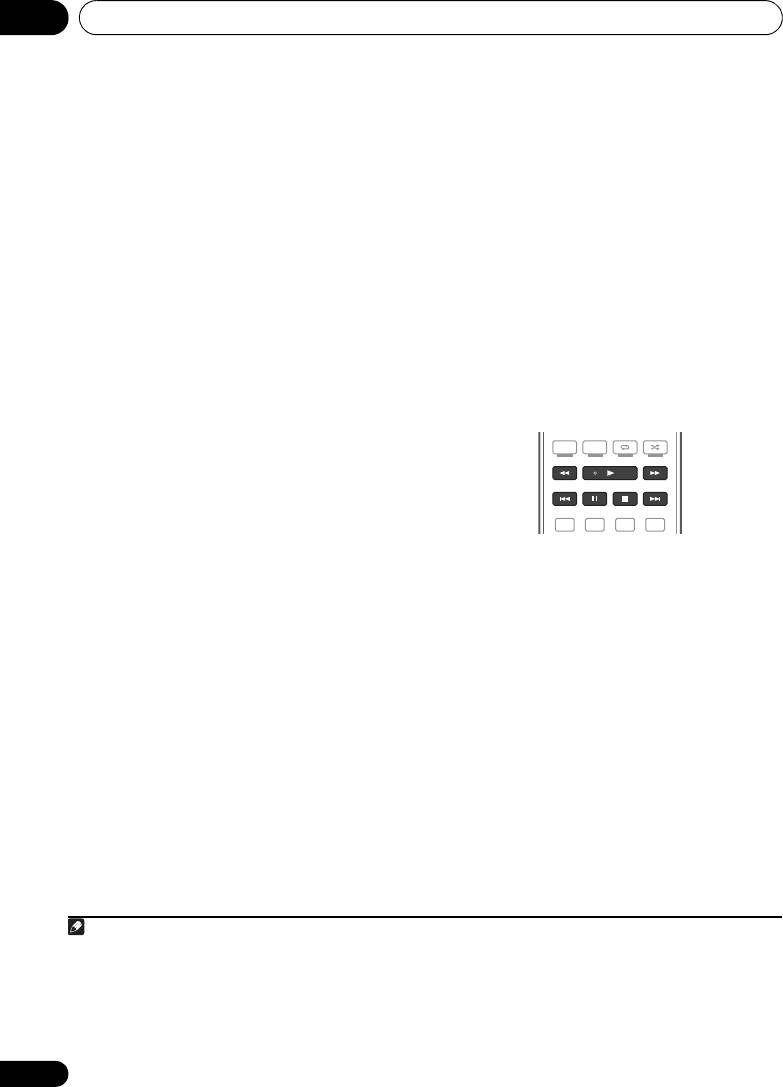
This receiver’s remote control buttons can be
6 If you selected
Others
in step 5, enter the
used for basic playback of files stored on
passcode.
4
Bluetooth wireless technology devices.
Use / to select a number and / to
move the cursor.
7 Follow the instructions displayed on the
GUI screen to conduct pairing with the
Bluetooth
wireless technology device.
Switch on the Bluetooth wireless technology
device that you want to make pair, place it near
®
The Bluetooth
word mark and logos are
the receiver and set it to the pairing mode.
registered trademarks owned by Bluetooth
8 Check to see that the
Bluetooth
ADAPTER
SIG, Inc. and any use of such marks by Pioneer
is detected by the
Bluetooth
wireless
Corporation is under license. Other
technology device.
trademarks and trade names are those of their
When the Bluetooth wireless technology device
respective owners.
is connected:
1
CONNECTED appears in the receiver display.
When the Bluetooth wireless technology device
is not connected:
Go back to the passcode setting in step 5. In
this case, perform the connection operation
from the Bluetooth wireless technology device.
9From the
Bluetooth
wireless technology
device list, select
Bluetooth
ADAPTER and
2
enter the Passcode selected in step 5.
54
En
Note
1 The system can display alphanumeric characters only. Other characters may not be displayed correctly.
2 The passcode may in some cases be referred to as “passkey” or PIN code.
3 When the Bluetooth ADAPTER is not plugged into the ADAPTER PORT, NO ADAPTER will be displayed if ADAPTER
PORT input is selected.
4• Bluetooth wireless technology device should be compatible with AVRCP profile.
• Depending on the Bluetooth wireless technology device you use, operation may differ from what is shown in the
remote control buttons.
PGM MENU
HDD DVD
PHASE
CTRL STATUS
TV
/
DTV MPX PQLS
S.RETRIEVER
MIDNIGHT
AUDIO
213
VSX-1020_SYXCN.book 54 ページ 2010年3月12日 金曜日 午前9時10分
Basic playback 05
1Press
NET RADIO
to switch to the
English
2
Listening to Internet radio
Internet radio input.
The Internet Radio list screen is displayed.
stations
Internet radio is an audio broadcasting service
2Use
/
to select the Internet radio
1
transmitted via the Internet.
There are a large
station to play back, and then press
ENTER
.
number of Internet radio stations broadcasting
Press / to scroll up and down the list and
Deutsch
a variety of services from every corner of the
select the desired item. When you press
world. Some are hosted, managed, and
ENTER, playback starts with the playback
broadcast by private individuals while others
screen being displayed for the selected item.
are by the corresponding traditional terrestrial
Depending on the Internet line conditions, the
radio stations or radio networks. Whereas
sound may not be smooth when playing
terrestrial, or OTA (over-the-air), radio stations
Internet radio. To return to the list screen,
Français
3
are geographically restricted on the range of
press RETURN.
radio waves broadcast from a transmitter
through the air, Internet radio stations are
Programming the Internet radio
accessible from anywhere in the world, as long
stations
as there is a connection to the Internet, as
By programming the Internet radio stations
Italiano
services are not transmitted through the air but
you wish to listen to onto this receiver, you will
are delivered over the World Wide Web. On this
be able to select those Internet radio stations.
receiver you can select Internet radio stations
You can program up to 24 stations.
by genre as well as by region.
There are two methods of programming: one
lets you use the GUI screen on this receiver;
Nederlands
Important
the other lets you connect your computer and
• Before listening to Internet radio, you need
use that screen.
to program the Internet radio stations you
Programming with the GUI screen
wish to listen to onto this unit (see
Programming the Internet radio stations
1Press
TOP MENU
when the Internet
below for how to program). Though the
Radio station list is displayed.
Español
Internet radio stations are programmed in
The Internet Radio Setup screen is displayed.
this receiver before it leaves the factory, the
2Use
/
to select the Internet Radio
link may have expired. In that case, preset
station list screen you wish to edit, and then
the stations again yourself.
press
ENTER
.
55
En
Note
VSX-1020_SYXCN.book 55 ページ 2010年3月12日 金曜日 午前9時10分
1 • To listen to Internet radio stations, you must have high-speed broadband Internet access. With a 56 K or ISDN
modem, you may not enjoy the full benefits of Internet radio.
• The port number varies depending on the Internet radio station. Check the firewall settings.
• Broadcasts may be stopped or interrupted depending on the Internet radio station. In this case, you cannot listen
to a radio station selected from the list of Internet radio stations.
• VSX-920 only: INTERNET RADIO function cannot be selected for the MULTI-ZONE feature (page 73).
2 The Internet radio function cannot be selected in the main zone when the iPod/USB function is selected in the sub
zone. Also, the Internet radio function cannot be selected in the sub zone when the iPod/USB function is selected in
the main zone.
3 When the list screen is displayed from the playback screen, the playback screen reappears automatically if no
operation is performed for 10 seconds while the list screen is displayed.
Basic playback05
3Use
/
to select “Edit“.
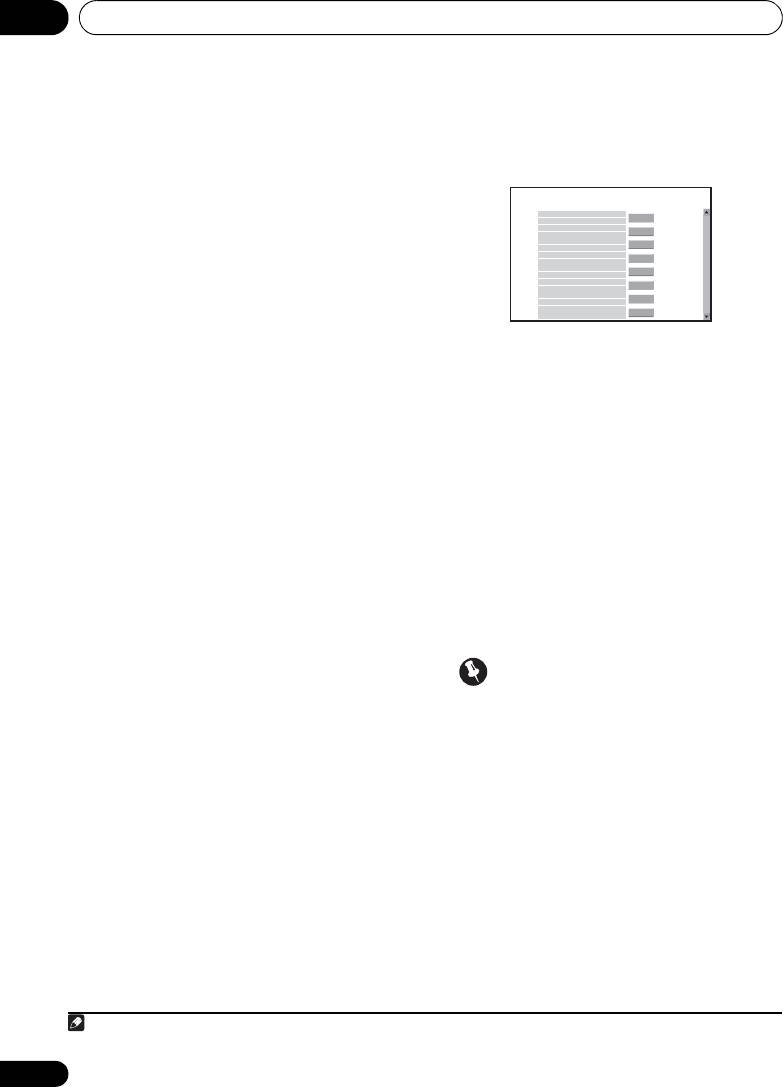
When the connection is made with the
•If you select “Delete”, information
receiver, the following programming screen
regarding the Internet radio stations
will be displayed.
programmed into the currently selected
memory will be deleted.
4 Enter the URL of the Internet radio station
1
you wish to program.
Use / to select a letter and / to move
the cursor.
• A URL containing up to 192 letters can be
entered.
3 Enter the title and URL of the Internet
5 Enter the title of the Internet radio
radio station you wish to program, then press
station.
‘Update’.
Use / to select a letter and / to move
The entered information will be transmitted to
the cursor.
the receiver.
• A title containing up to 22 letters can be
The connection to the URL designated from the
entered.
computer will be confirmed:
If connection is successful, ‘Connection OK’
Programming on the computer screen
will be displayed on screen, and the selected
You can enter the Internet radio list on the
Internet radio station will begin playing via this
screen of a computer that is connected to the
receiver.
same LAN as this receiver, and send the list to
this unit.
If the connection failed, ‘Connection NG’ will
be displayed. Check to see if the URL you
The computer needs to be connected in
entered is correct.
advance to the network of this receiver and set
up.
Important
1 Turn on the computer and launch the
Internet browser.
•‘Connection OK’ and ‘Connection NG’
are only displayed when this receiver is set
2 In the address bar on the browser, enter
to the Internet radio function.
the IP address assigned to this receiver.
• When entering the title and URL of Internet
For example, if the IP address of this receiver is
radio station, do not press ‘Update’ while
“192.168.0.2”, enter “http://192.168.0.2/”.
you are connected to other stations (i.e.,
• This receiver’s IP address can be found in
labelled as “Connecting...”).
the ‘IP address, Proxy’ menu (page 104).
56
En
Note
1 The URL can also be entered by connecting a USB keyboard (see Connecting a USB device on page 36).
Pioneer
Top Menu
Internet Radio Setting
1
Title
J-POP
URL
http://www.xxxxxxx.net:9500
Update
Connection OK
2
Title
URL
Update
Connection OK
3
Title
Rock
URL
http://www.xxxxxxx.com:8096
Update
Connection OK
Title
Classic
4
http://www.yyyyyyy.com:8800
Update
URL
Connection OK
5
Title
Update
URL
Connection OK
Title
STATION6
6
URL
http://zzzzzzz.com:7040
Update
Connection OK
7
Title
Update
URL
Connection OK
ENKA
8
Title
Update
URL
http://www.zyxzyx.com:6000
Connection OK
VSX-1020_SYXCN.book 56 ページ 2010年3月12日 金曜日 午前9時10分
Listening to your system 06
Chapter 6:
English
Listening to your system
• When listening to the ADAPTER PORT
Important
Deutsch
input, the SOUND RETRIEVER AIR feature
• The listening modes and many features
is selected automatically (see Listening in
described in this section may not be
stereo on page 59 for more on this).
available depending on the current source,
ALC – In the Auto level control (ALC) mode,
settings and status of the receiver.
this receiver equalizes playback sound levels.
Français
Auto playback
Tip
There are many ways to listen back to sources
•When ALC is selected, the effect level can
using this receiver, but the simplest, most
be adjusted using the EFFECT parameter
direct listening option is the Auto Surround
in Setting the Audio options on page 68.
feature. The receiver automatically detects
Italiano
what kind of source you’re playing and selects
multichannel or stereo playback as
Listening in surround sound
1
necessary.
Using this receiver, you can listen to any
source in surround sound. However, the
• While listening to a source, press
2
options available will depend on your speaker
Nederlands
, then press
AUTO/ALC/DIRECT
setup and the type of source you’re listening
for auto playback of a source.
to.
AUTO SURROUND shows briefly in the display
before showing the decoding or playback
Standard surround sound
format. Check the digital format indicators in
the front panel display to see how the source is
The following modes provide basic surround
3
Español
being processed.
sound for stereo and multichannel sources.
• If the source is Dolby Digital, DTS, or Dolby
• While listening to a source, press
4
Surround encoded, the proper decoding
, then press
STANDARD
.
format will automatically be selected and
If necessary, press repeatedly to select a
shows in the display.
listening mode.
• When listening to the FM radio, the Neural
Surround feature is selected automatically
(see Using Neural Surround on page 50 for
57
En
Note
1 Stereo surround (matrix) formats are decoded accordingly using Neo:6 CINEMA or 2 Pro Logic IIx MOVIE (see
Listening in surround sound above for more on these decoding formats).
2 • For more options using this button, see Using Stream Direct on page 60.
• The AUTO SURROUND mode cannot be selected when the HDMI audio output parameter is set to THROUGH in
Setting the Audio options on page 68.
RECEIVER
3 In modes that give 6.1 channel sound, the same signal is heard from both surround back speakers.
4 The STANDARD listening mode cannot be selected when the HDMI audio output parameter is set to THROUGH in
Setting the Audio options on page 68.
RECEIVER
VSX-1020_SYXCN.book 57 ページ 2010年3月12日 金曜日 午前9時10分

Listening to your system06
• If the source is Dolby Digital, DTS, or Dolby
• NEURAL SURR – Up to 7.1 channel
Surround encoded, the proper decoding
(surround back) sound, especially suited to
6
format will automatically be selected and
music sources
1
shows in the display.
With multichannel sources, if you have
With two channel sources, you can select from:
connected surround back, front height or front
wide speakers, you can select (according to
• 2 Pro Logic IIx MOVIE – Up to 7.1
format):
channel (surround back) sound, especially
suited to movie sources
• 2 Pro Logic IIx MOVIE – See above
• 2 Pro Logic IIx MUSIC – Up to 7.1
• 2 Pro Logic IIx MUSIC – See above
channel (surround back) sound, especially
• Dolby Digital EX – Creates surround back
2
suited to music sources
channel sound for 5.1 channel sources and
• 2 Pro Logic IIx GAME – Up to 7.1 channel
provides pure decoding for 6.1 channel
(surround back) sound, especially suited to
sources (like Dolby Digital Surround EX)
video games
• DTS-ES – Allows you to hear 6.1 channel
• 2 Pro Logic – 4.1 channel surround
playback with DTS-ES encoded sources
sound (sound from the surround speakers
• DTS Neo:6 – Allows you to hear 6.1
is mono)
channel playback with DTS encoded
• 2 Pro Logic IIz HEIGHT – Up to 7.1
sources
3
channel (front height) sound
3
• 2 Pro Logic IIz HEIGHT – See above
• WIDE SURROUND MOVIE – Up to 7.1
4
• WIDE SURROUND MOVIE – See above
channel (front wide) sound, especially
4
4
• WIDE SURROUND MUSIC – See above
suited to movie sources
• Straight Decode – Plays back without the
• WIDE SURROUND MUSIC – Up to 7.1
effects above.
channel (front wide) sound, especially
4
suited to music sources
• Neo:6 CINEMA – Up to 7.1 channel
(surround back) sound, especially suited to
5
movie sources
• Neo:6 MUSIC – Up to 7.1 channel
(surround back) sound, especially suited to
5
music sources
58
En
Note
VSX-1020_SYXCN.book 58 ページ 2010年3月12日 金曜日 午前9時10分
1 If the surround back speakers are not connected or V.SB is switched OFF, 2 Pro Logic IIx becomes 2 Pro Logic II
(5.1 channel sound).
2 When listening to 2-channel sources in Dolby Pro Logic IIx Music mode, there are three further parameters you can
adjust: C.WIDTH, DIMENSION and PANORAMA. See Setting the Audio options on page 68 to adjust them.
3• This mode can only be selected when Speaker System is set to Normal(SB/FH).
• When listening in 2 Pro Logic IIz HEIGHT mode, you can also adjust the HEIGHT GAIN effect (see Setting the
Audio options on page 68).
4 This mode can only be selected when Speaker System is set to Normal(SB/FW).
5 When listening to 2-channel sources in Neo:6 Cinema or Neo:6 Music mode, you can also adjust the center image
effect (see Setting the Audio options on page 68).
6 NEURAL SURR can be selected for 2-channel signals for which the input signal is PCM (48 kHz or less), Dolby Digital,
DTS or analog 2-channel sources.
Listening to your system 06
Using the Advanced surround effects
• EXT.STEREO – Gives multichannel sound
English
to a stereo source, using all of your
The Advanced surround effects can be used for
speakers
a variety of additional surround sound effects.
Most Advanced Surround modes are designed
• PHONES SURR – When listening through
to be used with film soundtracks, but some
headphones, you can still get the effect of
modes are also suited for music sources. Try
overall surround.
Deutsch
different settings with various soundtracks to
see which you like.
Tip
• Press , then press
ADV SURR
• When an Advanced Surround listening
(
ADV SURROUND
) repeatedly to select a
mode is selected, the effect level can be
1
listening mode.
adjusted using the EFFECT parameter in
Français
• ACTION – Designed for action movies with
Setting the Audio options on page 68.
dynamic soundtracks
• DRAMA – Designed for movies with lots of
dialog
Listening in stereo
• SCI-FI – Designed for science fiction with
When you select
STEREO
, you will hear the
Italiano
lots of special effects
source through just the front left and right
speakers (and possibly your subwoofer
• MONO FILM – Creates surround sound
depending on your speaker settings).
from mono soundtracks
Multichannel sources are downmixed to stereo.
• ENT.SHOW – Suitable for musical sources
• While listening to a source, press
• EXPANDED – Creates an extra wide stereo
Nederlands
2
, then press
STEREO
for stereo
field
3
playback.
• TV SURROUND –
Provides surround sound
Press repeatedly to switch between:
for both mono and stereo TV sources
• STEREO – The audio is heard with your
• ADVANCED GAME – Suitable for video
sound settings and you can still use the
games
audio options.
Español
• SPORTS – Suitable for sports programs
• F.S.SURR FOCUS – See Using Front Stage
• CLASSICAL – Gives a large concert hall-
Surround Advance on page 60 for more on
type sound
this.
• ROCK/POP – Creates a live concert sound
• F.S.SURR WIDE – See Using Front Stage
for rock and/or pop music
Surround Advance on page 60 for more on
this.
• UNPLUGGED – Suitable for acoustic
4
music sources
• SOUND RETRIEVER AIR
– Suitable for
listening to the sound from a Bluetooth
wireless technology device.
59
En
Note
1If you press ADV SURR when the headphones are connected, the PHONES SURR mode will automatically be
selected.
2 Use with Dolby Pro Logic for a stereo surround effect (stereo field is wider than Standard modes with Dolby Digital
sources).
RECEIVER
3 • The STEREO, F.S.SURR FOCUS and F.S.S WIDE mode cannot be selected when the HDMI audio output parameter
is set to THROUGH in Setting the Audio options on page 68.
• When headphones are plugged in, the F.S.SURR FOCUS and F.S.SURR WIDE are cannot be selected.
4The SOUND RETRIEVER AIR listening mode can only selected when the ADAPTER PORT input.
RECEIVER
VSX-1020_SYXCN.book 59 ページ 2010年3月12日 金曜日 午前9時10分
Listening to your system06
Using Front Stage Surround
Using Stream Direct
Use the Stream Direct modes when you want
Advance
to hear the truest possible reproduction of a
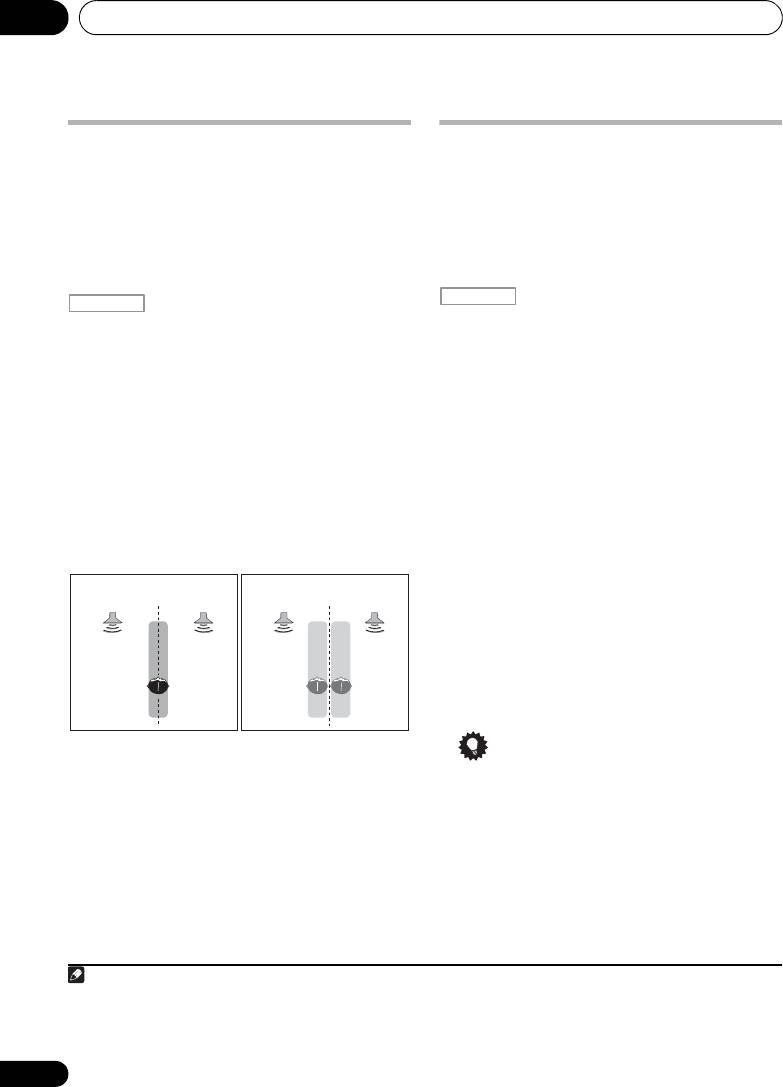
The Front Stage Surround Advance function
source. All unnecessary signal processing is
allows you to create natural surround sound
bypassed, and you’re left with the pure analog
effects using just the front speakers and the
or digital sound source.
subwoofer.
• While listening to a source, press
• While listening to a source, press
, then press
AUTO/ALC/DIRECT
to
, then press
STEREO
to select Front
2
select the mode you want.
Stage Surround Advance modes.
Check the digital format indicators in the front
• STEREO – See Listening in stereo on
panel display to see how the source is being
page 59 for more on this.
processed.
• F.S.SURR FOCUS – Use to provide a rich
• AUTO SURROUND – See Auto playback on
surround sound effect directed to the
page 57.
center of where the front left and right
speakers sound projection area converges.
• ALC – Listening in Auto level control mode
(page 57).
• F.S.SURR WIDE – Use to provide a
surround sound effect to a wider area than
• DIRECT – Plays back sound from the
1
FOCUS mode.
source with the least modification next to
PURE DIRECT. With DIRECT, the only
modifications added to PURE DIRECT
playback are calibration of the sound field
by the MCACC system and the Phase
Control effect.
• PURE DIRECT – Plays back unmodified
sound from source with only minimal
digital treatment. No sound is output from
the Speaker B in this mode.
Tip
• When an ALC mode is selected, the effect
level can be adjusted using the EFFECT
parameter in Setting the Audio options on
page 68.
60
En
Note
1 When using F.S.SURR WIDE, a better effect can be obtained if the Full Auto MCACC procedure under Advanced
MCACC is performed. For more on this, refer to Automatically conducting optimum sound tuning (Auto MCACC) on
page 39.
RECEIVER
FOCUS position
WIDE position
(Recommended)
Front left
Front right
Front left
Front right
speaker
speaker
speaker
speaker
VSX-1020_SYXCN.book 60 ページ 2010年3月12日 金曜日 午前9時10分
RECEIVER
2 When headphones are plugged in, the AUTO SURROUND and DIRECT are cannot be selected.
