
Pioneer VSX-521: Basic Setup Canceling the demo display Automatically setting up for surround sound (MCACC)
Basic Setup Canceling the demo display Automatically setting up for surround sound (MCACC): Pioneer VSX-521
Table of contents
- IMPORTANT VENTILATION CAUTION
- Information for users on collection and disposal of old equipment and used batteries
- Contents
- Before you start Checking what’s in the box Loading the batteries Flow of settings on the receiver
- Remote control
- Connecting your equipment Hints on the speaker placement Placing the speakers
- Connecting the speakers
- Making cable connections
- Analog audio cables Digital audio cables Video cables About video outputs connection
- Connecting a TV and playback components Connecting using HDMI
- Connecting your component with no HDMI terminal Connecting a satellite receiver or other digital set-top box
- Connecting an HDD/DVD recorder, Blu-ray Disc recorder and other video sources Using the component video jacks
- Connecting other audio components Using external antennas Connecting antennas To improve FM reception To improve AM reception
- Plugging in the receiver
- Basic Setup Canceling the demo display Automatically setting up for surround sound (MCACC)
- Other problems when using the Auto MCACC setup
- Basic playback Playing a source Listening in surround sound
- Listening to the radio
Basic Setup
Basic Setup
Canceling the demo display
The display on the front panel shows various information
(demo displays) when the receiver is not operating.
You can turn off the demo display. For details, see The FL
Demo Mode menu on Operating Instructions in CD-ROM.
• The demo mode is canceled automatically when the Auto
MCACC setup is performed (see below).
Automatically setting up for surround sound
(MCACC)
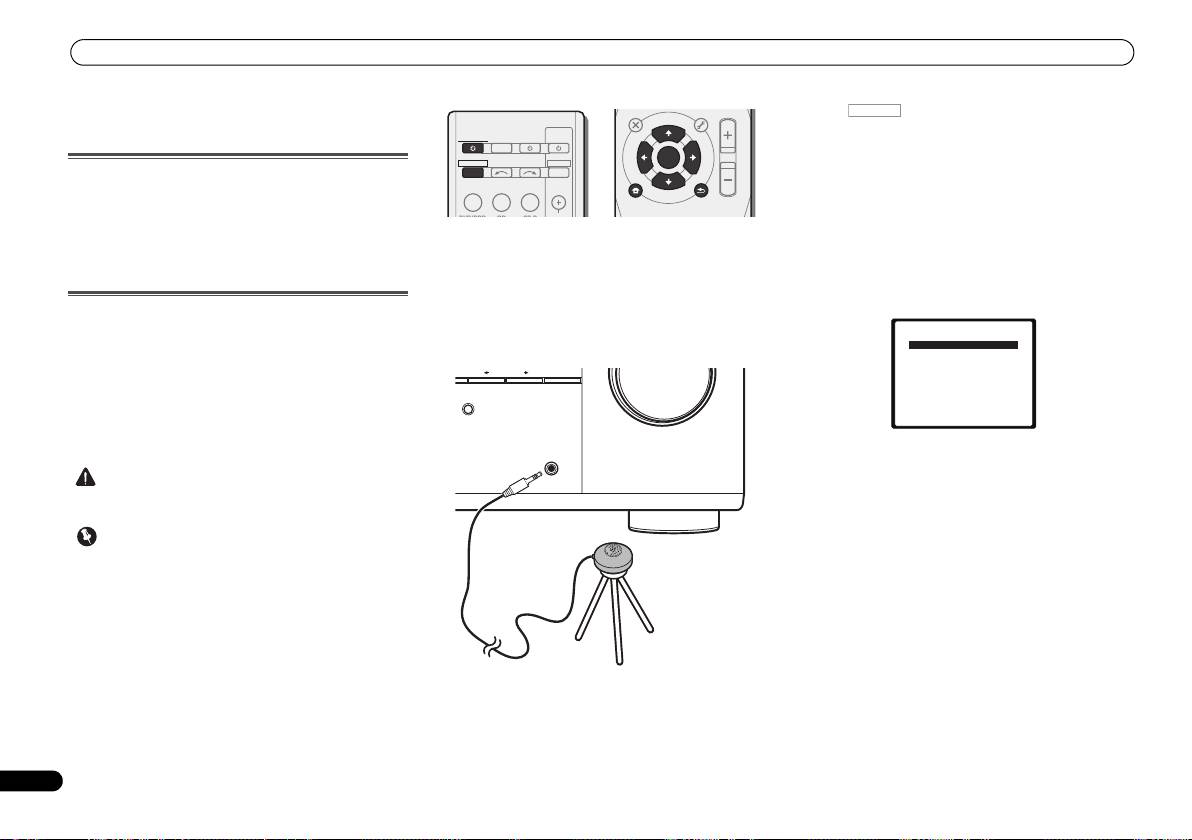
The Auto Multi-Channel Acoustic Calibration (MCACC) setup
measures the acoustic characteristics of your listening area,
taking into account ambient noise, speaker size and
distance, and tests for both channel delay and channel level.
After you have set up the microphone provided with your
system, the receiver uses the information from a series of test
tones to optimize the speaker settings and equalization for
your particular room.
16
En
CAUTION
• The test tones used in the Auto MCACC setup are output
at high volume.
Important
4
Press on the remote control, then press the
SETUP button.
The System Setup menu appears on your TV. Use ///
and ENTER on the remote control to navigate through the
screens and select menu items. Press RETURN to exit the
current menu.
•Press SETUP at any time to exit the System Setup menu.
If you cancel the Auto MCACC setup at any time, the
1
Switch on the receiver and your TV.
receiver automatically exits and no settings will be made.
• The screensaver automatically starts after three minutes
2
Switch the TV input to the input that connects this
of inactivity.
receiver to the TV through the corresponding composite or
component cable.
5
Select ‘Auto MCACC’ from the System Setup menu, then
press ENTER.
3
Connect the microphone to the MCACC SETUP MIC jack
on the front panel.
Make sure there are no obstacles between the speakers and
the microphone.
• MIC IN blinks when the microphone is not connected to
MCACC SETUP MIC jack.
Try to be as quiet as possible after pressing ENTER. The
system outputs a series of test tones to establish the ambient
noise level.
6
Follow the instructions on-screen.
• Make sure the microphone is connected.
• The OSD will not appear if you have connected using the
• Make sure the subwoofer is on and the volume is turned
HDMI output to your TV. Use composite or component
up.
connections for system setup.
• When using surround back or front height speakers, turn
• The Auto MCACC setup will overwrite any existing
on the power to the amplifier to which the surround back
speaker settings you’ve made.
or front height speakers are connected, and adjust the
• If you connected either the surround back speaker or the
sound level to the desired level.
front height speaker, make sure that the Pre Out setting
• See below for notes regarding background noise and
is correctly set before performing the Auto MCACC setup
other possible interference.
(see The Pre Out Setting on Operating Instructions in CD-
If you have a tripod, use it to place the microphone so that it’s
ROM). (Here is an explanation using the OSD screen for
about ear level at your normal listening position. Otherwise,
a surround back speaker connection.)
place the microphone at ear level using a table or a chair.
PARAMETER
TOOLS
VOLUME
TOP
N
E
MENU
T
U
MENU
RECEIVER
TV
SOURCESLEEP
CONTROL
E
T
P
R
S
E
S
R
E
ENTER
RECEIVER
INPUT SELECT
P
T
E
DTV/TV
INPUT
HOME
BD DVD TV
MENU
T
U
N
E
BAND
SETUP
RETURN
PTY SEARCH
DVR/BDR
CD
CD R
CH
MUTE
PRESET ENTER
SOUND
RETRIEVER
MASTER
VOLUME
PORTABLE
/
MCACC
SETUP
MIC
Microphone
Tripod
RECEIVER
System Setup
1.Auto MCACC
2.Manual SP Setup
3.Input Assign
4.Pre Out Setting
5.HDMI Setup
6.Auto Power Down
7.FL Demo Mode
Return
VSX-521_SYXCN_QSG_En.book 16 ページ 2011年3月1日 火曜日 午前9時44分
