
Pioneer DEH-X6500DAB: DAB (Digital Audio Broadcasting) Frequently used menu operations
DAB (Digital Audio Broadcasting) Frequently used menu operations: Pioneer DEH-X6500DAB
Table of contents
- About this unit In case of trouble About this manual
- Head unit Display indication Set up menu
- DAB (Digital Audio Broadcasting) Frequently used menu operations
- Tuner
- CD/CD-R/CD-RW and USB storage devices
- iPod
- Audio adjustments
- System menu Selecting the key color
- About MIXTRAX
- System menu
- Connections
- Installation
- Troubleshooting Error messages
- Handling guidelines
- Compressed audio compatibility (disc, USB)
- Copyright and trademark iPod compatibility Russian character chart Sequence of audio files
- Specifications
Section
02
Operating this unit
Operating this unit
Notes
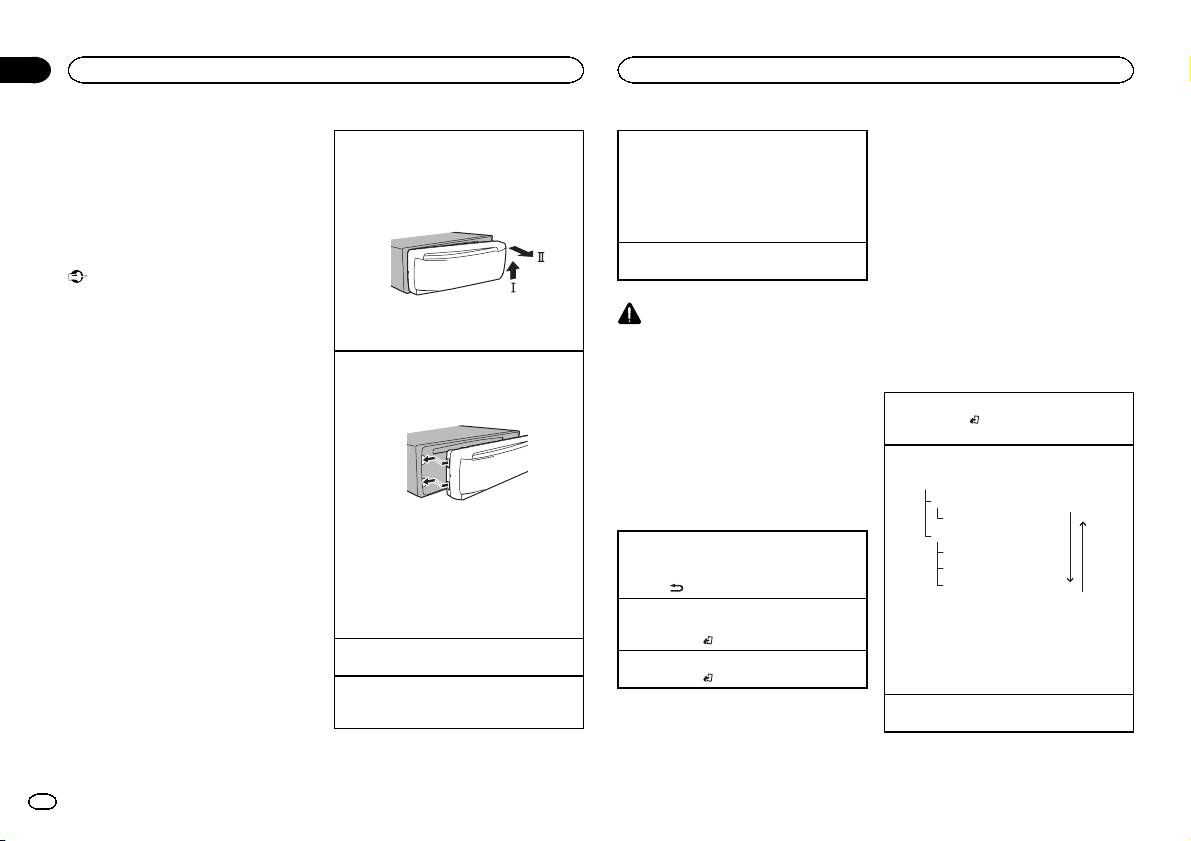
Removing the front panel to protect your unit from
Selecting a source
DAB (Digital Audio
! You can set up the menu options from the
theft
1 Press SRC/OFF to cycle between:
Broadcasting)
system menu. For details about the settings,
1 Press the detach button to release the front
DAB (digital audio broadcasting)—TUNER
refer to System menu on page 10.
To receive DAB signals, connect a DAB antenna
panel.
(tuner)—CD (CD player)—USB (USB)/iPod
! You can cancel set up menu by pressing
(AN-DAB1) sold separately to the unit.
2 Push the front panel upward (M) and then pull
(iPod)—AUX (AUX)
SRC/OFF.
DAB stands for Digital Audio Broadcasting and
it toward (N) you.
! If a source other than DAB is selected, you
has the following features:
can switch to DAB by pressing DAB.
! High sound quality (nearly as high as for
Basic operations
Adjusting the volume
CDs, although it may be reduced in some
1 Turn M.C. to adjust the volume.
cases in order to allow more services to be
Important
broadcast)
! Handle gently when removing or attaching
! Interference-free reception
the front panel.
CAUTION
! Avoid subjecting the front panel to excessive
3 Always keep the detached front panel in a pro-
Note
shock.
For safety reasons, park your vehicle when re-
tection device such as a protection case.
Some stations perform broadcast testing.
moving the front panel.
! Keep the front panel out of direct sunlight
Re-attaching the front panel
and high temperatures.
Note
Basic operations
1 Slide the front panel to the left.
! To avoid damaging the device or vehicle inte-
Make sure to insert the tabs on the left side of
When this unit’s blue/white lead is connected to
rior, remove any cables and devices attached
the head unit into the slots on the front panel.
the vehicle’s auto-antenna relay control termi-
Selecting a band
to the front panel before detaching it.
nal, the vehicle’s antenna extends when this
1 Press BAND/
until the desired band (D1, D2,
unit’s source is turned on. To retract the anten-
or D3) is displayed.
na, turn the source off.
Manual tuning (step by step)
1 Press c or d.
Ensemble
Frequently used menu
Service
Press
.
operations
Primary Service Component
2 Press the right side of the front panel until it is
firmly seated.
Service
Returning to the previous display
If you cannot attach the front panel to the
Primary Service Component
Returning to the previous list (the folder one level
head unit successfully, make sure that you are
Secondary Service Component
higher)
placing the front panel onto the head unit cor-
Secondary Service Component
1 Press
/DIMMER.
rectly. Forcing the front panel into place may
Press
.
result in damage to the front panel or head
Returning to the ordinary display
Some individual services in an ensemble may be
unit.
Canceling the main menu
further subdivided into Service Components. The
1 Press BAND/
.
main Service Component is called the Primary
Turning the unit on
Service Component, and any auxiliary Service
1 Press SRC/OFF to turn the unit on.
Returning to the ordinary display from the list
Components are called Secondary Service Com-
1 Press BAND/
.
ponents.
Turning the unit off
1 Press and hold SRC/OFF until the unit turns
Seeking
off.
1 Press and hold c or d, and then release.
4
En
