
Pioneer X-HM10-S: MP3/WMA folder mode (only for MP3/ Listening to USB mass storage WMA files) (continued) device/MP3 player
MP3/WMA folder mode (only for MP3/ Listening to USB mass storage WMA files) (continued) device/MP3 player: Pioneer X-HM10-S
Table of contents
- Operating Environment VENTILATION CAUTION
- ENGLISH Introduction Accessories CONTENTS
- Precautions n General n Volume control Controls and indicators n Front panel
- n Speaker system n Remote control n Display
- System connections n Aerial connection n Speaker connection n Connecting iPod or iPhone to TV
- n AC power connection n Connecting a TV, etc. n Battery installation n Test of the remote control
- General control Setting the clock (Remote control only)
- Setting the clock (Remote control only) (continued) Listening to the iPod, iPhone or iPad
- Listening to the iPod, iPhone or iPad (X-HM20 only) (continued)
- Listening to the iPod, iPhone or iPad (X-HM20 only) (continued)
- Listening to a CD or MP3/WMA disc
- Advanced CD or MP3/WMA disc playback
- Advanced CD or MP3/WMA disc MP3/WMA folder mode (only for MP3/ playback (continued) WMA files)
- MP3/WMA folder mode (only for MP3/ Listening to USB mass storage WMA files) (continued) device/MP3 player
- Listening to USB mass storage device/MP3 player (continued) Advanced USB playback
- Listening to the radio
- Using the Radio Data System (RDS)
- Using the Radio Data System (RDS) (continued)
- Using the Radio Data System (RDS) Timer and sleep operation (Remote (continued) control only)
- Timer and sleep operation (Remote control only) (continued)
- Timer and sleep operation (Remote Headphones control only) (continued)
- Troubleshooting chart
- Troubleshooting chart (Continued)
- Specifications
- Notice
MP3/WMA folder mode (only for MP3/
Listening to USB mass storage
WMA files) (continued)
device/MP3 player
TUNING −
TUNING +
PRESET
CD
FOLDER
PRESET
DISPLAY
CD/USB
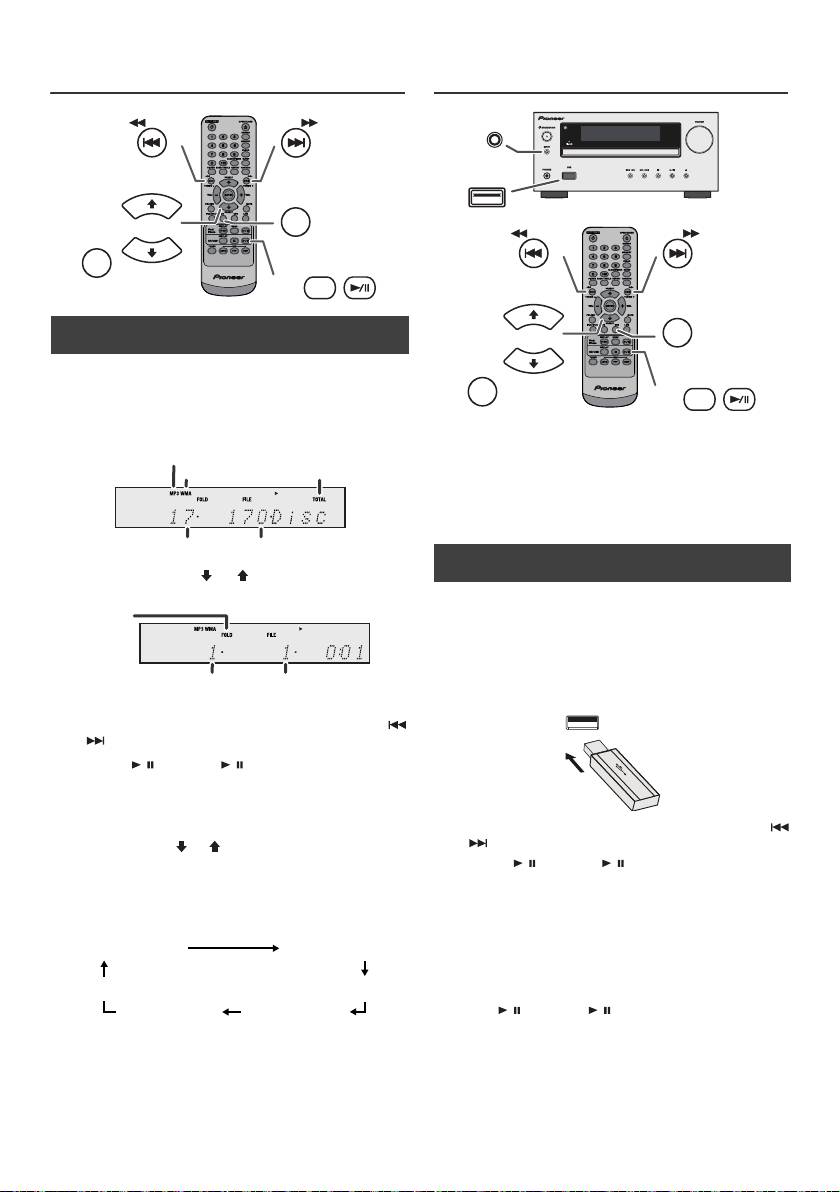
n Procedure to playback MP3/WMA disc with
folder mode on
To play back CD-R/RW.
1
Press the CD button, and load an MP3/WMA disc.
Press the FOLDER button and disc info will be
Notes:
displayed.
l This product is not compatible with MTP and AAC file
systems from USB mass storage device or MP3
player.
l Some external storage devices may not operate with
this system.
l Operation of external storage devices (USB memory
devices, external hard disks, etc.) is not guaranteed.
2 Press the PRESET
(
or
)
button to select desired
playback folder. (Folder mode on)
3 Select desired file to be played back by pressing the
or button.
4 Press the / (CD/USB / ) button. Playback will start
and file name will be displayed.
l Title, Artist and Album name are displayed if they are
recorded on the disc.
l In case of playback with the folder mode on, press
the PRESET
(
or
)
button, and the folder can be
selected even though it is in playback/pause mode.
It will continue playback/pause mode in the 1st track
of the selected folder.
l Display content can be changed by pressing the CD/
USB DISPLAY button.
Note:
To pause playback:
Press the / (CD/USB / ) button.
Note:
If “Not Support” is displayed, it means “Copyright
protected WMA file” or “Not supported playback file” is
selected.
En-16
11/5/25 X-HM10_20_En.fm
MP3 indicator
WMA indicator
TOTAL indicator
Total number of folder
Total number of files
FOLDER
indicator
FOLDER number
First track number
in the folder
File name display Folder display
Counter display
Title display
Album display
Artist display
n To play back USB/MP3 player with folder
mode off
1
Press the USB button on the remote control or INPUT
button repeatedly on main unit to select USB function.
Connect the USB memory device that has MP3/WMA
format files on the unit. When the USB memory is
connected to the main unit, the device information will
be displayed.
2 Select desired file to be played back by pressing the
or button.
3 Press the / (CD/USB / ) button. Playback will start
and the file name will be displayed.
l Title, Artist and Album name are displayed if they are
recorded in the USB memory device.
l Display content can be changed by pressing the CD/
USB DISPLAY button.
INPUT
USB
TUNING −
TUNING +
PRESET
USB
FOLDER
PRESET
DISPLAY
CD/USB
