
Pioneer X-HM10-S: Advanced CD or MP3/WMA disc MP3/WMA folder mode (only for MP3/ playback (continued) WMA files)
Advanced CD or MP3/WMA disc MP3/WMA folder mode (only for MP3/ playback (continued) WMA files): Pioneer X-HM10-S
Table of contents
- Operating Environment VENTILATION CAUTION
- ENGLISH Introduction Accessories CONTENTS
- Precautions n General n Volume control Controls and indicators n Front panel
- n Speaker system n Remote control n Display
- System connections n Aerial connection n Speaker connection n Connecting iPod or iPhone to TV
- n AC power connection n Connecting a TV, etc. n Battery installation n Test of the remote control
- General control Setting the clock (Remote control only)
- Setting the clock (Remote control only) (continued) Listening to the iPod, iPhone or iPad
- Listening to the iPod, iPhone or iPad (X-HM20 only) (continued)
- Listening to the iPod, iPhone or iPad (X-HM20 only) (continued)
- Listening to a CD or MP3/WMA disc
- Advanced CD or MP3/WMA disc playback
- Advanced CD or MP3/WMA disc MP3/WMA folder mode (only for MP3/ playback (continued) WMA files)
- MP3/WMA folder mode (only for MP3/ Listening to USB mass storage WMA files) (continued) device/MP3 player
- Listening to USB mass storage device/MP3 player (continued) Advanced USB playback
- Listening to the radio
- Using the Radio Data System (RDS)
- Using the Radio Data System (RDS) (continued)
- Using the Radio Data System (RDS) Timer and sleep operation (Remote (continued) control only)
- Timer and sleep operation (Remote control only) (continued)
- Timer and sleep operation (Remote Headphones control only) (continued)
- Troubleshooting chart
- Troubleshooting chart (Continued)
- Specifications
- Notice
Advanced CD or MP3/WMA disc
MP3/WMA folder mode (only for MP3/
playback (continued)
WMA files)
To play back MP3/WMA (Windows Media Audio) file
4 Repeat steps 2 - 3 for other tracks. Up to 32 tracks can
There are many music sites on the internet that you can
be programmed. If you want to check the programmed
download MP3/WMA (Windows Media Audio) music files.
tracks, press the MEMORY button repeatedly. If you
Follow the instructions from the website on how to
make a mistake, the programmed tracks can be cleared
download the music files. You can then play back these
by pressing the CLEAR button.
downloaded music files by burning them to a CD-R/RW
disc.
5
Press the / (CD/USB / ) button to start playback.
l Your downloaded song/files are for personal use only.
Any other usage of the song without owner’s
permission, is against the law.
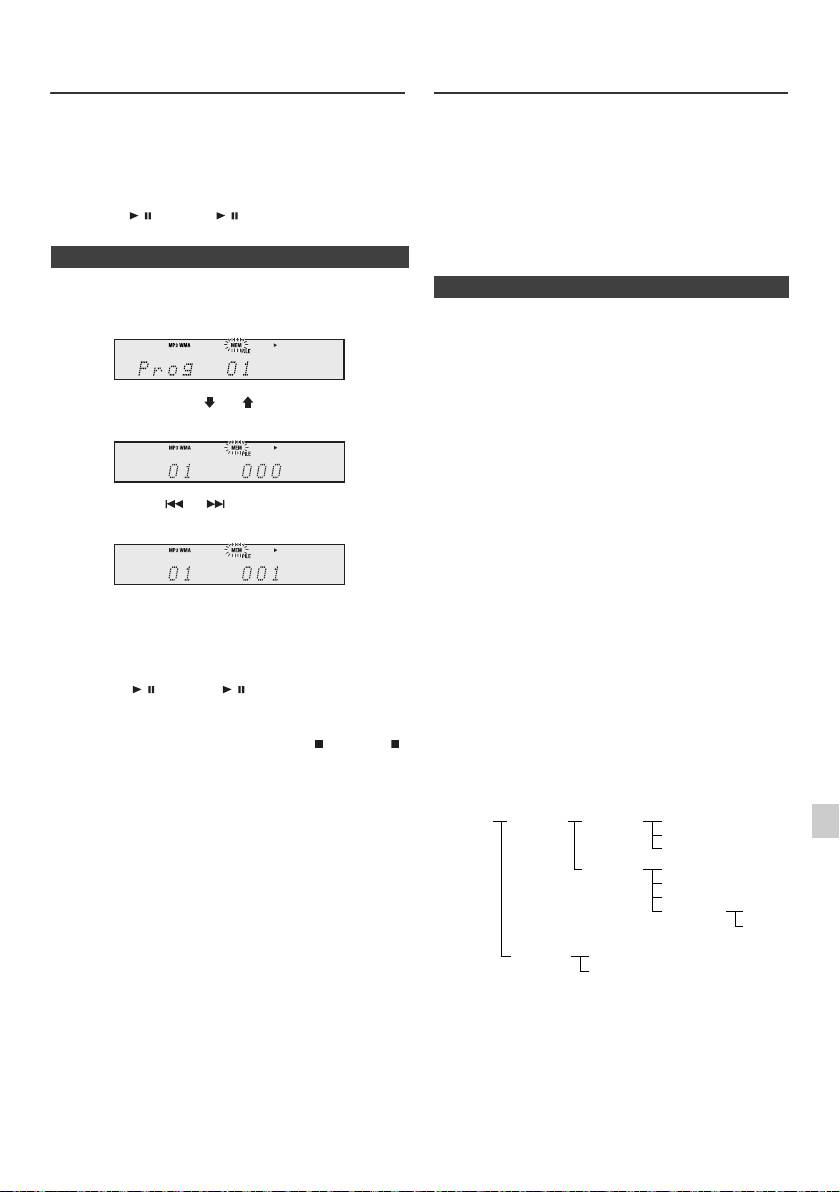
n Programmed play (MP3/WMA)
n About folder playback order
1
Whilst in the stop mode, press the MEMORY button to
enter the programming save mode.
If MP3/WMA files are recorded in several folders, a folder
number will be set to each folder automatically.
These folders can be selected by the FOLDER button on
the remote control. If there is no supported file formats
inside the selected folder, the folder is skipped and the
2 Press the PRESET
(
or
)
button on the remote
next folder will be selected.
control to select the desired folder.
Example: How to set folder number if MP3/WMA format
files are recorded as below figure.
1
ROOT folder is set as folder 1.
2 As for folders inside ROOT folder (Folder A and Folder
Then press the or button on the remote control
B), the folder which is recorded earlier on the disc will be
to select the desired tracks.
set as folder 2 and folder 3.
3 As for folder inside Folder A (Folder C and Folder D), the
folder which is recorded earlier on the disc will be set as
folder 4 and folder 5.
3 Press the MEMORY button to save the folder and track
4 Folder E that is inside Folder D will be set as folder 6.
number.
l The folder and file order information which is recorded
4 Repeat steps 2 - 3 for other folder/tracks. Up to 32
on the disc depends on the writing software. There
tracks can be programmed.
maybe possibilities that this unit will playback the files
not according to our expected playback order.
5 Press the / (CD/USB / ) button to start playback.
l For CD MP3/WMA, 99 numbers of folders and 999 files
inclusive of the folders which have non playable files
can be read.
To cancel the programmed play mode :
During programmed stop mode, press the (CD/USB )
Folder mode on/off can be operated by the FOLDER
button. The display will show “Memory Clear” and all the
button on the remote control. Files that are played when
programmed contents will be cleared.
folder mode is set to the on position, may differ from those
played back when folder mode is turned off.
Adding tracks to the programme:
If a programme has been previously stored, the “MEM”
1
indicator will be displayed. Press the MEMORY button.
Then follow steps 2 - 3 to add tracks.
2
Notes:
l When a disc is ejected, the programme is automatically
3
cancelled.
l If you press the STANDBY/ON button to enter the
stand-by mode or change the function from CD to
4
another, the programmed selections will be cleared.
l During the programme operation, random play is not
possible.
5
6
7
8
9
En-15
11/5/25 X-HM10_20_En.fm
ROOT
FOLDER A
FOLDER C
FILE 3
(FOLDER 1)
(FOLDER 2)
(FOLDER 4)
FILE 4
FILE 5
FOLDER D
FILE 6
(FOLDER 5)
FILE 7
FILE 8
FOLDER E
FILE 9
(FOLDER 6)
FILE 10
FOLDER B
FILE 1
(FOLDER 3)
FILE 2
