
Dell C/Port II APR – страница 2
Инструкция к Ноутбуку Dell C/Port II APR
Оглавление

4G281bk1.book Page 19 Friday, October 19, 2001 3:21 PM
Wait a few seconds for the power light on the computer to turn off.
• Press the undock request button on the docking control base (see the
figure “Docking Control Base Controls and Indicators”). Wait for the
green docking light to turn off.
Securing the C/Port II APR
Security Features
The docking device has the following security features:
• An eject/locking lever that allows you to secure and eject your
computer. The back position secures the computer to the C/Port II
APR. The middle position allows you to use the docking device
without securing it. The front position ejects the computer from the
docking device. Push the eject/locking lever to the back position to use
the padlock security lock and the security lock slot.
• A spring-loaded latch on the front of the base that fits into a security
slot on the bottom of the computer secures the computer to the
docking control base. Not all Dell computers have the security slot.
• A secured media-bay eject button that blocks removal of media bay
devices.
• An immobilized catch latch to deter unauthorized computer removal.
Securing the C/Port II APR
Use one of the following methods to secure the docking device:
• Use a padlock alone or a padlock and looped security cable with the
padlock slot (see “Docking Control Base Controls and Indicators”) on
the docking device.
A padlock alone blocks the eject lever and makes it difficult to detach
the computer from the docking device.
A security cable looped around a stationary object and used in
conjunction with the padlock can help prevent the unauthorized
movement of the computer and the C/Port II APR.
Dell Latitude C/Port II APR System Information Guide 19

4G281bk1.book Page 20 Friday, October 19, 2001 3:21 PM
• Attach a commercially available antitheft device to the security lock
slot (see “Docking Control Base Controls and Indicators”) on the
docking device.
Antitheft devices usually include a segment of metal-stranded cable
with an attached locking device and associated key. Dell recommends
that you use a Kensington lock. For instructions on installing this kind
of antitheft device, see the documentation that accompanied the
device.
Dell Diagnostics
www.dell.com | support.dell.com
The Dell Diagnostics that came with your Dell Latitude computer includes
tests that help you troubleshoot the controllers in your docking device.
The subtests in the Network Interface test group of the Dell Diagnostics
verify the basic operation of the network controller in the docking device.
They test the controller's internal functions, including read and write access
to its registers and internal transmit and receive (loopback) capability.
The subtests in the Serial/Infrared Ports test group check the docking
device's interface with external devices (such as a serial mouse or a printer).
The subtests in this test group are not intended as a diagnostic test for the
external device itself.
The subtests in the USB test group check the docking device's interface
with external devices (such as a mouse). The subtests in this test group are
not intended as a diagnostic test for the external device itself.
For complete instructions on using the Dell Diagnostics, see your
computer's User's Guide.
20 Dell Latitude C/Port II APR System Information Guide

4G281bk1.book Page 21 Friday, October 19, 2001 3:21 PM
Technical Specifications
Technical Specifications
Physical
Height:
With monitor stand 10.2 cm (4.0 inches)
Standalone 5.8 cm (2.3 inches)
Depth:
With monitor stand 39.0 cm (15.4 inches)
Standalone 35.8 cm(14.1 inches)
Width:
With monitor stand 40.9 cm (16.1 inches)
Standalone 37.5 cm (14.8 inches)
Weight:
With monitor stand 3.0 kg (6.5 lb)
Standalone 1.6 kg (3.5 lb)
Power
AC Adapter Input:
Voltage 100–200VAC, 50–60 Hz
Amperage 1.5 A
APRII Input:
Voltage requires 20 VDC from AC Adapter
Amperage 3.5 A
Dell Latitude C/Port II APR System Information Guide 21

4G281bk1.book Page 22 Friday, October 19, 2001 3:21 PM
Technical Specifications
I/O
Serial (DTE) 16550-compatible, 16-byte buffer connector
Parallel unidirectional, bidirectional, or ECP connector
PS/2 two mini-DIN connectors
USB two USB-compliant connectors
Infrared infrared sensor compatible with IrDA Standards
1.1 (Fast IR) and 1.0
Audio line out audio jack (for optional headphones)
www.dell.com | support.dell.com
Video one connector
Network one RJ45 connector
Docking (to connect to
one connector
computer)
Ethernet Network Controller
®
Chip set 3Com
3C920; 10/100 BASE-TX
(PC99-compliant)
Data bus width 32-bit PCI host bus interface
IRQ IRQ10
22 Dell Latitude C/Port II APR System Information Guide
4G281bk1.book Page 23 Friday, October 19, 2001 3:21 PM
Safety and EMC Instructions: Portable
Computers
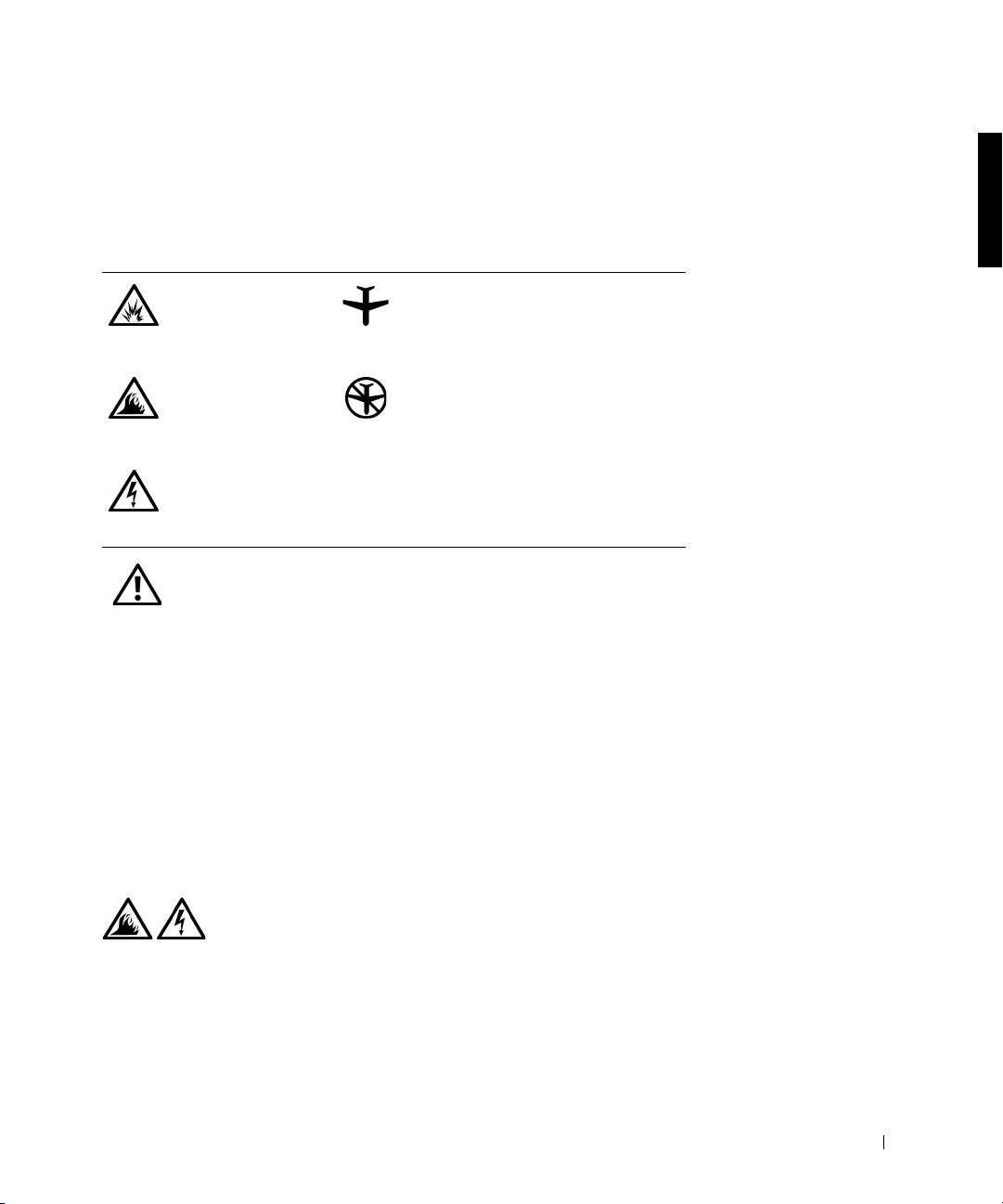
The following information defines the meaning of additional symbols used
only in the Safety and Electromagnetic Compatibility (EMC) Instructions.
Risk of explosion Aircraft
Risk of fire Use of this feature may be prohibited
on aircraft
Risk of electric shock
Safety Instructions
General
• When setting up the APR for work, place it on a level
surface.
• Do not attempt to service the APR yourself unless you
are an authorized service technician. Always follow
installation instructions closely.
• If you use an extension power cable with your AC
adapter, ensure that the total ampere rating of the
products plugged in to the extension power cable does
not exceed the ampere rating of the extension cable.
• Do not push objects into air vents or openings of your
computer. Doing so can cause fire or electric shock by
shorting out interior components.
Dell Latitude C/Port II APR System Information Guide 23
4G281bk1.book Page 24 Friday, October 19, 2001 3:21 PM
• Place the AC adapter in a ventilated area, such as a desk
top or on the floor, when you use it to run the computer
or to charge the battery. Do not cover the AC adapter
with papers or other items that will reduce cooling; also,
do not use the AC adapter inside a carrying case.
• Do not use your computer in a wet environment, for
example, near a bath tub, sink, or swimming pool or in a
wet basement.
• To help avoid the potential hazard of electric shock, do
not connect or disconnect any cables or perform
www.dell.com | support.dell.com
maintenance or reconfiguration of this product during
an electrical storm. Do not use your computer during
an electrical storm unless all cables have been
disconnected and the computer is operating on battery
power.
• Use only the AC adapter and batteries that are
approved for use with this APR as indicated in this
document. Use of another type of battery pack or AC
adapter may risk fire or explosion.
• Before you clean your docking station, turn it off and
disconnect the AC adapter from the electrical outlet.
Clean your docking station with a soft cloth dampened
with water. Do not use liquid or aerosol cleaners, which
may contain flammable substances.
24 Dell Latitude C/Port II APR System Information Guide
4G281bk1.book Page 25 Friday, October 19, 2001 3:21 PM
Power (Safety Instructions)
• Use only the Dell-provided AC adapter approved for
use with this APR. Use of another AC adapter may
cause a fire or explosion.
• Before you connect the APR to an electrical outlet,
check the AC adapter voltage rating to ensure that the
required voltage and frequency match the available
power source.
• To remove power from the computer, turn it off and
disconnect the AC adapter from the electrical outlet.
• To help prevent electric shock, plug the AC adapter and
peripheral power cables into properly grounded power
sources. These power cables may be equipped with
three-prong plugs to provide an earth grounding
connection. Do not use adapter plugs or remove the
grounding prong from the power cable plug. If you use a
power extension cable, use the appropriate type, two-
prong or three-prong, to mate with the AC adapter
power cable.
• Be sure that nothing rests on your AC adapter’s power
cable and that the cable is not located where it can be
tripped over or stepped on.
• If you are using a multiple-outlet power strip, use
caution when plugging the AC adapter’s power cable
into the power strip. Some power strips may allow you
to insert the plug incorrectly. Incorrect insertion of the
power plug could result in permanent damage to your
computer, as well as risk of electric shock and/or fire.
Ensure that the ground prong of the power plug is
inserted into the mating ground contact of the power
strip.
Dell Latitude C/Port II APR System Information Guide 25

4G281bk1.book Page 26 Friday, October 19, 2001 3:21 PM
Regulatory Notices
Electromagnetic Interference (EMI) is any signal or emission, radiated in
free space or conducted along power or signal leads, that endangers the
functioning of a radio navigation or other safety service or seriously
degrades, obstructs, or repeatedly interrupts a licensed radio
communications service. Radio communications services include but are
not limited to AM/FM commercial broadcast, television, cellular services,
radar, air-traffic control, pager, and Personal Communication Services
(PCS). These licensed services, along with unintentional radiators such as
digital devices, including computers, contribute to the electromagnetic
environment.
www.dell.com | support.dell.com
Electromagnetic Compatibility (EMC) is the ability of items of electronic
equipment to function properly together in the electronic environment.
While this computer has been designed and determined to be compliant
with regulatory agency limits for EMI, there is no guarantee that
interference will not occur in a particular installation. If this equipment
does cause interference with radio communications services, which can be
determined by turning the equipment off and on, you are encouraged to try
to correct the interference by one or more of the following measures:
• Reorient the receiving antenna.
• Relocate the computer with respect to the receiver.
• Move the computer away from the receiver.
• Plug the computer into a different outlet so that the computer and the
receiver are on different branch circuits.
If necessary, consult a Dell Technical Support representative or an
experienced radio/television technician for additional suggestions.
Dell computers are designed, tested, and classified for their intended
electromagnetic environment. These electromagnetic environment
classifications generally refer to the following harmonized definitions:
• Class A is typically for business or industrial environments.
• Class B is typically for residential environments.
26 Dell Latitude C/Port II APR System Information Guide

4G281bk1.book Page 27 Friday, October 19, 2001 3:21 PM
Information Technology Equipment (ITE), including devices, expansion
cards, printers, input/output (I/O) devices, monitors, and so on, that are
integrated into or connected to the computer should match the
electromagnetic environment classification of the computer.
A Notice About Shielded Signal Cables: Use only shielded cables for
connecting devices to any Dell device to reduce the possibility of
interference with radio communications services. Using shielded cables
ensures that you maintain the appropriate EMC classification for the
intended environment. For parallel printers, a cable is available from Dell.
If you prefer, you can order a cable from Dell on the World Wide Web at
http://accessories.us.dell.com/.
Most Dell computers are classified for Class B environments. However, the
inclusion of certain options can change the rating of some configurations to
Class A. To determine the electromagnetic classification for your computer
or device, refer to the following sections specific for each regulatory agency.
Each section provides country-specific EMC/EMI or product safety
information.
CE Notice (European Union)
Marking by the symbol indicates compliance of this Dell computer to
the EMC Directive and the Low Voltage Directive of the European Union.
Such marking is indicative that this Dell system meets the following
technical standards:
• EN 55022 — “Limits and Methods of Measurement of Radio
Interference Characteristics of Information Technology Equipment.”
• EN 55024 — “Information technology equipment - Immunity
characteristics - Limits and methods of measurement.”
• EN 61000-3-2 — “Electromagnetic compatibility (EMC) - Part 3:
Limits - Section 2: Limits for harmonic current emissions (Equipment
input current up to and including 16 A per phase).”
• EN 61000-3-3 — “Electromagnetic compatibility (EMC) - Part 3:
Limits - Section 3: Limitation of voltage fluctuations and flicker in
low-voltage supply systems for equipment with rated current up to and
including 16 A.”
• EN 60950 — “Safety of Information Technology Equipment.”
Dell Latitude C/Port II APR System Information Guide 27

4G281bk1.book Page 28 Friday, October 19, 2001 3:21 PM
NOTE: EN 55022 emissions requirements provide for two classifications:
• Class A is for typical commercial areas.
• Class B is for typical domestic areas.
This Dell device is classified for use in a typical Class B domestic
environment.
A "Declaration of Conformity" in accordance with the preceding directives
and standards has been made and is on file at Dell Computer Corporation
Products Europe BV, Limerick, Ireland.
EN 55022 Compliance (Czech Republic Only)
www.dell.com | support.dell.com
This device belongs to Class B devices as described in EN 55022, unless
it is specifically stated that it is a Class A device on the specification
label. The following applies to devices in Class A of EN 55022 (radius of
protection up to 30 meters). The user of the device is obliged to take all
steps necessary to remove sources of interference to telecommunication
or other devices.
Pokud není na typovém štitku počítače uvedeno, že spadá do třídy
A podle EN 55022, spadá automaticky do třídy B podle EN 55022.
Pro zařízení zařazená do třídy A (ochranné pásmo 30m) podle EN
55022 platí následující. Dojde−li k rušení telekomunikačních nebo
jinych zařízení, je uživatel povinen provést taková opatření, aby
rušení odstranil.
Polish Center for Testing and Certification Notice
The equipment should draw power from a socket with an attached
protection circuit (a three-prong socket). All equipment that works together
(computer, monitor, printer, and so on) should have the same power supply
source.
The phasing conductor of the room’s electrical installation should have a
reserve short-circuit protection device in the form of a fuse with a nominal
value no larger than 16 amperes (A).
28 Dell Latitude C/Port II APR System Information Guide

4G281bk1.book Page 29 Friday, October 19, 2001 3:21 PM
To completely switch off the equipment, the power supply cable must be
removed from the power supply socket, which should be located near the
equipment and easily accessible.
A protection mark "B" confirms that the equipment is in compliance with
the protection usage requirements of standards PN-93/T-42107 and PN-EN
55022: 1996.
Wymagania Polskiego Centrum Badań i Certyfikacji
Urządzenie powinno być zasilane z gniazda z przyłączonym obwodem
ochronnym (gniazdo z kołkiem). Współpracujące ze sobą urządzenia
(komputer, monitor, drukarka) powinny być zasilane z tego samego
źródła.
Instalacja elektryczna pomieszczenia powinna zawierać w przewodzie
fazowym rezerwową ochronę przed zwarciami, w postaci bezpiecznika
o wartości znamionowej nie większej ni 16A (amperów).
W celu całkowitego wyłączenia urządzenia z sieci zasilania, naley
wyjąć wtyczkę kabla zasilającego z gniazdka, które powinno
znajdować się w pobliu urządzenia i być łatwo dostępne.
Znak bezpieczeństwa "B" potwierdza zgodność urządzenia z
wymaganiami bezpieczeństwa uytkowania zawartymi w
PN−93/T−42107 i PN−EN 55022:1996.
Jeźeli na tabliczce znamionowej umieszczono informację, źe
urządzenie jest klasy A, to oznacza to, źe urządzenie w środowisku
mieszkalnym moźe powodować zaklócenia radioelektryczne. W takich
przypadkach moźna źądać od jego uźytkownika zastosowania
odpowiednich środków zaradczych.
Dell Latitude C/Port II APR System Information Guide 29

Pozostałe instrukcje bezpieczeństwa
•
www.dell.com | support.dell.com
CE Mark Notice
This device complies with the requirements of the European Directive
1999/5/EC.
30 Dell Latitude C/Port II APR System Information Guide
Ni
e na
l
e
y u
ywa
ć
w
t
ycze
k
a
d
ap
t
erowyc
h
l
u
b
usuwa
ć
k
o
łk
4G281bk1.book Page 30 Friday, October 19, 2001 3:21 PM
a
obwodu ochronnego z wtyczki. Jeeli konieczne jest uycie
przedłuacza to naley uyć przedłuacza 3−yłowego z
prawidłowo połączonym przewodem ochronnym.
• System komputerowy naley zabezpieczyć przed nagłymi,
chwilowymi wzrostami lub spadkami napięcia, uywając
eliminatora przepięć, urządzenia dopasowującego lub
bezzakłóceniowego źródła zasilania.
• Naley upewnić się, aby nic nie leało na kablach systemu
komputerowego, oraz aby kable nie były umieszczone w miejscu,
gdzie mona byłoby na nie nadeptywać lub potykać się o nie.
• Nie naley rozlewać napojów ani innych płynów na system
komputerowy.
• Nie naley wpychać adnych przedmiotów do otworów systemu
komputerowego, gdy moe to spowodować poar lub poraenie
prądem, poprzez zwarcie elementów wewnętrznych.
• System komputerowy powinien znajdować się z dala od
grzejników i źródeł ciepła. Ponadto, nie naley blokować otworów
wentylacyjnych. Naley unikać kładzenia luźnych papierów pod
komputer oraz umieszczania komputera w ciasnym miejscu bez
moliwości cyrkulacji powietrza wokół niego.

4G281bk1.book Page 31 Friday, October 19, 2001 3:21 PM
Pokročilý replikátor portů Dell™ Latitude™ C/Port II
Příručka k zařízení
www.dell.com | support.dell.com

4G281bk1.book Page 32 Friday, October 19, 2001 3:21 PM
Poznámky, upozornění a výstrahy
POZNÁMKA: POZNÁMKA obsahuje dležité informace, které vám pomohou počítač lépe
využívat.
UPOZORNĚNÍ: UPOZORNNÍ ukazuje na možnost poškození hardwaru nebo ztráty dat
a sdluje vám, jak se problému vyhnout.
POZOR: Odstavec uvozený slovem POZOR označuje možnost poškození
majetku, zranění či smrtelného úrazu.
____________________
Informace v tomto dokumentu se mohou mnit bez pedchozího upozornní.
2001 Dell Computer Corporation. Všechna práva vyhrazena.
Jakákoli reprodukce bez písemného svolení společnosti Dell Computer Corporation je písn zakázána.
Ochranné známky použité v textu:
Dell
, logo
DELL
,
Latitude
a
DellWare
jsou ochranné známky společnosti Dell Computer
Corporation;
3Com
je ochranná známka společnosti 3Com Corporation;
Microsoft
,
Windows
a
Windows NT
jsou
registrované ochranné známky společnosti Microsoft Corporation.
Jiné ochranné známky a obchodní názvy pípadn použité v tomto dokumentu mohou odkazovat na subjekty držící
práva k tmto známkám a názvy jejich výrobk. Společnost Dell Computer Corporation odmítá vlastnické zájmy
k ochranným známkám a obchodním názvm mimo své vlastní.
Tento produkt obsahuje technologie chránné autorským právem a americkými patenty k metodám a jinými právy
k intelektuálnímu vlastnictví náležejícími společnosti Macrovision Corporation a jiným vlastníkm. Používání této
technologie musí být schváleno společností Macrovision Corporation a není-li touto společností stanoveno jinak,
je povoleno pouze pro účely domácího nebo jiného omezeného zobrazování. Dekódování ani rozbor kódu nejsou
povoleny.
Říjen 2001 P/N 4G281 Rev. A01

4G281bk1.book Page 33 Friday, October 19, 2001 3:21 PM
Pokročilý replikátor port Dell™ Latitude™ C/Port II
Příručka k zařízení
Tento dokument obsahuje základní informace, informace k bezpečnosti
a zárukám a právní informace k pokročilému replikátoru port Dell Latitude
C/Port II (Advanced Port Replicator, APR) a dále informace o ostatních
dokumentech společnosti Dell, které jsou k dispozici, a zpsob jejich získání.
Ostatní dostupné dokumenty
• Aktualizace dokumentace, které mohou být dodány se základnovou
stanicí, popisují zmny základnové stanice nebo programového
vybavení. Tyto aktualizace je teba si pečíst
díve
než jakoukoli jinou
dokumentaci, protože aktualizace obsahují nejnovjší informace.
• Dokumentace dodávaná s ostatními volitelnými doplky zakoupenými
samostatn mimo základnovou stanici. Tato dokumentace obsahuje
informace, které jsou teba pro konfiguraci a instalaci tchto doplk
k základnové stanici.
Jak získat pomoc
Společnost Dell poskytuje celou adu nástroj, které mohou pomoci
v pípad, že základnová stanice nepracuje podle očekávání. Podrobnjší
informace o tchto pomocných nástrojích jsou uvedeny v oddílu „Jak získat
pomoc“ v
uživatelské píručce
k počítači.
Přehled základnové stanice
POZNÁMKA: Ped pipojením základny k síti se porate se správcem sít.
Ped pipojením počítače k základnové stanici a jeho zapnutím musí být
základna pipojena k napájecímu adaptéru. Napájecí adaptér napájí
současn základnovou stanici i počítač. Bhem práce v základnové stanici
se nabíjí baterie instalovaná v počítači.
Dell Latitude C/Port II - Píručka k pokročilému replikátoru port 33
4G281bk1.book Page 34 Friday, October 19, 2001 3:21 PM
UPOZORNĚNÍ: K napájení používejte výhradn napájecí adaptér Dell PA-6
dodávaný se základnovou stanicí. Použijete-li jiný komerčn prodávaný
adaptér nebo adaptér od starších model počítač DELL, mže dojít
k poškození základnové stanice nebo počítače.
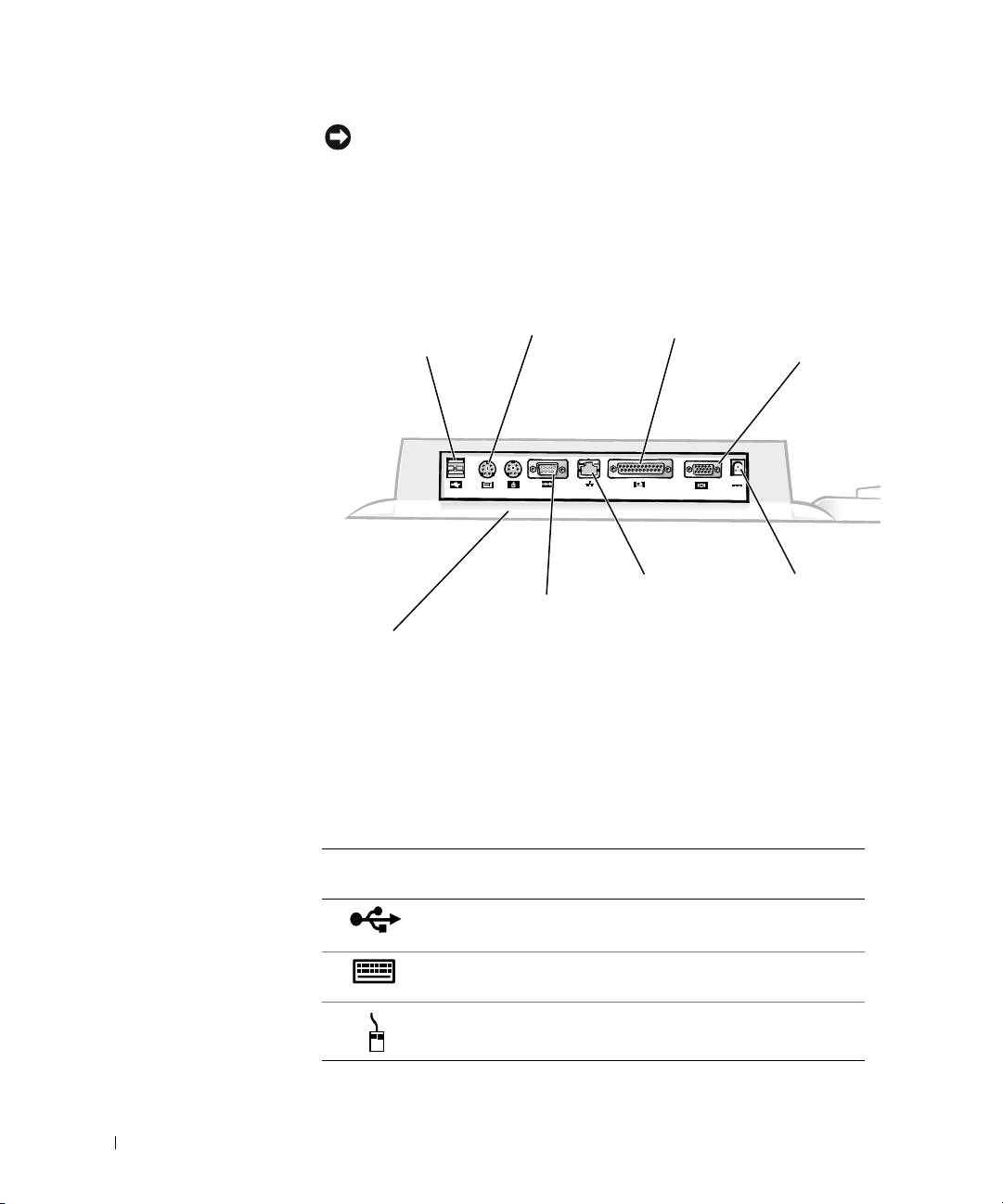
Panel vstupů a výstupů základnové stanice
konektor
konektor
klávesnice
paralelního
konektor
PS/2
rozhraní
zobrazovacího
2 konektory USB
zaízení
www.dell.com | support.dell.com
sít’ový
konektor
konektor
konektor
napájení
sériového
konektor myši PS/2
rozhraní
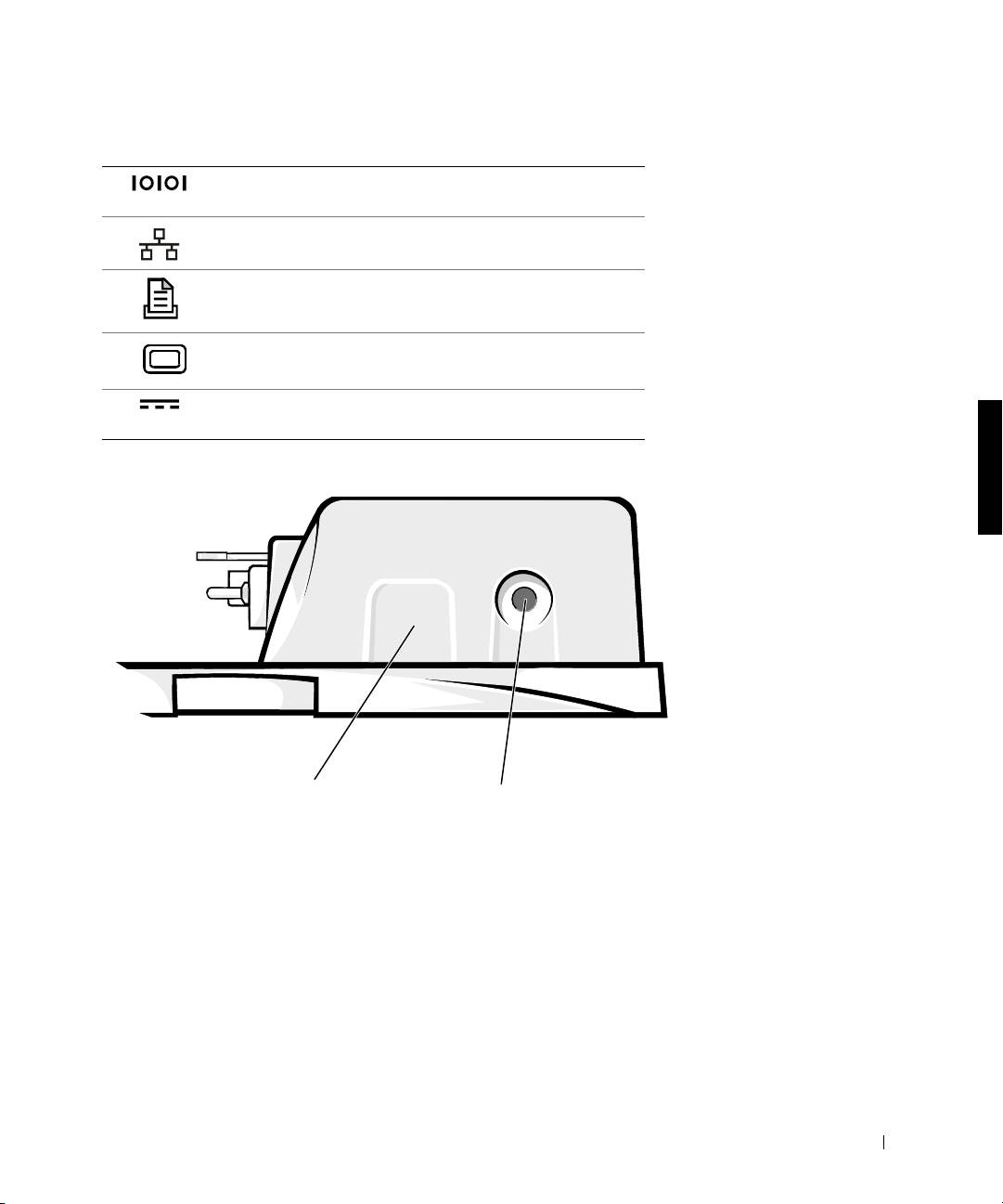
V tabulce „Externí V/V konektory“ jsou zobrazeny ikony všech konektor
umístných na zadní stran replikátoru port s popisem typ externích
zaízení, která k nim mžete pipojovat.
Externí V/V konektory
Ikona
Popis konektoru
konektoru
Ke dvojitému konektoru USB lze pipojit jedno nebo dv
zaízení USB, napíklad myš USB.
Ke konektoru klávesnice PS/2 lze pipojit externí klávesnici
PS/2 nebo externí číselnou klávesnici.
Ke konektoru myši PS/2 lze pipojit externí myš PS/2 nebo
kompatibilní myš.
34 Dell Latitude C/Port II - Píručka k pokročilému replikátoru port
4G281bk1.book Page 35 Friday, October 19, 2001 3:21 PM
Externí V/V konektory
Ke konektoru sériového portu lze pipojit sériové zaízení,
napíklad sériovou myš nebo externí modem.
K sít’ovému konektoru lze pipojit sít’ový kabel.
Ke konektoru paralelního portu lze pipojit paralelní zaízení,
napíklad tiskárnu.
Ke konektoru zobrazovacího zaízení lze pipojit externí
monitor.
Ke konektoru napájení lze pipojit napájecí adaptér dodaný
sreplikátorem port.
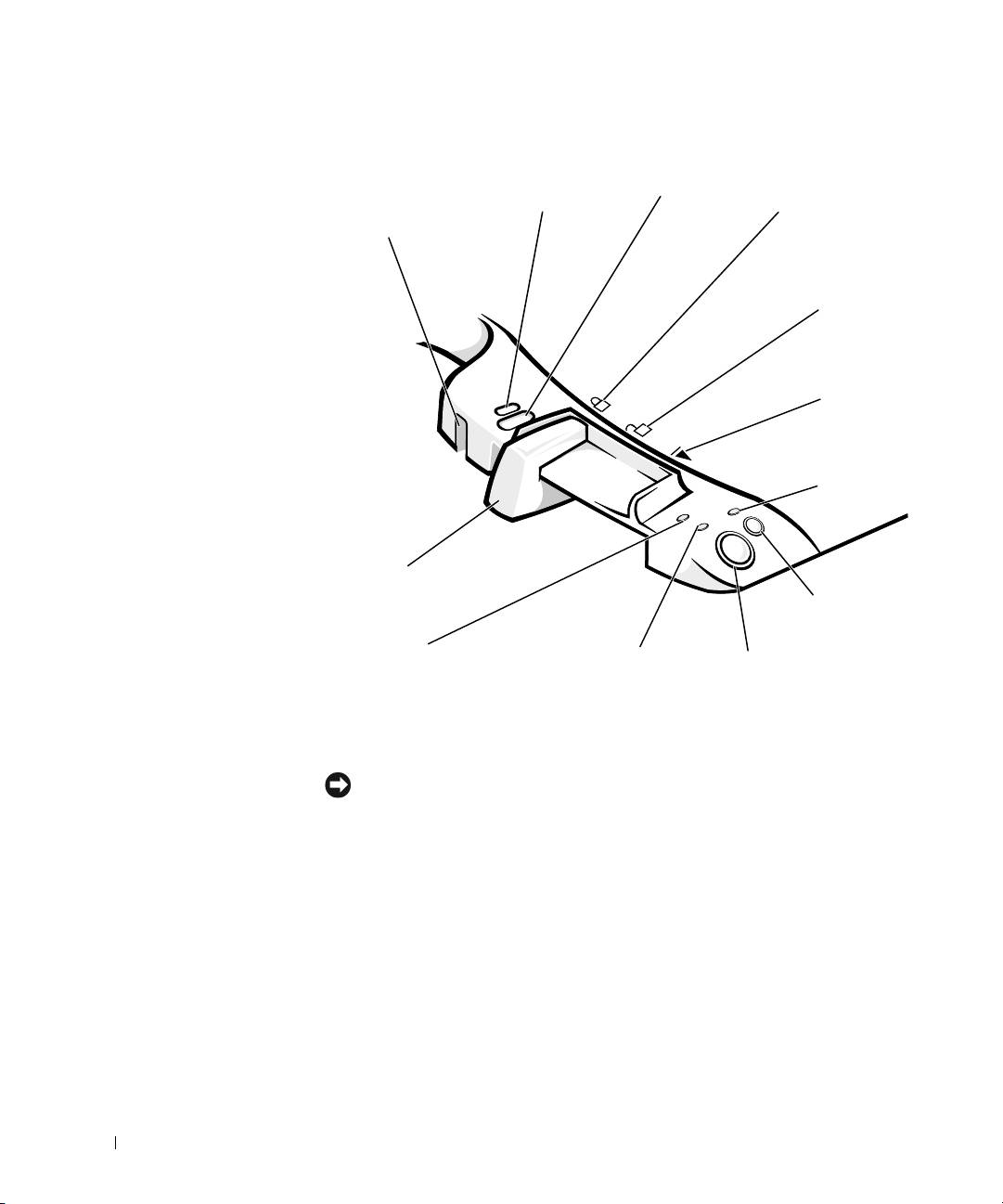
Konektory pro zvuk a infračervený snímač
infračervený snímač
výstupní konektor zvuku
Dell Latitude C/Port II - Píručka k pokročilému replikátoru port 35
4G281bk1.book Page 36 Friday, October 19, 2001 3:21 PM
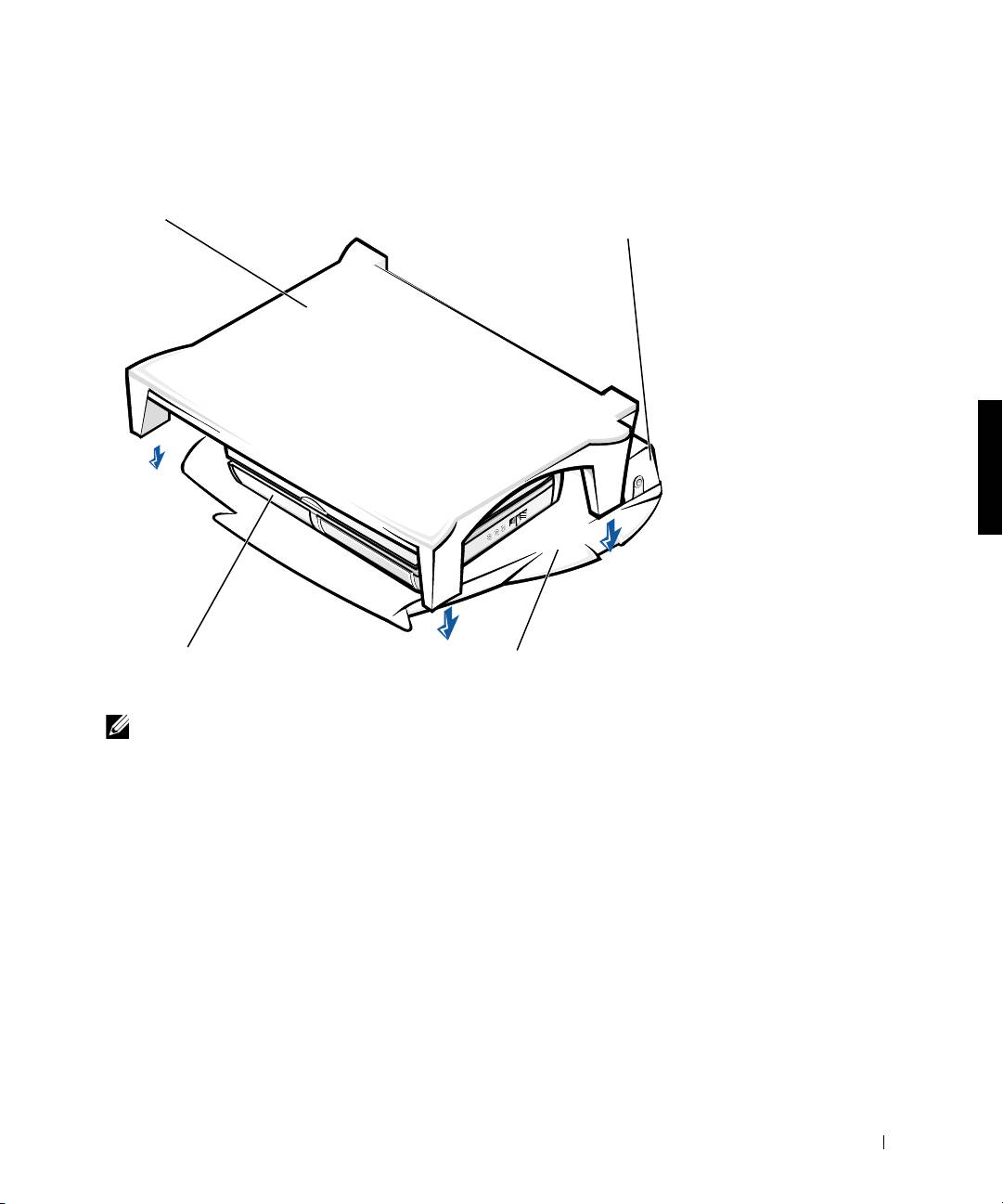
Ovládací prvky a kontrolky základny
otvor pro bezpečnostní
otvor pro
otvor pro
oko (pouze u nkterých
bezpečnostní oko
poloha
visací zámek
zaízení)
zamknuto
poloha
odemknuto
poloha
www.dell.com | support.dell.com
vysunutí
kontrolka
zasunutí
páčka
pro uvolnní
tlačítko
a uzamknutí
požadavku
na vysunutí
kontrolka pístupu
kontrolka
vypínač
k jednotce
napájení
Podstavec pod monitor
UPOZORNĚNÍ: Podstavec mže nést monitor o hmotností až 45,3 kilogramu (kg).
Tžší monitory by mohly poškodit podstavec
, počítač a základnovou stanici.
36 Dell Latitude C/Port II - Píručka k pokročilému replikátoru port
4G281bk1.book Page 37 Friday, October 19, 2001 3:21 PM
Základnová stanice s podstavcem pod monitor
podstavec pod monitor
základnová stanice
počítač
plocha základnové stanice
POZNÁMKA: Zkontrolujte, zda zadní nožky podstavce pod monitor zapadají
do prohlubní na obou stranách základny.
Před připojením počítače
Pokud počítač pracuje s operačním systémem Microsoft
Windows
9
x
,
Windows NT
nebo Windows Millennium (Me) je teba nejprve
zkontrolovat, zda počítač obsahuje potebné ovladače. Pokud počítač
neobsahuje potebné ovladače pro pipojení, musíte je nainstalovat ped
prvním pipojením počítače k základn. Ovladače pro pipojení se instalují
podle postupu v kapitole „Instalace ovladač pro pipojení“.
Dell Latitude C/Port II - Píručka k pokročilému replikátoru port 37

4G281bk1.book Page 38 Friday, October 19, 2001 3:21 PM
POZNÁMKA: Pokud počítač pracuje s operačním systémem Windows XP
nebo Windows 2000
, ovladače se instalují automaticky a není teba provádt
kroky popsané v kapitole
„Instalace ovladač pro pipojení“. Pejdte k části
„Pipojování počítače“.
Kontrola existujících ovladačů pro připojení v počítači
1 Poklepejte na ikonu Tento počítač (My Computer).
2 Poklepejte na ikonu Ovládací panely (Control Panel).
3 Poklepejte na ikonu Pidat nebo odebrat programy (Add/Remove
Programs).
4 V seznamu program vyhledejte správné ovladače pro pipojení.
www.dell.com | support.dell.com
U systém Windows 9x a Windows Me
hledejte ovladač se slovy
Quick Install v názvu. Napíklad: Dell Dock Quick Install for Windows.
U systému Windows NT
hledejte název NT Softex Docking Services.
Pokud počítač neobsahuje potebné ovladače pro pipojení, pejdte k další
kapitole, „Instalace ovladač pro pipojení“. Pokud počítač potebné
ovladače pro pipojení obsahuje, pejdte k části „Pipojení počítače“.
Instalace ovladačů pro připojení
Ovladače pro pipojení mžete nainstalovat následujícími zpsoby:
• Nainstalujte ovladače z disku
ResourceCD
nebo z disku
Drivers and
Utilities
(Ovladače a pomocné programy), který jste obdrželi
s počítačem nebo základnovou stanicí.
• Načtte ovladače z webového serveru technické podpory společnosti
Dell.
Instalace ovladačů z disku ResourceCD nebo z disku Drivers and
Utilities (Ovladače a pomocné programy)
1 Vložte disk
ResourceCD
nebo disk
Drivers and Utilities
do jednotky CD.
Disk CD se vtšinou spustí automaticky. Pokud se tak nestane, spust’te
Przkumník Windows
, klepnutím na jednotku CD zobrazte obsah disku
CD a poklepejte na soubor autorcd. Na úvodní obrazovce klepnte na
tlačítko Next (Další). Pi prvním spuštní disku CD vás systém mže
požádat o nainstalování nkolika instalačních soubor. Klepnte na
tlačítko OK a postupujte podle pokyn na obrazovce.
38 Dell Latitude C/Port II - Píručka k pokročilému replikátoru port
