
Dell Latitude C810: инструкция
Раздел: Компьютерная техника, комплектующие, аксессуары
Тип: Ноутбук
Инструкция к Ноутбуку Dell Latitude C810
Оглавление
2E409bk0.book Page 1 Thursday, July 5, 2001 9:37 AM
Dell™ Latitude™ C810
System Information
Informace o zařízení
Systeminformation
Järjestelmätiedot
Rendszerinformáció
Systeminformasjon
Informacje o systemie
Системная информация
Systémové informácie
informacije o sistemu
Systeminformation
Model PP01X
www.dell.com | support.dell.com

2E409bk0.book Page 2 Thursday, July 5, 2001 9:37 AM

Minitoc0.fm Page 1 Thursday, July 5, 2001 12:20 PM
Contents
English . . . . . . . . . . . . . . . . . . . . . . . . . . . . . . . . . . . . 5
Cešky . . . . . . . . . . . . . . . . . . . . . . . . . . . . . . . . . . . . . 31
Dansk . . . . . . . . . . . . . . . . . . . . . . . . . . . . . . . . . . . . . 55
Suomi . . . . . . . . . . . . . . . . . . . . . . . . . . . . . . . . . . . . . 79
Magyar . . . . . . . . . . . . . . . . . . . . . . . . . . . . . . . . . . . 103
Norsk . . . . . . . . . . . . . . . . . . . . . . . . . . . . . . . . . . . . 129
Polski . . . . . . . . . . . . . . . . . . . . . . . . . . . . . . . . . . . . 153
Русский . . . . . . . . . . . . . . . . . . . . . . . . . . . . . . . . . . . 181
Slovenčina
. . . . . . . . . . . . . . . . . . . . . . . . . . . . . . . . . 207
Slovenščina
. . . . . . . . . . . . . . . . . . . . . . . . . . . . . . . . . 231
Svenska . . . . . . . . . . . . . . . . . . . . . . . . . . . . . . . . . . . 255
. . . . . . . . . . . . . . . . . . . . . . . . . . . . . . . . . . . 279

2E409bk0.book Page 2 Thursday, July 5, 2001 9:37 AM

2E409bk0.book Page 3 Thursday, July 5, 2001 9:37 AM
Dell™ Latitude™ C810
System Information
www.dell.com | support.dell.com

2E409bk0.book Page 4 Thursday, July 5, 2001 9:37 AM
Notes, Notices, Cautions
NOTE: A NOTE indicates important information that helps you make better use of your computer.
NOTICE: A NOTICE indicates either potential damage to hardware or loss of data and tells you
how to avoid the problem.
CAUTION: A CAUTION indicates a potentially hazardous situation which, if not
avoided, may result in potentially serious injury.
____________________
Information in this document is subject to change without notice.
© 2001 Dell Computer Corporation. All rights reserved.
Reproduction in any manner whatsoever without the written permission of Dell Computer Corporation is strictly
forbidden.
Trademarks used in this text: Dell, the DELL logo, Latitude, TrueMobile, AccessDirect, and DellWare are trademarks
of Dell Computer Corporation; Intel and Pentium are registered trademarks of Intel Corporation; Microsoft and
Windows are registered trademarks of Microsoft Corporation.
Other trademarks and trade names may be used in this document to refer to either the entities claiming the marks and
names or their products. Dell Computer Corporation disclaims any proprietary interest in trademarks and trade names
other than its own.
This product incorporates copyright protection technology that is protected by method claims of certain U.S. patents
and other intellectual property rights owned by Macrovision Corporation and other rights owners. Use of this copyright
protection technology must be authorized by Macrovision Corporation, and is intended for home and other limited
viewing uses only unless otherwise authorized by Macrovision Corporation. Reverse engineering or disassembly is
prohibited.
June 2001 P/N 2E409 Rev. A00

2E409bk0.book Page 5 Thursday, July 5, 2001 9:37 AM
Dell™ Latitude™ System Information
Your Dell Latitude portable computer accessories box includes a reduced
set of paper documentation. This document contains getting started, safety,
regulatory, and warranty information about your Dell computer as well as
information about other Dell documents that are available and how to
obtain them.
Other Documents Available
• The Getting Started placemat, which provides step-by-step
instructions for connecting your computer.
NOTE: The Getting Started placemat is not available in all regions.
• The User’s Guides for your computer and other devices provide
information on using your computer, installing parts such as memory
modules, configuring drivers and utilities, using the system setup
program, and using devices. Double-click the User’s Guides icon on
your desktop or the Start menu to access the electronic information
stored on your hard-disk drive.
• Documentation updates are sometimes included with your computer
to describe changes to your computer or software. Always read these
updates before consulting any other documentation because the
updates often contain the latest information.
• Operating system documentation, which is included if you ordered
your operating system software from Dell.
Documents on the Web
You can obtain the latest versions of any of the documents on your hard
drive as well as other troubleshooting information from the support site at
http://support.dell.com.
Dell™ Latitude™ C810 System Information 5
2E409bk0.book Page 6 Thursday, July 5, 2001 9:37 AM
Safety and EMC Instructions: Portable
Computers
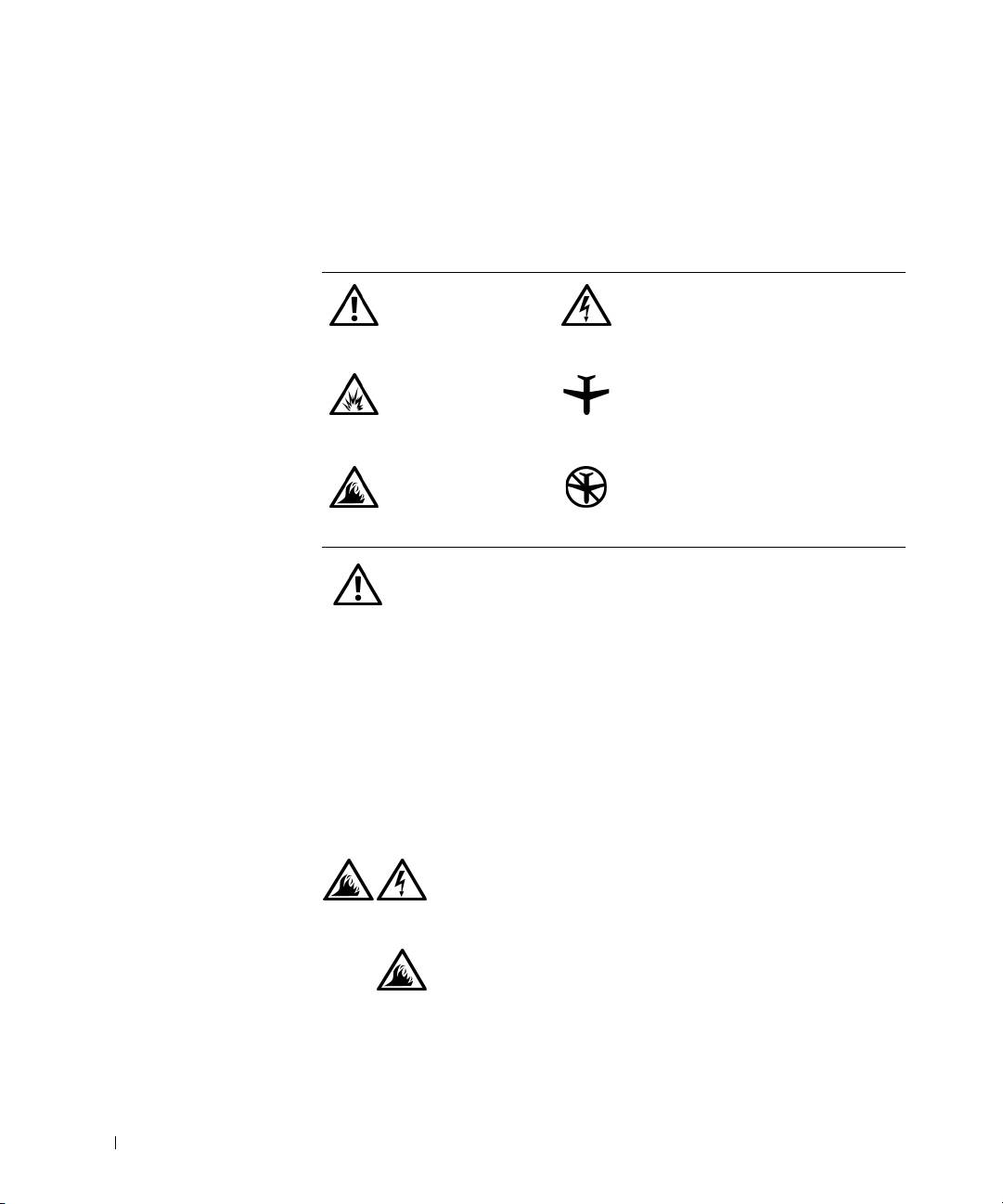
The following information defines the meaning of symbols used in the
Safety and Electromagnetic Compatibility (EMC) Instructions.
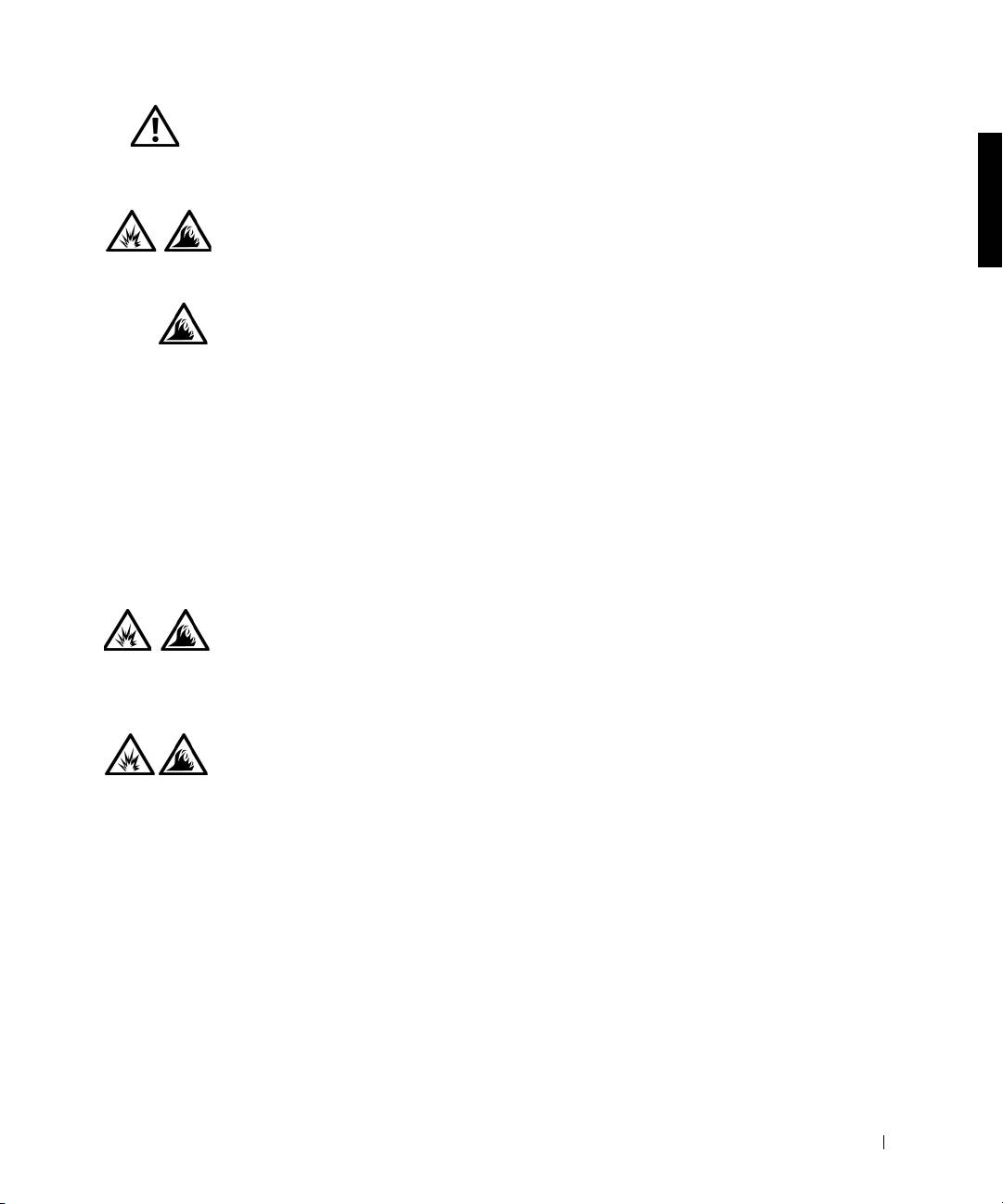
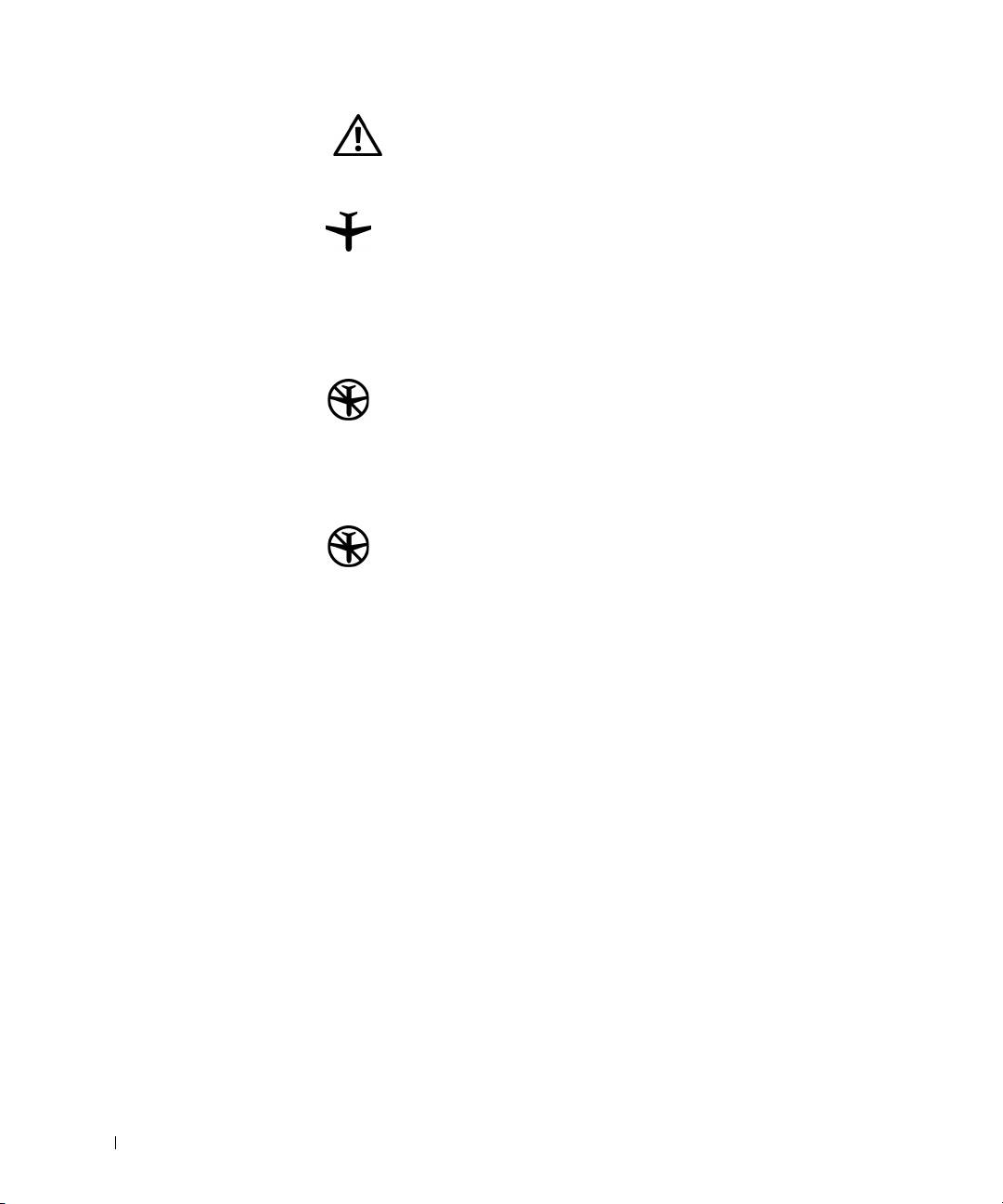
Attention: Caution Risk of electric shock
Risk of explosion Aircraft
www.dell.com | support.dell.com
Risk of fire Use of this feature may be prohibited
on aircraft
Safety Instructions
General
• Do not attempt to service the computer yourself unless
you are an authorized service technician. Always follow
installation instructions closely.
• If you use an extension power cable with your AC
adapter, ensure that the total ampere rating of the
products plugged in to the extension power cable does
not exceed the ampere rating of the extension cable.
• Do not push objects into air vents or openings of your
computer. Doing so can cause fire or electric shock by
shorting out interior components.
• Place the AC adapter in a ventilated area, such as a desk
top or on the floor, when you use it to run the computer
or to charge the battery. Do not cover the AC adapter
with papers or other items that will reduce cooling; also,
do not use the AC adapter inside a carrying case.
6 Dell™ Latitude™ C810 System Information
2E409bk0.book Page 7 Thursday, July 5, 2001 9:37 AM
• Do not allow your portable computer to operate with
the base resting directly on exposed skin for extended
periods of time. The surface temperature of the base
will rise during normal operation (particularly when AC
power is present). Allowing sustained contact with
exposed skin can cause discomfort or, eventually, a
burn.
• Do not use your computer in a wet environment, for
example, near a bath tub, sink, or swimming pool or in a
wet basement.
• If your computer includes an integrated or optional (PC
Card) modem, disconnect the modem cable if an
electrical storm is approaching to avoid the remote risk
of electric shock from lightning via the telephone line.
• To help avoid the potential hazard of electric shock, do
not connect or disconnect any cables or perform
maintenance or reconfiguration of this product during
an electrical storm. Do not use your computer during
an electrical storm unless all cables have been
disconnected and the computer is operating on battery
power.
• If your computer includes a modem, the cable used
with the modem should be manufactured with a
minimum wire size of 26 American wire gauge (AWG)
and an FCC-compliant RJ-11 modular plug.
• PC Cards may become very warm during normal
operation. Use care when removing PC Cards after their
continuous operation.
• Before you clean your computer, remove power. Clean
your computer with a soft cloth dampened with water.
Do not use liquid or aerosol cleaners, which may
contain flammable substances.
Dell™ Latitude™ C810 System Information 7
2E409bk0.book Page 8 Thursday, July 5, 2001 9:37 AM
Power (Safety Instructions, continued)
• Use only the Dell-provided AC adapter approved for
use with this computer. Use of another AC adapter may
cause a fire or explosion.
• Before you connect the computer to an electrical outlet,
check the AC adapter voltage rating to ensure that the
required voltage and frequency match the available
power source.
www.dell.com | support.dell.com
• To remove power from the computer, turn it off,
remove the battery pack, and disconnect the AC
adapter from the electrical outlet.
• To help prevent electric shock, plug the AC adapter and
peripheral power cables into properly grounded power
sources. These power cables may be equipped with
three-prong plugs to provide an earth grounding
connection. Do not use adapter plugs or remove the
grounding prong from the power cable plug. If you use a
power extension cable, use the appropriate type, two-
prong or three-prong, to mate with the AC adapter
power cable.
• Be sure that nothing rests on your AC adapter's power
cable and that the cable is not located where it can be
tripped over or stepped on.
• If you are using a multiple-outlet power strip, use
caution when plugging the AC adapter's power cable
into the power strip. Some power strips may allow you
to insert the plug incorrectly. Incorrect insertion of the
power plug could result in permanent damage to your
computer, as well as risk of electric shock and/or fire.
Ensure that the ground prong of the power plug is
inserted into the mating ground contact of the power
strip.
8 Dell™ Latitude™ C810 System Information
2E409bk0.book Page 9 Thursday, July 5, 2001 9:37 AM
Battery (Safety Instructions, continued)
• Use only Dell battery modules that are approved for use
with this computer. Use of other types may increase the
risk of fire or explosion.
• Do not carry a battery pack in your pocket, purse, or
other container where metal objects (such as car keys or
paper clips) could short-circuit the battery terminals.
The resulting excessive current flow can cause
extremely high temperatures and may result in damage
to the battery pack or cause fire or burns.
• The battery poses a burn hazard if you handle it
improperly. Do not disassemble it. Handle a damaged
or leaking battery pack with extreme care. If the battery
is damaged, electrolyte may leak from the cells and may
cause personal injury.
• Keep away from children.
• Do not store or leave your computer or battery pack
near a heat source such as a radiator, fireplace, stove,
electric heater, or other heat-generating appliance.
When heated to excessive temperatures, battery cells
could explode or vent, posing a risk of fire.
• Do not dispose of your computer's battery in a fire or
with normal household waste. Battery cells may
explode. Discard a used battery according to the
manufacturer's instructions or contact your local waste
disposal agency for disposal instructions. Dispose of a
spent or damaged battery promptly.
Dell™ Latitude™ C810 System Information 9
2E409bk0.book Page 10 Thursday, July 5, 2001 9:37 AM
Air Travel (Safety Instructions, continued)
• Certain Federal Aviation Administration regulations and/or
airline-specific restrictions may apply to the operation of your
Dell™ computer while you are onboard an aircraft. For
example, such regulations/restrictions may prohibit the use of
any personal electronic device (PED) that has the capacity for
intentional transmission of radio frequency or other
electromagnetic signals while on an aircraft.
– In order to best comply with all such restrictions, if your
www.dell.com | support.dell.com
Dell portable computer is equipped with Dell
TrueMobile™ or some other wireless communication
device, please disable this device before you board the
aircraft and follow all instructions provided by airline
personnel with regard to such device.
– Additionally, the use of any PED, such as a portable
computer, may be prohibited in aircraft during certain
critical phases of flight, for example, takeoff and landing.
Some airlines may further define the critical flight phase as
any time the aircraft is below 3050 m (10,000 ft). Please
follow the airline's specific instructions as to when the use
of a PED is allowed.
EMC Instructions
• Use shielded signal cables to ensure that you maintain the appropriate
EMC classification for the intended environment. For parallel printers,
a cable is available from Dell. If you prefer, you can order a cable from
Dell at its world-wide website at http://www.dell.com.
• Static electricity can harm electronic components inside your
computer. To prevent static damage, discharge static electricity from
your body before you touch any of your computer's electronic
components, such as a memory module. You can do so by touching an
unpainted metal surface on the computer's input/output panel.
10 Dell™ Latitude™ C810 System Information

2E409bk0.book Page 11 Thursday, July 5, 2001 9:37 AM
• Electromagnetic interference (EMI) is any signal or emission, radiated
in free space or conducted along power or signal leads, that endangers
the functioning of a radio navigation or other safety service or seriously
degrades, obstructs, or repeatedly interrupts a licensed radio
communications service. Your Dell computer is designed to comply
with applicable regulations regarding EMI. Changes or modifications
not expressly approved by Dell could void your authority to operate the
equipment. Additional regulatory information regarding your
computer can be found in your online User’s Guide.
When Using Your Computer
Observe the following safety guidelines to prevent damage to your
computer:
• When setting up the computer for work, place it on a level surface.
• When traveling, do not check the computer as baggage. You can put
your computer through an X-ray security machine, but never put your
computer through a metal detector. If you have the computer checked
by hand, be sure to have a charged battery available in case you are
asked to turn on the computer.
• When traveling with the hard-disk drive removed from the computer,
wrap the drive in a nonconducting material, such as cloth or paper. If
you have the drive checked by hand, be ready to install the drive in the
computer. You can put the hard-disk drive through an X-ray security
machine, but never put the drive through a metal detector.
• When traveling, do not place the computer in overhead storage
compartments where it could slide around. Do not drop your
computer or subject it to other mechanical shocks.
• Protect your computer, battery, and hard-disk drive from
environmental hazards such as dirt, dust, food, liquids, temperature
extremes, and overexposure to sunlight.
Dell™ Latitude™ C810 System Information 11

2E409bk0.book Page 12 Thursday, July 5, 2001 9:37 AM
• When you move your computer between environments with very
different temperature and/or humidity ranges, condensation may form
on or within the computer. To avoid damaging the computer, allow
sufficient time for the moisture to evaporate before using the
computer.
NOTICE: When taking the computer from low-temperature conditions into a
warmer environment or from high-temperature conditions into a cooler
environment, allow the computer to acclimate to room temperature before
turning on power.
• When you disconnect a cable, pull on its connector or on its strain-
relief loop, not on the cable itself. As you pull out the connector, keep
it evenly aligned to avoid bending any connector pins. Also, before you
www.dell.com | support.dell.com
connect a cable make sure both connectors are correctly oriented and
aligned.
• Handle components with care. Hold a component such as a memory
module by its edges, not its pins.
• When removing a memory module from the system board or
disconnecting a peripheral device from the computer, wait 5 seconds
after turning off the computer before removing the memory module or
disconnecting the device to help avoid possible damage to the system
board.
• Clean the display with a soft, clean cloth and commercial window
cleaner that does not contain wax or abrasives. Apply the cleaner to the
cloth; then stroke the cloth across the display in one direction, moving
from the top of the display to the bottom. If the display contains
grease or some other contaminant, use isopropyl alcohol instead of
commercial window cleaner.
• If your computer gets wet or is damaged, follow the procedures
described in "Troubleshooting Your Computer" in the User’s Guide
that came with your computer. If, after following these procedures, you
confirm that your computer is not operating properly, contact Dell.
(See "Getting Help" in the User’s Guide that came with your computer
for the appropriate telephone number.)
12 Dell™ Latitude™ C810 System Information

2E409bk0.book Page 13 Thursday, July 5, 2001 9:37 AM
Ergonomic Computing Habits
CAUTION: Improper or prolonged keyboard use may result in
injury.
CAUTION: Viewing the display or external monitor screen for
extended periods of time may result in eye strain.
For comfort and efficiency, observe the following ergonomic guidelines
when setting up and using your computer:
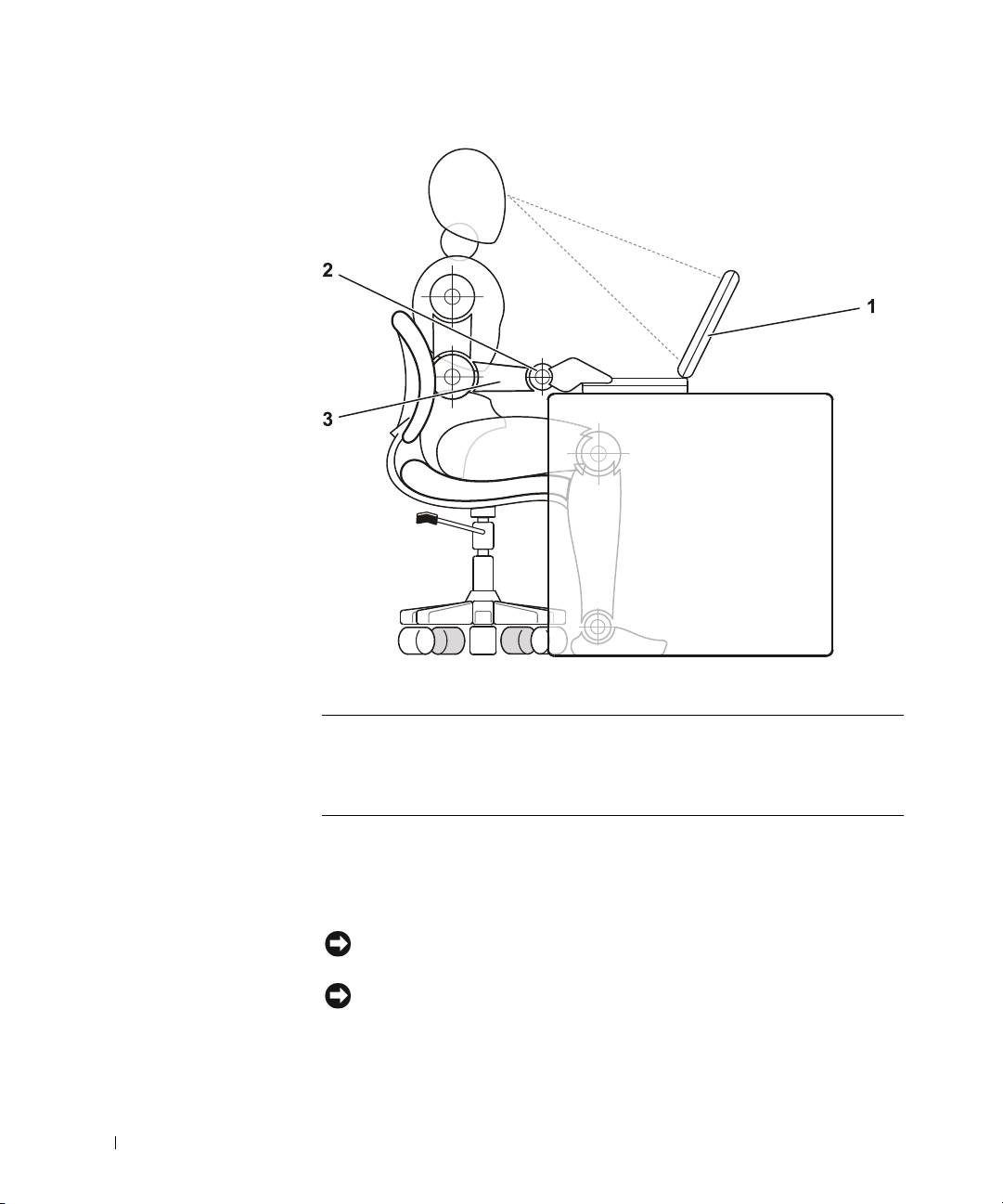
• Position your computer directly in front of you as you work.
• Adjust the tilt of the computer’s display, its contrast and/or brightness
settings, and the lighting around you (such as overhead lights, desk
lamps, and the curtains or blinds on nearby windows) to minimize
reflections and glare on the display.
• When using an external monitor with your computer, set the monitor
at a comfortable viewing distance (usually 510 to 610 millimeters [20
to 24 inches] from your eyes). Make sure the monitor screen is at eye
level or slightly lower when you are sitting in front of the monitor.
• Use a chair that provides good lower-back support.
• Keep your forearms horizontal with your wrists in a neutral,
comfortable position while using the keyboard, touch pad, track stick,
or external mouse.
• Always use the palmrest with the keyboard, touch pad, or track stick.
Leave space to rest your hands when using an external mouse.
• Let your upper arms hang naturally at your sides.
• Sit erect with your feet resting on the floor and your thighs level.
• When sitting, make sure the weight of your legs is on your feet and not
on the front of your chair seat. Adjust your chair’s height or use a
footrest, if necessary, to maintain proper posture.
• Vary your work activities. Try to organize your work so that you do not
have to type for extended periods of time. When you stop typing, try
to do things that use both hands.
Dell™ Latitude™ C810 System Information 13
2E409bk0.book Page 14 Thursday, July 5, 2001 9:37 AM
www.dell.com | support.dell.com
1 Computer positioned directly in front of user
2 Wrists relaxed and flat
3 Arms at desk level
When Removing or Installing Memory Modules
Before removing or installing memory modules, perform the following steps
in the sequence indicated.
NOTICE: The only time you should ever access the inside of your computer is
when you are installing memory modules.
NOTICE: Wait 5 seconds after turning off the computer before disconnecting
a peripheral device or removing a memory module to help prevent possible
damage to the system board.
14 Dell™ Latitude™ C810 System Information

2E409bk0.book Page 15 Thursday, July 5, 2001 9:37 AM
1 Turn off your computer and any attached peripherals.
2 Disconnect your computer and peripherals from electrical outlets to
reduce the potential for personal injury or shock. Also, disconnect any
telephone or telecommunication lines from the computer.
3 Remove the main battery from the battery compartment and, if
necessary, the secondary battery from the modular bay.
4 Ground yourself by touching the unpainted metal surface of the I/O
panel on the back of the computer.
While you work, periodically touch the I/O panel to dissipate any
static electricity that might harm internal components.
Protecting Against Electrostatic Discharge
Static electricity can harm electronic components inside your computer. To
prevent static damage, discharge static electricity from your body before you
touch any of your computer’s electronic components, such as a memory
module. You can do so by touching an unpainted metal surface on the
computer’s I/O panel.
As you continue to work inside the computer, periodically touch an I/O
connector to remove any static charge your body may have accumulated.
You can also take the following steps to prevent damage from electrostatic
discharge (ESD):
• When unpacking a static-sensitive component from its shipping
carton, do not remove the component from the antistatic packing
material until you are ready to install the component. Just before
unwrapping the antistatic packaging, be sure to discharge static
electricity from your body.
• When transporting a sensitive component, first place it in an antistatic
container or packaging.
• Handle all sensitive components in a static-safe area. If possible, use
antistatic floor pads and workbench pads.
The following notice may appear throughout your Dell documentation to
remind you of these precautions:
NOTICE: See “Protecting Against Electrostatic Discharge” in your System
Information guide.
Dell™ Latitude™ C810 System Information 15
2E409bk0.book Page 16 Thursday, July 5, 2001 9:37 AM
Getting Started
To set up your computer, perform the following steps:
1 Unpack the accessories box (see “Accessories Box Contents”).
2 Set aside the contents of the accessories box, which you will need to
complete the setup of your computer.
The accessories box also contains user documentation and any software or
additional hardware (such as PC Cards, drives, or batteries) you have
ordered.
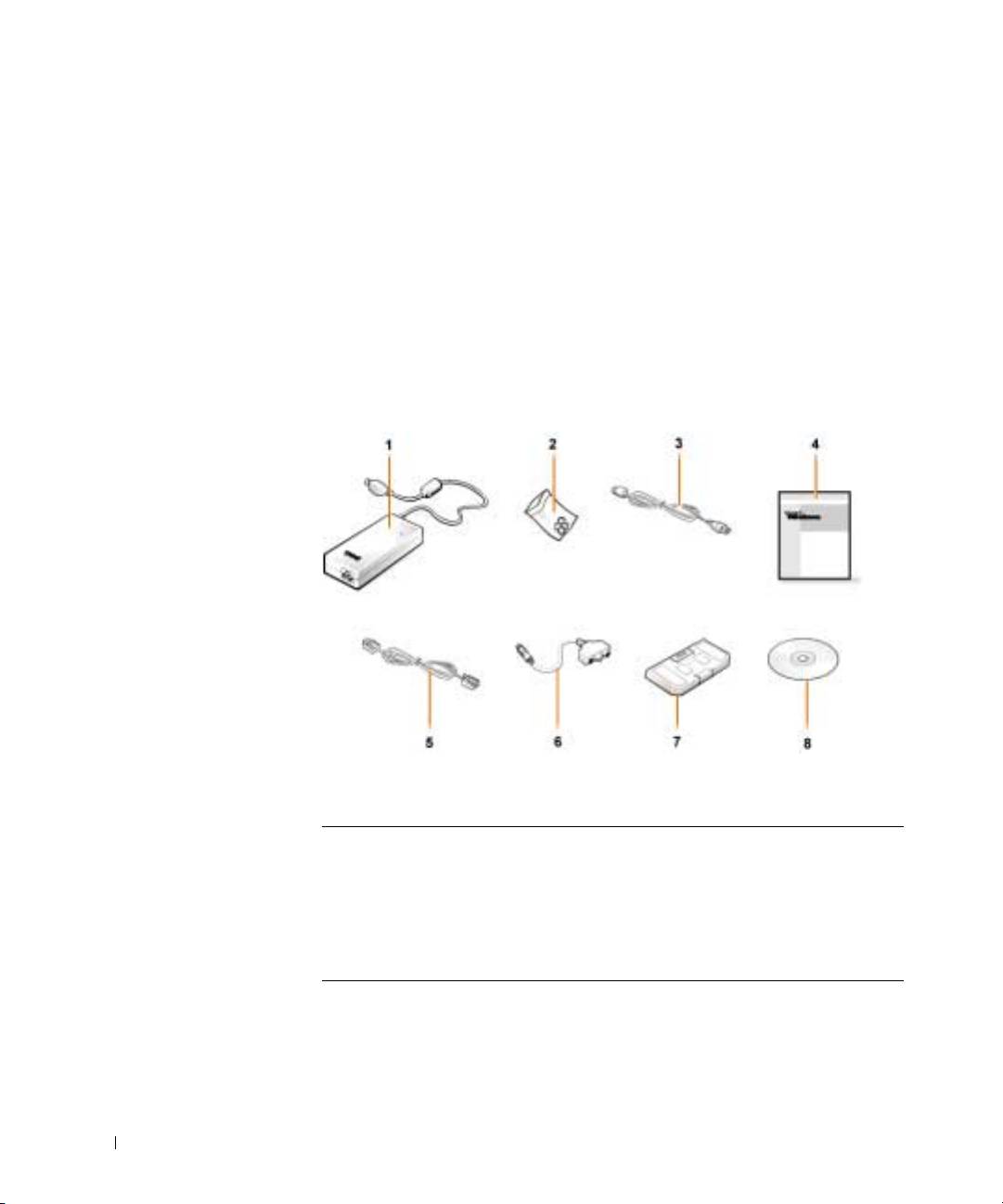
Accessories Box Contents
www.dell.com | support.dell.com
1 AC adapter 5 Cable for optional modem
2 Track stick caps 6 TV/digital audio adapter cable
3 AC adapter power cable 7 Travel module
4 Operating system documentation 8 Drivers and Utilities CD for
your computer
16 Dell™ Latitude™ C810 System Information
2E409bk0.book Page 17 Thursday, July 5, 2001 9:37 AM
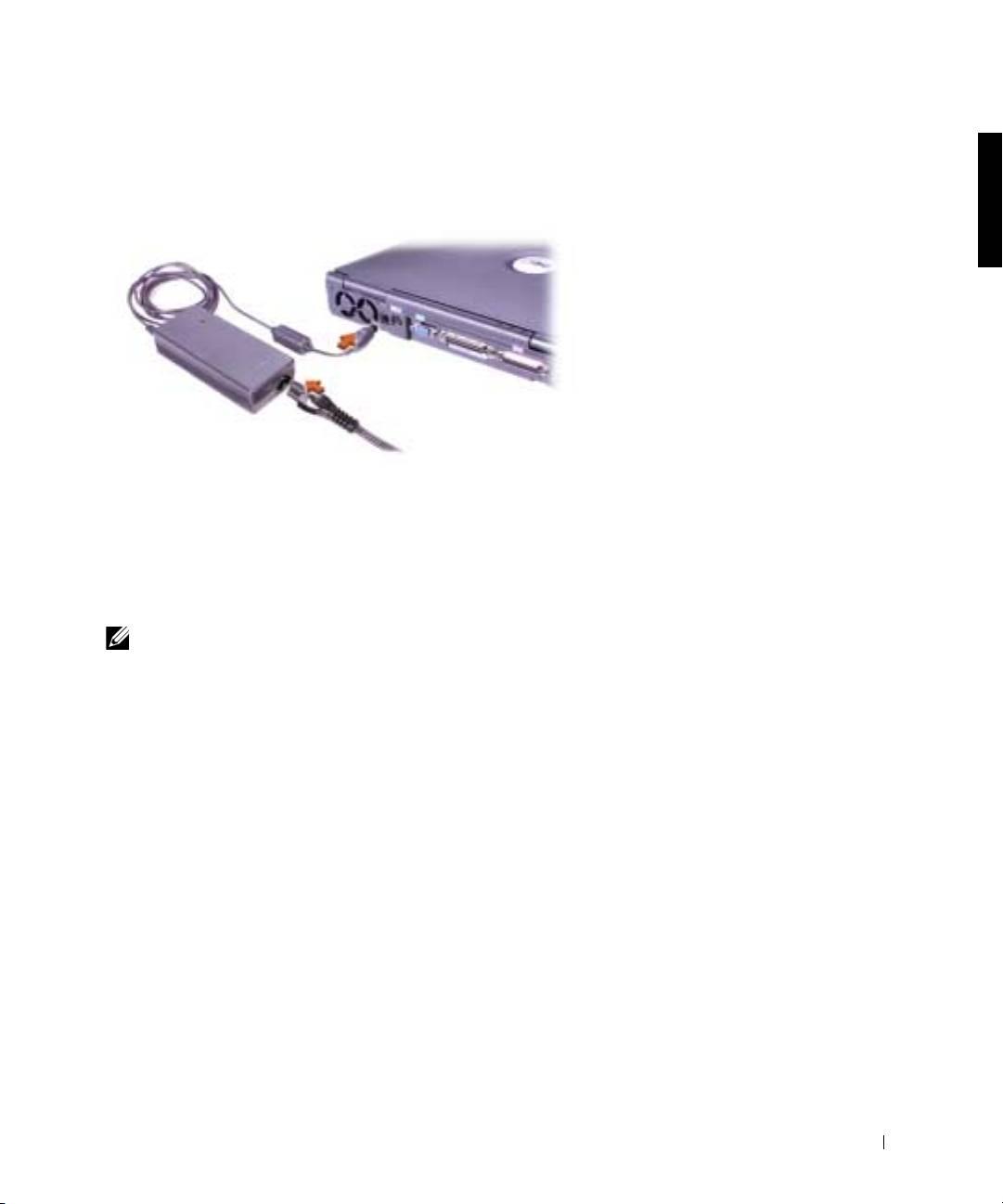
Connecting the AC Adapter
AC Adapter Connection
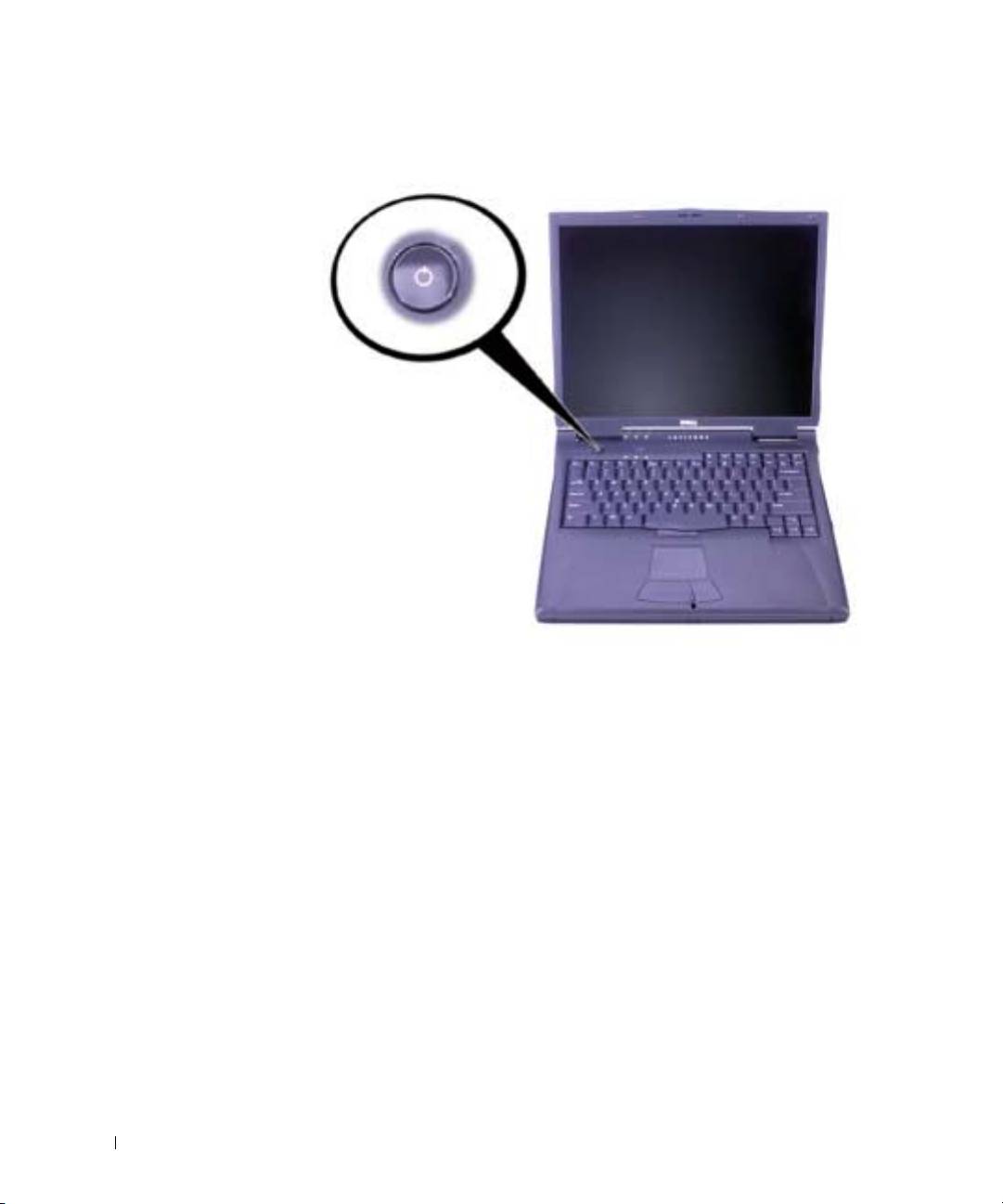
Turning On the Computer
To turn on the computer, open the computer display and press the power
button (see “Turning On the Computer”).
NOTE: Do not dock the computer until it has been turned on and shut down at
least once.
Dell™ Latitude™ C810 System Information 17
2E409bk0.book Page 18 Thursday, July 5, 2001 9:37 AM
Turning On the Computer
www.dell.com | support.dell.com
18 Dell™ Latitude™ C810 System Information
