
Dell Latitude E5420: инструкция
Раздел: Компьютерная техника, комплектующие, аксессуары
Тип: Ноутбук
Инструкция к Ноутбуку Dell Latitude E5420
Оглавление

Dell Latitude Ultrabook, E-Family & Mobile Precision Reimage “How-To” Guide
Dell
Business Client
Re-Image “How-To” Guide
Latitude Ultrabook, E-Family &
Mobile Precision Notebook
Revision 8.0
A08
th
April 15
, 2013
Dell Latitude Ultrabook, E-Family & Mobile Precision Reimage “How-To” Guide
Dell Latitude Ultrabook, E-Family & Mobile Precision Reimage “How-To” Guide
Contents
1 Overview ........................................................................................................................................................................................................ 4
2 “How-To” ....................................................................................................................................................................................................... 5
2.1 Supported Operating Systems .................................................................................................................................................... 5
2.2 Latitude E-Family & Mobile Precision New Features & Image Impact ..................................................................... 6
2.3 Latest Drivers / Applications and Utilities ............................................................................................................................... 8
2.4 Installation Sequence ...................................................................................................................................................................... 9
2.5 BIOS ...................................................................................................................................................................................................... 12
2.6 Recommended Drivers / Applications Installation Order ............................................................................................ 14
Appendix A - .NET Requirements ............................................................................................................................................................. 32
Appendix B - 512e / 4KBe HDD Re-image Guidelines ..................................................................................................................... 33
Appendix C - FAQs ........................................................................................................................................................................................... 38
Appendix D - Tables ........................................................................................................................................................................................ 40
- Control Point System Manager Features - Table B1 ................................................................................................................ 40
- Control Point Security Manager Features – Table B2 ............................................................................................................. 41
- Dell Data Protection | Access, DDPA – Table B3 ....................................................................................................................... 41
- Control Point Connection Manager Features – Table B4 ..................................................................................................... 42
Appendix E - E-Docks ..................................................................................................................................................................................... 43

Dell Latitude Ultrabook, E-Family & Mobile Precision Reimage “How-To” Guide
1 Overview
The purpose of this document is to detail the required steps for reimaging Dell Latitude Ultrabook, E-
Family & Mobile Precision notebooks.
Dell Latitude Ultrabook , E-Family & Mobile Precision notebooks systems ship with Microsoft operating
systems (see Chapter 2.1 for detail). These images include the Dell recommended software stack and
settings, drivers, and applications which are tested and validated with the system.
Drivers and applications must be installed on Dell Latitude E-Family & Mobile Precision systems in a
prescribed order to ensure optimal performance. Failure to install drivers and applications as detailed in
this document may result in undesirable performance.
Dell provides drivers and applications that are not included in Microsoft Operating Systems. These drivers
are required to enable the new technologies and features of Dell Latitude E-Family & Mobile Precision
products, including the 512e Advanced Format HDD (See appendix –B). Reinstalled images should be
built from a clean hand installed OS load and following the steps in this guide. Dell does not recommend
starting from an image built on previous generations of products or other computer systems.
Dell recommends ensuring BIOS settings (including SATA configurations modes) are correctly set and
using the latest device drivers and applications when imaging their systems.
This “How-To” guide applies to the following Latitude systems:
Product
1st Generation
2nd Generation
3rd Generation
4th Generation/Ultrabook
other series
Latitude E-Family, Ultrabook and
E4200
-
E6220
E6230
E4300
E4310
E6320
E6330/3330
E5400
E5410
E5420/E5420m
E5430
E5500
E5510
E5520/E5520m
E5530
E6400
E6410
E6420
E6430/E6430s/6430u
E6400 ATG
E6410 ATG
E6420 ATG
E6430 ATG
E6500
E6510
E6520
E6530
Mobile
Precision
Workstations
M2400
-
-
M4400
M4500
M4600
M4700
M6400
M6500
M6600
M6700

Dell Latitude Ultrabook, E-Family & Mobile Precision Reimage “How-To” Guide
2 “How-To”
2.1 Supported Operating Systems
The following Microsoft operating systems have been validated for use on Dell Latitude E-Family &
Mobile Precision notebook computers:
Note: Not all generation notebook computers can ship with below Microsoft operating
rd
th
systems. XP only available via CFI service on 3
and 4
Generation systems except Latitude
3330
st
nd
rd
th
Microsoft Windows XP 32 Bit: Validated on 1
, 2
, 3
and 4
Generation systems.
st
nd
rd
Vista 32 & 64-Bit: Validated on 1
, 2
, and 3
Generation systems.
nd
rd
th
Windows 7 32 & 64-Bit: Validated on 2
, 3
and 4
Generation systems.
rd
th
Windows 8 32 & 64-Bit: Validated on 3
and 4
Generation systems

Dell Latitude Ultrabook, E-Family & Mobile Precision Reimage “How-To” Guide
2.2 Latitude E-Family & Mobile Precision New Features & Image Impact
Dell Latitude E-Family & Mobile Precision systems feature new hardware technologies which
require a new software stack, drivers, and / or applications. These products are not compatible with
previous images built or installed on none Latitude E-Family, Mobile Precision or previous Dell
st
nd
rd
th
products. Images between 1
, 2
, 3
& 4
generations Latitude E-Family & Mobile Precision are
also not compatible
Among these new hardware and technologies are:
2.2.1 New Features Offered on Latitude E-Family & Mobile Precision systems, All
Generations:
Note: Not all features are available on all systems
o New BIOS architecture – Latitude E-Family & Mobile Precision
o Chipset
1. Intel Core i3, i5 & i7 Dual Core CPUs that include updated integrated graphics
st
rd
2. 1
~3
Generation Intel Core i3, i5, i7 CPUs that include updated integrated graphics
o eSATA/SATA3
o Intel Turbo Boost
o 512e / 4KBe Sector HDDs
o Intel AMT (Intel Active Management Technology) & vPRO
o Intel RAID Functionality – only for Mobile Precision
o Graphics controller (Intel, nVidia and AMD)
o HDMI Audio
o Network LoM (Intel and Broadcom)
o Wireless LAN
o Wireless WAN
o WiMAX
o Bluetooth
st
nd
o UWB -
Latitude E-Family & Mobile Precision 1
& 2
generation
o Dell Control Vault
o Contactless smartcard / RFID
o Webcam
o USB 3.0
o Free Fall Sensor on the mother board
o Multi-touch Touchpad
st
nd
o Dell Control Point,
1
and 2
generation Latitude E-Family & Mobile Precision
rd
th
o Dell Feature Enhancement Package(DFEP) -
Latitude E-Family & Mobile Precision 3
& 4
generation
rd
th
o Dell Data Protection | Access(DDPA) -
Latitude E-Family & Mobile Precision 3
&
4
generation
Dell Latitude Ultrabook, E-Family & Mobile Precision Reimage “How-To” Guide
rd
th
o Dell Data Protection | Encryption(DDPE) -
Latitude E-Family & Mobile Precision 3
&
4
generation
o Privacy Panel
o Touch Screen Digitizer- Four Fingers touch with Stylus support on
Latitude E-Family &
rd
th
Mobile Precision 3
generation. Ten fingers touch support on Mobile Precision 4
generation.
st
o Latitude On / Precision On - Reader, Flash, and ARM -
Latitude E-Family & Mobile Precision 1
nd
&2
generation
th
o WiDi display -
Latitude E-Family & Mobile Precision 4
generation
th
o Intel® Responsiveness Technologies –
Latitude E-Family & Mobile Precision 4
generation
th
o Dell Battery Management –
Latitude E-Family & Mobile Precision 4
generation

Dell Latitude Ultrabook, E-Family & Mobile Precision Reimage “How-To” Guide
2.3 Latest Drivers / Applications and Utilities
Dell recommends always obtaining the latest and most updated BIOS, drivers, firmware, and
applications. Dell validated and tested drivers and applications are located on Dell’s support web
site http://support.dell.com/
o Enter the Service Tag or select the product model and the model number
o Select Operating System (32-Bit or 64-Bit version must be selected)
o Choose drivers and downloads
Dell Latitude Ultrabook, E-Family & Mobile Precision Reimage “How-To” Guide
2.4 Installation Sequence
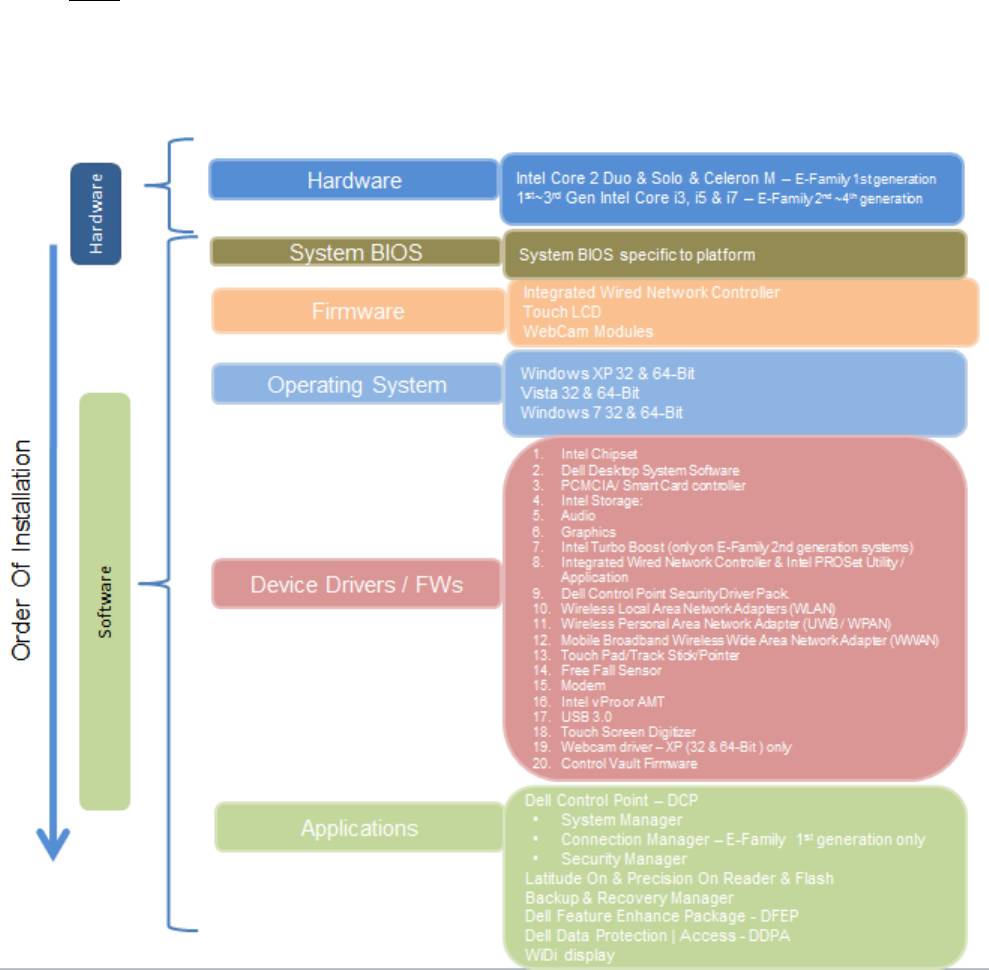
The list below is a general overview of drivers and applications that must be installed on Dell
Latitude E-Family & Mobile Precision systems in a prescribed order to ensure optimal performance.
Actual system configurations may vary.
Note: Dell Alienware, Inspiron, Studio, XPS and Vostro Laptops may have different installation
sequence. Please refer to Dell Support Website for these Laptops.
2.4.1 Installation Sequence Overview
Dell Latitude Ultrabook, E-Family & Mobile Precision Reimage “How-To” Guide
2.4.2 Installation Sequence & Features at a Glance:
2.4.2.1 BIOS, Drivers and Firmware:
o BIOS
o Intel Chipset - Helps Windows control system board components and controllers.
o Dell Desktop System Software - A compilation of critical Microsoft QFEs updates
o Media Memory Card / SmartCard controller - Enables and enhances the Media Memory /
SmartCard controller
o Intel Storage:
st
1. Intel Matrix Storage Manager – Latitude E-Family & Mobile Precision 1
generation
nd
rd
th
2. Intel Rapid Storage Technology – Latitude E-Family & Mobile Precision 2
, 3
& 4
generations
o Audio - Enables and enhances the audio controller
o Graphics:
1. Enhances and optimizes video performance
2. Enables & provides additional functionality that are not included in MS native VGA
driver
User customizable Power Management features
Portability & behavioral profiles
Multiple monitor support
nd
rd
th
o Intel Turbo Boost (only for E-Family 2
generation systems. 3
/4
generation systems
do not need this driver)
1. A driver-based power management mechanism for Intel i3, i5 and i7 processors
2. Intelligent power sharing across cores
3. Budgets power limits available to Processor or graphics turbo Processor
o Integrated Wired Network Controller & Intel PROSet Utility / Application - Enables and
enhances the network controller
st
o Control Point Security Driver pack- only for E-Family 1
generation systems
1. Installs and enables the security devices & controllers
2. Even if you do not install the Control Point managers you should install the Control
Point security driver as it contains needed drivers
o Networking & Communication
1. Wireless Local Area Network Adapters (WLAN) - Enables and enhances the Wireless
LAN network adapter
2. Wireless Personal Area Network Adapter (UWB / WPAN) - Enables and enhances the
UWB or Bluetooth Adapter
3. Mobile Broadband Wireless Wide Area Network Adapter (WWAN) - Enables and
enhances the Broadband wireless Adapter
o Touch Pad / Track Stick / Pointer - Enhances the pointing device features
o Free Fall Sensor
o Modem - Enables and enhances the modem
o Intel vPro or AMT – Enhances System Manageability
Dell Latitude Ultrabook, E-Family & Mobile Precision Reimage “How-To” Guide
HW based solution using out-of-band communication for management
access to client systems (independent of the system state)
o USB 3.0
o Touch Screen Digitizer
o Control Vault Driver Update (FingerPrint Reader, Contactless Smart Card reader tied in
rd
th
DDPA package on E-Family 3
& 4
generation systems)
2.4.2.2 Applications:
st
nd
o Dell Control Point (DCP)- 1
& 2
generations Latitude E-Family & Mobile Precision
1. Control Point System Manager
DCP Extended Battery Life – EBL
Requires Dell DCP System Manager (
for all System Manager release
)
Requires Security driver (
for System Manager version 1.0 & 1.1 only
)
DCP – Ambient Light Sensor
Requires Dell DCP-SM or ALS utility in case DCP-SM is not desired and under
Microsoft Windows Vista only
2. Control Point Connection Manager
3. Control Point Security Manager (Requires Dell Control Point security driver pack)
nd
rd
th
o Dell Feature Enhance Package (DFEP) - 2
, 3
& 4
generations Latitude E-Family &
Mobile Precision
rd
th
o Dell Data Protection | Access - 3
& 4
generations Latitude E-Family & Mobile Precision
rd
th
o Dell Data Protection | Encryption - 3
& 4
generations Latitude E-Family & Mobile
Precision
st
nd
o Latitude On / Precision On – Reader, Flash, and ARM – 1
& 2
generations Latitude E-
Family & Mobile Precision
1. Communication solution that is designed to provide quick access to business critical
data
th
o Intel Responsiveness Technology,
4
generation Latitude E-Family & Mobile Precision
1. Intel® Smart Response Technology
2. Intel® Rapid Start Technology
3. Intel® Smart Connect Technology
rd
th
o Dell Premier Color application,
3
& 4
generation Latitude Mobile Precision

Dell Latitude Ultrabook, E-Family & Mobile Precision Reimage “How-To” Guide
2.5 BIOS
Dell recommends flashing the latest BIOS available to the system. This is posted on Dell’s driver &
downloads support web site (support.dell.com) under the “BIOS” section.
Some of the BIOS settings are critical to Operating System performance and installation. These are
as follows:
Settings System Configuration SATA Operation
Disabled: SATA Controllers are hidden
ATA, Basic Disk Operation mode, does not require additional storage driver.
Note
: eSATA is not functional in this mode
AHCI, SATA bus is configured for AHCI mode (Advanced Disk Operation
mode) which offers faster performance, eSATA support, and increased battery
life. This mode requires an additional storage driver provided by Dell
IRRT / RAID On, SATA bus is configured to support IRRT (Intel’s Rapid
Recovery Technology). This mode supports AHCI mode features as well as
disk mirroring (RAID-1). IRRT allows data backup and restoration. This mode
requires an additional storage driver provided by Dell
RAID, SATA bus is configured to support RAID. This mode supports AHCI
mode features as well as disk mirroring (RAID-1). RAID allows data backup
and restoration. This mode requires an additional storage driver provided by
Dell.
Note:
o
RAID support requires second hard disk drive.
o If AHCI, IRRT, RAID On, or RAID modes are selected, Intel’s Matrix Storage Manager / Intel
Rapid Storage Technology driver must be installed in conjunction with the installation of
the Operating System. See section “2.6.4 Intel Storage” of this document

Dell Latitude Ultrabook, E-Family & Mobile Precision Reimage “How-To” Guide
TPM Security:
Note:
th
This setting is not available for Non-TPM configuration of 4
generations
Latitude E-Family & Mobile Precision.
These options enable and configure the Trusted Platform Module (TPM). If TPM is to be
deployed, TPM must be enabled in the BIOS Setup program
2. Security TPM Security
TPM Security:
Disabled
(Default)
: The BIOS will not turn on the TPM during POST.
The TPM will be non-functional and invisible to the Operating System
Enabled: The BIOS will turn the TPM during POST so that it can be used
by the Operating System
Deactivate
(Default)
= The TPM will be deactivated
Activate = The TPM will be enabled and activated
Clear = The BIOS clears the information stored in the TPM
Intel Responsiveness Technology:
Please refer to Intel Responsiveness Technologies Guide for detail settings of these
features.

Dell Latitude Ultrabook, E-Family & Mobile Precision Reimage “How-To” Guide
2.6 Recommended Drivers / Applications Installation Order
For best results, Dell recommends installing drivers / applications in the following order:
2.6.1 Intel Mobile Chipset Software Installation Utility
o Microsoft Operating Systems might not include the updated Intel Chipset Mobile driver for
Dell Latitude E-Family & Mobile Precision notebooks, , Ultrabook . The Intel Mobile Chipset
driver is available on Dell’s driver & downloads support web site (support.dell.com) under
the “Chipset” section
2.6.2 Dell System Software for critical Microsoft QFEs
o Dell recommends installing all of the latest available fixes specific to the systems
st
nd
rd
o For 1
,
2
,
&
3
generation Latitude E-Family & Mobile Precision,
these are available through
the Dell System Software utility posted on Dell’s driver & downloads support web site
(support.dell.com) under the “System Utilities” section
th
o For
4
generation Latitude E-Family & Mobile Precision,
please enable the Windows Update
and connect to Internet once install the driver of Integrated Wired Network Controller. (see
more detail in chapter 2.6.22)
2.6.3 Media Memory Card Controller
o Microsoft Operating Systems do not include the Memory Card controller driver. Install the
following driver provided by Dell:
R5C8xx Ricoh driver is available on Dell’s driver & downloads support web site
(support.dell.com) found under the “Chipset” section
PCI8412 TI driver (Applies only for M6500) is available on Dell’s driver & downloads
support web site (support.dell.com) found under the “Chipset” section
rd
th
O2 Micro driver (Applies for 3
& 4
generation Latitude E-Family & Mobile Precision)
is available on Dell’s driver & downloads support web site (support.dell.com) found
under the “Chipset” section
2.6.4 Intel Storage - Intel Matrix Storage Manager / Intel Rapid Storage Technology
st
o The Intel Matrix Storage Manager (IMSM) driver on Dell 1
generation Latitude E-Family &
nd
rd
Mobile Precision or Intel Rapid Storage Technology (IRST) driver on 2
& 3
generations
Latitude E-Family & Mobile Precision is required to be installed on Operating Systems in
AHCI, IRRT, RAID On, and RAID SATA modes
o The Intel IMSM or IRST application must also be installed

Dell Latitude Ultrabook, E-Family & Mobile Precision Reimage “How-To” Guide
o The SATA operation modes are configured in the BIOS. Refer to the BIOS section 2.5
o If the SATA mode is configured in AHCI, IRRT, RAID On, or RAID mode, the IMSM / IRST
driver must be installed during the initial Operating System installation stages. The IMSM /
IRST driver is only available from Dell
- If SATA configuration mode in the BIOS is set to either AHCI, IRRT, RAID On, or RAID, install
the Dell IMSM / IRST driver and application available on Dell’s driver & downloads support
web site (support.dell.com) under the “Serial ATA” section

Dell Latitude Ultrabook, E-Family & Mobile Precision Reimage “How-To” Guide
- Follow these steps to install the IMSM / IRST driver:
1. For Microsoft XP 32 & 64-Bit Operating Systems:
Installing the Intel IMSM driver using the Floppy Drive
Boot to the Dell Recovery DVD (RDVD) and select the Create RAID
driver from the list of items. You will need Floppy Disk Drive and a
diskette for this selection. The IMSM / IRST driver must be on the root
of the A:\
Note
: the latest IMSM / IRST driver can also be obtained from
support.dell.com under the “SATA Drivers” section
Once the driver is extracted and stored on the target diskette, boot to
the operating system CD and start the installation
In the initial stage of Windows Setup, press <F6> to install the third-
party IMSM SCSI or RAID drivers
When prompted, insert the floppy disk containing the IMSM driver and
follow the instructions provided by Windows Setup
After reading the floppy disk, either choose "Intel(R) ICH9M-E/M SATA
AHCI Controller" if in AHCI mode or "Intel(R) ICH8M-E/ICH9M-eSATA
RAID Controller" if in IRRT mode – select the appropriate driver to
install
2. For Microsoft Vista / Windows 7 (32 & 64-Bit) Operating Systems:
Installing the Intel IMSM / IRST driver after the installation of the
Operating System
Boot to the Operating System DVD or Boot from PXE , then start the OS
installation
After completing the OS installation, insert the Dell RDVD
Select the IMSM / IRST driver and follow the installation procedure
Note:
the latest IMSM / IRST driver can also be obtained from
support.dell.com under the “SATA Drivers” section
o If Intel Rapid Recovery or RAID Technologies is to be used, ensure the following:
1. SATA operation mode in the BIOS is set to the appropriate IRRT, RAID On, or RAID
mode
2. Microsoft Operating System was installed under IRRT, RAID On, or RAID mode and
the latest Intel Storage IMSM / IRST driver is installed
3. Install the following Intel IMSM application provided by Dell:
Intel Matrix Storage Manager Application, or
Intel Rapid Storage Technology Application

Dell Latitude Ultrabook, E-Family & Mobile Precision Reimage “How-To” Guide
2.6.5 Graphics:
o Microsoft Operating Systems include the VGA graphics drivers only. Therefore for optimum
graphics performance, Dell recommends installing the Dell graphics driver applicable to
their system available on Dell’s driver & downloads support web site (support.dell.com)
under the “Video” section
Note
:
rd
th
For the nVidia Discrete Graphics solution on Latitude E-Family & Mobile Precision 3
& 4
Generation platforms (refer to the below table), the following should be followed:
1.
First, install the Intel Media adapter Graphics driver that applies to the system
2.
Second, install the nVidia Discrete Graphics driver that applies to the system
Note
:
nd
rd
th
Both 2
& 3
Generation Intel® Core™ CPUs are available on 4
generation Latitude E-
Family & Mobile Precision. Please re-install the Graphics driver when exchange CPU from
nd
rd
2
Generation CPU to 3
Generation CPU and vice versa.
o Under XP 32-Bit with service packs earlier than Service pack-3 and for Latitude E-Family &
st
Mobile Precision 1
generation only, the Audio driver must be installed prior to installing the
graphics driver. This applies to Intel graphics solution only. Please refer to the section 2.6.6
Audio in this document.
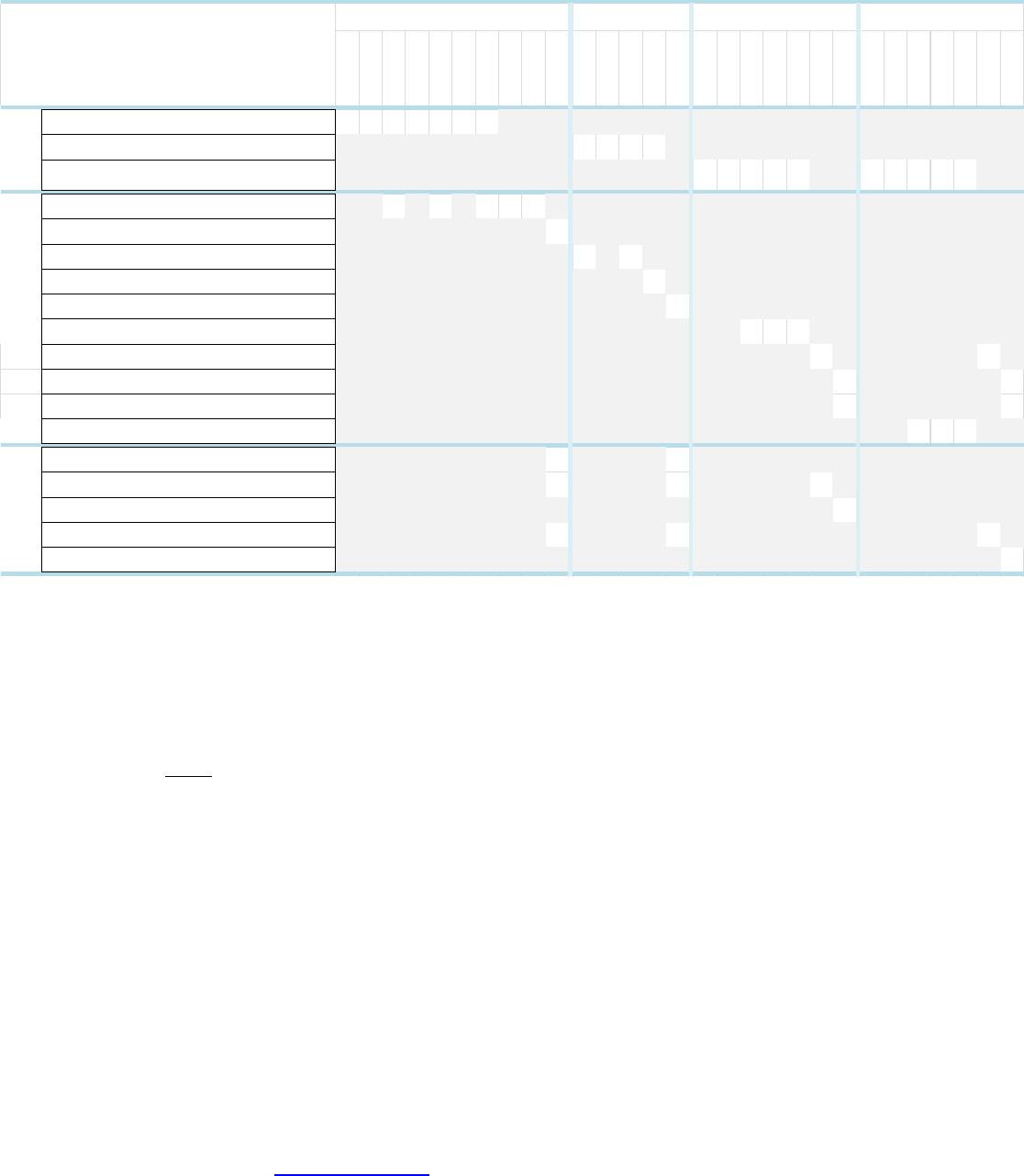
o The following table lists the various graphics solutions’ offerings on Dell Latitude E-Family &
Mobile Precision products:
Dell Latitude Ultrabook, E-Family & Mobile Precision Reimage “How-To” Guide
2.6.6 Audio:
o Microsoft Operating Systems do not include the Audio driver recommended by Dell. The
IDT 92HDxxx HD Audio driver is available on Dell’s driver & downloads support web site
(support.dell.com) under the “Audio” section
Note
: Under XP 32-Bit only with service packs earlier than Service pack-3 and for Latitude
st
E-Family & mobile Precision 1
generation only, the Audio driver must be installed prior to
installing the graphics driver. This applies to Intel graphics solution only
nd
2.6.7 Intel Turbo Boost Driver (
only for 2
generation Latitude E-Family & Mobile Precision)
o Intel Turbo Boost driver is required to be installed on platforms meeting both of following
criteria:
1. nVidia or ATI discrete graphics cards
2. Core i7 and i5 Dual Core CPUs
o Microsoft Operating Systems do not include the Intel Dual-Core Turbo Boost driver. Install
the following driver provided by Dell:
Dual-Core Turbo Boost driver is available on Dell’s driver & downloads support web
site (support.dell.com) found under the “CPU” section
E4200
E4300
E5400
E5500
E6400
E6400 ATG
E6500
M2400
M4400
M6400
E6410
E6410 ATG
E6510
M4500
M6500
E5420 / E5520
E6320
E6420
E6420 ATG
E6520
M4600
M6600
E5430 / E5530
E6230/E6330/
E6430u/3330
E6430/E6430s
E6430 ATG
E6530
M4700
M6700
Intel GMA 4500MHD Graphics X X X X X X X
Intel GMA HD Graphics X X X X
Intel Media Adapter HD/HD 2000/3000/4000
X X X X X X X X X X
Quadro NVS 160M X X X X X
Quadro FX 2700M / 3700M X
Quadro NVS 3100M X X
Quadro FX 880M & 1800M X
Quadro FX 2800M / 3800M X
N12M 512MB DDR3 with Optimus X X X
Quadro 1000M/2000M with 2GB GDDR3 and Opitimus X X
Quadro 3000M/4000M with 2GB GDDR3 and Opitimus X X
Quadro 5000M with 4GB GDDR3 and Opitimus X X
NVS 5200M 1GB DDR3 and Optimus X X X
ATI FirePro M7740 X X
AMD FirePro M5950 Mobility Pro Graphics with 1GB GDDR5 X X X
AMD FirePro M8900 Mobility Pro Graphics with 2GB GDDR5 X
AMD FirePro M4000 Mobility Pro Graphics with 1GB GDDR5 X X X
AMD FirePro M6000 Mobility Pro Graphics with 2GB GDDR5 X
4th
Generation
AMD
st
1
Generation
nd
2
Generation
rd
3
Generation
nVidia
Intel
Graphic Solution
Dell Latitude Ultrabook, E-Family & Mobile Precision Reimage “How-To” Guide
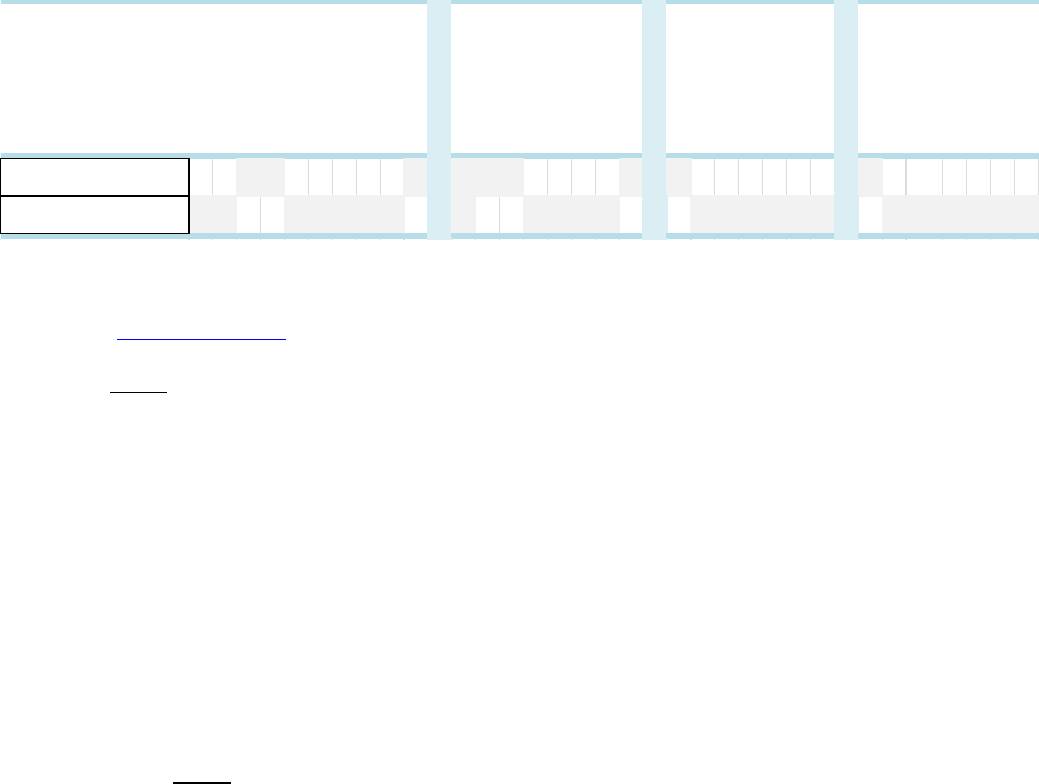
2.6.8 Integrated Wired Network Controller (Ethernet)
- Microsoft Operating Systems XP 32 & 64-Bit, Vista 32 & 64-Bit, and Win7/8 32 & 64-Bit either
do not provide native support or do not include the driver recommended by Dell. Install the
following Dell driver for network connectivity
- Network Controller drivers are available on Dell’s driver & downloads support web site
(support.dell.com) under the “Network” section
Note
: To ensure full functionality of the Intel Gigabit Network adapter, Dell recommends
that you install the Intel PROSet available on Dell’s driver & downloads support web site
(support.dell.com) under the “Network” section
st
nd
2.6.9 Dell Control Point – DCP
, (applies to 1
& 2
generations Latitude E-Family &
Mobile Precision only)
2.6.9.1 Control Point Security Device Driver
nd
Note
: for 2
generation Latitude E-Family & Mobile Precision, the Control Point
Security Device driver needs to be applied only if the Control Point Security Manager
is used, it is not required for the Dell Data Protection | Access suite.
o Microsoft Operating System does not have the desired drivers and applications
necessary for the security functions offered on Latitude E-Family & Mobile
Precision
o The driver will install the device driver for the security devices installed in the Dell
E-Family notebook computer. In addition, it will install Microsoft Net framework
2.0 SP1 and any relevant Microsoft QFEs required allowing these security devices
to operate correctly
o The driver supports the following Security devices:
1.
Broadcom Trusted Platform Module
2.
Atmel Trusted Platform Module
E4200
E4300
E5400
E5500
E6400
E6400 ATG
E6500
M2400
M4400
M6400
E4310
E5410
E5510
E6410
E6410 ATG
E6510
M4500
M6500
E5420 /
E6320
E6420
E6420 ATG
E6520
M4600
M6600
E5430 /
E6230/E6330/
/E6430u
E6430/E6430s
E6430 ATG
E6530
M4700
M6700
Intel 825xx Gigabit
Platform LAN Network
X X X X X X X X X X X X X X X X X X X X X X X
Broadcom 57XX Gigabit
Integrated Controller
X X X X X X X X
Solution
st
1
Generation
nd
2
Generation
rd
3
Generation
4th
Generation

Dell Latitude Ultrabook, E-Family & Mobile Precision Reimage “How-To” Guide
3.
STMicroelectronics Trusted Platform Module
4.
Winbond Trusted Platform Module
5.
O2Micro Smart Card Reader
6.
Dell Smart Card Keyboard
7.
UPEK TouchChip Fingerprint Reader
8.
Authentec Fingerprint Reader
9.
Broadcom Unified Security Hub
10.
Vista Storage driver Update (for ATAPI.SYS)
o The Control Point Security Device Driver is available on Dell’s driver & downloads
support web site (support.dell.com) under the “Control Point” section
2.6.9.2 Control Point System Manager
o Dell Control Point System Manager module is a Dell developed modular
application providing a complete set of power management configuring and
alerting capabilities:
o Battery Status
o Power Scheme and Sleep Mode
o Display and Devices
o Keyboard Backlighting and Hotkeys Customization
o Extended Battery Life / All Day Battery Life
o The Control Point System Manager Application is available on Dell’s driver &
downloads support web site (support.dell.com) under “Control Point” section
- Refer to Table B1 under Appendix-B for DCP System Manager features
- For Extended Battery Life feature (EBL), install the Dell Control Point components
offered by Dell in addition to the System Manager Module( version 1.2 & 1.3)
o Control Point System Security Manager driver (
applies to Control Point System
Manager 1.0 and 1.1
)
o Control Point System Manager XML file (
applies to Control Point System
Manager 1.0, 1.1, 1.2 and 1.3. Not required for 1.4 and beyond
)
o For Ambient Light Sensor (ALS), install the Dell Ambient Light Sensor Utility
component of Control Point in addition to the System Manager Module. This
component is applicable to Vista 32 & 64-Bit only, and is not required for XP 32 &
64-Bit and Win7/8 32 & 64-Bit
Note
:
Customers can obtain ALS feature by installing ALS utility in case Control
Point System Manager is not desired and under Microsoft Windows Vista only
