
Dell PowerConnect 2508: инструкция
Раздел: Компьютерные комплектующие
Тип:
Инструкция к Dell PowerConnect 2508
Оглавление
Dell™ PowerConnect™ Unmanaged Switches
System Information Guide
Příručka k zařízení
Guide d'informations système
Systeminformationshandbuch
Przewodnik – informacje o systemie
Guia de informações do sistema
Ðóêîâîäñòâî ïî ñèñòåìå
Guía de información del sistema
תכרעמל עדימ ךירדמ
Models PowerConnect 2016, PowerConnect 2024, PowerConnect 2124, PowerConnect 2508
www.dell.com | support.dell.com


Dell™ PowerConnect™ Unmanaged Switches
System Information Guide
www.dell.com | support.dell.com

Notes, Notices, and Cautions
NOTE: A NOTE indicates important information that helps you make better
use of your system.
NOTICE: A NOTICE indicates either potential damage to hardware or loss of
data and tells you how to avoid the problem.
CAUTION: A CAUTION indicates a potential for property damage,
personal injury, or death.
____________________
Information in this document is subject to change without notice.
© 2002 Dell Computer Corporation. All rights reserved.
Reproduction in any manner whatsoever without the written permission of Dell Computer
Corporation is strictly forbidden.
Trademarks used in this text: Dell, the DELL logo, and PowerConnect are trademarks of Dell
Computer Corporation; EMC is the registered trademark of EMC Corporation.
Other trademarks and trade names may be used in this document to refer to either the entities claiming
the marks and names or their products. Dell Computer Corporation disclaims any proprietary interest
in trademarks and trade names other than its own.
October 2002 P/N 0X851 Rev. A00

Contents
Caution: Safety Instructions . . . . . . . . . . . . . . . . . . . . 5
General
. . . . . . . . . . . . . . . . . . . . . . . . . . . . . 5
Rack Mounting of Systems
. . . . . . . . . . . . . . . . . . . 6
Modems, Telecommunications, or Local Area
Network Options
. . . . . . . . . . . . . . . . . . . . . . . . 8
When Using Your System
. . . . . . . . . . . . . . . . . . . . . . 8
Protecting Against Electrostatic Discharge
. . . . . . . . . . . 8
About This Guide
. . . . . . . . . . . . . . . . . . . . . . . . . . 9
Finding Information and Assistance
. . . . . . . . . . . . . . . . 10
Getting Started/Setup
. . . . . . . . . . . . . . . . . . . . . . . 10
Package Contents
. . . . . . . . . . . . . . . . . . . . . . . . 10
Before You Connect to the Network:
Mounting Kit Instructions
. . . . . . . . . . . . . . . . . . . . 11
Regulatory Notices
. . . . . . . . . . . . . . . . . . . . . . . . . 12
CE Notice (European Union)
. . . . . . . . . . . . . . . . . . 13
EN 55022 Compliance (Czech Republic Only)
. . . . . . . . . . 15
Polish Center for Testing and Certification Notice
. . . . . . . . 15
Contents 3

4 Contents

Caution: Safety Instructions
Use the following safety guidelines to ensure your own personal safety and to help protect
your system from potential damage.
General
• Observe and follow service markings. Do not service any product except as explained
in your system documentation. Opening or removing covers that are marked with the
triangular symbol with a lightning bolt may expose you to electrical shock.
Components inside these compartments should be serviced only by a trained service
technician.
• If any of the following conditions occur, unplug the product from the electrical outlet
and replace the part or contact your trained service provider:
– The power cable, extension cable, or plug is damaged.
– An object has fallen into the product.
– The product has been exposed to water.
– The product has been dropped or damaged.
– The product does not operate correctly when you follow the operating
instructions.
• Keep your system away from radiators and heat sources. Also, do not block cooling
vents.
• Do not spill food or liquids on your system components, and never operate the
product in a wet environment. If the system gets wet, see the appropriate section in
your troubleshooting guide or contact your trained service provider.
• Do not push any objects into the openings of your system. Doing so can cause fire or
electric shock by shorting out interior components.
• Use the product only with approved equipment.
• Allow the product to cool before removing covers or touching internal components.
• Operate the product only from the type of external power source indicated on the
electrical ratings label. If you are not sure of the type of power source required,
consult your service provider or local power company.
Unmanaged Switches System Information Guide 5

Caution: Safety Instructions (continued)
• Use only approved power cable(s). If you have not been provided with a power cable
for your system or for any AC-powered option intended for your system, purchase a
power cable that is approved for use in your country. The power cable must be rated
for the product and for the voltage and current marked on the product's electrical
ratings label. The voltage and current rating of the cable should be greater than the
ratings marked on the product.
• To help prevent electric shock, plug the system and peripheral power cables into
properly grounded electrical outlets. These cables are equipped with three-prong
plugs to help ensure proper grounding. Do not use adapter plugs or remove the
grounding prong from a cable. If you must use an extension cable, use a 3-wire cable
www.dell.com | support.dell.com
with properly grounded plugs.
• Observe extension cable and power strip ratings. Make sure that the total ampere
rating of all products plugged into the extension cable or power strip does not exceed
80 percent of the ampere ratings limit for the extension cable or power strip.
• To help protect your system from sudden, transient increases and decreases in
electrical power, use a surge suppressor, line conditioner, or uninterruptible power
supply (UPS).
• Position system cables and power cables carefully; route cables so that they cannot be
stepped on or tripped over. Be sure that nothing rests on any cables.
• Do not modify power cables or plugs. Consult a licensed electrician or your power
company for site modifications. Always follow your local/national wiring rules.
• When connecting or disconnecting power to hot-pluggable power supplies, if offered
with your system, observe the following guidelines:
– Install the power supply before connecting the power cable to the power supply.
– Unplug the power cable before removing the power supply.
– If the system has multiple sources of power, disconnect power from the system by
unplugging all power cables from the power supplies.
• Move products with care; ensure that all casters and/or stabilizers are firmly
connected to the system. Avoid sudden stops and uneven surfaces.
Rack Mounting of Systems
Observe the following precautions for rack stability and safety. Also refer to the rack
installation documentation accompanying the system and the rack for specific caution
statements and procedures.
6 Unmanaged Switches System Information Guide
Caution: Safety Instructions (continued)
Systems are considered to be components in a rack. Thus, "component" refers to any
system as well as to various peripherals or supporting hardware.
CAUTION: Installing systems in a rack without the front and side stabilizers
installed could cause the rack to tip over, potentially resulting in bodily injury
under certain circumstances. Therefore, always install the stabilizers before
installing components in the rack.
After installing system/components in a rack, never pull more than one
component out of the rack on its slide assemblies at one time. The weight of
more than one extended component could cause the rack to tip over and may
result in serious injury.
NOTE: Your system is safety-certified as a free-standing unit and as a component for
use in a Dell rack cabinet using the customer rack kit. The installation of your system
and rack kit in any other rack cabinet has not been approved by any safety agencies.
It is your responsibility to have the final combination of system and rack kit in a rack
cabinet evaluated for suitability by a certified safety agency. Dell disclaims all
liability and warranties in connection with such combinations.
• System rack kits are intended to be installed in a rack by trained service technicians. If
you install the kit in any other rack, be sure that the rack meets the specifications of a
Dell rack.
CAUTION: Do not move racks by yourself. Due to the height and weight of the
rack, a minimum of two people should accomplish this task.
• Before working on the rack, make sure that the stabilizers are secured to the rack,
extended to the floor, and that the full weight of the rack rests on the floor. Install
front and side stabilizers on a single rack or front stabilizers for joined multiple racks
before working on the rack.
• Always load the rack from the bottom up, and load the heaviest item in the rack first.
• Make sure that the rack is level and stable before extending a component from the
rack.
• Use caution when pressing the component rail release latches and sliding a
component into or out of a rack; the slide rails can pinch your fingers.
• After a component is inserted into the rack, carefully extend the rail into a locking
position, and then slide the component into the rack.
• Do not overload the AC supply branch circuit that provides power to the rack. The
total rack load should not exceed 80 percent of the branch circuit rating.
• Ensure that proper airflow is provided to components in the rack.
Unmanaged Switches System Information Guide 7
Caution: Safety Instructions (continued)
• Do not step on or stand on any component when servicing other components in a
rack.
CAUTION: A qualified electrician must perform all connections to DC power and
to safety grounds. All electrical wiring must comply with applicable local or
national codes and practices.
CAUTION: Never defeat the ground conductor or operate the equipment in the
absence of a suitably installed ground conductor. Contact the appropriate
electrical inspection authority or an electrician if you are uncertain that
suitable grounding is available.
CAUTION: The system chassis must be positively grounded to the rack cabinet
www.dell.com | support.dell.com
frame. Do not attempt to connect power to the system until grounding cables
are connected. Completed power and safety ground wiring must be inspected by
a qualified electrical inspector. An energy hazard will exist if the safety ground
cable is omitted or disconnected.
Modems, Telecommunications, or Local Area Network Options
• Do not connect or use a modem during a lightning storm. There may be a risk of
electrical shock from lightning.
• Never connect or use a modem in a wet environment.
• Do not plug a modem or telephone cable into the network interface controller (NIC)
receptacle.
• Disconnect the modem cable before opening a product enclosure, touching or
installing internal components, or touching an uninsulated modem cable or jack.
When Using Your System
Protecting Against Electrostatic Discharge
NOTICE: Only a certified service technician should perform repairs on your system. Damage
due to servicing that is not authorized by Dell is not covered by your warranty.
Static electricity can harm delicate components inside your system. To prevent static
damage, discharge static electricity from your body before you touch any of the electronic
components, such as the microprocessor. You can do so by periodically touching an
unpainted metal surface on the chassis.
8 Unmanaged Switches System Information Guide

When Using Your System (continued)
You can also take the following steps to prevent damage from electrostatic discharge
(ESD):
• When unpacking a static-sensitive component from its shipping carton, do not
remove the component from the antistatic packing material until you are ready to
install the component in your system. Just before unwrapping the antistatic
packaging, be sure to discharge static electricity from your body.
• When transporting a sensitive component, first place it in an antistatic container or
packaging.
• Handle all sensitive components in a static-safe area. If possible, use antistatic floor
pads and workbench pads and an antistatic grounding strap.
NOTE: Your system may also include circuit cards or other components that contain
batteries. These batteries must also be disposed of in a battery deposit site. For
information about such batteries, refer to the documentation for the specific card or
component.
About This Guide
This document contains getting started/setup, safety, regulatory, and
warranty information about your Dell
™ PowerConnect™ network switch.
To obtain the latest versions of the documents on your hard drive, go to the
Dell Support website at support.dell.com.
Unmanaged Switches System Information Guide 9
Finding Information and Assistance
Resource Contents Using the Resource
Dell Support website
Go to support.dell.com and complete the one-time
• Technical support and
registration.
information
• Get help with general usage, installation, and
• Downloads for your system
troubleshooting questions.
• Order or delivery status
• Obtain answers to technical service and support
questions.
• Hints and tips, technology
papers, service information
• Get the latest versions of the drivers for your system.
• Access documentation about your system and
www.dell.com | support.dell.com
devices.
• Join online discussions with other Dell customers
and Dell technical professionals.
• Explore a list of online links to Dell's primary
vendors.
Dell Premier Support website
Go to premiersupport.dell.com:
• Service call status
The Dell Premier Support website is customized for
• Top technical issues by
corporate, government, and education customers.
product
This site may not be available in all regions.
• Frequently asked questions
by product number
• Customized service tags
• System configuration detail
Getting Started/Setup
Package Contents
Before you begin installing the switch, confirm that your package contains
the following items:
• Switch
• AC power cable
• Self-adhesive rubber pads for desktop installation
• Rackmount kit for rack installation
• Dell PowerConnect CD
10 Unmanaged Switches System Information Guide

Before You Connect to the Network: Mounting Kit Instructions
The switch is supplied with rubber feet for stationing it on a flat surface and
mounting brackets and screws for mounting it in a rack.
Installing the Switch on a Flat Surface
The switch can be installed on any appropriate level surface that can safely
support the weight of the hubs and their attached cables. There must be
adequate space around the switch for ventilation and access to cable
connectors.
To install the switch on a flat surface:
1 Set the switch on the flat surface and check for proper ventilation.
Allow at least 5.1 cm (2 inches) on each side for proper ventilation and
12.7 cm (5 inches) at the back for power cable clearance.
2 Attach rubber feet on each marked location on the bottom of the
chassis.
The rubber feet are optional but are recommended to keep the unit
from slipping.
Installing the Switch in a Rack
The switch can be installed in most standard 48.3-cm (19-inch) racks.
To install the switch in a rack:
NOTE: For racks that
are not prethreaded, cage
1 Use the supplied screws to attach a mounting bracket to each side of
nuts are provided.
the switch.
2 Position the switch in the rack and align the holes in the mounting
bracket with the holes in the rack.
3 Insert and tighten two screws appropriate for your rack through each of
the mounting brackets.
Unmanaged Switches System Information Guide 11

Regulatory Notices
Electromagnetic Interference (EMI) is any signal or emission, radiated in
free space or conducted along power or signal leads, that endangers the
functioning of a radio navigation or other safety service or seriously
degrades, obstructs, or repeatedly interrupts a licensed radio
communications service. Radio communications services include but are
not limited to AM/FM commercial broadcast, television, cellular services,
radar, air-traffic control, pager, and Personal Communication Services
(PCS). These licensed services, along with unintentional radiators such as
digital devices, including computer systems, contribute to the
electromagnetic environment.
www.dell.com | support.dell.com
Electromagnetic Compatibility (EMC) is the ability of items of electronic
equipment to function properly together in the electronic environment.
While this computer system has been designed and determined to be
compliant with regulatory agency limits for EMI, there is no guarantee that
interference will not occur in a particular installation. If this equipment
does cause interference with radio communications services, which can be
determined by turning the equipment off and on, you are encouraged to try
to correct the interference by one or more of the following measures:
• Reorient the receiving antenna.
• Relocate the radio, TV or other receiver away from the switch.
• Plug the Ethernet switch into a different power outlet so that the
switch and the receiver are on different branch circuits.
• If necessary, consult the place of purchase or an experienced
radio/television technician for additional suggestions.
If necessary, consult a Dell Technical Support representative or an
experienced radio/television technician for additional suggestions.
Dell computer systems are designed, tested, and classified for their
intended electromagnetic environment. These electromagnetic
environment classifications generally refer to the following harmonized
definitions:
• Class A is typically for business or industrial environments.
• Class B is typically for residential environments.
12 Unmanaged Switches System Information Guide

Information Technology Equipment (ITE), including peripherals,
expansion cards, printers, input/output (I/O) devices, monitors, and so on,
that are integrated into or connected to the system should match the
electromagnetic environment classification of the computer system.
A Notice About Shielded Signal Cables: Use only shielded cables for
connecting peripherals to any Dell device to reduce the possibility of
interference with radio communications services. Using shielded cables
ensures that you maintain the appropriate EMC classification for the
intended environment. For parallel printers, a cable is available from Dell.
If you prefer, you can order a cable from Dell on the World Wide Web at
accessories.us.dell.com/sna/category.asp?category_id=4117.
Most Dell computer systems are classified for Class B environments.
However, the inclusion of certain options can change the rating of some
configurations to Class A. To determine the electromagnetic classification
for your system or device, refer to the following sections specific for each
regulatory agency. Each section provides country-specific EMC/EMI or
product safety information.
CE Notice (European Union)
Marking by the symbol indicates compliance of this Dell computer to
the EMC Directive and the Low Voltage Directive of the European Union.
Such marking is indicative that this Dell system meets the following
technical standards:
Set 1: For standard Dell ITE with AC power supplies
• EN 55022 — "Information Technology Equipment — Radio
Disturbance Characteristics — Limits and Methods of Measurement."
• EN 55024 — "Information Technology Equipment - Immunity
Characteristics - Limits and Methods of Measurement."
• EN 61000-3-2 — "Electromagnetic Compatibility (EMC) - Part 3:
Limits - Section 2: Limits for Harmonic Current Emissions
(Equipment Input Current Up to and Including 16 A Per Phase)."
• EN 61000-3-3 — "Electromagnetic Compatibility (EMC) - Part 3:
Limits - Section 3: Limitation of Voltage Fluctuations and Flicker in
Low-Voltage Supply Systems for Equipment With Rated Current Up
to and Including 16 A."
• EN 60950 — "Safety of Information Technology Equipment."
Unmanaged Switches System Information Guide 13

For –48 volt-direct-current (VDC) powered systems, the following set of
standards applies. See the "Declaration of Conformity" to determine
whether a particular system meets EN 50082-1 or EN 50082-2
requirements.
Set 2: For –48-VDC powered systems
• EN 55022 — "Information Technology Equipment — Radio
Disturbance Characteristics — Limits and Methods of Measurement."
• EN 50082-1 — "Electromagnetic Compatibility - Generic Immunity
Standard - Part 1: Residential, Commercial and Light Industry."
• EN 50082-2 — "Electromagnetic Compatibility - Generic Immunity
www.dell.com | support.dell.com
Standard - Part 2: Industrial Environment."
• EN 60950 — "Safety of Information Technology Equipment."
NOTE: EN 55022 emissions requirements provide for two classifications:
• Class A is for typical commercial areas.
• Class B is for typical domestic areas.
RF INTERFERENCE WARNING: This is a Class A product. In a
domestic environment this product may cause radio frequency (RF)
interference, in which case the user may be required to take adequate
measures.
A "Declaration of Conformity" in accordance with the preceding directives
and standards has been made and is on file at Dell Computer Corporation
Products Europe BV, Limerick, Ireland.
14 Unmanaged Switches System Information Guide

EN 55022 Compliance (Czech Republic Only)
This device belongs to Class B devices as described in EN 55022, unless
it is specifically stated that it is a Class A device on the specification
label. The following applies to devices in Class A of EN 55022 (radius of
protection up to 30 meters). The user of the device is obliged to take all
steps necessary to remove sources of interference to telecommunication
or other devices.
Pokud není na typovém štitku počítače uvedeno, že spadá do třídy
A podle EN 55022, spadá automaticky do třídy B podle EN 55022.
Pro zařízení zařazená do třídy A (ochranné pásmo 30m) podle
EN 55022 platí následující. Dojde−li k rušení telekomunikačních
nebo jinych zařízení, je uživatel povinen provést taková opatření,
aby rušení odstranil.
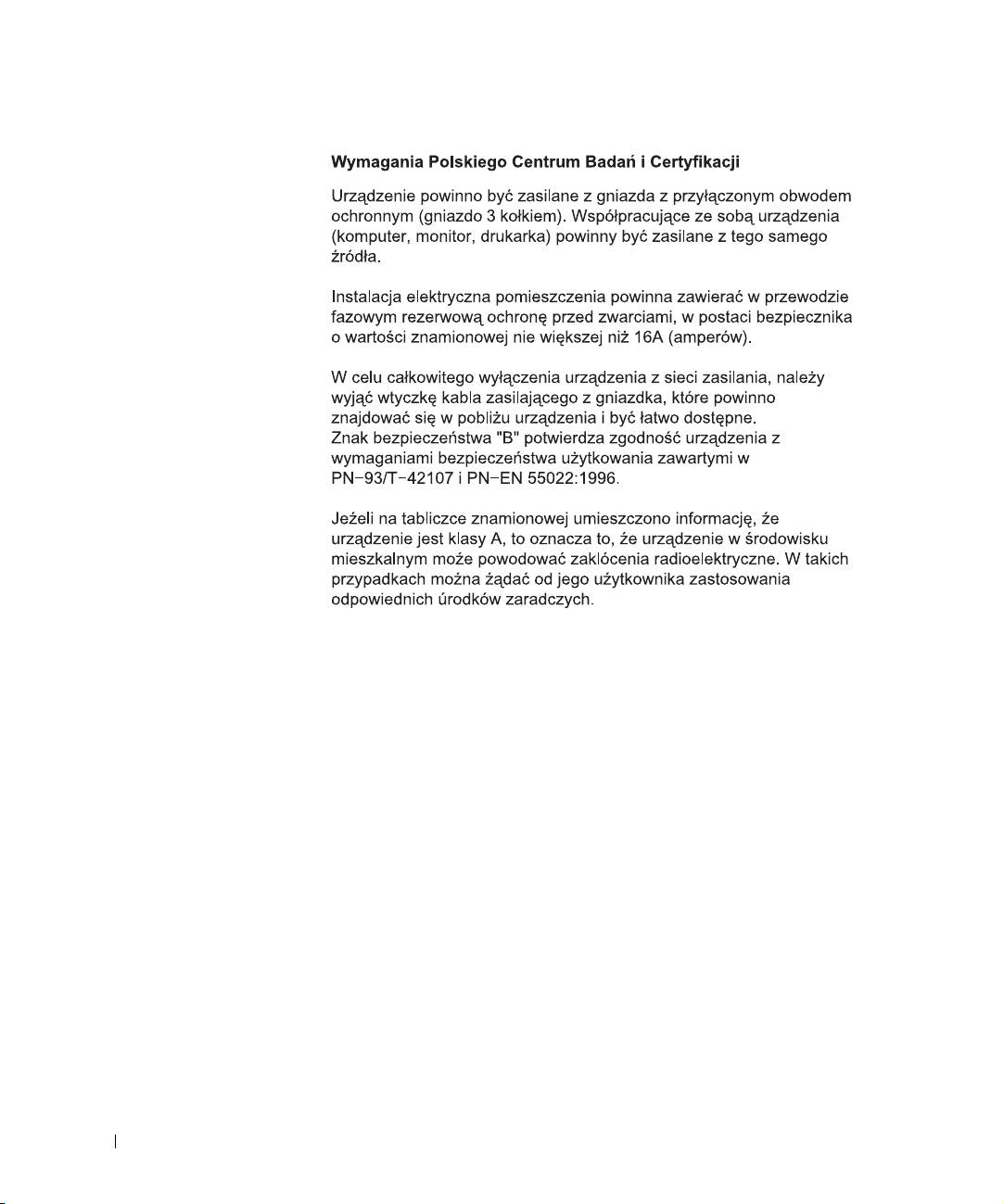
Polish Center for Testing and Certification Notice
The equipment should draw power from a socket with an attached
protection circuit (a 3-prong socket). All equipment that works together
(computer, monitor, printer, and so on) should have the same power supply
source.
The phasing conductor of the room’s electrical installation should have a
reserve short-circuit protection device in the form of a fuse with a nominal
value no larger than 16 amperes (A).
To completely switch off the equipment, the power supply cable must be
removed from the power supply socket, which should be located near the
equipment and easily accessible.
A protection mark "B" confirms that the equipment is in compliance with
the protection usage requirements of standards PN-93/T-42107 and
PN-EN 55022: 1996.
Unmanaged Switches System Information Guide 15
www.dell.com | support.dell.com
16 Unmanaged Switches System Information Guide
Unmanaged Switches System Information Guide 17

www.dell.com | support.dell.com
18 Unmanaged Switches System Information Guide
