
Dell PowerEdge RAID Controller 6E: инструкция
Раздел: Компьютерные комплектующие
Тип:
Инструкция к Dell PowerEdge RAID Controller 6E
Оглавление
- Примечания, предупреждения и символы внимания
- Установка и удаление батареи и кабеля батареи на контроллерах PERC Важная информация о безопасности
- Снятие переносного блока резервного питания (Transportable Battery Backup Unit — TBBU) адаптера PERC x/E 1 2 Рисунок 1. Расположение индикатора наличия измененных кэш- буферов, не записанных на диск, адаптера PERC x/E
- 3 4 5 Рисунок 2. Снятие модуля резервного питания BBU
- Установка нового модуля резервного питания и кабеля батареи 1 2
- 3 Рисунок 3. Установка блока резервного питания и кабеля батареи 4 5 6
- Установка блока TBBU в адаптер PERC x/E 1 2 3
- Рисунок 4. Установка модуля DIMM.
- Извлечение модуля памяти контроллера PERC x/i 1 2
- Отключение блока BBU от контроллера PERC x/i 1 2 3 4
- Установка модуля памяти DIMM и блока BBU в контроллер PERC x/i 1
- 2 3 4

Dell™ PowerEdge™
Expandable RAID Controller x
Removing and Installing the
Battery and Battery Cable
on PERC Controllers
在 PERC 控制器上拆装电池和电池电缆
拆裝 PERC 控制器的電池和電池電纜
Retrait et installation de la batterie
et de son câble sur les contrôleurs PERC
Entfernen und Installieren des Akkus und
des Akkukabels bei PERC-Controllern
PERC コントローラのバッテリーとバッテ
リーケーブルの取り外しと取り付け
PERC
컨트롤러의 전지 및 전지
케이블 제거 / 설치
Установка и удаление батареи и кабеля
батареи на контроллерах
PERC
Extracción e instalación de la batería y el cable
de la batería en controladoras PERC
Model UCP-50 and UCP-51


Dell™ PowerEdge™
Expandable RAID Controller x
Removing and Installing the
Battery and Battery Cable
on PERC Controllers

Notes, Notices, and Cautions
NOTE: A NOTE indicates important information that helps you make better use
of your computer.
NOTICE: A NOTICE indicates either potential damage to hardware or loss of data
and tells you how to avoid the problem.
CAUTION: A CAUTION indicates a potential for property damage, personal injury,
or death.
____________________
Information in this document is subject to change without notice.
© 2007 Dell Inc. All rights reserved.
Reproduction in any manner whatsoever without the written permission of Dell Inc. is strictly forbidden.
Trademarks used in this text: Dell, the DELL logo, Dell Precision, and PowerEdge, are trademarks
of Dell Inc.
Other trademarks and trade names may be used in this document to refer to either the entities claiming
the marks and names or their products. Dell Inc. disclaims any proprietary interest in trademarks
and trade names other than its own.
Model UCP-50 and UCP-51
November 2007 P/N XR434 Rev. A00
Removing and Installing the
Battery and Battery Cable
on PERC Controllers
This document contains information on removing and installing the battery,
battery cable, and memory module on Dell™ PowerEdge™ Expandable RAID
Controllers (PERC).
• See page 4 for PERC
x
/E, where
x
is the generation of the card (i.e., 5, 6, etc.)
battery removal and installation procedures
• See page 10 for PERC
x
/i battery removal and installation procedures
Important Safety Information
CAUTION: Any installation that requires removal of the system cover is intended solely
to be performed by trained service technicians. See the Product Information Guide that
came with your system for complete information about safety precautions, working
inside the computer, and protecting against electrostatic discharge.
NOTE: See the Product Information Guide that came with your system for complete
information about U.S. Terms and Conditions of Sale, Limited Warranties and
Returns, Export Regulations, Software License Agreement, Safety, Environmental
and Ergonomic Instructions, Regulatory Notices, and Recycling Information.
Removing and Installing the Battery and Battery Cable on PERC Controllers 3
Removing the Transportable Battery Backup Unit (TBBU)
from a PERC x/E Adapter
This section describes the procedure to remove the TBBU from a PERC
x
/E
Adapter installed in a system.
NOTE: The TBBU on the PERC x/E Adapter consists of a dual in-line memory
module (DIMM) and a battery backup unit (BBU).
1
Perform a controlled shutdown of the system in which the PERC
x
/E
Adapter is installed, as well as any attached storage enclosures, and remove
the PERC
x
/E Adapter from the system. See the
Dell PowerEdge Expandable
RAID Controller x/i and x/E User’s Guide
for more information.
2
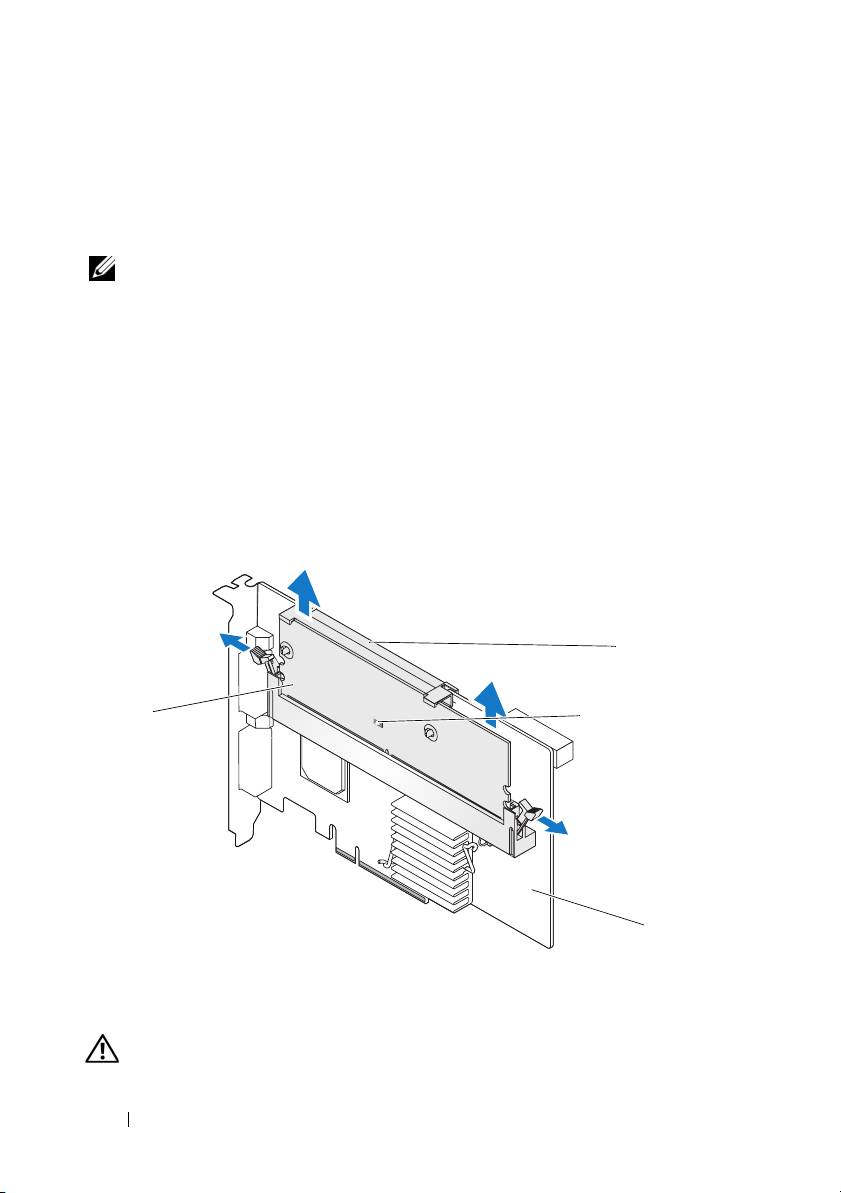
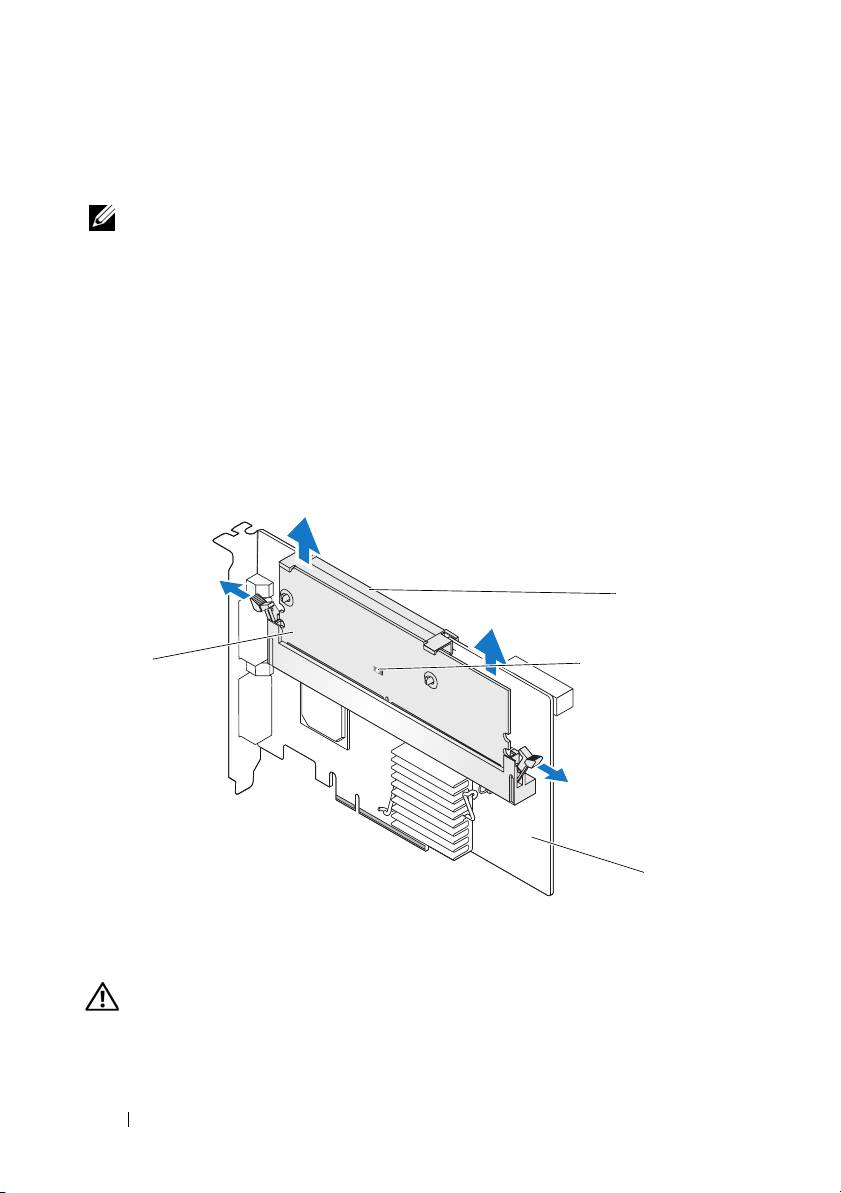
Visually inspect the controller and determine whether the dirty cache LED
on the memory module is turned on. See Figure 1. If the LED is turned on,
reinsert the controller into the system, replace the system cover, reconnect
the system to the electrical outlet, turn on the system, and repeat step 1.
Figure 1. PERC x/E Adapter Dirty Cache LED Location
2
1
3
4
1 memory module 2 battery
3 dirty cache LED 4 PERC x/E Adapter
CAUTION: Running a system without the system cover installed may cause
damage due to improper cooling.
4 Removing and Installing the Battery and Battery Cable on PERC Controllers
3
Remove the TBBU assembly from the PERC
x
/E Adapter by pressing down
on the tabs at each edge of the memory module connector and lifting the
TBBU off the adapter.
4
Disconnect the battery cable from the memory module.
NOTE: Do not exert excessive pressure on the connector on the memory
module while removing the memory module.
5
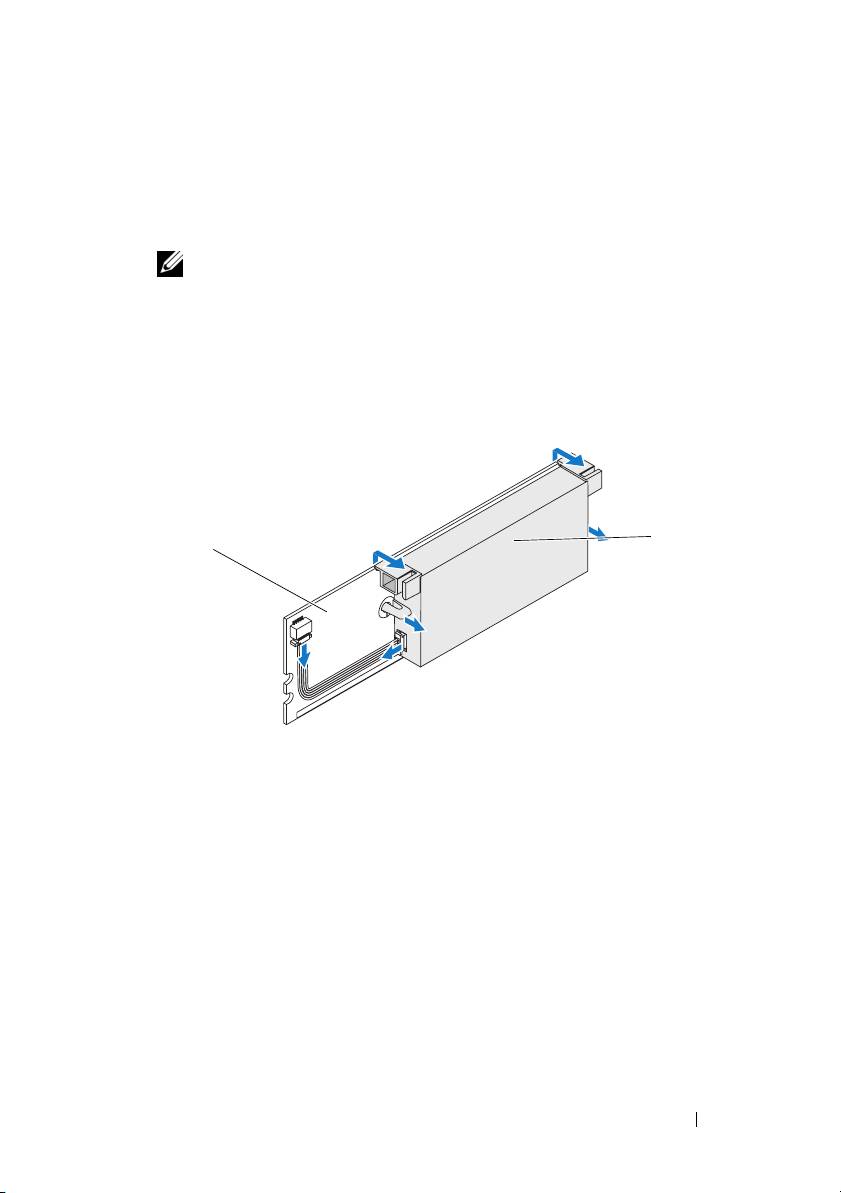
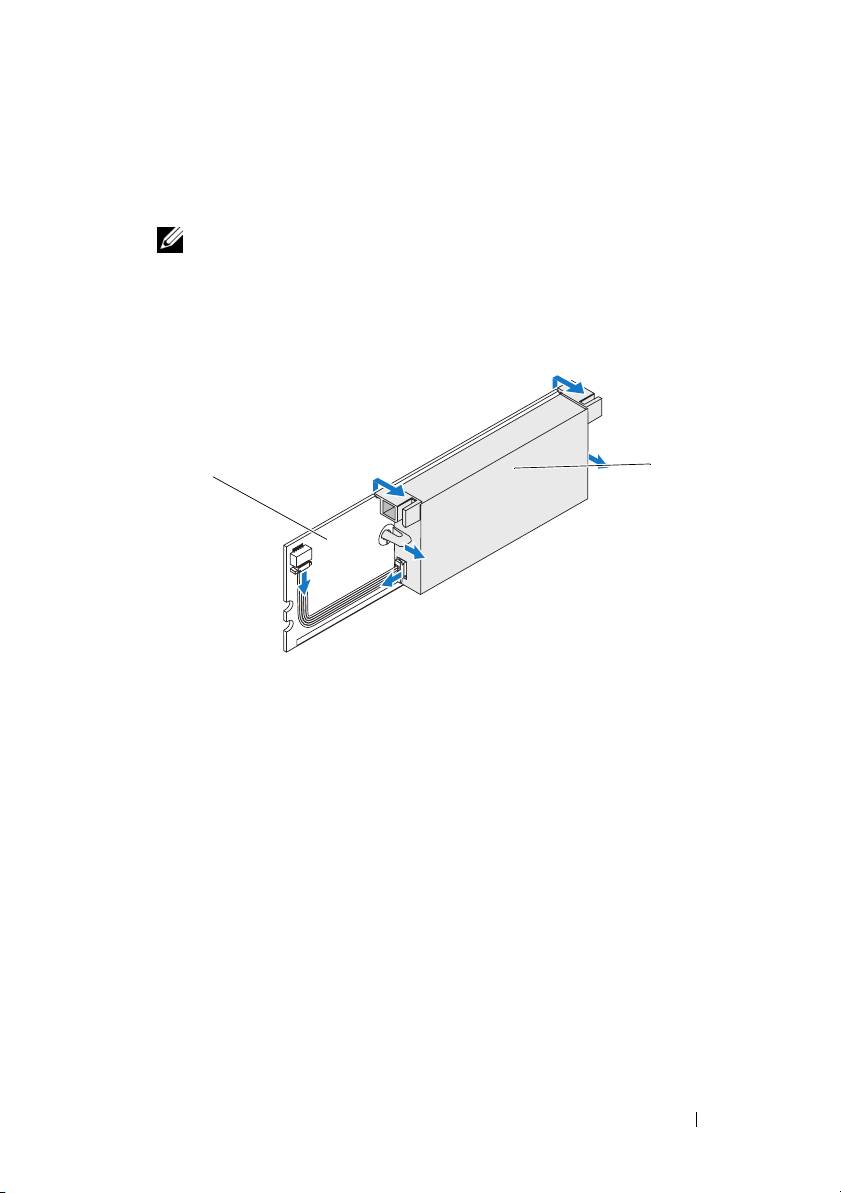
Detach the battery from the memory module by pressing out on the
battery clips inserted through the memory module and rotating the
battery off the memory module. See Figure 2.
Figure 2. Removing the BBU
2
1
1 memory module 2 battery
Removing and Installing the Battery and Battery Cable on PERC Controllers 5
Installing the New BBU and Battery Cable
This section describes the installation of the BBU and battery cable onto the DIMM
of a PERC
x
/E Adapter.
CAUTION: Only trained service technicians are authorized to remove the system
cover and access any of the components inside the system. Before performing any
procedure, see your Product Information Guide for complete information about
safety precautions, working inside the computer, and protecting against
electrostatic discharge
.
1
Unpack the BBU and follow all antistatic procedures.
NOTE: All work must be performed at an Electrostatic Discharge (ESD)-safe
workstation to meet the requirements of EIA-625—"Requirements For
Handling Electrostatic Discharge Sensitive Devices." All actions must be
performed following the IPC-A-610 latest revision ESD recommended
practices.
NOTE: Handle all sensitive components in a static-safe area. If possible,
use antistatic floor pads and work bench pads.
NOTE: When unpacking a static sensitive component from its shipping
carton, do not remove the component from the antistatic packing material
until you are ready to install the component. Just before unwrapping the
antistatic package, be sure to discharge static electricity from your body.
2
With the memory module removed from the controller, insert one end
of the battery cable (the red, white, yellow, and green wires) into the
connector on the memory module and the other end into the connector
on the battery.
NOTE: Do not exert excessive pressure on the connector on the memory
module while installing the memory module.
6 Removing and Installing the Battery and Battery Cable on PERC Controllers
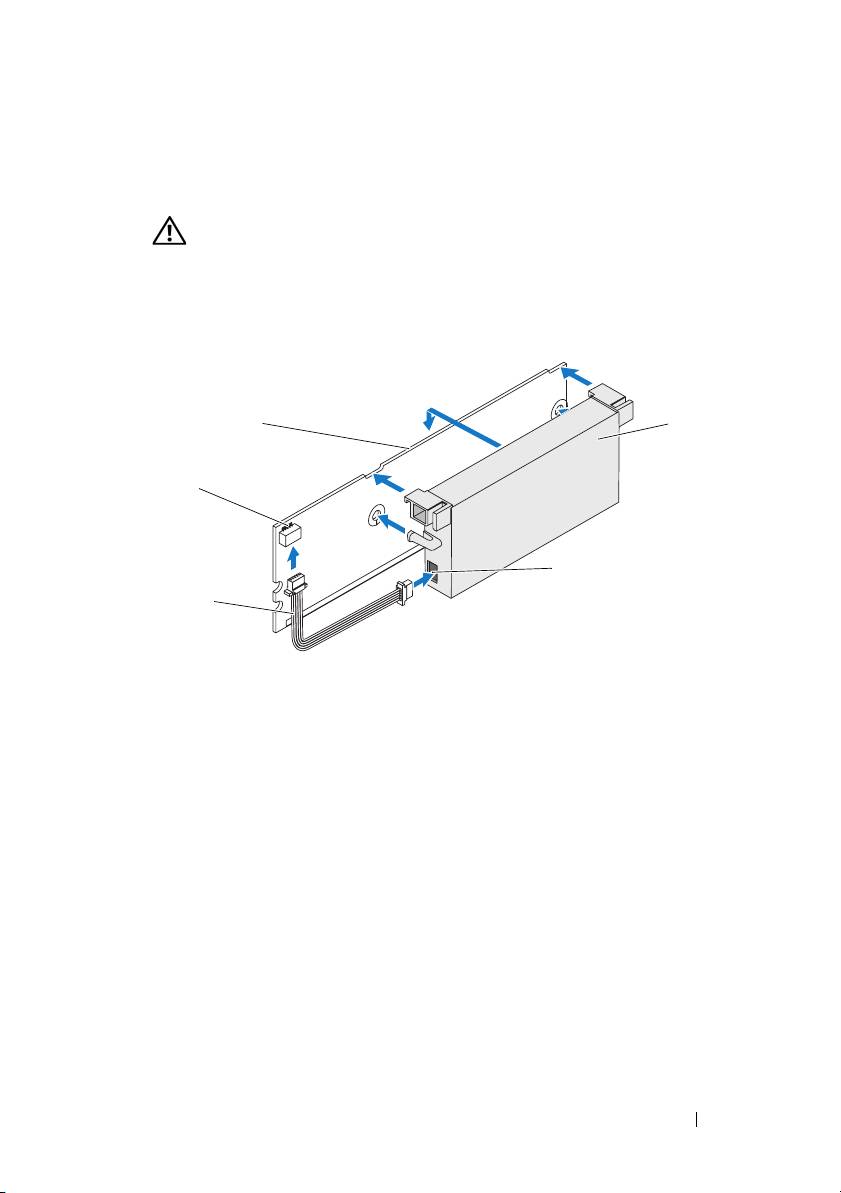
3
Place the top edge of the battery over the top edge of the memory module
so that the arms on the side of the battery fit into their sockets on the
memory module. See Figure 3.
CAUTION: Electrostatic discharge can damage sensitive components.
Always use proper antistatic protection when handling components.
Touching components without proper grounding can damage the equipment.
Figure 3. Installing the BBU and Battery Cable
1
4
2
5
3
1 memory module 2 connector on the memory module 3 battery cable
4 battery 5 connector on the battery
4
Place the PERC
x
/E Adapter on a flat, clean, and static–free surface.
5
Mount the memory module on the controller memory socket like a
standard DIMM. See the section "Installing the TBBU on a PERC x/E
Adapter" for more information.
The memory module is mounted flush with the board so that the memory
module is parallel to the board when installed.
6
Press the memory module firmly into the memory socket. As you press the
memory module into the socket, the BBU clicks into place, indicating that
the controller is firmly seated in the socket, and the arms on the socket fit
into the notches to hold the memory module securely.
Removing and Installing the Battery and Battery Cable on PERC Controllers 7
Installing the TBBU on a PERC x/E Adapter
This section describes the procedure to install the memory module on a PERC
x
/E Adapter.
CAUTION: Only trained service technicians are authorized to remove the system
cover and access any of the components inside the system. Before performing any
procedure, see your Product Information Guide for complete information about
safety precautions, working inside the computer, and protecting against
electrostatic discharge.
NOTE: The TBBU on the PERC x/E Adapter consists of a dual in-line memory
module (DIMM) and a battery backup unit (BBU).
1
Remove the memory module in an antistatic environment.
NOTE: When unpacking a static-sensitive component from its shipping
carton, do not remove the component from the antistatic packing material
until you are ready to install the component. Just before unwrapping the
antistatic package, be sure to discharge static electricity from your body.
NOTE: Handle all sensitive components in a static-safe area. If possible,
use antistatic floor pads and work bench pads.
NOTE: Never touch the gold leads and do not bend the memory module.
2
Align the memory module so that the keyed edge of the memory module is
placed exactly on top of the physical divider on the memory socket of the
controller. This will avoid damage to the memory module.
3
Insert the memory module on the memory socket of the controller and
apply a smooth, downward pressure on both ends or on the middle of the
memory module until the retention clips fall into the allotted slots on
either side of the memory module. Figure 4 displays the installation of
a memory module on a PERC
x
/E Adapter.
8 Removing and Installing the Battery and Battery Cable on PERC Controllers
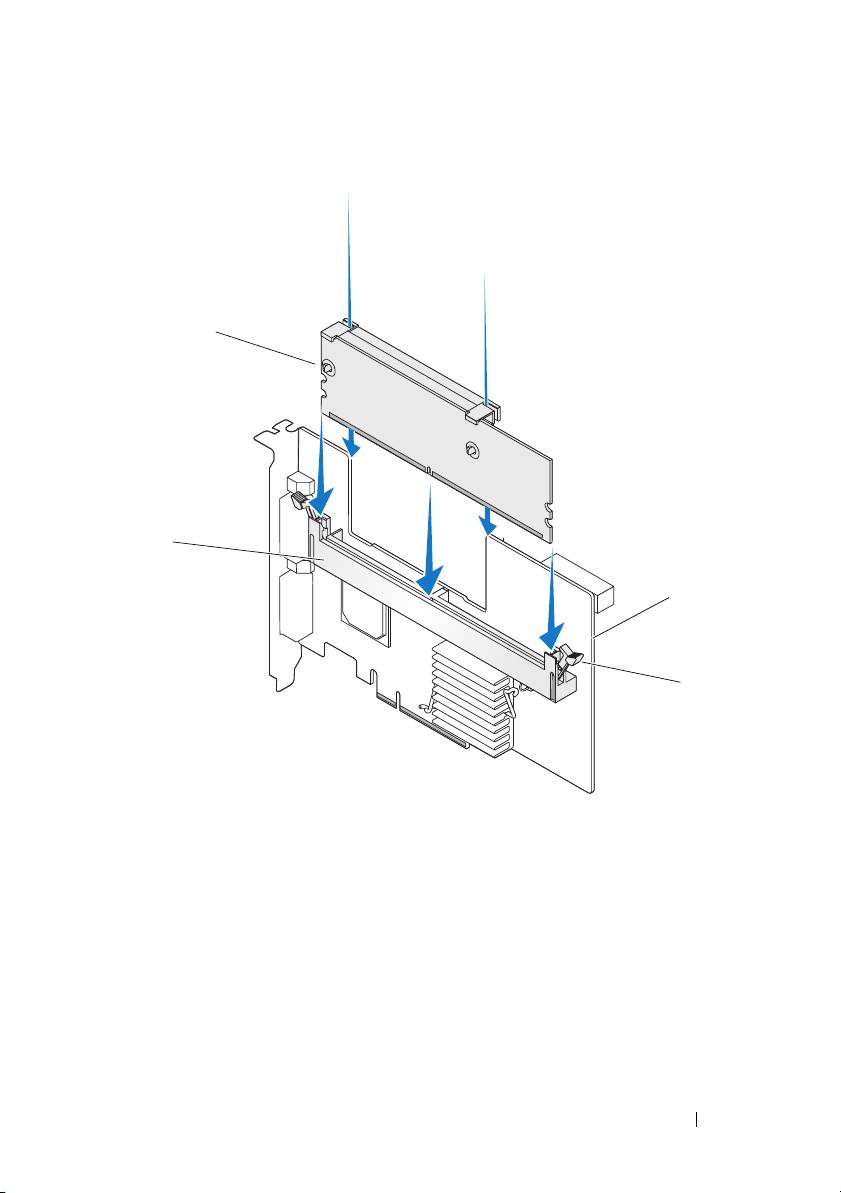
Figure 4. Installing a Dual In-line Memory Module
1
2
3
4
1 memory module 2 memory socket
3PERC x/E Adapter 4 retention clip
Removing and Installing the Battery and Battery Cable on PERC Controllers 9
Removing the DIMM from a PERC x/i Controller
This section describes the procedure to remove the memory module from
aPERC
x
/i Adapter or PERC
x
/i Integrated controller installed in a system.
CAUTION: Only trained service technicians are authorized to remove the system
cover and access any of the components inside the system. Before performing any
procedure, see your Product Information Guide for complete information about
safety precautions, working inside the computer, and protecting against
electrostatic discharge.
NOTICE: Depending on the generation of your PERC card, the DIMM memory
module may not be removable. PERC 5/i cards include a removable DIMM module.
PERC 6/i cards have an integrated DIMM module which cannot be removed. Do not
attempt the following procedure on a PERC 6/i adapter or integrated controller card.
1
Perform a controlled shutdown of the system in which the PERC
x
/i
controller is installed and remove the PERC
x
/i controller from the system.
See the
Dell PowerEdge Expandable RAID Controller x/i and x/E User’s
Guide
for more information.
CAUTION: Running a system without the system cover installed may cause
damage due to improper cooling.
2
Remove the memory module by pressing down on the tabs at each edge
of the memory module connector and lifting the memory module off the
controller.
NOTE: Do not exert excessive pressure on the connector on the memory
module while removing the memory module.
NOTE: The location of the PERC x/i Integrated controller varies from system
to system. See the Hardware Owner’s Manual included with the system for
specific information on where the PERC x/i Integrated controller is located.
10 Removing and Installing the Battery and Battery Cable on PERC Controllers
Disconnecting the BBU from a PERC x/i Controller
This section describes the procedure to disconnect the BBU on a PERC
x
/i
Adapter or PERC
x
/i Integrated controller while it is installed in a system.
CAUTION: Only trained service technicians are authorized to remove the system
cover and access any of the components inside the system. Before performing any
procedure, see your Product Information Guide for complete information about
safety precautions, working inside the computer, and protecting against
electrostatic discharge.
NOTE: PERC x/i Adapters installed in Dell Precision™ workstations or PowerEdge
SC servers do not have a BBU.
1
Perform a controlled shutdown of the system in which the PERC
x
/i
controller is installed.
2
Disconnect the system from the electrical outlet and remove the system
cover.
NOTE: See the Hardware Owner’s Manual included with the system for more
information on removing and reinstalling the system cover.
3
Locate the PERC
x
/i controller in the system and visually inspect the
controller to determine whether the dirty cache LED on the controller is
turned on. If the LED is turned on, replace the system cover, reconnect
the system to power, turn the system on and repeat steps 1 and 2.
CAUTION: Running a system without the system cover installed may cause
damage due to improper
cooling.
4
Locate the battery cable connection next to the memory module on the
controller, and disconnect the battery.
See the
Hardware Owner’s Manual
included with the system for information
on removing the BBU from the system chassis. The location of the TBBU
for the PERC
x
/i controller varies from system to system.
Removing and Installing the Battery and Battery Cable on PERC Controllers 11
Installing the DIMM and BBU to a PERC x/i controller
This section describes the installation of the TBBU on a PERC
x
/i Adapter or
PERC
x
/i Integrated controller.
CAUTION: Only trained service technicians are authorized to remove the system
cover and access any of the components inside the system. Before performing any
procedure, see your Product Information Guide for complete information about
safety precautions, working inside the computer, and protecting against
electrostatic discharge.
NOTICE: Depending on the generation of your PERC card, the DIMM memory
module may not be removable. PERC 5/i cards include a removable DIMM module.
PERC 6/i cards have an integrated DIMM module which cannot be removed. Do not
attempt the following procedure on a PERC 6/i adapter or integrated controller card.
NOTE: Charge the PERC x battery before initial use to attain full functionality.
1
Unpack the DIMM and BBU and follow all antistatic procedures.
NOTE: All work must be performed at an Electrostatic Discharge (ESD)-safe
workstation to meet the requirements of EIA-625—"Requirements For Handling
Electrostatic Discharge Sensitive Devices." All actions must be performed
following the IPC-A-610 latest revision ESD recommended practices.
NOTE: Handle all sensitive components in a static-safe area. If possible,
use antistatic floor pads and work bench pads.
NOTE: When unpacking a static sensitive component from its shipping
carton, do not remove the component from the antistatic packing material
until you are ready to install the component. Just before unwrapping the
antistatic package, be sure to discharge static electricity from your body.
2
Locate the battery cable connection next to the memory module on the
controller, and connect the battery.
NOTE: Do not use excessive pressure on the connector on the memory
module while installing the memory module.
3
Align the memory module so that the keyed edge of the memory module
is placed exactly on top of the physical divider on the memory socket of the
controller. This will avoid damage to the memory module.
4
Insert the memory module on the memory socket of the controller and
apply a smooth, downward pressure on both ends or on the middle of the
memory module until the retention clips fall into the allotted slots on
either side of the memory module.
12 Removing and Installing the Battery and Battery Cable on PERC Controllers

Dell™ PowerEdge™
可扩充
RAID
控制器
x
在
PERC
控制器上拆装电
池和电池电缆

注、注意和警告
注:“注”表示可以帮助您更好地使用计算机的重要信息。
注意:“注意”表示可能会损坏硬件或导致数据丢失,并告诉您如何避免
此类问题。
警告:“警告”表示可能会出现导致财产损失、人身伤害甚至死亡的情况。
____________________
本说明文件中的信息如有更改,恕不另行通知。
© 2007 Dell Inc.
版权所有,翻印必究。
未经
Dell Inc.
书面许可,严禁以任何形式进行复制。
本文中使用的商标:
Dell
、
DELL
徽标、
Dell Precision
和
PowerEdge
是
Dell Inc.
的商标。
本文件中述及的其它商标和产品名称是指拥有相应商标和名称的公司或其制造的产品。
Dell Inc.
对本公司的商标和产品名称之外的其它商标和产品名称不拥有任何专有权。
型号
UCP-50
和
UCP-51
2007
年
11
月
P/N XR434
修订版
A00
在
控制器上拆装电池和电
PERC
池电缆
本说明文件介绍如何在
Dell™ PowerEdge™
可扩充
RAID
控制器
(PERC)
上拆装电池、电池电缆和内存模块的信息。
•
有关
PERC
x
/E
(其中
x
表示第几代卡,如
5
、
6
等)电池拆装过程的信
息,请参阅第
16
页
•
有关
PERC
x
/i
电池拆装过程的信息,请参阅第
22
页
重要安全信息
警告:任何需要拆卸系统护盖的安装均只限经过培训的维修技术人员进行。
有关安全预防措施、拆装计算机内部组件以及防止静电释放的完整信息,
请参阅随系统提供的
《产品信息指南》。
注:有关美国销售条款和条件、有限保修与退回规定、出口法规、软件许
可协议以及安全、环境和人机工程学说明、管制通告、循环利用信息等的完
整内容,请参阅随系统提供的《产品信息指南》。
在
PERC
控制器上拆装电池和电池电缆 15
从
PERC x/E
适配器上卸下移动式电池备用单元
(TBBU)
本节介绍从安装在系统中的
PERC
x
/E
适配器上卸下
TBBU
的过程。
注:
PERC x/E
适配器上的
TBBU
由一块双列直插式内存模块
(DIMM)
和一个
电池备用单元
(BBU)
构成。
1
对安装了
PERC
x
/E
适配器的系统以及任何连接的存储设备执行从容
关闭,并从系统中卸下
PERC
x
/E
适配器。有关详细信息,请参阅
Dell PowerEdge Expandable RAID Controller x/i and x/E User
’s
Guide
(
Dell PowerEdge
可扩充
RAID
控制器
x/i
和
x/E
用户指南)。
2
通过外观来检查控制器,并确定内存模块上的已占用高速缓存
LED
是
否亮起。请参阅图
1
。如果
LED
已亮起,则将控制器重新插入系统中,
装回系统护盖,将系统重新连接至电源插座,打开系统,然后重复
步骤
1
。
图
1. PERC x/E
适配器已占用高速缓存
LED
位置
2
1
3
4
1
内存模块
2
电池
3
已占用高速缓存
LED
4
PERC x/E
适配器
警告:如果运行系统时未安装系统护盖,则可能会由于冷却不当而导致设
备损坏。
16 在
PERC
控制器上拆装电池和电池电缆
3
按下内存模块连接器两侧的卡舌并从适配器中提起内存模块
TBBU
,
从
PERC
x
/E
适配器中卸下
TBBU
部件。
4
从内存模块上断开电池电缆连接。
注:卸下内存模块时,请勿过度用力挤压内存模块上的连接器。
5
向外按压插入内存模块中的电池固定夹并旋转电池使之脱离内存
模块,从内存模块中卸下电池。请参阅图
2
。
图
2.
卸下
BBU
2
1
1
内存模块
2
电池
在
PERC
控制器上拆装电池和电池电缆 17
安装新
BBU
和电池电缆
本节介绍如何将
BBU
和电池电缆安装到
PERC
x
/E
适配器的
DIMM
中。
警告:只有经过培训的维修技术人员才有权卸下系统护盖并拆装系统内部
的任何组件。在执行任何过程之前,请参阅《产品信息指南》,获取有关安
全预防措施、拆装计算机内部组件以及防止静电释放的完整信息
。
1
打开
BBU
包装,并遵循所有防静电过程。
注:所有工作均必须在无静电释放
(ESD)
的工作站上执行,以满足
EIA-625 -
“处理静电释放敏感设备需求”的要求。执行所有操作时,必须遵循
IPC-A-610
最新版本
ESD
建议的方法。
注:请在无静电的工作区内处理所有的敏感组件。如果可能,
请使用防静电的地板垫和工作台垫。
注:打开包装箱取出静电敏感组件时,如果不准备安装此组件,请不
要将其从防静电包装材料中取出。打开防静电包装之前,应确保已导
去身上的静电。
2
从控制器中卸下内存模块后,将电池电缆(红、白、黄和绿线)的一
端插入内存模块上的连接器中,将另一端插入电池上的连接器中。
注:安装内存模块时,请勿过度用力挤压内存模块上的连接器。
18 在
PERC
控制器上拆装电池和电池电缆
