
Dell Latitude XT (Late 2007): инструкция
Раздел: Компьютерная техника, комплектующие, аксессуары
Тип: Ноутбук
Инструкция к Ноутбуку Dell Latitude XT (Late 2007)
Оглавление
- Notes, Notices, and Cautions
- Примечания, уведомления и предупреждения
- Содержание
- Информационные ресурсы Источники информации Что требуется найти? Информация находится здесь
- Что требуется найти? Информация находится здесь
- Что требуется найти? Информация находится здесь
- Что требуется найти? Информация находится здесь
- Что требуется найти? Информация находится здесь
- Что требуется найти? Информация находится здесь
- Что требуется найти? Информация находится здесь
- Что требуется найти? Информация находится здесь
- Что требуется найти? Информация находится здесь
- Настройка компьютера О планшетном компьютере
- Вид спереди
- Вид слева
- Вид справа Вид сзади
- Вид снизу
- Перо в деталях Использование аккумулятора
- Работа аккумулятора
- Проверка заряда аккумулятора Программа Dell™ QuickSet Battery Meter Индикатор заряда
- Проверка заряда аккумулятора Проверка работоспособности аккумулятора Предупреждение о недостаточном заряде аккумулятора
- Краткий справочник
- Зарядка аккумулятора Извлечение аккумулятора
- Извлечение аккумулятора.
- Хранение аккумулятора Поиск и устранение неисправностей Блокировки и неисправности программного обеспечения Планшетный компьютер не отвечает на запросы Программа не отвечает Завершение программы.
- Постоянно возникает сбой программы Программа разработана для предыдущих версий Windows. Windows Vista Windows XP Появляется сплошной синий экран
- Другие неисправности программного обеспечения Dell Diagnostics Когда использовать программу Dell Diagnostics
- Запуск программы Dell Diagnostics с жесткого диска
- Запуск программы Dell Diagnostics с компакт$диска Drivers and Utilities (Драйверы и утилиты)
- Основное меню Dell Diagnostics Параметр Функция
- Параметр Функция Вкладка Функция
- Вкладка Функция
- Указатель
- Указатель

Dell™ Latitude™ XT
Quick Reference Guide
Model PP12S
www.dell.com | support.dell.com

Notes, Notices, and Cautions
NOTE: A NOTE indicates important information that helps you make better use of
your computer.
NOTICE: A NOTICE indicates either potential damage to hardware or loss of data
and tells you how to avoid the problem.
CAUTION: A CAUTION indicates a potential for property damage, personal injury,
or death.
____________________
Information in this document is subject to change without notice.
© 2007 Dell Inc. All rights reserved.
Reproduction in any manner whatsoever without the written permission of Dell Inc. is strictly
forbidden.
Trademarks used in this text: Dell, the DELL logo, Wi-Fi Catcher, ExpressCharge, and Latitude are
trademarks of Dell Inc.; Microsoft, Windows, and Windows Vista are either trademarks or registered
trademarks of Microsoft Corporation in the United States and/or other countries.
Other trademarks and trade names may be used in this document to refer to either the entities claiming
the marks and names or their products. Dell Inc. disclaims any proprietary interest in trademarks and
trade names other than its own.
Model PP12S
December 2007 P/N PU185 Rev. A01

Contents
Resources . . . . . . . . . . . . . . . . . . . . . . . . . 5
Finding Information
. . . . . . . . . . . . . . . . . . 5
Setting Up Your Computer
. . . . . . . . . . . . . 12
About Your Tablet-PC
. . . . . . . . . . . . . . . . . . 12
Front View
. . . . . . . . . . . . . . . . . . . . . 13
Left Side View
. . . . . . . . . . . . . . . . . . . 14
Right Side View
. . . . . . . . . . . . . . . . . . 15
Back View
. . . . . . . . . . . . . . . . . . . . . 15
Bottom View
. . . . . . . . . . . . . . . . . . . . 16
Pen View
. . . . . . . . . . . . . . . . . . . . . . 17
Using a Battery
. . . . . . . . . . . . . . . . . . . . . 17
Battery Performance
. . . . . . . . . . . . . . . . 18
Checking the Battery Charge
. . . . . . . . . . . 19
Charging the Battery
. . . . . . . . . . . . . . . . 21
Removing the Battery
. . . . . . . . . . . . . . . 22
Storing a Battery
. . . . . . . . . . . . . . . . . . 23
Troubleshooting . . . . . . . . . . . . . . . . . . . . . 23
Lockups and Software Problems
. . . . . . . . . 23
Dell Diagnostics
. . . . . . . . . . . . . . . . . . 25
Index . . . . . . . . . . . . . . . . . . . . . . . . . . . . . . . 31
Contents 3

4 Contents

Resources
Finding Information
NOTE: Some features or media may be optional and may not ship with your Tablet-
PC. Some features or media may not be available in certain countries.
NOTE: Additional information may ship with your Tablet-PC.
NOTE: You must use the optical drive in the D/Bay or the optional media base to
access the Driver’s and Utilities media.
What Are You Looking For? Find It Here
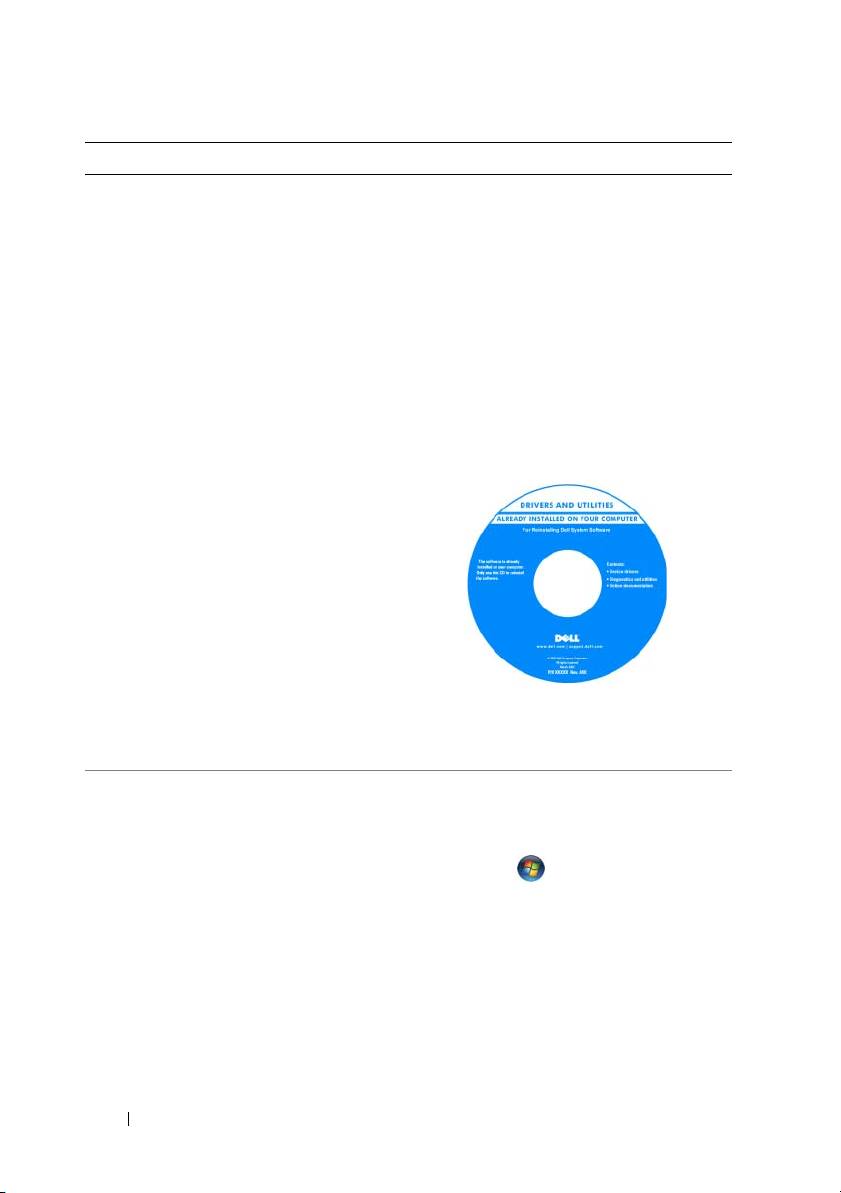
• A diagnostic program for my Tablet-PC
Drivers and Utilities Media
• Drivers for my Tablet-PC
NOTE: The Drivers and Utilities media may
be optional and may not ship with your
• My device documentation
Tablet-PC.
Quick Reference Guide 5
What Are You Looking For? Find It Here
• Notebook System Software (NSS)
Documentation and drivers are already
installed on your Tablet-PC. You can use
the Drivers and Utilities media to reinstall
drivers (see “Reinstalling Drivers and
Utilities” in your User’s Guide) or to run
the Dell Diagnostics (see "Dell
Diagnostics" on page 25).
Readme files may be included on your
media to provide last-minute updates
about technical changes to your Tablet-
PC or advanced technical-reference
material for technicians or experienced
users.
NOTE: Drivers and documentation updates
can be found at support.dell.com.
• How to remove and replace parts
Dell™ Latitude™ XT User’s Guide
• Specifications
Microsoft Windows XP and Windows
• How to configure system settings
Vista™ Help and Support Center
1
Click
Start
(
or
Start
in Windows
• How to troubleshoot and solve problems
XP)
→
Help and Support
→
Dell User
and System Guides
→
System Guides
.
2
Click the
User’s Guide
for your
computer.
6 Quick Reference Guide
What Are You Looking For? Find It Here
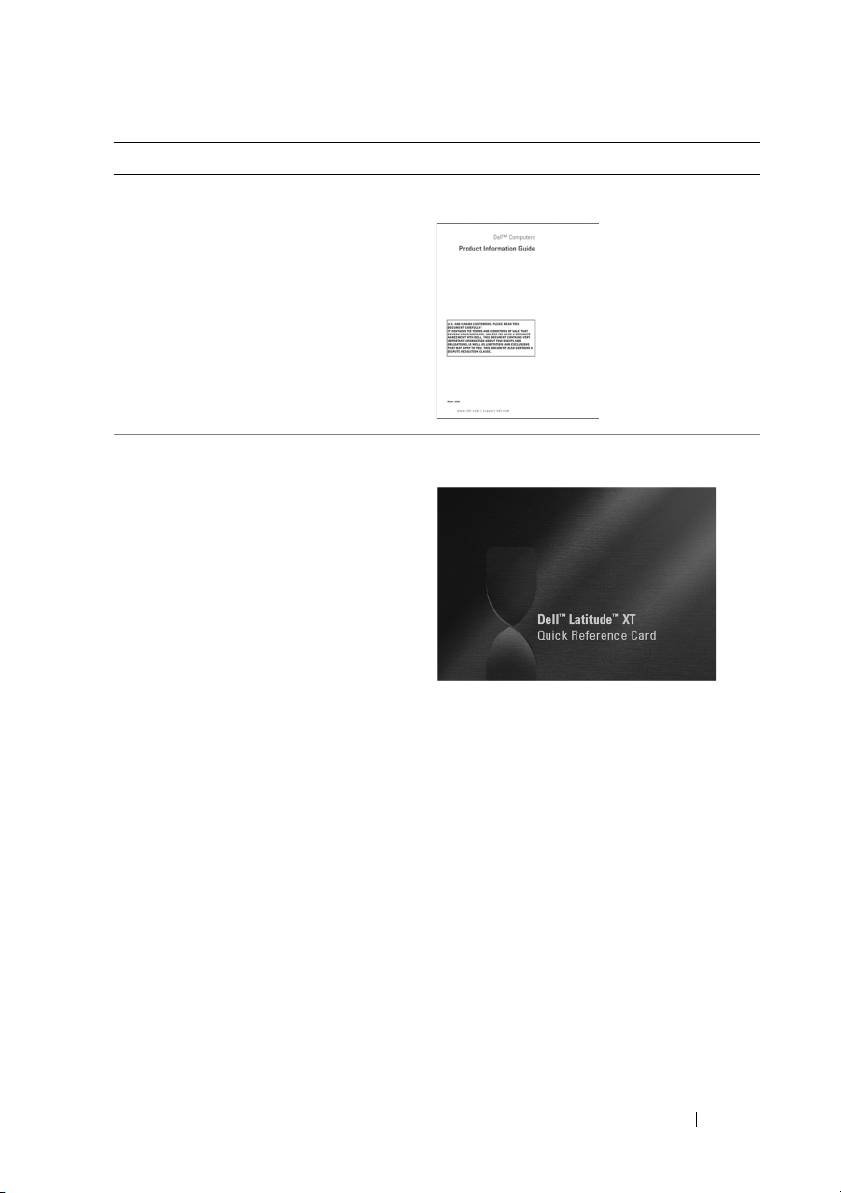
• Warranty information
Dell™ Product Information Guide
• Terms and Conditions (U.S. only)
• Safety instructions
• Regulatory information
• Ergonomics information
• End-User License Agreement
• How to set up my Tablet-PC
Quick Reference Card
• Summary of your Tablet-PC features
• Available accessories for your Tablet-PC
Quick Reference Guide 7
What Are You Looking For? Find It Here
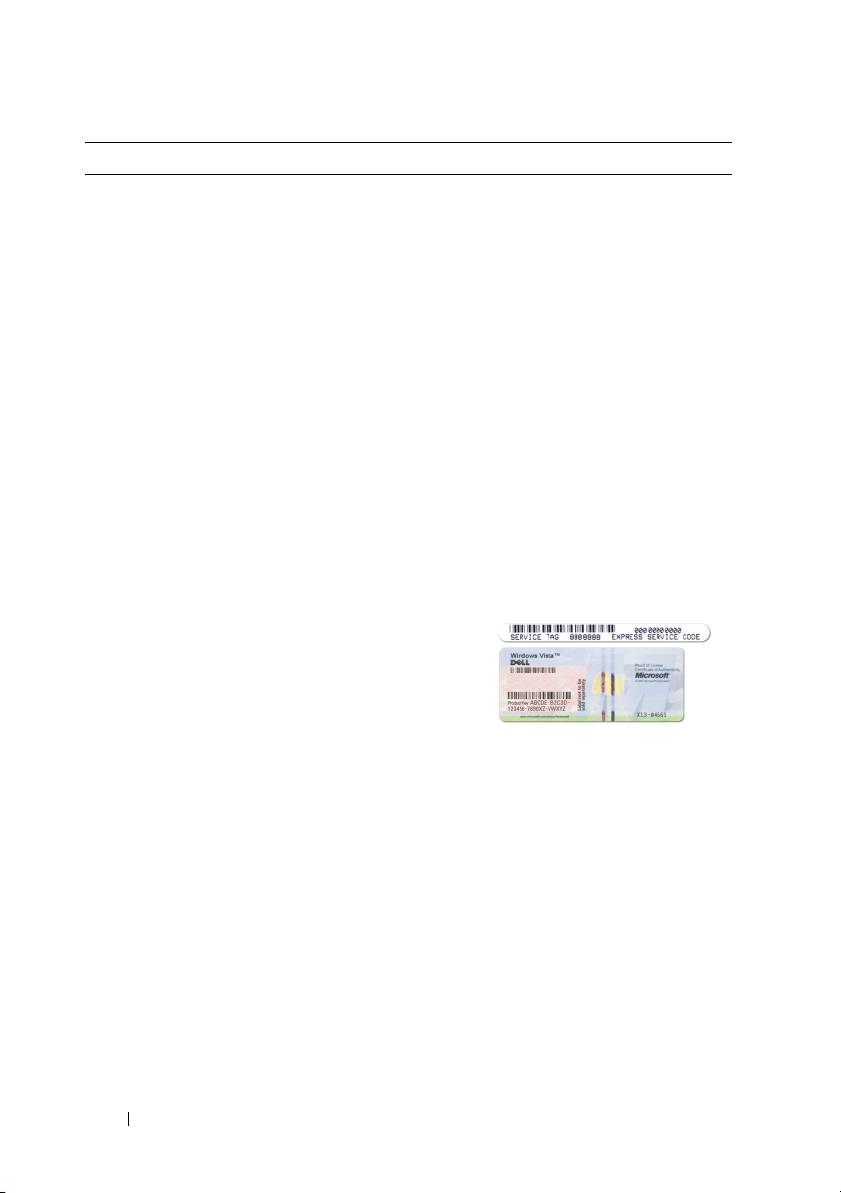
• Service Tag and Express Service Code
Service Tag and Microsoft Windows
®
®
License
• Microsoft
Windows
License Label
NOTE: Your Tablet-PC’s Service Tag label is
located on the bottom of your Tablet-PC
near the memory and mini-card cover (see
"Bottom View" on page 16).
NOTE: You can also find your Service Tag
information through the System Setup
program. See “System Setup Screens” in
your User’s Guide.
Your Tablet-PC’s Service Tag contains
both a Service Tag number and an Express
Service Code.
• Use the Service Tag to identify your
Tablet-PC when you use
support.dell.com
or contact support.
• Enter the Express Service Code to direct
your call when contacting support.
®
NOTE: Your Tablet-PC’s Microsoft
®
Windows
License label is located under
the main battery in the battery bay of your
Tablet-PC (see "Removing the Battery" on
page 22).
• Use the product key on the license label
if you need to reinstall your operating
system.
NOTE: As an increased security measure,
the newly designed Microsoft Windows
License incorporates a missing portion or
“hole” to discourage removal of the label.
8 Quick Reference Guide

What Are You Looking For? Find It Here
• Solutions — Troubleshooting hints and
Dell Support Website — support.dell.com
tips, articles from technicians, and
NOTE: Select your region or business
online courses, frequently asked
segment to view the appropriate support
questions
site.
• Community — Online discussion with
other Dell customers
• Upgrades — Upgrade information for
components, such as memory, the hard
drive, and the operating system
• Customer Care — Contact information,
service call and order status, warranty,
and repair information
• Service and Support — Service call
status and support history, service
contract, online discussions with
technical support
• Dell Technical Update Service —
Proactive e-mail notification of software
and hardware updates for my Tablet-PC
• Reference — Tablet-PC documentation,
details on my Tablet-PC configuration,
product specifications, and white papers
• Downloads — Certified drivers, patches,
and software updates
• Notebook System Software (NSS) — If
To download Notebook System Software:
you reinstall the operating system for
1
Go to
support.dell.com
and click
your Tablet-PC, you should also reinstall
Drivers & Downloads.
the NSS utility. NSS provides critical
2
Enter your Service Tag or Product Type
updates for your operating system and
and Product Model, and click
Go
.
support for processors, optical drives,
3
Scroll to
System and Configuration
USB devices, and so on. NSS is necessary
Utilities
→
Dell Notebook System
for correct operation of your Dell Tablet-
Software
and click
Download Now
.
PC. The software automatically detects
4
Select
Drivers & Downloads
and
your Tablet-PC and operating system,
click
Go
.
and installs the updates appropriate for
your configuration.
NOTE: The support.dell.com user interface
may vary depending on your selections.
Quick Reference Guide 9

What Are You Looking For? Find It Here
• Software upgrades and troubleshooting
Dell Support Utility
hints — Frequently asked questions, hot
The Dell Support Utility is an automated
topics, and general health of your
upgrade and notification system installed
computing environment
on your Tablet-PC. This support provides
real-time health scans of your computing
environment, software updates, and
relevant self-support information. Access
the Dell Support Utility from the
icon in the Windows Notification area. For
more information, see “Dell Support
Utility” in your
User’s Guide
.
• How to find information about your
Windows Welcome Center
Tablet-PC and its components
The Windows Welcome Center
• How to connect to the Internet
automatically appears when you use the
Tablet-PC for the first time. You can
• How to add user accounts for different
choose to have it appear every time you
people
start your Tablet-PC, or turn it off. Once
• How to transfer files and settings from
turned off, to access the Welcome Center:
another Tablet-PC
Windows Vista — Click Start
→
Welcome Center.
Windows XP — Click Start→ Help and
Support→Welcome to Tablet PC.
• How to use Microsoft Windows Vista™
Windows Help and Support
and Windows XP
1
Click
Start
(
or
Start
in Windows
XP)
→
Help and Support
.
• How to work with programs and files
2
In
Search Help
, type a word or phrase that
• How to personalize my desktop
describes your problem, and then press
<Enter> or click the magnifying glass.
3
Click the topic that describes your
problem.
4
Follow the instructions on the screen.
10 Quick Reference Guide
What Are You Looking For? Find It Here
• Information on tablet features and
Dell QuickSet Help
functionality, network activity, the Power
To view
Dell QuickSet Help
, press the
Management Wizard, hotkeys, and
QuickSet tablet settings button (see "Front
other items controlled by Dell QuickSet
View" on page 13), or
right-click the
®
QuickSet icon in the Microsoft
®
Windows
Notification area, and select
Help. The Windows Notification area is
located in the lower-right corner of your
screen.
• How to reinstall my operating system
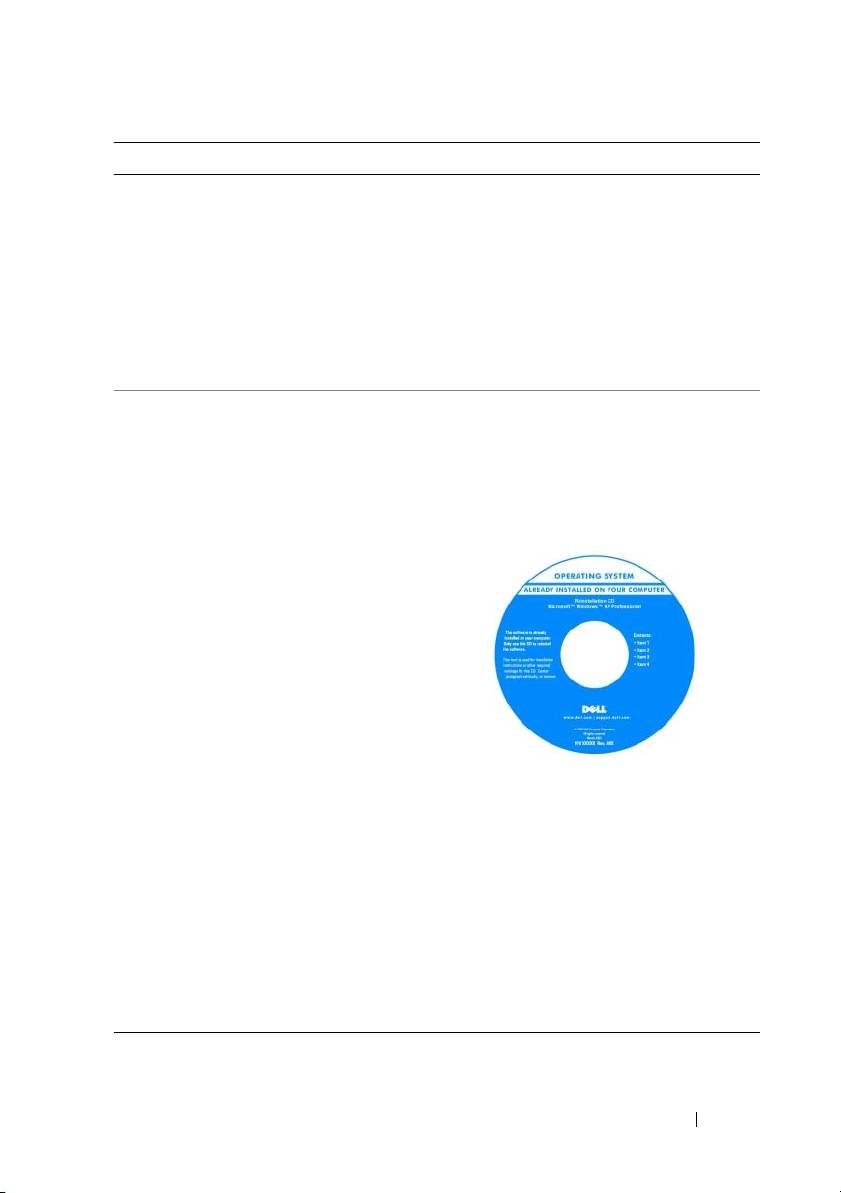
Operating System Media
The operating system is already installed
on your Tablet-PC. To reinstall your
operating system, use the Operating
System media. See “Using the Operating
System Media” in your User’s Guide.
After you reinstall your operating system,
use the Drivers and Utilities media to
reinstall drivers for the devices that came
with your Tablet-PC.
Your operating system product key is on
®
®
the Microsoft
Windows
License Label
located in your Tablet-PC’s main battery
bay (see "Removing the Battery" on
page 22).
NOTE: The color of your media varies
based on the operating system you ordered.
Quick Reference Guide 11
Setting Up Your Computer
CAUTION: Before you begin any of the procedures in this section, follow the
safety instructions in the Product Information Guide.
1
Unpack the accessories box.
2
Set aside the contents of the accessories box, which you will need to
complete the setup of your computer.
The accessories box also contains user documentation and any software or
additional hardware (such as PC Cards, drives, or batteries) that you have
ordered.
3
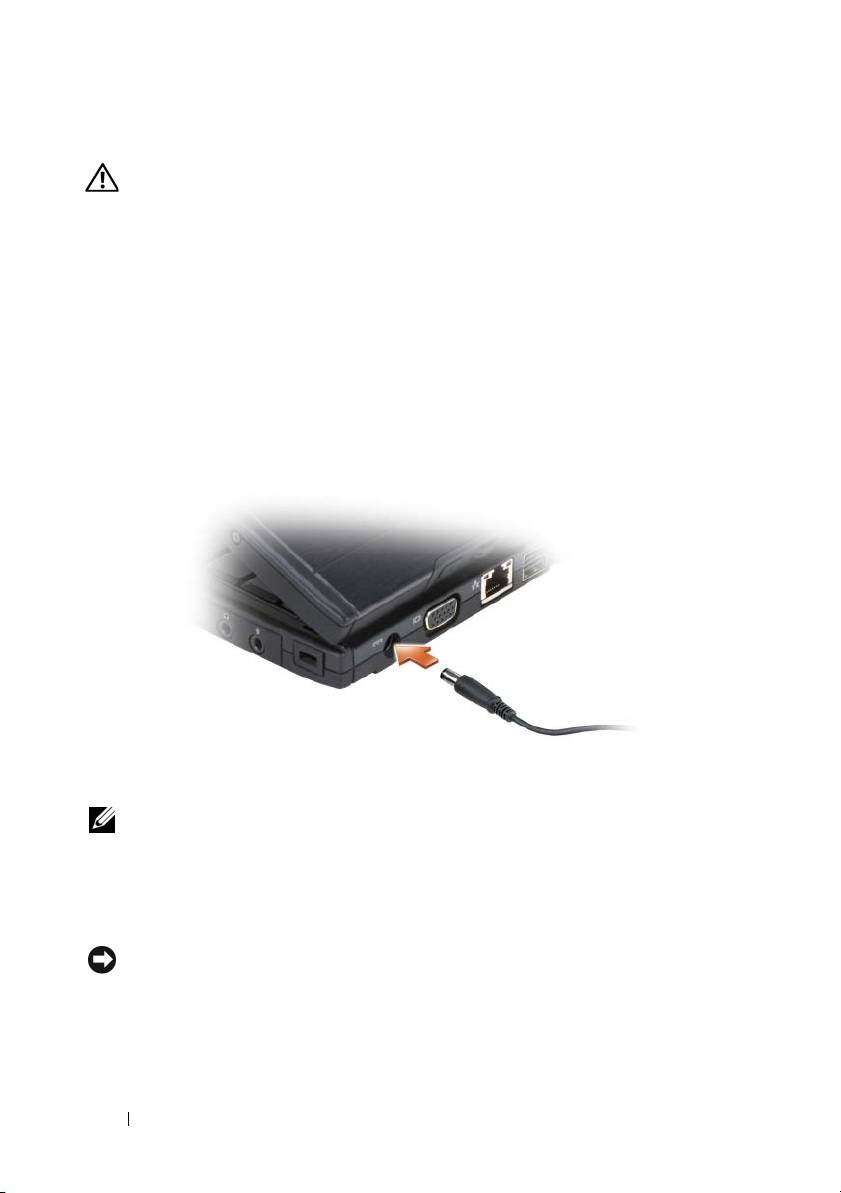
Connect the AC adapter to the AC adapter connector on the computer
and to the electrical outlet.
4
Open the computer display and press the power button to turn on the
computer (see "Front View" on page 13).
NOTE: It is recommended that you turn on and shut down your computer at least
once before you install any cards or connect the computer to a docking device or
other external device, such as a printer.
About Your Tablet-PC
NOTICE: To avoid damaging your display, ensure that your Tablet-PC is in notebook
mode and that the display is closed when you travel.
12 Quick Reference Guide
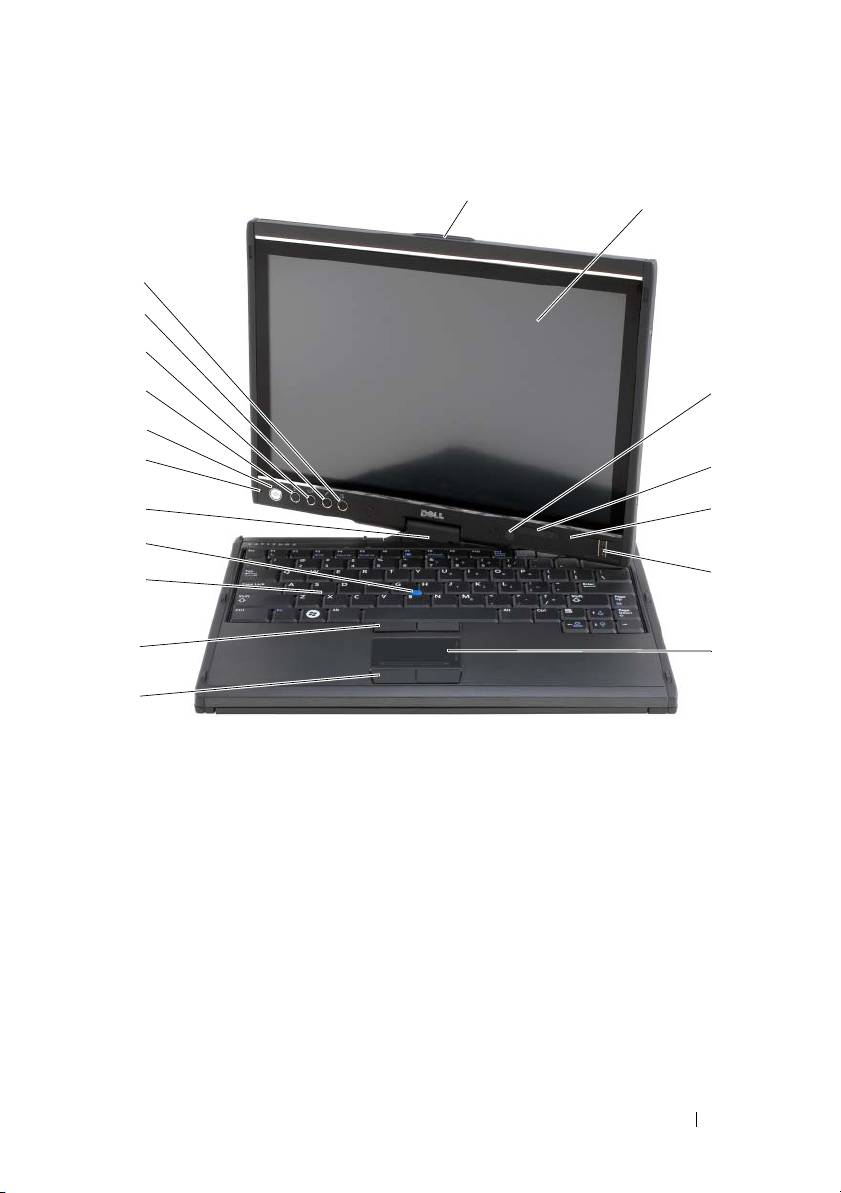
Front View
1
2
18
17
16
15
3
14
13
4
12
5
11
6
10
9
7
8
1grip 2display
3 ambient light sensor (with Dual-bulb
4 device status lights
CCFL LCD option only)
5 digital array microphone 6 biometric reader
7 touch pad 8 touch pad buttons
9 track stick buttons 10 keyboard
11 track stick 12 rotating hinge
13 digital array microphone 14 power button
®
15 Windows
security button 16 screen rotate button
17 QuickSet tablet settings button 18 e-mail application shortcut button
Quick Reference Guide 13
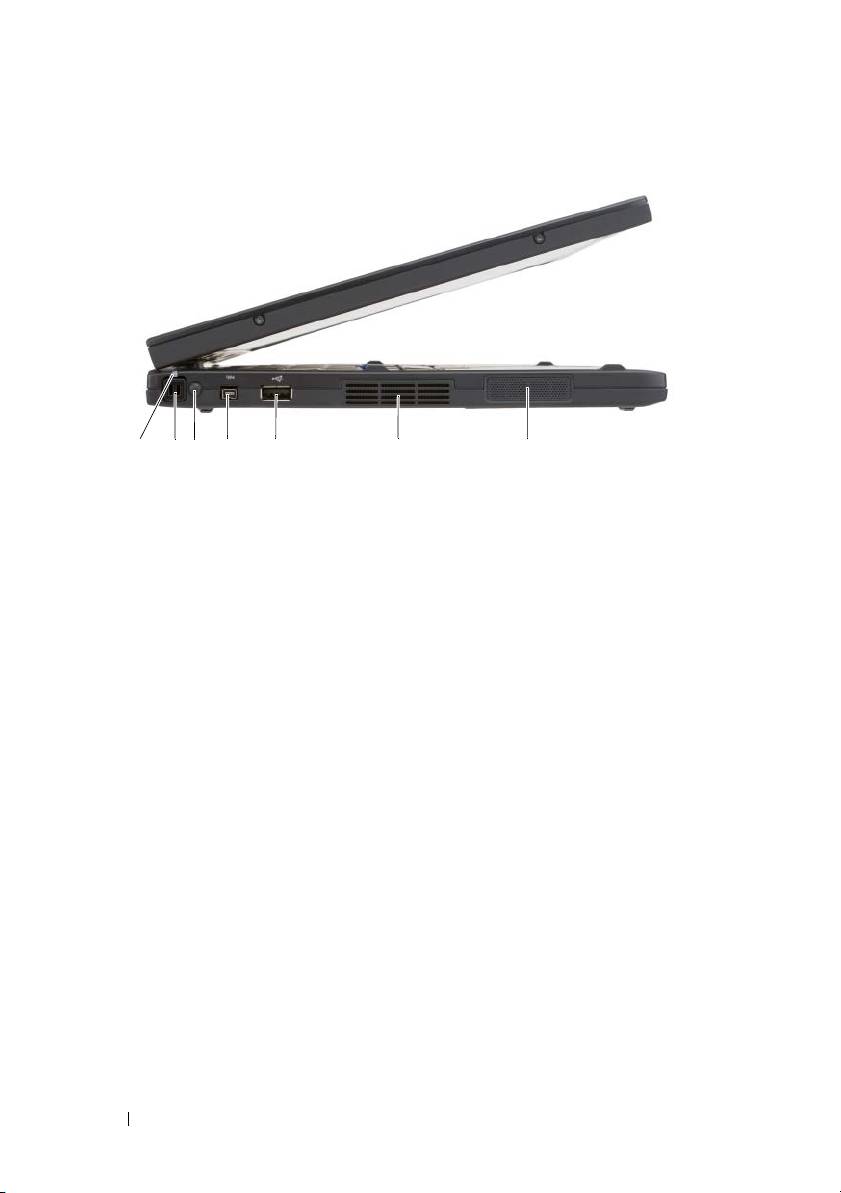
Left Side View
321
4675
1 pen indicator LED 2 pen
3 external wireless WAN antenna
4 IEEE 1394 connector
NOTE: The external antenna is only
provided with WWAN cards and is
not included in the standard system
configuration. The system comes
with a plug that needs to be removed
prior to installing the antenna and
WWAN card.
5 USB connector 6 air vent
7 speaker
14 Quick Reference Guide
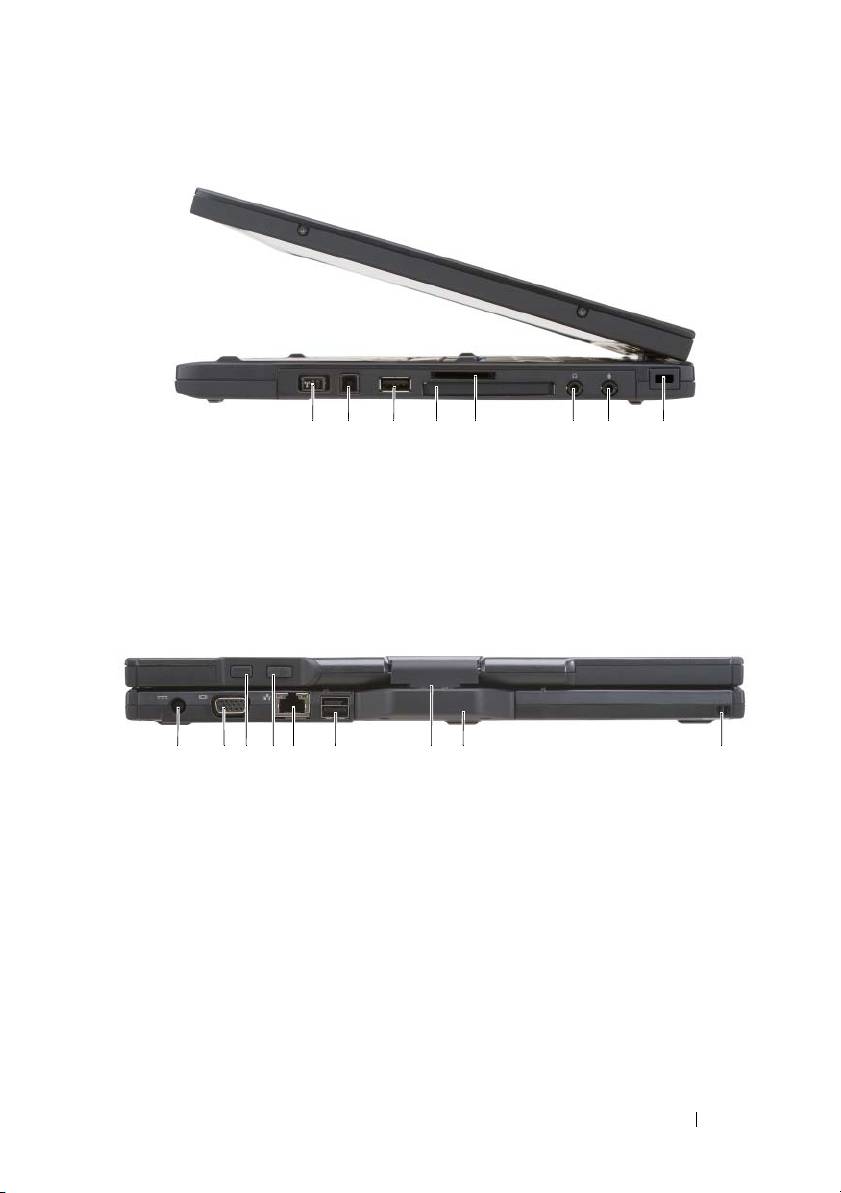
Right Side View
1 4 5 82 3 76
1 wireless radio on/off switch 2 Wi-Fi Catcher™ button
3 USB connector 4 ExpressCard slot
5 Secure Digital (SD) card slot 6 headphones connector
7 microphone connector 8 security cable slot
Back View
1 2
3
4 6 97
5
8
1 AC adapter connector 2 video connector
3 tablet back button 4 scroll control button
5 network connector 6 powered USB connector
7 rotating hinge 8 tablet grip
9 pen tether slot
Quick Reference Guide 15
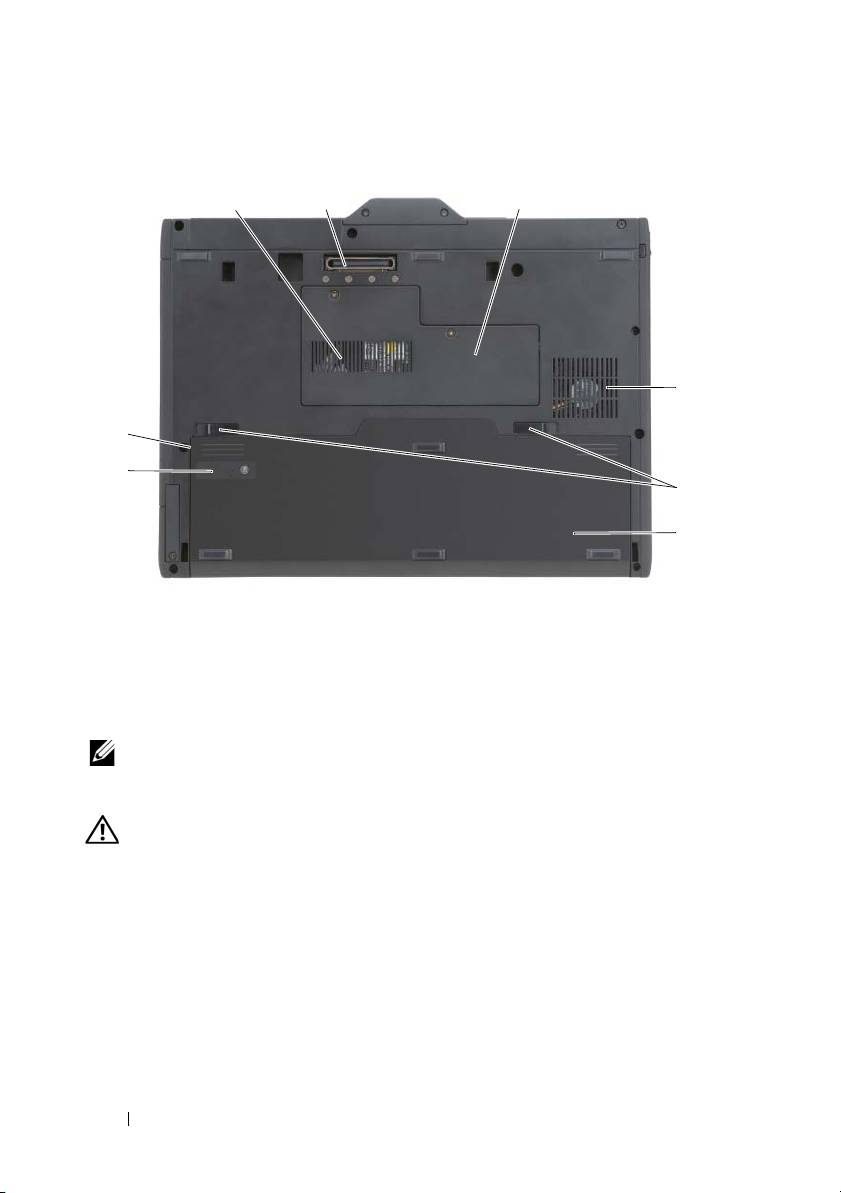
Bottom View
1
2 3
4
8
7
5
6
1 air vent 2 docking-device connector
3 memory module and mini-card cover 4 fan vent
5 battery-bay latch releases (2) 6 main battery
7 battery charge gauge/health gauge 8 battery bay (beneath main battery)
®
®
NOTE: Your Tablet-PC’s Microsoft
Windows
License label is located under the
main battery in the battery bay of your Tablet-PC (see "Removing the Battery" on
page 22).
CAUTION: Do not block, push objects into, or allow dust to accumulate in the air
vents. Do not store your Tablet-PC in a low-airflow environment, such as a closed
briefcase, while it is running. Restricting the airflow can damage the Tablet-PC or
cause a fire. The Tablet-PC turns on the fan when the Tablet-PC gets hot. Fan noise
is normal and does not indicate a problem with the fan or the Tablet-PC.
16 Quick Reference Guide
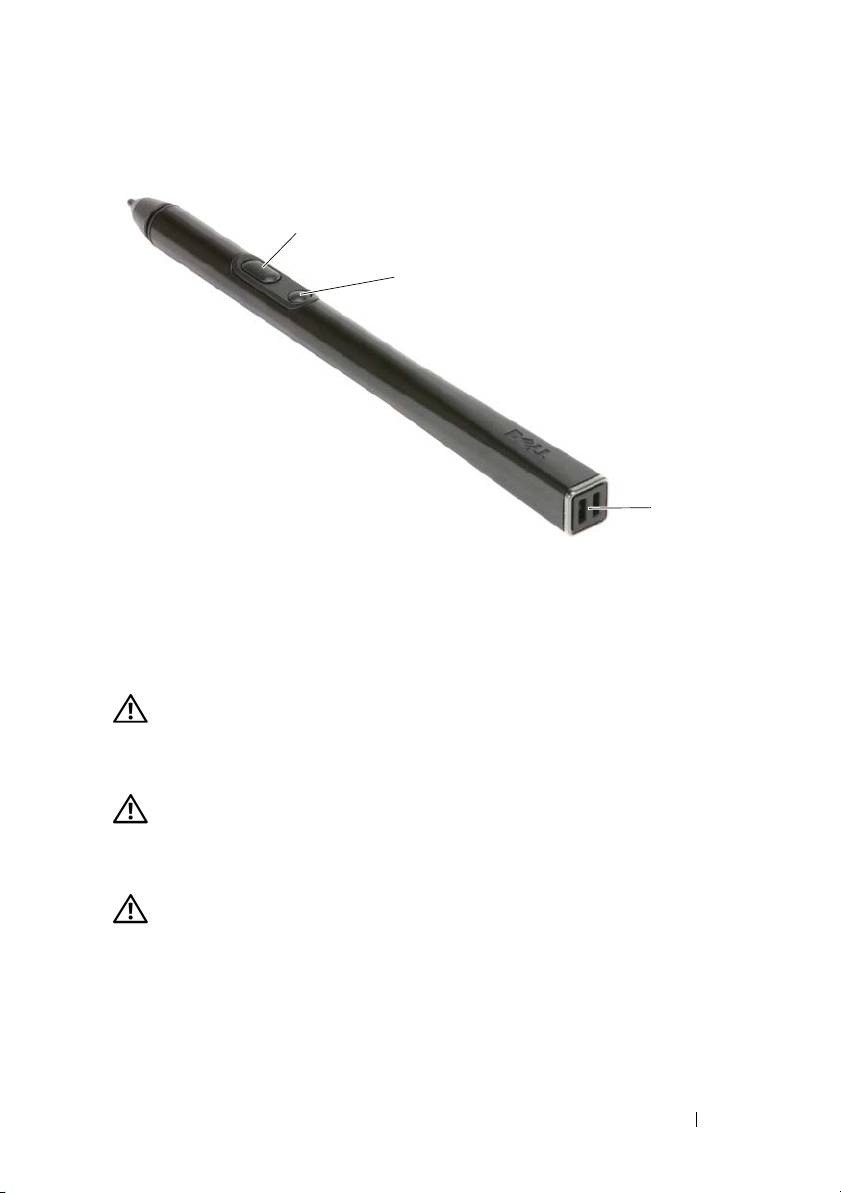
Pen View
2
3
1
1 pen tether slots 2 right-click pen button
3 erase pen button
Using a Battery
CAUTION: Using an incompatible battery may increase the risk of fire or
explosion. Replace the battery only with a compatible battery purchased from
Dell. The battery is designed to work with your Dell computer. Do not use a battery
from other computers with your computer.
CAUTION: Do not dispose of batteries with household waste. When your battery
no longer holds a charge, call your local waste disposal or environmental agency
for advice on disposing of a lithium-ion battery. See “Battery Disposal” in the
Product Information Guide.
CAUTION: Misuse of the battery may increase the risk of fire or chemical burn.
Do not puncture, incinerate, disassemble, or expose the battery to temperatures
above 65°C (149°F). Keep the battery away from children. Handle damaged or
leaking batteries with extreme care. Damaged batteries may leak and cause
personal injury or equipment damage.
Quick Reference Guide 17

Battery Performance
NOTE: For information about the Dell warranty for your computer, see the Product
Information Guide or separate paper warranty document that shipped with your
computer.
For optimal computer performance and to help preserve BIOS settings,
operate your Dell™ Tablet-PC with the main battery installed at all times.
One battery is supplied as standard equipment in the battery bay.
NOTE: Because the battery may not be fully charged, use the AC adapter to
connect your new computer to an electrical outlet the first time you use the
computer. For best results, operate the computer with the AC adapter until the
battery is fully charged. To view battery charge status, check the Power Meter in
Power Options (see “Accessing Power Options Properties” in your User’s Guide.)
NOTE: Battery operating time varies depending on operating conditions.
NOTE: It is recommended that you connect your computer to an electrical outlet
when writing to a CD or DVD.
Operating time on battery power is significantly reduced when you perform
operations including, but not limited to, the following:
• Using optical drives.
• Using wireless communications devices, PC Cards, Express Cards, media
memory cards, or USB devices.
• Using high-brightness display settings, 3D screen savers, or other power-
intensive programs such as complex 3D graphics applications.
• Running the computer in maximum performance mode. See “Configuring
Power Management Settings” in your
User’s Guide
for information about
accessing Windows Power Options Properties or Dell QuickSet, which you
can use to configure power management settings.
You can check the battery charge before you insert the battery into the
computer. You can also set power management options to alert you when the
battery charge is low.
18 Quick Reference Guide

Checking the Battery Charge
The following features provide information on the battery charge:
• Dell QuickSet Battery Meter
• Microsoft Windows
Power Meter
window and
Power icon
(
in
Windows Vista and
in Windows XP)
• Battery charge gauge and health gauge
• Low-battery warning
Dell™ QuickSet Battery Meter
If Dell QuickSet is installed, press <Fn><F3> to display the QuickSet
Battery Meter. The Battery Meter displays status, battery health, charge level,
and charge completion time for the battery in your computer.
For more information about QuickSet, right-click the QuickSet icon in the
taskbar, and click Help.
Charge Gauge
By using the charge gauge on the battery, you can check:
• Battery charge (check by pressing and
releasing
the status button)
• Battery health (check by pressing and
holding
the status button)
The battery operating time is largely determined by the number of times it is
charged. After hundreds of charge and discharge cycles, batteries lose some
charge capacity—or battery health. That is, a battery can show a status of
“charged” but maintain a reduced charge capacity (health).
Check the Battery Charge
To check the battery charge, press and release the status button on the battery
charge gauge to illuminate the charge-level lights. Each light represents
approximately 20 percent of the total battery charge. For example, if the
battery has 80 percent of its charge remaining, four of the lights are on. If no
lights appear, the battery has no charge.
Quick Reference Guide 19

Check the Battery Health
NOTE: You can check battery health in one of two ways: by using the charge gauge
on the battery as described below or by using the Battery Meter in Dell QuickSet.
For information about QuickSet, right-click the icon in the taskbar, and click Help.
To check the battery health using the charge gauge, press and hold the status
button on the battery charge gauge for at least 3 seconds. If no lights appear,
the battery is in good condition, and more than 80 percent of its original
charge capacity remains. Each light represents an incremental degradation. If
five lights appear, less than 60 percent of the charge capacity remains, and you
should consider replacing the battery. See "Using a Battery" on page 17 for
more information about the battery operating time.
Low-Battery Warning
NOTICE: To avoid losing or corrupting data, save your work immediately after a
low-battery warning, then connect the computer to an electrical outlet. If the
battery runs completely out of power, hibernate mode begins automatically.
A pop-up window warns you when the battery charge is approximately
90 percent depleted. If two batteries are installed, the low-battery warning
means that the combined charge of both batteries is approximately
90 percent depleted. The computer enters hibernate mode when the battery
charge is at a critically low level.
You can change the settings for the battery alarms in QuickSet or the Power
Options Properties window. See “Configuring Power Management Settings”
in your User’s Guide for information about accessing QuickSet or the Power
Options Properties window.
To manually enter hibernate mode in Windows Vista, click the Windows
Vista Start button , and move your mouse over the right triangle beside
the Lock icon to open the Power Options Properties window, and then click
Hibernate.
To manually enter hibernate mode in Windows XP, you must first enable
Hibernate mode.
To enable Hibernate mode:
1
Click
Start
→
Control Panel
→
Performance and Maintenance
→
Power
Options
.
2
Click the
Hibernate
tab.
20 Quick Reference Guide
