
Dell Precision M60: инструкция
Раздел: Компьютерная техника, комплектующие, аксессуары
Тип: Ноутбук
Инструкция к Ноутбуку Dell Precision M60
Оглавление
w w w . d e l l . c o m | s u p p o r t . d e l l . c o m
Dell Precision™ M60 Series Mobile Workstation
System Information Guide
Guide d'information sur le système
Guia de informações do sistema
Guía de información del sistema
Model PP02X
3y279bk0.book Page 1 Tuesday, February 11, 2003 4:17 PM

3y279bk0.book Page 2 Tuesday, February 11, 2003 4:17 PM

w w w . d e l l . c o m | s u p p o r t . d e l l . c o m
Dell Precision™ M60 Series Mobile Workstation
System Information Guide
3y279bk0.book Page 1 Tuesday, February 11, 2003 4:17 PM
Notes, Notices, and Cautions
NOTE:
A NOTE indicates important information that helps you make better
use of your computer.
NOTICE:
A NOTICE indicates either potential damage to hardware or loss of
data and tells you how to avoid the problem.
CAUTION: A CAUTION indicates a potential for property damage,
personal injury, or death.
Abbreviations and Acronyms
For a complete list of abbreviations and acronyms, see the
User’s Guide
(depending on your operating system, double-click the
User’s Guide
icon
on your desktop, or click the
Start
button, click
Help and Support Center
,
and then click
User and system guides
).
If you purchased a Dell™
n
Series computer, any references in this
document to Microsoft
®
Windows
®
operating systems are not applicable.
____________________
Information in this document is subject to change without notice.
© 2003 Dell Computer Corporation. All rights reserved.
Reproduction in any manner whatsoever without the written permission of Dell Computer
Corporation is strictly forbidden.
Trademarks used in this text: Dell, the DELL logo, Dell Precision, Latitude, and TrueMobile are
trademarks of Dell Computer Corporation; Intel, Pentium, and Celeron are registered trademarks
of Intel Corporation; Microsoft and Windows are registered trademarks of Microsoft Corporation;
EMC is the registered trademark of EMC Corporation.
Other trademarks and trade names may be used in this document to refer to either the entities claiming
the marks and names or their products. Dell Computer Corporation disclaims any proprietary interest
in trademarks and trade names other than its own.
January 2003
P/N 3Y279
Rev. A00
3y279bk0.book Page 2 Tuesday, February 11, 2003 4:17 PM

Contents
3
Contents
CAUTION: Safety Instructions
. . . . . . . . . . . . . . . . . . .
5
General
. . . . . . . . . . . . . . . . . . . . . . . . . . . . .
5
Power
. . . . . . . . . . . . . . . . . . . . . . . . . . . . . .
6
Battery
. . . . . . . . . . . . . . . . . . . . . . . . . . . . .
7
Air Travel
. . . . . . . . . . . . . . . . . . . . . . . . . . . .
8
EMC Instructions
. . . . . . . . . . . . . . . . . . . . . . . .
8
California Residents
. . . . . . . . . . . . . . . . . . . . . . .
8
When Using Your Computer
. . . . . . . . . . . . . . . . . . . .
9
Ergonomic Computing Habits
. . . . . . . . . . . . . . . . . .
10
When Working Inside Your Computer
. . . . . . . . . . . . . .
10
Protecting Against Electrostatic Discharge
. . . . . . . . . . .
11
Battery Disposal
. . . . . . . . . . . . . . . . . . . . . . . .
11
Finding Information for Your Computer
. . . . . . . . . . . . . .
12
Setting Up Your Computer
. . . . . . . . . . . . . . . . . . . . .
14
About Your Computer
. . . . . . . . . . . . . . . . . . . . . . .
16
Front View
. . . . . . . . . . . . . . . . . . . . . . . . . . .
17
Left Side View
. . . . . . . . . . . . . . . . . . . . . . . . .
18
Right Side View
. . . . . . . . . . . . . . . . . . . . . . . . .
18
Back View
. . . . . . . . . . . . . . . . . . . . . . . . . . .
19
Bottom View
. . . . . . . . . . . . . . . . . . . . . . . . . .
20
Removing a Battery
. . . . . . . . . . . . . . . . . . . . . . . . .
20
Installing a Battery
. . . . . . . . . . . . . . . . . . . . . . . . .
21
Removing a Reserve Battery
. . . . . . . . . . . . . . . . . . . .
22
Installing a Reserve Battery
. . . . . . . . . . . . . . . . . . . .
23
3y279bk0.book Page 3 Tuesday, February 11, 2003 4:17 PM

4
C o n t e n t s
Running the Dell Diagnostics
. . . . . . . . . . . . . . . . . . .
23
Regulatory Notices
. . . . . . . . . . . . . . . . . . . . . . . .
26
Limited Warranties and Return Policy
. . . . . . . . . . . . . .
27
Limited Warranty for the U.S.
. . . . . . . . . . . . . . . . .
27
"Total Satisfaction" Return Policy (U.S. Only)
. . . . . . . . . .
30
Limited Warranty Terms for Canada
. . . . . . . . . . . . . .
31
"Total Satisfaction" Return Policy (Canada Only)
. . . . . . . .
34
Dell Software and Peripherals (Canada Only)
. . . . . . . . . .
35
One-Year End-User Manufacturer Guarantee
(Latin America and the Caribbean Only)
. . . . . . . . . . . .
36
Intel
®
Warranty Statement for Pentium
®
and Celeron
®
Processors Only (U.S. and Canada Only)
. . . . . . . . . . . .
37
3y279bk0.book Page 4 Tuesday, February 11, 2003 4:17 PM

S y s t e m I n f o r m a t i o n G u i d e
5
CAUTION: Safety Instructions
Use the following safety guidelines to help ensure your own personal safety and to help protect
your computer and working environment from potential damage.
General
•
Do not attempt to service the computer yourself unless you are a trained service
technician. Always follow installation instructions closely.
•
If you use an extension power cable with your AC adapter, ensure that the total ampere
rating of the products plugged in to the extension power cable does not exceed the
ampere rating of the extension cable.
•
Do not push objects into air vents or openings of your computer. Doing so can cause fire
or electric shock by shorting out interior components.
•
Do not store your computer in a low-airflow environment, such as a carrying case or a
closed briefcase, while the computer is turned on. Restricting airflow can damage the
computer or cause a fire.
•
Keep your computer away from radiators and heat sources. Also, do not block cooling
vents. Avoid placing loose papers underneath your computer; do not place your computer
in a closed-in wall unit or on a bed, sofa, or rug.
•
Place the AC adapter in a ventilated area, such as a desk top or on the floor, when you use
it to run the computer or to charge the battery. Do not cover the AC adapter with papers
or other items that will reduce cooling; also, do not use the AC adapter inside a carrying
case.
•
The AC adapter may become hot during normal operation of your computer. Use care
when handling the adapter during or immediately after operation.
•
Do not allow your portable computer to operate with the base resting directly on exposed
skin for extended periods of time. The surface temperature of the base will rise during
normal operation (particularly when AC power is present). Allowing sustained contact
with exposed skin can cause discomfort or, eventually, a burn.
•
Do not use your computer in a wet environment, for example, near a bath tub, sink, or
swimming pool or in a wet basement
•
If your computer includes an integrated or optional (PC Card) modem, disconnect the
modem cable if an electrical storm is approaching to avoid the remote risk of electric
shock from lightning via the telephone line.
3y279bk0.book Page 5 Tuesday, February 11, 2003 4:17 PM

6
S y s t e m I n f o r m a t i o n G u i d e
www
.dell.com | support.dell.com
•
To help avoid the potential hazard of electric shock, do not connect or disconnect any
cables or perform maintenance or reconfiguration of this product during an electrical
storm. Do not use your computer during an electrical storm unless all cables have been
disconnected and the computer is operating on battery power.
•
If your computer includes a modem, the cable used with the modem should be
manufactured with a minimum wire size of 26 American wire gauge (AWG) and an FCC-
compliant RJ-11 modular plug.
•
Before you open the memory module/Mini PCI card/modem cover on the bottom of your
computer, disconnect all cables from their electrical outlets and disconnect the telephone
cable.
•
If your computer has a modem RJ-11 connector and a network RJ-45 connector, insert the
telephone cable into the RJ-11 connector, not the RJ-45 connector.
•
PC Cards may become very warm during normal operation. Use care when removing PC
Cards after their continuous operation.
•
Before you clean your computer, disconnect the computer from the electrical outlet.
Clean your computer with a soft cloth dampened with water. Do not use liquid or aerosol
cleaners, which may contain flammable substances.
Power
•
Use only the Dell-provided AC adapter approved for use with this computer. Use of
another AC adapter may cause a fire or explosion.
•
Before you connect the computer to an electrical outlet, check the AC adapter voltage
rating to ensure that the required voltage and frequency match the available power
source.
•
To remove the computer from all power sources, turn the computer off, remove the
battery pack, and disconnect the AC adapter from the electrical outlet.
•
To help prevent electric shock, plug the AC adapter and device power cables into properly
grounded power sources. These power cables may be equipped with 3-prong plugs to
provide an earth grounding connection. Do not use adapter plugs or remove the
grounding prong from the power cable plug. If you use a power extension cable, use the
appropriate type, 2-prong or 3-prong, to mate with the AC adapter power cable.
CAUTION: Safety Instructions
(continued)
3y279bk0.book Page 6 Tuesday, February 11, 2003 4:17 PM

S y s t e m I n f o r m a t i o n G u i d e
7
•
Be sure that nothing rests on your AC adapter’s power cable and that the cable is not
located where it can be tripped over or stepped on.
•
If you are using a multiple-outlet power strip, use caution when plugging the AC
adapter’s power cable into the power strip. Some power strips may allow you to insert the
plug incorrectly. Incorrect insertion of the power plug could result in permanent damage
to your computer, as well as risk of electric shock and/or fire. Ensure that the ground
prong of the power plug is inserted into the mating ground contact of the power strip.
Battery
•
Use only Dell™ battery modules that are approved for use with this computer. Use of
other types may increase the risk of fire or explosion.
•
Do not carry a battery pack in your pocket, purse, or other container where metal objects
(such as car keys or paper clips) could short-circuit the battery terminals. The resulting
excessive current flow can cause extremely high temperatures and may result in damage
to the battery pack or cause fire or burns.
•
The battery poses a burn hazard if you handle it improperly. Do not disassemble it.
Handle a damaged or leaking battery pack with extreme care. If the battery is damaged,
electrolyte may leak from the cells and may cause personal injury.
•
Keep the battery away from children.
•
Do not store or leave your computer or battery pack near a heat source such as a radiator,
fireplace, stove, electric heater, or other heat-generating appliance or otherwise expose it
to temperatures in excess of 60ºC (140ºF). When heated to excessive temperatures,
battery cells could explode or vent, posing a risk of fire.
•
Do not dispose of your computer’s battery in a fire or with normal household waste.
Battery cells may explode. Discard a used battery according to the manufacturer’s
instructions or contact your local waste disposal agency for disposal instructions. Dispose
of a spent or damaged battery promptly.
CAUTION: Safety Instructions
(continued)
3y279bk0.book Page 7 Tuesday, February 11, 2003 4:17 PM

8
S y s t e m I n f o r m a t i o n G u i d e
www
.dell.com | support.dell.com
Air Travel
•
Certain Federal Aviation Administration regulations and/or airline-specific restrictions
may apply to the operation of your Dell computer while you are on board an aircraft. For
example, such regulations/restrictions may prohibit the use of any personal electronic
device (PED) that has the capacity for intentional transmission of radio frequency or
other electromagnetic signals while on an aircraft.
–
In order to best comply with all such restrictions, if your Dell portable computer is
equipped with Dell TrueMobile™ or some other wireless communication device,
please disable this device before you board the aircraft and follow all instructions
provided by airline personnel with regard to such device.
–
Additionally, the use of any PED, such as a portable computer, may be prohibited in
aircraft during certain critical phases of flight, for example, takeoff and landing. Some
airlines may further define the critical flight phase as any time the aircraft is below
3050 m (10,000 ft). Please follow the airline’s specific instructions as to when the use
of a PED is allowed.
EMC Instructions
Use shielded signal cables to ensure that you maintain the appropriate EMC classification for
the intended environment. For parallel printers, a cable is available from Dell. If you prefer, you
can order a cable from Dell at its worldwide website at
www.dell.com
.
Static electricity can harm electronic components inside your computer. To prevent static
damage, discharge static electricity from your body before you touch any of your computer’s
electronic components, such as a memory module. You can do so by touching an unpainted
metal surface on the computer’s input/output panel.
California Residents
WARNING:
Handling the cord on this product, or cords associated with accessories sold with
this product, will expose you to lead, a chemical known to the State of California to cause birth
defects or other reproductive harm.
Wash your hands after handling the cord
.
CAUTION: Safety Instructions
(continued)
3y279bk0.book Page 8 Tuesday, February 11, 2003 4:17 PM

S y s t e m I n f o r m a t i o n G u i d e
9
When Using Your Computer
Observe the following safe-handling guidelines to prevent damage to your computer:
•
When setting up the computer for work, place it on a level surface.
•
When traveling, do not check the computer as baggage. You can put your computer
through an X-ray security machine, but never put your computer through a metal
detector. If you have the computer checked by hand, be sure to have a charged battery
available in case you are asked to turn on the computer.
•
When traveling with the hard drive removed from the computer, wrap the drive in a
nonconducting material, such as cloth or paper. If you have the drive checked by hand, be
ready to install the drive in the computer. You can put the hard drive through an X-ray
security machine, but never put the drive through a metal detector.
•
When traveling, do not place the computer in overhead storage compartments where it
could slide around. Do not drop your computer or subject it to other mechanical shocks.
•
Protect your computer, battery, and hard drive from environmental hazards such as dirt,
dust, food, liquids, temperature extremes, and overexposure to sunlight.
•
When you move your computer between environments with very different temperature
and/or humidity ranges, condensation may form on or within the computer. To avoid
damaging the computer, allow sufficient time for the moisture to evaporate before using
the computer.
NOTICE:
When taking the computer from low-temperature conditions into a warmer environment
or from high-temperature conditions into a cooler environment, allow the computer to acclimate to
room temperature before turning on power.
•
When you disconnect a cable, pull on its connector or on its strain-relief loop, not on the
cable itself. As you pull out the connector, keep it evenly aligned to avoid bending any
connector pins. Also, before you connect a cable make sure both connectors are correctly
oriented and aligned.
•
Handle components with care. Hold a component such as a memory module by its edges,
not its pins.
•
When preparing to remove a memory module from the system board or disconnect a
device from the computer, turn off the computer, disconnect the AC adapter cable, and
then wait 5 seconds before proceeding to help avoid possible damage to the system board.
3y279bk0.book Page 9 Tuesday, February 11, 2003 4:17 PM
10
S y s t e m I n f o r m a t i o n G u i d e
www
.dell.com | support.dell.com
•
Clean the display with a soft, clean cloth and water. Apply the water to the cloth; then
stroke the cloth across the display in one direction, moving from the top of the display to
the bottom. Remove moisture from the display quickly and keep the display dry. Long-
term exposure to moisture can damage the display.
Do not
use a commercial window
cleaner to clean your display.
•
If your computer gets wet or is damaged, follow the procedures described in “Solving
Problems” in your
User’s Guide
. If, after following these procedures, you confirm that
your computer is not operating properly, contact Dell (see "Getting Help" in your
User’s
Guide
for the appropriate contact information).
Ergonomic Computing Habits
CAUTION: Improper or prolonged keyboard use may result in injury.
CAUTION: Viewing the display or external monitor screen for extended periods of
time may result in eye strain.
For comfort and efficiency, observe the ergonomic guidelines in the Appendix of your online
User’s Guide
when setting up and using your computer.
This portable computer is not designed for continuous operation as office equipment. For
extended use in an office, it is recommended that you connect an external keyboard.
When Working Inside Your Computer
Before removing or installing memory modules, Mini PCI cards, or modems, perform the
following steps in the sequence indicated.
NOTICE:
The only time you should ever access the inside of your computer is when you are
installing memory modules, a Mini PCI card, or a modem.
NOTICE:
Wait 5 seconds after turning off the computer before disconnecting a device or removing
a memory module, Mini PCI card, or modem to help prevent possible damage to the system board.
1
Shut down your computer and turn off any attached devices.
2
Disconnect
your computer and devices from electrical outlets to reduce the potential for
personal injury or shock. Also, disconnect any telephone or telecommunication lines from
the computer.
3
Remove the main battery from the battery bay and, if necessary, the secondary battery
from the module bay.
When Using Your Computer
(continued)
3y279bk0.book Page 10 Tuesday, February 11, 2003 4:17 PM

S y s t e m I n f o r m a t i o n G u i d e
11
4
Ground yourself by touching the unpainted metal surface of the I/O panel on the back of
the computer.
While you work, periodically touch the I/O panel to dissipate any static electricity that
might harm internal components.
Protecting Against Electrostatic Discharge
Static electricity can harm electronic components inside your computer. To prevent static
damage, discharge static electricity from your body before you touch any of your computer’s
electronic components, such as a memory module. You can do so by touching an unpainted
metal surface on the computer’s I/O panel.
As you continue to work inside the computer, periodically touch an I/O connector to remove
any static charge your body may have accumulated.
You can also take the following steps to prevent damage from electrostatic discharge (ESD):
•
When unpacking a static-sensitive component from its shipping carton, do not remove
the component from the antistatic packing material until you are ready to install the
component. Just before unwrapping the antistatic packaging, be sure to discharge static
electricity from your body.
•
When transporting a sensitive component, first place it in an antistatic container or
packaging.
•
Handle all sensitive components in a static-safe area. If possible, use antistatic floor pads
and workbench pads.
Battery Disposal
Your computer uses a lithium-ion battery. For instructions about replacing the lithium-ion
battery in your computer, see "Removing a Battery" later in this document and "Using a
Battery" in your online
User’s Guide
.
Do not dispose of the battery along with household waste. Contact your local waste disposal
agency for the address of the nearest battery deposit site.
When Using Your Computer
(continued)
3y279bk0.book Page 11 Tuesday, February 11, 2003 4:17 PM
12
S y s t e m I n f o r m a t i o n G u i d e
www
.dell.com | support.dell.com
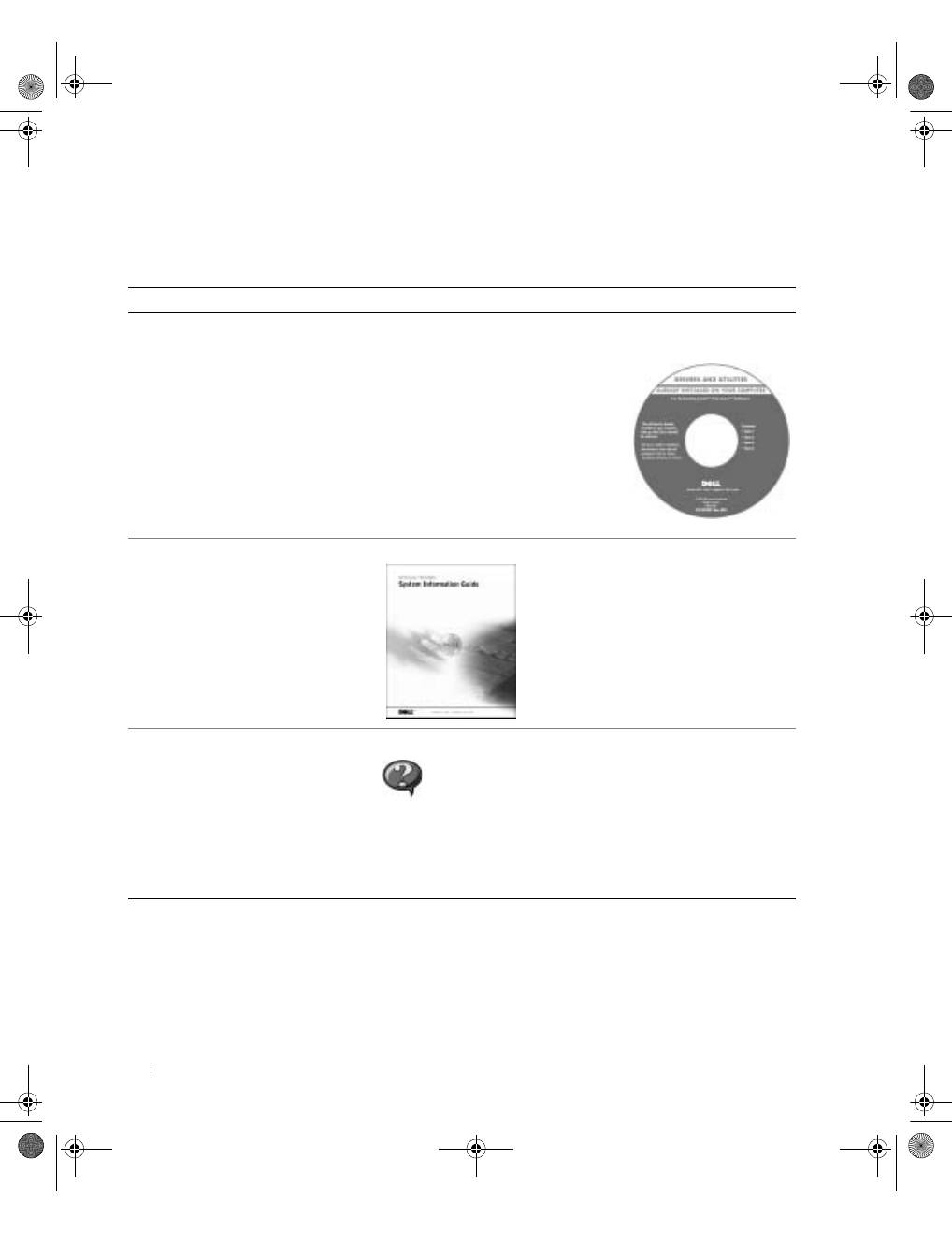
Finding Information for Your Computer
What are you looking for?
Find It Here
• A diagnostic program for my computer
• Drivers for my computer
• My
User’s Guide
• My device documentation
D r i v e r s a n d U t i l i t i e s C D ( a l s o k n o w n a s t h e
R e s o u r c e C D )
Documentation and drivers are already
installed on your computer when shipped
from Dell. You can use the CD to reinstall
drivers, run the Dell Diagnostics, or access
your documentation.
Readme files may be included on your CD
to provide last-minute updates about
technical changes to your computer or
advanced technical-reference material for
experienced users or technicians.
• Warranty Information
D e l l S y s t e m I n f o r m a t i o n G u i d e
• How to remove and replace parts
• Technical specifications
• How to configure system settings
• How to troubleshoot and solve
problems
U s e r ’ s G u i d e I c o n ( M i c r o s o f t W i n d o w s 2 0 0 0 )
Double-click the
User’s Guides
icon on your desktop.
W i n d o w s H e l p a n d S u p p o r t C e n t e r
1
Click the
Start
button and click
Help and Support
2
Click
User’s and system guides
and click
User’s guides
.
3y279bk0.book Page 12 Tuesday, February 11, 2003 4:17 PM
S y s t e m I n f o r m a t i o n G u i d e
13
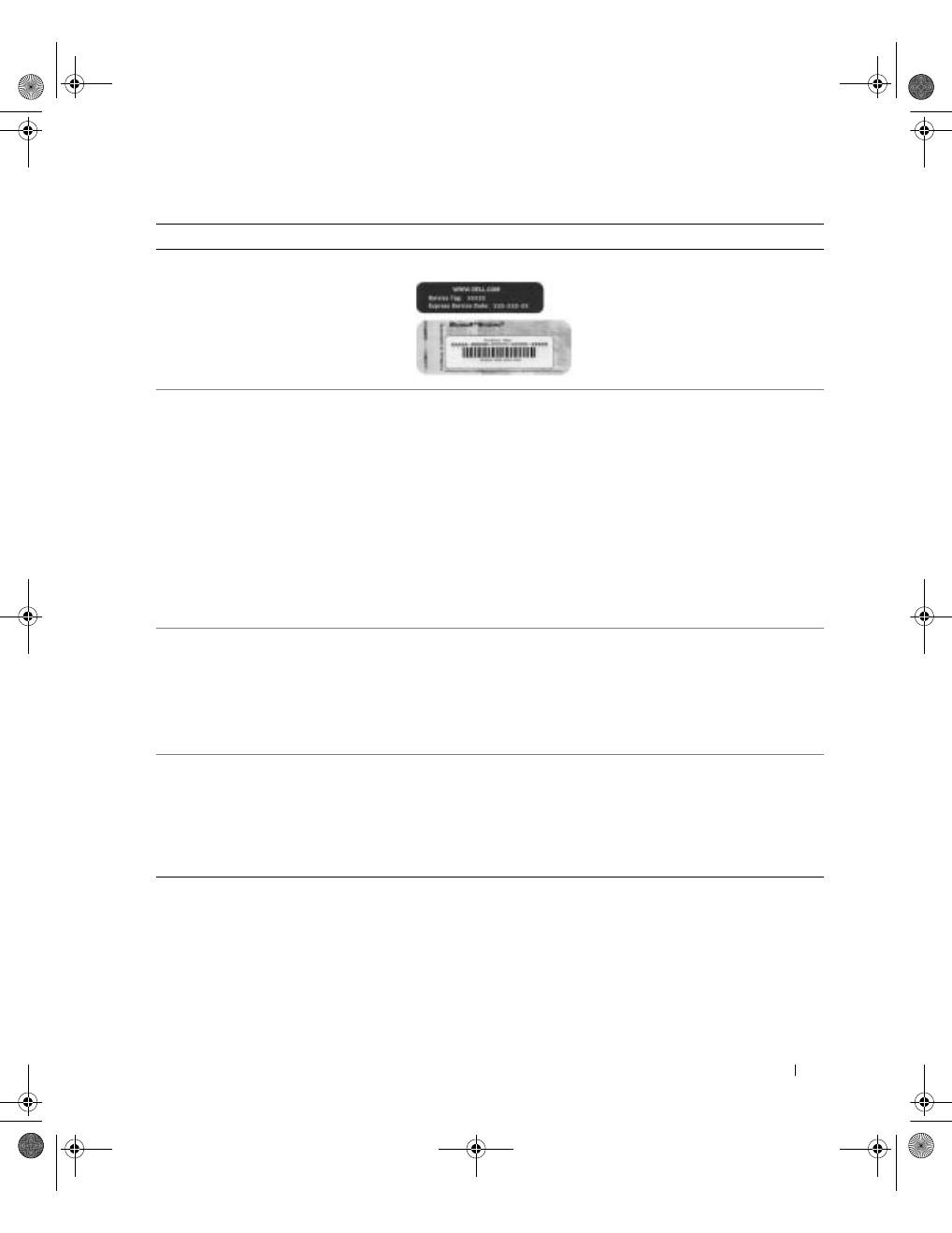
• Express Service Code and Service Tag
• Microsoft
®
Windows
®
License Label
E x p r e s s S e r v i c e C o d e a n d P r o d u c t K e y L a b e l
These labels are located on your
computer.
• Latest drivers for my computer
• Answers to technical service and
support questions
• Online discussions with other users
and technical support
• Documentation for my computer
including the
Service Manual
D e l l S u p p o r t W e b s i t e —
support.dell.com
The Dell Support website provides several online tools, including:
• Solutions — Troubleshooting hints and tips, articles from
technicians, and online courses
• Community Forum — Online discussion with other Dell customers
• Upgrades — Upgrade information for components, such as memory,
the hard drive, and the operating system
• Customer Care — Contact information, order status, warranty, and
repair information
• Downloads — Drivers, patches, and software updates
• Reference — Computer documentation, product specifications, and
white papers
• Service call status and support history
• Top technical issues for my computer
• Frequently asked questions
• File downloads
• Details on my computer configuration
• Service contract for my computer
D e l l P r e m i e r S u p p o r t W e b s i t e —
premiersupport.dell.com
The Dell Premier Support website is customized for corporate,
government, and education customers. This website may not be
available in all regions.
• How to use Windows XP
• Documentation for my computer
• Documentation for devices (such as a
modem)
W i n d o w s H e l p a n d S u p p o r t C e n t e r
1
Click the
Start
button and click
Help and Support
.
2
Type a word or phrase that describes your problem and click the
arrow icon.
3
Click the topic that describes your problem.
4
Follow the instructions on the screen.
What are you looking for?
Find It Here
3y279bk0.book Page 13 Tuesday, February 11, 2003 4:17 PM
14
S y s t e m I n f o r m a t i o n G u i d e
www
.dell.com | support.dell.com
Setting Up Your Computer
1
Unpack the accessories box.
2
Set aside the contents of the accessories box, which you will need to complete the
setup of your computer.
The accessories box also contains user documentation and any software or additional
hardware (such as PC Cards, drives, or batteries) that you have ordered.
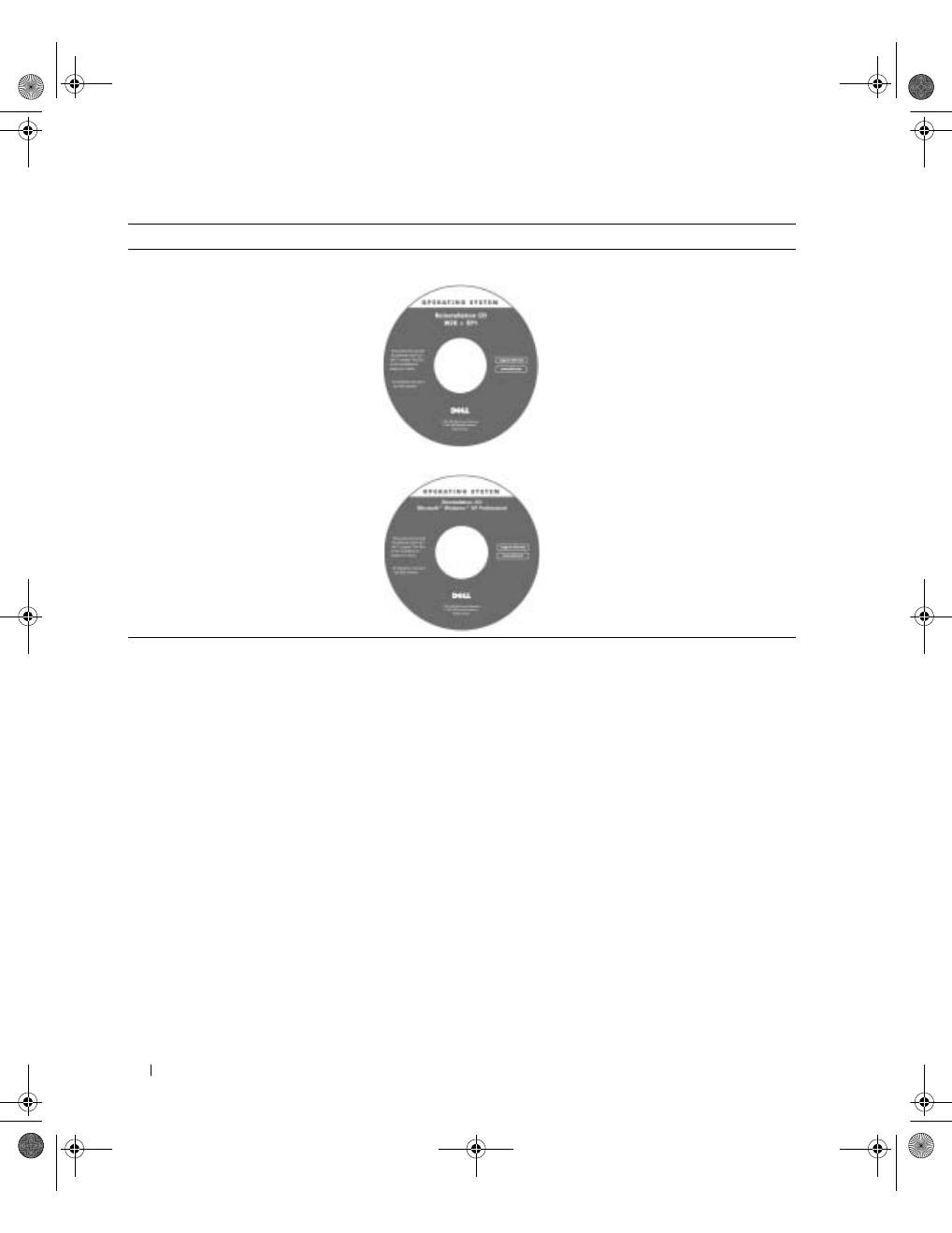
• How to reinstall my operating system
O p e r a t i n g S y s t e m C D
If you reinstall your operating system,
use the
Drivers and Utilities
CD to
reinstall drivers for the devices that came
with your computer.
The product key for your operating
system is located on your computer.
What are you looking for?
Find It Here
or
3y279bk0.book Page 14 Tuesday, February 11, 2003 4:17 PM
S y s t e m I n f o r m a t i o n G u i d e
15
3
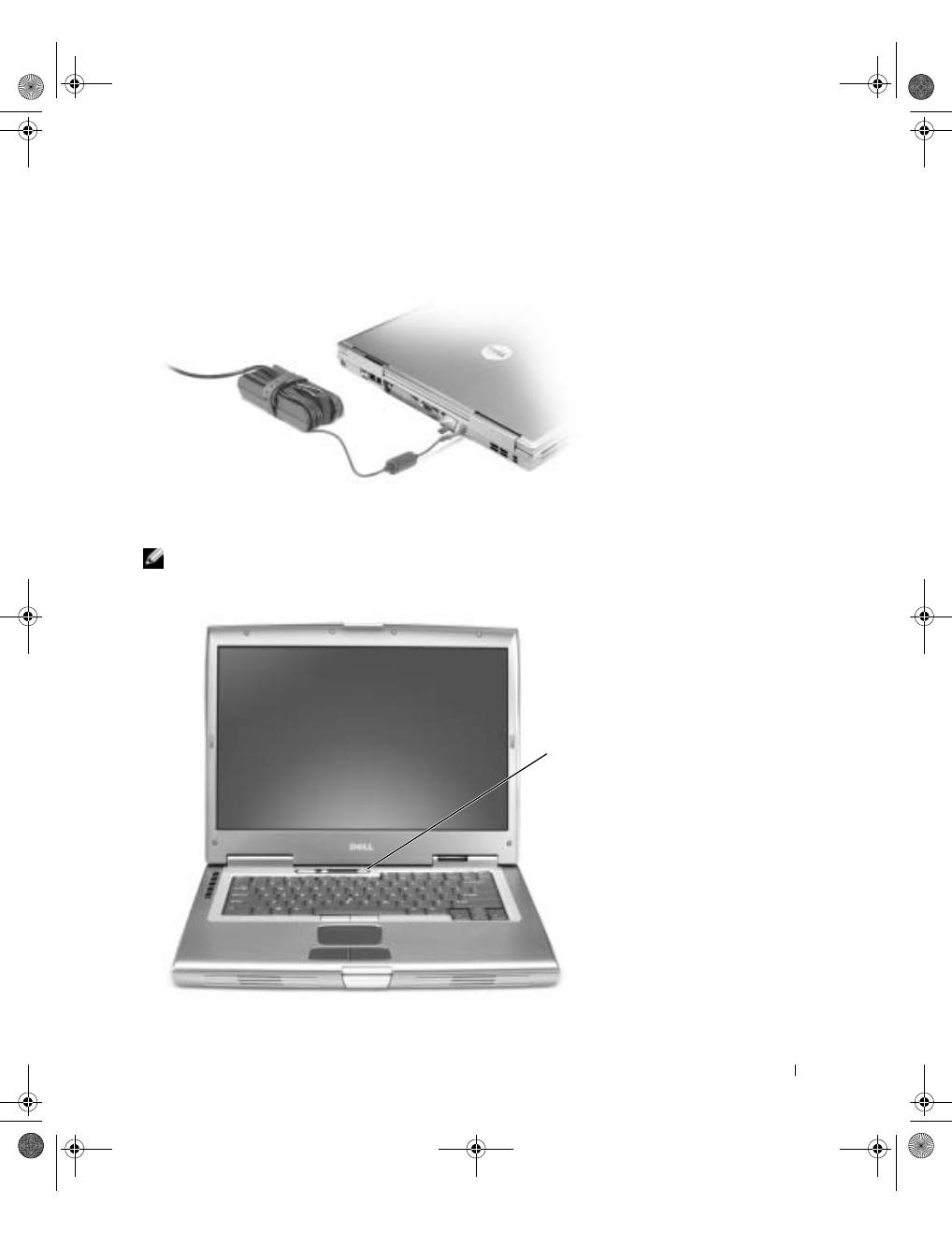
Connect the AC adapter to the AC adapter connector on the computer and to the
electrical outlet.
4
Open the computer display and press the power button to turn on the computer.
NOTE:
Do not connect the computer to the docking device until the computer has been turned
on and shut down at least once.
power
button
3y279bk0.book Page 15 Tuesday, February 11, 2003 4:17 PM
16
S y s t e m I n f o r m a t i o n G u i d e
www
.dell.com | support.dell.com
About Your Computer
See your online
User’s Guide
for detailed information about the computer. Depending on
your operating system, double-click the
User’s Guide
icon on your desktop, or click the
Start
button, click
Help and Support Center
, and then click
User and system guides
. The
following items address some of the more commonly asked questions about the computer.
•
Modem and network adapter:
The computer may include both a v.92 56K modem and a
10/100/1000 Ethernet LOM network adapter. For connector locations, see "Right
View" later in this document. For more information on ports and connectors, see
"About Your Computer" in your online
User’s Guide
.
•
Battery life and usage:
Various batteries are available for use with your computer. Using
the 72 WHr/6486-mAh battery that comes standard with the computer, you can
expect from 3 to 4 hours of operating time from a single fully charged battery with
average usage. Performing certain types of operations, such as extended wireless
operation, can significantly reduce battery life.
–
For more information on battery performance, usage, and conserving power, see
"Using a Battery" and "Power Management" in the
User’s Guide
.
–
For information on an optional second battery, see "Using the Module Bay" in the
User’s Guide
.
•
Module bay devices:
For information on the module bay and the devices it supports, see
"Using the Module Bay" in the
User’s Guide
.
•
Docking devices:
Your computer supports the Dell D/Dock Expansion Station and the
Dell D/Port Advanced Port Replicator.
NOTE:
Docking devices may not be available in all countries.
–
For information on your optional docking device, see the documentation that
accompanied the device.
–
For information on obtaining optimal performance when using a docking device
with this computer, see "Solving Problems" in the
User’s Guide
.
3y279bk0.book Page 16 Tuesday, February 11, 2003 4:17 PM
S y s t e m I n f o r m a t i o n G u i d e
17
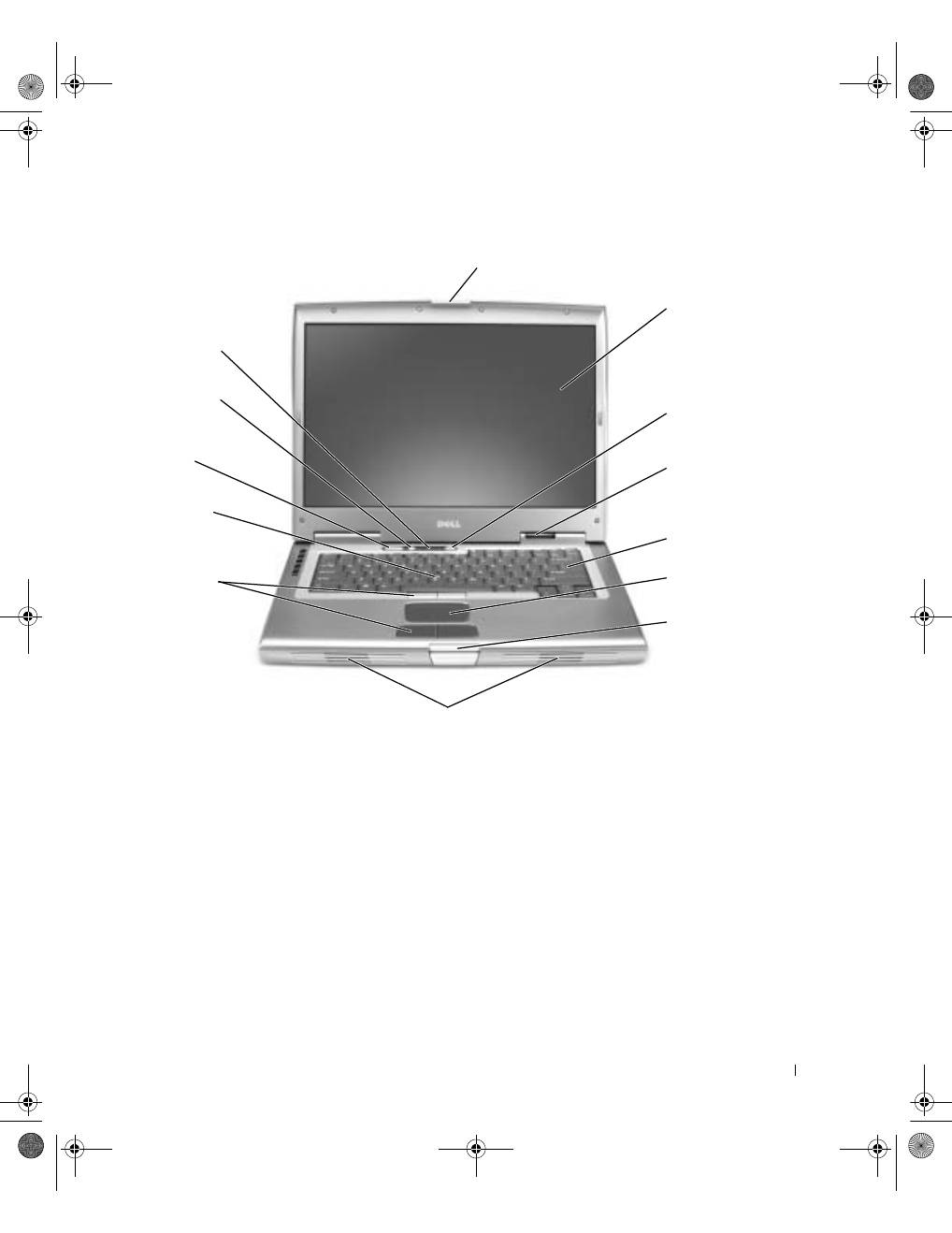
Front View
display latch
keyboard
display
track stick
touch pad
volume control
buttons
device status
lights
track stick/touch
pad buttons
mute button
power button
display latch
button
speakers
keyboard
status lights
3y279bk0.book Page 17 Tuesday, February 11, 2003 4:17 PM
18
S y s t e m I n f o r m a t i o n G u i d e
www
.dell.com | support.dell.com
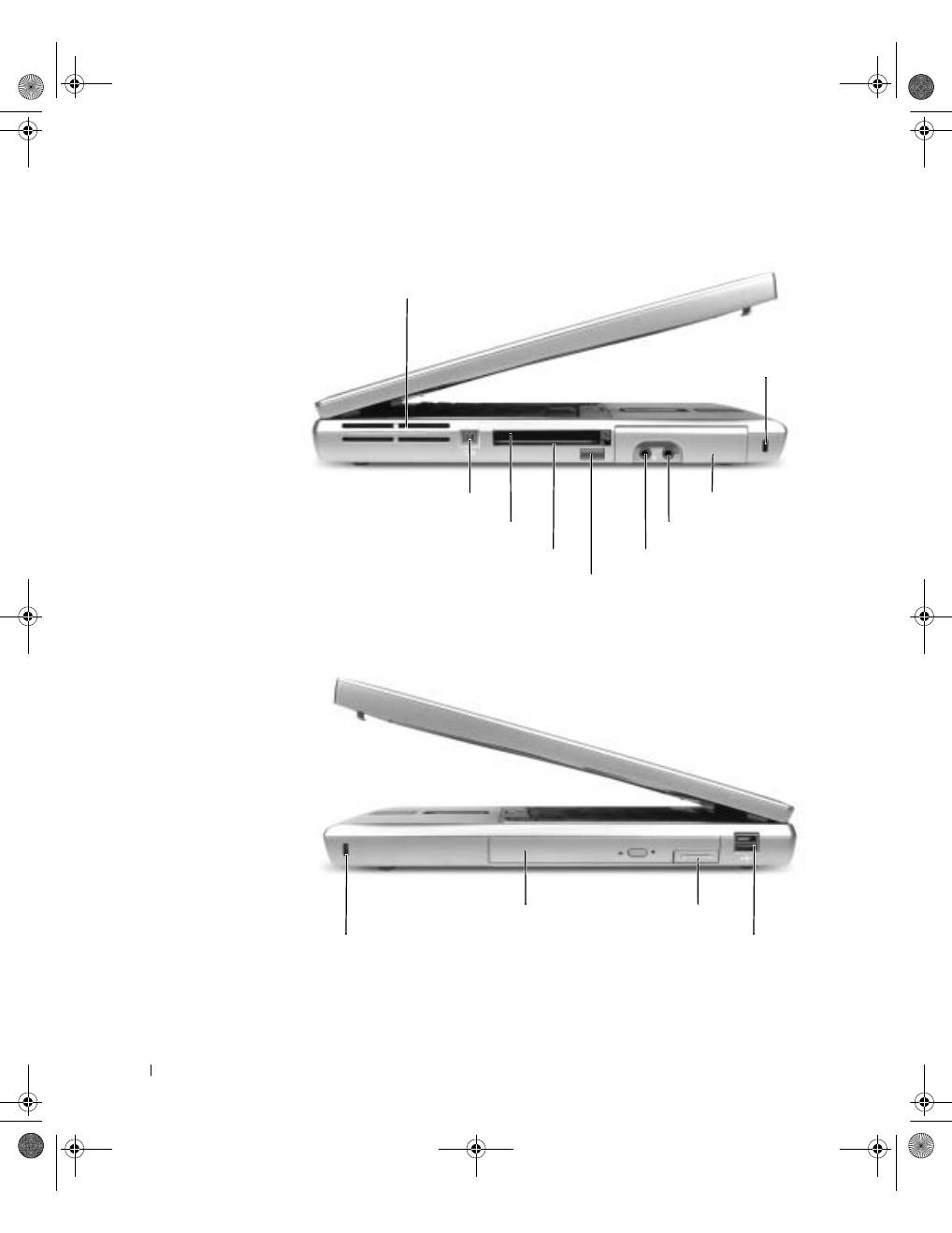
Left Side View
Right Side View
air vents
IEEE 1394 connector
PC Card slot
smart card slot
infrared sensor
headphone connector
hard drive
security cable slot
microphone connector
module bay
device latch release
Dell D/Bay connector
security cable slot
3y279bk0.book Page 18 Tuesday, February 11, 2003 4:17 PM
