
Dell Precision M60: System Information Guide
System Information Guide: Dell Precision M60
Оглавление
- System Information Guide
w w w . d e l l . c o m | s u p p o r t . d e l l . c o m
Dell Precision™ M60 Series Mobile Workstation
System Information Guide
3y279bk0.book Page 1 Tuesday, February 11, 2003 4:17 PM
Notes, Notices, and Cautions
NOTE:
A NOTE indicates important information that helps you make better
use of your computer.
NOTICE:
A NOTICE indicates either potential damage to hardware or loss of
data and tells you how to avoid the problem.
CAUTION: A CAUTION indicates a potential for property damage,
personal injury, or death.
Abbreviations and Acronyms
For a complete list of abbreviations and acronyms, see the
User’s Guide
(depending on your operating system, double-click the
User’s Guide
icon
on your desktop, or click the
Start
button, click
Help and Support Center
,
and then click
User and system guides
).
If you purchased a Dell™
n
Series computer, any references in this
document to Microsoft
®
Windows
®
operating systems are not applicable.
____________________
Information in this document is subject to change without notice.
© 2003 Dell Computer Corporation. All rights reserved.
Reproduction in any manner whatsoever without the written permission of Dell Computer
Corporation is strictly forbidden.
Trademarks used in this text: Dell, the DELL logo, Dell Precision, Latitude, and TrueMobile are
trademarks of Dell Computer Corporation; Intel, Pentium, and Celeron are registered trademarks
of Intel Corporation; Microsoft and Windows are registered trademarks of Microsoft Corporation;
EMC is the registered trademark of EMC Corporation.
Other trademarks and trade names may be used in this document to refer to either the entities claiming
the marks and names or their products. Dell Computer Corporation disclaims any proprietary interest
in trademarks and trade names other than its own.
January 2003
P/N 3Y279
Rev. A00
3y279bk0.book Page 2 Tuesday, February 11, 2003 4:17 PM

Contents
3
Contents
CAUTION: Safety Instructions
. . . . . . . . . . . . . . . . . . .
5
General
. . . . . . . . . . . . . . . . . . . . . . . . . . . . .
5
Power
. . . . . . . . . . . . . . . . . . . . . . . . . . . . . .
6
Battery
. . . . . . . . . . . . . . . . . . . . . . . . . . . . .
7
Air Travel
. . . . . . . . . . . . . . . . . . . . . . . . . . . .
8
EMC Instructions
. . . . . . . . . . . . . . . . . . . . . . . .
8
California Residents
. . . . . . . . . . . . . . . . . . . . . . .
8
When Using Your Computer
. . . . . . . . . . . . . . . . . . . .
9
Ergonomic Computing Habits
. . . . . . . . . . . . . . . . . .
10
When Working Inside Your Computer
. . . . . . . . . . . . . .
10
Protecting Against Electrostatic Discharge
. . . . . . . . . . .
11
Battery Disposal
. . . . . . . . . . . . . . . . . . . . . . . .
11
Finding Information for Your Computer
. . . . . . . . . . . . . .
12
Setting Up Your Computer
. . . . . . . . . . . . . . . . . . . . .
14
About Your Computer
. . . . . . . . . . . . . . . . . . . . . . .
16
Front View
. . . . . . . . . . . . . . . . . . . . . . . . . . .
17
Left Side View
. . . . . . . . . . . . . . . . . . . . . . . . .
18
Right Side View
. . . . . . . . . . . . . . . . . . . . . . . . .
18
Back View
. . . . . . . . . . . . . . . . . . . . . . . . . . .
19
Bottom View
. . . . . . . . . . . . . . . . . . . . . . . . . .
20
Removing a Battery
. . . . . . . . . . . . . . . . . . . . . . . . .
20
Installing a Battery
. . . . . . . . . . . . . . . . . . . . . . . . .
21
Removing a Reserve Battery
. . . . . . . . . . . . . . . . . . . .
22
Installing a Reserve Battery
. . . . . . . . . . . . . . . . . . . .
23
3y279bk0.book Page 3 Tuesday, February 11, 2003 4:17 PM

4
C o n t e n t s
Running the Dell Diagnostics
. . . . . . . . . . . . . . . . . . .
23
Regulatory Notices
. . . . . . . . . . . . . . . . . . . . . . . .
26
Limited Warranties and Return Policy
. . . . . . . . . . . . . .
27
Limited Warranty for the U.S.
. . . . . . . . . . . . . . . . .
27
"Total Satisfaction" Return Policy (U.S. Only)
. . . . . . . . . .
30
Limited Warranty Terms for Canada
. . . . . . . . . . . . . .
31
"Total Satisfaction" Return Policy (Canada Only)
. . . . . . . .
34
Dell Software and Peripherals (Canada Only)
. . . . . . . . . .
35
One-Year End-User Manufacturer Guarantee
(Latin America and the Caribbean Only)
. . . . . . . . . . . .
36
Intel
®
Warranty Statement for Pentium
®
and Celeron
®
Processors Only (U.S. and Canada Only)
. . . . . . . . . . . .
37
3y279bk0.book Page 4 Tuesday, February 11, 2003 4:17 PM
S y s t e m I n f o r m a t i o n G u i d e
5
CAUTION: Safety Instructions
Use the following safety guidelines to help ensure your own personal safety and to help protect
your computer and working environment from potential damage.
General
•
Do not attempt to service the computer yourself unless you are a trained service
technician. Always follow installation instructions closely.
•
If you use an extension power cable with your AC adapter, ensure that the total ampere
rating of the products plugged in to the extension power cable does not exceed the
ampere rating of the extension cable.
•
Do not push objects into air vents or openings of your computer. Doing so can cause fire
or electric shock by shorting out interior components.
•
Do not store your computer in a low-airflow environment, such as a carrying case or a
closed briefcase, while the computer is turned on. Restricting airflow can damage the
computer or cause a fire.
•
Keep your computer away from radiators and heat sources. Also, do not block cooling
vents. Avoid placing loose papers underneath your computer; do not place your computer
in a closed-in wall unit or on a bed, sofa, or rug.
•
Place the AC adapter in a ventilated area, such as a desk top or on the floor, when you use
it to run the computer or to charge the battery. Do not cover the AC adapter with papers
or other items that will reduce cooling; also, do not use the AC adapter inside a carrying
case.
•
The AC adapter may become hot during normal operation of your computer. Use care
when handling the adapter during or immediately after operation.
•
Do not allow your portable computer to operate with the base resting directly on exposed
skin for extended periods of time. The surface temperature of the base will rise during
normal operation (particularly when AC power is present). Allowing sustained contact
with exposed skin can cause discomfort or, eventually, a burn.
•
Do not use your computer in a wet environment, for example, near a bath tub, sink, or
swimming pool or in a wet basement
•
If your computer includes an integrated or optional (PC Card) modem, disconnect the
modem cable if an electrical storm is approaching to avoid the remote risk of electric
shock from lightning via the telephone line.
3y279bk0.book Page 5 Tuesday, February 11, 2003 4:17 PM
6
S y s t e m I n f o r m a t i o n G u i d e
www
.dell.com | support.dell.com
•
To help avoid the potential hazard of electric shock, do not connect or disconnect any
cables or perform maintenance or reconfiguration of this product during an electrical
storm. Do not use your computer during an electrical storm unless all cables have been
disconnected and the computer is operating on battery power.
•
If your computer includes a modem, the cable used with the modem should be
manufactured with a minimum wire size of 26 American wire gauge (AWG) and an FCC-
compliant RJ-11 modular plug.
•
Before you open the memory module/Mini PCI card/modem cover on the bottom of your
computer, disconnect all cables from their electrical outlets and disconnect the telephone
cable.
•
If your computer has a modem RJ-11 connector and a network RJ-45 connector, insert the
telephone cable into the RJ-11 connector, not the RJ-45 connector.
•
PC Cards may become very warm during normal operation. Use care when removing PC
Cards after their continuous operation.
•
Before you clean your computer, disconnect the computer from the electrical outlet.
Clean your computer with a soft cloth dampened with water. Do not use liquid or aerosol
cleaners, which may contain flammable substances.
Power
•
Use only the Dell-provided AC adapter approved for use with this computer. Use of
another AC adapter may cause a fire or explosion.
•
Before you connect the computer to an electrical outlet, check the AC adapter voltage
rating to ensure that the required voltage and frequency match the available power
source.
•
To remove the computer from all power sources, turn the computer off, remove the
battery pack, and disconnect the AC adapter from the electrical outlet.
•
To help prevent electric shock, plug the AC adapter and device power cables into properly
grounded power sources. These power cables may be equipped with 3-prong plugs to
provide an earth grounding connection. Do not use adapter plugs or remove the
grounding prong from the power cable plug. If you use a power extension cable, use the
appropriate type, 2-prong or 3-prong, to mate with the AC adapter power cable.
CAUTION: Safety Instructions
(continued)
3y279bk0.book Page 6 Tuesday, February 11, 2003 4:17 PM
S y s t e m I n f o r m a t i o n G u i d e
7
•
Be sure that nothing rests on your AC adapter’s power cable and that the cable is not
located where it can be tripped over or stepped on.
•
If you are using a multiple-outlet power strip, use caution when plugging the AC
adapter’s power cable into the power strip. Some power strips may allow you to insert the
plug incorrectly. Incorrect insertion of the power plug could result in permanent damage
to your computer, as well as risk of electric shock and/or fire. Ensure that the ground
prong of the power plug is inserted into the mating ground contact of the power strip.
Battery
•
Use only Dell™ battery modules that are approved for use with this computer. Use of
other types may increase the risk of fire or explosion.
•
Do not carry a battery pack in your pocket, purse, or other container where metal objects
(such as car keys or paper clips) could short-circuit the battery terminals. The resulting
excessive current flow can cause extremely high temperatures and may result in damage
to the battery pack or cause fire or burns.
•
The battery poses a burn hazard if you handle it improperly. Do not disassemble it.
Handle a damaged or leaking battery pack with extreme care. If the battery is damaged,
electrolyte may leak from the cells and may cause personal injury.
•
Keep the battery away from children.
•
Do not store or leave your computer or battery pack near a heat source such as a radiator,
fireplace, stove, electric heater, or other heat-generating appliance or otherwise expose it
to temperatures in excess of 60ºC (140ºF). When heated to excessive temperatures,
battery cells could explode or vent, posing a risk of fire.
•
Do not dispose of your computer’s battery in a fire or with normal household waste.
Battery cells may explode. Discard a used battery according to the manufacturer’s
instructions or contact your local waste disposal agency for disposal instructions. Dispose
of a spent or damaged battery promptly.
CAUTION: Safety Instructions
(continued)
3y279bk0.book Page 7 Tuesday, February 11, 2003 4:17 PM
8
S y s t e m I n f o r m a t i o n G u i d e
www
.dell.com | support.dell.com
Air Travel
•
Certain Federal Aviation Administration regulations and/or airline-specific restrictions
may apply to the operation of your Dell computer while you are on board an aircraft. For
example, such regulations/restrictions may prohibit the use of any personal electronic
device (PED) that has the capacity for intentional transmission of radio frequency or
other electromagnetic signals while on an aircraft.
–
In order to best comply with all such restrictions, if your Dell portable computer is
equipped with Dell TrueMobile™ or some other wireless communication device,
please disable this device before you board the aircraft and follow all instructions
provided by airline personnel with regard to such device.
–
Additionally, the use of any PED, such as a portable computer, may be prohibited in
aircraft during certain critical phases of flight, for example, takeoff and landing. Some
airlines may further define the critical flight phase as any time the aircraft is below
3050 m (10,000 ft). Please follow the airline’s specific instructions as to when the use
of a PED is allowed.
EMC Instructions
Use shielded signal cables to ensure that you maintain the appropriate EMC classification for
the intended environment. For parallel printers, a cable is available from Dell. If you prefer, you
can order a cable from Dell at its worldwide website at
www.dell.com
.
Static electricity can harm electronic components inside your computer. To prevent static
damage, discharge static electricity from your body before you touch any of your computer’s
electronic components, such as a memory module. You can do so by touching an unpainted
metal surface on the computer’s input/output panel.
California Residents
WARNING:
Handling the cord on this product, or cords associated with accessories sold with
this product, will expose you to lead, a chemical known to the State of California to cause birth
defects or other reproductive harm.
Wash your hands after handling the cord
.
CAUTION: Safety Instructions
(continued)
3y279bk0.book Page 8 Tuesday, February 11, 2003 4:17 PM
S y s t e m I n f o r m a t i o n G u i d e
9
When Using Your Computer
Observe the following safe-handling guidelines to prevent damage to your computer:
•
When setting up the computer for work, place it on a level surface.
•
When traveling, do not check the computer as baggage. You can put your computer
through an X-ray security machine, but never put your computer through a metal
detector. If you have the computer checked by hand, be sure to have a charged battery
available in case you are asked to turn on the computer.
•
When traveling with the hard drive removed from the computer, wrap the drive in a
nonconducting material, such as cloth or paper. If you have the drive checked by hand, be
ready to install the drive in the computer. You can put the hard drive through an X-ray
security machine, but never put the drive through a metal detector.
•
When traveling, do not place the computer in overhead storage compartments where it
could slide around. Do not drop your computer or subject it to other mechanical shocks.
•
Protect your computer, battery, and hard drive from environmental hazards such as dirt,
dust, food, liquids, temperature extremes, and overexposure to sunlight.
•
When you move your computer between environments with very different temperature
and/or humidity ranges, condensation may form on or within the computer. To avoid
damaging the computer, allow sufficient time for the moisture to evaporate before using
the computer.
NOTICE:
When taking the computer from low-temperature conditions into a warmer environment
or from high-temperature conditions into a cooler environment, allow the computer to acclimate to
room temperature before turning on power.
•
When you disconnect a cable, pull on its connector or on its strain-relief loop, not on the
cable itself. As you pull out the connector, keep it evenly aligned to avoid bending any
connector pins. Also, before you connect a cable make sure both connectors are correctly
oriented and aligned.
•
Handle components with care. Hold a component such as a memory module by its edges,
not its pins.
•
When preparing to remove a memory module from the system board or disconnect a
device from the computer, turn off the computer, disconnect the AC adapter cable, and
then wait 5 seconds before proceeding to help avoid possible damage to the system board.
3y279bk0.book Page 9 Tuesday, February 11, 2003 4:17 PM
10
S y s t e m I n f o r m a t i o n G u i d e
www
.dell.com | support.dell.com
•
Clean the display with a soft, clean cloth and water. Apply the water to the cloth; then
stroke the cloth across the display in one direction, moving from the top of the display to
the bottom. Remove moisture from the display quickly and keep the display dry. Long-
term exposure to moisture can damage the display.
Do not
use a commercial window
cleaner to clean your display.
•
If your computer gets wet or is damaged, follow the procedures described in “Solving
Problems” in your
User’s Guide
. If, after following these procedures, you confirm that
your computer is not operating properly, contact Dell (see "Getting Help" in your
User’s
Guide
for the appropriate contact information).
Ergonomic Computing Habits
CAUTION: Improper or prolonged keyboard use may result in injury.
CAUTION: Viewing the display or external monitor screen for extended periods of
time may result in eye strain.
For comfort and efficiency, observe the ergonomic guidelines in the Appendix of your online
User’s Guide
when setting up and using your computer.
This portable computer is not designed for continuous operation as office equipment. For
extended use in an office, it is recommended that you connect an external keyboard.
When Working Inside Your Computer
Before removing or installing memory modules, Mini PCI cards, or modems, perform the
following steps in the sequence indicated.
NOTICE:
The only time you should ever access the inside of your computer is when you are
installing memory modules, a Mini PCI card, or a modem.
NOTICE:
Wait 5 seconds after turning off the computer before disconnecting a device or removing
a memory module, Mini PCI card, or modem to help prevent possible damage to the system board.
1
Shut down your computer and turn off any attached devices.
2
Disconnect
your computer and devices from electrical outlets to reduce the potential for
personal injury or shock. Also, disconnect any telephone or telecommunication lines from
the computer.
3
Remove the main battery from the battery bay and, if necessary, the secondary battery
from the module bay.
When Using Your Computer
(continued)
3y279bk0.book Page 10 Tuesday, February 11, 2003 4:17 PM
S y s t e m I n f o r m a t i o n G u i d e
11
4
Ground yourself by touching the unpainted metal surface of the I/O panel on the back of
the computer.
While you work, periodically touch the I/O panel to dissipate any static electricity that
might harm internal components.
Protecting Against Electrostatic Discharge
Static electricity can harm electronic components inside your computer. To prevent static
damage, discharge static electricity from your body before you touch any of your computer’s
electronic components, such as a memory module. You can do so by touching an unpainted
metal surface on the computer’s I/O panel.
As you continue to work inside the computer, periodically touch an I/O connector to remove
any static charge your body may have accumulated.
You can also take the following steps to prevent damage from electrostatic discharge (ESD):
•
When unpacking a static-sensitive component from its shipping carton, do not remove
the component from the antistatic packing material until you are ready to install the
component. Just before unwrapping the antistatic packaging, be sure to discharge static
electricity from your body.
•
When transporting a sensitive component, first place it in an antistatic container or
packaging.
•
Handle all sensitive components in a static-safe area. If possible, use antistatic floor pads
and workbench pads.
Battery Disposal
Your computer uses a lithium-ion battery. For instructions about replacing the lithium-ion
battery in your computer, see "Removing a Battery" later in this document and "Using a
Battery" in your online
User’s Guide
.
Do not dispose of the battery along with household waste. Contact your local waste disposal
agency for the address of the nearest battery deposit site.
When Using Your Computer
(continued)
3y279bk0.book Page 11 Tuesday, February 11, 2003 4:17 PM
12
S y s t e m I n f o r m a t i o n G u i d e
www
.dell.com | support.dell.com
Finding Information for Your Computer
What are you looking for?
Find It Here
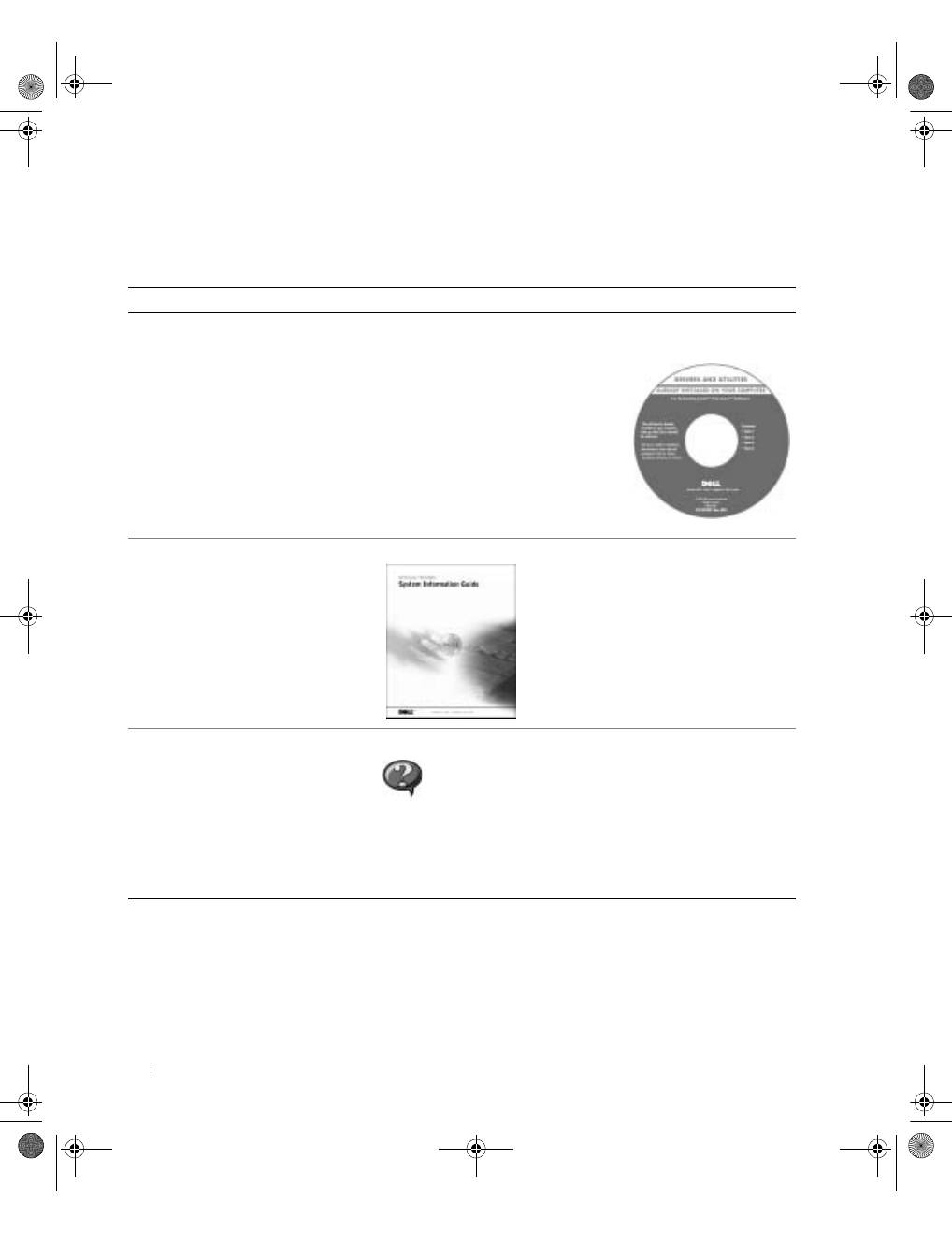
• A diagnostic program for my computer
• Drivers for my computer
• My
User’s Guide
• My device documentation
D r i v e r s a n d U t i l i t i e s C D ( a l s o k n o w n a s t h e
R e s o u r c e C D )
Documentation and drivers are already
installed on your computer when shipped
from Dell. You can use the CD to reinstall
drivers, run the Dell Diagnostics, or access
your documentation.
Readme files may be included on your CD
to provide last-minute updates about
technical changes to your computer or
advanced technical-reference material for
experienced users or technicians.
• Warranty Information
D e l l S y s t e m I n f o r m a t i o n G u i d e
• How to remove and replace parts
• Technical specifications
• How to configure system settings
• How to troubleshoot and solve
problems
U s e r ’ s G u i d e I c o n ( M i c r o s o f t W i n d o w s 2 0 0 0 )
Double-click the
User’s Guides
icon on your desktop.
W i n d o w s H e l p a n d S u p p o r t C e n t e r
1
Click the
Start
button and click
Help and Support
2
Click
User’s and system guides
and click
User’s guides
.
3y279bk0.book Page 12 Tuesday, February 11, 2003 4:17 PM
S y s t e m I n f o r m a t i o n G u i d e
13
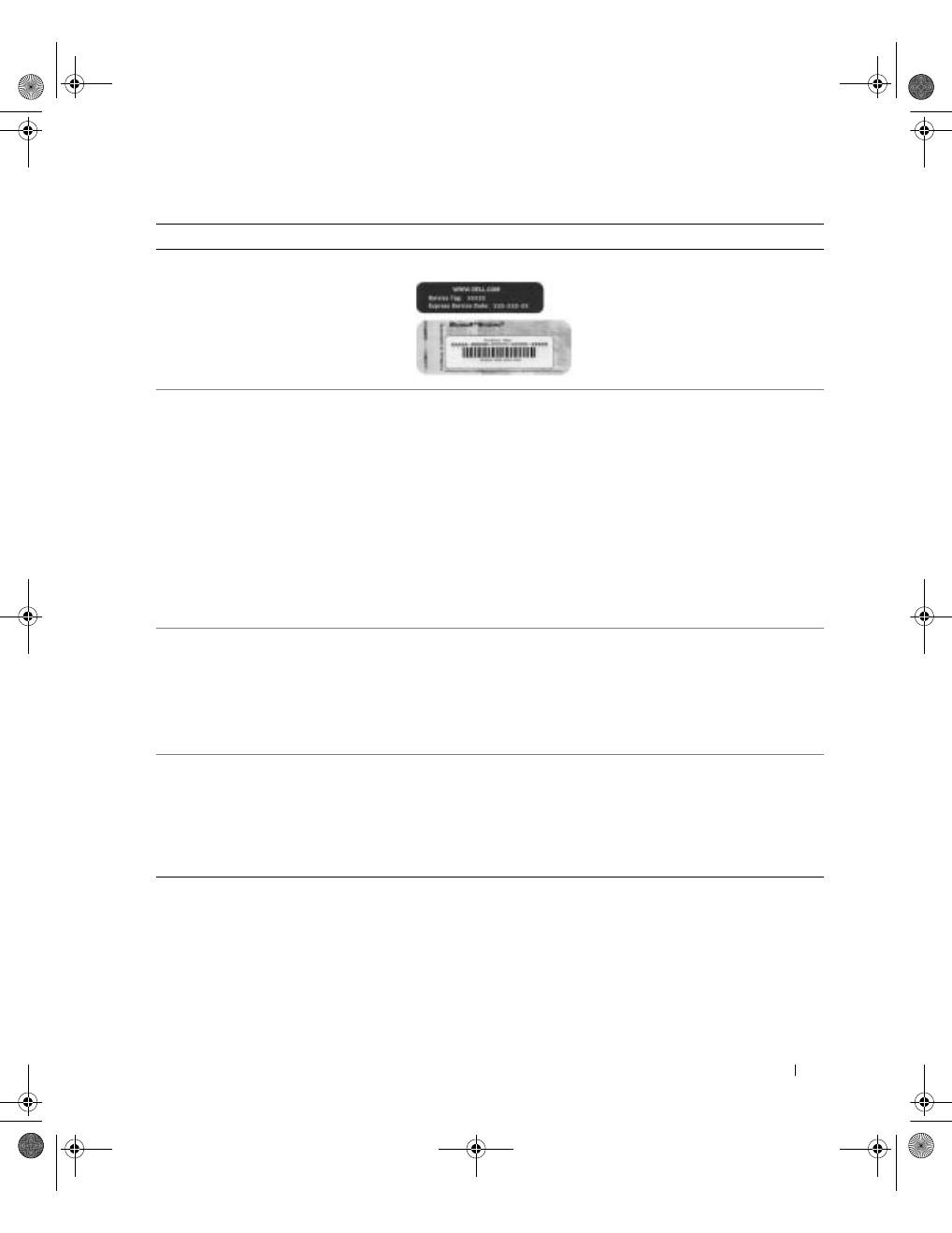
• Express Service Code and Service Tag
• Microsoft
®
Windows
®
License Label
E x p r e s s S e r v i c e C o d e a n d P r o d u c t K e y L a b e l
These labels are located on your
computer.
• Latest drivers for my computer
• Answers to technical service and
support questions
• Online discussions with other users
and technical support
• Documentation for my computer
including the
Service Manual
D e l l S u p p o r t W e b s i t e —
support.dell.com
The Dell Support website provides several online tools, including:
• Solutions — Troubleshooting hints and tips, articles from
technicians, and online courses
• Community Forum — Online discussion with other Dell customers
• Upgrades — Upgrade information for components, such as memory,
the hard drive, and the operating system
• Customer Care — Contact information, order status, warranty, and
repair information
• Downloads — Drivers, patches, and software updates
• Reference — Computer documentation, product specifications, and
white papers
• Service call status and support history
• Top technical issues for my computer
• Frequently asked questions
• File downloads
• Details on my computer configuration
• Service contract for my computer
D e l l P r e m i e r S u p p o r t W e b s i t e —
premiersupport.dell.com
The Dell Premier Support website is customized for corporate,
government, and education customers. This website may not be
available in all regions.
• How to use Windows XP
• Documentation for my computer
• Documentation for devices (such as a
modem)
W i n d o w s H e l p a n d S u p p o r t C e n t e r
1
Click the
Start
button and click
Help and Support
.
2
Type a word or phrase that describes your problem and click the
arrow icon.
3
Click the topic that describes your problem.
4
Follow the instructions on the screen.
What are you looking for?
Find It Here
3y279bk0.book Page 13 Tuesday, February 11, 2003 4:17 PM
14
S y s t e m I n f o r m a t i o n G u i d e
www
.dell.com | support.dell.com
Setting Up Your Computer
1
Unpack the accessories box.
2
Set aside the contents of the accessories box, which you will need to complete the
setup of your computer.
The accessories box also contains user documentation and any software or additional
hardware (such as PC Cards, drives, or batteries) that you have ordered.
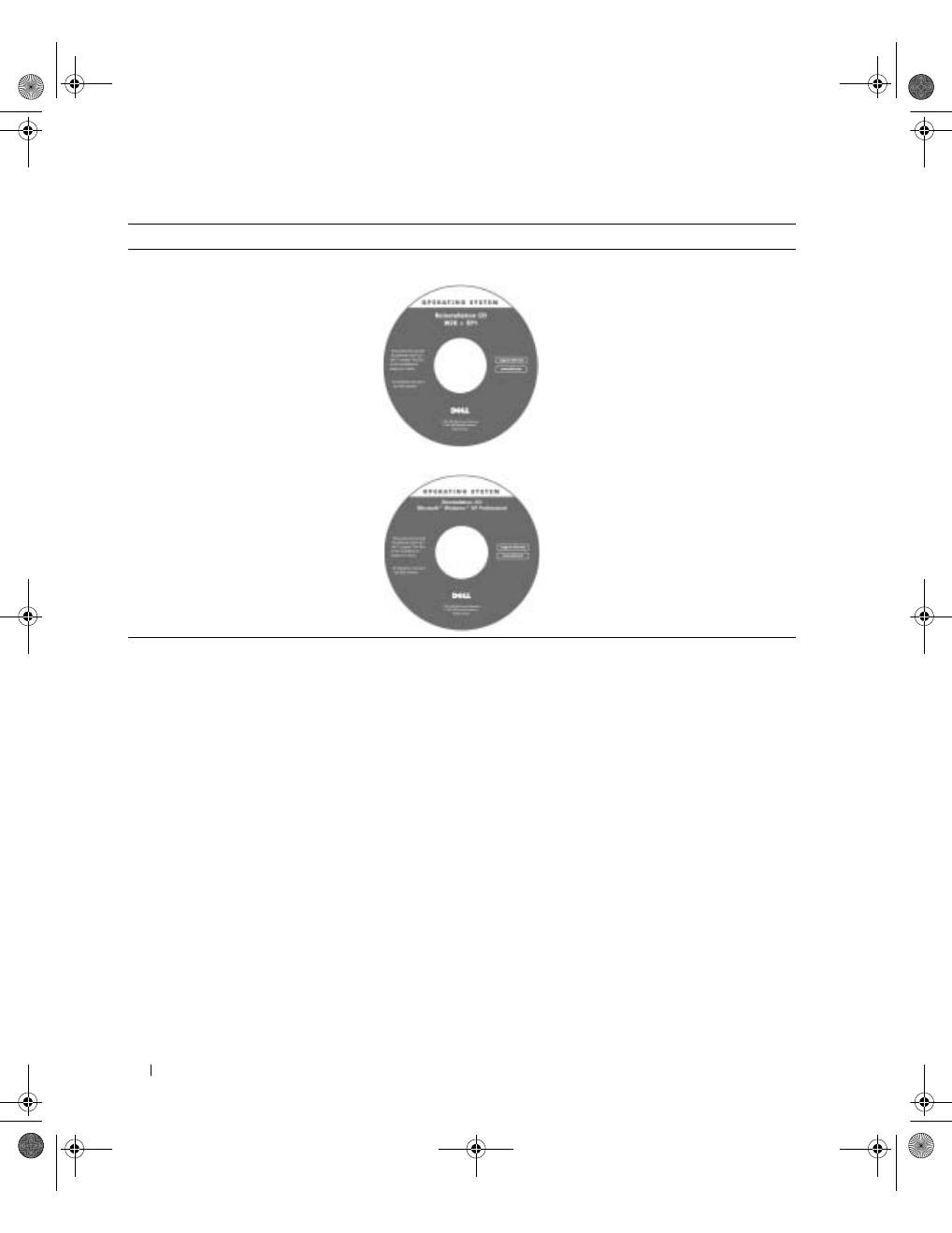
• How to reinstall my operating system
O p e r a t i n g S y s t e m C D
If you reinstall your operating system,
use the
Drivers and Utilities
CD to
reinstall drivers for the devices that came
with your computer.
The product key for your operating
system is located on your computer.
What are you looking for?
Find It Here
or
3y279bk0.book Page 14 Tuesday, February 11, 2003 4:17 PM
S y s t e m I n f o r m a t i o n G u i d e
15
3
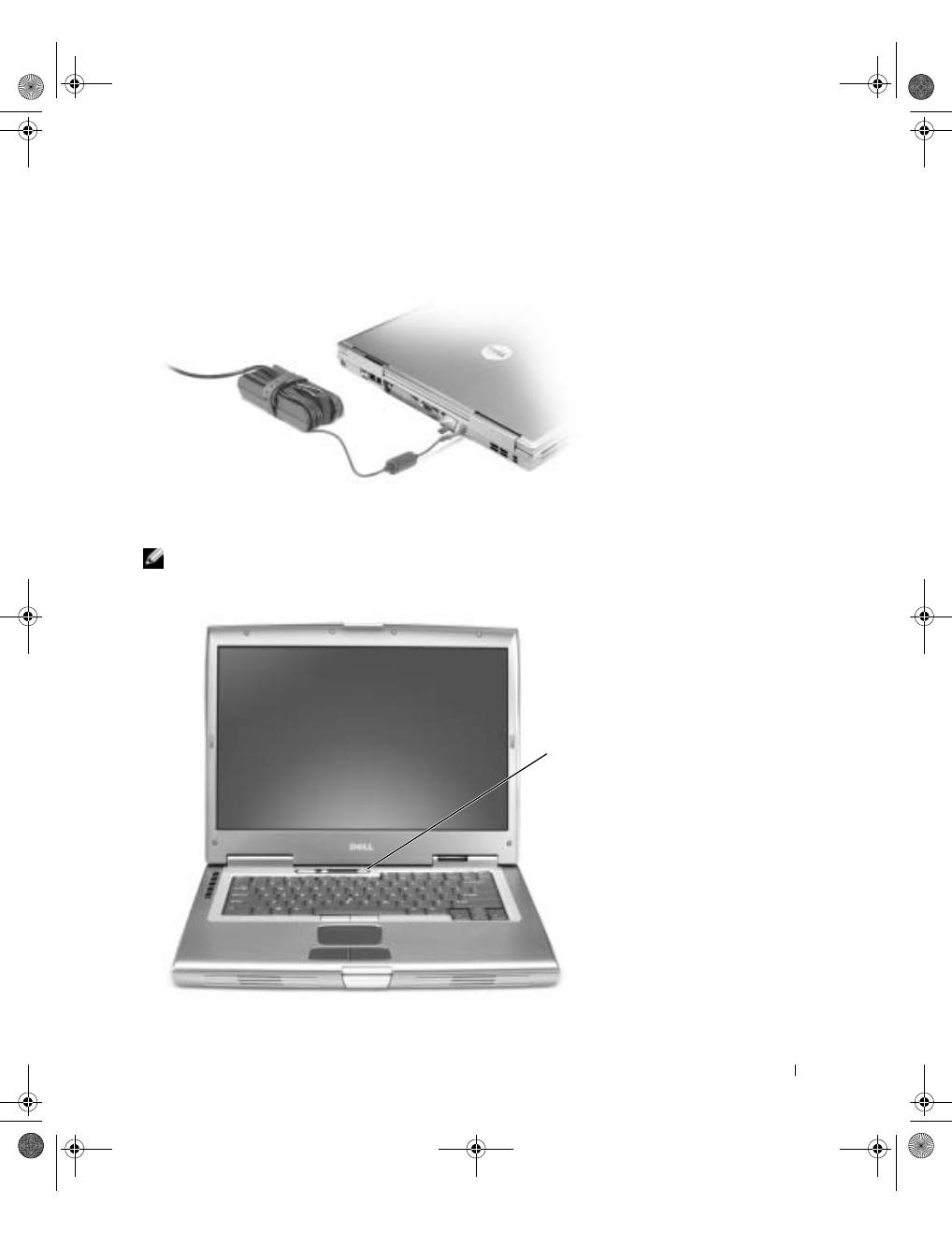
Connect the AC adapter to the AC adapter connector on the computer and to the
electrical outlet.
4
Open the computer display and press the power button to turn on the computer.
NOTE:
Do not connect the computer to the docking device until the computer has been turned
on and shut down at least once.
power
button
3y279bk0.book Page 15 Tuesday, February 11, 2003 4:17 PM
16
S y s t e m I n f o r m a t i o n G u i d e
www
.dell.com | support.dell.com
About Your Computer
See your online
User’s Guide
for detailed information about the computer. Depending on
your operating system, double-click the
User’s Guide
icon on your desktop, or click the
Start
button, click
Help and Support Center
, and then click
User and system guides
. The
following items address some of the more commonly asked questions about the computer.
•
Modem and network adapter:
The computer may include both a v.92 56K modem and a
10/100/1000 Ethernet LOM network adapter. For connector locations, see "Right
View" later in this document. For more information on ports and connectors, see
"About Your Computer" in your online
User’s Guide
.
•
Battery life and usage:
Various batteries are available for use with your computer. Using
the 72 WHr/6486-mAh battery that comes standard with the computer, you can
expect from 3 to 4 hours of operating time from a single fully charged battery with
average usage. Performing certain types of operations, such as extended wireless
operation, can significantly reduce battery life.
–
For more information on battery performance, usage, and conserving power, see
"Using a Battery" and "Power Management" in the
User’s Guide
.
–
For information on an optional second battery, see "Using the Module Bay" in the
User’s Guide
.
•
Module bay devices:
For information on the module bay and the devices it supports, see
"Using the Module Bay" in the
User’s Guide
.
•
Docking devices:
Your computer supports the Dell D/Dock Expansion Station and the
Dell D/Port Advanced Port Replicator.
NOTE:
Docking devices may not be available in all countries.
–
For information on your optional docking device, see the documentation that
accompanied the device.
–
For information on obtaining optimal performance when using a docking device
with this computer, see "Solving Problems" in the
User’s Guide
.
3y279bk0.book Page 16 Tuesday, February 11, 2003 4:17 PM
S y s t e m I n f o r m a t i o n G u i d e
17
Front View
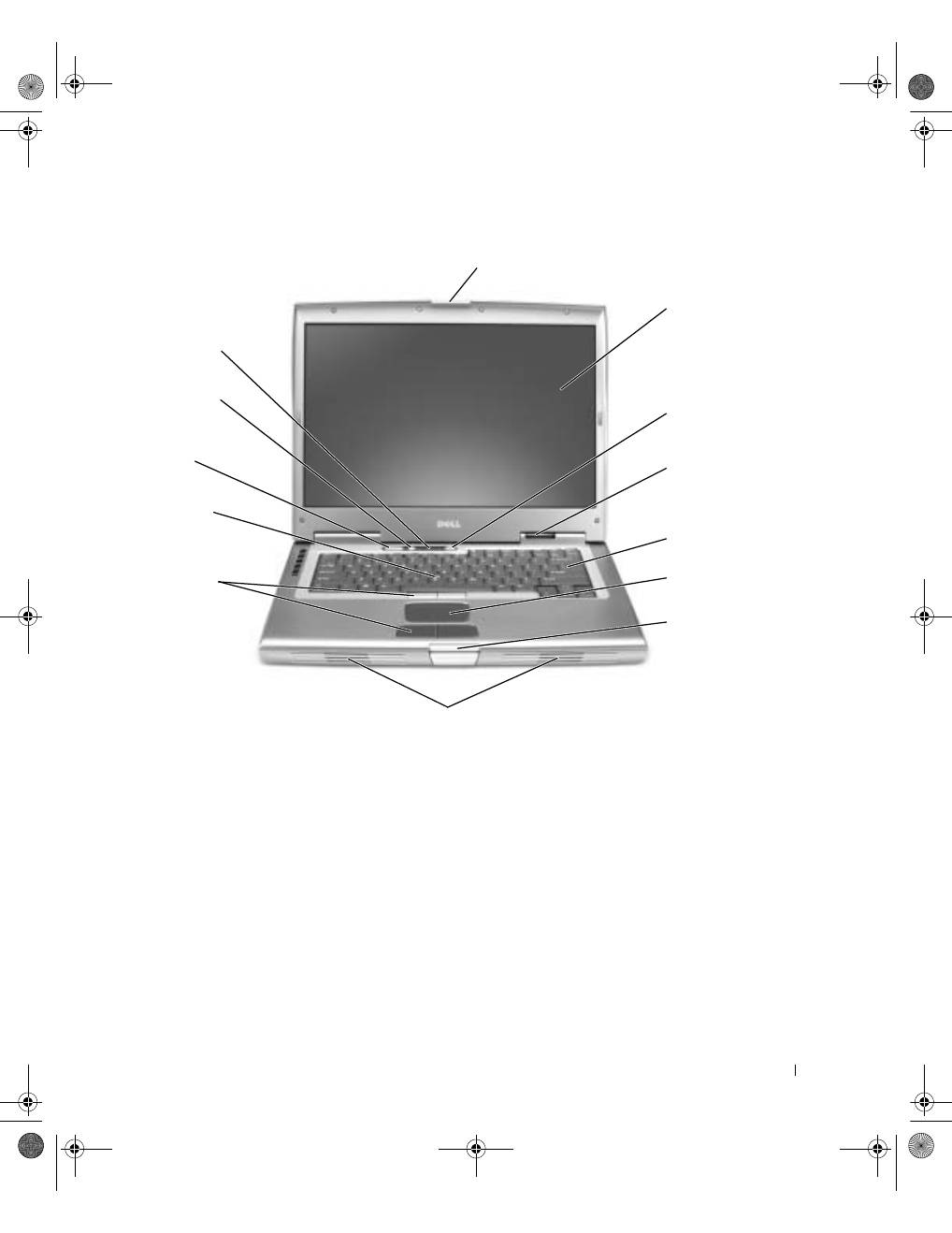
display latch
keyboard
display
track stick
touch pad
volume control
buttons
device status
lights
track stick/touch
pad buttons
mute button
power button
display latch
button
speakers
keyboard
status lights
3y279bk0.book Page 17 Tuesday, February 11, 2003 4:17 PM
18
S y s t e m I n f o r m a t i o n G u i d e
www
.dell.com | support.dell.com
Left Side View
Right Side View
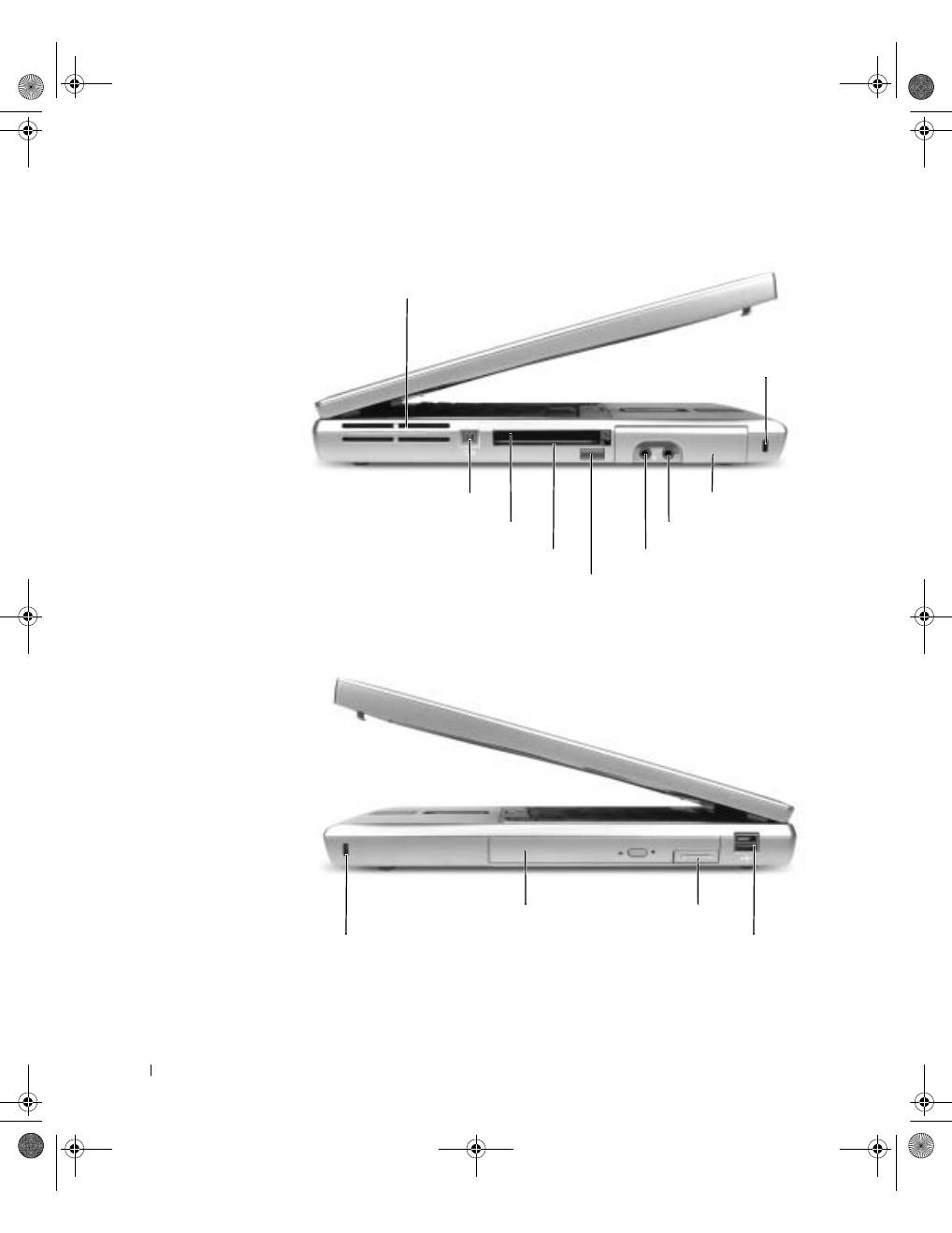
air vents
IEEE 1394 connector
PC Card slot
smart card slot
infrared sensor
headphone connector
hard drive
security cable slot
microphone connector
module bay
device latch release
Dell D/Bay connector
security cable slot
3y279bk0.book Page 18 Tuesday, February 11, 2003 4:17 PM
S y s t e m I n f o r m a t i o n G u i d e
19
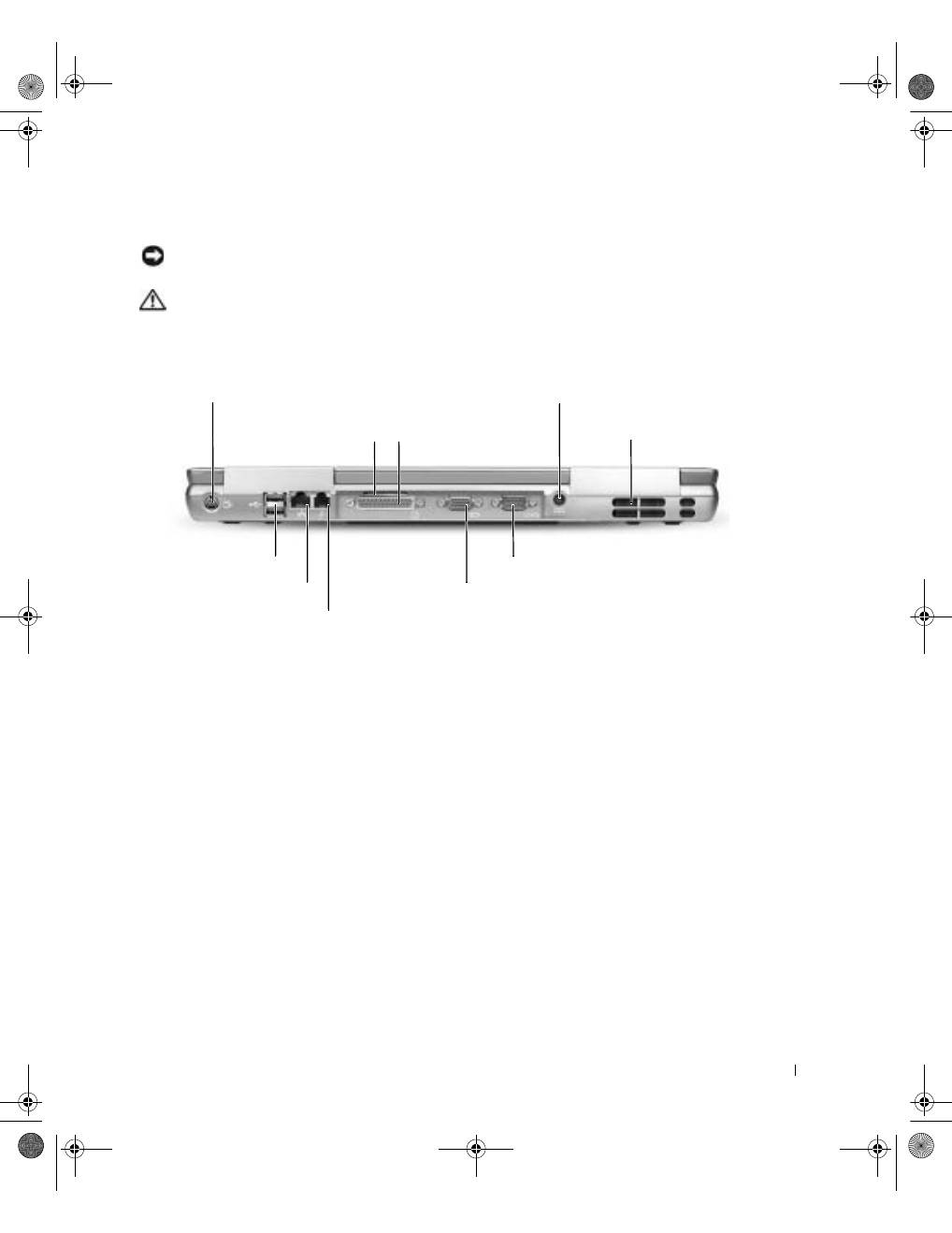
Back View
NOTICE:
To avoid damaging the computer, wait 5 seconds after you turn off the computer
before you disconnect an external device.
CAUTION: Do not block, push objects into, or allow dust to accumulate in the air
vents. Do not store your computer in a low-airflow environment, such as a closed
briefcase, while it is running. Restricting the airflow can damage the computer
or cause a fire.
S-video TV-out connector
network connector (RJ-45)
modem connector (RJ-11)
parallel connector
serial connector
video connector
AC adapter connector
air vents
air vent
USB connectors (2)
3y279bk0.book Page 19 Tuesday, February 11, 2003 4:17 PM
20
S y s t e m I n f o r m a t i o n G u i d e
www
.dell.com | support.dell.com
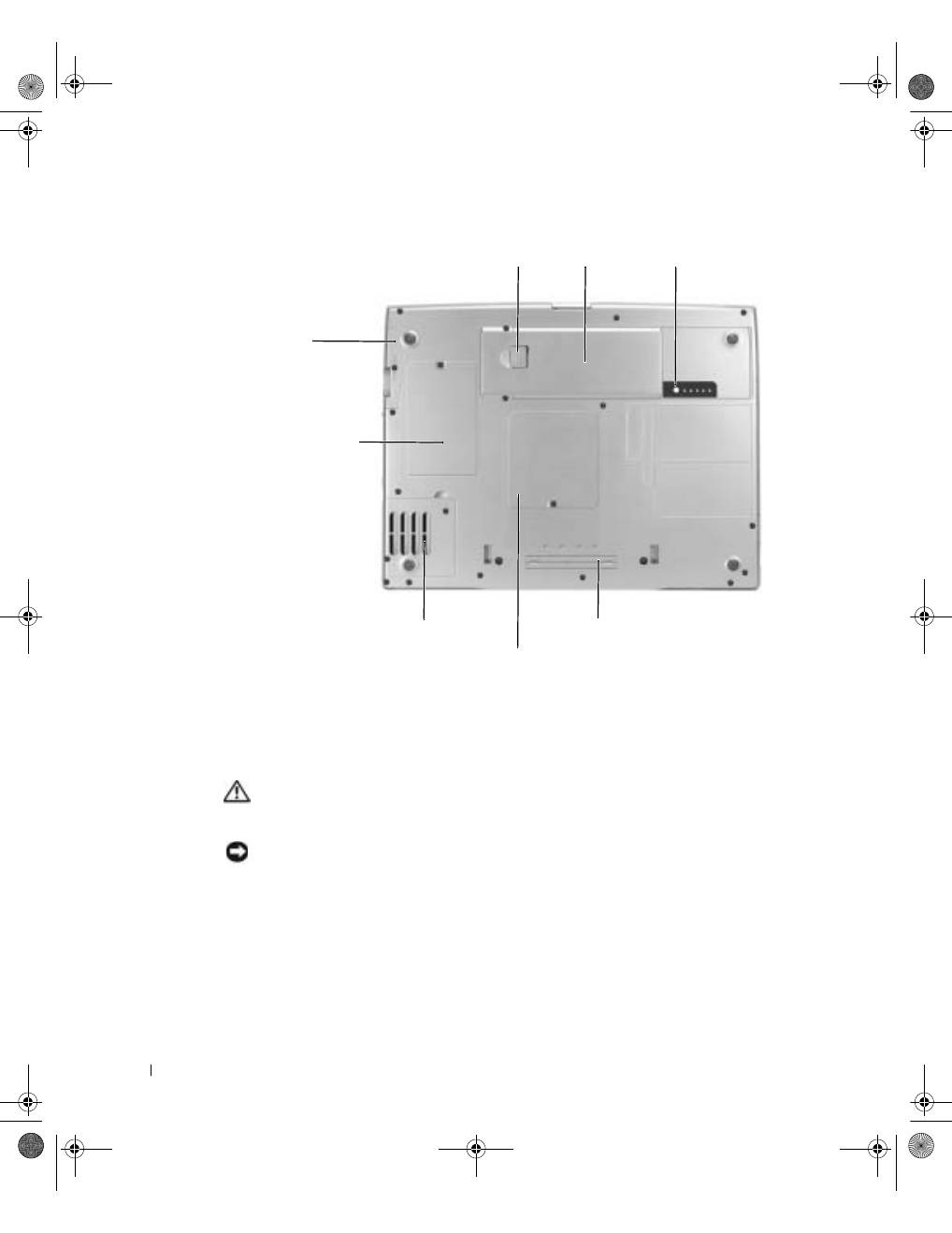
Bottom View
Removing a Battery
For more information about removing the second battery, see "Using the Module Bay" in
your online
User’s Guide
.
CAUTION: Before performing these procedures, read and follow the safety
instructions that begin on page 5, turn off the computer, disconnect it from the
electrical outlet, and disconnect the modem from the telephone wall jack.
NOTICE:
If you choose to replace the battery with the computer in standby mode, you have up
to 90 seconds to complete the battery replacement before the computer shuts down and loses any
unsaved data.
1
Ensure that the computer is turned off, suspended in a power management mode, or
connected to an electrical outlet.
2
If the computer is connected to a docking device (docked), undock it.
See the documentation that came with your docking device for instructions.
hard drive
docking device slot
Mini PCI
card/modem cover
battery
battery-bay latch release
battery charge gauge
memory module cover
fan
3y279bk0.book Page 20 Tuesday, February 11, 2003 4:17 PM
S y s t e m I n f o r m a t i o n G u i d e
21
3
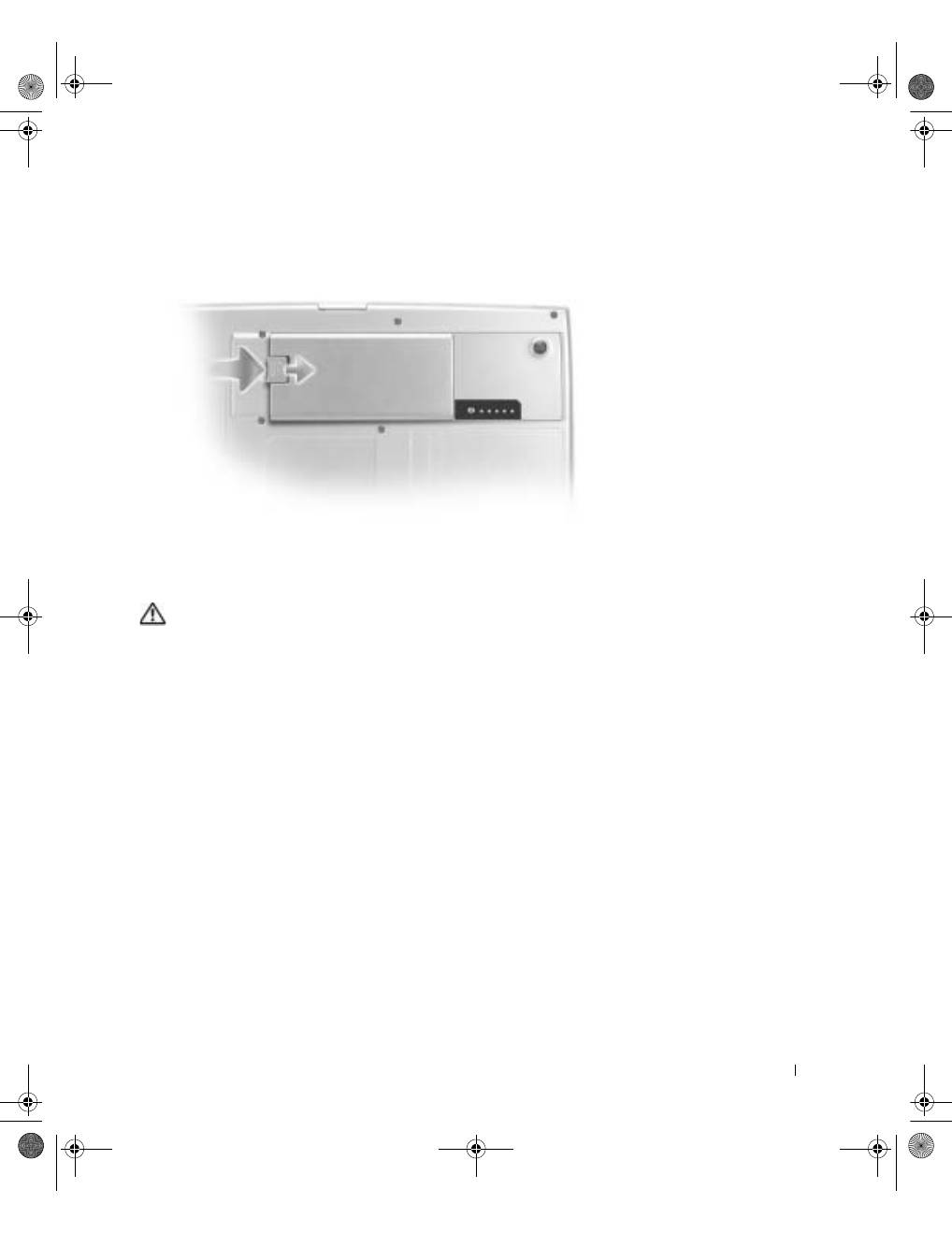
Slide and hold the battery-bay latch release on the bottom of the computer, and then
remove the battery from the bay.
Installing a Battery
CAUTION: Before performing this procedure, read and follow the safety
instructions that begin on page 5.
Slide the battery into the bay and lower the battery until the latch release clicks.
For more information about installing the second battery, see "Using the Module Bay" in
your online
User’s Guide
.
3y279bk0.book Page 21 Tuesday, February 11, 2003 4:17 PM
22
S y s t e m I n f o r m a t i o n G u i d e
www
.dell.com | support.dell.com
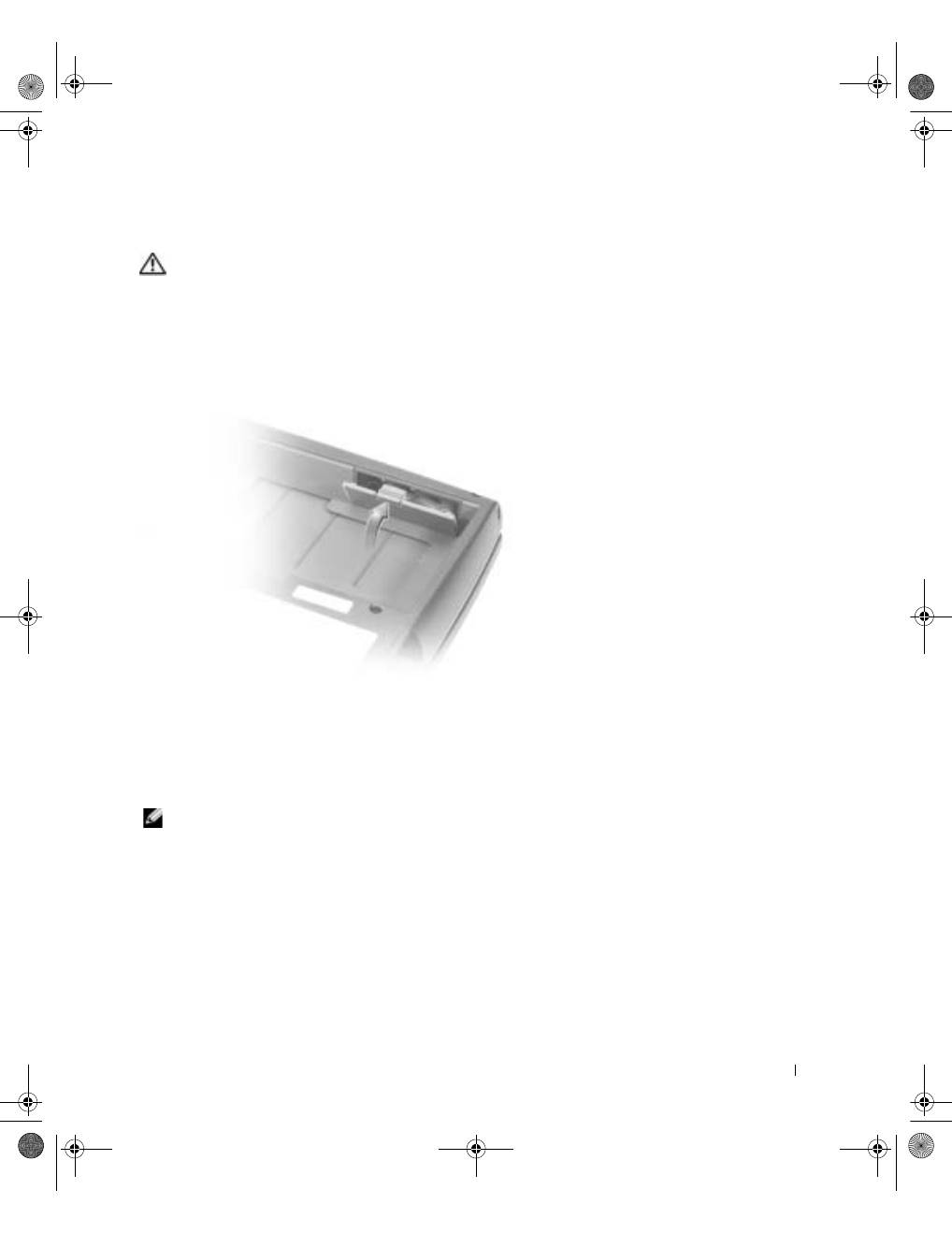
Removing a Reserve Battery
CAUTION: Before performing these procedures, read and follow the safety
instructions that begin on page 5.
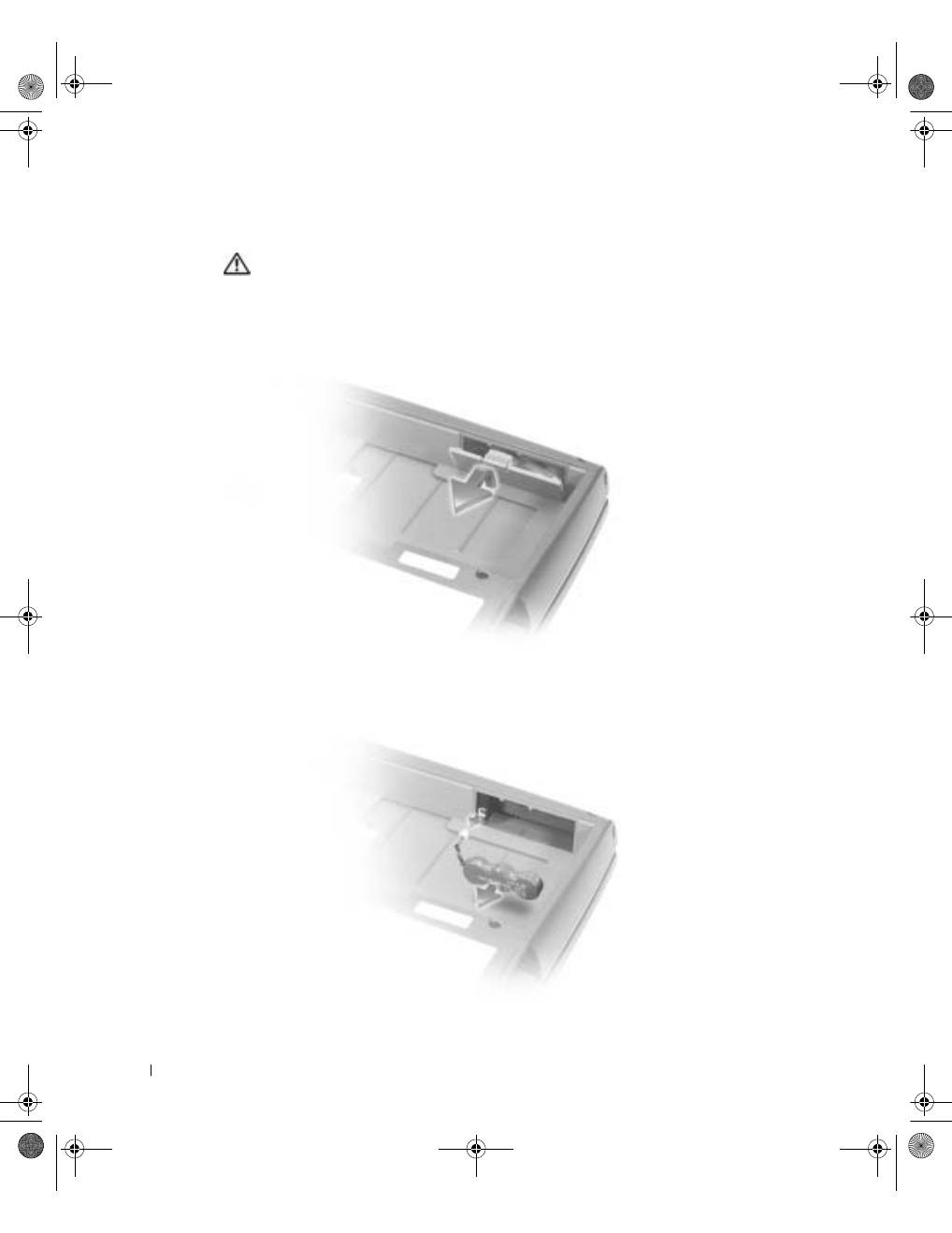
1
Remove the battery.
2
Remove the reserve battery cover.
3
Pull the reserve battery out of its compartment, and disconnect the cable from the
connector.
3y279bk0.book Page 22 Tuesday, February 11, 2003 4:17 PM
S y s t e m I n f o r m a t i o n G u i d e
23
Installing a Reserve Battery
CAUTION: Before performing these procedures, read and follow the safety
instructions that begin on page 5.
1
Connect the reserve battery cable to the connector in the reserve battery
compartment.
2
Place the reserve battery in the compartment, and replace the reserve battery cover.
Running the Dell Diagnostics
The Dell Diagnostics is located on a hidden Diagnostic utility partition on your hard drive.
NOTE:
If your computer cannot display a screen image, contact Dell (see "Getting Help" in your
User’s Guide
for the appropriate contact information).
1
Shut down the computer.
2
If the computer is connected to a docking device (docked), undock it.
See the documentation that came with your docking device for instructions.
3y279bk0.book Page 23 Tuesday, February 11, 2003 4:17 PM
24
S y s t e m I n f o r m a t i o n G u i d e
www
.dell.com | support.dell.com
3
Connect the computer to an electrical outlet.
NOTE:
If you cannot see anything on your display, you can hold down the mute button and press
the power button (instead of F12) to begin the Dell Diagnostics. You do not need to highlight
Diagnostics
and press
. The computer automatically runs the Pre-boot System
Assessment.
4
Turn on the computer. When the DELL™ logo appears, press
immediately. If
you wait too long and the Microsoft
®
Windows
®
logo appears, continue to wait until
you see the Windows desktop. Then shut down your computer and try again.
5
When the boot device list appears, highlight
Diagnostics
and press
.
The computer begins to run the Pre-boot System Assessment, a series of embedded
diagnostics that perform initial testing on your system board, keyboard, hard drive, and
display.
•
During the assessment, answer any questions that appear.
•
If a component failure is detected, the computer stops and beeps. To stop the
assessment and reboot to the operating system, press
; to continue to the
next test, press
; to retest the component that failed, press
.
•
If failures are detected during the Pre-boot System Assessment, write down the
error code(s) and contact Dell (see "Getting Help" in your
User’s Guide
for the
appropriate contact information) before continuing on to the Dell Diagnostics.
•
If you receive a message stating that no Diagnostics utility partition has been
found, follow the instructions on the screen to run the Dell Diagnostics from your
Drivers and Utilities
CD.
If the Pre-boot System Assessment completes successfully, you receive the message
Booting Dell Diagnostic Utility Partition. Press any key to
continue
.
6
Press any key to start the Dell Diagnostics from the Diagnostics utility partition on
your hard drive.
7
After the Dell Diagnostics loads and the
Main
Menu
screen appears, click the button
for the option you want.
NOTE:
The service tag for your computer is located in the title bar of each screen.
3y279bk0.book Page 24 Tuesday, February 11, 2003 4:17 PM

S y s t e m I n f o r m a t i o n G u i d e
25
8
If a problem is encountered during a test, a message appears, displaying the error code
and a description of the problem. Write down the error code and problem description
and follow the instructions on the screen. If you cannot resolve the error condition,
contact Dell (see "Getting Help" in your
User’s Guide
for the appropriate contact
information).
9
If you run a test from the
Custom Test
or
Symptom Tree
option, click the applicable
tab described in the following table for more information.
10
When you have finished running a test, close the screen to return to the
Main
Menu
screen. To exit the Dell Diagnostics and reboot the computer, close the
Main
Menu
screen.
Option
Function
Express Test
Performs a quick test of devices. The test typically takes 10 to 20 minutes
and requires no interaction on your part. Run Express Test first to increase
the possibility of tracing the problem quickly.
Extended Test
Performs a thorough check of devices. The test typically takes 1 hour or
more and requires you to answer questions periodically.
Custom Test
Tests a specific device. You can customize the tests to be run.
Symptom Tree
Allows you to select tests based on a symptom of the problem you are
experiencing. The option lists the most common symptoms.
Tab
Function
Results
Displays the results of the test and any error conditions encountered.
Errors
Displays error conditions encountered, error codes, and problem
description.
Help
Describes the test and may indicate requirements for running the test.
Configuration
Displays your hardware configuration for the selected device.
The Dell Diagnostics obtains your configuration information for all devices
from the system
setup program, memory, and various internal tests and
displays the information in the device list in the left pane of the screen.
The device list may not display the names of all the components installed
on your computer or all devices attached to your computer.
Parameters
Allows you to customize the test by changing the test settings.
3y279bk0.book Page 25 Tuesday, February 11, 2003 4:17 PM

26
S y s t e m I n f o r m a t i o n G u i d e
www
.dell.com | support.dell.com
Regulatory Notices
Electromagnetic Interference (EMI) is any signal or emission, radiated in free space or
conducted along power or signal leads, that endangers the functioning of a radio navigation
or other safety service or seriously degrades, obstructs, or repeatedly interrupts a licensed
radio communications service. Radio communications services include but are not limited
to AM/FM commercial broadcast, television, cellular services, radar, air-traffic control,
pager, and Personal Communication Services (PCS). These licensed services, along with
unintentional radiators such as digital devices, including computers, contribute to the
electromagnetic environment.
Electromagnetic Compatibility (EMC) is the ability of items of electronic equipment to
function properly together in the electronic environment. While this computer has been
designed and determined to be compliant with regulatory agency limits for EMI, there is no
guarantee that interference will not occur in a particular installation. If this equipment does
cause interference with radio communications services, which can be determined by
turning the equipment off and on, you are encouraged to try to correct the interference by
one or more of the following measures:
•
Reorient the receiving antenna.
•
Relocate the computer with respect to the receiver.
•
Move the computer away from the receiver.
•
Plug the computer into a different outlet so that the computer and the receiver are on
different branch circuits.
If necessary, consult a Dell Technical Support representative or an experienced
radio/television technician for additional suggestions.
For additional regulatory information, see "Regulatory Notices" in the Appendix of your
online
User’s Guide
. The sections specific to each regulatory agency provide country-
specific EMC/EMI or product safety information.
3y279bk0.book Page 26 Tuesday, February 11, 2003 4:17 PM

S y s t e m I n f o r m a t i o n G u i d e
27
Limited Warranties and Return Policy
Dell-branded hardware products purchased in the U.S. or Canada come with either a 90-day (U.S. only), one-year,
two-year, three-year, or four-year limited warranty. To determine which warranty you purchased, see the invoice
that accompanied your hardware product(s). The following sections describe the limited warranties and return
policy for the U.S., the limited warranties and return policy for Canada, and the manufacturer guarantee for Latin
America and the Caribbean.
Limited Warranty for the U.S.
What is covered by this limited warranty?
This limited warranty covers defects in materials and workmanship in your—our end-user customer's—Dell-
branded hardware products, including Dell-branded peripheral products.
What is not covered by this limited warranty?
This limited warranty does not cover:
•
Software, including the operating system and software added to the Dell-branded hardware products
through our factory-integration system, third-party software, or the reloading of software
•
Non-Dell-branded products and accessories
•
Problems that result from:
–
External causes such as accident, abuse, misuse, or problems with electrical power
–
Servicing not authorized by us
–
Usage that is not in accordance with product instructions
–
Failure to follow the product instructions or failure to perform preventive maintenance
–
Problems caused by using accessories, parts, or components not supplied by us
•
Products with missing or altered service tags or serial numbers
•
Products for which we have not received payment
THIS WARRANTY GIVES YOU SPECIFIC LEGAL RIGHTS, AND YOU MAY ALSO HAVE OTHER
RIGHTS WHICH VARY FROM STATE TO STATE (OR JURISDICTION TO JURISDICTION). DELL'S
RESPONSIBILITY FOR MALFUNCITONS AND DEFECTS IN HARDWARE IS LIMITED TO REPAIR
AND REPLACEMENT AS SET FORTH IN THIS WARRANTY STATEMENT. ALL EXPRESS AND
IMPLIED WARRANTIES FOR THE PRODUCT, INCLUDING BUT NOT LIMITED TO ANY IMPLIED
WARRANTIES AND CONDITIONS OF MERCHANTABILITY AND FITNESS FOR A PARTICULAR
PURPOSE, ARE LIMITED IN TIME TO THE TERM OF THE LIMITED WARRANTY PERIOD
REFLECTED ON YOUR INVOICE. NO WARRANTIES, WHETHER EXPRESS OR IMPLIED, WILL
APPLY AFTER THE LIMITED WARRANTY PERIOD HAS EXPIRED. SOME STATES DO NOT ALLOW
LIMITATIONS ON HOW LONG AN IMPLIED WARRANTY LASTS, SO THIS LIMITATION MAY NOT
APPLY TO YOU.
WE DO NOT ACCEPT LIABILITY BEYOND THE REMEDIES PROVIDED FOR IN THIS LIMITED
WARRANTY OR FOR CONSEQUENTIAL OR INCIDENTAL DAMAGES, INCLUDING, WITHOUT
LIMITATION, ANY LIABILTY FOR THIRD PARTY CLAIMS AGAINST YOU FOR DAMAGES, FOR
PRODUCTS NOT BEING AVAILABLE FOR USE, OR FOR LOST DATA OR LOST SOFTWARE. OUR
LIABILITY WILL BE NO MORE THAN THE AMOUNT YOU PAID FOR THE PRODUCT THAT IS THE
SUBJECT OF A CLAIM. THIS IS THE MAXIMUM AMOUNT FOR WHICH WE ARE RESPONSIBLE.
3y279bk0.book Page 27 Tuesday, February 11, 2003 4:17 PM

28
S y s t e m I n f o r m a t i o n G u i d e
www
.dell.com | support.dell.com
SOME STATES DO NOT ALLOW THE EXCLUSION OR LIMITATION OF INCIDENTAL OR
CONSEQUENTIAL DAMAGES, SO THE ABOVE LIMITATION OR EXCLUSION MAY NOT APPLY TO
YOU.
How long does this limited warranty last?
This limited warranty lasts for the time period indicated on your invoice, except that the limited warranty on Dell-
branded batteries lasts only one year and the limited warranty on the lamps for Dell-branded projectors lasts only
ninety days. The limited warranty begins on the date of the invoice. The warranty period is not extended if we
repair or replace a warranted product or any parts. Dell may change the availability of limited warranties, at its
discretion, but any changes will not be retroactive.
What do I do if I need warranty service?
Before the warranty expires, please call us at the relevant number listed in the following table. Please also have your
Dell service tag number or order number available.
What will Dell do?
During the first 90 days of the 90-day limited warranty and the first year of all other limited warranties:
For the
first 90 days of the 90-day limited warranty and the first year of all other limited warranties, we will repair any Dell-
branded hardware products returned to us that prove to be defective in materials or workmanship. If we are not
able to repair the product, we will replace it with a comparable product that is new or refurbished.
When you contact us, we will issue a Return Material Authorization Number for you to include with your return.
You must return the products to us in their original or equivalent packaging, prepay shipping charges, and insure
the shipment or accept the risk if the product is lost or damaged in shipment. We will return the repaired or
replacement products to you. We will pay to ship the repaired or replaced products to you if you use an address in
the United States (excluding Puerto Rico and U.S. possessions and territories). Otherwise, we will ship the product
to you freight collect.
Individual Home Consumers:
U.S. Only
Technical Support
1-800-624-9896
Customer Service
1-800-624-9897
Individual Home Consumers who purchased through
an Employee Purchase Program:
Technical Support and Customer Service
1-800-822-8965
Home and Small Business Commercial Customers:
Technical Support and Customer Service
1-800-456-3355
Medium, Large, or Global Commercial Customers,
Healthcare Customers, and Value Added Resellers
(VARs):
Technical Support and Customer Service
1-800-822-8965
Government and Education Customers:
Technical Support and Customer Service
1-800-234-1490
Dell-Branded Memory
1-888-363-5150
3y279bk0.book Page 28 Tuesday, February 11, 2003 4:17 PM

S y s t e m I n f o r m a t i o n G u i d e
29
If we determine that the product is not covered under this warranty, we will notify you and inform you of service
alternatives that are available to you on a fee basis.
NOTE:
Before you ship the product(s) to us, make sure to back up the data on the hard drive(s) and any other
storage device(s) in the product(s). Remove any confidential, proprietary, or personal information and removable
media such as floppy disks, CDs, or PC Cards. We are not responsible for any of your confidential, proprietary, or
personal information; lost or corrupted data; or damaged or lost removable media.
During the remaining years:
For the remaining period of the limited warranty, we will replace any defective part
with new or refurbished parts, if we agree that it needs to be replaced. When you contact us, we will require a valid
credit card number at the time you request a replacement part, but we will not charge you for the replacement part
as long as you return the original part to us within thirty days after we ship the replacement part to you. If we do
not receive the original part within thirty days, we will charge to your credit card the then-current standard price for
that part.
We will pay to ship the part to you if you use an address in the United States (excluding Puerto Rico and U.S.
possessions and territories). Otherwise, we will ship the part freight collect. We will also include a prepaid shipping
container with each replacement part for your use in returning the replaced part to us.
NOTE:
Before you replace parts, make sure to back up the data on the hard drive(s) and any other storage
device(s) in the product(s). We are not responsible for lost or corrupted data.
What if I purchased a service contract?
If your service contract is with Dell, service will be provided to you under the terms of the service agreement.
Please refer to that contract for details on how to obtain service.
If you purchased through us a service contract with one of our third-party service providers, please refer to that
contract for details on how to obtain service.
How will you fix my product?
We use new and refurbished parts made by various manufacturers in performing warranty repairs and in building
replacement parts and systems. Refurbished parts and systems are parts or systems that have been returned to Dell,
some of which were never used by a customer. All parts and systems are inspected and tested for quality.
Replacement parts and systems are covered for the remaining period of the limited warranty for the product you
bought.
3y279bk0.book Page 29 Tuesday, February 11, 2003 4:17 PM

30
S y s t e m I n f o r m a t i o n G u i d e
www
.dell.com | support.dell.com
What do I do if I am not satisfied?
We pride ourselves on our great customer service. If you are not satisfied with the service you receive under this
limited warranty, please let us know. We have found that the best way to resolve issues regarding our limited
warranty is to work together. If, after those discussions, you are still not satisfied, we believe arbitration is the most
expeditious way to resolve your concerns. Therefore,
ANY CLAIM, DISPUTE, OR CONTROVERSY
(WHETHER IN CONTRACT, TORT, OR OTHERWISE, WHETHER PREEXISTING, PRESENT, OR
FUTURE, AND INCLUDING STATUTORY, COMMON LAW, INTENTIONAL TORT, AND EQUITABLE
CLAIMS) AGAINST DELL
arising from or relating to this limited warranty, its interpretation, or the breach,
termination, or validity thereof, the relationships which result from this limited warranty (including, to the full
extent permitted by applicable law, relationships with third parties), Dell's advertising, or any related purchase
SHALL BE RESOLVED EXCLUSIVELY AND FINALLY BY BINDING ARBITRATION ADMINISTERED
BY THE NATIONAL ARBITRATION FORUM (NAF)
under its Code of Procedure then in effect (available via
the Internet at
www.arb-forum.com/
or via telephone at 1-800-474-2371). The arbitration will be limited solely to
the dispute or controversy between you and Dell. Any award of the arbitrator(s) shall be final and binding on each
of the parties, and may be entered as a judgment in any court of competent jurisdiction. Information may be
obtained and claims may be filed with the NAF at P.O. Box 50191, Minneapolis, MN 55405. This provision applies
only to individual home consumers and consumers who purchased through an employee purchase program. It does
not apply to small, medium, large, and global commercial customers or government, education, and healthcare
customers.
May I transfer the limited warranty?
Limited warranties on systems may be transferred if the current owner transfers ownership of the system and
records the transfer with us. The limited warranty on Dell-branded memory may not be transferred. You may
record your transfer by going to Dell's website:
•
If you are an Individual Home Consumer, go to
www.dell.com/us/en/dhs/topics/sbtopic_015_ccare.htm
•
If you are a Small, Medium, Large, or Global Commercial Customer, go to
www.dell.com/us/en/biz/topics/sbtopic_ccare_nav_015_ccare.htm
•
If you are a Government, Education, or Healthcare Customer, or an Individual Consumer who purchased
through an employee purchase program, go to
www.dell.com/us/en/pub/topics/sbtopic_015_ccare.htm
If you do not have Internet access, call your customer care representative or call 1-800-624-9897.
"Total Satisfaction" Return Policy (U.S. Only)
We value our relationship with you and want to make sure that you're satisfied with your purchases. That's why we
offer a "Total Satisfaction" return policy for most products that you—the end-user customer—purchase directly
from Dell. Under this policy, you may return to Dell products that you purchased directly from Dell for a credit or
a refund of the purchase price paid, less shipping and handling and applicable restocking fees as follows:
•
New Hardware Products and Accessories
— All new hardware, accessories, parts, and unopened software
still in its sealed package, excluding the products listed below, may be returned within thirty days from the
invoice date. To return applications software or an operating system that has been installed by Dell, you
must return the entire computer. A different return policy applies to nondefective products purchased
through Dell's Software and Peripherals division by customers of our Small and Medium Business divisions.
Those products may be returned within thirty days from the invoice date, but a fifteen percent (15%)
restocking fee will be deducted from any refund or credit. The "Total Satisfaction" Return Policy and
Software and Peripherals division return policy are not available for Dell | EMC storage products, EMC-
branded products, or enterprise software.
3y279bk0.book Page 30 Tuesday, February 11, 2003 4:17 PM

S y s t e m I n f o r m a t i o n G u i d e
31
•
Reconditioned or Refurbished Dell-Branded Hardware Products and Parts
— All reconditioned or
refurbished Dell-branded server and storage products may be returned within thirty days from the invoice
date. All other reconditioned or refurbished Dell-branded hardware products and parts may be returned
within fourteen days of the invoice date.
To return products, e-mail or call Dell customer service to receive a Credit Return Authorization Number within
the return policy period applicable to the product you want to return. You must obtain a Credit Return
Authorization Number in order to return the product. See "Getting Help" in your online
User’s Guide
(or
www.dell.com/us/en/gen/contact.htm
) to find the appropriate contact information for obtaining customer
assistance.
You must ship the products to Dell within five days of the date that Dell issues the Credit Return Authorization
Number. You must also return the products to Dell in their original packaging, in as-new condition along with any
media, documentation, and all other items that were included in the original shipment, prepay shipping charges,
and insure the shipment or accept the risk of loss or damage during shipment.
Limited Warranty Terms for Canada
What is covered by this limited warranty?
This limited warranty covers defects in materials and workmanship in your—our end-user customer's—Dell-
branded hardware products, including Dell-branded peripheral products.
What is not covered by this limited warranty?
This limited warranty does not cover:
•
Software, including the operating system and software added to the Dell-branded hardware products
through our factory-integration system, or the reloading of the software
•
Non-Dell branded products and accessories
•
Problems that result from:
–
External causes such as accident, abuse, misuse, or problems with electrical power
–
Servicing not authorized by us
–
Usage that is not in accordance with product instructions
–
Failure to follow the product instructions or failure to perform preventive maintenance
–
Problems caused by using accessories, parts, or components not supplied by us
•
Products with missing or altered service tags or serial numbers
•
Products for which we have not received payment
THIS WARRANTY GIVES YOU SPECIFIC LEGAL RIGHTS, AND YOU MAY ALSO HAVE OTHER RIGHTS
WHICH VARY FROM PROVINCE TO PROVINCE. DELL'S RESPONSIBILITY FOR MALFUNCTIONS AND
DEFECTS IN PRODUCT IS LIMITED TO REPAIR AND REPLACEMENT AS SET FORTH IN THIS
WARRANTY STATEMENT, FOR THE TERM OF THE WARRANTY PERIOD REFLECTED ON YOUR
INVOICE. EXCEPT FOR THE EXPRESS WARRANTIES CONTAINED IN THIS WARRANTY STATEMENT,
DELL DISCLAIMS ALL OTHER WARRANTIES AND CONDITIONS, EXPRESS OR IMPLIED, INCLUDING
WITHOUT LIMITATION IMPLIED WARRANTIES AND CONDITIONS OF MERCHANTABILITY AND
FITNESS FOR A PARTICULAR PURPOSE, STATUTORY OR OTHERWISE. SOME PROVINCES DO NOT
ALLOW THE EXCLUSION OF CERTAIN IMPLIED WARRANTIES OR CONDITIONS, OR LIMITATIONS
ON HOW LONG AN IMPLIED WARRANTY OR CONDITION LASTS. THEREFORE, THE FOREGOING
EXCLUSIONS AND LIMITATIONS MAY NOT APPLY TO YOU.
3y279bk0.book Page 31 Tuesday, February 11, 2003 4:17 PM

32
S y s t e m I n f o r m a t i o n G u i d e
www
.dell.com | support.dell.com
WE DO NOT ACCEPT LIABILITY BEYOND THE REMEDIES PROVIDED FOR IN THIS WARRANTY
STATEMENT OR FOR SPECIAL, INDIRECT, CONSEQUENTIAL, OR INCIDENTAL DAMAGES,
INCLUDING, WITHOUT LIMITATION, ANY LIABILTY FOR THIRD PARTY CLAIMS AGAINST YOU FOR
DAMAGES, FOR PRODUCTS NOT BEING AVAILABLE FOR USE, OR FOR LOST DATA OR LOST
SOFTWARE. OUR LIABILITY WILL BE NO MORE THAN THE AMOUNT YOU PAID FOR THE PRODUCT
THAT IS THE SUBJECT OF A CLAIM. THIS IS THE MAXIMUM AMOUNT FOR WHICH WE ARE
RESPONSIBLE.
SOME PROVINCES DO NOT ALLOW THE EXCLUSION OR LIMITATION OF SPECIAL, INDIRECT,
INCIDENTAL, OR CONSEQUENTIAL DAMAGES, SO THE ABOVE LIMITATION OR EXCLUSION MAY
NOT APPLY TO YOU.
How long does this limited warranty last?
This limited warranty lasts for the time period indicated on your invoice, except that the limited warranty on Dell-
branded batteries lasts only one year and the limited warranty on the lamps for Dell-branded projectors lasts only
ninety days. The limited warranty begins on the date of the invoice. The warranty period is not extended if we
repair or replace a warranted product or any parts. Dell may change the terms and availability of limited warranties,
at its discretion, but any changes will not be retroactive (that is, the warranty terms in place at the time of purchase
will apply to your purchase).
What do I do if I need warranty service?
Before the warranty expires, please call us at the relevant number listed in the following table. Please also have your
Dell service tag number or order number available.
Individual Home Consumers; Home Office and Small
Business Customers:
Canada Only
Technical Support and Customer Service
1-800-847-4096
Medium, Large, and Global Commercial Customers;
Government, Education, and Healthcare Customers;
and Value Added Resellers (VARs):
Technical Support
1-800-387-5757
Customer Service
1-800-326-9463
Government or Education Customers, or Individual
Home Consumers who purchased through an
Employee Purchase Program:
Technical Support
1-800-387-5757
Customer Service
1-800-326-9463 (Extension 8221 for Individual
Consumers)
Dell-Branded Memory
1-888-363-5150
3y279bk0.book Page 32 Tuesday, February 11, 2003 4:17 PM

S y s t e m I n f o r m a t i o n G u i d e
33
What will Dell do?
During the first year of all limited warranties:
During the first year of all limited warranties, we will repair any
Dell-branded hardware products returned to us that prove to be defective in materials or workmanship. If we are
not able to repair the product, we will replace it with a comparable product that is new or refurbished.
When you contact us, we will issue a Return Material Authorization Number for you to include with your return.
You must return the products to us in their original or equivalent packaging, prepay shipping charges, and insure
the shipment or accept the risk if the product is lost or damaged in shipment. We will return the repaired or
replacement products to you. We will pay to ship the repaired or replaced products to you if you use an address in
Canada. Otherwise, we will ship the product to you freight collect.
If we determine that the problem is not covered under this warranty, we will notify you and inform you of service
alternatives that are available to you on a fee basis.
NOTE:
Before you ship the product(s) to us, make sure to back up the data on the hard drive(s) and any other
storage device(s) in the product(s). Remove any confidential, proprietary or personal information, removable
media, such as floppy disks, CDs, or PC Cards. We are not responsible for any of your confidential, proprietary or
personal information; lost or corrupted data; or damaged or lost removable media.
During the remaining years following the first year of all limited warranties:
We will replace any defective part
with new or refurbished parts, if we agree that it needs to be replaced. When you contact us, we will require a valid
credit card number at the time you request a replacement part, but we will not charge you for the replacement part
as long as you return the original part to us within thirty days after we ship the replacement part to you. If we do
not receive the original part within thirty days, we will charge to your credit card the then-current standard price for
that part.
We will pay to ship the part to you if you use an address in Canada. Otherwise, we will ship the part freight collect.
We will also include a prepaid shipping container with each replacement part for your use in returning the replaced
part to us.
NOTE:
Before you replace parts, make sure to back up the data on the hard drive(s) and any other storage
device(s) in the product(s). We are not responsible for lost or corrupted data.
What if I purchased a service contract?
If your service contract is with Dell, service will be provided to you under the terms of the service contract. Please
refer to that contract for details on how to obtain service. Dell's service contracts can be found online at
www.dell.ca
or by calling Customer Care at 1-800-847-4096. If you purchased through us a service contract with
one of our third-party service providers, please refer to that contract (mailed to you with your invoice) for details
on how to obtain service.
How will you fix my product?
We use new and refurbished parts made by various manufacturers in performing warranty repairs and in building
replacement parts and systems. Refurbished parts and systems are parts or systems that have been returned to Dell,
some of which were never used by a customer. All parts and systems are inspected and tested for quality.
Replacement parts and systems are covered for the remaining period of the limited warranty for the product you
bought. Dell owns all parts removed from repaired products.
3y279bk0.book Page 33 Tuesday, February 11, 2003 4:17 PM

34
S y s t e m I n f o r m a t i o n G u i d e
www
.dell.com | support.dell.com
What do I do if I am not satisfied?
We pride ourselves on our great customer service. If you are not satisfied with the service you receive under this
limited warranty, please let us know. We have found that the best way to resolve issues regarding our limited
warranty is to work together. If, after those discussions, you are still not satisfied, we believe arbitration is the most
expeditious way to resolve your concerns. Therefore,
ANY CLAIM, DISPUTE, OR CONTROVERSY
(WHETHER IN CONTRACT, TORT, OR OTHERWISE, WHETHER PREEXISTING, PRESENT OR
FUTURE, AND INCLUDING STATUTORY, COMMON LAW, INTENTIONAL TORT, AND EQUITABLE
CLAIMS) AGAINST DELL
arising from or relating to this limited warranty, its interpretation, or the breach,
termination or validity thereof, the relationships which result from this limited warranty (including, to the full
extent permitted by applicable law, relationships with third parties), Dell's advertising, or any related purchase
SHALL BE RESOLVED EXCLUSIVELY AND FINALLY BY BINDING ARBITRATION ADMINISTERED
BY THE NATIONAL ARBITRATION FORUM (NAF)
under its Code of Procedure then in effect (available via
the Internet at
www.arb-forum.com/
, or via telephone at 1-800-474-2371). The arbitration will be limited solely to
the dispute or controversy between you and Dell. Any award of the arbitrator(s) shall be final and binding on each
of the parties, and may be entered as a judgment in any court of competent jurisdiction. Information may be
obtained and claims may be filed with the NAF at P.O. Box 50191, Minneapolis, MN 55405.
May I transfer the limited warranty?
Limited warranties on systems may be transferred if the current owner transfers ownership of the system and
records the transfer with us. The limited warranty on Dell-branded memory may not be transferred. You may
record your transfer by going to our website:
•
If you are an Individual Home Consumer, go to
www.dell.com/us/en/dhs/topics/sbtopic_016_ccare.htm
•
If you are a Home Office, Small, Medium, Large, or Global Commercial Customer, go to
www.dell.com/us/en/biz/topics/sbtopic_ccare_nav_016_ccare.htm
•
If you are a Government, Education, or Healthcare Customer, or an Individual Home Consumer who
purchased through an Employee Purchase Program, go to
www.dell.com/us/en/pub/topics/sbtopic_016_ccare.htm
If you do not have Internet access, please call Dell at 1-800-326-9463.
"Total Satisfaction" Return Policy (Canada Only)
If you are an end-user customer who bought new products directly from Dell, you may return them to Dell up to
30 days after you receive them for a refund or credit of the product purchase price. If you are an end-user customer
who bought reconditioned or refurbished products from Dell, you may return them to Dell within 14 days after the
date of invoice for a refund or credit of the product purchase price. In either case, the refund or credit will not
include any shipping and handling charges shown on your invoice and will be subject to a fifteen percent (15%)
restocking fee, unless otherwise prohibited by law. If you are an organization that bought the products under a
written agreement with Dell, the agreement may contain different terms for the return of products than specified
by this policy.
3y279bk0.book Page 34 Tuesday, February 11, 2003 4:17 PM

S y s t e m I n f o r m a t i o n G u i d e
35
To return products, you must call Dell Customer Service at 1-800-387-5759 to receive a Credit Return
Authorization Number. To expedite the process of your refund or credit, Dell expects you to return the products to
Dell in their original packaging within five days of the date that Dell issues the Credit Return Authorization
Number. You must also prepay shipping charges and insure the shipment or accept the risk of loss or damage
during shipment. You may return software for a refund or credit only if the sealed package containing the floppy
disk(s) or CD(s) is unopened. Returned products must be in as-new condition, and all of the manuals, floppy
disk(s), CD(s), power cables, and other items included with a product must be returned with it. For customers who
want to return, for refund or credit only, either application or operating system software that has been installed by
Dell, the whole system must be returned, along with any media and documentation that may have been included
in the original shipment.
The "Total Satisfaction" Return Policy does not apply to Dell | EMC storage products. It also does not apply to
products purchased through Dell's Software and Peripherals division. For those products, please instead refer to
Dell's Software and Peripheral's then-current return policy (see the following section, "Dell Software and
Peripherals (Canada Only)").
Dell Software and Peripherals (Canada Only)
Third-Party Software and Peripherals Products
Similar to other resellers of software and peripherals, Dell does not warrant third-party products. Third-party
software and peripheral products are covered by the warranties provided by the original manufacturer or publisher
only. Third party manufacturer warranties vary from product to product. Consult your product documentation for
specific warranty information. More information may also be available from the manufacturer or publisher.
While Dell offers a wide selection of software and peripheral products, we do not specifically test or guarantee that
all of the products we offer work with any or all of the various models of Dell computers, nor do we test or
guarantee all of the products we sell on the hundreds of different brands of computers available today. If you have
questions about compatibility, we recommend and encourage you to contact the third-party software and
peripheral product manufacturer or publisher directly.
Dell-Branded Peripheral Products
Dell does provide a limited warranty for new Dell-branded peripheral products (products for which Dell is listed as
the manufacturer) such as monitors, batteries, memory, docking stations, and projectors). To determine which
limited warranty applies to the product you purchased, see the Dell invoice and/or the product documentation
that accompanied your product. Descriptions of Dell's limited warranties are described in preceding sections.
Return Policy
If you are an end-user customer who bought Dell Software and Peripherals products directly from a Dell company,
you may return Dell Software and Peripherals products that are in as-new condition to Dell up to 30 days from the
date of invoice for a refund of the product purchase price if already paid. This refund will not include any shipping
and handling charges shown on your invoice; you are responsible for those.
To return products, you must call Dell Customer Service at 1-800-387-5759 to receive a Credit Return
Authorization Number. You must ship the Dell Software and Peripherals products back to Dell in their original
manufacturer's packaging (which must be in as-new condition), prepay shipping charges, and insure the shipment
or accept the risk of loss or damage during shipment.
To qualify for refund or replacement, returned products must be in as-new condition, software products must be
unopened, and all of the manuals, floppy disk(s), CD(s), power cables, and other items included with a product
must be returned with it.
3y279bk0.book Page 35 Tuesday, February 11, 2003 4:17 PM

36
S y s t e m I n f o r m a t i o n G u i d e
www
.dell.com | support.dell.com
One-Year End-User Manufacturer Guarantee (Latin America and the
Caribbean Only)
Guarantee
Dell Computer Corporation ("Dell") warrants to the end user in accordance with the following provisions that its
branded hardware products, purchased by the end user from a Dell company or an authorized Dell distributor in
Latin America or the Caribbean, will be free from defects in materials, workmanship, and design affecting normal
use, for a period of one year from the original purchase date. Products for which proper claims are made will, at
Dell’s option, be repaired or replaced at Dell’s expense. Dell owns all parts removed from repaired products. Dell
uses new and reconditioned parts made by various manufacturers in performing repairs and building replacement
products.
Exclusions
This Guarantee does not apply to defects resulting from: improper or inadequate installation, use, or maintenance;
actions or modifications by unauthorized third parties or the end user; accidental or willful damage; or normal wear
and tear.
Making a Claim
Claims must be made in Latin America or the Caribbean by contacting the Dell point of sale within the guarantee
period. The end user must always supply proof of purchase, indicating name and address of the seller, date of
purchase, model and serial number, name and address of the customer, and details of symptoms and configuration
at the time of malfunction, including peripherals and software used. Otherwise, Dell may refuse the guarantee
claim. Upon diagnosis of a warranted defect, Dell will make arrangements and pay for ground freight and insurance
to and from Dell’s repair/replacement center. The end user must ensure that the defective product is available for
collection properly packed in original or equally protective packaging together with the details listed above and the
return number provided to the end user by Dell.
Limitation and Statutory Rights
Dell makes no other warranty, guarantee or like statement other than as explicitly stated above, and this Guarantee
is given in place of all other guarantees whatsoever, to the fullest extent permitted by law. In the absence of
applicable legislation, this Guarantee will be the end user’s sole and exclusive remedy against Dell or any of its
affiliates, and neither Dell nor any of its affiliates shall be liable for loss of profit or contracts, or any other indirect
or consequential loss arising from negligence, breach of contract, or howsoever.
This Guarantee does not impair or affect mandatory statutory rights of the end user against and/or any rights
resulting from other contracts concluded by the end user with Dell and/or any other seller.
Dell World Trade LP
One Dell Way, Round Rock, TX 78682, USA
Dell Computadores do Brasil Ltda (CNPJ No. 72.381.189/0001-10)/
Dell Commercial do Brasil Ltda (CNPJ No. 03 405 822/0001-40)
Avenida Industrial Belgraf, 400
92990-000 - Eldorado do Sul - RS - Brasil
Dell Computer de Chile Ltda
Coyancura 2283, Piso 3 - Of.302,
Providencia, Santiago - Chile
3y279bk0.book Page 36 Tuesday, February 11, 2003 4:17 PM
S y s t e m I n f o r m a t i o n G u i d e
37
Dell Computer de Colombia Corporation
Carrera 7 #115-33 Oficina 603
Bogota, Colombia
Dell Computer de Mexico SA de CV
Paseo de la Reforma 2620 - 11° Piso
Col. Lomas Altas
11950 México, D.F.
Intel
®
Warranty Statement for Pentium
®
and Celeron
®
Processors Only
(U.S. and Canada Only)
Intel’s Three Year Limited Warranty
Limited Warranty
Intel warrants that its family of Pentium
®
and Celeron
®
processors, if properly used and installed, will be free from defects in materials and workmanship and will substantially
conform to Intel’s publicly available specifications for a period of three (3) years after the date the Pentium or Celeron processor was purchased (whether purchased separately
or as part of a computer system).
If the Pentium or Celeron processor, which is the subject of this Limited Warranty, fails during the warranty period for reasons covered by this Limited Warranty, Intel, at its option, will:
• REPAIR the Pentium or Celeron processor by means of hardware and/or software; OR
• REPLACE the Pentium or Celeron processor with another Pentium or Celeron processor; OR
if Intel is unable to repair or replace the particular Pentium or Celeron processor,
• REFUND the then-current value of the Pentium or Celeron processor.
THIS LIMITED WARRANTY, AND ANY IMPLIED WARRANTIES THAT MAY EXIST UNDER STATE LAW, APPLY ONLY TO THE ORIGINAL PURCHASER OF THE
PENTIUM OR CELERON PROCESSOR, OR PENTIUM OR CELERON PROCESSOR-BASED COMPUTER AND LAST ONLY FOR AS LONG AS SUCH PURCHASER
CONTINUES TO OWN THE PROCESSOR.
Extent of Limited Warranty
Intel does not warrant that your Pentium or Celeron processor will be free from design defects or errors known as "errata." Current characterized errata are available upon request.
This limited warranty is for purchasers in the United States and Canada only. The limited warranty does not cover any costs relating to removal or replacement of any Pentium or
Celeron processors that are soldered or otherwise permanently affixed to your system’s motherboard.
This limited warranty does not cover damages due to external causes, including accident, problems with electrical power, usage not in accordance with product instructions,
misuse, neglect, alteration, repair, improper installation, or improper testing.
How to Obtain Warranty Service
To obtain warranty service for your Pentium or Celeron processor, you may contact your computer system manufacturer in accordance with its instructions, or you may contact Intel.
To request warranty service from Intel, you should call Intel at 1-800-628-8686 during the warranty period during normal business hours (Pacific Time), excluding holidays. Please
be prepared to provide:
(1) your name, address, and telephone numbers;
(2) proof of purchase;
(3) this Intel warranty card;
(4) a description of the computer system including the brand and model; and
(5) an explanation of the problem.
[Note: The Customer Service Representative may need additional information from you depending on the nature of the problem.]
The replacement processor is warranted under this written warranty and is subject to the same limitations and exclusions for the remainder of the original warranty period or one
(1) year, whichever is longer.
WARRANTY LIMITATIONS AND EXCLUSIONS
THESE WARRANTIES REPLACE ALL OTHER WARRANTIES, EXPRESS OR IMPLIED INCLUDING, BUT NOT LIMITED TO, THE IMPLIED WARRANTIES OF
MERCHANTABILITY AND FITNESS FOR A PARTICULAR PURPOSE. INTEL MAKES NO EXPRESS WARRANTIES BEYOND THOSE STATED HERE. INTEL
DISCLAIMS ALL OTHER WARRANTIES, EXPRESS OR IMPLIED, INCLUDING, WITHOUT LIMITATION, IMPLIED WARRANTIES OF MERCHANTABILITY
AND FITNESS FOR A PARTICULAR PURPOSE.
SOME LAWS DO NOT ALLOW THE EXCLUSION OF IMPLIED WARRANTIES SO THIS LIMITATION MAY NOT APPLY TO YOU. IF THESE LAWS APPLY, THEN ALL
EXPRESS AND IMPLIED WARRANTIES ARE LIMITED IN DURATION TO THE LIMITED WARRANTY PERIOD. NO WARRANTIES APPLY AFTER THAT PERIOD.
SOME LAWS DO NOT ALLOW LIMITATIONS ON HOW LONG AN IMPLIED WARRANTY LASTS, SO THIS LIMITATION MAY NOT APPLY TO YOU.
LIMITATIONS OF LIABILITY
INTEL’S RESPONSIBILITY UNDER THIS, OR ANY OTHER WARRANTY, IMPLIED OR EXPRESS, IS LIMITED TO REPAIR, REPLACEMENT OR REFUND, AS SET
FORTH ABOVE. THESE REMEDIES ARE THE SOLE AND EXCLUSIVE REMEDIES FOR ANY BREACH OF WARRANTY. INTEL IS NOT RESPONSIBLE FOR INDIRECT,
SPECIAL, INCIDENTAL, OR CONSEQUENTIAL DAMAGES RESULTING FROM ANY BREACH OF WARRANTY OR UNDER ANY OTHER LEGAL THEORY
INCLUDING, BUT NOT LIMITED TO, LOST PROFITS, DOWNTIME, GOODWILL, DAMAGE TO OR REPLACEMENT OF EQUIPMENT AND PROPERTY, AND ANY
COSTS OF RECOVERING, REPROGRAMMING, OR REPRODUCING ANY PROGRAM OR DATA STORED IN OR USED WITH A SYSTEM CONTAINING YOUR
PENTIUM PROCESSOR. SOME JURISDICTIONS DO NOT ALLOW THE EXCLUSION OR LIMITATION OF INCIDENTAL OR CONSEQUENTIAL DAMAGES, SO THE
ABOVE LIMITATIONS OR EXCLUSIONS MAY NOT APPLY TO YOU.
THE LIMITED WARRANTY GIVES YOU SPECIFIC LEGAL RIGHTS, AND YOU MAY ALSO HAVE OTHER RIGHTS THAT VARY FROM JURISDICTION TO JURISDICTION.
3y279bk0.book Page 37 Tuesday, February 11, 2003 4:17 PM
38
S y s t e m I n f o r m a t i o n G u i d e
www
.dell.com | support.dell.com
Intel Pentium
®
and Celeron
®
Processors are backed by a three-year limited warranty.
Please refer to the reverse side of this card for complete warranty details.
Intel’s Commitment to Quality
Intel is committed to producing the highest quality processors available. That’s why we have hundreds of people dedicated to continuously improve our design, manufacturing,
and testing technology.
We put every one of our Pentium® and Celeron® processors through a rigorous battery of tests during the design and manufacturing processes.
To verify that the new chip will correctly run the software written for Intel Architecture processors, a team of Intel engineers is dedicated to compatibility testing. In a state-of-art lab,
this group runs an extensive set of operating systems, applications, network tests and stress tests repeatedly to ensure that the processor is compatible with representative software.
Just as importantly, we work with hardware and software companies in the computer industry to ensure that our processors are compatible with their products.
Additionally, a sampling of Intel processors are subjected to a rigorous "burn-in" test whereby the chip is operated at higher-than-normal temperatures and voltages. During this
burn-in period, the processor experiences the equivalent of weeks of normal usage. These units are monitored for failures as part of our ongoing quality assurance process.
As a result, today’s microprocessors from Intel are among the most reliable components in computers.
What are ’Errata’?
Exhaustive product testing can highlight differences between the actual behavior of the microprocessor and its specifications. Sometimes the discrepancies are caused by a design
defect or error, which we call errata. Rigorous validation identifies most errata during the development of the processor, but we do detect additional errata during the life cycle of
a microprocessor.
When an erratum is identified, our engineers work to characterize it and find a solution. We work with system designers and software developers to ensure that the discrepancy does
not affect their products. If necessary, special software or hardware solutions (sometimes known as "work arounds") are implemented in the system design to prevent computer
users from encountering the problem. Errata may then be corrected in future revisions of the microprocessor.
No microprocessor is perfect, and Intel recognizes that some consumers want to know about any errata, whether or not the errata affect them. Intel makes documentation of all
characterized Pentium and Celeron processor errata publicly available through our Technical Documentation Service.
At Intel, our goal is to make every computer user satisfied with his or her Pentium or Celeron processor. Should you have any questions, comments or concerns about your Intel
microprocessor, please call us at 1-800-628-8686.
©1997, 1998 Intel Corporation. All rights reserved.
3y279bk0.book Page 38 Tuesday, February 11, 2003 4:17 PM
w w w . d e l l . c o m | s u p p o r t . d e l l . c o m
Station de travail mobile Dell Precision™ M60 Series
Guide d'information sur le système
3y279bk0.book Page 39 Tuesday, February 11, 2003 4:17 PM
Remarques, avis et précautions
REMARQUE :
Une REMARQUE indique des informations importantes qui
vous aident à mieux utiliser votre ordinateur.
AVIS :
Un AVIS vous avertit d'un risque de dommage matériel ou de perte
de données et vous indique comment éviter le problème.
PRÉCAUTION : Une PRÉCAUTION indique un risque potentiel
d'endommagement du matériel, de blessure corporelle ou de mort.
Abréviations et acronymes
Pour obtenir la liste complète des abréviations et des acronymes,
reportez-vous au
Guide d'utilisation
. En fonction du système d'exploitation
installé sur votre ordinateur, double-cliquez sur l'icône
User's Guide (Guide
d'utilisation)
située sur le bureau ou cliquez sur le bouton
Start (Démarrer)
et cliquez successivement sur
Help and Support (Aide et support)
et
User and system guides (Guides de l'utilisateur et du système)
.
Si vous avez acheté un ordinateur Dell™ de la série
n
, toutes les
références faites aux systèmes d'exploitation Microsoft
®
Windows
®
ne sont pas applicables.
____________________
Les informations de ce document sont sujettes à modifications sans préavis.
© 2003 Dell Computer Corporation. Tous droits réservés.
Toute reproduction sous quelque forme que ce soit sans l'autorisation écrite de
Dell Computer Corporation est strictement interdite.
Marques utilisées dans ce document : Dell, le logo DELL, Dell Precision, Latitude et TrueMobile
sont des marques de Dell Computer Corporation ; Intel, Pentium et Celeron sont des marques
déposées de Intel Corporation ; Microsoft et Windows sont des marques déposées de
Microsoft Corporation ; EMC est la marque déposée de EMC Corporation.
D'autres marques et noms commerciaux peuvent être utilisés dans ce document pour faire
référence à des entités se réclamant de ces marques et de ces noms ou à leurs produits.
Dell Computer Corporation dénie tout intérêt propriétaire aux marques et aux noms
commerciaux autres que les siens.
Janvier 2003
Réf. 3Y279
Rév. A00
3y279bk0.book Page 40 Tuesday, February 11, 2003 4:17 PM

Sommaire
4 1
Sommaire
PRÉCAUTION : Consignes de sécurité
. . . . . . . . . . . . . . .
43
Généralités
. . . . . . . . . . . . . . . . . . . . . . . . . . .
43
Alimentation
. . . . . . . . . . . . . . . . . . . . . . . . . .
44
Batterie
. . . . . . . . . . . . . . . . . . . . . . . . . . . . .
45
Voyages en avion
. . . . . . . . . . . . . . . . . . . . . . . .
46
Instructions de CEM
. . . . . . . . . . . . . . . . . . . . . .
46
Utilisateurs résidant en Californie
. . . . . . . . . . . . . . . .
46
Lors de l'utilisation de votre ordinateur
. . . . . . . . . . . . . .
47
Précautions ergonomiques
. . . . . . . . . . . . . . . . . . . .
48
Intervention à l'intérieur de votre ordinateur
. . . . . . . . . .
48
Protection contre les décharges électrostatiques
. . . . . . . . .
49
Mise au rebut de la batterie
. . . . . . . . . . . . . . . . . . .
50
Recherche d'informations sur votre ordinateur
. . . . . . . . . .
50
Configuration de votre ordinateur
. . . . . . . . . . . . . . . . .
54
À propos de votre ordinateur
. . . . . . . . . . . . . . . . . . . .
56
Vue avant
. . . . . . . . . . . . . . . . . . . . . . . . . . . .
57
Vue du côté gauche
. . . . . . . . . . . . . . . . . . . . . . .
58
Vue du côté droit
. . . . . . . . . . . . . . . . . . . . . . . .
58
Vue arrière
. . . . . . . . . . . . . . . . . . . . . . . . . . .
59
Vue de dessous
. . . . . . . . . . . . . . . . . . . . . . . . .
60
Retrait d'une batterie
. . . . . . . . . . . . . . . . . . . . . . . .
60
Installation d'une batterie
. . . . . . . . . . . . . . . . . . . . .
61
Retrait d'une batterie de réserve
. . . . . . . . . . . . . . . . . .
62
Installation d'une batterie de réserve
. . . . . . . . . . . . . . .
63
3y279bk0.book Page 41 Tuesday, February 11, 2003 4:17 PM

4 2
S o m m a i r e
Exécution des diagnostics Dell
. . . . . . . . . . . . . . . . . .
63
Réglementations
. . . . . . . . . . . . . . . . . . . . . . . . . .
67
Garantie limitée et règle de retour
. . . . . . . . . . . . . . . .
69
Conditions de garantie limitée pour le Canada
. . . . . . . . .
69
Règle de retour « Satisfait ou remboursé »
(Canada seulement)
. . . . . . . . . . . . . . . . . . . . . .
73
Logiciels et périphériques Dell (Canada seulement)
. . . . . . .
73
Déclaration de garantie Intel
®
pour les processeurs Pentium
®
et Celeron
®
seulement (États-Unis et Canada seulement)
. . . .
75
3y279bk0.book Page 42 Tuesday, February 11, 2003 4:17 PM
G u i d e d ' i n f o r m a t i o n s u r l e s y s t è m e
43
PRÉCAUTION : Consignes de sécurité
Utilisez les consignes de sécurité suivantes pour vous aider à protéger votre ordinateur de dommages
éventuels et pour garantir votre sécurité personnelle.
Généralités
•
N'essayez pas de réparer l'ordinateur vous-même à moins que vous ne soyez un technicien
qualifié. Suivez toujours scrupuleusement les instructions d'installation.
•
Si vous raccordez une rallonge à votre adaptateur CA/CC, assurez-vous que l'intensité totale
du courant drainé par tous les appareils raccordés à cette rallonge ne dépasse pas la limite de
cette dernière.
•
N'insérez pas d'objets dans les orifices d'aération ou dans les ouvertures de votre ordinateur.
Cela risquerait de provoquer un incendie ou un choc électrique dû à un court-circuit des
composants internes.
•
Ne rangez pas votre ordinateur dans un environnement faiblement aéré, dans une sacoche de
transport ou une valise fermée par exemple, lorsque celui-ci est allumé. Le manque d'aération
peut endommager l'ordinateur ou provoquer un incendie.
•
Gardez votre ordinateur loin des radiateurs et des sources de chaleur. Ne bloquez pas non plus les
orifices de refroidissement. Évitez de placer des papiers volants sous votre ordinateur ; ne placez
pas votre ordinateur dans une unité murale fermée ou sur un lit, un canapé ou un tapis.
•
L'adaptateur CA/CC doit se trouver dans une zone aérée, par exemple sur un bureau ou sur
le sol, lorsqu'il est utilisé pour alimenter l'ordinateur ou pour charger la batterie. Ne recouvrez
pas l'adaptateur CA/CC de papiers ou autres objets susceptibles d'entraver le refroidissement.
De même, n'utilisez pas l'adaptateur CA/CC dans une mallette de transport.
•
L'adaptateur CA/CC peut chauffer en cours d'utilisation de votre ordinateur. Faites donc
très attention lorsque vous manipulez l'adaptateur pendant ou après son fonctionnement.
•
Évitez de poser votre ordinateur portable en fonctionnement à même la peau pendant
une période prolongée. La température augmente sur la surface de la base pendant le
fonctionnement normal de l'ordinateur (notamment s'il est alimenté par le secteur).
Le contact prolongé avec la peau peut provoquer inconfort ou brûlure.
•
N'utilisez pas votre ordinateur dans un environnement humide, par exemple près d'une
baignoire, d'un évier, d'une piscine ou dans un sous-sol humide.
•
Si votre ordinateur comprend un modem intégré ou en option (carte PC), débranchez le câble
du modem en cas d'orage afin d'éviter tout risque de décharge électrique transmise par un éclair
via la ligne téléphonique.
3y279bk0.book Page 43 Tuesday, February 11, 2003 4:17 PM
44
G u i d e d ' i n f o r m a t i o n s u r l e s y s t è m e
www
.dell.com | support.dell.com
•
Pour éviter tout risque de décharge électrique, n'effectuez aucun branchement ou
débranchement, ni aucune opération de maintenance ou de reconfiguration de ce produit
pendant un orage. N'utilisez pas votre ordinateur pendant un orage, à moins qu'il n'ait été
déconnecté de tous ses câbles et qu'il fonctionne sur batterie.
•
Si votre ordinateur comprend un modem, le câble utilisé avec ce modem doit être de type
26 AWG (American wire gauge), et comporter une fiche modulaire RJ-11 conforme à la
norme FCC.
•
Avant d'ouvrir le couvercle du module de mémoire, de la carte Mini PCI ou du modem au bas
de l'ordinateur, déconnectez tous les câbles de leur source d'alimentation et débranchez le câble
téléphonique.
•
Si votre ordinateur dispose d'un connecteur modem RJ-11 et d'un connecteur réseau RJ-45,
branchez le câble téléphonique dans le connecteur RJ-11 et non pas dans le connecteur RJ-45.
•
Une carte PC peut chauffer considérablement en fonctionnement normal. Faites donc très
attention lorsque vous les retirez après une utilisation prolongée.
•
Avant de nettoyer votre ordinateur, débranchez-le de la prise électrique. Nettoyez votre
ordinateur avec un tissu doux et humidifié avec de l'eau. N'utilisez pas de liquide ni
d'aérosol nettoyants, ceux-ci peuvent contenir des substances inflammables.
Alimentation
•
Utilisez uniquement l'adaptateur CA/CC fourni par Dell et homologué pour cet ordinateur.
L'utilisation d'un autre adaptateur CA/CC peut provoquer un incendie ou une explosion.
•
Avant de raccorder l'ordinateur à une prise électrique, assurez-vous que la tension du secteur
est compatible avec la tension d'entrée de l'adaptateur de CA/CC.
•
Pour mettre l'ordinateur totalement hors tension, éteignez-le, retirez sa batterie et débranchez
l'adaptateur CA/CC de la prise de courant.
•
Pour éviter tout risque de décharge électrique, branchez l'adaptateur CA/CC et les cordons
d'alimentation de l'ordinateur et de ses périphériques sur des prises possédant un circuit de
mise à la terre adéquat. Il se peut que ces câbles d'alimentation soient équipés de connecteurs
à trois fiches afin de fournir une mise à la terre. N'utilisez pas de fiches intermédiaires ou retirez
la broche de masse du câble d'alimentation. Si vous utilisez une rallonge électrique, veillez à ce
qu'elle comporte des prises à deux ou trois fiches, afin de pouvoir la raccorder au câble
d'alimentation de l'adaptateur CA/CC.
PRÉCAUTION : Consignes de sécurité
(suite)
3y279bk0.book Page 44 Tuesday, February 11, 2003 4:17 PM
G u i d e d ' i n f o r m a t i o n s u r l e s y s t è m e
45
•
Assurez-vous que rien ne repose sur le cordon d'alimentation de l'adaptateur CA/CC et que
ce cordon n'est pas placé dans un endroit où l'on pourrait marcher ou trébucher dessus.
•
Si vous utilisez une barrette d'alimentation multiprise, soyez prudent lorsque vous y raccordez
le cordon de l'adaptateur CA/CC. Certaines barrettes d'alimentation risquent d'empêcher
l'insertion correcte de la prise. L'insertion incorrecte de la prise de courant peut provoquer
un dommage irréparable sur votre ordinateur, ainsi qu'un risque de décharge électrique et/ou
d'incendie. Assurez-vous que le contact de mise à la terre de la prise de courant est inséré dans
le contact de mise à la terre correspondant de la barrette d'alimentation.
Batterie
•
Utilisez uniquement des modules de batterie Dell™ homologués pour cet ordinateur.
L'utilisation d'autres types de modules peut présenter un risque d'incendie ou d'explosion.
•
Ne transportez pas de batterie d'ordinateur dans votre poche, dans votre sac ou dans tout
autre conteneur contenant également des objets métalliques (clés ou trombones, par exemple)
susceptibles de court-circuiter les bornes de la batterie. L'excès de flux de courant qui en
résulterait pourrait entraîner des températures extrêmement élevées et provoquer ainsi des
dommages au niveau de la batterie ou provoquer une flamme ou des brûlures.
•
En cas de traitement impropre, la batterie représente un danger de brûlure. Ne démontez
pas la batterie. Manipulez les batteries endommagées ou percées avec une extrême précaution.
Lorsqu'une batterie est endommagée, des électrolytes peuvent fuir des cellules et provoquer
des dommages corporels.
•
Conservez la batterie hors de portée des enfants.
•
Ne rangez pas et ne laissez pas votre ordinateur ou votre batterie près d'une source de chaleur
telle qu'un radiateur, une cheminée, une poêle, un appareil de chauffage électrique ou tout
autre appareil générateur de chaleur et ne l'exposez pas à des températures supérieures à
60 ºC (140 ºF). Lorsque les batteries atteignent une température excessive, les cellules
de la batterie peuvent exploser ou imploser, représentant alors un risque d'incendie.
•
Ne jetez pas la batterie de votre ordinateur au feu ni avec les ordures ménagères. Les cellules de
la batterie risquent d'exploser. Débarrassez-vous de la batterie usagée selon les instructions du
fabricant ou contactez votre entreprise locale de ramassage des ordures afin de connaître les
instructions de mise au rebut. Débarrassez-vous rapidement d'une batterie usagée ou
endommagée.
PRÉCAUTION : Consignes de sécurité
(suite)
3y279bk0.book Page 45 Tuesday, February 11, 2003 4:17 PM
46
G u i d e d ' i n f o r m a t i o n s u r l e s y s t è m e
www
.dell.com | support.dell.com
Voyages en avion
•
Les réglementations de certaines administrations fédérales d'aviation et/ou les restrictions
propres à chaque compagnie aérienne peuvent s'appliquer au fonctionnement de
votre ordinateur Dell pendant que vous voyagez à bord d'un avion. Par exemple, ces
réglementations/restrictions peuvent interdire l'utilisation de tout appareil électronique
personnel ayant la capacité de transmettre intentionnellement des fréquences radio ou
d'autres signaux électromagnétiques au cours d'un vol aérien.
–
Afin de vous conformer à ces restrictions et si votre ordinateur portable Dell est équipé d'un
périphérique Dell TrueMobile™ ou de tout autre périphérique de communication sans fil,
nous vous recommandons de le désactiver avant de monter à bord et de suivre toutes les
instructions fournies à ce sujet par le personnel de navigation.
–
En outre, l'utilisation d'appareils électroniques personnels, comme un ordinateur portable,
peut être interdite pendant certaines phases critiques du vol, par exemple pendant le
décollage et l'atterrissage. Certaines compagnies aériennes déterminent parfois la phase
critique à n'importe quel moment du vol, dans la mesure où l'avion vole au-dessous de
3 050 m (10 000 pieds). Veuillez vous reporter aux consignes propres à chaque compagnie
aérienne pour connaître les modalités d'utilisation des appareils électroniques personnels.
Instructions de CEM
Utilisez des câbles de transmission blindés afin d'être assuré de conserver la classification CEM
adaptée à l'environnement donné. Dell propose un câble pour les imprimantes utilisant le port
parallèle. Ce câble est disponible sur le site Internet de Dell à l'adresse suivante :
www.dell.com
.
L'électricité statique peut endommager les composants internes de votre ordinateur. Pour éviter
de tels dommages, déchargez l'électricité statique de votre corps avant de toucher tout composant
électronique de votre ordinateur comme, par exemple, un module de mémoire. Pour ce faire,
vous pouvez toucher une surface métallique non peinte du panneau d'E/S de l'ordinateur.
Utilisateurs résidant en Californie
AVERTISSEMENT:
Manipuler les câbles de ce produit, ou les câbles des accessoires vendus avec ce
produit vous expose à du plomb, un produit chimique reconnu par l'état de Californie pour provoquer
des anomalies congénitales ou des problèmes de fertilité.
Lavez-vous les mains après avoir manipulé
les câbles
.
PRÉCAUTION : Consignes de sécurité
(suite)
3y279bk0.book Page 46 Tuesday, February 11, 2003 4:17 PM
G u i d e d ' i n f o r m a t i o n s u r l e s y s t è m e
47
Lors de l'utilisation de votre ordinateur
Suivez les consignes de sécurité suivantes afin d'éviter d'endommager votre ordinateur :
•
Lorsque vous installez l'ordinateur pour travailler, placez-le sur une surface plane.
•
Lorsque vous vous déplacez en avion, ne faites pas enregistrer votre ordinateur comme bagage.
Vous pouvez soumettre votre ordinateur à la détection d'un dispositif de sécurité à rayons X,
mais jamais à un détecteur de métaux. Veillez à toujours disposer d'une batterie chargée,
au cas où l'on vous demanderait, lors d'un contrôle manuel, d'allumer l'ordinateur.
•
Si vous êtes amené à voyager en ayant préalablement retiré l'unité de disque dur de l'ordinateur,
veillez à envelopper le disque dur dans un matériau non-conducteur, tissu ou papier, par
exemple. Si un contrôle manuel est effectué sur l'unité, soyez prêt à la réinstaller dans
l'ordinateur. Vous pouvez soumettre le disque dur à la détection d'un dispositif de
sécurité à rayons X, mais jamais à un détecteur de métaux.
•
Lorsque vous voyagez, ne placez pas l'ordinateur dans les compartiments de rangement dans
lesquels il risquerait de glisser et de se cogner contre les parois. Évitez de laisser tomber votre
ordinateur et de le soumettre à tout autre choc mécanique.
•
Protégez l'ordinateur, les batteries et l'unité de disque dur contre les risques liés à
l'environnement : poussière, nourriture, liquides, températures extrêmes et exposition
prolongée aux rayons du soleil.
•
Lorsque vous exposez votre ordinateur à des environnements présentant des différences de
température et/ou d'humidité très marquées, de la condensation peut se former sur l'ordinateur
ou à l'intérieur. Dans ce cas, attendez l'évaporation complète de cette humidité avant de
réutiliser votre ordinateur, afin de pas l'endommager.
AVIS :
Lorsque vous faites passer l'ordinateur d'un environnement à basse température à un environnement
plus chaud, ou vice versa, laissez-le s'acclimater à la température ambiante avant de l'allumer.
•
Lorsque vous débranchez un câble, tirez sur le connecteur ou sur la boucle prévue à cet effet,
mais jamais sur le câble lui-même. Si vous tirez sur l'extrémité connecteur, maintenez ce dernier
correctement aligné, afin d'éviter tout risque de torsion des broches. Pour la même raison, lors du
raccordement d'un câble, vérifiez bien l'orientation et l'alignement des deux connecteurs.
•
Manipulez les composants avec précaution. Un composant tel qu'un module de mémoire doit
être tenu par les bords, pas par les broches.
•
Avant de retirer un module de mémoire de la carte système ou de déconnecter un périphérique
de l'ordinateur, patientez cinq secondes après avoir éteint l'ordinateur afin d'éviter
d'endommager la carte système.
3y279bk0.book Page 47 Tuesday, February 11, 2003 4:17 PM
48
G u i d e d ' i n f o r m a t i o n s u r l e s y s t è m e
www
.dell.com | support.dell.com
•
Nettoyez l'écran avec un tissu propre et doux et de l'eau. Appliquez l'eau sur le chiffon, et non
directement sur l'écran, puis passez le chiffon sur l'écran toujours dans le même sens, de haut
en bas. Retirez l'humidité de l'écran rapidement et séchez l'écran. Une exposition prolongée
à l'humidité peut endommager l'écran.
N'utilisez pas
de produit nettoyant pour vitres pour
nettoyer votre écran.
•
Si votre ordinateur est mouillé ou endommagé, suivez les procédures décrites dans la section
« Résolution de problèmes » du
Guide d'utilisation
. Si, après avoir effectué ces procédures, vous
constatez que votre ordinateur ne fonctionne pas correctement, contactez Dell (reportez-vous
à la section « Aide et assistance » du
Guide d'utilisation
pour obtenir les numéros de téléphones
appropriés).
Précautions ergonomiques
PRÉCAUTION : Une utilisation prolongée ou inappropriée du clavier peut provoquer
des blessures.
PRÉCAUTION : Une exposition prolongée devant l'écran intégré ou le moniteur externe
peut occasionner des troubles de la vue.
Pour travailler efficacement et confortablement, observez les conseils relatifs à l'ergonomie de
l'annexe de votre
Guide d'utilisation
en ligne lorsque vous vous installez à votre poste de travail.
Cet ordinateur est un ordinateur portable qui n'est pas conçu pour une utilisation prolongée dans
un cadre professionnel. Pour une utilisation prolongée dans un cadre professionnel, il est recommandé
de connecter un clavier externe.
Intervention à l'intérieur de votre ordinateur
Avant de retirer ou d'installer des modules de mémoire, des cartes Mini PCI ou des modems, suivez les
étapes ci-après dans l'ordre indiqué.
AVIS :
Vous ne devez accéder à l'intérieur de votre ordinateur que pour installer des modules de mémoire,
une carte Mini PCI ou une carte modem.
AVIS :
Patientez 5 secondes après avoir éteint l'ordinateur pour déconnecter un périphérique ou retirer
un module de mémoire ou une carte Mini PCI, afin d'éviter d'endommager la carte système.
Lors de l'utilisation de votre ordinateur
(suite)
3y279bk0.book Page 48 Tuesday, February 11, 2003 4:17 PM

G u i d e d ' i n f o r m a t i o n s u r l e s y s t è m e
49
1
Éteignez l'ordinateur ainsi que tous les périphériques connectés.
2
Débranchez
votre ordinateur et tous les périphériques connectés de leurs prises électriques
pour réduire le risque de blessure ou de décharge électrique. Déconnectez également de
l'ordinateur les lignes téléphoniques ou de télécommunication.
3
Retirez la batterie principale de la baie de batterie et, si nécessaire, la batterie secondaire de la
baie modulaire.
4
Mettez-vous à la masse en touchant la surface métallique non peinte du panneau d'E/S situé à
l'arrière de l'ordinateur.
Pendant votre intervention, touchez régulièrement le panneau d'E/S pour dissiper toute
électricité statique qui pourrait endommager les composants internes.
Protection contre les décharges électrostatiques
L'électricité statique peut endommager les composants internes de votre ordinateur. Pour éviter
de tels dommages, déchargez l’électricité statique de votre corps avant de toucher tout composant
électronique de votre ordinateur comme, par exemple, un module de mémoire. Il suffit pour cela
de toucher une surface métallique non peinte sur le panneau d'E/S de l'ordinateur.
Tandis que vous continuez à travailler à l'intérieur de l'ordinateur, pensez à toucher un connecteur
d'E/S de temps à autre pour vous débarrasser de la charge statique accumulée par votre corps.
Vous pouvez également prendre les mesures suivantes pour prévenir les dommages dus aux
perturbations électrostatiques (ESD) :
•
Lorsque vous déballez un composant sensible à l'électricité statique, n'enlevez le composant
de ce carton d'emballage antistatique que lorsque vous êtes prêt à l'installer. Juste avant d'ôter
l'emballage antistatique, veillez à décharger votre corps de son électricité statique.
•
Quand vous transportez un composant sensible, placez-le d'abord dans un emballage ou un
conteneur antistatique.
•
Manipulez tous les composants sensibles dans une zone antistatique. Si possible, utilisez des
tapis antistatiques sur le sol et sur votre plan de travail.
Lors de l'utilisation de votre ordinateur
(suite)
3y279bk0.book Page 49 Tuesday, February 11, 2003 4:17 PM
50
G u i d e d ' i n f o r m a t i o n s u r l e s y s t è m e
www
.dell.com | support.dell.com
Recherche d'informations sur votre ordinateur
Mise au rebut de la batterie
Votre ordinateur utilise une pile au lithium-ion. Pour obtenir des instructions sur le remplacement de
la batterie au lithium-ion de votre ordinateur, consultez les sections « Retrait d'une batterie » plus loin
dans ce document et « Installation d'une batterie » de votre
Guide d'utilisation
en ligne.
Ne jetez pas la batterie avec les ordures ménagères. Contactez le service municipal de traitement
des déchets pour connaître l'adresse du site de dépôt de batteries le plus proche de votre domicile.
Lors de l'utilisation de votre ordinateur
(suite)
Que recherchez-vous ?
Retrouvez les éléments ici
• Un programme de diagnostics pour
mon ordinateur
• Des pilotes pour mon ordinateur
• Mon
Guide d'utilisation
• La documentation de mon
périphérique
C D P i l o t e s e t u t i l i t a i r e s ( a p p e l é a u s s i
R e s o u r c e C D )
La documentation et les pilotes sont déjà
installés sur votre ordinateur lorsqu'il est
livré par Dell. Vous pouvez utiliser ce CD
pour réinstaller des pilotes, exécuter les
Diagnostics Dell ou accéder à votre
documentation.
Des fichiers d'informations techniques —
parfois appelés fichiers « readme » —
peuvent être inclus sur votre CD afin
de fournir des mises à jour de dernière
minute concernant des modifications techniques apportées à votre
système ou des informations de référence destinées aux utilisateurs
expérimentés.
3y279bk0.book Page 50 Tuesday, February 11, 2003 4:17 PM
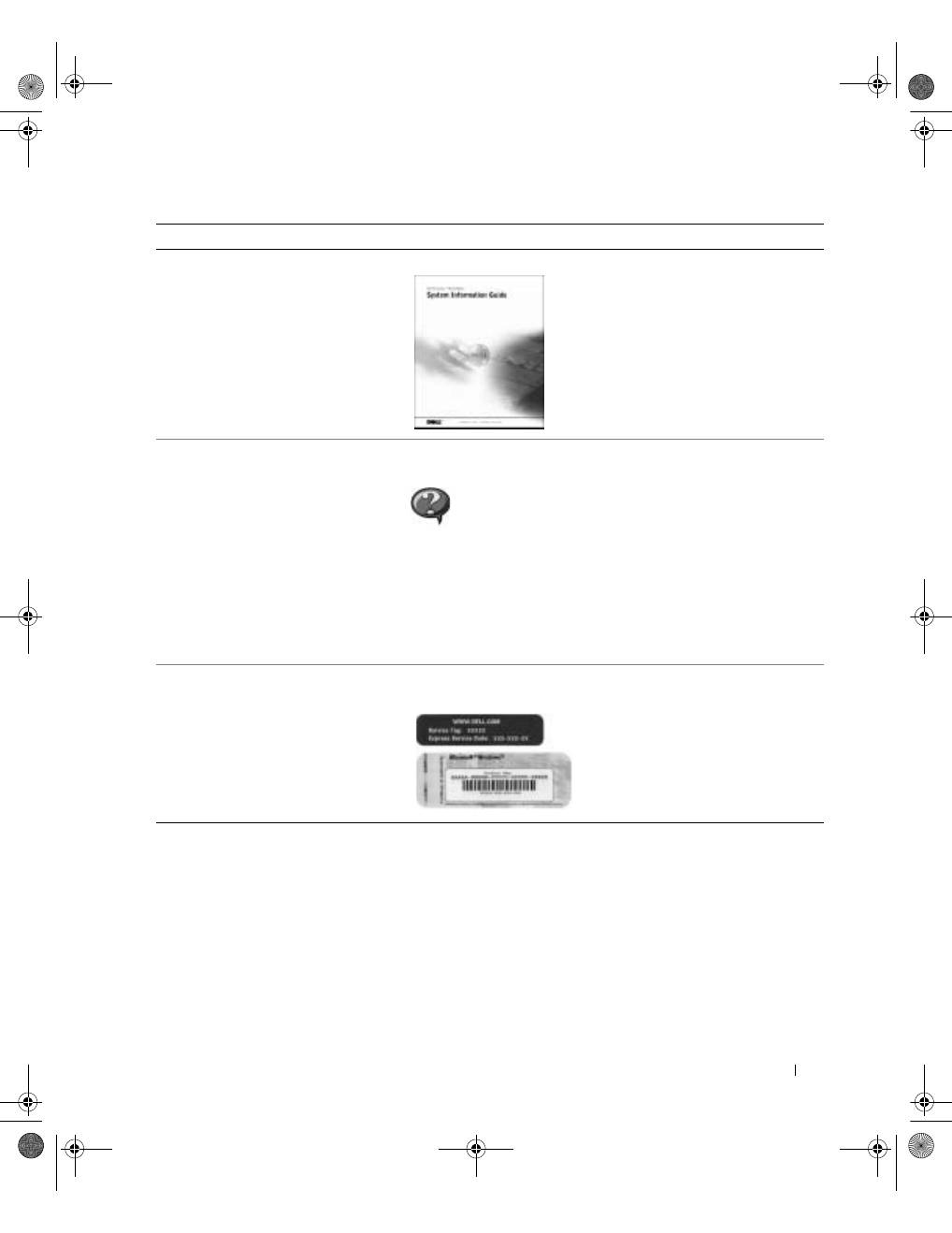
G u i d e d ' i n f o r m a t i o n s u r l e s y s t è m e
51
• Informations sur la garantie
G u i d e d ' i n f o r m a t i o n s u r l e s y s t è m e D e l l
• Comment démonter et remplacer
des pièces
• Caractéristiques techniques
• Comment configurer les paramètres
système
• Comment dépanner et résoudre
les problèmes
I c ô n e d u G u i d e d ' u t i l i s a t i o n
( M i c r o s o f t W i n d o w s 2 0 0 0 )
Double-cliquez sur l'icône
Guides d'utilisation
située
sur votre bureau.
C e n t r e d ' a i d e e t d e s u p p o r t W i n d o w s
1
Cliquez sur le bouton
Start (Démarrer)
, puis sur
Help and Support (Aide et support)
.
2
Cliquez sur
User's and system guides (Guides de
l'utilisateur et du système)
, puis sur
User's guides
(Guides d'utilisation)
.
• Code de service express et numéro de
service
• Étiquette de licence Microsoft
®
Windows
®
É t i q u e t t e d u c o d e d e s e r v i c e e x p r e s s e t d e l a
c l é d u p r o d u i t
Ces étiquettes sont apposées sur
votre ordinateur.
Que recherchez-vous ?
Retrouvez les éléments ici
3y279bk0.book Page 51 Tuesday, February 11, 2003 4:17 PM

52
G u i d e d ' i n f o r m a t i o n s u r l e s y s t è m e
www
.dell.com | support.dell.com
• Pilotes récents pour mon ordinateur
• Réponses aux questions sur le service
et le support technique
• Discussions en ligne avec d'autres
utilisateurs et le support technique
• Documentation pour mon ordinateur ,
y compris le
Guide technique
S i t e W e b d e s u p p o r t t e c h n i q u e d e D e l l —
support.dell.com
Le site Web de support technique propose plusieurs outils en ligne,
notamment :
• Solutions — Conseils et astuces de dépannage, articles de
techniciens et cours en ligne
• Forum clients — Discussion en ligne avec d'autres clients Dell
• Mises à niveau — Informations de mise à niveau pour les
composants tels que la mémoire, le disque dur et le système
d'exploitation
• Service clientèle — Informations sur les contacts, état des
commandes, garantie et informations sur les réparations
• Téléchargements — Pilotes, correctifs et mises à jour logicielles
• Référence — Documentation de l'ordinateur, caractéristiques
de produits et livres blancs
• État des appels de demande
d'assistance et historique de support
technique
• Principaux problèmes techniques de
mon ordinateur
• Questions fréquemment posées
• Téléchargements de fichiers
• Détails sur la configuration de
mon ordinateur
• Contrat de service pour mon
ordinateur
S i t e W e b d e s u p p o r t t e c h n i q u e d e D e l l P r e m i e r —
premiersupport.dell.com
Le site Web de support technique de Dell Premier est personnalisé
pour les entreprises, l'administration publique et les établissements
d'enseignement. Il se peut que ce site ne soit pas disponible dans
tous les pays.
Que recherchez-vous ?
Retrouvez les éléments ici
3y279bk0.book Page 52 Tuesday, February 11, 2003 4:17 PM
G u i d e d ' i n f o r m a t i o n s u r l e s y s t è m e
53
• Comment utiliser Windows XP
• Documentation pour mon ordinateur
• Documentation pour les
périphériques (pour un modem,
par exemple)
C e n t r e d ' a i d e e t d e s u p p o r t W i n d o w s
1
Cliquez sur le bouton
Start (Démarrer)
, puis sur
Help and Support
(Aide et support)
.
2
Entrez un mot ou une expression décrivant votre problème,
puis cliquez sur l'icône en forme de flèche.
3
Cliquez sur la rubrique qui décrit votre problème.
4
Suivez les instructions qui s'affichent à l'écran.
• Comment réinstaller mon système
d'exploitation
C D S y s t è m e d ' e x p l o i t a t i o n
Si vous réinstallez le système
d'exploitation, utilisez le
CD Pilotes
et utilitaires
pour réinstaller les pilotes
des périphériques fournis avec votre
ordinateur.
La clé de produit de votre système
d'exploitation se trouve sur votre
ordinateur.
Que recherchez-vous ?
Retrouvez les éléments ici
ou
3y279bk0.book Page 53 Tuesday, February 11, 2003 4:17 PM
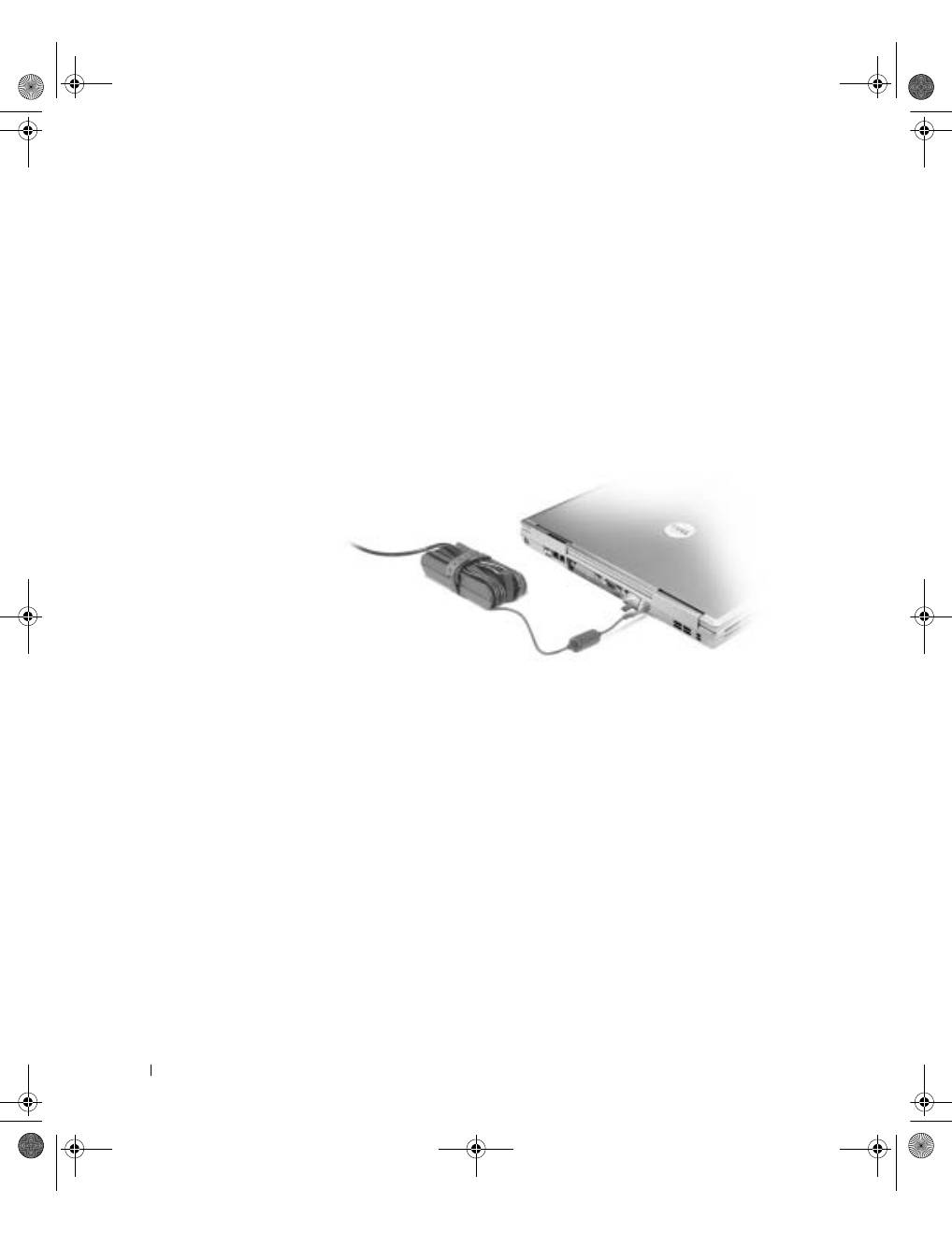
54
G u i d e d ' i n f o r m a t i o n s u r l e s y s t è m e
www
.dell.com | support.dell.com
Configuration de votre ordinateur
1
Déballez la boîte d'accessoires.
2
Mettez de côté le contenu de la boîte d'accessoires ; vous en aurez besoin
ultérieurement pour compléter la configuration de votre ordinateur.
Cette boîte contient également la documentation utilisateur et tout autre logiciel
ou matériel supplémentaire (cartes PC, lecteurs, batteries, etc.) que vous avez
commandés.
3
Reliez l'adaptateur CA/CC au connecteur correspondant du périphérique d'amarrage
et à une prise électrique.
3y279bk0.book Page 54 Tuesday, February 11, 2003 4:17 PM
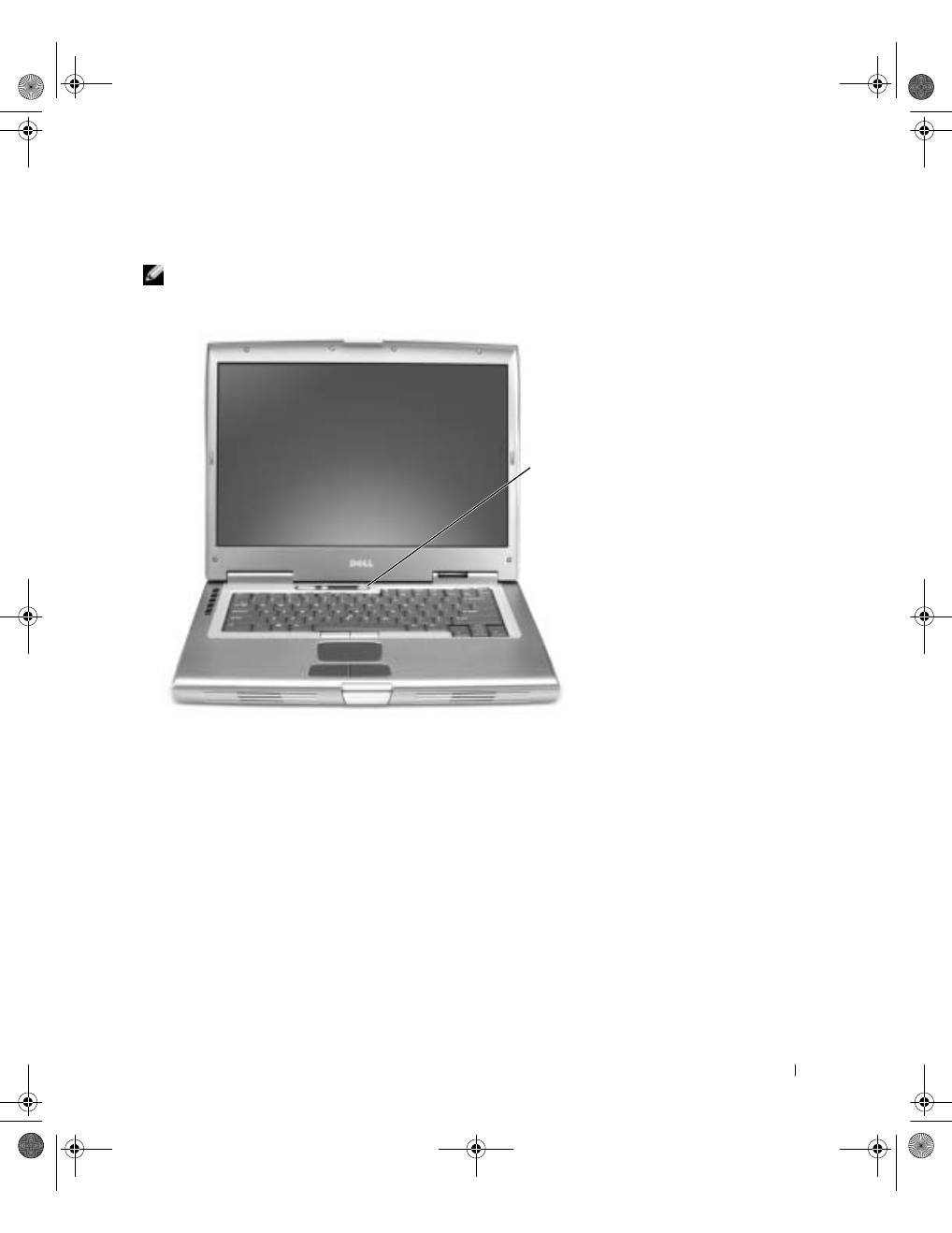
G u i d e d ' i n f o r m a t i o n s u r l e s y s t è m e
55
4
Ouvrez l'écran et appuyez sur le bouton d'alimentation pour mettre l'ordinateur
sous tension.
REMARQUE :
N'amarrez pas l'ordinateur tant qu'il n'a pas été mis sous tension et arrêté
au moins une fois.
Bouton
d'alimentation
3y279bk0.book Page 55 Tuesday, February 11, 2003 4:17 PM
56
G u i d e d ' i n f o r m a t i o n s u r l e s y s t è m e
www
.dell.com | support.dell.com
À propos de votre ordinateur
Consultez votre
Guide d'utilisation
en ligne pour obtenir des informations détaillées
sur votre ordinateur. En fonction du système d'exploitation installé sur votre ordinateur,
double-cliquez sur l'icône
User's Guides (Guides d'utilisation)
, située sur le bureau,
ou cliquez sur le bouton
Start (Démarrer)
puis sélectionnez
Help and Support Center
(Centre d'aide et support)
et cliquez sur
User and system guides (Guides de l'utilisateur
et du système)
. Les articles suivants répondent aux questions les plus fréquemment posées
à propos de l'ordinateur.
•
Adaptateur réseau et modem :
L'ordinateur peut comporter à la fois un modem
v.92 56K et un adaptateur réseau Ethernet LOM 10/100/1000. Pour connaître
l'emplacement des connecteurs, consultez la « Vue du côté droit », plus loin dans
ce document. Pour plus d'informations sur les ports et les connecteurs, consultez
la section « À propos de votre ordinateur » du
Guide d'utilisation
en ligne.
•
Durée de vie et utilisation de la batterie :
Plusieurs batteries peuvent être utilisées
avec votre ordinateur. En utilisant la batterie 72 WHr/6486-mAh fournie avec votre
ordinateur, vous pouvez espérer une durée de fonctionnement comprise entre 3 et
4 heures à partir d'une seule batterie complètement chargée, en fonctionnement
normal. Lors de certaines utilisations, un fonctionnement sans fil prolongé par
exemple, la durée de vie de la batterie est considérablement réduite.
–
Pour plus d'informations sur les performances de la batterie et l'économie
d'énergie, consultez les sections « Utilisation d'une batterie » et « Gestion de
l'énergie » du
Guide d'utilisation
.
–
Pour plus d'informations sur l'utilisation d'une deuxième batterie en option,
consultez la section « Utilisation de la baie modulaire » dans le
Guide d'utilisation
de votre ordinateur.
•
Périphériques de la baie modulaire :
Pour plus d'informations sur la baie modulaire et
les périphériques qu'elle prend en charge, consultez la section « Utilisation de la baie
modulaire » du
Guide d'utilisation
.
•
Périphérique d'amarrage :
Votre ordinateur prend en charge la station d'accueil
Dell D/Dock et le réplicateur de port avancé (APR) Dell D/Port.
REMARQUE :
Il se peut que les périphériques d'amarrage ne soient pas disponibles dans
tous les pays.
–
Pour obtenir des informations sur votre périphérique d'amarrage en option,
consultez la documentation fournie avec celui-ci.
–
Pour plus d'information sur l'obtention de performances optimales lors de
l'utilisation d'un périphérique d'amarrage avec cet ordinateur, consultez la
section « Résolution des problèmes » du
Guide d'utilisation
.
3y279bk0.book Page 56 Tuesday, February 11, 2003 4:17 PM
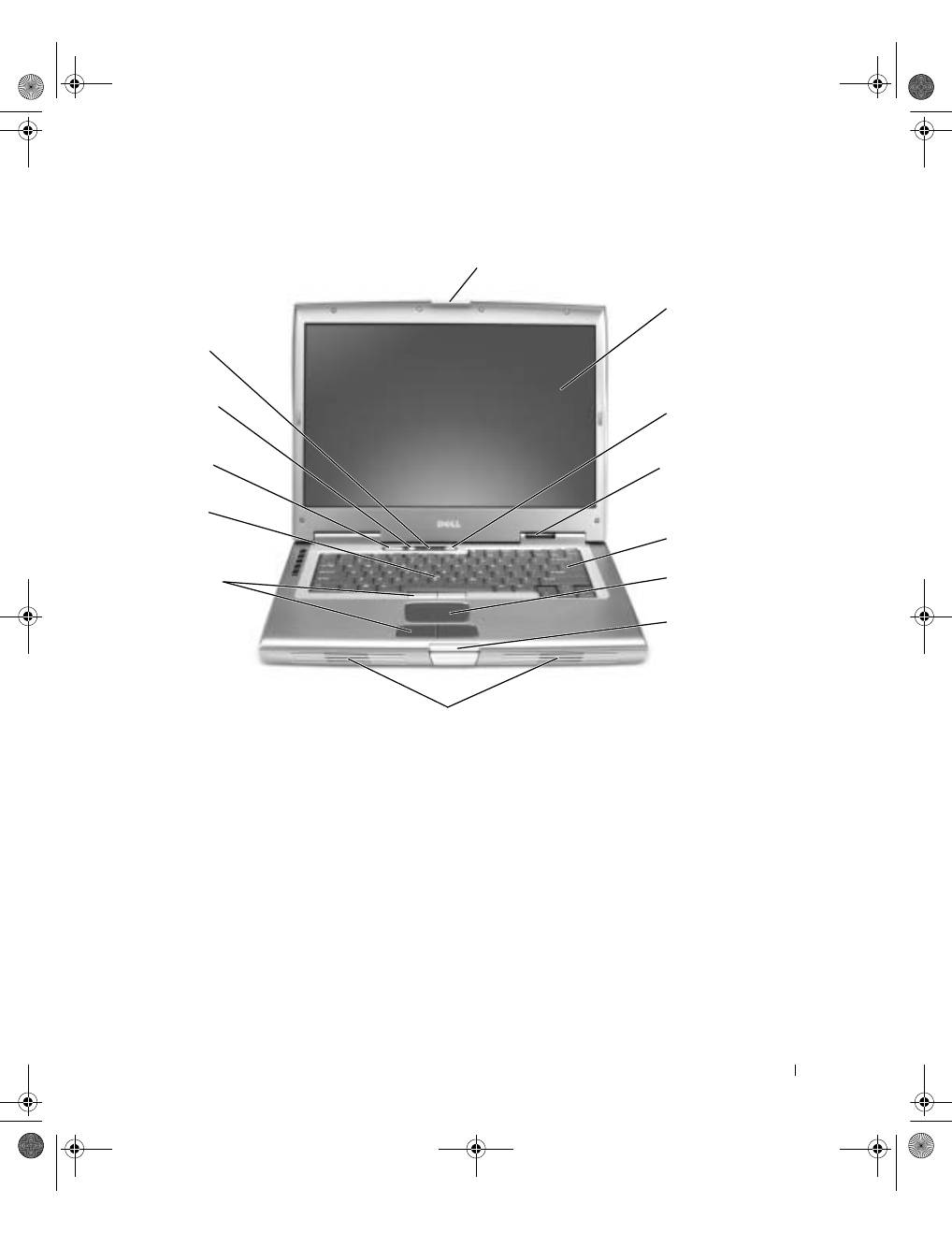
G u i d e d ' i n f o r m a t i o n s u r l e s y s t è m e
57
Vue avant
Dispositif de blocage de l'écran
Clavier
Vis
Trackstick
Touchpad
Boutons de contrôle
du volume
Voyants d'état
du périphérique
Boutons du
trackstick ou
du touchpad
Bouton de mise
en sourdine
Bouton
d'alimentation
Bouton de
blocage de
l'écran
Haut-parleurs
Voyants d'état
du clavier
3y279bk0.book Page 57 Tuesday, February 11, 2003 4:17 PM
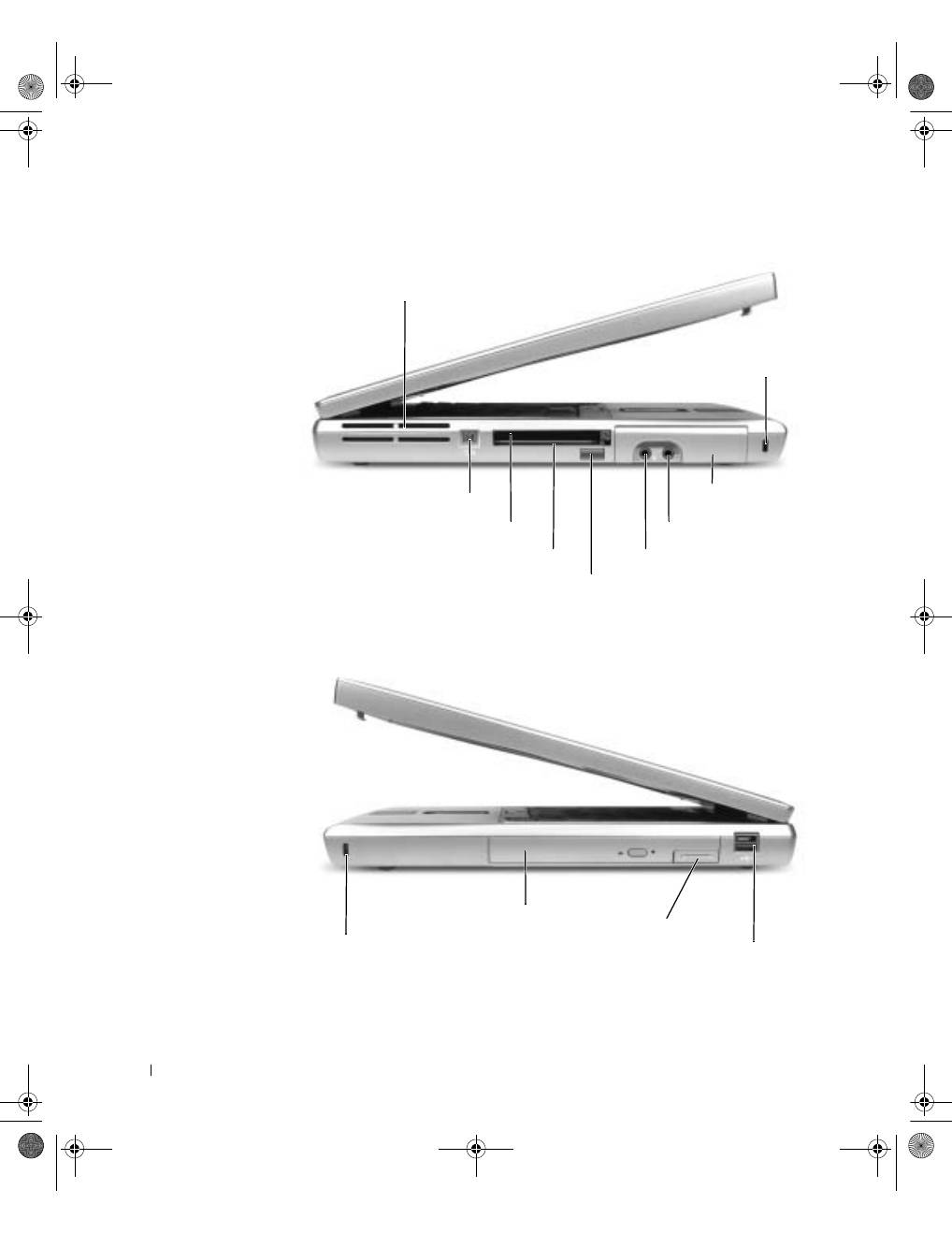
58
G u i d e d ' i n f o r m a t i o n s u r l e s y s t è m e
www
.dell.com | support.dell.com
Vue du côté gauche
Vue du côté droit
Orifices d'aération
Connecteur IEEE 1394
Emplacement pour carte PC
Emplacement pour carte intelligente
Capteur infrarouge
Connecteur d'écouteurs
Unité de
disque dur
Emplacement pour câble de sécurité
Connecteur de microphone
Baie modulaire
Loquet de
verrouillage
du périphérique
Connecteur de baie Dell D/Bay
Emplacement pour câble de sécurité
3y279bk0.book Page 58 Tuesday, February 11, 2003 4:17 PM
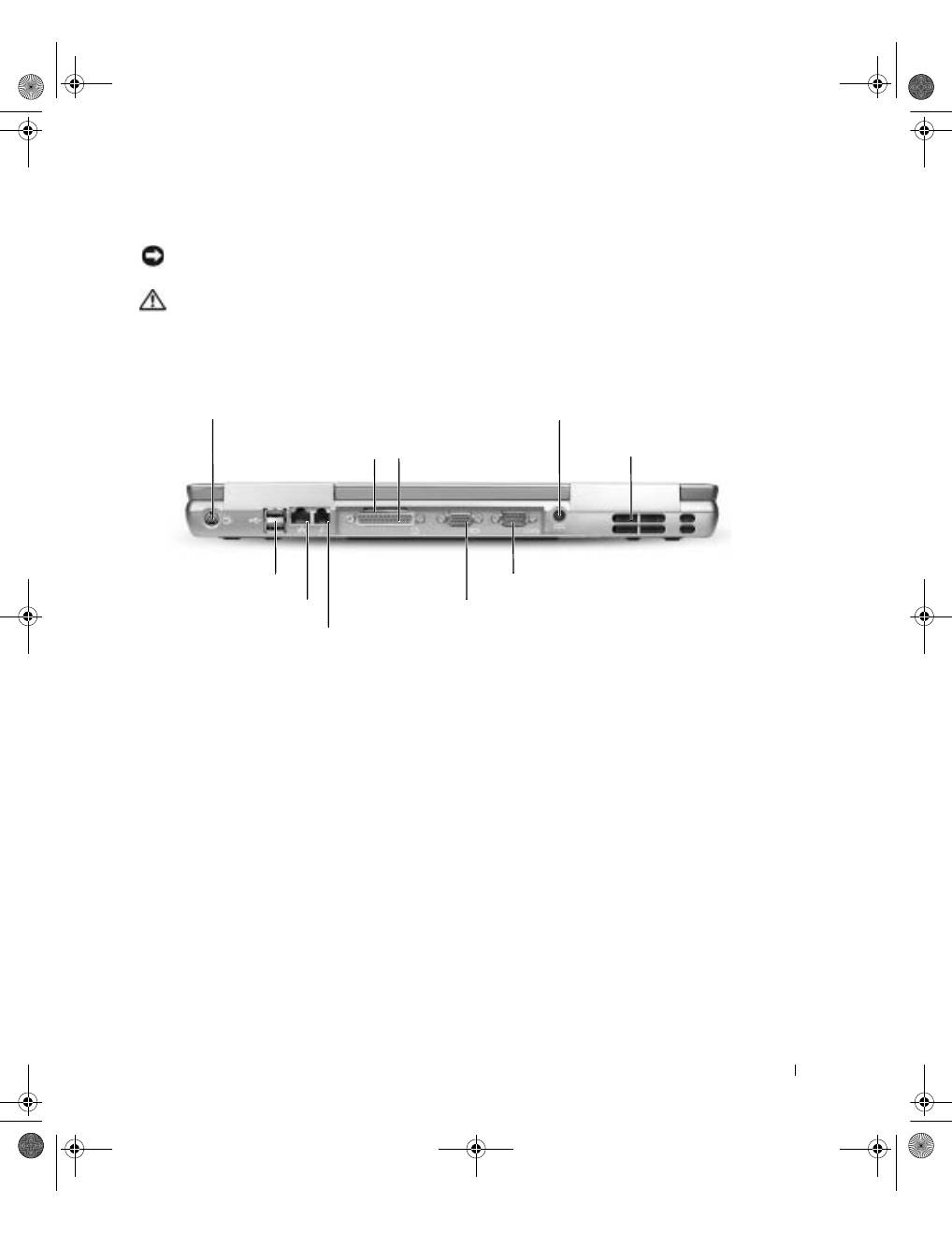
G u i d e d ' i n f o r m a t i o n s u r l e s y s t è m e
59
Vue arrière
AVIS :
Pour éviter d'endommager l'ordinateur, patientez 5 secondes après l'avoir éteint pour
déconnecter un périphérique externe.
PRÉCAUTION : Ne bloquez pas et n'insérez pas d'objets dans les orifices
d'aération de l'ordinateur et évitez toute accumulation de poussière. Ne rangez
pas votre ordinateur dans un environnement faiblement aéré, dans une valise
fermée par exemple, lorsque celui-ci est allumé. Le manque d'aération peut
endommager l'ordinateur ou provoquer un incendie.
Connecteur de sortie TV S-vidéo
Connecteur réseau (RJ-45)
Connecteur de modem (RJ-11)
Connecteur parallèle
Connecteur série
Connecteur vidéo
Connecteur de
l'adaptateur CA/CC
Orifices
d'aération
Orifice d'aération
Connecteurs USB (2)
3y279bk0.book Page 59 Tuesday, February 11, 2003 4:17 PM
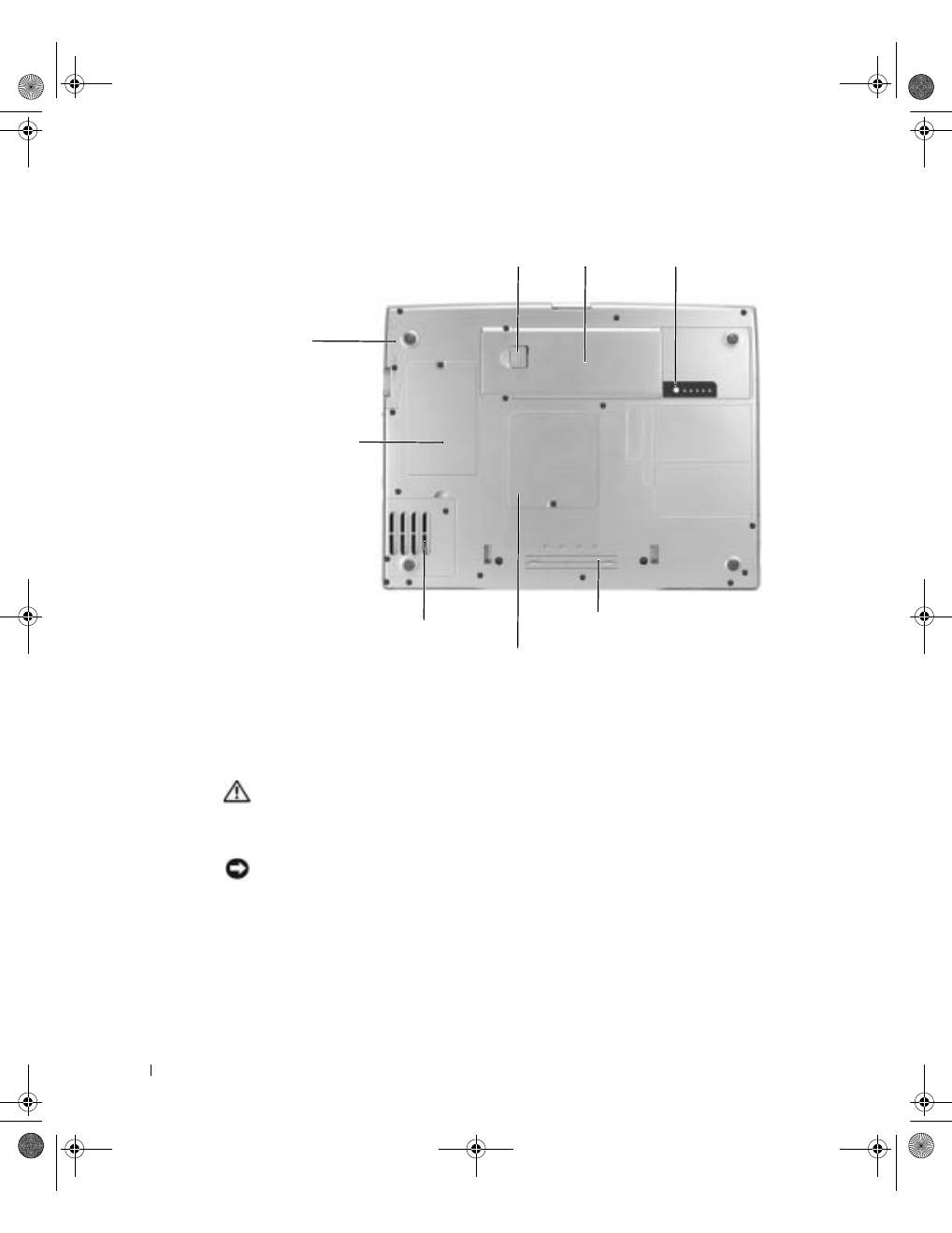
60
G u i d e d ' i n f o r m a t i o n s u r l e s y s t è m e
www
.dell.com | support.dell.com
Vue de dessous
Retrait d'une batterie
Pour plus d'informations sur le retrait de la deuxième batterie, consultez la section
« Utilisation de la baie modulaire » dans le
Guide d'utilisation
en ligne.
PRÉCAUTION : Avant d'exécuter les procédures suivantes, lisez
attentivement les consignes de sécurité à partir de la page 43, éteignez
l'ordinateur, déconnectez-le de la prise électrique et déconnectez le modem
de la prise jack téléphonique murale.
AVIS :
Si vous souhaitez remplacer la batterie alors que l'ordinateur est en mode attente,
vous disposez de 90 secondes pour effectuer cette opération. Une fois ce délai écoulé,
l'ordinateur s'arrête et toutes les données non enregistrées sont définitivement perdues.
Unité de
disque dur
Emplacement du
périphérique d'amarrage
Capot du modem/de
la carte Mini PCI
Batterie
Loquet de verrouillage de la baie de batterie
Indicateur de charge
de la batterie
Capot du module de mémoire
Ventilateur
3y279bk0.book Page 60 Tuesday, February 11, 2003 4:17 PM
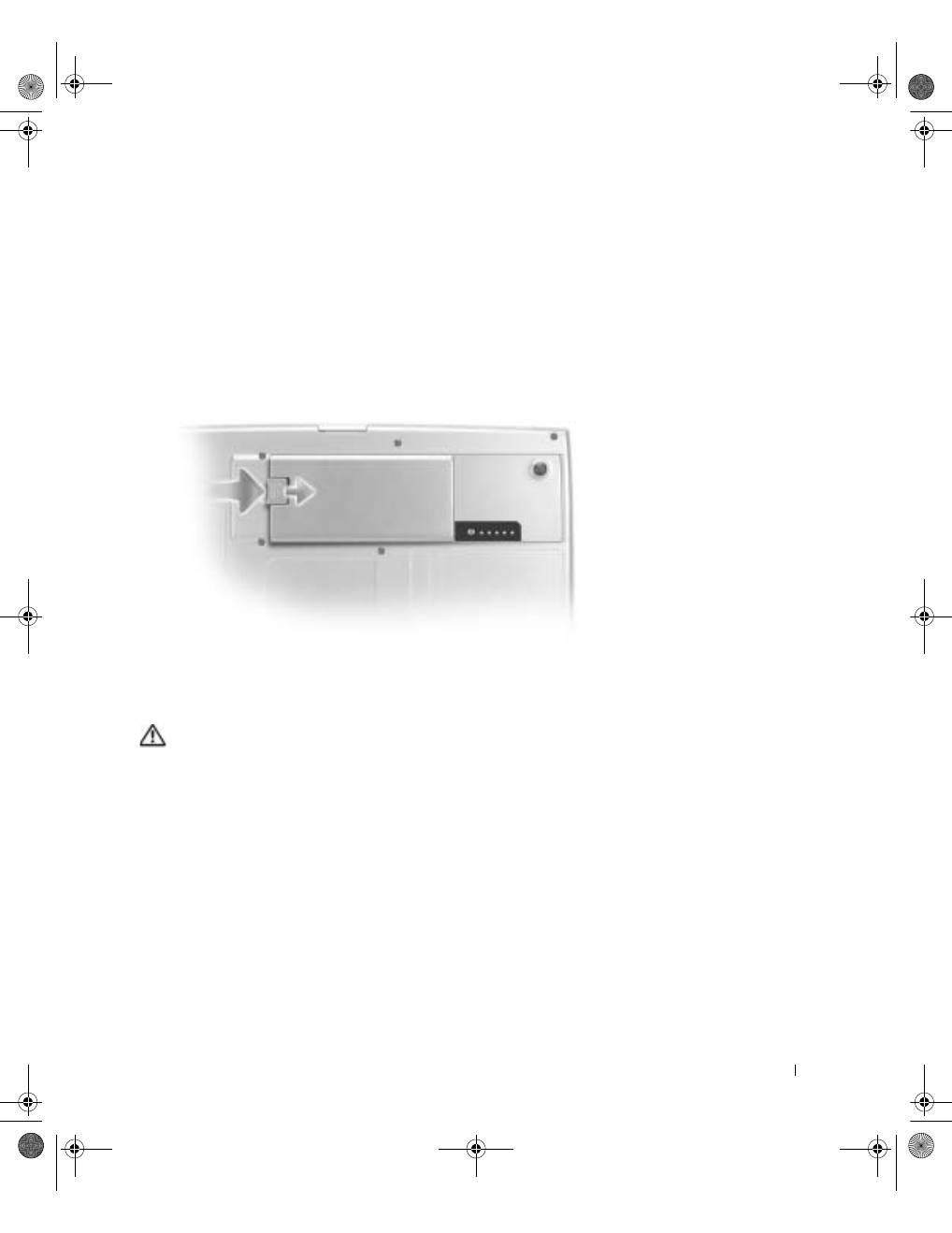
G u i d e d ' i n f o r m a t i o n s u r l e s y s t è m e
61
1
Assurez-vous que l'ordinateur est éteint ou en mode gestion de l'alimentation
ou connecté à une prise électrique.
2
Si l'ordinateur est connecté à un périphérique d'amarrage (amarré), déconnectez-le.
Pour plus d'informations, consultez la documentation qui accompagne le périphérique
d'amarrage.
3
Faites glisser et maintenez le loquet de verrouillage de la baie de batterie vers le bas de
l'ordinateur, puis retirez la batterie de la baie.
Installation d'une batterie
PRÉCAUTION : Avant d'exécuter la procédure suivante, lisez attentivement les
consignes de sécurité à partir de la page 43.
Faites glisser la batterie dans la baie jusqu'à ce que le loquet de verrouillage s'enclenche.
Pour plus d'informations sur l'installation de la deuxième batterie, consultez la section
« Utilisation de la baie modulaire » dans le
Guide d'utilisation
en ligne.
3y279bk0.book Page 61 Tuesday, February 11, 2003 4:17 PM
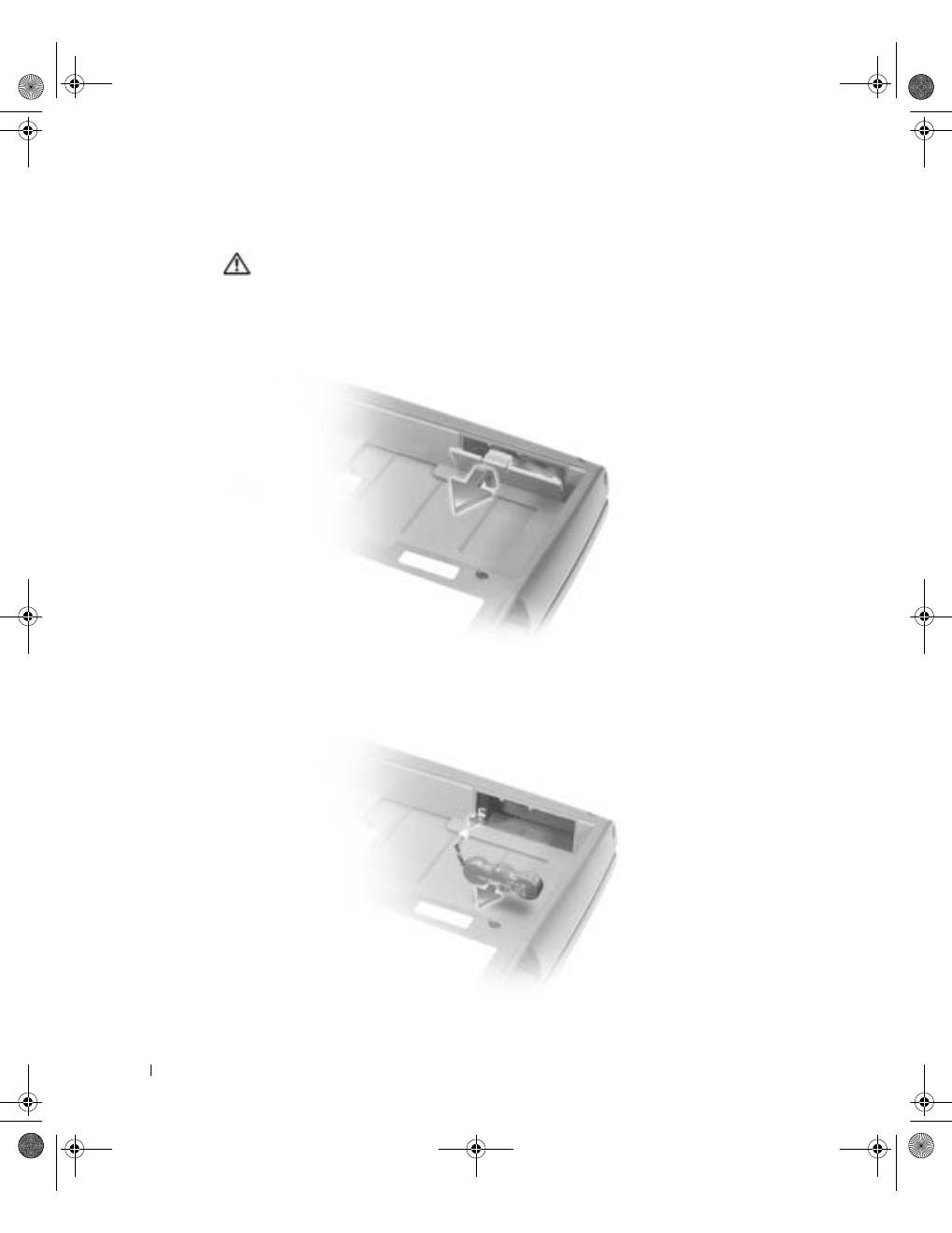
62
G u i d e d ' i n f o r m a t i o n s u r l e s y s t è m e
www
.dell.com | support.dell.com
Retrait d'une batterie de réserve
PRÉCAUTION : Avant d'exécuter les procédures suivantes, lisez attentivement
les consignes de sécurité à partir de la page 43.
1
Retirez la batterie.
2
Retirez la protection de la batterie de réserve.
3
Retirez la batterie de réserve de son compartiment et déconnectez le câble
du connecteur.
3y279bk0.book Page 62 Tuesday, February 11, 2003 4:17 PM
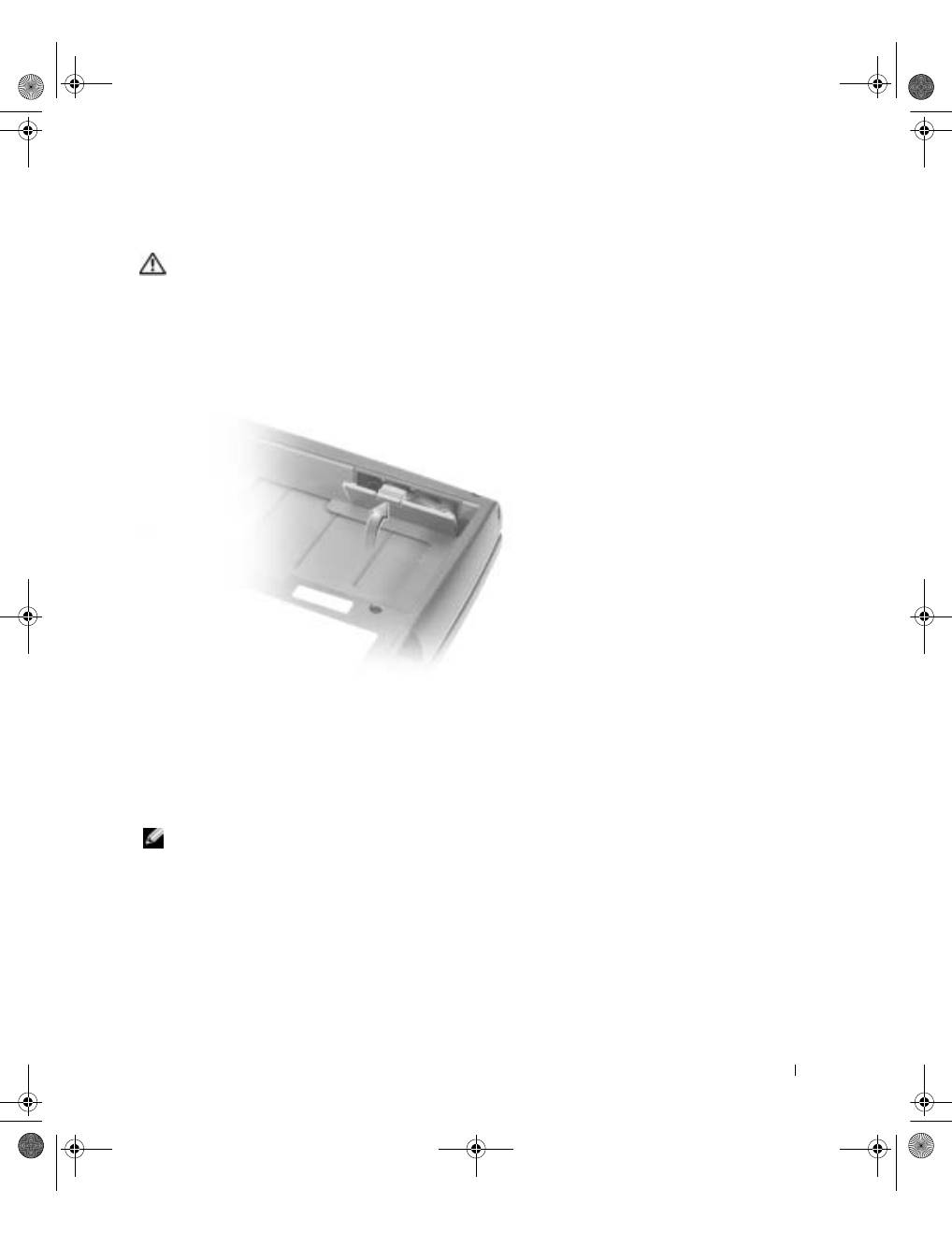
G u i d e d ' i n f o r m a t i o n s u r l e s y s t è m e
63
Installation d'une batterie de réserve
PRÉCAUTION : Avant d'exécuter les procédures suivantes, lisez attentivement
les consignes de sécurité à partir de la page 43.
1
Connectez le câble de la batterie de réserve au connecteur du compartiment de la
batterie de réserve.
2
Placez le câble de la batterie de réserve dans le compartiment et remettez le capot.
Exécution des diagnostics Dell
Les diagnostics Dell se trouvent dans une partition cachée (utilitaire de diagnostics)
de votre unité de disque dur.
REMARQUE :
Si aucune image ne s'affiche sur l'écran de votre ordinateur, contactez Dell
(consultez la section « Obtenir de l'aide » du
Guide d'utilisation
pour connaître les coordonnées
du contact approprié).
1
Éteignez l'ordinateur.
2
Si l'ordinateur est connecté à un périphérique d'amarrage (amarré), déconnectez-le.
Pour plus d'informations, consultez la documentation qui accompagne le périphérique
d'amarrage.
3y279bk0.book Page 63 Tuesday, February 11, 2003 4:17 PM
64
G u i d e d ' i n f o r m a t i o n s u r l e s y s t è m e
www
.dell.com | support.dell.com
3
Connectez l'ordinateur à une prise électrique.
REMARQUE :
Si rien ne s'affiche sur l'écran, maintenez enfoncé le bouton de mise en sourdine
et appuyez sur le bouton d'alimentation (au lieu de la touche F12) pour lancer les Diagnostics
Dell. Il n'est pas nécessaire de sélectionner
Diagnostics
et d'appuyer sur
.
L'ordinateur lance automatiquement l'évaluation du système avant initialisation.
4
Allumez l'ordinateur. Lorsque le logo DELL™ apparaît, appuyez immédiatement sur
. Si vous attendez trop longtemps et que le logo
®
Windows
®
apparaît, attendez
encore jusqu'à ce que le bureau Windows s'affiche. Éteignez alors votre ordinateur et
faites une nouvelle tentative.
5
Lorsque la liste des périphériques d'initialisation s'affiche, mettez en surbrillance
l'option
Diagnostics
et appuyez sur
.
L'ordinateur commence l'évaluation du système avant initialisation par une série de
diagnostics intégrés. Des tests préalables de la carte mère, du clavier, du disque dur et
de l'écran sont effectués.
•
Répondez à toutes les questions qui s'affichent pendant l'évaluation.
•
Si un composant défectueux est détecté, l'ordinateur s'interrompt et émet un
signal sonore. Pour arrêter l'évaluation et redémarrer le système d'exploitation,
appuyez sur
; pour passer au test suivant, appuyez sur
; pour retester
le composant défectueux, appuyez sur
.
•
Si des défaillances sont détectées lors du diagnostique système avant initialisation,
notez les codes d'erreur et contactez Dell (consultez la section « Obtenir de
l'aide » du
Guide d'utilisation
pour connaître les coordonnées du contact
approprié) avant de continuer les diagnostics Dell.
•
Si un message vous informe qu'aucune partition d'utilitaire de diagnostics n'a
été trouvée, suivez les instructions qui s'affichent à l'écran pour exécuter les
Diagnostics Dell à partir de votre CD
Drivers and Utilities (Pilotes et utilitaires)
.
Si l'évaluation du système se déroule sans problème, vous recevez le message
Booting Dell Diagnostic Utility Partition. Press any key to
continue (Initialisation à partir de la partition l'utilitaire
de diagnostics Dell. Appuyez sur une touche pour continuer)
.
3y279bk0.book Page 64 Tuesday, February 11, 2003 4:17 PM
G u i d e d ' i n f o r m a t i o n s u r l e s y s t è m e
65
6
Appuyez sur une touche pour lancer les Diagnostics Dell à partir de la partition
de l'utilitaire de diagnostics de votre disque dur.
7
Une fois les Diagnostics Dell chargés et l'écran
Main
Menu (Menu principal)
affiché,
cliquez sur le bouton correspondant à l'option requise.
REMARQUE :
Le numéro de service de votre ordinateur est affiché dans la barre de titre de
chaque écran.
8
Si un problème survient durant l'exécution d'un test, un message affiche le code
d'erreur et une description du problème. Notez ces informations et suivez les
instructions affichées à l'écran. Si vous ne parvenez pas à résoudre le problème,
contactez Dell (consultez la section « Obtenir de l'aide » du
Guide d'utilisation
pour connaître les coordonnées du contact approprié).
Option
Fonction
Express Test
(Test express)
Effectue un test rapide des périphériques. Ce test dure généralement
de 10 à 20 minutes et ne requiert aucune intervention de votre part.
Commencez par exécuter ce test pour augmenter vos chances
d'identifier rapidement le problème.
Extended Test
(Test complet)
Effectue une vérification approfondie des périphériques. Ce test dure
généralement une heure au minimum et vous devrez répondre à des
questions à intervalles réguliers.
Custom Test
(Test personnalisé)
Teste un périphérique spécifique. Vous pouvez personnaliser les tests
à exécuter.
Symptom Tree
(Liste des symptômes)
Vous permet de sélectionner les tests en fonction du problème
rencontré. Cette option répertorie les problèmes les plus susceptibles
de se produire.
3y279bk0.book Page 65 Tuesday, February 11, 2003 4:17 PM

66
G u i d e d ' i n f o r m a t i o n s u r l e s y s t è m e
www
.dell.com | support.dell.com
9
Si vous exécutez un test à partir de l'option
Test personnalisé
ou
Liste des symptômes
,
cliquez sur l'onglet approprié, tel que décrit dans le tableau suivant, pour obtenir de
plus amples informations.
10
Lorsque vous avez terminé un test, fermez l'écran pour revenir à l'écran
Main
Menu
(Menu principal)
. Pour quitter les Diagnostics Dell et redémarrer l'ordinateur, fermez
l'écran
Menu
principal
.
Onglet
Fonction
Results (Résultats)
Affiche les résultats du test et les erreurs rencontrées, le cas échéant.
Errors (Erreurs)
Répertorie les erreurs rencontrées, les codes d'erreur ainsi qu'une
description des problèmes.
Help (Aide)
Décrit le test et indique éventuellement les conditions requises pour
son exécution.
Configuration
Affiche la configuration matérielle du périphérique sélectionné.
Les Diagnostics Dell obtiennent les informations se rapportant à votre
configuration à partir du
programme de configuration du système, de la
mémoire et de divers tests internes. Ces informations sont affichées dans la
liste de périphériques, dans la partie gauche de l'écran. Il est possible que la
liste des périphériques ne répertorie pas les noms de tous les composants
installés sur votre ordinateur, ou de tous les périphériques connectés à
ce dernier.
Parameters
(Paramètres)
Vous permet de personnaliser le test en modifiant ses paramètres.
3y279bk0.book Page 66 Tuesday, February 11, 2003 4:17 PM

G u i d e d ' i n f o r m a t i o n s u r l e s y s t è m e
67
Réglementations
Une interférence électromagnétique (EMI - Electromagnetic Interference) est un signal
ou une émission, véhiculé(e) dans l'espace libre ou par des conducteurs électriques ou
de signaux, qui peut mettre en danger le fonctionnement d'une radionavigation ou autre
service de sécurité ou sérieusement dégrader, obstruer ou interrompre à maintes reprises un
service de communications radio autorisé. Les services de communications radio incluent,
de manière non limitative, les services de radiodiffusion commerciale AM/FM, la télévision,
les services de téléphonie cellulaire, la radiodétection, le contrôle de la circulation aérienne,
les récepteurs de radio messagerie et les systèmes GSM. Ces services autorisés, ainsi que les
éléments rayonnants parasites involontaires tels que les dispositifs numériques, y compris
les ordinateurs, contribuent à l'environnement électromagnétique.
La compatibilité électromagnétique (CEM) est la capacité des éléments d'un équipement
électronique à interagir correctement dans l'environnement électronique. Bien que cet
ordinateur ait été conçu dans le respect de cette compatibilité et soit conforme aux seuils
fixés en matière d'interférences électromagnétiques par l'organisme de réglementation,
il n'y a aucune garantie concernant les interférences susceptibles de se produire sur une
installation particulière. Si l'équipement crée effectivement des interférences avec des
services de communications radio (ce qui peut être déterminé en l'éteignant et en
l'allumant), l'utilisateur est encouragé à essayer de corriger ce phénomène en prenant
l'une ou l'ensemble des mesures suivantes :
•
Changer l'orientation de l'antenne de réception.
•
Repositionner l'ordinateur en fonction du récepteur.
•
Éloigner l'ordinateur du récepteur.
•
Brancher l'ordinateur sur une autre prise, pour faire en sorte que l'ordinateur et
le récepteur se trouvent sur des circuits de dérivation différents.
Si nécessaire, consulter un membre de l'équipe du support technique de Dell ou
un technicien radio/télévision expérimenté pour des suggestions supplémentaires.
Pour des informations complémentaires sur les réglementations, consultez la section
« Réglementations » dans l'annexe de votre
Guide d'utilisation
en ligne. Les sections
spécifiques à chaque organisme de réglementation proposent, de façon spécifique pour
tel(le) pays ou zone géographique, des informations CEM/EMI ou relatives à la sécurité
des produits.
3y279bk0.book Page 67 Tuesday, February 11, 2003 4:17 PM

68
G u i d e d ' i n f o r m a t i o n s u r l e s y s t è m e
www
.dell.com | support.dell.com
3y279bk0.book Page 68 Tuesday, February 11, 2003 4:17 PM

G u i d e d ' i n f o r m a t i o n s u r l e s y s t è m e
69
Garantie limitée et règle de retour
Les produits matériels de la marque Dell achetés au Canada comportent une garantie limitée de 90 jours (pour les
lampes de projecteurs de marque Dell uniquement), d'un an, de deux ans, de trois ans ou de quatre ans. Pour
savoir de quelle garantie vous bénéficiez, consultez la facture qui accompagnait le ou les produits matériels que
vous avez acquis. Les sections suivantes décrivent la garantie limitée et la politique de retour propres au Canada.
Conditions de garantie limitée pour le Canada
Que couvre cette garantie limitée ?
Cette garantie limitée couvre les défauts de matériel et de fabrication que vous, client utilisateur final, rencontrez
avec vos produits matériels Dell, y compris les périphériques de la marque Dell.
Qu'est-ce qui n'est pas couvert par cette garantie limitée ?
Cette garantie limitée ne couvre pas les éléments suivants :
•
Les logiciels, y compris le système d'exploitation et les logiciels ajoutés aux produits matériels Dell par notre
système d'intégration d'entreprise ou le rechargement de logiciels.
•
Les produits et accessoires d'une marque autre que Dell.
•
Les problèmes résultant de ce qui suit :
–
Les causes externes telles que les accidents, l'usage abusif ou à mauvais escient, les problèmes
d'alimentation électrique.
–
Les interventions non autorisées par Dell.
–
Une utilisation non conforme aux instructions du produit.
–
Le non-respect des instructions du produit ou la non-exécution de l'entretien préventif exigé.
–
Les problèmes dus à l'utilisation d'accessoires, de pièces et de composants non fournis par Dell.
•
Les produits dont les numéros de service ou les numéros de série sont manquants ou incorrects.
•
Les produits qui n'ont pas été payés.
CETTE GARANTIE VOUS DONNE DES DROITS LÉGAUX SPÉCIFIQUES, AUXQUELS PEUVENT
S'AJOUTER D'AUTRES DROITS, QUI VARIENT AU CAS PAR CAS (OU SELON LA PROVINCE).
LA RESPONSABILITÉ DE DELL POUR LE FONCTIONNEMENT DÉFECTUEUX ET LES DÉFAUTS
DU PRODUIT EST LIMITÉE À LA RÉPARATION OU AU REMPLACEMENT COMME INDIQUÉ DANS CE
CONTRAT DE GARANTIE, SELON LES CONDITIONS DE LA PÉRIODE DE GARANTIE APPARAISSANT
SUR VOTRE FACTURE. À L'EXCEPTION DES GARANTIES EXPRESSES FIGURANT DANS LE PRÉSENT
CONTRAT DE GARANTIE, DELL DÉCLINE TOUTE AUTRE GARANTIE OU CONDITION EXPRESSE
OU IMPLICITE, INCLUANT SANS RESTRICTION LES GARANTIES ET CONDITIONS IMPLICITES DE
QUALITÉ OU D'ADAPTABILITÉ À UN USAGE PARTICULIER, STATUTAIRE OU AUTRE. CERTAINES
PROVINCES NE RECONNAISSENT PAS D'EXCLUSION SUR DES GARANTIES OU CONDITIONS
IMPLICITES, OU DE RESTRICTION CONCERNANT LA DURÉE D'UNE GARANTIE OU CONDITION
IMPLICITE. AUQUEL CAS, LES EXCLUSIONS ET RESTRICTIONS PRÉCÉDENTES PEUVENT NE
PAS S'APPLIQUER.
3y279bk0.book Page 69 Tuesday, February 11, 2003 4:17 PM

70
G u i d e d ' i n f o r m a t i o n s u r l e s y s t è m e
www
.dell.com | support.dell.com
NOUS DÉCLINONS TOUTE RESPONSABILITÉ, AU-DELÀ DES RECOURS INDIQUÉS DANS CETTE
DÉCLARATION DE GARANTIE LIMITÉE OU POUR LES DOMMAGES PARTICULIERS, INDIRECTS,
ACCIDENTELS OU INDUITS, Y COMPRIS POUR LA RESPONSABILITÉ DE RÉCLAMATIONS DE
DOMMAGES D'UNE TIERCE PARTIE À VOTRE ENCONTRE, POUR LA NON-DISPONIBILITÉ D'UN
PRODUIT OU POUR LA PERTE DE DONNÉES OU DE LOGICIEL, ET CE SANS RESTRICTION. NOTRE
RESPONSABILITÉ SE LIMITE AU MONTANT QUE VOUS AVEZ PAYÉ POUR LE PRODUIT FAISANT
L'OBJET D'UNE RÉCLAMATION. IL S'AGIT DU MONTANT MAXIMAL SOUMIS À LA RESPONSABILITÉ
DE DELL.
CERTAINES PROVINCES NE RECONNAISSENT PAS D'EXCLUSION OU DE RESTRICTION SUR LES
DOMMAGES PARTICULIERS, INDIRECTS, SECONDAIRES OU INDUITS, AUQUEL CAS L'EXCLUSION
OU LES RESTRICTIONS PRÉCÉDENTES PEUVENT NE PAS S'APPLIQUER.
Quelle est la durée de cette garantie limitée ?
Cette garantie limitée s'applique pendant la période indiquée sur votre facture, à l'exception de la garantie limitée
des batteries Dell qui est valable un an seulement et de la garantie limitée des lampes de projecteurs Dell qui est
réduite à quatre-vingt dix jours uniquement. La garantie limitée prend effet à la date de facturation. La période
de garantie n'est pas étendue en cas de réparation ou de remplacement d'un produit ou de composants sous
garantie. Dell peut modifier en toute discrétion les conditions et la disponibilité des garanties limitées, mais ces
changements ne sont pas rétroactifs (c'est-à-dire que les conditions de la garantie en vigueur au moment de l'achat
continueront de s'appliquer à votre achat).
Que dois-je faire si j'ai besoin d'un service de garantie ?
Avant que la garantie n'expire, appelez-nous au numéro correspondant à votre situation, comme indiqué dans
le tableau ci-dessous. En outre, ayez à portée de main votre numéro de service ou numéro de commande Dell.
Utilisateurs particuliers, utilisateurs travaillant
à domicile et petites entreprises :
Canada seulement
Support technique et service clientèle
1-800-847-4096
Clients d'entreprises de taille moyenne, grands
comptes, clients de l'administration, clients
des domaines de l'éducation et de la santé,
et revendeurs de valeur ajoutée (RVA) :
Support technique
1-800-387-5757
Service clientèle
1-800-326-9463
Clients de l'administration ou du domaine de
l'éducation ou encore particuliers ayant acheté
ce produit par le biais d'un programme d'achat
pour salariés (EPP) :
Support technique
1-800-387-5757
Service clientèle
1-800-326-9463
(poste 8221 pour les particuliers)
Mémoire Dell
1-888-363-5150
3y279bk0.book Page 70 Tuesday, February 11, 2003 4:17 PM

G u i d e d ' i n f o r m a t i o n s u r l e s y s t è m e
71
Quelles actions Dell met-il en œuvre ?
Pendant la première année des garanties limitées :
Pendant la première année de toutes les garanties limitées,
nous réparons tous les produits matériels Dell retournés qui s'avèrent présenter un défaut de matériel ou de
fabrication. Si nous ne parvenons pas à réparer le produit, nous le remplaçons par un produit comparable,
nouveau ou recyclé.
Lorsque vous nous contactez, nous vous donnons un numéro d'autorisation de retour de matériel que vous devez
joindre à votre retour. Vous devez nous retourner les produits dans leur emballage d'origine ou un équivalent,
payer d'avance les frais d'expédition et assurer l'envoi ou accepter les risques de perte ou de dommage pendant
l'acheminement. Nous nous chargeons de vous retourner les produits réparés ou remplacés. Nous prenons à notre
charge l'expédition des produits réparés ou remplacés si vous avez une adresse au Canada. Sinon, nous vous
renvoyons le produit contre paiement à réception.
Si nous déterminons que le problème n'est pas couvert par la garantie, nous vous en avertissons et vous indiquons
les solutions alternatives de service qui vous sont proposées moyennant des frais.
REMARQUE :
Avant de nous retourner le ou les produits, veillez à faire une copie de sauvegarde des
données figurant sur le ou les disques durs ou sur tout autre périphérique de stockage du produit. Supprimez
toutes les informations confidentielles, propriétaires ou personnelles et retirez tous les supports amovibles,
tels que les disquettes, CD ou cartes PC. Nous déclinons toute responsabilité en ce qui concerne vos informations
confidentielles, propriétaires ou personnelles et en cas de perte ou d'endommagement des données ou des supports
amovibles.
Après la première année des garanties limitées :
Nous remplaçons tous les composants défectueux par des
composants nouveaux ou recyclés si nous considérons que le remplacement est justifié. Lorsque vous nous
contactez, nous vous demandons de nous fournir un numéro de carte de crédit valide au moment où vous
demandez le remplacement d'un composant, mais nous ne vous facturons pas le remplacement si vous nous
retournez le composant d'origine dans les trente jours qui suivent l'expédition. Si nous ne recevons pas le
composant d'origine dans les trente jours, nous porterons au débit de votre carte de crédit le prix standard
actuel du composant.
Nous prenons à notre charge l'expédition du composant remplacé si vous avez une adresse au Canada. Sinon,
nous vous renvoyons le composant contre paiement à réception. Dell inclut un emballage d'expédition prépayé
avec chaque pièce de rechange, afin que vous retourniez la pièce remplacée.
REMARQUE :
Avant de remplacer des pièces, veillez à faire une copie de sauvegarde des données figurant
sur le ou les disques durs ou sur tout autre périphérique de stockage du ou des produits. Nous déclinons toute
responsabilité en cas de perte ou d'endommagement des données.
Que se passe-t-il si j'ai souscrit un contrat de service ?
Si votre contrat de service a été passé avec Dell, le service vous sera proposé selon les conditions du contrat de
service. Reportez-vous à ce contrat pour plus d'informations sur la façon de bénéficier du service. Les contrats de
service Dell sont disponibles en ligne sur le site
www.dell.ca
ou en appelant le service clientèle au 1-800-847-4096.
Si vous avez souscrit par notre intermédiaire un contrat de service avec l'un de nos fournisseurs de service tiers,
reportez-vous à ce contrat (qui vous a été envoyé avec votre facture) pour plus d'informations sur la façon d'obtenir
un service.
3y279bk0.book Page 71 Tuesday, February 11, 2003 4:17 PM

72
G u i d e d ' i n f o r m a t i o n s u r l e s y s t è m e
www
.dell.com | support.dell.com
Comment allez-vous réparer mon produit ?
Dell utilise des composants neufs ou remis en état provenant de différents fabricants pour les réparations
sous garantie et pour la fabrication de composants et de systèmes de remplacement. Les composants et systèmes
recyclés sont des composants ou des systèmes qui ont été retournés à Dell et dont certains n'ont jamais été utilisés
par le client. La qualité de tous les composants et systèmes est contrôlée et testée. Les composants et systèmes de
remplacement fournis sont couverts par la garantie pour la période restante de la garantie limitée du produit que
vous avez acheté. Dell est propriétaire de toutes les pièces retirées des produits réparés.
Que dois-je faire si je ne suis pas satisfait ?
Nous nous félicitons de l'efficacité de notre service clientèle. Toutefois, si vous n'êtes pas satisfait du service que
vous recevez dans le cadre de la garantie limitée, faites-le nous savoir. Nous sommes convaincus de la nécessité
de collaborer pour essayer de résoudre des problèmes liés à une garantie limitée. Si, après cette collaboration,
vous n'êtes toujours pas satisfait, nous pensons que le recours à un arbitrage constitue la voie la plus rapide pour
résoudre les différends. En conséquence,
UNE RÉCLAMATION, UN CONFLIT OU UNE CONTROVERSE
(PAR SUITE D'UN CONTRAT, D'UN DÉLIT CIVIL OU AUTREMENT DANS LE PASSÉ, QUI SURVIENT
À L'HEURE ACTUELLE OU QUI SURVIENDRA DANS LE FUTUR, Y COMPRIS CEUX QUI SONT
PRÉVUS PAR LA LOI, CEUX QUI SURVIENNENT EN COMMON LAW, LES DÉLITS
INTENTIONNELS ET LES RÉCLAMATIONS ÉQUITABLES) CONTRE DELL
découlant de cette garantie
limitée ou de son interprétation ou reliée à celle-ci, ou découlant de la violation, de la résiliation ou de la validité
de cette garantie limitée, des relations entre les parties (y compris, dans la mesure autorisée par le droit applicable,
les relations avec les tiers), de la publicité affichée par Dell ou d'un achat connexe
DEVRA ÊTRE RÉGLÉ DE
FAÇON EXCLUSIVE ET DÉFINITIVE PAR VOIE D'ARBITRAGE OBLIGATOIRE ORGANISÉ PAR LE
NAF (NATIONAL ARBITRATION FORUM)
conformément à son code de procédure (qui peut être consulté
sur Internet à l'adresse
www.arb-forum.com/
ou par téléphone au 1-800-474-2371). L'arbitrage portera uniquement
sur le différend ou le litige existant entre vous et Dell. Toute sentence arbitrale doit être définitive et exécutoire
pour chaque partie contractante, et peut être reconnue comme jugement par une juridiction compétente.
Des informations peuvent être obtenues et des réclamations peuvent être enregistrées par le NAF à l'adresse
suivante : P.O. Box 50191, Minneapolis, MN 55405.
Puis-je transférer la garantie limitée ?
La garantie limitée sur les systèmes peut être transférée si son propriétaire actuel transfère également la propriété
du système et enregistre le transfert auprès de Dell. La garantie limitée sur la mémoire Dell ne peut pas être
transférée. Vous pouvez enregistrer le transfert de votre garantie limitée auprès de Dell en vous rendant sur
notre site Web :
•
Si vous êtes un particulier, accédez au site
www.dell.com/us/en/dhs/topics/sbtopic_016_ccare.htm
.
•
Si vous êtes un client travaillant à domicile, un client d'une petite ou moyenne entreprise ou encore
d'une grande entreprise, accédez au site
www.dell.com/us/en/biz/topics/sbtopic_ccare_nav_016_ccare.htm
.
•
Si vous êtes un client d'une administration, du domaine de l'éducation ou du domaine de la santé, ou
encore un client particulier ayant fait l'acquisition du produit par le biais d'un programme d'achat pour
salariés, accédez au site
www.dell.com/us/en/pub/topics/sbtopic_016_ccare.htm
.
Si vous ne disposez pas d'un accès à Internet, contactez Dell au 1-800-326-9463.
3y279bk0.book Page 72 Tuesday, February 11, 2003 4:17 PM

G u i d e d ' i n f o r m a t i o n s u r l e s y s t è m e
73
Règle de retour « Satisfait ou remboursé » (Canada seulement)
En qualité de client et utilisateur final ayant acheté de nouveaux produits directement à Dell, vous êtes en
droit de les retourner à Dell dans un délai de 30 jours maximum après la date de réception des produits pour un
remboursement ou un avoir équivalent au prix d'achat. En qualité de client et utilisateur final ayant acheté à Dell
des produits reconditionnés ou recyclés, vous êtes en droit de les retourner dans un délai de 14 jours à compter de
la date de facturation pour un remboursement ou un avoir équivalent au prix d'achat. Dans les deux cas, une taxe
de 15 % sera déduite du montant du remboursement ou de l'avoir indiqué sur votre facture, qui correspond aux
frais d'expédition, de gestion et de retour applicables, sauf avis légal contraire. Si vous avez acheté nos produits en
tant que société liée à Dell par un contrat écrit, les termes stipulés dans ce contrat au sujet du retour des produits
peuvent différer de ceux spécifiés par la règle de retour.
Pour retourner les produits, vous devez appeler le Service Clientèle de Dell au 1-800-387-5759 qui vous fournira
un numéro d'autorisation de retour pour crédit. Afin d'accélérer la procédure de remboursement ou d'avoir, Dell
attend que vous lui renvoyiez les produits dans leur emballage d'origine dans les cinq jours suivant l'attribution
d'un numéro d'autorisation de retour pour crédit. Vous devez également payer d'avance les frais d'expédition et
assurer l'envoi ou accepter les risques de perte ou de dommage pendant l'acheminement. Vous ne pouvez renvoyer
le logiciel pour un remboursement ou un avoir que si l'emballage scellé contenant les disquettes ou les CD n'a
pas été ouvert. Les produits renvoyés doivent être comme neufs, et tous les guides, disquettes, CD, cordons
d'alimentation et autres accessoires compris avec le produit doivent être renvoyés avec lui. Les clients désirant
renvoyer, pour remboursement ou avoir uniquement, un logiciel d'application ou de système d'exploitation installé
par Dell doivent retourner le système dans son intégralité, avec tous les supports et la documentation inclus dans
la livraison d'origine.
Cette règle de retour « Satisfait ou remboursé » ne s'applique pas aux produits de stockage Dell | EMC. Elle ne
s'applique pas non plus aux produits achetés par l'intermédiaire du service de vente de logiciels et périphériques
Dell. Pour ces produits, veuillez vous reporter à la règle de retour alors en vigueur du logiciel et des périphériques
Dell [voir la section suivante « Logiciels et périphériques Dell » (Canada seulement)].
Logiciels et périphériques Dell (Canada seulement)
Produits logiciels et périphériques de tiers
Tout comme les autres revendeurs de logiciels et périphériques, Dell ne garantit pas les produits de tiers.
Les produits logiciels et périphériques de tiers sont uniquement couverts par les garanties offertes par le fabricant
ou le revendeur initial de ces produits. Les garanties de fabricants tiers varient d'un produit à l'autre. Reportez-vous
à la documentation de votre produit pour obtenir des informations spécifiques à la garantie. Contactez également
le fabricant ou le revendeur si vous souhaitez des informations supplémentaires.
Comme Dell propose un grand choix de produits logiciels et périphériques, il nous est impossible de vérifier et
de garantir de manière spécifique que tous les produits que nous proposons fonctionnent avec tout ou partie des
différents modèles d'ordinateurs Dell, mais aussi de vérifier et de garantir que tous les produits que nous vendons
fonctionnent correctement sur les centaines de marques d'ordinateurs disponibles aujourd'hui. Si vous avez des
questions relatives à la compatibilité d'un produit, nous vous conseillons vivement de contacter directement le
fabricant ou le revendeur à qui vous avez acheté le produit logiciel ou périphérique tiers.
3y279bk0.book Page 73 Tuesday, February 11, 2003 4:17 PM

74
G u i d e d ' i n f o r m a t i o n s u r l e s y s t è m e
www
.dell.com | support.dell.com
Produits périphériques Dell
Dell offre une garantie limitée pour ses nouveaux produits périphériques (produits pour lesquels Dell est
fabricant) tels que les moniteurs, les batteries, la mémoire, les stations d'accueil et les projecteurs. Pour déterminer
quelle garantie limitée s'applique au produit que vous avez acheté, reportez-vous à la facture Dell et/ou à la
documentation du produit qui accompagnait votre produit. Vous trouverez des descriptions des garanties limitées
Dell dans les sections précédentes.
Règle de retour
Si, en qualité de client et utilisateur final, vous avez acheté des produits logiciels et périphériques Dell directement
à une société Dell, vous êtes en droit de retourner à Dell ces produits, à l'état neuf, dans un délai de 30 jours à
compter de la date de facturation pour un remboursement équivalent au prix d'achat des produits si ceux-ci ont
déjà été payés. Ce remboursement ne comprend aucun frais d'expédition et de gestion figurant sur votre facture ;
ces frais sont à votre charge.
Pour retourner les produits, vous devez appeler le Service Clientèle de Dell au 1-800-387-5759 qui vous fournira un
numéro d'autorisation de retour pour crédit. Vous devez renvoyer les produits logiciels et périphériques à Dell dans
leur emballage d'origine (qui doit être comme neuf), payer d'avance les frais d'expédition et assurer l'envoi ou
accepter les risques de perte ou de dommage pendant l'acheminement.
Pour qu'un remboursement ou un remplacement soit possible, les produits renvoyés doivent être comme neufs,
les logiciels ne doivent pas être ouverts et tous les guides, disquettes, CD, câbles d'alimentation et autres
accessoires compris avec le produit doivent être renvoyés avec lui.
3y279bk0.book Page 74 Tuesday, February 11, 2003 4:17 PM
G u i d e d ' i n f o r m a t i o n s u r l e s y s t è m e
75
Déclaration de garantie Intel
®
pour les processeurs Pentium
®
et Celeron
®
seulement (États-Unis et Canada seulement)
Intel’s Three Year Limited Warranty
Limited Warranty
Intel warrants that its family of Pentium
®
and Celeron
®
processors, if properly used and installed, will be free from defects in materials and workmanship and will substantially
conform to Intel’s publicly available specifications for a period of three (3) years after the date the Pentium or Celeron processor was purchased (whether purchased separately
or as part of a computer system).
If the Pentium or Celeron processor, which is the subject of this Limited Warranty, fails during the warranty period for reasons covered by this Limited Warranty, Intel, at its option, will:
• REPAIR the Pentium or Celeron processor by means of hardware and/or software; OR
• REPLACE the Pentium or Celeron processor with another Pentium or Celeron processor; OR
if Intel is unable to repair or replace the particular Pentium or Celeron processor,
• REFUND the then-current value of the Pentium or Celeron processor.
THIS LIMITED WARRANTY, AND ANY IMPLIED WARRANTIES THAT MAY EXIST UNDER STATE LAW, APPLY ONLY TO THE ORIGINAL PURCHASER OF THE
PENTIUM OR CELERON PROCESSOR, OR PENTIUM OR CELERON PROCESSOR-BASED COMPUTER AND LAST ONLY FOR AS LONG AS SUCH PURCHASER
CONTINUES TO OWN THE PROCESSOR.
Extent of Limited Warranty
Intel does not warrant that your Pentium or Celeron processor will be free from design defects or errors known as "errata." Current characterized errata are available upon request.
This limited warranty is for purchasers in the United States and Canada only. The limited warranty does not cover any costs relating to removal or replacement of any Pentium or
Celeron processors that are soldered or otherwise permanently affixed to your system’s motherboard.
This limited warranty does not cover damages due to external causes, including accident, problems with electrical power, usage not in accordance with product instructions,
misuse, neglect, alteration, repair, improper installation, or improper testing.
How to Obtain Warranty Service
To obtain warranty service for your Pentium or Celeron processor, you may contact your computer system manufacturer in accordance with its instructions, or you may contact Intel.
To request warranty service from Intel, you should call Intel at 1-800-628-8686 during the warranty period during normal business hours (Pacific Time), excluding holidays. Please
be prepared to provide:
(1) your name, address, and telephone numbers;
(2) proof of purchase;
(3) this Intel warranty card;
(4) a description of the computer system including the brand and model; and
(5) an explanation of the problem.
[Note: The Customer Service Representative may need additional information from you depending on the nature of the problem.]
The replacement processor is warranted under this written warranty and is subject to the same limitations and exclusions for the remainder of the original warranty period or one
(1) year, whichever is longer.
WARRANTY LIMITATIONS AND EXCLUSIONS
THESE WARRANTIES REPLACE ALL OTHER WARRANTIES, EXPRESS OR IMPLIED INCLUDING, BUT NOT LIMITED TO, THE IMPLIED WARRANTIES OF
MERCHANTABILITY AND FITNESS FOR A PARTICULAR PURPOSE. INTEL MAKES NO EXPRESS WARRANTIES BEYOND THOSE STATED HERE. INTEL
DISCLAIMS ALL OTHER WARRANTIES, EXPRESS OR IMPLIED, INCLUDING, WITHOUT LIMITATION, IMPLIED WARRANTIES OF MERCHANTABILITY
AND FITNESS FOR A PARTICULAR PURPOSE.
SOME LAWS DO NOT ALLOW THE EXCLUSION OF IMPLIED WARRANTIES SO THIS LIMITATION MAY NOT APPLY TO YOU. IF THESE LAWS APPLY, THEN ALL
EXPRESS AND IMPLIED WARRANTIES ARE LIMITED IN DURATION TO THE LIMITED WARRANTY PERIOD. NO WARRANTIES APPLY AFTER THAT PERIOD.
SOME LAWS DO NOT ALLOW LIMITATIONS ON HOW LONG AN IMPLIED WARRANTY LASTS, SO THIS LIMITATION MAY NOT APPLY TO YOU.
LIMITATIONS OF LIABILITY
INTEL’S RESPONSIBILITY UNDER THIS, OR ANY OTHER WARRANTY, IMPLIED OR EXPRESS, IS LIMITED TO REPAIR, REPLACEMENT OR REFUND, AS SET
FORTH ABOVE. THESE REMEDIES ARE THE SOLE AND EXCLUSIVE REMEDIES FOR ANY BREACH OF WARRANTY. INTEL IS NOT RESPONSIBLE FOR INDIRECT,
SPECIAL, INCIDENTAL, OR CONSEQUENTIAL DAMAGES RESULTING FROM ANY BREACH OF WARRANTY OR UNDER ANY OTHER LEGAL THEORY
INCLUDING, BUT NOT LIMITED TO, LOST PROFITS, DOWNTIME, GOODWILL, DAMAGE TO OR REPLACEMENT OF EQUIPMENT AND PROPERTY, AND ANY
COSTS OF RECOVERING, REPROGRAMMING, OR REPRODUCING ANY PROGRAM OR DATA STORED IN OR USED WITH A SYSTEM CONTAINING YOUR
PENTIUM PROCESSOR. SOME JURISDICTIONS DO NOT ALLOW THE EXCLUSION OR LIMITATION OF INCIDENTAL OR CONSEQUENTIAL DAMAGES, SO THE
ABOVE LIMITATIONS OR EXCLUSIONS MAY NOT APPLY TO YOU.
THE LIMITED WARRANTY GIVES YOU SPECIFIC LEGAL RIGHTS, AND YOU MAY ALSO HAVE OTHER RIGHTS THAT VARY FROM JURISDICTION TO JURISDICTION.
3y279bk0.book Page 75 Tuesday, February 11, 2003 4:17 PM
76
G u i d e d ' i n f o r m a t i o n s u r l e s y s t è m e
www
.dell.com | support.dell.com
Intel Pentium
®
and Celeron
®
Processors are backed by a three-year limited warranty.
Please refer to the reverse side of this card for complete warranty details.
Intel’s Commitment to Quality
Intel is committed to producing the highest quality processors available. That’s why we have hundreds of people dedicated to continuously improve our design, manufacturing,
and testing technology.
We put every one of our Pentium® and Celeron® processors through a rigorous battery of tests during the design and manufacturing processes.
To verify that the new chip will correctly run the software written for Intel Architecture processors, a team of Intel engineers is dedicated to compatibility testing. In a state-of-art lab,
this group runs an extensive set of operating systems, applications, network tests and stress tests repeatedly to ensure that the processor is compatible with representative software.
Just as importantly, we work with hardware and software companies in the computer industry to ensure that our processors are compatible with their products.
Additionally, a sampling of Intel processors are subjected to a rigorous "burn-in" test whereby the chip is operated at higher-than-normal temperatures and voltages. During this
burn-in period, the processor experiences the equivalent of weeks of normal usage. These units are monitored for failures as part of our ongoing quality assurance process.
As a result, today’s microprocessors from Intel are among the most reliable components in computers.
What are ’Errata’?
Exhaustive product testing can highlight differences between the actual behavior of the microprocessor and its specifications. Sometimes the discrepancies are caused by a design
defect or error, which we call errata. Rigorous validation identifies most errata during the development of the processor, but we do detect additional errata during the life cycle of
a microprocessor.
When an erratum is identified, our engineers work to characterize it and find a solution. We work with system designers and software developers to ensure that the discrepancy does
not affect their products. If necessary, special software or hardware solutions (sometimes known as "work arounds") are implemented in the system design to prevent computer
users from encountering the problem. Errata may then be corrected in future revisions of the microprocessor.
No microprocessor is perfect, and Intel recognizes that some consumers want to know about any errata, whether or not the errata affect them. Intel makes documentation of all
characterized Pentium and Celeron processor errata publicly available through our Technical Documentation Service.
At Intel, our goal is to make every computer user satisfied with his or her Pentium or Celeron processor. Should you have any questions, comments or concerns about your Intel
microprocessor, please call us at 1-800-628-8686.
©1997, 1998 Intel Corporation. All rights reserved.
3y279bk0.book Page 76 Tuesday, February 11, 2003 4:17 PM
w w w . d e l l . c o m | s u p p o r t . d e l l . c o m
Estação de trabalho móvel do Dell Precision™ M60 Series
Guia de informações do sistema
3y279bk0.book Page 77 Tuesday, February 11, 2003 4:17 PM
Notas, avisos e cuidados
NOTA:
Uma NOTA fornece informações importantes que o ajudam a usar
melhor o computador.
AVISO:
Um AVISO informa sobre prováveis danos no hardware ou perda de
dados e ensina como evitar o problema.
CUIDADO: Um CUIDADO indica um potencial para danos à
propriedade, danos pessoais ou morte.
Abreviações e acrônimos
Para obter uma lista completa de abreviações e acrônimos, consulte o
Guia do usuário
. Dependendo do sistema operacional, clique duas vezes
no ícone
User’s Guide (Guia do usuário)
na área de trabalho ou clique
no botão
Start (Iniciar)
, em
Help and Support Center (Centro de ajuda
e suporte)
, em
User and system guides (Guias do usuário e do sistema)
.
Se você adquiriu um computador da série Dell™
n
, qualquer referência
neste documento a sistemas operacionais Microsoft
®
Windows
®
não
são aplicáveis.
____________________
As informações contidas neste documento estão sujeitas a alterações sem aviso prévio.
© 2003 Dell Computer Corporation. Todos os direitos reservados.
É proibida a reprodução sem permissão por escrito da Dell Computadores do Brasil Ltda.
Marcas comerciais utilizadas neste texto: Dell, o logotipo da DELL, Dell Precision, Latitude e
TrueMobile são marcas registradas da Dell Computer Corporation; Intel, Pentium e Celeron são
marcas comerciais registradas da Intel Corporation; Microsoft e Windows são marcas comerciais
registradas da Microsoft Corporation; EMC é a marca comercial registrada da EMC Corporation.
Outros nomes e marcas comerciais podem ser usados neste documento como uma referência às
entidades que reivindicam marcas e nomes ou aos seus produtos. A Dell Computadores do Brasil
Ltda renuncia ao direito de qualquer participação em nomes e marcas comerciais que não sejam de
sua propriedade.
Janeiro de 2003
P/N 3Y279
Rev. A00
3y279bk0.book Page 78 Tuesday, February 11, 2003 4:17 PM

Conteúdo
7 9
Conteúdo
CUIDADO: Instruções de segurança
. . . . . . . . . . . . . . . .
81
Geral
. . . . . . . . . . . . . . . . . . . . . . . . . . . . . .
81
Energia
. . . . . . . . . . . . . . . . . . . . . . . . . . . . .
82
Bateria
. . . . . . . . . . . . . . . . . . . . . . . . . . . . .
83
Viagens aéreas
. . . . . . . . . . . . . . . . . . . . . . . . .
84
Instruções de EMC
. . . . . . . . . . . . . . . . . . . . . . .
84
Moradores da Califórnia
. . . . . . . . . . . . . . . . . . . .
84
Ao usar o computador
. . . . . . . . . . . . . . . . . . . . . . .
85
Hábitos ergonômicos de computação
. . . . . . . . . . . . . .
86
Ao trabalhar na parte interna do computador
. . . . . . . . . .
86
Proteção contra descarga eletrostática
. . . . . . . . . . . . .
87
Descarte da bateria
. . . . . . . . . . . . . . . . . . . . . . .
87
Como obter informações sobre o seu computador
. . . . . . . . .
88
Configuração do computador
. . . . . . . . . . . . . . . . . . . .
90
Sobre o computador
. . . . . . . . . . . . . . . . . . . . . . . .
92
Vista frontal
. . . . . . . . . . . . . . . . . . . . . . . . . .
93
Visão lateral esquerda
. . . . . . . . . . . . . . . . . . . . .
94
Visão lateral direita
. . . . . . . . . . . . . . . . . . . . . . .
94
Vista posterior
. . . . . . . . . . . . . . . . . . . . . . . . .
95
Vista inferior
. . . . . . . . . . . . . . . . . . . . . . . . . .
96
Como remover uma bateria
. . . . . . . . . . . . . . . . . . . . .
96
Instalação de uma bateria
. . . . . . . . . . . . . . . . . . . . .
97
Remoção de uma bateria reserva
. . . . . . . . . . . . . . . . . .
98
Instalação de uma bateria reserva
. . . . . . . . . . . . . . . . .
99
3y279bk0.book Page 79 Tuesday, February 11, 2003 4:17 PM

8 0
C o n t e ú d o
Como executar o programa de Diagnóstico da Dell
. . . . . . . .
99
Avisos de regulamentação
. . . . . . . . . . . . . . . . . . . . .
103
Garantia limitada e política de devolução
. . . . . . . . . . . . .
105
Termo de Garantia Contratual - Brasil
. . . . . . . . . . . . .
105
Garantia oferecida pela Dell ao Usuário Final - 1º ano
. . . . .
105
Limitações e direitos
. . . . . . . . . . . . . . . . . . . . . .
107
3y279bk0.book Page 80 Tuesday, February 11, 2003 4:17 PM
G u i a d e i n f o r m a ç õ e s d o s i s t e m a
81
CUIDADO:
Instruções de segurança
Use as diretrizes de segurança a seguir para ajudá-lo a garantir sua própria segurança e para ajudá-lo
a proteger o computador e o ambiente de trabalho de danos possíveis.
Geral
•
Não tente fazer a manutenção do computador por conta própria, a menos que você seja um
técnico treinado. Siga atentamente as instruções de instalação.
•
Se você usar um cabo de alimentação da extensão com o adaptador para CA, certifique-se de
que a potência nominal total em ampères dos produtos conectados ao cabo de alimentação da
extensão não exceda a potência nominal em ampères do cabo de extensão.
•
Não bloqueie as passagens de ar ou a ventilação do computador com objetos. Esse procedimento
pode provocar incêndio ou choque elétrico em conseqüência de curtos circuitos nos
componentes internos.
•
Não guarde o computador em um ambiente com pouca ventilação, como, por exemplo, uma
caixa portátil ou uma pasta fechada, enquanto ele estiver em funcionamento. Isso pode danificar
o computador ou causar incêndio.
•
Mantenha o computador afastado dos radiadores e das fontes de calor. Além disso, não bloqueie
as aberturas de ventilação. Evite colocar papéis soltos debaixo do computador; não coloque o
computador em uma unidade com paredes próximas ou sobre camas, sofás ou tapetes.
•
Coloque o adaptador para CA em uma área ventilada, como uma mesa ou no chão, enquanto
você o usa para ligar o computador ou carregar a bateria. Não cubra o adaptador para CA com
papéis ou outros itens que reduzem o resfriamento; além disso, não use o adaptador para CA
em uma caixa de transporte.
•
O adaptador para CA pode aquecer durante a operação normal do computador. Tenha cuidado
ao manuseá-lo durante ou imediatamente depois da operação.
•
Não trabalhe com o computador portátil posicionado diretamente sobre a pele (sobre as pernas,
por exemplo) por períodos prolongados. A temperatura de superfície da base se elevará durante a
operação normal (principalmente se a alimentação for por corrente alternada). O contato direto
com a pele por um período prolongado pode provocar mal-estar ou até mesmo queimaduras.
•
Não utilize o computador em ambientes úmidos, como próximo a banheiras, pias, piscinas ou
qualquer local molhado.
•
Se o computador tiver um modem (tipo PC Card) integrado ou opcional, desconecte o cabo
do modem durante tempestades com descargas elétricas para evitar o risco remoto de choque
elétrico decorrente da emissão de raios através da linha telefônica.
3y279bk0.book Page 81 Tuesday, February 11, 2003 4:17 PM
82
G u i a d e i n f o r m a ç õ e s d o s i s t e m a
www
.dell.com | support.dell.com
•
Para evitar o risco de choque elétrico, não conecte ou desconecte cabos, nem faça manutenção
ou reconfiguração deste produto durante tempestades com descargas elétricas. Não use o
computador durante tempestades com descargas elétricas, a menos que todos os cabos
tenham sido desconectados e o computador esteja sendo alimentado por bateria.
•
Se o computador tiver um modem, o cabo utilizado com o modem deve ser fabricado com
um tamanho de fio mínimo de 26 AWG (American wire gauge) e um plugue modular RJ-11
compatível com a FCC.
•
Antes de abrir a tampa do módulo de memória/miniplaca PCI/modem na parte inferior
do computador, desconecte todos os cabos de suas tomadas elétricas e desconecte o cabo
de telefone.
•
Se o computador tiver um conector de modem RJ-11 e um conector de rede RJ-45, insira o
cabo de telefone no conector RJ-11, e não no RJ-45.
•
As placas de PC podem ficar muito quentes durante a operação normal. Tenha cuidado ao
removê-las após operação contínua.
•
Antes de limpar o computador, desconecte-o da tomada elétrica. Limpe o computador com
um pano macio, umedecido em água. Não use detergentes líquidos ou em aerossol, pois esses
produtos podem conter substâncias inflamáveis.
Energia
•
Use somente o adaptador para CA fornecido pela Dell e aprovado para uso com este
computador. O uso de outro adaptador para CA pode causar incêndio ou explosão.
•
Antes de conectar o computador a uma tomada elétrica, verifique a voltagem do adaptador
para CA para certificar-se de que a freqüência e a voltagem solicitadas correspondam à fonte
de energia disponível.
•
Para desativar todas as fontes de energia do computador, desligue-o, retire a bateria e desconecte
o adaptador para CA da tomada elétrica.
•
Para evitar choque elétrico, conecte o adaptador para CA e os cabos de alimentação dos
dispositivos às fontes de energia aterradas corretamente. Esses cabos de alimentação podem
ser equipados com plugues de 3 pinos para fornecer uma conexão aterrada. Não use plugues
adaptadores, nem remova o pino de aterramento do plugue do cabo de alimentação. Se você usar
um cabo de extensão de alimentação, use o tipo apropriado, 2 ou 3 pinos, para combinar com o
cabo de alimentação do adaptador para CA.
CUIDADO:
Instruções de segurança
(continuação)
3y279bk0.book Page 82 Tuesday, February 11, 2003 4:17 PM
G u i a d e i n f o r m a ç õ e s d o s i s t e m a
83
•
Certifique-se de que nada esteja sobre o cabo de alimentação do adaptador para CA e de que
esse cabo não fique exposto em locais onde se possa tropeçar ou pisar.
•
Se você estiver usando um filtro de linha com várias tomadas, tenha cuidado ao conectar o cabo
de alimentação do adaptador para CA ao filtro de linha. Alguns filtros de linha podem permitir
que você insira o plugue incorretamente. A inserção incorreta do plugue de alimentação pode
resultar em dano permanente ao computador, bem como risco de choque elétrico e/ou fogo.
Verifique se o pino aterrado do plugue de alimentação está inserido no contato aterrado
correspondente do filtro de linha.
Bateria
•
Use apenas os módulos de bateria da Dell™ que foram aprovados para uso com o computador.
O uso de outros tipos pode aumentar o risco de incêndio ou explosão.
•
Não carregue baterias no bolso, na bolsa ou em outros locais em que objetos metálicos
(como chaves de carro ou clipes de papel) possam provocar um curto-circuito nos terminais
das baterias. O fluxo resultante de corrente excessiva pode gerar temperaturas extremamente
altas, podendo danificar a bateria ou causar incêndio ou queimaduras.
•
Se manusear a bateria de forma inadequada, você poderá sofrer queimaduras. Não desmonte a
bateria. Manuseie com muito cuidado baterias danificadas ou que estejam vazando. Se a bateria
estiver danificada, pode haver vazamento de eletrólitos das células, o que poderá causar lesões.
•
Mantenha a bateria longe de crianças.
•
Não guarde ou deixe o computador ou a bateria perto de uma fonte de calor (como radiadores,
lareiras, fornos, aquecedores elétricos ou quaisquer outros dispositivos geradores de calor), nem
o exponha de qualquer outra forma a temperaturas acima de 60°C (140°F). Quando expostas a
temperaturas excessivas, as células da bateria podem explodir ou vazar, oferecendo risco de
incêndio.
•
Não descarte as baterias do computador jogando-as no fogo ou junto com o lixo doméstico.
As células da bateria podem explodir. Descarte baterias usadas de acordo com as instruções do
fabricante ou entre em contato com a empresa de coleta de lixo para obter mais instruções sobre
como descartá-las. Descarte imediatamente baterias gastas ou danificadas.
CUIDADO:
Instruções de segurança
(continuação)
3y279bk0.book Page 83 Tuesday, February 11, 2003 4:17 PM
84
G u i a d e i n f o r m a ç õ e s d o s i s t e m a
www
.dell.com | support.dell.com
Viagens aéreas
•
Alguns regulamentos da FAA (Federal Aviation Administration) e/ou restrições específicas das
companhias aéreas podem se aplicar à operação do seu computador Dell quando você estiver
a bordo de um avião. Por exemplo, esses regulamentos ou restrições podem proibir o uso de
qualquer dispositivo eletrônico pessoal (PED, personal electronic device) que possa transmitir
intencionalmente freqüências de rádio ou outros sinais eletromagnéticos de dentro de um avião.
–
Para ficar em conformidade com todas as restrições, caso o computador portátil da Dell
esteja equipado com o Dell TrueMobile™ ou qualquer outro dispositivo de comunicação
sem fio, desative esse dispositivo antes de embarcar e siga todas as instruções fornecidas
pela tripulação em relação ao dispositivo.
–
Além disso, o uso de qualquer PED (como um computador portátil) pode ser proibido em
aviões durante períodos críticos do vôo como, por exemplo, na decolagem e na aterrissagem.
Alguns aviões podem definir o período crítico do vôo como qualquer momento em que o
avião esteja abaixo de 3.050 m (10.000 pés). Siga as instruções específicas da companhia
aérea para saber quando o uso de um PED é permitido.
Instruções de EMC
O uso de cabos de sinal blindados garante que a classificação apropriada de EMC seja mantida para
o ambiente específico. Para impressoras paralelas, há um cabo da Dell disponível. Se você preferir,
é possível solicitar um cabo da Dell no site da Web em
www.dell.com
(em Inglês).
A eletricidade estática pode danificar os componentes eletrônicos do computador. Para evitar danos
de estática, descarregue a eletricidade estática do seu corpo antes de tocar em qualquer componente
eletrônico do computador, como um módulo de memória. Você pode fazer isso tocando em uma
superfície de metal sem tinta no painel de entrada/saída do computador.
Moradores da Califórnia
AVISO:
O manuseio do cabo deste produto, ou dos cabos associados a acessórios que acompanham
este produto, irá expô-lo a chumbo, uma substância química conhecida no Estado da Califórnia por
causar defeitos de nascença e outros problemas ligados à reprodução humana.
Lave as mãos após
manusear o cabo
.
CUIDADO:
Instruções de segurança
(continuação)
3y279bk0.book Page 84 Tuesday, February 11, 2003 4:17 PM
G u i a d e i n f o r m a ç õ e s d o s i s t e m a
85
Ao usar o computador
Siga estas instruções de manuseio seguro para evitar danos ao computador:
•
Ao preparar o computador para uso, coloque-o sobre uma superfície plana.
•
Ao viajar, não despache o computador como bagagem. O computador pode passar por
uma máquina de raio-X, mas nunca o submeta a um detector de metais. Se você levar o
computador como bagagem de mão, certifique-se de ter uma bateria carregada disponível,
caso seja solicitado a ligá-lo.
•
Ao viajar com a unidade de disco rígido fora do computador, embale-a em material não-
condutível, como tecido ou papel. Ao transportar a unidade na mão, esteja preparado para
instalá-la no computador. A unidade de disco rígido pode passar por uma máquina de
raio-X, mas nunca a submeta a um detector de metais.
•
Ao viajar, não coloque o computador nos compartimentos de bagagem suspensos, onde
ele poderia deslizar. Não deixe o computador cair nem o sujeite a outros impactos
mecânicos.
•
Proteja o computador, a bateria e a unidade de disco rígido contra riscos ambientais,
como sujeira, poeira, alimentos, líquidos, temperaturas extremas e superexposição a
raios solares.
•
Quando você transporta o computador em ambientes com variações térmicas e/ou
de umidade muito distintas, é possível que se forme condensação sobre ou dentro do
computador. Para não danificar o computador, aguarde o tempo suficiente para a umidade
se evaporar antes de usá-lo.
AVISO:
Ao transportar o computador de condições de baixa temperatura para um ambiente mais
quente ou de condições de alta temperatura para um ambiente mais frio, aguarde o computador se
adaptar à temperatura ambiente antes de ligá-lo.
•
Ao desconectar um cabo, retire seu conector ou o respectivo loop de alívio de tensão,
e não o cabo propriamente dito. Ao remover o conector, mantenha-o alinhado para não
danificar os pinos. Além disso, antes de conectar um cabo, certifique-se de que os dois
conectores estejam direcionados e alinhados corretamente.
•
Manuseie os componentes com cuidado. Segure um componente (como um módulo
de memória) pelas bordas, e não pelos pinos.
•
Ao se preparar para remover o módulo de memória da placa do sistema ou desconectar
um dispositivo do computador, desligue-o, desconecte o cabo do adaptador para CA e
aguarde 5 segundos antes de continuar, a fim de evitar possíveis danos à placa do sistema.
3y279bk0.book Page 85 Tuesday, February 11, 2003 4:17 PM
86
G u i a d e i n f o r m a ç õ e s d o s i s t e m a
www
.dell.com | support.dell.com
•
Limpe a tela com um pano limpo e macio e água. Aplique a água no pano e passe-o sobre
a tela em uma única direção, em movimentos de cima para baixo. Remova a umidade da
tela rapidamente e mantenha-a seca. Qualquer exposição prolongada à umidade pode
danificar a tela.
Nunca
use um limpa-vidros comum para limpar a tela.
•
Se o computador for molhado ou danificado, siga os procedimentos descritos em
“Resolução de problemas” no
Guia do usuário
. Se, após seguir esses procedimentos,
o computador não funcionar corretamente, entre em contato com a Dell (consulte
“Obtendo ajuda” no
Guia do usuário
para obter o número de telefone correto).
Hábitos ergonômicos de computação
CUIDADO: O uso inadequado ou prolongado do teclado pode causar lesões.
CUIDADO: Olhar a tela do vídeo ou do monitor externo por um período prolongado
pode resultar em cansaço visual.
Para obter conforto e eficiência, observe as seguintes diretrizes ergonômicas no Apêndice do
Guia do usuário
on-line ao instalar e usar o computador.
Este computador portátil não foi criado para uso contínuo como equipamento de escritório.
Para uso prolongado no trabalho, recomenda-se que seja usado um teclado externo.
Ao trabalhar na parte interna do computador
Antes de remover ou instalar módulos de memória, modems ou miniplacas PCI, siga estas
etapas na seqüência indicada.
AVISO:
A única ocasião em que você deverá acessar a parte interna do computador será durante
a instalação dos módulos de memória, de uma miniplaca PCI ou de um modem.
AVISO:
Após desligar o computador, aguarde 5 segundos antes de desconectar um dispositivo ou
remover um módulo de memória, uma miniplaca PCI ou modem a fim de evitar possíveis danos à
placa de sistema.
1
Desligue o computador e todos os dispositivos conectados.
2
Desconecte
o computador e seus dispositivos da tomada elétrica para reduzir a
possibilidade de choques ou lesões. Além disso, desconecte do computador quaisquer
linhas telefônicas ou de telecomunicação.
3
Remova a bateria principal do compartimento de bateria e, se necessário, a segunda
bateria do compartimento do módulo.
Ao usar o computador
(continuação)
3y279bk0.book Page 86 Tuesday, February 11, 2003 4:17 PM
G u i a d e i n f o r m a ç õ e s d o s i s t e m a
87
4
Para eliminar a eletricidade estática do corpo, toque uma superfície de metal não pintada
do painel de E/S existente na parte de trás do computador.
Ao trabalhar, toque periodicamente o painel de E/S para dissipar a eletricidade estática
que pode danificar os componentes internos.
Proteção contra descarga eletrostática
A eletricidade estática pode danificar os componentes eletrônicos do computador. Para evitar
danos de estática, descarregue a eletricidade estática do seu corpo antes de tocar em qualquer
componente eletrônico do computador, como um módulo de memória. Faça isso tocando uma
superfície de metal não pintada no painel de E/S do computador.
Ao trabalhar na parte interna do computador, toque periodicamente um conector de E/S para
remover a carga estática que possa estar acumulada em seu corpo.
Você também pode executar as seguintes etapas para evitar danos resultantes de ESD
(ElectroStatic Discharge [descarga eletrostática]):
•
Ao desembalar um componente sensível à estática, só retire o componente da embalagem
antiestática quando você for instalá-lo no computador. Antes de retirar a embalagem
antiestática, descarregue a eletricidade estática do seu corpo.
•
Ao transportar um componente sensível, coloque-o primeiro em um recipiente ou em
uma embalagem antiestática.
•
Manuseie todos os componentes sensíveis em uma área com proteção antiestática.
Se possível, use passadeiras de corredor e coberturas de bancadas antiestáticas.
Descarte da bateria
Seu computador usa uma bateria de íons de lítio. Para obter instruções sobre como substituir
esse tipo de bateria no computador, consulte “Removendo uma bateria” posteriormente neste
documento e “Usando uma bateria” no
Guia do usuário
on-line.
Não descarte a bateria junto com o lixo doméstico. Entre em contato com a empresa de coleta
de lixo de sua região para obter o endereço do local mais próximo para depositar baterias.
Ao usar o computador
(continuação)
3y279bk0.book Page 87 Tuesday, February 11, 2003 4:17 PM
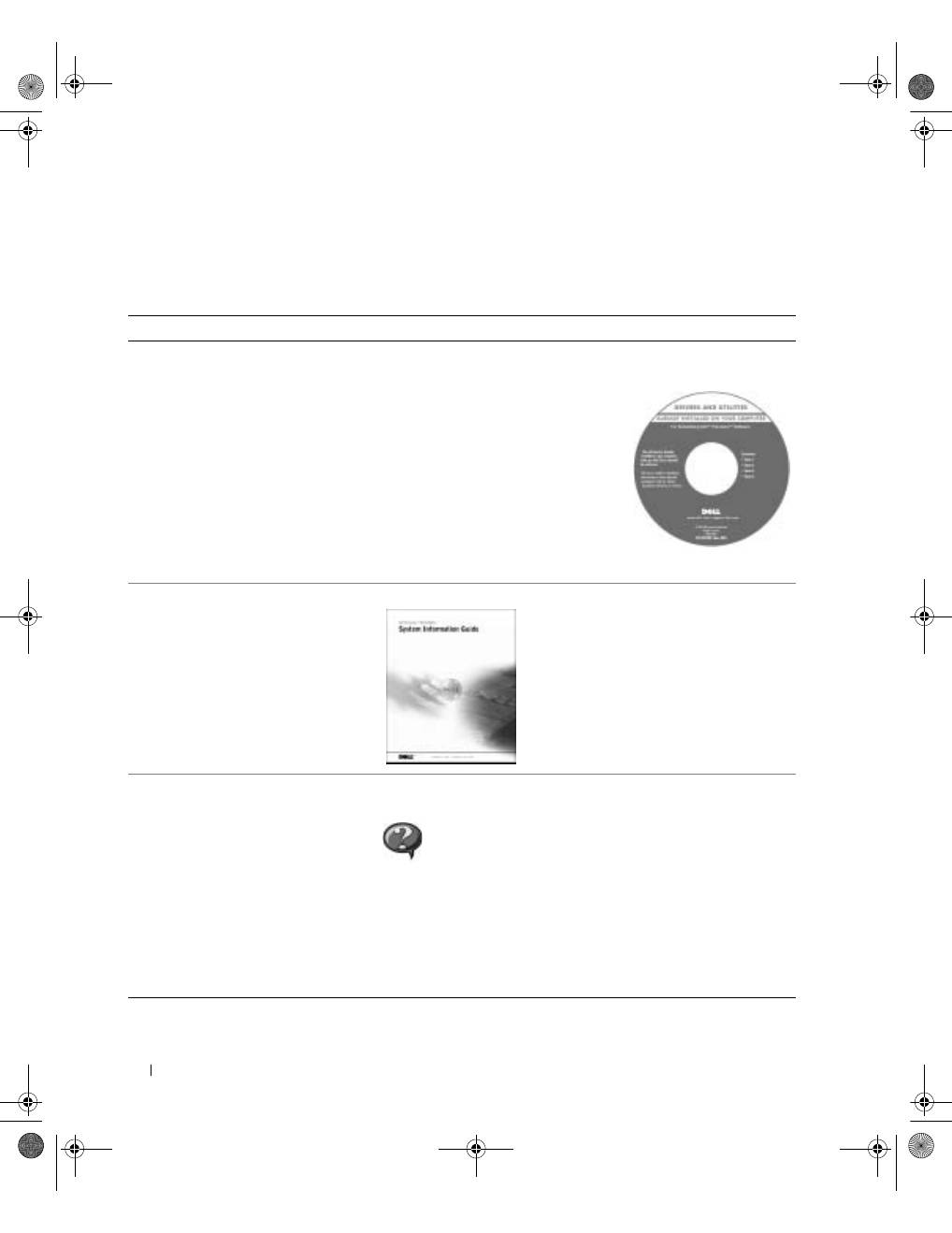
88
G u i a d e i n f o r m a ç õ e s d o s i s t e m a
www
.dell.com | support.dell.com
Como obter informações sobre o
seu computador
O que você está procurando?
Procure aqui
• Um programa de diagnósticos para
o meu computador
• Drivers para o meu computador
• Meu
Guia do usuário
• Documentação sobre meus
dispositivos
O C D D r i v e r s a n d U t i l i t i e s ( D r i v e r s e u t i l i t á r i o s ) ,
t a m b é m c h a m a d o d e R e s o u r c e C D )
A documentação e os drivers já são
fornecidos pela Dell instalados no
computador. Você pode usar esse CD
para reinstalar drivers, executar o Dell
Diagnostics ou acessar a documentação.
Os arquivos Leia-me podem estar
contidos no CD para oferecer as últimas
atualizações sobre as alterações técnicas
no computador ou o material de
referência técnica avançada para usuários
experientes ou técnicos.
• Informações sobre garantia
G u i a d e i n f o r m a ç õ e s d o s i s t e m a d a D e l l
• Como remover e substituir peças
• Especificações técnicas
• Como configurar as definições
do sistema
• Como solucionar problemas
Í c o n e d o G u i a d o u s u á r i o
( M i c r o s o f t W i n d o w s 2 0 0 0 )
Clique duas vezes no ícone
User’s Guide (Guia do usuário)
na área de trabalho.
W i n d o w s H e l p a n d S u p p o r t C e n t e r
( C e n t r o d e a j u d a e s u p o r t e d o W i n d o w s )
1
Clique no botão
Start (Iniciar)
e, em seguida, clique em
Help and Support (Ajuda e suporte)
.
2
Clique em
User’s and system guides (Guias do usuário e
do sistema)
e em
User’s guides (Guias do usuário)
.
3y279bk0.book Page 88 Tuesday, February 11, 2003 4:17 PM
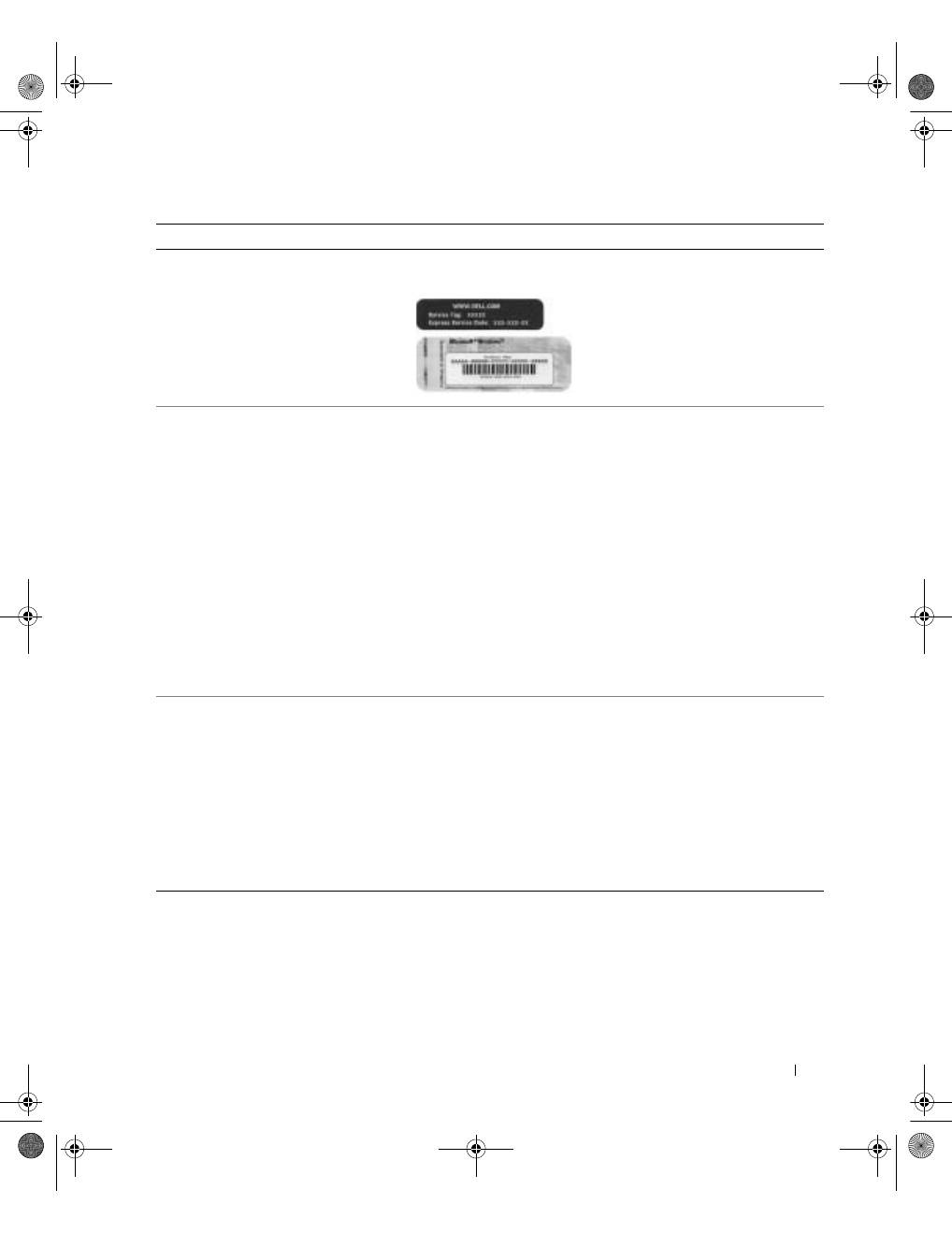
G u i a d e i n f o r m a ç õ e s d o s i s t e m a
89
• Código de serviço expresso e Etiqueta
de serviço
• Etiqueta de licença do Microsoft
®
Windows
®
E t i q u e t a d o c ó d i g o d e s e r v i ç o e x p r e s s o e d a c h a v e
d o p r o d u t o
Essas etiquetas estão localizadas
no computador.
• Drivers mais recentes para o meu
computador
• Respostas para dúvidas de assistência
técnica e suporte
• Conversas on-line com outros usuários
e com o suporte técnico
• Documentação para o meu
computador, incluindo o
Manual
de serviço
S i t e d e s u p o r t e d a D e l l n a W e b —
support.dell.com
( e m I n g l ê s )
O site de suporte da Dell na Web oferece várias ferramentas on-line,
como, por exemplo:
• Soluções — Dicas de resolução de problemas, artigos escritos por
técnicos e cursos on-line
• Fórum de comunidades — Conversas on-line com outros clientes
da Dell
• Atualizações — Informações sobre atualização de componentes,
como memória, unidade de disco rígido e sistema operacional
• Proteção ao cliente — Informações sobre contato, status de pedidos,
garantia e reparação
• Downloads — Drivers, patches e atualizações de software
• Referência — Documentação do computador, especificações
do produto e artigos
• Status do serviço de chamadas e
histórico de suporte
• Principais questões técnicas sobre
o meu computador
• Perguntas mais freqüentes
• Downloads de arquivos
• Detalhes sobre a configuração do
meu computador
• Contrato de serviço do meu
computador
S i t e d o D e l l P r e m i e r S u p p o r t n a W e b —
premiersupport.dell.com
( e m I n g l ê s )
O site do Dell Premier Support na Web é personalizado para clientes
corporativos, governamentais e educacionais. Esse site pode não estar
disponível em todas as regiões.
O que você está procurando?
Procure aqui
3y279bk0.book Page 89 Tuesday, February 11, 2003 4:17 PM
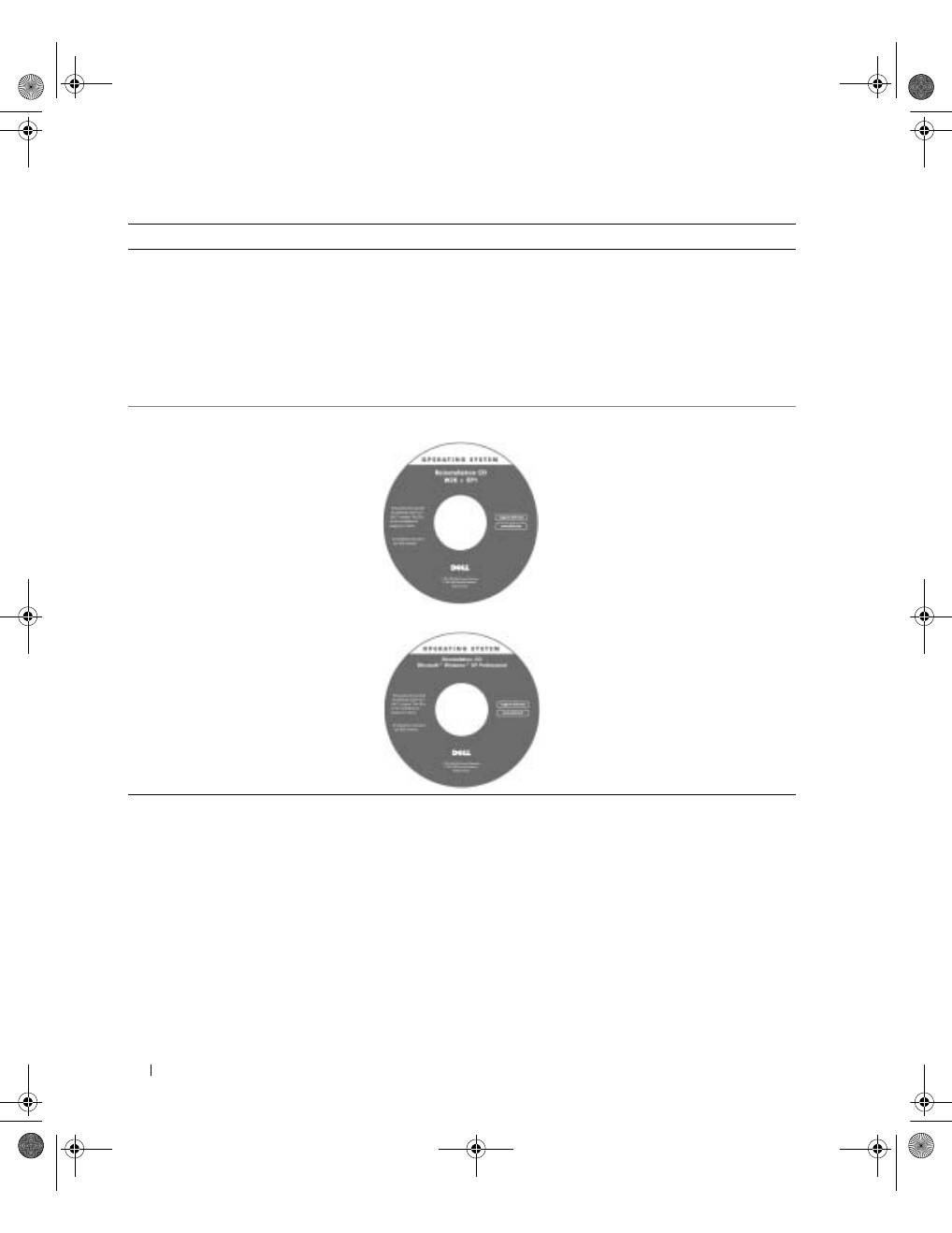
90
G u i a d e i n f o r m a ç õ e s d o s i s t e m a
www
.dell.com | support.dell.com
Configuração do computador
1
Desembale a caixa de acessórios.
2
Separe o conteúdo da caixa de acessórios necessários para completar a configuração
do computador.
A caixa de acessórios também contém a documentação do usuário e todos os softwares
ou hardwares adicionais (como placas de PC, unidades ou baterias) que você tenha
encomendado.
• Como usar o Windows XP
• Documentação sobre meu
computador
• Documentação sobre dispositivos
(como um modem)
W i n d o w s H e l p a n d S u p p o r t C e n t e r
( C e n t r o d e a j u d a e s u p o r t e d o W i n d o w s )
1
Clique no botão
Start (Iniciar)
e, em seguida, clique em
Help and
Support (Ajuda e suporte)
.
2
Digite uma palavra ou expressão que descreva o seu problema e
clique no ícone de seta.
3
Clique no tópico que descreve o problema.
4
Siga as instruções exibidas na tela.
• Como reinstalar o sistema operacional
C D d o s i s t e m a o p e r a c i o n a l
Se você reinstalar o sistema operacional,
use o
CD Drivers and Utilities (Drivers
e utilitários)
para reinstalar os drivers
dos dispositivos fornecidos com
o computador.
A chave do produto para o sistema
operacional está localizada em seu
computador.
O que você está procurando?
Procure aqui
ou
3y279bk0.book Page 90 Tuesday, February 11, 2003 4:17 PM
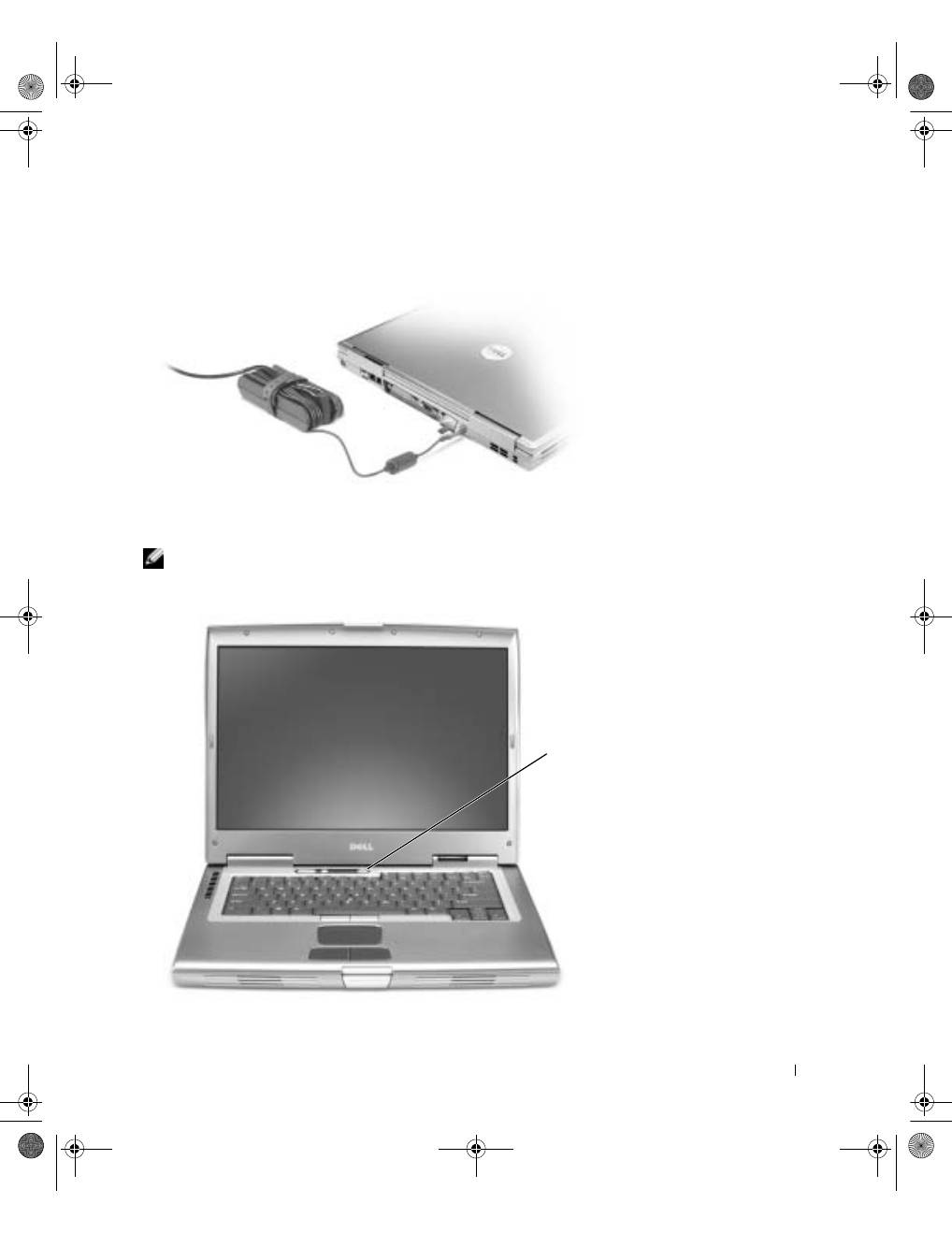
G u i a d e i n f o r m a ç õ e s d o s i s t e m a
91
3
Conecte o adaptador para CA ao conector do adaptador para CA no computador e à
tomada elétrica.
4
Abra a tela do computador e pressione o botão Liga/Desliga para ligar o equipamento.
NOTA:
Não conecte o computador ao dispositivo de encaixe até que o computador seja ligado e
desligado pelo menos uma vez.
botão
Liga/Desliga
3y279bk0.book Page 91 Tuesday, February 11, 2003 4:17 PM
92
G u i a d e i n f o r m a ç õ e s d o s i s t e m a
www
.dell.com | support.dell.com
Sobre o computador
Consulte o
Guia do usuário
on-line para obter informações detalhadas sobre o computador.
Dependendo do sistema operacional, clique duas vezes no ícone
User’s Guide (Guia do
usuário)
, na área de trabalho, ou clique no botão
Start (Iniciar)
, em
Help and Support
Center (Centro de ajuda e suporte)
e, em seguida, clique em
User and system guides
(Guias do usuário e do sistema
). Os itens a seguir respondem algumas das perguntas
mais freqüentes sobre o computador.
•
Modem e adaptador de rede:
O computador pode conter um modem v.92 56K e um
adaptador de rede 10/100/1000 Ethernet LOM. Para se informar sobre localização de
conectores, consulte “Vista direita” posteriormente neste documento. Para obter mais
informações sobre portas e conectores, consulte “Sobre o computador” no
Guia do
usuário
on-line.
•
Uso e duração da bateria:
Há várias baterias disponíveis para uso com o seu
computador. Com a bateria de 72 WHr/6486-mAh fornecida com o computador, a
expectativa de duração de uma única bateria totalmente carregada varia de 3 a 4 horas
com uso médio. A execução de certos tipos de operação, como uso prolongado sem fio,
pode reduzir significativamente a vida útil da bateria.
–
Para obter mais informações sobre desempenho, uso e conservação de energia
de baterias, consulte “Usando uma bateria” e “Gerenciamento de energia” no
Guia do usuário
.
–
Para obter informações sobre uma segunda bateria opcional, consulte “Usando
o compartimento do módulo” no
Guia do usuário
.
•
Dispositivos de compartimentos de módulos:
Para obter informações sobre o
compartimento do módulo e os dispositivos aos quais ele oferece suporte,
consulte “Usando o compartimento do módulo” no
Guia do usuário
.
•
Dispositivos de encaixe:
O computador oferece suporte à Estação de Expansão
D/Dock da Dell e ao Advanced Port Replicator (replicador de porta avançado) da
D/Port da Dell.
NOTA:
Os dispositivos de encaixe podem não estar disponíveis em alguns países.
–
Para obter informações sobre o dispositivo de encaixe opcional, consulte a
documentação que acompanha o dispositivo.
–
Para informações sobre como obter um desempenho ideal usando um dispositivo
de encaixe neste computador, consulte a seção “Resolução de problemas” no
Guia do usuário
.
3y279bk0.book Page 92 Tuesday, February 11, 2003 4:17 PM
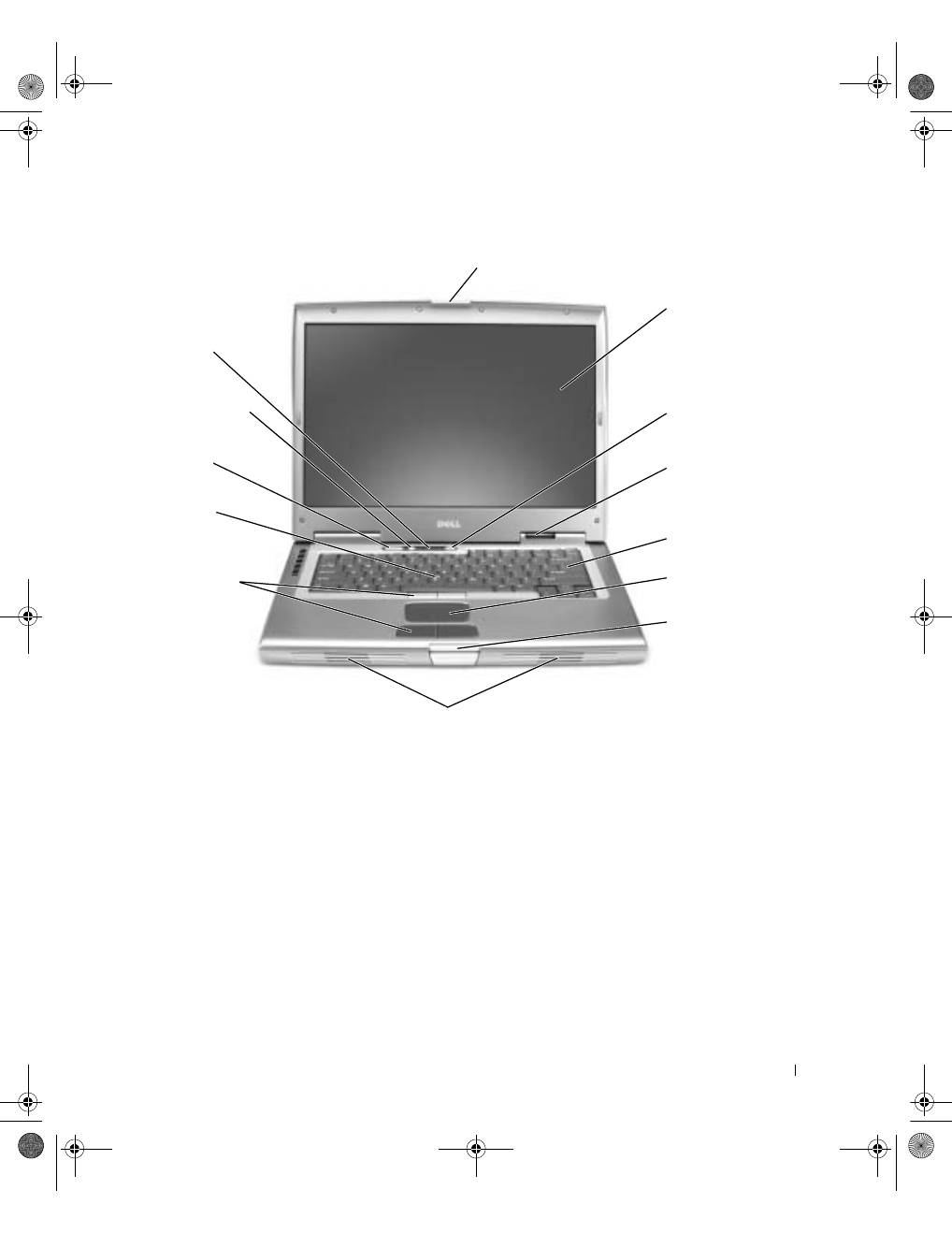
G u i a d e i n f o r m a ç õ e s d o s i s t e m a
93
Vista frontal
trava da tela
teclado
tela
track stick
touch pad
botões de controle
de volume
luzes de
status do
dispositivo
botões do track stick
e do touch pad
botão sem áudio
botão
Liga/Desliga
botão de
trava da tela
alto-falantes
luzes de status
do teclado
3y279bk0.book Page 93 Tuesday, February 11, 2003 4:17 PM
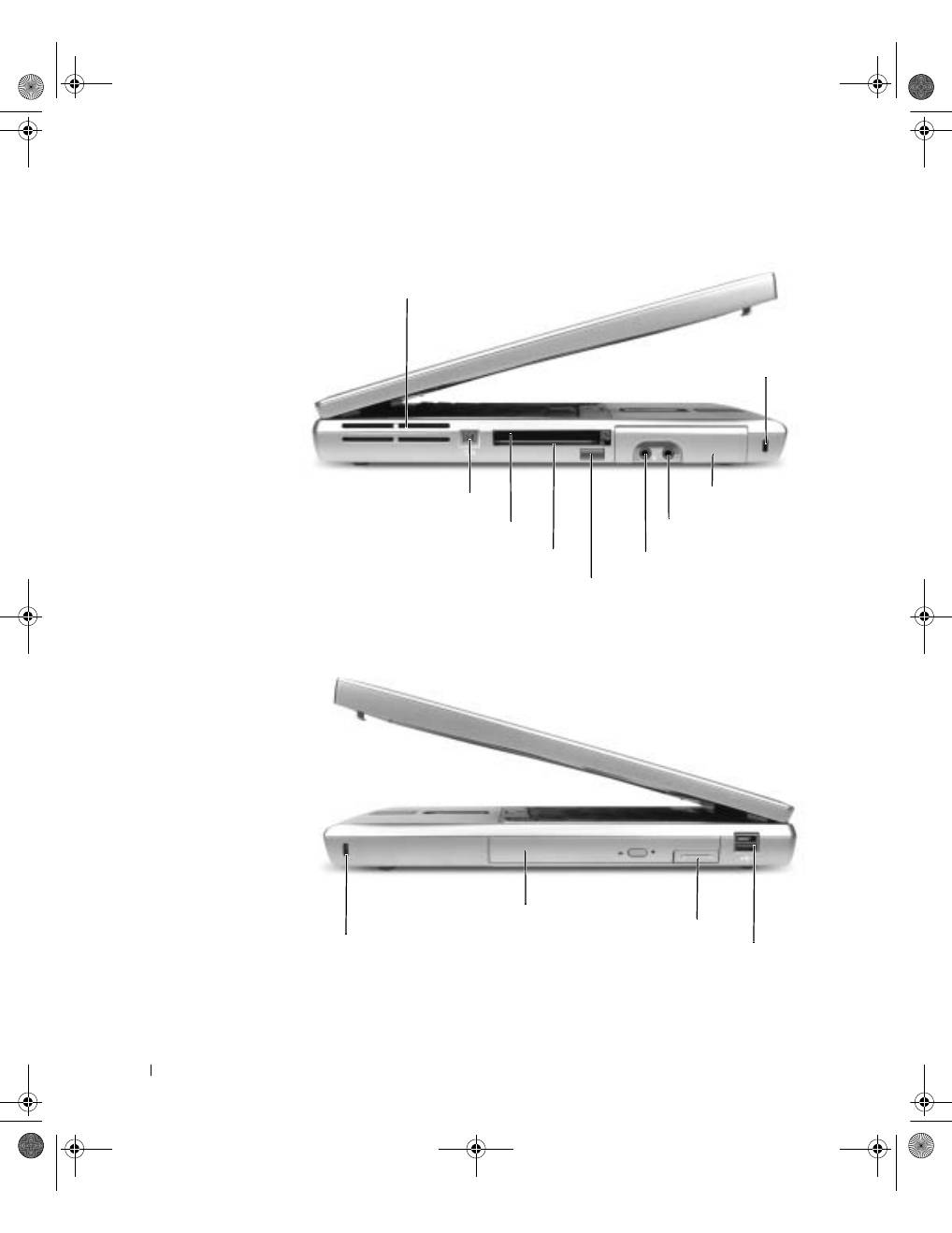
94
G u i a d e i n f o r m a ç õ e s d o s i s t e m a
www
.dell.com | support.dell.com
Visão lateral esquerda
Visão lateral direita
aberturas de
ventilação
conector IEEE 1394
slot da placa de PC
slot de placa inteligente
sensor de infravermelho
conector de fone
de ouvido
unidade de
disco rígido
encaixe do cabo de segurança
conector do microfone
compartimento do módulo
trava
de liberação
do dispositivo
conector D/Bay da Dell
encaixe do cabo de segurança
3y279bk0.book Page 94 Tuesday, February 11, 2003 4:17 PM
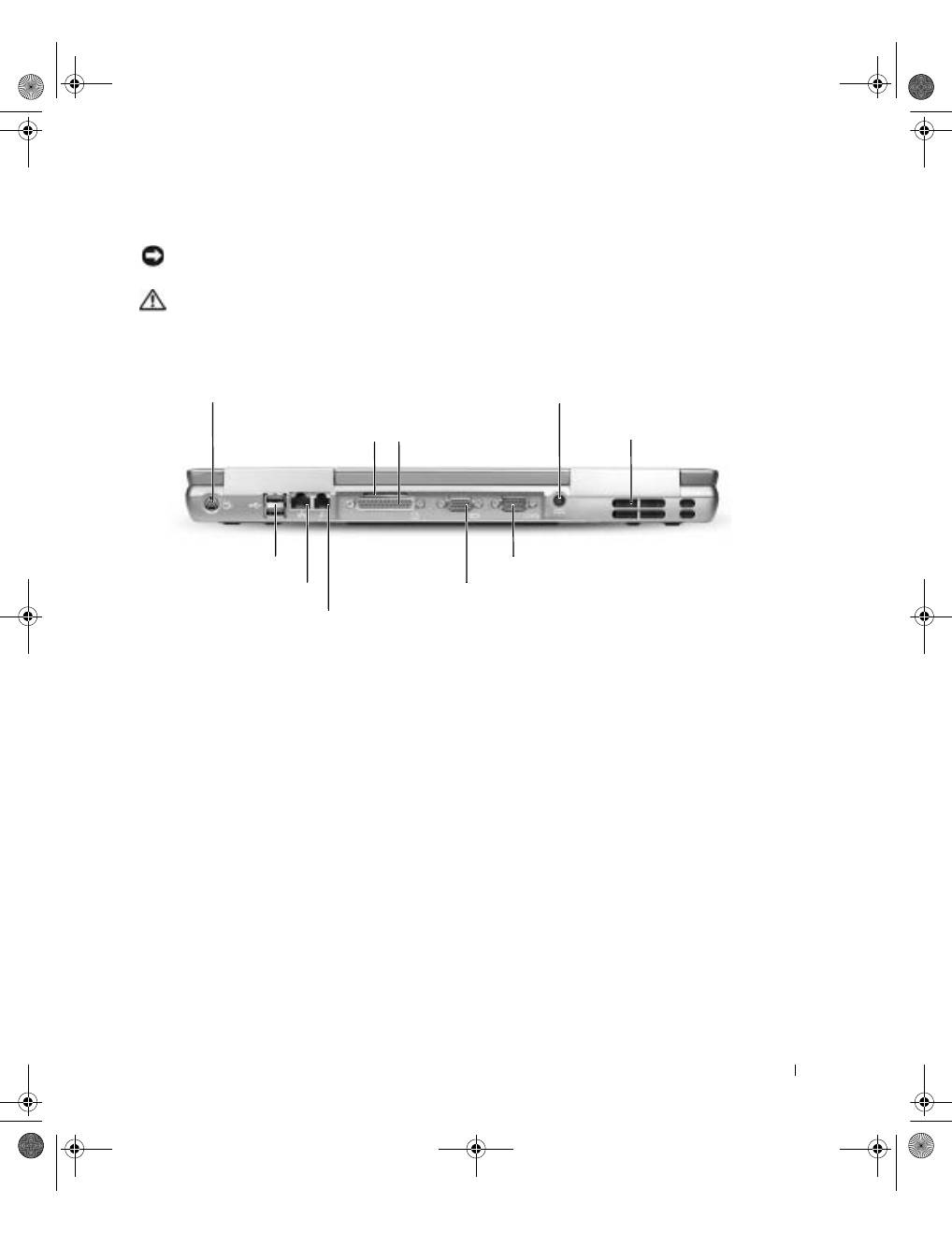
G u i a d e i n f o r m a ç õ e s d o s i s t e m a
95
Vista posterior
AVISO:
Para evitar danos, aguarde cinco segundos após desligar o computador para
desconectar um dispositivo externo.
CUIDADO: Não bloqueie a ventilação, introduza objetos ou permita o acúmulo de
poeira nas aberturas de ventilação. Não guarde o computador em um ambiente
com pouca ventilação, como, por exemplo, uma pasta fechada, enquanto ele
estiver em funcionamento. Isso pode danificar o computador ou causar incêndio.
conector de saída de TV S-video
conector de rede (RJ-45)
conector de modem (RJ-11)
conector paralelo
conector serial
conector de vídeo
conector do adaptador
para CA
aberturas de
ventilação
ventilação
conectores USB (2)
3y279bk0.book Page 95 Tuesday, February 11, 2003 4:17 PM
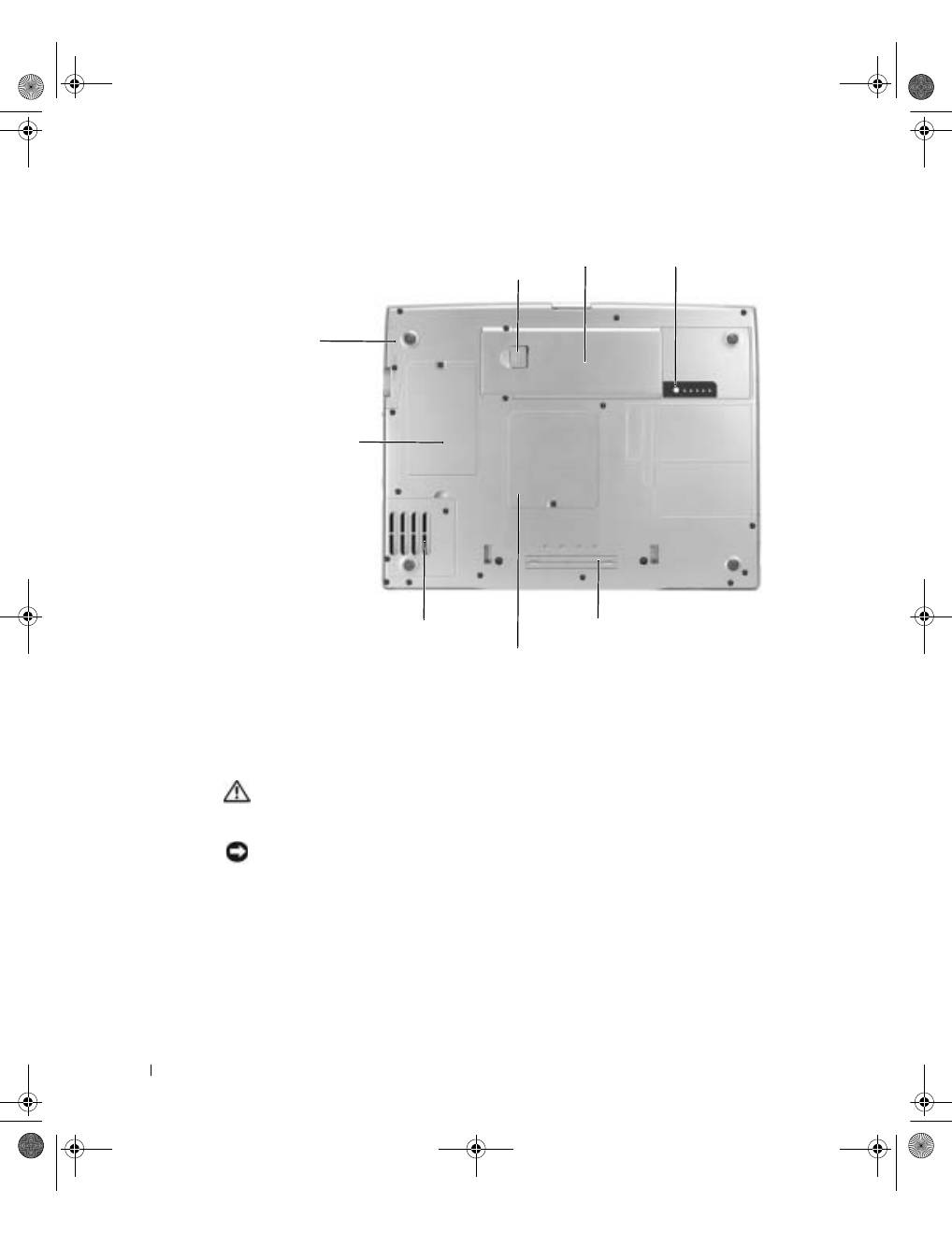
96
G u i a d e i n f o r m a ç õ e s d o s i s t e m a
www
.dell.com | support.dell.com
Vista inferior
Como remover uma bateria
Para obter mais informações sobre como remover a segunda bateria, consulte “Utilização
do compartimento do módulo” no
Guia do usuário
on-line.
CUIDADO: Antes de executar esses procedimentos, leia e siga as instruções de
segurança que começam em página 81, desligue o computador, desconecte-o da
tomada elétrica e desconecte o modem da tomada do telefone.
AVISO:
Se você optar por substituir a bateria com o computador no modo de espera, terá só
90 segundos para concluir a substituição da bateria antes que o computador seja desligado e os
dados que não foram salvos sejam perdidos.
unidade de
disco rígido
slot do dispositivo de encaixe
Miniplaca
PCI/tampa
do modem
bateria
trava de liberação do
compartimento de bateria
regulador de carga
da bateria
tampa do módulo de memória
ventilador
3y279bk0.book Page 96 Tuesday, February 11, 2003 4:17 PM
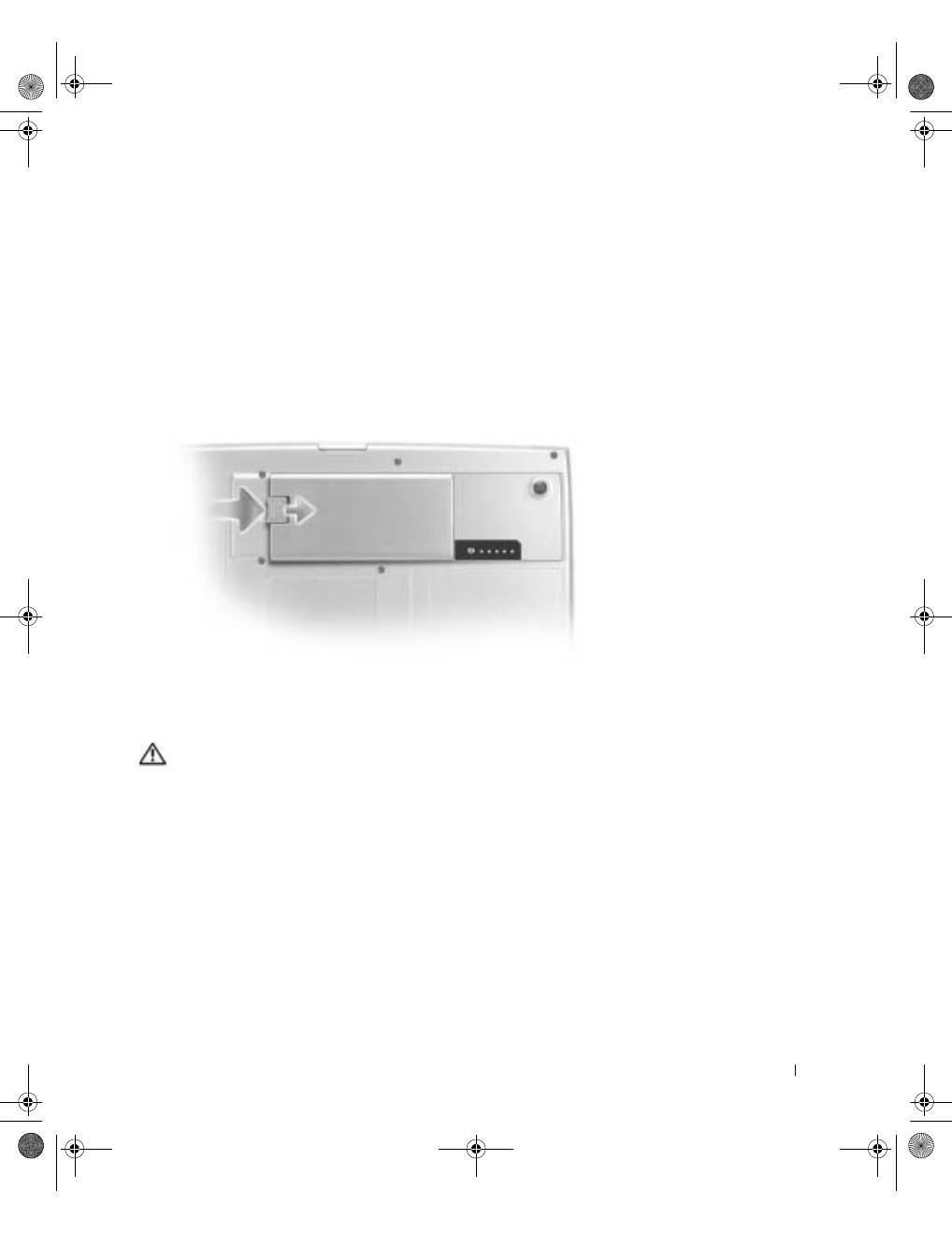
G u i a d e i n f o r m a ç õ e s d o s i s t e m a
97
1
Verifique se o computador está desligado, em suspensão no modo de gerenciamento
de energia ou conectado a uma tomada elétrica.
2
Se o computador estiver conectado a um dispositivo de encaixe (encaixado),
desencaixe-o.
Consulte a documentação fornecida com o dispositivo de encaixe para obter
instruções.
3
Deslize e segure a trava de liberação do compartimento da bateria na parte inferior do
computador e remova a bateria do compartimento.
Instalação de uma bateria
CUIDADO: Antes de realizar este procedimento, leia e siga as instruções de
segurança que começam em página 81.
Deslize a bateria para dentro do compartimento e empurre-a até ouvir um clique na trava
da bateria.
Para obter mais informações sobre como instalar a segunda bateria, consulte “Utilização do
compartimento do módulo” no
Guia do usuário
on-line.
3y279bk0.book Page 97 Tuesday, February 11, 2003 4:17 PM
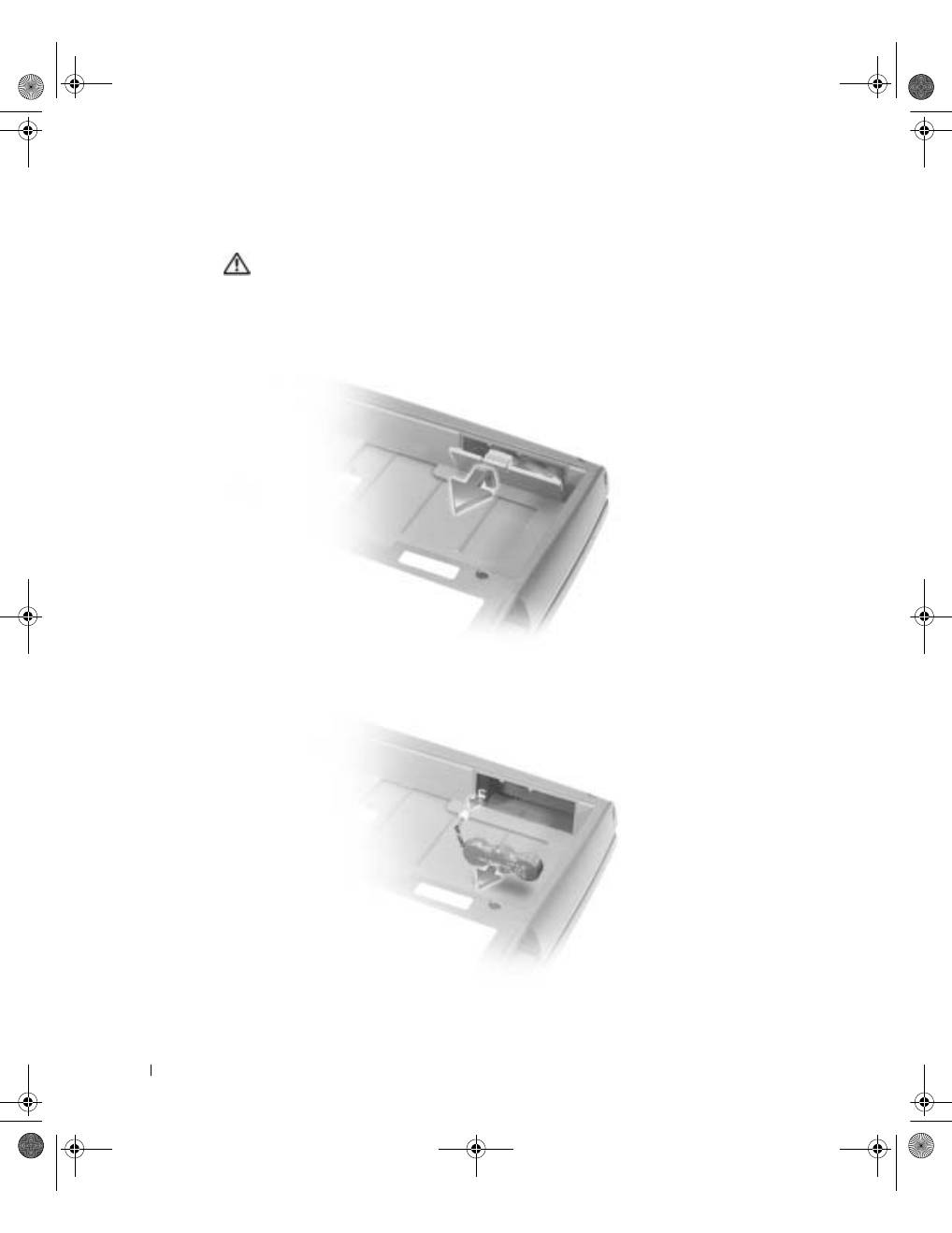
98
G u i a d e i n f o r m a ç õ e s d o s i s t e m a
www
.dell.com | support.dell.com
Remoção de uma bateria reserva
CUIDADO: Antes de realizar estes procedimentos, leia e siga as instruções de
segurança que começam em página 81.
1
Remova a bateria.
2
Remova a tampa da bateria de reserva.
3
Retire a bateria de reserva de seu compartimento e desconecte o cabo do conector.
3y279bk0.book Page 98 Tuesday, February 11, 2003 4:17 PM
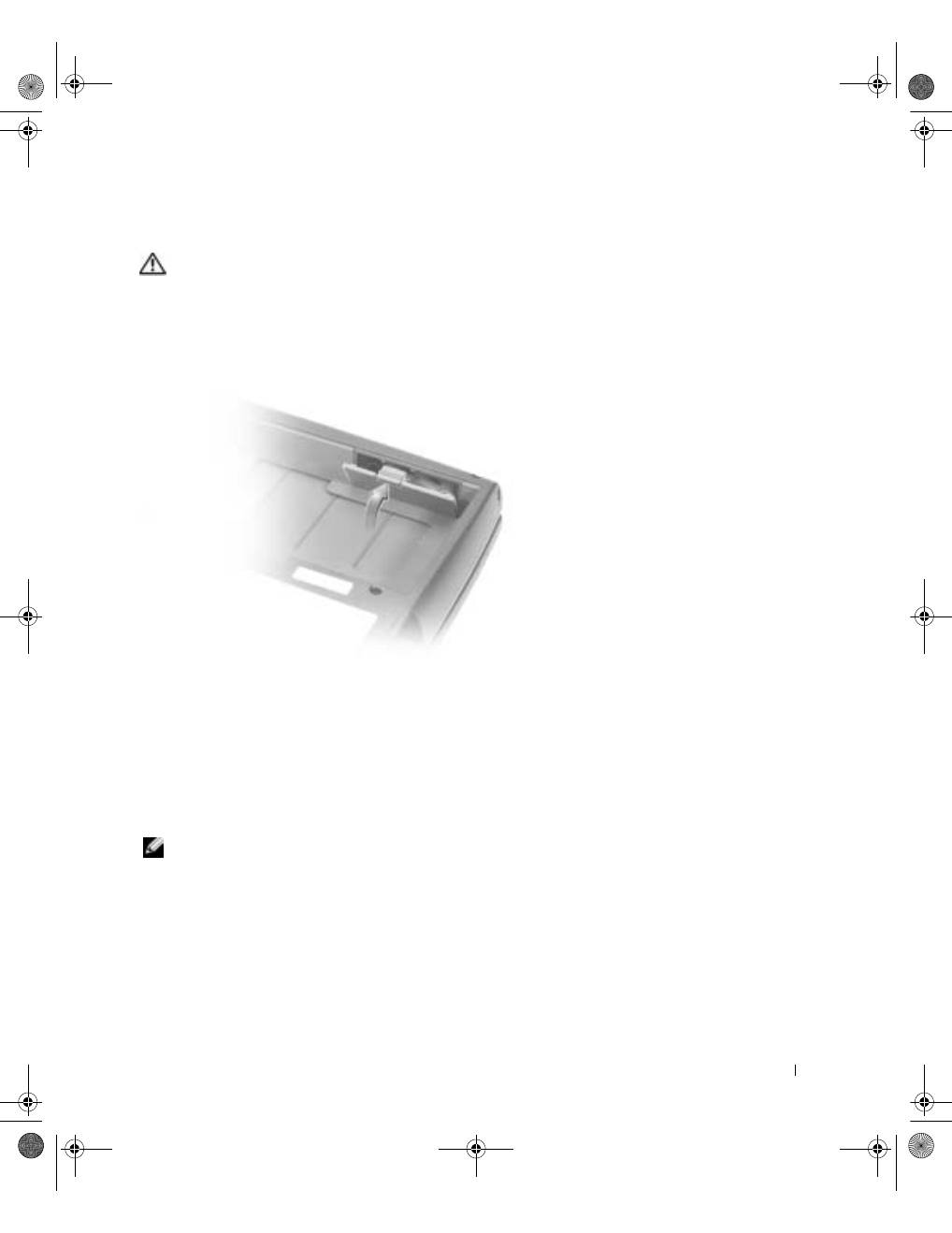
G u i a d e i n f o r m a ç õ e s d o s i s t e m a
99
Instalação de uma bateria reserva
CUIDADO: Antes de realizar estes procedimentos, leia e siga as instruções de
segurança que começam em página 81.
1
Conecte o cabo da bateria de reserva ao conector no compartimento correspondente.
2
Coloque a bateria de reserva no compartimento e recoloque a tampa da bateria.
Como executar o programa de Diagnóstico
da Dell
O Dell Diagnostics está localizado em uma partição oculta do utilitário Diagnostic
(Diagnóstico) na unidade de disco rígido.
NOTA:
Caso o computador não exiba uma imagem na tela, entre em contato com a Dell
(consulte “Obtendo ajuda” no
Guia do usuário
para obter as informações de contato adequadas).
1
Desligue o computador.
2
Se o computador estiver conectado a um dispositivo de encaixe (encaixado),
desencaixe-o.
Consulte a documentação fornecida com o dispositivo de encaixe para
obter instruções.
3y279bk0.book Page 99 Tuesday, February 11, 2003 4:17 PM
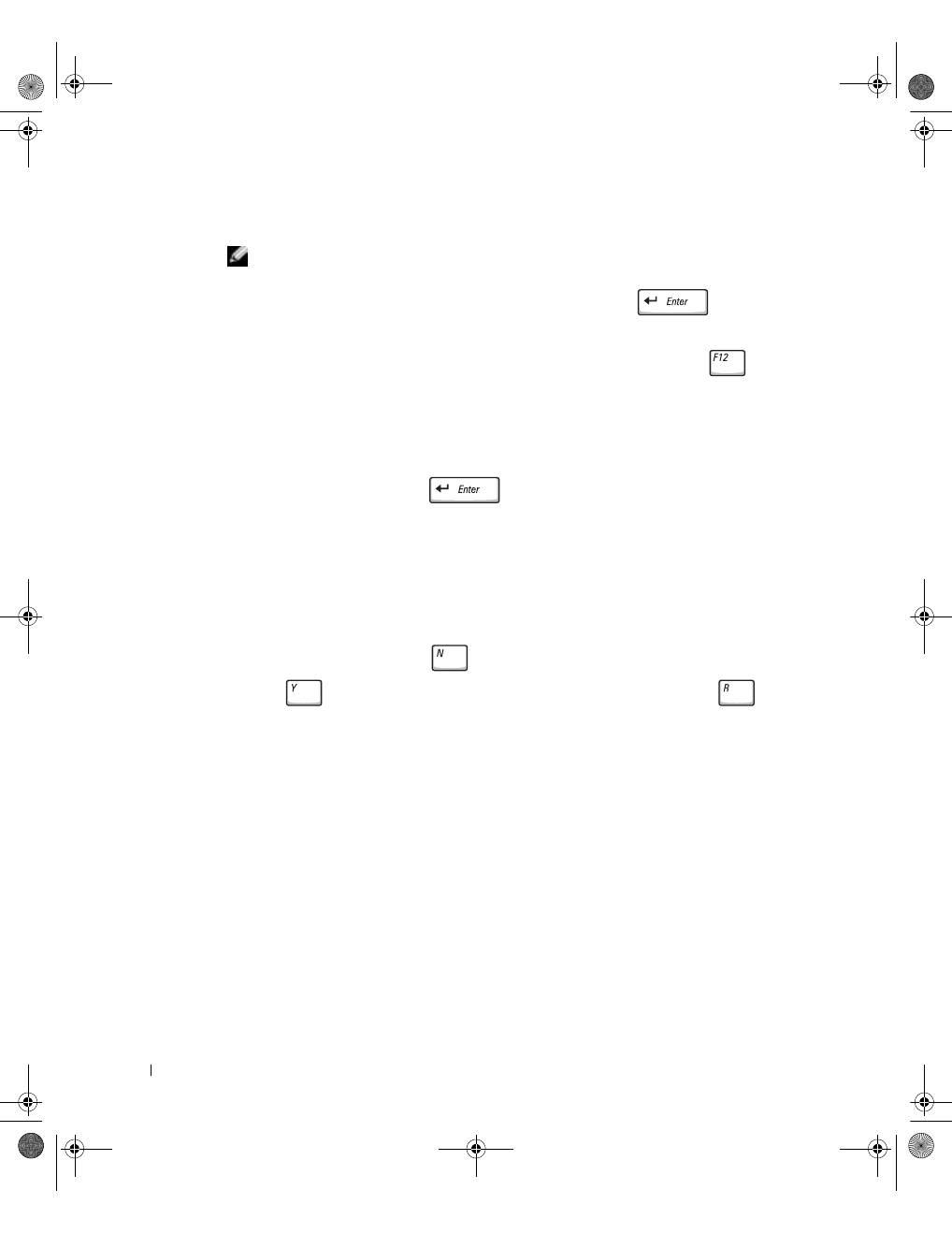
100
G u i a d e i n f o r m a ç õ e s d o s i s t e m a
www
.dell.com | support.dell.com
3
Conecte o computador a uma tomada elétrica.
NOTA:
Se não conseguir ver nada na tela, você poderá manter pressionado o botão sem
áudio e pressionar o botão Liga/Desliga (em vez de F12) para iniciar o Dell Diagnostics.
Não é necessário destacar
Diagnostics (Diagnóstico)
e pressionar
. O computador
executa automaticamente a Avaliação do sistema de pré-inicialização.
4
Ligue o computador. Quando o logotipo da Dell™ aparecer, pressione
imediatamente. Se você deixar passar muito tempo e o logotipo do Microsoft
®
Windows
®
aparecer, aguarde até visualizar a área de trabalho do Windows.
Em seguida, desligue o computador e tente novamente.
5
Quando a lista de dispositivos de inicialização for exibida, destaque
Diagnostics
(Diagnóstico)
e pressione
.
O computador começa a executar a Avaliação do sistema de pré-inicialização, uma
série de diagnósticos embutidos, que realizam testes iniciais na placa de sistema,
no teclado, na unidade de disco rígido e na tela.
•
Durante a avaliação, responda a todas as perguntas que forem exibidas.
•
Se for detectada uma falha em um componente, o computador interromperá o
processo e emitirá um bipe. Para interromper a avaliação e reinicializar o sistema
operacional, pressione
; para continuar com o teste seguinte, pressione
; para testar novamente o componente que falhou, pressione
.
•
Caso uma falha seja detectada durante a Avaliação do sistema de pré-inicialização,
escreva o(s) código(s) de erro e entre em contato com a Dell (consulte “Obtendo
ajuda” no
Guia do usuário
para obter as informações sobre contato adequadas)
antes de continuar a executar o Dell Diagnostics.
•
Se receber uma mensagem informando que nenhuma partição do Utilitário
Diagnostics (Diagnóstico) foi encontrada, siga as instruções exibidas na tela
para executar o Dell Diagnostics a partir do CD
Drivers and Utilities (Drivers
e utilitários)
.
Se a Avaliação do sistema de pré-inicialização for concluída com sucesso, será exibida
a mensagem
Booting Dell Diagnostic Utility Partition. Press any key
to continue (Inicializando partição do Utilitário Diagnostic da
Dell. Pressione uma tecla para continuar)
.
3y279bk0.book Page 100 Tuesday, February 11, 2003 4:17 PM
G u i a d e i n f o r m a ç õ e s d o s i s t e m a
101
6
Pressione qualquer tecla para iniciar o Dell Diagnostics a partir da partição do
Utilitário Diagnostics (Diagnóstico) na unidade de disco rígido.
7
Após o Dell Diagnostics ser carregado e o
Main
Menu (Menu principal)
ser exibido
na tela, clique no botão da opção desejada.
NOTA:
A etiqueta de serviço do computador está localizada na barra de título de cada tela.
8
Se for encontrado um problema durante um teste, será exibida uma mensagem
contendo o código do erro e uma descrição do problema. Anote o código do erro e a
descrição do problema e siga as instruções na tela. Caso não consiga solucionar o erro,
entre em contato com a Dell (consulte “Obtendo ajuda” no
Guia do usuário
para obter
as informações de contato adequadas).
Opção
Função
Express Test
(Teste rápido)
Executa um teste rápido nos dispositivos. Normalmente, esse teste leva de
10 a 20 minutos e não exige nenhuma interação de sua parte. Aumente as
possibilidades de detectar o problema rapidamente executando primeiro
o Teste rápido.
Extended Test
(Teste longo)
Executa uma verificação completa nos dispositivos. Normalmente,
esse teste leva uma hora ou mais e exige que você responda a perguntas
periodicamente.
Custom Test
(Teste personalizado)
Testa um determinado dispositivo. Você pode personalizar os testes a
serem executados.
Symptom Tree
(Árvore de sintomas)
Permite selecionar os testes com base em um sintoma do problema que
está ocorrendo. A opção lista os sintomas mais comuns.
3y279bk0.book Page 101 Tuesday, February 11, 2003 4:17 PM

102
G u i a d e i n f o r m a ç õ e s d o s i s t e m a
www
.dell.com | support.dell.com
9
Se você executar um teste a partir da opção
Custom Test (Teste personalizado)
ou
Symptom Tree (Árvore de sintomas)
, clique na guia aplicável descrita na tabela a
seguir para obter mais informações.
10
Depois de concluir um teste, feche a tela para retornar ao
Main
Menu (Menu
principal)
. Para sair do Dell Diagnostics e reinicializar o computador, feche a tela
Main
Menu (Menu principal)
.
Guia
Função
Results
(Resultados)
Exibe os resultados do teste e qualquer condição de erro encontrada.
Errors (Erros)
Exibe as condições de erros encontradas, os códigos de erro e a descrição
do problema.
Help (Ajuda)
Descreve o teste e pode indicar os requisitos para sua execução.
Configuration
(Configuração)
Exibe a configuração do hardware referente ao dispositivo selecionado.
O Dell Diagnostics obtém as informações sobre a configuração de todos os
dispositivos do programa de configuração do sistema, da memória e dos diversos
testes internos, e exibe as informações na lista de dispositivos localizada no
painel esquerdo da tela. Pode ser que a lista de dispositivos não exiba os nomes
de todos os componentes instalados no computador ou de todos os dispositivos
acoplados a ele.
Parameters
(Parâmetros)
Permite que você personalize o teste alterando as configurações de teste.
3y279bk0.book Page 102 Tuesday, February 11, 2003 4:17 PM

G u i a d e i n f o r m a ç õ e s d o s i s t e m a
103
Avisos de regulamentação
EMI (Electromagnetic Interference [interferência eletromagnética]) é qualquer sinal ou
emissão, irradiada em espaço livre ou transmitida através de condutores de força ou de
sinais, que coloque em risco o funcionamento de um serviço de navegação de rádio
Os serviços de comunicação de rádio incluem (mas não se limitam a) transmissão comercial
AM/FM, televisão, serviços de celular, radar, controle de tráfego aéreo, pager e PCS
(Personal Communication Services [serviços de comunicações pessoais]). Esses serviços
licenciados, juntamente com radiadores involuntários como dispositivos digitais, incluindo
computadores, contribuem para o ambiente eletromagnético.
EMC (Electromagnetic Compatibility [compatibilidade eletromagnética]) é a capacidade
que os itens de um equipamento eletrônico possuem de funcionar corretamente em
conjunto no ambiente eletrônico. Embora este computador tenha sido projetado para estar
em conformidade com os limites estabelecidos pelos órgãos de regulamentação para EMI,
não há garantias de que não ocorrerá interferência em uma instalação específica. Se o
equipamento causar interferência nos serviços de comunicação de rádio, o que pode ser
determinado quando o equipamento for ligado e desligado, experimente corrigir a
interferência através de uma ou mais das seguintes medidas:
•
Mude a direção da antena receptora.
•
Mude o computador de lugar em relação ao receptor.
•
Afaste o computador do receptor.
•
Ligue o computador em outra tomada, de modo que o computador e o receptor
fiquem em circuitos derivados diferentes.
Se necessário, consulte um representante do Suporte técnico da Dell ou um profissional
técnico experiente de rádio/televisão para obter outras sugestões.
Para obter informações de regulamentação adicionais, consulte “Avisos de regulamentação”
no Apêndice do
Guia do usuário
on-line. As seções específicas para cada órgão de
regulamentação possuem informações sobre a segurança de produtos ou sobre EMC/EMI
específicas de cada país.
3y279bk0.book Page 103 Tuesday, February 11, 2003 4:17 PM

104
G u i a d e i n f o r m a ç õ e s d o s i s t e m a
www
.dell.com | support.dell.com
3y279bk0.book Page 104 Tuesday, February 11, 2003 4:17 PM

G u i a d e i n f o r m a ç õ e s d o s i s t e m a
105
Garantia limitada e política de devolução
Termo de Garantia Contratual - Brasil
Garantia oferecida pela Dell ao Usuário Final - 1º ano
Garantia
A DELL* garante ao usuário final, em conformidade com as disposições abaixo, que os
produtos de hardware com a sua marca, adquiridos pelo usuário final de uma empresa do
grupo DELL ou de um distribuidor autorizado DELL situado na América Latina e Caribe,
estão livres de defeitos em seus componentes eletrônicos, mecânicos e de montagem, pelo
prazo de 1 (um) ano contado da data de aquisição do Produto indicada na Nota Fiscal de
Compra, uma vez respeitadas as condições normais de instalação e uso, exceto no que tange
aos itens relacionados dentre as excessões adiante indicadas. Já se encontra incluso nesse
prazo o período de garantia legal.
Produtos contra os quais sejam apresentadas reclamações justas serão, a critério da DELL,
consertados ou substituídos às expensas da DELL. Todas as peças removidas dos produtos
consertados serão de propriedade da DELL. A DELL utiliza peças novas e recondicionadas
de vários fabricantes na execução dos serviços de reparo e na fabricação de produtos de
reposição, de qualidade e tecnologia equivalente ou superior, respeitadas as especificações
originais dos produtos.
Responsabilidades do cliente
Notificar de imediato a Dell sobre o mau funcionamento de seus equipamentos (0-800-
903355). Fornecer ao pessoal técnico da Dell acesso total e incondicional à totalidade dos
equipamentos e softwares. Caso existam restrições de segurança que se apliquem a alguns
ou a todos os sistemas do Cliente que necessitem receber assistência técnica em virtude
desta Garantia Contratual, é possível que seja solicitado ao Cliente que este assuma
responsabilidades adicionais para a manutenção do equipamento e/ou software. Notificar a
Dell sobre qualquer perigo potencial quanto à segurança ou à saúde que possa existir nas
instalações do Cliente, assim como proporcionar e/ou recomendar os procedimentos de
segurança que devem ser seguidos, caso sejam aplicáveis.
Proporcionar, caso seja necessário e sem nenhum encargo para a Dell, um espaço de
trabalho adequado e acesso a meios de comunicação que se sejam requeridos à execução
dos serviços.
Manter atualizada uma cópia de segurança do sistema operacional e de outros programas de
software pertinentes, assim como seus dados.
3y279bk0.book Page 105 Tuesday, February 11, 2003 4:17 PM

106
G u i a d e i n f o r m a ç õ e s d o s i s t e m a
www
.dell.com | support.dell.com
Garantir a presença de uma pessoa responsável ou de um funcionário durante a execução
do serviço.
Fornecer, sem ônus para a Dell, meios de gravação e armazenamento, incluindo fitas
e discos magnéticos necessários à execução dos serviços, bem como aparelhos de
comunicação de dados (modems) e linhas telefônicas e/ou conexões de rede quando
requeridos para execução de serviços à distância por via eletrônica (acessos eletrônicos
remotos).
Exclusões
Os seguintes itens, entre outros compatíveis com o ora exposto, não estão cobertos
pela garantia:
•
Partes consumíveis, tais como baterias não-recarregáveis, bolsas, maletas, etc;
•
Programas de computador, exceto no tocante a termos e prazos especificados na
legislação brasileira aplicável;
•
Limpeza, reparos cosméticos ou desgaste resultante do uso normal dos produtos;
•
Danos causados por mau uso, abuso, queda, negligência, imprudência ou imperícia;
•
Danos causados por armazenamento ou uso em condições fora das especificações;
•
Danos causados por equipamentos que produzam ou induzam interferências
eletromagnéticas ou ainda por problemas de instalação elétrica em desacordo com as
normas ABNT;
•
Danos causados por programas de computador, acessórios ou produtos de terceiros
adicionadas a um produto comercializado pela Dell após este ter sido enviado ao
usuário final pela própria Dell;
•
Danos causados por violação do produto, tentativa de reparo ou ajuste por terceiros
não autorizados pela Dell;
•
Danos causados por agentes da natureza como descargas elétricas (raios), inundações,
incêndios, desabamentos, terremotos, etc;
•
Perdas e danos causados pelo produto ou por desempenho do produto, inclusive, mas
não limitado a, lucros cessantes, perdas financeiras e limitações de produtividade,
resultantes dos atos relacionados a hipóteses de não cobertura desta garantia; e,
•
Perda total ou parcial de quaisquer programas de computador, dados ou meios
magnéticos removíveis.
3y279bk0.book Page 106 Tuesday, February 11, 2003 4:17 PM

G u i a d e i n f o r m a ç õ e s d o s i s t e m a
107
A garantia também não será válida caso a Nota Fiscal de Compra apresente rasuras e/ou
alterações ou, ainda, campos incompletos nos itens Data de Aquisição e Número de Série
do produto, e/ou que não esteja em conformidade com a legislação fiscal vigente no Brasil.
Atendimento ao consumidor
Caso você tenha algum comentário ou sugestões, estas devem ser apresentadas na América
Latina e Caribe por meio do ponto de venda da Dell ou através de mensagem eletrônica via
Internet (www.dell.com). No caso de reclamação, esta poderá ser encaminhada durante o
prazo de validade da garantia e o usuário final deverá fornecer sempre o comprovante de
compra, representado pela Nota Fiscal original, indicando o nome e endereço do vendedor,
a data da compra, o modelo e o número de série, o nome e o endereço do cliente e
informações sobre os sintomas e configuração no momento do defeito, incluindo periféricos
e software utilizados. Na falta dessas informações a Dell poderá negar-se a atender a
solicitação. Uma vez diagnosticado o problema, a Dell tomará as devidas providências e
pagará o frete e o seguro de transporte para a central de conserto/reposição Dell, caso o
defeito apresentado qualifique-se para atendimento dentro da garantia. O usuário final
deve garantir que o produto defeituoso estará disponível para ser apanhado, devidamente
embalado na embalagem original ou em embalagem que ofereça grau equivalente de
proteção, incluindo os dados acima e o número de devolução fornecido pela Dell ao
usuário final.
Limitações e direitos
A Dell não oferece nenhuma outra garantia, aval ou declaração similar, exceto conforme
expressamente declarado acima, e esta Garantia substitui quaisquer outras garantias, na
extensão máxima permitida por lei. Esta Garantia será o único e exclusivo recurso contra
a Dell ou qualquer outra empresa do mesmo grupo econômico, não podendo estas serem
responsabilizadas por lucros cessantes ou perdas derivadas de contratos, ou qualquer
outra perda indireta ou imprevista decorrente de negligência, violação contratual ou outros.
Esta Garantia não exclui ou afeta os direitos garantidos por lei ao usuário final contra a
Dell e/ou quaisquer direitos resultantes de outros contratos celebrados pelo usuário final
com a Dell e/ou qualquer outro vendedor autorizado pela Dell.
Dell World Trade LP
One Dell Way, Round Rock, TX 78682, USA
Dell Computadores do Brasil Ltda (CNPJ Nº 72.381.189/0001-10)
Dell Comercial do Brasil Ltda (CNPJ Nº 03.405.822/0001-40)
Avenida Industrial Belgraf, 400
92990-000 - Eldorado do Sul - RS - Brasil
3y279bk0.book Page 107 Tuesday, February 11, 2003 4:17 PM

108
G u i a d e i n f o r m a ç õ e s d o s i s t e m a
www
.dell.com | support.dell.com
Dell Computer de Chile Ltda
Coyancura 2283, Piso 3 - Of. 302,
Providencia, Santiago - Chile
Dell Computer de Colombia Corporation
Carrera 7 #115-33 Oficina 603
Bogota, Colombia
Dell Computer de Mexico SA de CV
Rio Lerma #302 - 4 Piso
Col. Cuauhtemoc, Mexico, D.F. 06500
3y279bk0.book Page 108 Tuesday, February 11, 2003 4:17 PM
w w w . d e l l . c o m | s u p p o r t . d e l l . c o m
Estación de trabajo portátil Dell Precision™ M60 Series
Guía de información del sistema
3y279bk0.book Page 109 Tuesday, February 11, 2003 4:17 PM
Notas, avisos y precauciones
NOTA:
Una NOTA proporciona información importante que le ayuda a utilizar
su equipo de la mejor manera posible.
AVISO:
Un AVISO indica un posible daño en el hardware o la pérdida de
datos y le explica cómo evitar el problema.
PRECAUCIÓN: Una PRECAUCIÓN indica un posible daño
material, lesión corporal o muerte.
Abreviaturas y acrónimos
Para obtener una lista completa de abreviaturas y acrónimos, consulte la
Guía del usuario
(dependiendo del sistema operativo, haga doble clic en el
icono
User’s Guide
[Guía del usuario] en el escritorio, o haga doble clic en
el botón
Start
[Inicio], en
Help and Support Center
[Centro de Ayuda y
soporte técnico] y, por último, en
User and system guides
[Guías del usuario
y del sistema]).
Si ha adquirido un equipo Dell™ de la serie
n
, las referencias al sistema
operativo Microsoft
®
Windows
®
que aparezcan en este documento no
tendrán aplicación.
____________________
La información contenida en este documento puede modificarse sin aviso previo.
© 2003 Dell Computer Corporation. Reservados todos los derechos.
Queda estrictamente prohibida la reproducción de este documento por cualquier medio sin la
autorización por escrito de Dell Computer Corporation.
Marcas comerciales utilizadas en este texto: Dell, el logotipo de DELL, Dell Precision, Latitude y
TrueMobile son marcas comerciales de Dell Computer Corporation; Intel, Pentium y Celeron es una
marca comercial de Intel Corporation; Microsoft y Windows son marcas comerciales registradas de
Microsoft Corporation; EMC es la marca comercial registrada de EMC Corporation.
Otras marcas y otros nombres comerciales pueden utilizarse en este documento para hacer referencia
a las entidades que los poseen o a sus productos. Dell Computer Corporation renuncia a cualquier
interés sobre la propiedad de marcas y nombres comerciales que no sean los suyos.
Enero de 2003
N/P 3Y279
Rev. A00
3y279bk0.book Page 110 Tuesday, February 11, 2003 4:17 PM

Contenido
111
Contenido
PRECAUCIÓN: Instrucciones de seguridad
. . . . . . . . . . .
113
General
. . . . . . . . . . . . . . . . . . . . . . . . . . . .
113
Alimentación
. . . . . . . . . . . . . . . . . . . . . . . . .
114
Batería
. . . . . . . . . . . . . . . . . . . . . . . . . . . .
115
Viajes en avión
. . . . . . . . . . . . . . . . . . . . . . . .
116
Instrucciones EMC
. . . . . . . . . . . . . . . . . . . . . .
117
Residentes en California
. . . . . . . . . . . . . . . . . . . .
117
Cuando utilice el equipo
. . . . . . . . . . . . . . . . . . . . .
118
Hábitos ergonómicos cuando utilice el equipo
. . . . . . . . .
119
Al trabajar en el interior de su equipo
. . . . . . . . . . . . .
119
Protección contra descargas electrostáticas
. . . . . . . . . .
120
Cómo desechar las baterías
. . . . . . . . . . . . . . . . . .
120
Búsqueda de información para el equipo
. . . . . . . . . . . . .
121
Configuración del equipo
. . . . . . . . . . . . . . . . . . . . .
123
Acerca del ordenador
. . . . . . . . . . . . . . . . . . . . . . .
125
Vista anterior
. . . . . . . . . . . . . . . . . . . . . . . . .
126
Vista lateral izquierda
. . . . . . . . . . . . . . . . . . . .
127
Vista lateral derecha
. . . . . . . . . . . . . . . . . . . . .
127
Vista posterior
. . . . . . . . . . . . . . . . . . . . . . . .
128
Vista inferior
. . . . . . . . . . . . . . . . . . . . . . . . .
129
Extracción de la batería
. . . . . . . . . . . . . . . . . . . . .
129
Instalación de la batería
. . . . . . . . . . . . . . . . . . . . .
130
Extracción de una batería de reserva
. . . . . . . . . . . . . .
131
Instalación de una batería de reserva
. . . . . . . . . . . . . .
132
3y279bk0.book Page 111 Tuesday, February 11, 2003 4:17 PM

1 1 2
C o n t e n i d o
Ejecución de los Diagnósticos Dell
. . . . . . . . . . . . . . . .
132
Avisos sobre regulación
. . . . . . . . . . . . . . . . . . . . . .
135
Información de la NOM (sólo para México)
. . . . . . . . . .
136
Garantía limitada y política de devoluciones
. . . . . . . . . . .
137
Garantía de un año del fabricante para el usuario final
(sólo para Latinoamérica y el Caribe)
. . . . . . . . . . . . .
137
Intel
®
Declaración de garantía sólo para los procesadores
Pentium
®
y Celeron
®
(sólo Estados Unidos y Canadá)
. . . . .
138
3y279bk0.book Page 112 Tuesday, February 11, 2003 4:17 PM
G u í a d e i n f o r m a c i ó n d e l s i s t e m a
113
PRECAUCIÓN:
Instrucciones de seguridad
Utilice las siguientes pautas de seguridad para garantizar su propia seguridad personal así como
la protección de su equipo y del entorno de trabajo ante posibles daños.
General
•
No intente reparar el equipo usted mismo a menos que sea un técnico de mantenimiento
cualificado. Siga fielmente las instrucciones de instalación en todo momento.
•
Si utiliza un alargador con el adaptador de corriente alterna, asegúrese de que el
porcentaje total de amperios de los productos enchufados al alargador no exceden el
amperaje de éste.
•
No inserte ningún objeto en las rejillas o aberturas de ventilación del equipo. Si lo hace y
hubiera un cortocircuito en los componentes internos, se podría ocasionar un incendio o
una descarga eléctrica.
•
No guarde el equipo en un entorno con poca circulación de aire, como un maletín o una
cartera cerrada, mientras esté encendido. Si se restringe la circulación de aire se puede
dañar el equipo o provocar un incendio.
•
Mantenga alejado el equipo de radiadores u otras fuentes de calor. Asimismo, no bloquee
las rejillas de ventilación. Evite poner papeles bajo el equipo; no coloque el equipo en una
unidad encastrada en la pared ni sobre una cama, un sofá o una alfombra.
•
Cuando utilice el adaptador de CA para suministrar alimentación al equipo o cargar la
batería, sitúelo en un área ventilada, por ejemplo en un escritorio o en el suelo. No cubra
el adaptador de CA con papeles u otros objetos que reduzcan la refrigeración; tampoco
utilice el adaptador de CA dentro de un maletín.
•
Es posible que el adaptador de CA se caliente durante el funcionamiento normal del
equipo. Tenga cuidado al tocar el adaptador mientras esté funcionando o
inmediatamente después de que haya acabado de funcionar.
•
No utilice el equipo portátil con la base asentada en contacto directo con la piel durante
largos períodos de tiempo. La temperatura de la superficie de la base aumentará durante
el funcionamiento normal (sobre todo si se utiliza corriente alterna). El contacto
continuado con la piel puede provocar malestar o, en algún caso, quemaduras.
3y279bk0.book Page 113 Tuesday, February 11, 2003 4:17 PM
114
G u í a d e i n f o r m a c i ó n d e l s i s t e m a
www
.dell.com | support.dell.com
•
No utilice el equipo en un entorno húmedo, por ejemplo, cerca de una bañera, lavabo o
piscina o sobre un suelo mojado.
•
Si el equipo incluye un módem integrado u opcional (de tarjeta PC), desconecte el cable
del módem cuando se aproxime una tormenta eléctrica para evitar el riesgo improbable
de una descarga eléctrica producida por los rayos a través de la línea telefónica.
•
Para evitar el peligro potencial de sufrir una descarga eléctrica, no conecte ni desconecte
ningún cable ni realice el mantenimiento o la reconfiguración de este producto en el
transcurso de una tormenta eléctrica. No utilice el equipo durante una tormenta eléctrica
a menos que todos los cables hayan sido desconectados previamente y el equipo funcione
con la alimentación de la batería.
•
Si el equipo incluye un módem, el cable utilizado con el módem debe poseer un grosor
mínimo de 26 AWG (American Wire Gauge, calibre de cable americano) y un enchufe
modular RJ-11 que cumpla el estándar FCC (Federal Communications Comisión,
comisión federal de comunicaciones).
•
Antes de abrir la cubierta del módulo de memoria, minitarjeta PCI o módem de la parte
inferior del equipo, desconecte todos los cables de sus enchufes eléctricos y también el
cable del teléfono.
•
Si el equipo dispone de un conector de módem RJ-11 y un conector de red RJ-45, inserte
el cable del teléfono en el conector RJ-11, no en el conector RJ-45.
•
Las tarjetas PC pueden calentarse mucho durante el funcionamiento normal. Tenga
cuidado al quitar las tarjetas PC después de un funcionamiento continuado.
•
Antes de limpiar el equipo, desconéctelo del enchufe eléctrico. Limpie el equipo con un
paño suave humedecido en agua. No utilice ningún líquido limpiador o aerosol que
pudiera contener sustancias inflamables.
Alimentación
•
Utilice siempre el adaptador de CA proporcionado por Dell que se ha aprobado para su
uso con este equipo. El uso de otro tipo de adaptador de CA podría implicar un riesgo de
incendio o explosión.
•
Antes de conectar el equipo a un enchufe eléctrico, asegúrese de que el tipo de voltaje y la
frecuencia del adaptador de CA coinciden con los de la fuente de energía disponible.
PRECAUCIÓN:
Instrucciones de seguridad
(continuación)
3y279bk0.book Page 114 Tuesday, February 11, 2003 4:17 PM
G u í a d e i n f o r m a c i ó n d e l s i s t e m a
115
•
Para desconectar el equipo de todas las fuentes de energía, apáguelo, extraiga el paquete
de baterías y desconecte el adaptador de CA del enchufe eléctrico.
•
Para evitar descargas eléctricas, enchufe el adaptador de CA y los cables de alimentación
de los dispositivos a fuentes de energía con toma de tierra. Estos cables de alimentación
pueden incluir enchufes con tres clavijas para proporcionar la conexión de toma de tierra.
No utilice adaptadores ni retire la clavija de toma de tierra del enchufe del cable de
alimentación. Si usa un alargador, elija el tipo apropiado, de 2 ó 3 clavijas, compatible con
el cable de alimentación del adaptador de CA.
•
Asegúrese de que no haya nada sobre el cable de alimentación del adaptador de CA y de
que éste no esté en un sitio donde se pueda pisar o sea fácil tropezar con él.
•
Si utiliza una caja de contactos con varios enchufes, proceda con precaución al conectar
en ella el cable de alimentación del adaptador de CA. Algunas cajas de contactos
permiten realizar conexiones erróneas. La conexión incorrecta del enchufe podría
provocar daños irreparables en el equipo, además del riesgo de sufrir una descarga
eléctrica u ocasionar un incendio. Asegúrese de que la clavija de toma de tierra del
enchufe de alimentación está insertada en la conexión de toma de tierra de la caja de
contactos.
Batería
•
Use solamente módulos de batería de Dell™ que estén aprobados para utilizarse con este
equipo. El uso de otro tipo de baterías podría aumentar el riesgo de incendio o explosión.
•
No lleve paquetes de baterías en el bolsillo, bolso u otro contenedor en el que los objetos
de metal (como las llaves del coche o clips sujetapapeles) puedan producir un
cortocircuito en los terminales de la batería. El flujo excesivo de corriente resultante
podría provocar temperaturas extremadamente altas y, como consecuencia, daños a la
batería, incendios o quemaduras.
•
La batería puede causar quemaduras si se utiliza indebidamente. No la desmonte. Tenga
mucho cuidado con las baterías dañadas o que goteen. Si la batería está dañada, el
electrolito podría filtrarse a través de los acumuladores y causar lesiones.
PRECAUCIÓN:
Instrucciones de seguridad
(continuación)
3y279bk0.book Page 115 Tuesday, February 11, 2003 4:17 PM
116
G u í a d e i n f o r m a c i ó n d e l s i s t e m a
www
.dell.com | support.dell.com
•
Manténgala fuera del alcance de los niños.
•
No almacene ni deje el equipo o la batería cerca de una fuente de calor como un radiador,
una chimenea, una estufa, un calentador eléctrico u otro tipo de generador de calor ni los
exponga en ningún caso a temperaturas superiores a 60º C (140º F). Al alcanzar una
temperatura excesiva, los acumuladores de la batería podrían explotar o incluso quemarse.
•
No deseche la batería del equipo echándola al fuego o mezclándola con los desperdicios
domésticos. Los acumuladores de la batería podrían explotar. Deseche las baterías
agotadas de acuerdo con las instrucciones del fabricante o póngase en contacto con el
servicio local de eliminación de residuos con el fin de obtener instrucciones de desecho.
Deshágase de una batería agotada o dañada lo antes posible.
Viajes en avión
•
Puede que haya algunas regulaciones de Federal Aviation Administration (Administración
federal de aviación) o regulaciones específicas de las líneas aéreas que sean aplicables a la
operatividad de su equipo Dell cuando se encuentre a bordo de una aeronave. Por
ejemplo, dichas regulaciones y restricciones podrían prohibir el uso de dispositivos
electrónicos personales (PED, Personal Electronic Device) que tengan la capacidad de
realizar transmisiones intencionadas mediante radiofrecuencia u otro tipo de señales
electromagnéticas dentro de la aeronave.
–
Para cumplir mejor estas restricciones, si su equipo portátil Dell dispone de Dell
TrueMobile™ o algún otro tipo de dispositivo de comunicación inalámbrica, debe
desactivar este dispositivo antes de embarcar en la aeronave y seguir todas las
instrucciones proporcionadas por el personal de la aerolínea respecto al dispositivo.
–
Asimismo, el uso de dispositivos electrónicos personales, como son los equipos
portátiles, podría restringirse durante ciertas fases críticas del vuelo en una aeronave,
por ejemplo, durante el despegue o el aterrizaje. Algunas aerolíneas podrían incluir
dentro de las fases críticas del vuelo aquellas en las que la aeronave se encuentre por
debajo de los 3.050 m (10.000 pies). Siga las instrucciones específicas sobre el
momento en que se pueden utilizar los dispositivos electrónicos personales.
PRECAUCIÓN:
Instrucciones de seguridad
(continuación)
3y279bk0.book Page 116 Tuesday, February 11, 2003 4:17 PM
G u í a d e i n f o r m a c i ó n d e l s i s t e m a
117
Instrucciones EMC
La utilización de cables de señales blindados garantiza que se mantiene la clasificación EMC
apropiada para el entorno para el que se han diseñado. En el caso de las impresoras en paralelo,
existen cables de Dell disponibles. Si lo prefiere, puede solicitar un cable a Dell en su sitio Web
en la dirección
www.dell.com
.
La electricidad estática puede dañar los componentes electrónicos que hay en el interior del
equipo. Para evitar daños por descargas electrostáticas, descargue la electricidad estática de su
cuerpo antes de tocar cualquiera de los componentes electrónicos del sistema (por ejemplo, un
módulo de memoria). Con este fin, toque una superficie metálica no pintada en el panel de
entrada/salida del equipo.
Residentes en California
ADVERTENCIA:
Si manipula el cable de este producto, o los cables asociados a accesorios
vendidos con este producto, quedará expuesto a plomo, un producto químico que, de acuerdo
con las investigaciones realizadas en el estado de California, causa defectos de nacimiento u
otros daños congénitos.
Lávese las manos después de manipular el cable
.
PRECAUCIÓN:
Instrucciones de seguridad
(continuación)
3y279bk0.book Page 117 Tuesday, February 11, 2003 4:17 PM
118
G u í a d e i n f o r m a c i ó n d e l s i s t e m a
www
.dell.com | support.dell.com
Cuando utilice el equipo
Observe las siguientes pautas de seguridad para evitar daños en el equipo:
•
Cuando prepare el equipo para trabajar, colóquelo en una superficie plana.
•
Cuando viaje, no facture el equipo como equipaje. Puede pasar el equipo por una
máquina de rayos X, pero nunca por un detector de metales. Si le inspeccionan el equipo
manualmente, asegúrese de que tiene una batería cargada disponible en caso de que le
soliciten que lo encienda.
•
Cuando viaje con la unidad de disco duro extraída del ordenador, envuélvala en un
material no conductor, como tela o papel. Si le inspeccionan la unidad manualmente, esté
preparado para instalarla en el equipo. Puede pasar la unidad de disco duro por una
máquina de rayos X, pero nunca por un detector de metales.
•
Cuando viaje, no coloque el equipo en los compartimientos superiores, donde podría
deslizarse. Procure que el equipo no se caiga ni lo someta a ningún otro tipo de choque
mecánico.
•
Proteja el equipo, la batería y la unidad de disco duro de los peligros medioambientales
como suciedad, polvo, comida, líquidos, temperaturas extremas y sobreexposiciones a la
luz solar.
•
Cuando cambie el equipo de un ambiente a otro con temperatura o humedad muy
distintos, puede producirse condensación sobre el equipo o dentro de éste. Para evitar
daños en el equipo, deje que transcurra el tiempo suficiente para que se evapore el vaho
antes de utilizar el equipo.
AVISO:
Cuando mueva el equipo de temperaturas bajas a medios más cálidos o de temperaturas
muy altas a medios más fríos, espere a que el equipo se adapte a la temperatura ambiente antes de
encenderlo.
•
Cuando desconecte un cable, tire del conector o del protector, no tire directamente del
cable. Cuando retire el conector, manténgalo alineado para evitar que se doblen las patas.
Además, antes de conectar un cable, asegúrese de que los dos conectores estén orientados
y alineados correctamente.
•
Maneje los componentes con cuidado. Sujete los componentes, por ejemplo un módulo
de memoria, por los bordes, no por las patillas.
•
Cuando vaya a retirar un módulo de memoria de la placa base o a desconectar un
dispositivo del equipo, apague el equipo, desconecte el cable adaptador de CA y espere 5
segundos antes de continuar para evitar un posible daño en la placa base.
3y279bk0.book Page 118 Tuesday, February 11, 2003 4:17 PM
G u í a d e i n f o r m a c i ó n d e l s i s t e m a
119
•
Limpie la pantalla con un paño suave humedecido en agua. Aplique el agua al paño y,
después, pase éste por la pantalla en una sola dirección, de arriba abajo. Quite el vaho de
la pantalla rápidamente y, a continuación, séquela. Una exposición prolongada al vaho
puede dañar la pantalla.
No
use limpiacristales comerciales para limpiar la pantalla.
•
Si su ordenador se moja o queda dañado, siga los procedimientos descritos en la sección
“Solución de problemas” de la
Guía del usuario
. Si después de seguir estos
procedimientos, llega a la conclusión de que su ordenador no funciona de manera
adecuada, póngase en contacto con Dell (consulte “Obtención de ayuda” en la
Guía del
usuario
para conseguir la información de contacto adecuada).
Hábitos ergonómicos cuando utilice el equipo
PRECAUCIÓN: El uso inadecuado o prolongado del teclado puede ser nocivo.
PRECAUCIÓN: La visualización de la pantalla del monitor durante largos periodos
de tiempo puede producir fatiga visual.
Por comodidad y eficacia, observe las pautas ergonómicas que se indican en el Apéndice de la
Guía del usuario
en línea cuando configure y use el equipo.
Se trata de un equipo portátil y no está diseñado para utilizarse de forma continua como
equipo de oficina. Si va a utilizarlo con gran frecuencia en una oficina, se recomienda utilizar
un teclado externo.
Al trabajar en el interior de su equipo
Antes de extraer o instalar módulos de memoria, minitarjetas PCI o módems, realice los
siguientes pasos en el mismo orden en que se indican.
AVISO:
La única ocasión en la que deberá acceder al interior del equipo es cuando instale módulos
de memoria, un módem o una minitarjeta PCI.
AVISO:
Apague el equipo y espere 5 segundos antes de desconectar un dispositivo o de retirar un
módulo de memoria, una minitarjeta PCI o un módem para evitar posibles daños en la placa base.
1
Apague el equipo y todos los dispositivos conectados.
2
Desconecte
el equipo y los dispositivos de los enchufes eléctricos para reducir el peligro
potencial de daños personales o descarga eléctrica. Además, desconecte cualquier línea
telefónica o de telecomunicación del equipo.
3
Retire la batería principal de su compartimiento y, si es necesario, la segunda batería del
compartimiento modular.
Cuando utilice el equipo
(continuación)
3y279bk0.book Page 119 Tuesday, February 11, 2003 4:17 PM
120
G u í a d e i n f o r m a c i ó n d e l s i s t e m a
www
.dell.com | support.dell.com
4
Conéctese usted mismo a tierra tocando una superficie metálica no pintada del panel de
entrada/salida en la parte posterior del equipo.
Mientras trabaja, toque de vez en cuando el panel de entrada/salida para disipar la
electricidad estática que pueda dañar los componentes internos.
Protección contra descargas electrostáticas
La electricidad estática puede dañar los componentes electrónicos que hay en el interior del
equipo. Para evitar daños por descargas electrostáticas, descargue la electricidad estática de su
cuerpo antes de tocar cualquiera de los componentes electrónicos del sistema (por ejemplo, un
módulo de memoria). Para ello, toque una superficie metálica no pintada del panel de
entrada/salida del equipo.
Mientras esté trabajando en el interior del equipo, toque de vez en cuando un conector de
entrada/salida para descargar la electricidad estática que se haya podido acumular en su cuerpo.
Asimismo, puede observar las siguientes medidas para prevenir los posibles daños por descargas
electrostáticas (ESD):
•
Cuando desembale un componente sensible a la electricidad estática, no lo saque del
embalaje antiestático hasta que vaya a instalarlo en el equipo. Justo antes de quitar el
embalaje antiestático, descargue la electricidad estática de su cuerpo.
•
Cuando transporte un componente sensible a la electricidad estática, colóquelo en un
contenedor o embalaje antiestático.
•
Manipule todos los componentes sensibles a la electricidad estática en un área libre de
ésta. Si es posible, utilice alfombrillas antiestáticas en el suelo y en el banco de trabajo.
Cómo desechar las baterías
El equipo utiliza una batería de iones de litio. Para obtener instrucciones sobre cómo sustituir
la batería de iones de litio en su equipo, consulte “Extracción de una batería” más adelante en
este documento y “Uso de la batería” en la
Guía del usuario
en línea.
No tire las baterías con la basura doméstica. Póngase en contacto con el servicio local de
eliminación de residuos para obtener la dirección del contenedor de baterías más cercano.
Cuando utilice el equipo
(continuación)
3y279bk0.book Page 120 Tuesday, February 11, 2003 4:17 PM
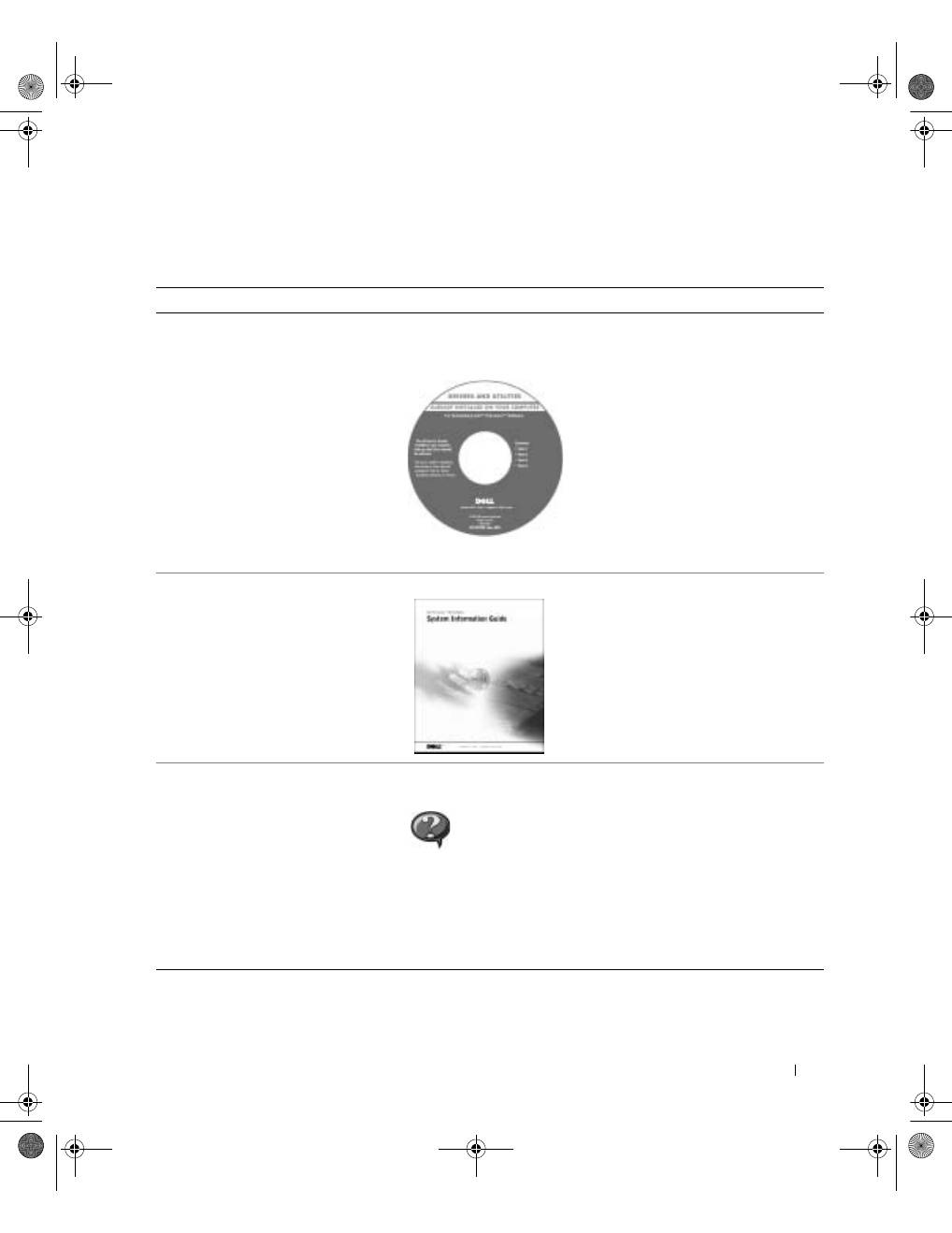
G u í a d e i n f o r m a c i ó n d e l s i s t e m a
121
Búsqueda de información para el equipo
Si busca
Aquí lo encontrará
• Un programa de diagnóstico para
el equipo
• Controladores para el equipo
• La
Guía del usuario
• La documentación del dispositivo
E l C D D r i v e r s a n d U t i l i t i e s ( C o n t r o l a d o r e s y
u t i l i d a d e s ) ( t a m b i é n c o n o c i d o c o m o R e s o u r c e C D
[ C D d e r e c u r s o s ] )
Dell ya ha instalado la documentación y
los controladores en el ordenador. Puede
utilizar el CD para volver a instalar los
controladores, ejecutar los Diagnósticos
Dell o acceder a la documentación.
Los archivos “readme” (léame) pueden
estar incluidos en su CD para disponer de
actualizaciones de última hora sobre los
cambios técnicos del equipo o material de
consulta destinado a los técnicos o
usuarios avanzados.
• Información sobre la garantía
G u í a d e i n f o r m a c i ó n d e l s i s t e m a d e D e l l
• Cómo quitar y sustituir componentes
• Especificaciones técnicas
• Cómo configurar los valores del
sistema
• Cómo solucionar problemas
I c o n o d e l a G u í a d e l u s u a r i o
( M i c r o s o f t W i n d o w s 2 0 0 0 )
Haga doble clic en el icono de las
Guías del usuario
en el
escritorio.
C e n t r o d e A y u d a y s o p o r t e t é c n i c o
1
Haga clic en
Start
(Inicio) y, a continuación, haga clic en
Help and Support
(Ayuda y soporte técnico).
2
Haga clic en
User and system guides
(Guías del usuario y
del sistema) y en
User’s guides
(Guías del usuario).
3y279bk0.book Page 121 Tuesday, February 11, 2003 4:17 PM
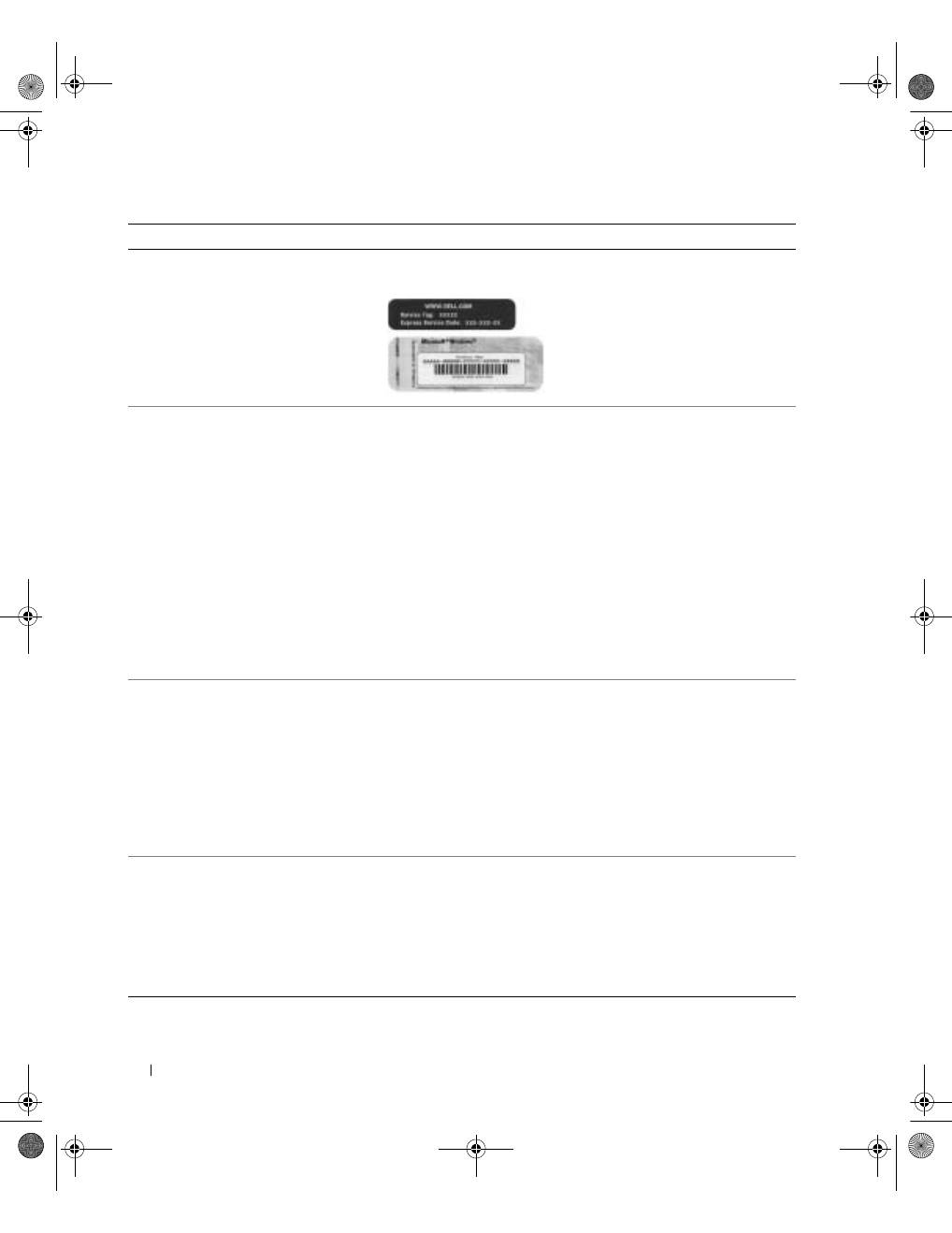
122
G u í a d e i n f o r m a c i ó n d e l s i s t e m a
www
.dell.com | support.dell.com
• Código de servicio rápido y etiqueta
de servicio
• Etiqueta de licencia de Microsoft
®
Windows
®
C ó d i g o d e s e r v i c i o r á p i d o y e t i q u e t a d e c l a v e d e l
p r o d u c t o
Estas etiquetas se incluyen en el
equipo.
• Controladores actualizados para
el equipo
• Respuesta a preguntas relacionadas
con la asistencia y el servicio técnico
• Conversaciones en línea con otros
usuarios y asistencia técnica
• Documentación del equipo incluida
en el
Manual de servicio
S i t i o W e b D e l l S u p p o r t :
support.dell.com
El sitio Web Dell Support proporciona varias herramientas en línea,
incluidas:
• Soluciones: consejos y sugerencias de solución de problemas,
artículos para técnicos y cursos en línea
• Community Forum: conversaciones en línea con otros clientes de
Dell
• Actualizaciones: información de actualización para componentes,
como la memoria, unidad de disco duro y el sistema operativo
• Atención al cliente: información de contacto, estado de los pedidos,
garantía e información de reparación
• Descargas: controladores, revisiones y actualizaciones de software
• Consulta: documentación del equipo, especificaciones de productos
y documentos oficiales
• Estado de la llamada de reparación e
historial de asistencia técnica
• Principales problemas técnicos del
equipo
• Preguntas frecuentes
• Descargas de archivos
• Detalles sobre la configuración del
equipo
• Contrato de servicio del equipo
S i t i o W e b D e l l P r e m i e r S u p p o r t :
premiersupport.dell.com
El sitio Web Dell Premier Support está personalizado para empresas e
instituciones gubernamentales y educativas. Es posible que este sitio
Web no esté disponible en todos los países o regiones.
• Procedimientos para utilizar Windows
XP
• Documentación del equipo
• Documentación de dispositivos (por
ejemplo un módem)
C e n t r o d e A y u d a y s o p o r t e t é c n i c o
1
Haga clic en
Start
(Inicio) y, a continuación, haga clic en
Help and
Support
(Ayuda y soporte técnico).
2
Escriba una palabra o frase que describa el problema y haga clic en el
icono de la flecha.
3
Haga clic en el tema que describa el problema.
4
Siga las instrucciones que aparecen en pantalla.
Si busca
Aquí lo encontrará
3y279bk0.book Page 122 Tuesday, February 11, 2003 4:17 PM
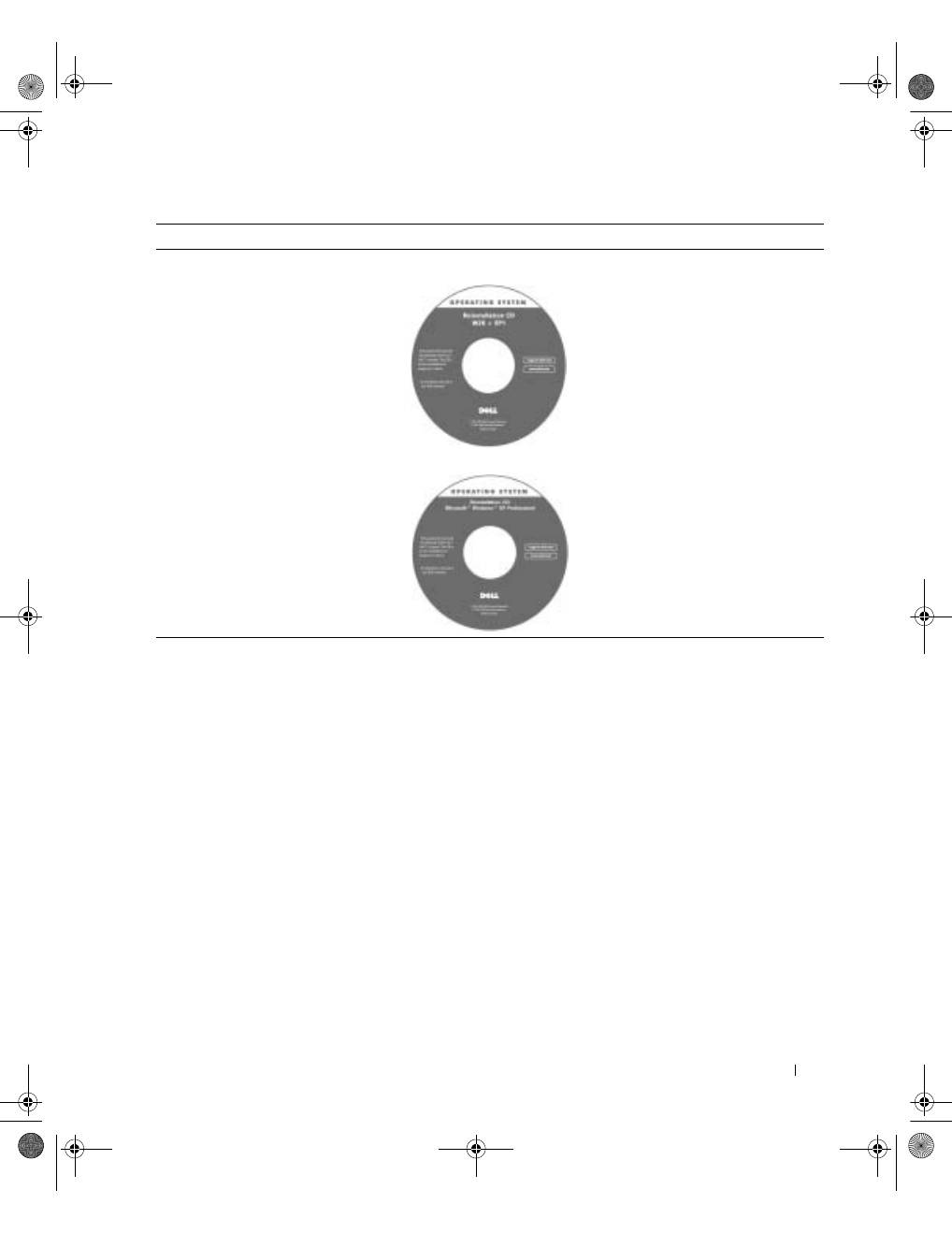
G u í a d e i n f o r m a c i ó n d e l s i s t e m a
123
Configuración del equipo
1
Desempaquete la caja de accesorios.
2
Saque el contenido de la caja de accesorios, que necesitará para completar la
configuración del equipo.
La caja de accesorios también contiene la documentación del usuario y el software o
hardware adicional (como tarjetas PC, unidades o baterías) que haya pedido.
• Cómo volver a instalar el sistema
operativo
C D O p e r a t i n g S y s t e m ( S i s t e m a o p e r a t i v o )
Si vuelve a instalar el sistema operativo,
utilice el
CD
Drivers and Utilities
(Controladores y utilidades) para volver
a instalar los controladores de los
dispositivos incluidos en el equipo en el
momento de su compra.
La clave del producto del sistema
operativo se encuentra en el equipo.
Si busca
Aquí lo encontrará
o bien
3y279bk0.book Page 123 Tuesday, February 11, 2003 4:17 PM
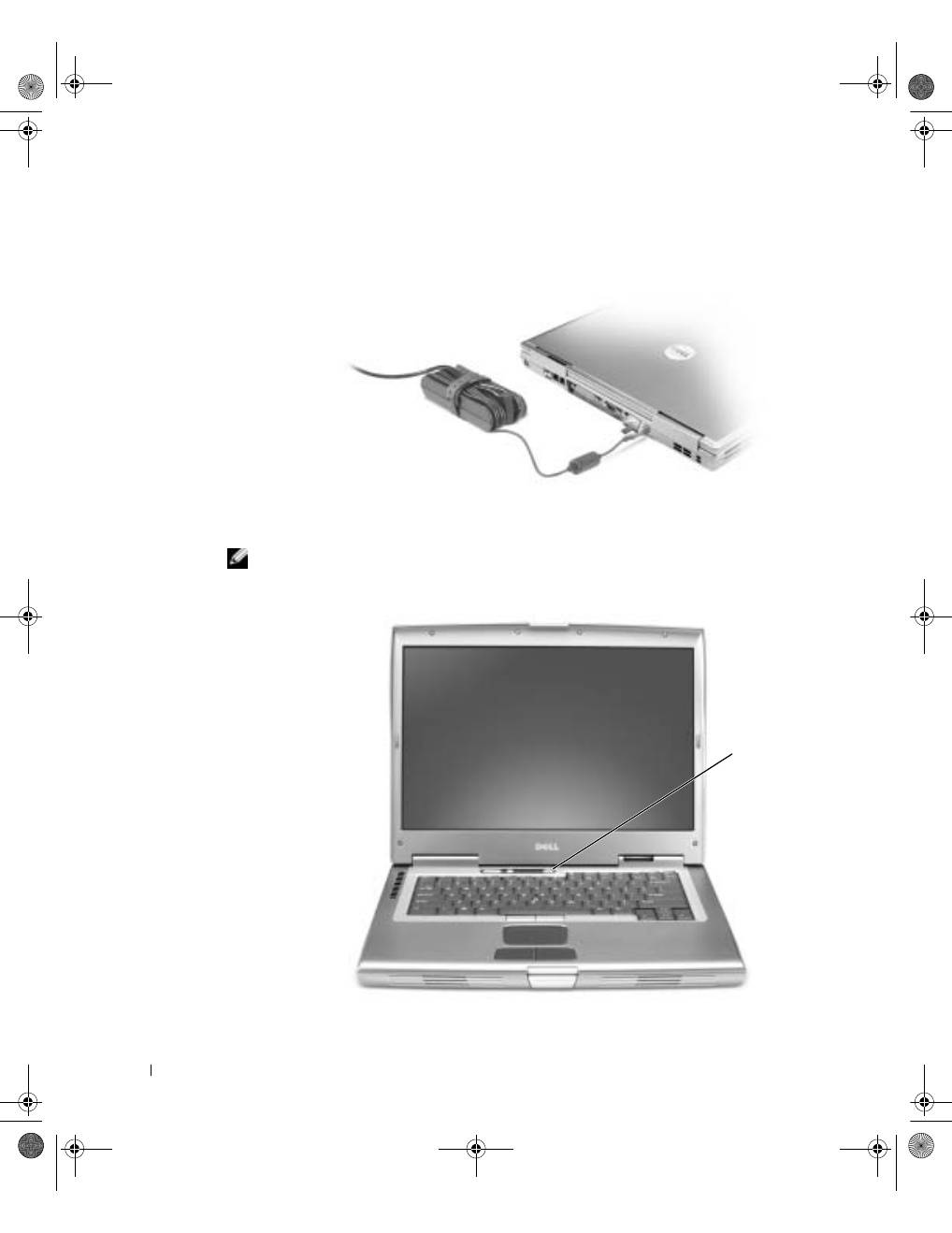
124
G u í a d e i n f o r m a c i ó n d e l s i s t e m a
www
.dell.com | support.dell.com
3
Enchufe el adaptador de CA al conector correspondiente del equipo y al enchufe
eléctrico.
4
Para encender el ordenador, abra la pantalla y pulse el botón de alimentación.
NOTA:
No conecte el equipo al dispositivo de acoplamiento hasta que el equipo se haya
encendido y apagado por lo menos una vez.
botón de
encendido
3y279bk0.book Page 124 Tuesday, February 11, 2003 4:17 PM
G u í a d e i n f o r m a c i ó n d e l s i s t e m a
125
Acerca del ordenador
Consulte la
Guía del usuario
en línea para obtener información detallada sobre el equipo.
Dependiendo del sistema operativo, haga doble clic en el icono
User’s Guide
(Guía del
usuario) del escritorio o haga clic en el botón
Start
(Inicio), en
Help and Support Center
(Ayuda y soporte técnico) y, a continuación, haga clic en
User and system guides
(Guías de
usuario y del sistema). Los elementos siguientes se refieren a algunas de las preguntas más
frecuentes acerca del equipo.
•
Adaptador de red y módem:
el equipo incluye un módem v.92 de 56 Kbs y un adaptador
de red 10/100/1000 Ethernet LOM. Para conocer la ubicación de los conectores,
consulte “Vista posterior” más adelante en este documento. Para obtener más
información sobre puertos y conectores, consulte “Acerca del equipo” en la
Guía del
usuario
en línea.
•
Duración y uso de la batería:
hay disponibles varias baterías para usarlas con el
ordenador. Si utiliza la batería de 72 WHr/6486 mAh que se incluye con el equipo,
prevea una duración de la carga de 3 a 4 horas con un uso medio y la batería
completamente cargada. Realizar ciertos tipos de operaciones puede reducir
significativamente la duración de la batería, por ejemplo, si lleva a cabo una operación
con un dispositivo inalámbrico durante mucho tiempo.
–
Para obtener más información acerca del rendimiento, el uso y el ahorro de energía
de la batería, consulte “Uso de la batería” y “Administración de energía” en la
Guía
del usuario
.
–
Para obtener más información sobre el uso de una segunda batería, consulte la
sección "Uso del compartimiento modular" de la
Guía del usuario
en línea.
•
Dispositivos del compartimiento modular:
para obtener información acerca del
compartimiento modular y los dispositivos que admite, consulte “Uso del
compartimiento modular” en la
Guía del usuario
.
•
Dispositivos de acoplamiento:
el equipo admite la Estación de expansión y el
Replicador de puertos avanzado, ambos de la familia D/Port de Dell.
NOTA:
Es posible que el dispositivo de acoplamiento no esté disponible en algunos países.
–
Para obtener información acerca del dispositivo de acoplamiento opcional,
consulte la documentación que se incluye con éste.
–
Para obtener información acerca de cómo optimizar el rendimiento al utilizar un
dispositivo de acoplamiento con este equipo, consulte "Solución de problemas" en
la
Guía del usuario
.
3y279bk0.book Page 125 Tuesday, February 11, 2003 4:17 PM
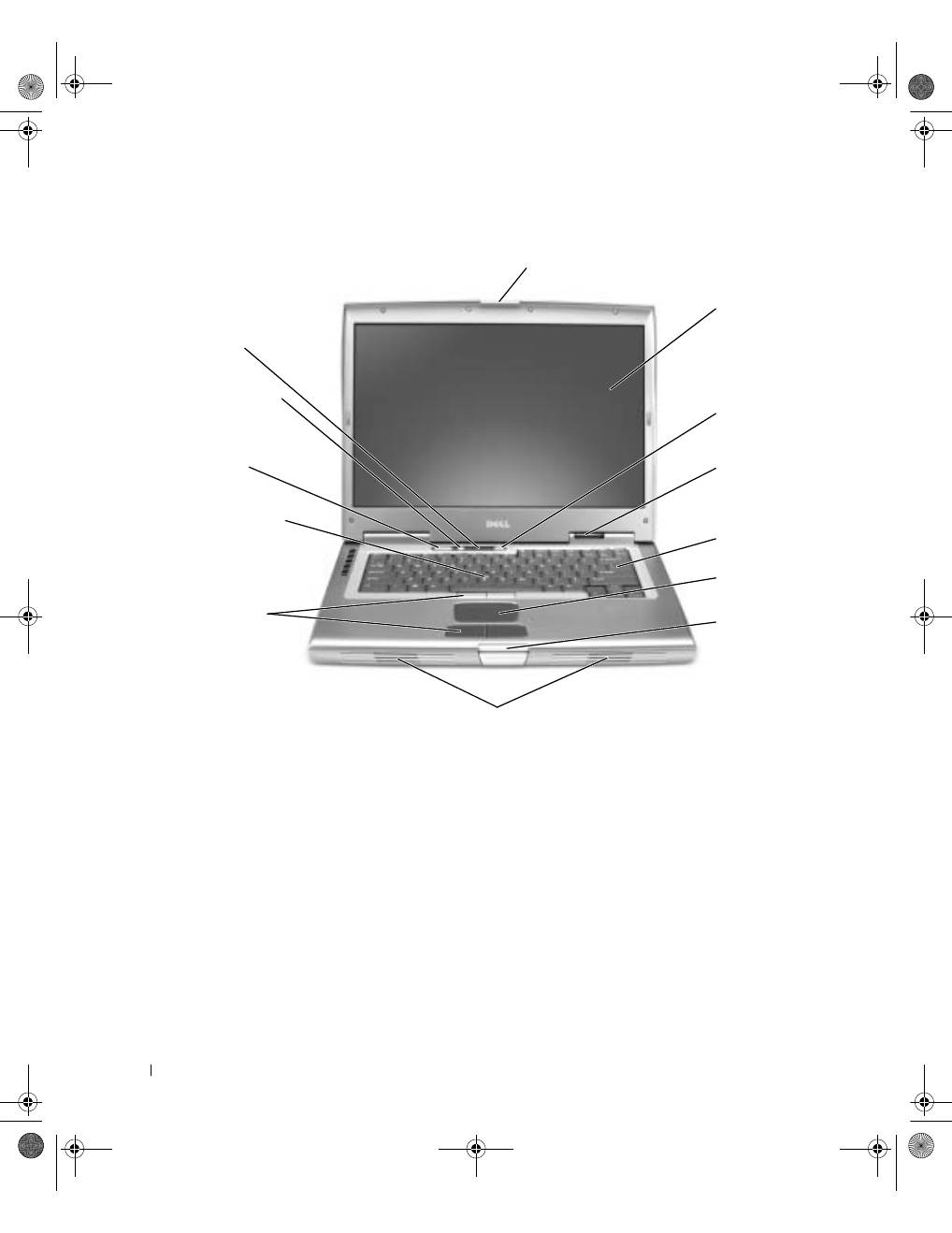
126
G u í a d e i n f o r m a c i ó n d e l s i s t e m a
www
.dell.com | support.dell.com
Vista anterior
pestillo de la pantalla
teclado
pantalla
palanca de
accionamiento
almohadilla
de contacto
botones de
control de
volumen
indicadores
de estado del
dispositivo
botones de la
palanca de
accionamiento y
de la almohadilla
de contacto
botón silencio
botón de
encendido
botón del
asegurador
de la pantalla
altavoces
indicadores
de estado del
teclado
3y279bk0.book Page 126 Tuesday, February 11, 2003 4:17 PM
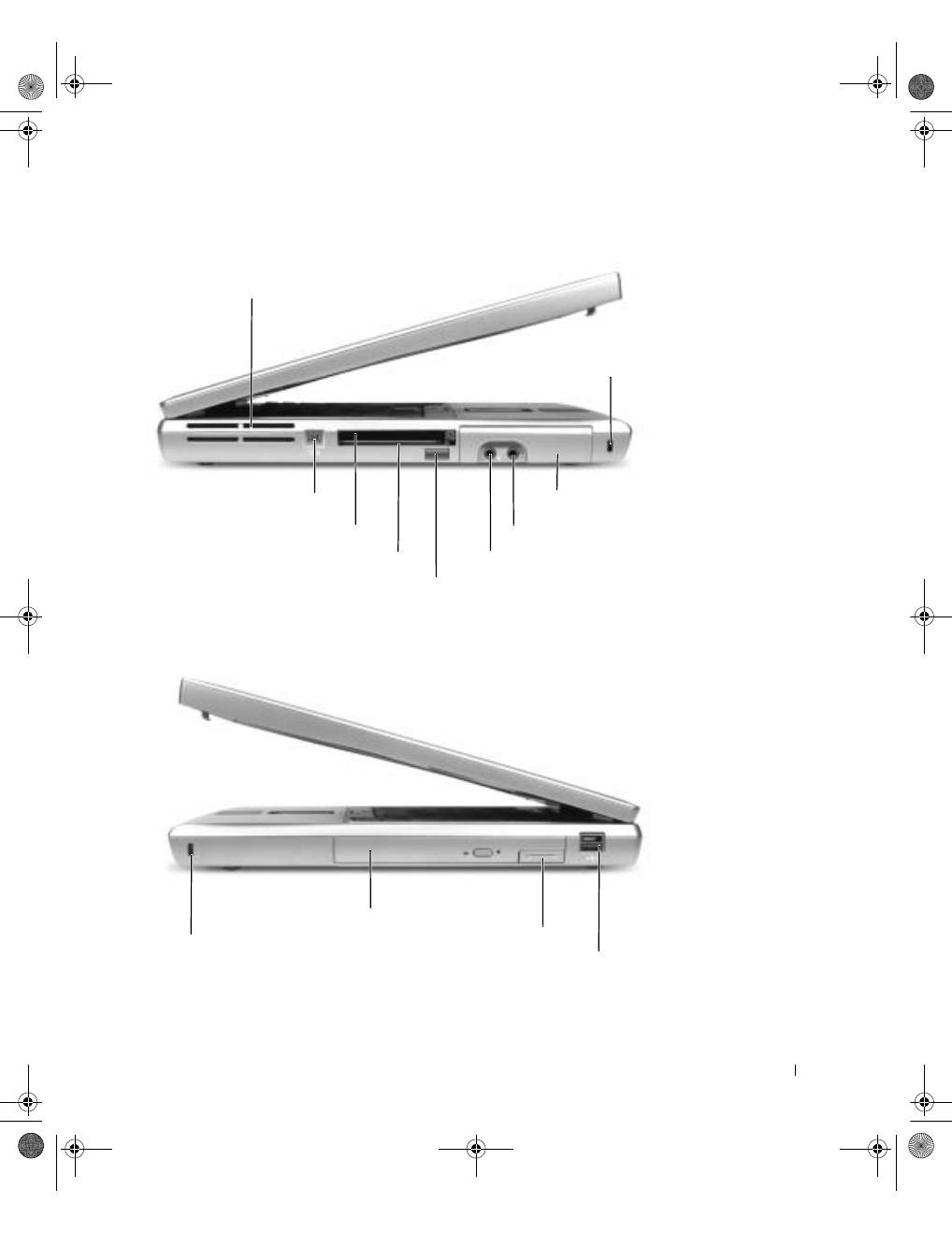
G u í a d e i n f o r m a c i ó n d e l s i s t e m a
127
Vista lateral izquierda
Vista lateral derecha
rejillas de
ventilación
conector IEEE 1394
ranura para tarjeta PC
ranura para tarjetas inteligentes
sensor de infrarrojos
conector de auriculares
unidad de
disco duro
ranura para cable de seguridad
conector de micrófono
compartimiento modular
pestillo
de liberación
del dispositivo
conector Dell D/Bay
ranura para cable de seguridad
3y279bk0.book Page 127 Tuesday, February 11, 2003 4:17 PM
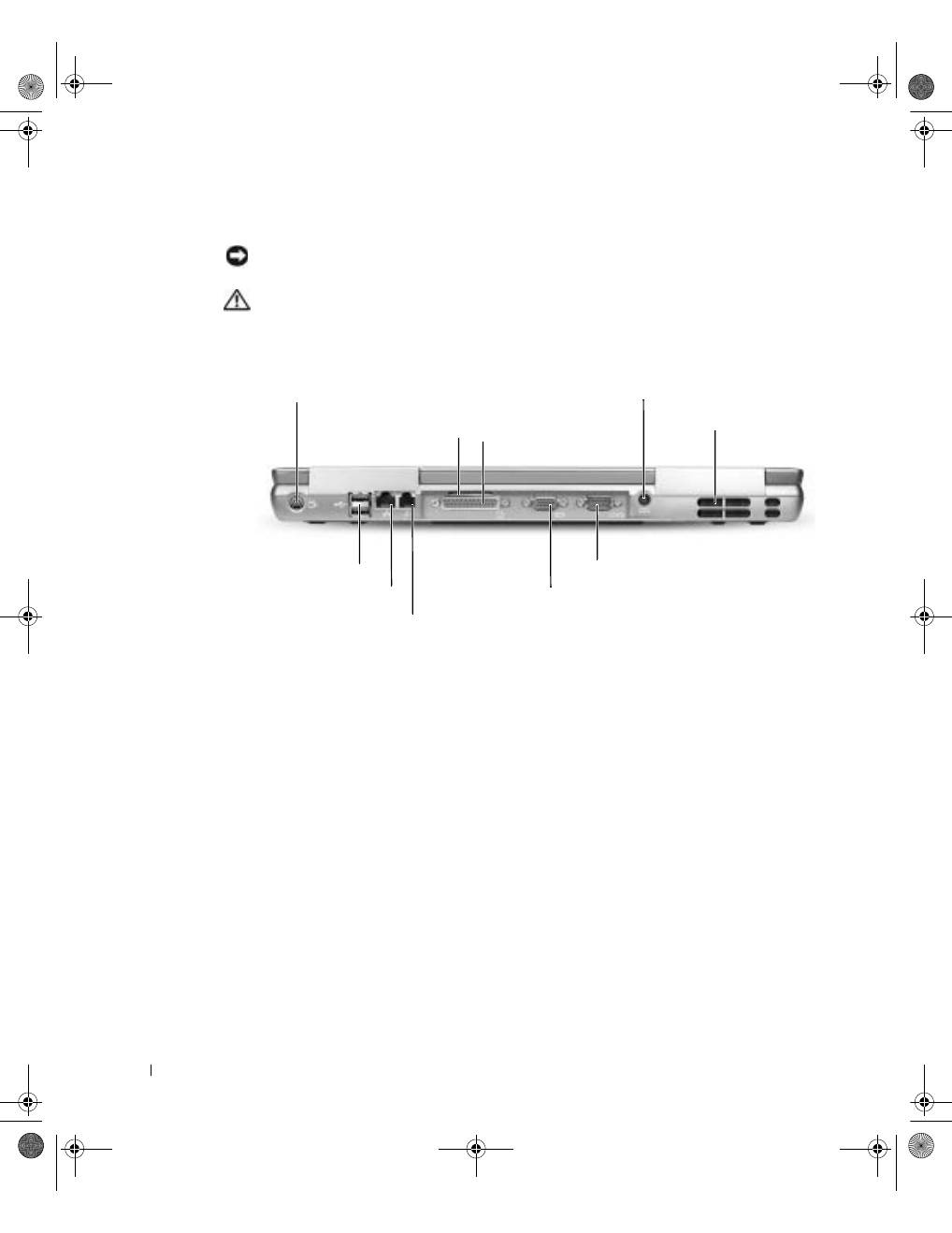
128
G u í a d e i n f o r m a c i ó n d e l s i s t e m a
www
.dell.com | support.dell.com
Vista posterior
AVISO:
Para no dañar el equipo, espere 5 segundos después de apagarlo antes de desconectar
un dispositivo externo.
PRECAUCIÓN: No introduzca objetos, bloquee ni permita que el polvo se
acumule en las rejillas de ventilación. No almacene el equipo en un entorno con
poca ventilación, como un maletín cerrado, mientras esté en ejecución. Si
restringe la ventilación, podría dañar el equipo o provocar un incendio.
conector de salida de TV S-vídeo
conector de red (RJ-45)
conector de módem (RJ-11)
conector paralelo
conector serie
conector de vídeo
conector del adaptador de CA
rejillas de
ventilación
rejilla de ventilación
conectores de
puerto USB (2)
3y279bk0.book Page 128 Tuesday, February 11, 2003 4:17 PM
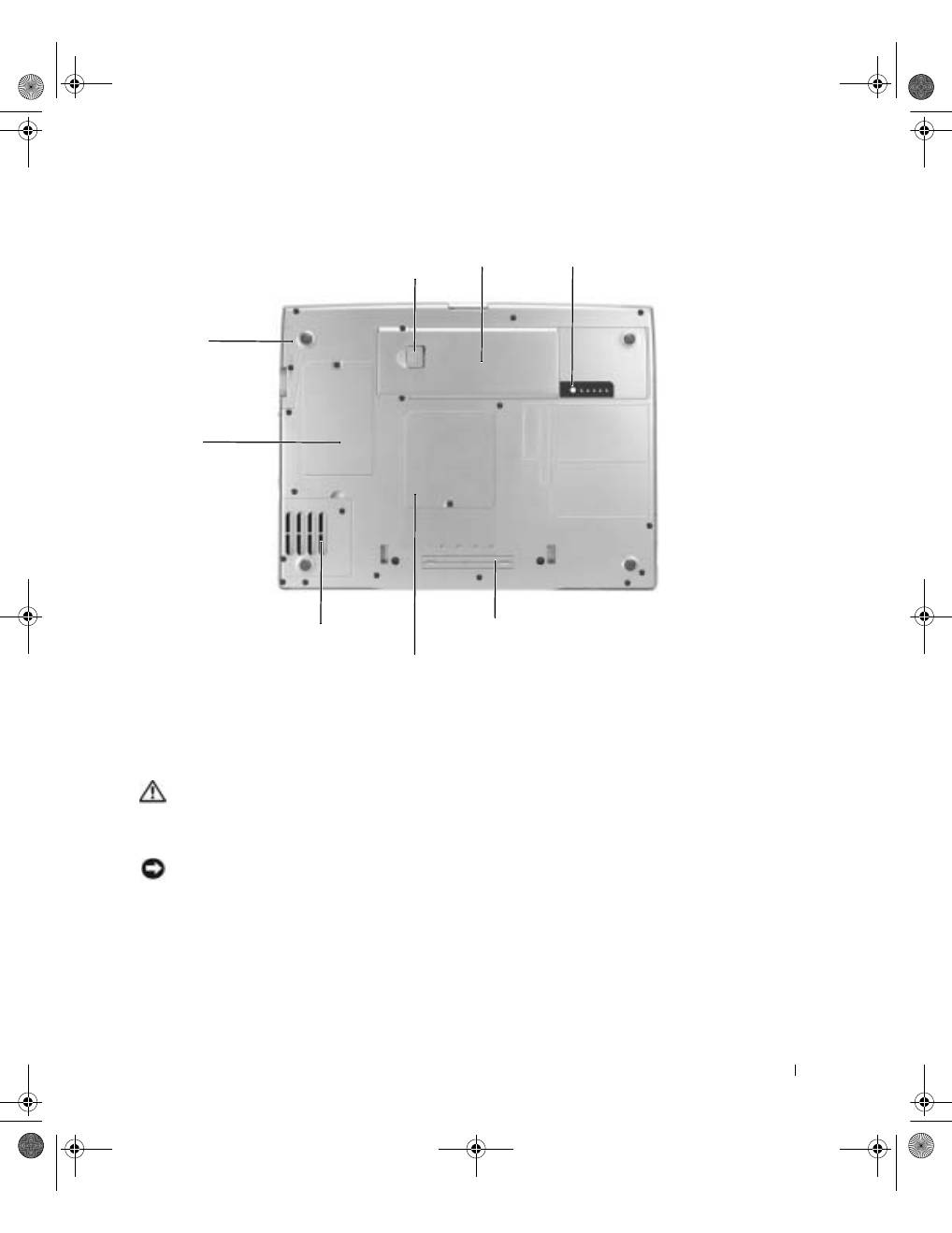
G u í a d e i n f o r m a c i ó n d e l s i s t e m a
129
Vista inferior
Extracción de la batería
Para obtener más información sobre cómo extraer la segunda batería, consulte la sección
"Uso del compartimento modular" de la
Guía del usuario
en línea.
PRECAUCIÓN: Antes de realizar estos procedimientos, lea y siga las
instrucciones de seguridad que empiezan en la página 113, apague el equipo,
desconéctelo del enchufe eléctrico, y desenchufe el módem del enchufe
telefónico de la pared.
AVISO:
Si decide sustituir la batería mientras el equipo se encuentra en el modo de espera,
tiene hasta 90 segundos para realizar la sustitución antes de que el equipo se cierre y pierda los
datos no guardados.
1
Compruebe que el ordenador esté apagado, en modo de administración de energía o
conectado a un enchufe de alimentación eléctrica.
unidad de
disco duro
ranura para el dispositivo
de acoplamiento
cubierta de la
minitarjeta PCI
o módem
batería
pestillo de liberación del
compartimiento de baterías
medidor de carga
de la batería
cubierta del módulo de memoria
ventilador
3y279bk0.book Page 129 Tuesday, February 11, 2003 4:17 PM
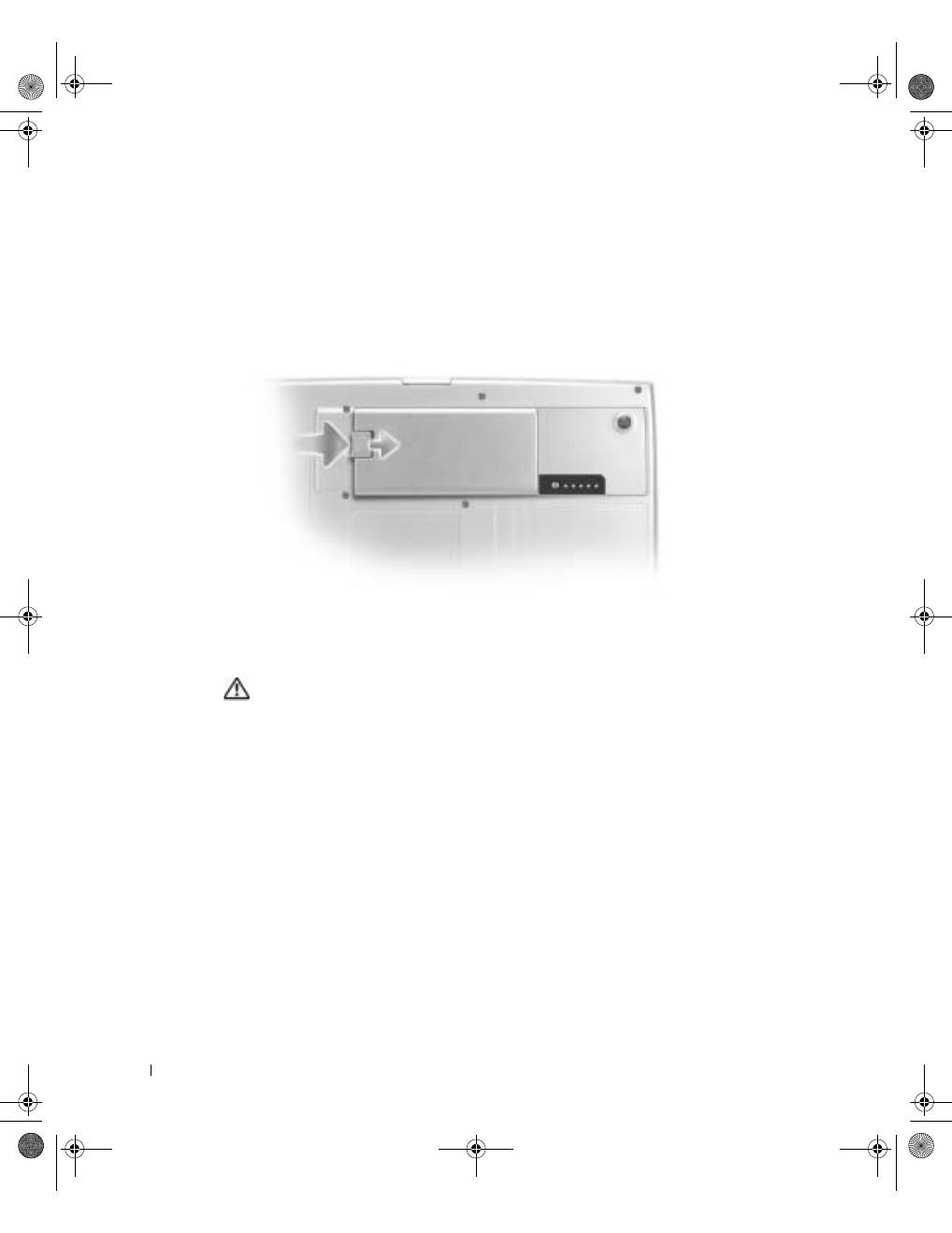
130
G u í a d e i n f o r m a c i ó n d e l s i s t e m a
www
.dell.com | support.dell.com
2
Si el equipo está conectado (acoplado) a un dispositivo de acoplamiento, desacóplelo.
Consulte la documentación incluida con el dispositivo de acoplamiento para obtener
instrucciones.
3
Deslice y sostenga el pestillo de liberación de la batería que se encuentra en la parte
inferior del equipo y, a continuación, extraiga la batería del compartimiento.
Instalación de la batería
PRECAUCIÓN: Antes de llevar a cabo este procedimiento, lea y siga las
instrucciones de seguridad que empiezan en la página 113.
Deslice la batería en su compartimiento correspondiente hasta que el pestillo de liberación
emita un chasquido.
Para obtener más información sobre cómo instalar la segunda batería, consulte la sección
"Uso del compartimento modular" de la
Guía del usuario
en línea.
3y279bk0.book Page 130 Tuesday, February 11, 2003 4:17 PM
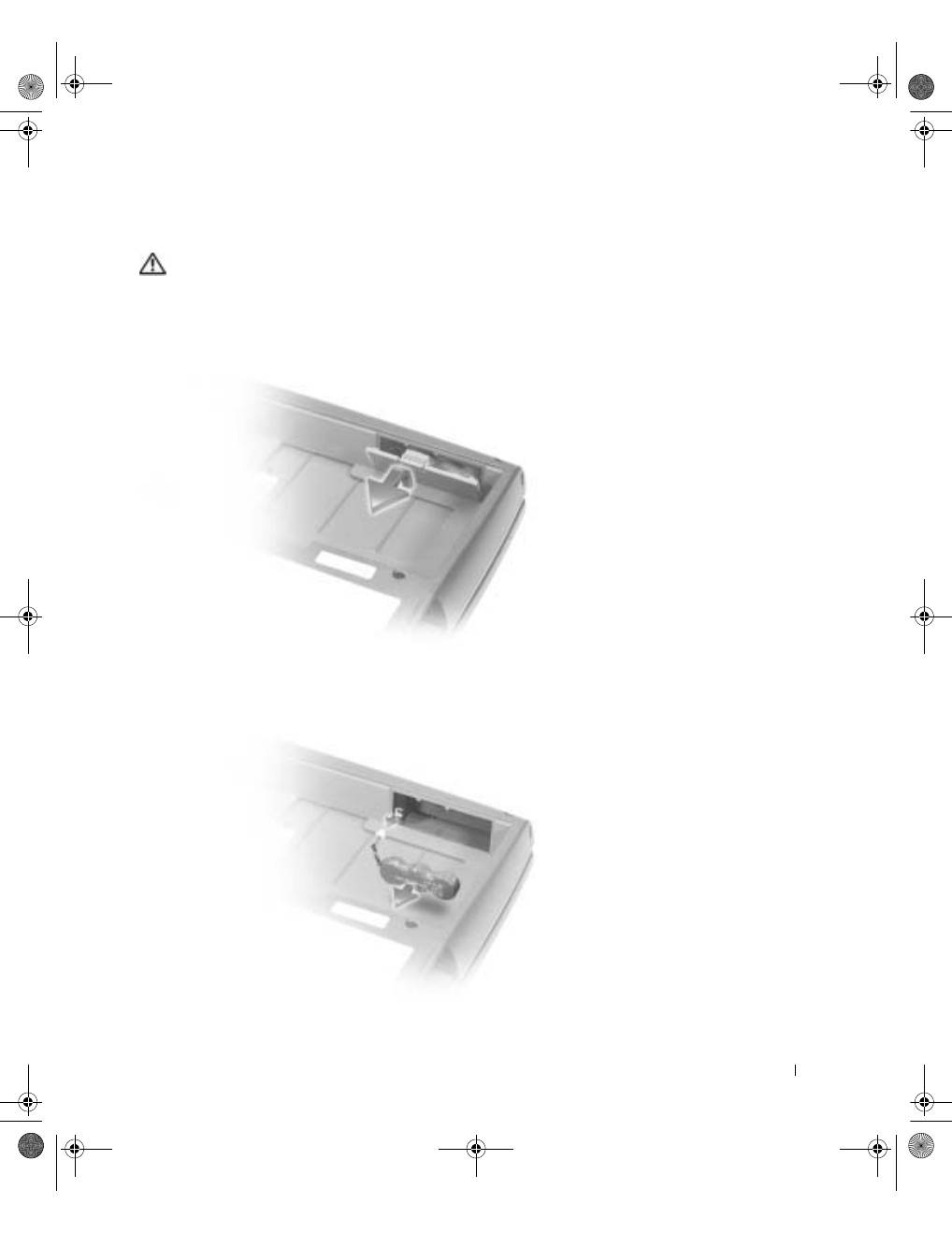
G u í a d e i n f o r m a c i ó n d e l s i s t e m a
131
Extracción de una batería de reserva
PRECAUCIÓN: Antes de llevar a cabo estos procedimientos, lea y siga las
instrucciones de seguridad que empiezan en la página 113.
1
Extraiga la batería.
2
Retire la cubierta de la batería de reserva.
3
Tire de la batería de reserva para extraerla de su compartimiento y desconecte el cable
del conector.
3y279bk0.book Page 131 Tuesday, February 11, 2003 4:17 PM
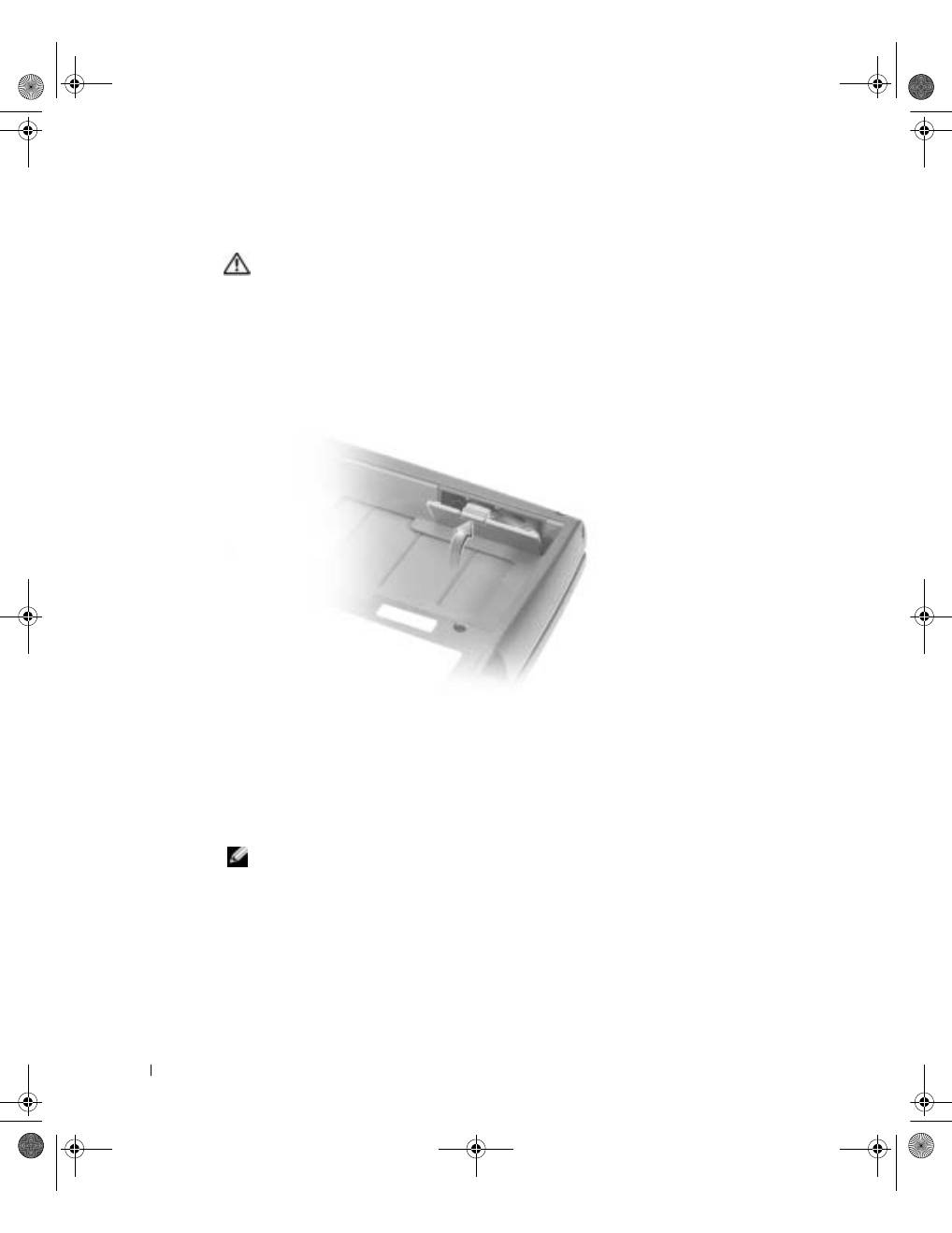
132
G u í a d e i n f o r m a c i ó n d e l s i s t e m a
www
.dell.com | support.dell.com
Instalación de una batería de reserva
PRECAUCIÓN: Antes de llevar a cabo estos procedimientos, lea y siga las
instrucciones de seguridad que empiezan en la página 113.
1
Enchufe el cable de la batería de reserva al conector del compartimiento de la batería
de reserva.
2
Coloque la batería de reserva en el compartimiento y vuelva a poner la cubierta de la
batería de reserva.
Ejecución de los Diagnósticos Dell
Los Diagnósticos Dell están situados en una partición oculta para la utilidad de diagnóstico
(Diagnostic) de la unidad de disco duro.
NOTA:
Si el ordenador no puede mostrar una imagen en la pantalla, póngase en contacto con
Dell (consulte "Obtención de ayuda" en la
Guía del usuario
para obtener la información de
contacto apropiada).
1
Apague el equipo.
2
Si el equipo está conectado (acoplado) a un dispositivo de acoplamiento, desacóplelo.
Consulte la documentación incluida con el dispositivo de acoplamiento para obtener
instrucciones.
3y279bk0.book Page 132 Tuesday, February 11, 2003 4:17 PM
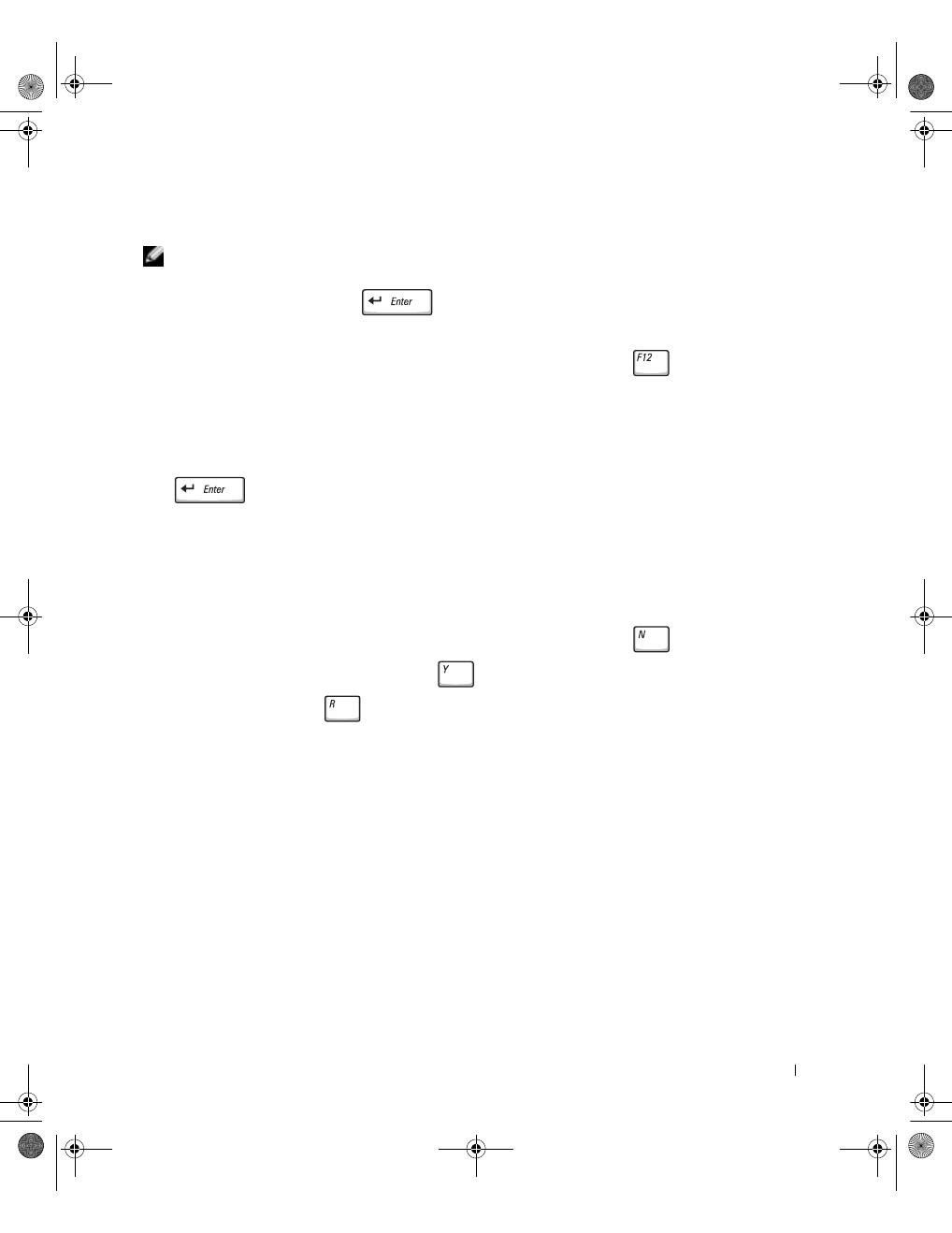
G u í a d e i n f o r m a c i ó n d e l s i s t e m a
133
3
Conecte el equipo a un enchufe eléctrico.
NOTA:
Si no aparece nada en la pantalla, mantenga presionado el botón de silencio y presione
el botón de encendido (en lugar de F12) para comenzar los Diagnósticos Dell. No es necesario
que resalte
Diagnósticos
y pulse
. El equipo ejecutará automáticamente la
evaluación del sistema previa al inicio.
4
Encienda el equipo. Cuando aparezca el logotipo de DELL™, presione
inmediatamente. Si al cabo de bastante tiempo aparece el logotipo de Microsoft
®
Windows
®
, siga esperando hasta que aparezca el escritorio de Windows. Entonces,
apague el equipo y vuelva a intentarlo.
5
Cuando aparezca la lista de dispositivos de inicio, resalte
Diagnósticos
y pulse
.
El equipo comenzará a ejecutar la evaluación del sistema previa al inicio, una serie de
diagnósticos incorporados que realizan una comprobación inicial de la tarjeta del
sistema, el teclado, la unidad de disco duro y la pantalla.
•
Durante la evaluación, responda a las preguntas que puedan formularse.
•
Si se detecta el fallo de algún componente, el equipo se detiene y emite pitidos.
Para detener la evaluación y reiniciar el sistema operativo, presione
; para
pasar a la prueba siguiente, presione
; para volver a probar el componente
que falló, presione
.
•
Si se detectaron fallos durante la evaluación del sistema previa al inicio, anote el
código o códigos de error, y póngase en contacto con Dell (consulte "Obtención de
ayuda" en la
Guía del usuario
para obtener la información de contacto apropiada)
antes de continuar con los Diagnósticos Dell.
•
Si recibe un mensaje indicando que no se ha encontrado ninguna partición para la
utilidad de diagnóstico, siga las instrucciones de la pantalla para ejecutar los
Diagnósticos Dell del CD
Drivers and Utilities
(Controladores y utilidades).
Si la evaluación del sistema previa al inicio se realiza correctamente, aparecerá el
mensaje
Booting Dell Diagnostic Utility Partition (Iniciando la
partición para la utilidad de diagnóstico de Dell). Presione
cualquier tecla para continuar
.
6
Presione cualquier tecla para iniciar los Diagnósticos Dell desde la partición para la
utilidad de diagnóstico del disco duro.
3y279bk0.book Page 133 Tuesday, February 11, 2003 4:17 PM
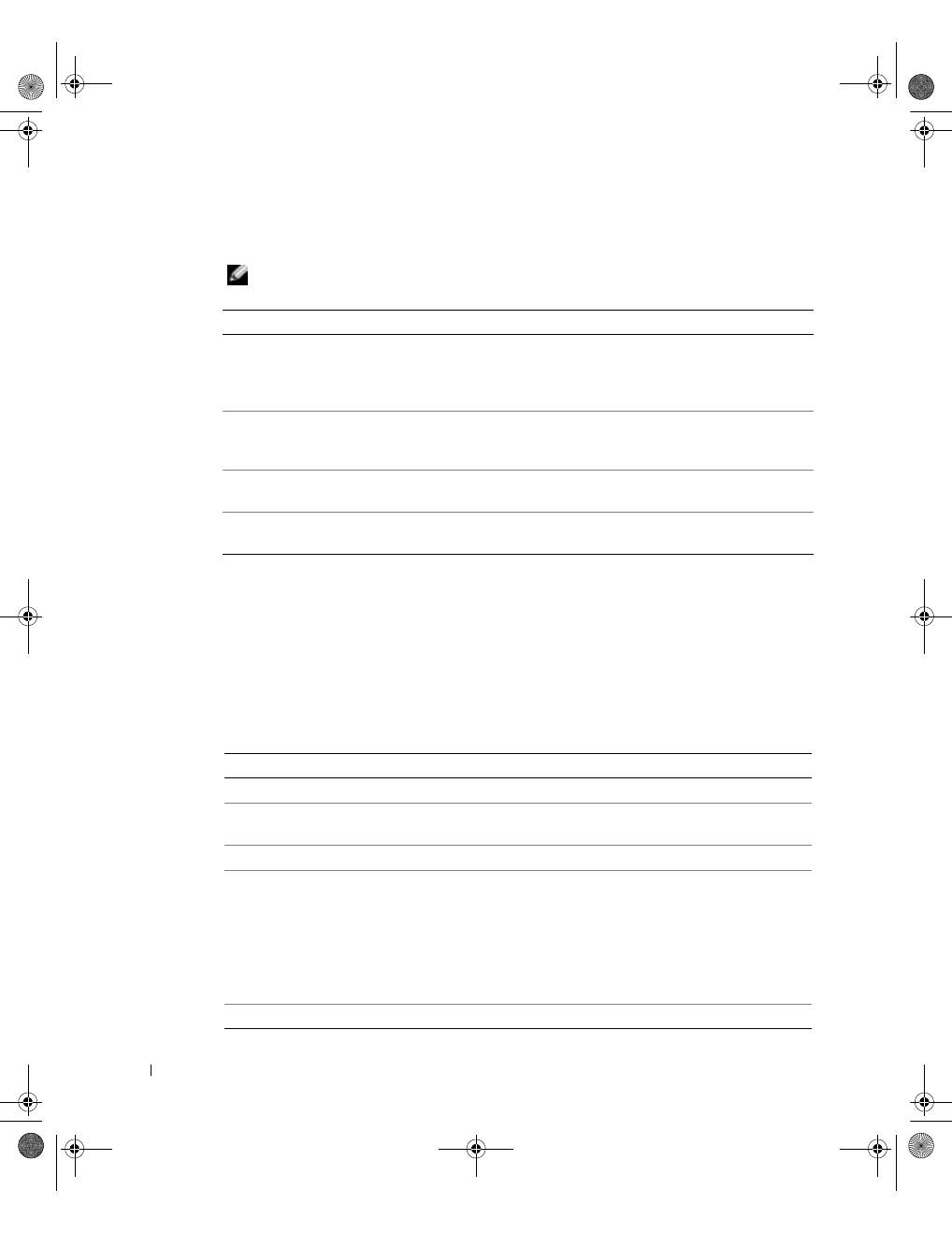
134
G u í a d e i n f o r m a c i ó n d e l s i s t e m a
www
.dell.com | support.dell.com
7
Después de cargar los Diagnósticos Dell y aparecer la pantalla
Main
Menu
(Menú principal), haga clic en el botón de la opción que desee.
NOTA:
La etiqueta de servicio del equipo se encuentra en la barra de título de cada pantalla.
8
Si se encuentra un problema durante una prueba, aparece un mensaje que indica
el código de error y una descripción del problema. Anote el código de error y la
descripción del problema, y siga las instrucciones de la pantalla. Si no puede resolver
la condición del error, póngase en contacto con Dell (consulte "Obtención de ayuda"
en la
Guía del usuario
para obtener la información de contacto apropiada).
9
Si ejecuta una prueba desde la opción
Custom Test
(Prueba personalizada) o
Symptom Tree
(Árbol de síntomas), haga clic en la ficha correspondiente que
se describe en la siguiente tabla para obtener más información.
Opción
Función
Express Test
(Prueba rápida)
Realiza una prueba rápida de los dispositivos. La prueba dura
normalmente de 10 a 20 minutos y no requiere interacción por
su parte. Ejecute Express Test (Prueba rápida) primero para aumentar
la posibilidad de realizar un seguimiento del problema rápidamente.
Extended Test
(Prueba extendida)
Realiza una prueba completa de los dispositivos. La prueba dura
normalmente una hora o más, y requiere que responda a unas
preguntas periódicamente.
Custom Test
(Prueba personalizada)
Prueba un dispositivo específico. Puede personalizar las pruebas que
desee ejecutar.
Symptom Tree
(Árbol de síntomas)
Permite seleccionar pruebas basándose en uno de los síntomas del
problema en cuestión. La opción enumera los síntomas más comunes.
Ficha
Función
Results (Resultados)
Muestra el resultado de la prueba y las condiciones de error encontradas.
Errors (Errores)
Muestra las condiciones de error encontradas, los códigos de error y la
descripción del problema.
Help (Ayuda)
Describe la prueba y puede indicar los requisitos para ejecutarla.
Configuración
Muestra la configuración de hardware del dispositivo seleccionado.
Los Diagnósticos Dell obtienen información de la configuración de
todos los dispositivos a partir del
programa Configuración del sistema,
la memoria y varias pruebas internas, y la muestran en la lista de
dispositivos del panel izquierdo de la pantalla. La lista de dispositivos
puede que no muestre los nombres de todos los componentes instalados
en el equipo o de todos los dispositivos enchufados al equipo.
Parámetros
Permite personalizar la prueba cambiando su configuración.
3y279bk0.book Page 134 Tuesday, February 11, 2003 4:17 PM

G u í a d e i n f o r m a c i ó n d e l s i s t e m a
135
10
Cuando haya terminado de ejecutar una prueba, cierre la pantalla para volver a la
pantalla
Main
Menu
(Menú principal). Para salir de los Diagnósticos Dell y reiniciar
el equipo, cierre la pantalla
Main
Menu
(Menú principal).
Avisos sobre regulación
Una interferencia electromagnética (EMI, Electromagnetic Interference) es cualquier señal
o emisión, radiada en el espacio o conducida a través de un cable de alimentación o señal,
que pone en peligro el funcionamiento de la navegación por radio u otro servicio de
seguridad, o degrada seriamente, obstruye o interrumpe de forma repetida un servicio
de comunicaciones por radio autorizado. Los servicios de radiocomunicaciones incluyen,
entre otros, emisoras comerciales de AM/FM, televisión, servicios de telefonía móvil, radar,
control de tráfico aéreo, localizadores y servicios de comunicación personal (PCS, Personal
Communication Services). Estos servicios autorizados, junto con emisores no
intencionados como dispositivos digitales, incluidos los equipos informáticos,
contribuyen al entorno electromagnético.
La compatibilidad electromagnética (EMC, Electromagnetic Compatibility) es la
capacidad de los componentes del equipo electrónico de funcionar correctamente juntos
en el entorno electrónico. Aunque este equipo se ha diseñado y ajustado para cumplir
los límites de emisión electromagnética establecidos por la agencia reguladora, no existe
ninguna garantía de que no ocurran interferencias en una instalación en particular. Si este
equipo provoca interferencias con servicios de comunicaciones por radio, lo que se puede
determinar apagando y encendiendo el equipo, intente corregir dichas interferencias
adoptando una o varias de las medidas siguientes:
•
Cambie la orientación de la antena de recepción.
•
Vuelva a ubicar el equipo con respecto al receptor.
•
Separe el equipo del receptor.
•
Conecte el equipo a un enchufe diferente de forma que el equipo y el receptor
se encuentren en ramas diferentes del circuito.
Si es necesario, consulte a un representante del servicio de asistencia técnica de Dell
o a un técnico experimentado de radio o televisión para obtener consejos adicionales.
Para obtener información adicional de normativas, consulte “Avisos sobre regulación” en
el Apéndice de la
Guía del usuario
en línea. En las secciones específicas de cada agencia
reguladora se proporciona la información de EMC/EMI o de seguridad del producto
específica de cada país.
3y279bk0.book Page 135 Tuesday, February 11, 2003 4:17 PM

136
G u í a d e i n f o r m a c i ó n d e l s i s t e m a
www
.dell.com | support.dell.com
Información de la NOM (sólo para México)
La información siguiente se proporciona en el dispositivo o dispositivos descritos en este
documento, en cumplimiento con los requisitos de la Norma Oficial Mexicana (NOM)
Exportador:
Dell Computer Corporation One Dell Way Round
Rock, TX 78682
Importador:
Dell Computer de México, S.A. de C.V. Paseo de la
Reforma 2620 - 11° Piso Col. Lomas Altas 11950
México, D.F.
Enviar a:
Dell Computer de México, S.A. de C.V. al Cuidado
de Kuehne & Nagel de México S. de R.I. Avenida Soles
No. 55 Col. Peñon de los Baños 15520 México, D.F.
Número de modelo:
PP02X
Voltaje de entrada
de alimentación:
100 - 240 VCA
Frecuencia:
50–60 Hz
Consumo eléctrico:
1,5 A
Voltaje de salida:
19,5 VCC
Corriente de salida:
4,62 A
3y279bk0.book Page 136 Tuesday, February 11, 2003 4:17 PM

G u í a d e i n f o r m a c i ó n d e l s i s t e m a
137
Garantía limitada y política de devoluciones
Garantía de un año del fabricante para el usuario final
(sólo para Latinoamérica y el Caribe)
Garantía
Dell Computer Corporation (“Dell”) garantiza al usuario final, de acuerdo con las provisiones siguientes, que los
productos de hardware de marca, adquiridos por el usuario final a una empresa de Dell o a un distribuidor
autorizado de Dell en Latinoamérica o el Caribe están libres de defectos en materiales, mano de obra y diseño que
afecten a su utilización normal, por un período de un año desde la fecha original de la compra. Los productos sobre
los que se presenten las reclamaciones apropiadas se repararán o reemplazarán a cargo de Dell si así lo decide Dell.
Dell es propietaria de todas las piezas extraídas de los productos reparados. Dell utiliza piezas nuevas y
reacondicionadas de diversos fabricantes para efectuar reparaciones y fabricar componentes de repuesto.
Exclusiones
Esta garantía no se aplica a defectos que son resultado de: instalación, uso o mantenimiento incorrectos o
inadecuados; acciones o modificaciones por parte del usuario final o terceras personas no autorizadas; daños
accidentales o provocados; o deterioro normal por el uso.
Cómo hacer una reclamación
En Latinoamérica o en el Caribe, para hacer reclamaciones debe ponerse en contacto con un punto de venta de
Dell dentro del período que cubra la garantía. El usuario final debe proporcionar siempre la prueba de compra e
indicar el nombre y dirección del vendedor, la fecha de la compra, el modelo y número de serie, el nombre y
dirección del cliente y los detalles de síntomas y configuración en el momento del funcionamiento incorrecto,
incluidos los periféricos y el software utilizados. De lo contrario, Dell puede rehusar la reclamación de la garantía.
Si se diagnostica un defecto cubierto por la garantía, Dell se encargará de ello y abonará el transporte por tierra y el
seguro hacia y desde el centro de reparaciones o sustitución de Dell. El usuario final deberá asegurarse de que el
producto defectuoso esté disponible para su recogida, adecuadamente acondicionado en el embalaje original u otro
de las mismas características de protección junto con los detalles indicados anteriormente y el número de
devolución suministrado por Dell al usuario final.
Derechos legales y limitación
Dell no ofrece ninguna otra garantía ni realiza declaración equivalente si no se ajusta a lo establecido
explícitamente más arriba y esta Garantía sustituye a todas las demás garantías, hasta el máximo permitido por la
ley. En ausencia de legislación aplicable, esta garantía será el único y exclusivo recurso del usuario final ante Dell o
alguno de sus afiliados; ni Dell ni ninguno de sus afiliados será responsable de la pérdida de beneficios o contratos
ni de ninguna otra pérdida indirecta o consecuente debida a negligencia, incumplimiento de contrato u otros
motivos.
Esta garantía no supone menoscabo de, ni afecta a, los derechos legales preceptivos del usuario final frente a
cualquier derecho derivado de otros contratos formalizados por el usuario final con Dell o cualquier otro
vendedor.
Dell World Trade LP
One Dell Way, Round Rock, TX 78682, EE.UU.
Dell Computadores do Brasil Ltda (CNPJ No. 72.381.189/0001-10)/ Dell Commercial do Brasil Ltda (CNPJ
No. 03 405 822/0001-40)
Avenida Industrial Belgraf, 400 92990-000 - Eldorado do Sul – RS - Brasil
Dell Computer de Chile Ltda
Coyancura 2283, Piso 3- Of.302, Providencia, Santiago - Chile
3y279bk0.book Page 137 Tuesday, February 11, 2003 4:17 PM
138
G u í a d e i n f o r m a c i ó n d e l s i s t e m a
www
.dell.com | support.dell.com
Dell Computer de Colombia Corporation
Carrera 7 #115-33 Oficina 603 Bogota, Colombia
Dell Computer de México SA de CV
Paseo de la Reforma 2620 - 11° Piso Col. Lomas Altas 11950 México, D.F.
Intel
®
Declaración de garantía sólo para los procesadores Pentium
®
y
Celeron
®
(sólo Estados Unidos y Canadá)
Intel’s Three Year Limited Warranty
Limited Warranty
Intel warrants that its family of Pentium
®
and Celeron
®
processors, if properly used and installed, will be free from defects in materials and workmanship and will substantially
conform to Intel’s publicly available specifications for a period of three (3) years after the date the Pentium or Celeron processor was purchased (whether purchased separately
or as part of a computer system).
If the Pentium or Celeron processor, which is the subject of this Limited Warranty, fails during the warranty period for reasons covered by this Limited Warranty, Intel, at its option, will:
• REPAIR the Pentium or Celeron processor by means of hardware and/or software; OR
• REPLACE the Pentium or Celeron processor with another Pentium or Celeron processor; OR
if Intel is unable to repair or replace the particular Pentium or Celeron processor,
• REFUND the then-current value of the Pentium or Celeron processor.
THIS LIMITED WARRANTY, AND ANY IMPLIED WARRANTIES THAT MAY EXIST UNDER STATE LAW, APPLY ONLY TO THE ORIGINAL PURCHASER OF THE
PENTIUM OR CELERON PROCESSOR, OR PENTIUM OR CELERON PROCESSOR-BASED COMPUTER AND LAST ONLY FOR AS LONG AS SUCH PURCHASER
CONTINUES TO OWN THE PROCESSOR.
Extent of Limited Warranty
Intel does not warrant that your Pentium or Celeron processor will be free from design defects or errors known as "errata." Current characterized errata are available upon request.
This limited warranty is for purchasers in the United States and Canada only. The limited warranty does not cover any costs relating to removal or replacement of any Pentium or
Celeron processors that are soldered or otherwise permanently affixed to your system’s motherboard.
This limited warranty does not cover damages due to external causes, including accident, problems with electrical power, usage not in accordance with product instructions,
misuse, neglect, alteration, repair, improper installation, or improper testing.
How to Obtain Warranty Service
To obtain warranty service for your Pentium or Celeron processor, you may contact your computer system manufacturer in accordance with its instructions, or you may contact Intel.
To request warranty service from Intel, you should call Intel at 1-800-628-8686 during the warranty period during normal business hours (Pacific Time), excluding holidays. Please
be prepared to provide:
(1) your name, address, and telephone numbers;
(2) proof of purchase;
(3) this Intel warranty card;
(4) a description of the computer system including the brand and model; and
(5) an explanation of the problem.
[Note: The Customer Service Representative may need additional information from you depending on the nature of the problem.]
The replacement processor is warranted under this written warranty and is subject to the same limitations and exclusions for the remainder of the original warranty period or one
(1) year, whichever is longer.
WARRANTY LIMITATIONS AND EXCLUSIONS
THESE WARRANTIES REPLACE ALL OTHER WARRANTIES, EXPRESS OR IMPLIED INCLUDING, BUT NOT LIMITED TO, THE IMPLIED WARRANTIES OF
MERCHANTABILITY AND FITNESS FOR A PARTICULAR PURPOSE. INTEL MAKES NO EXPRESS WARRANTIES BEYOND THOSE STATED HERE. INTEL
DISCLAIMS ALL OTHER WARRANTIES, EXPRESS OR IMPLIED, INCLUDING, WITHOUT LIMITATION, IMPLIED WARRANTIES OF MERCHANTABILITY
AND FITNESS FOR A PARTICULAR PURPOSE.
SOME LAWS DO NOT ALLOW THE EXCLUSION OF IMPLIED WARRANTIES SO THIS LIMITATION MAY NOT APPLY TO YOU. IF THESE LAWS APPLY, THEN ALL
EXPRESS AND IMPLIED WARRANTIES ARE LIMITED IN DURATION TO THE LIMITED WARRANTY PERIOD. NO WARRANTIES APPLY AFTER THAT PERIOD.
SOME LAWS DO NOT ALLOW LIMITATIONS ON HOW LONG AN IMPLIED WARRANTY LASTS, SO THIS LIMITATION MAY NOT APPLY TO YOU.
LIMITATIONS OF LIABILITY
INTEL’S RESPONSIBILITY UNDER THIS, OR ANY OTHER WARRANTY, IMPLIED OR EXPRESS, IS LIMITED TO REPAIR, REPLACEMENT OR REFUND, AS SET
FORTH ABOVE. THESE REMEDIES ARE THE SOLE AND EXCLUSIVE REMEDIES FOR ANY BREACH OF WARRANTY. INTEL IS NOT RESPONSIBLE FOR INDIRECT,
SPECIAL, INCIDENTAL, OR CONSEQUENTIAL DAMAGES RESULTING FROM ANY BREACH OF WARRANTY OR UNDER ANY OTHER LEGAL THEORY
INCLUDING, BUT NOT LIMITED TO, LOST PROFITS, DOWNTIME, GOODWILL, DAMAGE TO OR REPLACEMENT OF EQUIPMENT AND PROPERTY, AND ANY
COSTS OF RECOVERING, REPROGRAMMING, OR REPRODUCING ANY PROGRAM OR DATA STORED IN OR USED WITH A SYSTEM CONTAINING YOUR
PENTIUM PROCESSOR. SOME JURISDICTIONS DO NOT ALLOW THE EXCLUSION OR LIMITATION OF INCIDENTAL OR CONSEQUENTIAL DAMAGES, SO THE
ABOVE LIMITATIONS OR EXCLUSIONS MAY NOT APPLY TO YOU.
THE LIMITED WARRANTY GIVES YOU SPECIFIC LEGAL RIGHTS, AND YOU MAY ALSO HAVE OTHER RIGHTS THAT VARY FROM JURISDICTION TO JURISDICTION.
3y279bk0.book Page 138 Tuesday, February 11, 2003 4:17 PM
G u í a d e i n f o r m a c i ó n d e l s i s t e m a
139
Intel Pentium
®
and Celeron
®
Processors are backed by a three-year limited warranty.
Please refer to the reverse side of this card for complete warranty details.
Intel’s Commitment to Quality
Intel is committed to producing the highest quality processors available. That’s why we have hundreds of people dedicated to continuously improve our design, manufacturing,
and testing technology.
We put every one of our Pentium® and Celeron® processors through a rigorous battery of tests during the design and manufacturing processes.
To verify that the new chip will correctly run the software written for Intel Architecture processors, a team of Intel engineers is dedicated to compatibility testing. In a state-of-art lab,
this group runs an extensive set of operating systems, applications, network tests and stress tests repeatedly to ensure that the processor is compatible with representative software.
Just as importantly, we work with hardware and software companies in the computer industry to ensure that our processors are compatible with their products.
Additionally, a sampling of Intel processors are subjected to a rigorous "burn-in" test whereby the chip is operated at higher-than-normal temperatures and voltages. During this
burn-in period, the processor experiences the equivalent of weeks of normal usage. These units are monitored for failures as part of our ongoing quality assurance process.
As a result, today’s microprocessors from Intel are among the most reliable components in computers.
What are ’Errata’?
Exhaustive product testing can highlight differences between the actual behavior of the microprocessor and its specifications. Sometimes the discrepancies are caused by a design
defect or error, which we call errata. Rigorous validation identifies most errata during the development of the processor, but we do detect additional errata during the life cycle of
a microprocessor.
When an erratum is identified, our engineers work to characterize it and find a solution. We work with system designers and software developers to ensure that the discrepancy does
not affect their products. If necessary, special software or hardware solutions (sometimes known as "work arounds") are implemented in the system design to prevent computer
users from encountering the problem. Errata may then be corrected in future revisions of the microprocessor.
No microprocessor is perfect, and Intel recognizes that some consumers want to know about any errata, whether or not the errata affect them. Intel makes documentation of all
characterized Pentium and Celeron processor errata publicly available through our Technical Documentation Service.
At Intel, our goal is to make every computer user satisfied with his or her Pentium or Celeron processor. Should you have any questions, comments or concerns about your Intel
microprocessor, please call us at 1-800-628-8686.
©1997, 1998 Intel Corporation. All rights reserved.
3y279bk0.book Page 139 Tuesday, February 11, 2003 4:17 PM

140
G u í a d e i n f o r m a c i ó n d e l s i s t e m a
www
.dell.com | support.dell.com
3y279bk0.book Page 140 Tuesday, February 11, 2003 4:17 PM

3y279bk0.book Page 141 Tuesday, February 11, 2003 4:17 PM
w w w . d e l l . c o m | s u p p o r t . d e l l . c o m
03Y279A00
Printed in the U.S.A.
Imprimé aux États-Unis.
Impresso nos Estados Unidos.
Impreso en los EE.UU.
P/N 3Y279 Rev. A00
3y279bk0.book Page 142 Tuesday, February 11, 2003 4:17 PM
