
Pioneer XC-HM70-S: Playing back audio files stored on components on the network Network setup menu Playing back your favorite songs
Playing back audio files stored on components on the network Network setup menu Playing back your favorite songs: Pioneer XC-HM70-S
Table of contents
- VENTILATION CAUTION IMPORTANT Operating Environment
- Condensation
- Contents Accessories
- Before you start General Loading the batteries
- Controls and Displays Remote control
- Front Panel
- Connecting your equipment Aerial connection
- Speaker connection Using other subwoofer Connecting a TV, etc.
- Connecting to the network through LAN interface AC power connection
- General control To turn the power on Setting the clock Auto power down setup
- Enhancing your system
- Listening to a CD or MP3/ Disc playback WMA disc Various disc functions
- Advanced CD or MP3/WMA disc playback Programmed play (CD)
- Programmed play (MP3/WMA) MP3/WMA folder mode (only for MP3/WMA files)
- Procedure to playback MP3/WMA disc with folder mode on
- Listening to the iPod, iPhone or iPad Supported iPod, iPhone and iPad models: Connecting your iPod/iPhone To remove adaptor for iPod or iPhone To insert iPad adaptor
- Playing an iPod, iPhone or iPad Basic playback controls
- Listening to USB mass storage device/MP3 player Connecting a USB device Playing a USB device
- Playback with NETWORK feature Listening to Internet radio stations
- Playing back audio files stored on components on the network Network setup menu Playing back your favorite songs
- Network connection requirements About network playback
- Glossary
- Listening to the radio Improving FM sound Saving station presets Listening to station presets Naming preset stations Changing the noise cut mode
- Using the Radio Data System (RDS) An introduction to RDS Displaying RDS information Searching for RDS programs
- Timer and sleep operation Sleep operation Setting the wake-up timer Turning the wake-up timer on/off
- Additional Information
- Additional Information
- Additional Information
- About playable music file formats Category Extension Stream About status messages Status messages Descriptions
- Specifications About iPod/iPhone/iPad Disclaimer for Third Party Content
Playback with NETWORK feature
2Use
/
to select audio file or Internet radio station,
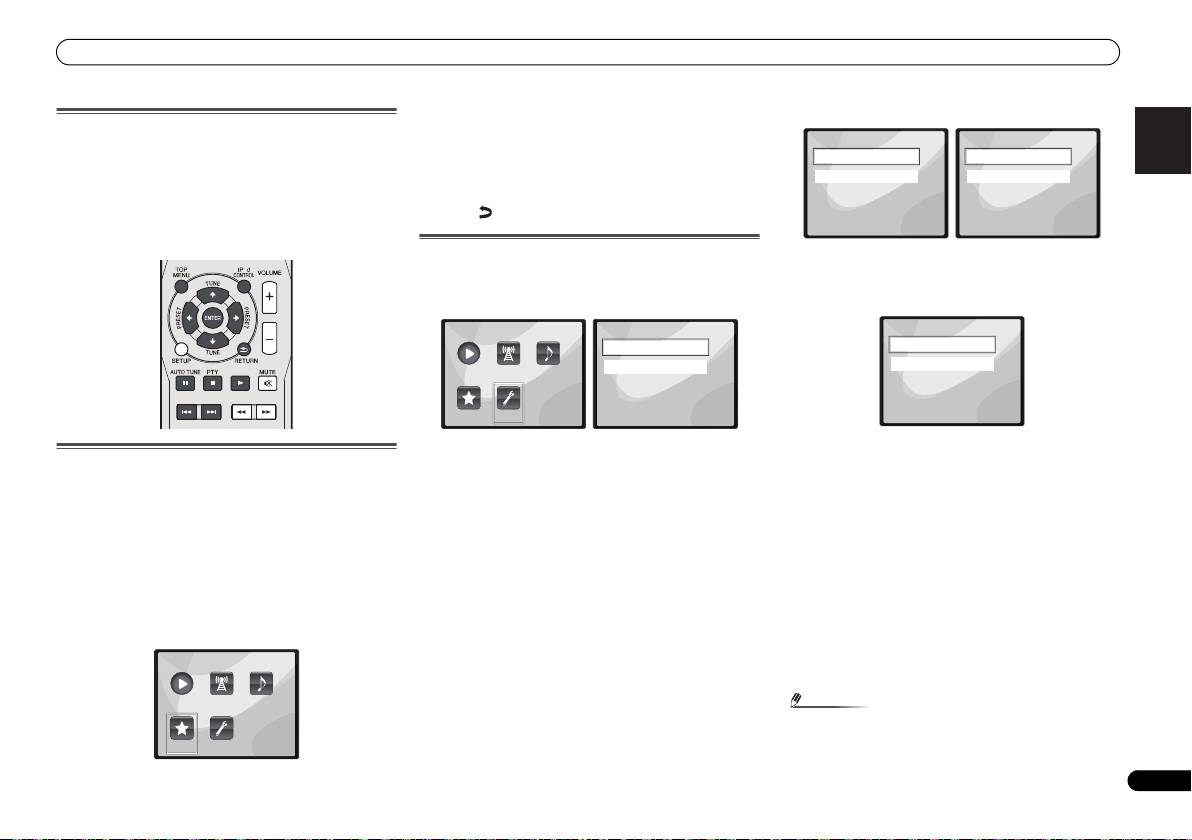
1 Select ‘Network’ from the Settings menu.
English Français Español Italiano
Playing back audio files stored on
and then press ENTER.
components on the network
3Use
/
to select playback or delete options and then
press ENTER.
You can perform the following operations with the remote
– Selected item will begin playing
control of this receiver. Note that some buttons are not
available for operation depending on the category currently
– Deletes selected item from Favorites folder
being played back.
• Select to undo previous operation.
•Press NETWORK to switch the remote control to the
NETWORK operation mode.
Network setup menu
2 Select ‘Modes’ from the Network Settings menu.
Setting up the network to listen to Internet radio on this
In case you make changes to the network configuration
receiver.
without the DHCP server function, make the corresponding
1 Select ‘Settings’ from the Main Menu.
changes to the network settings of this receiver.
Deutsch
2 Select the setting you want to adjust.
• DHCP (default setting) – Select if the server is DHCP
Playing back your favorite songs
• Network – Adjust settings for the network (see Network
compatible.
settings below).
-
When DHCP is selected, connection will begin
Registering audio files and Internet radio stations
• General – Use to reset all network connection settings to
automatically. Connection is complete when network
Nederlands
connection details are displayed. Press ENTER to return
While Playing back a song, press
/
to select “Add to
their initial, factory-setting condition (see General settings
to the previous screen.
Favor”, and then press ENTER.
on page 22).
The selected song is then registered in the Favorites folder.
• STATIC – To connect to the server manually, follow the
Network settings
instructions listed below.
Note that only the audio files stored on components on the
In case the router connected to the LAN terminal on this
network can be registered.
-
Press to delete the immediately preceding character.
receiver is a broadband router (with a built-in DHCP server
-
Press to switch between character types.
function), simply turn on the DHCP server function, and you
Playing and deleting audio files and Internet radio
-
Press / to choose the desired character from those
will not need to set up the network manually. You must set up
stations in and from the Favorites folder
displayed and press ENTER.
the network as described below only when you have
1 Select ‘Favorites’ from the Main Menu.
connected this receiver to a broadband router without a
-
Once input is complete, or if you wish to cancel the
DHCP server function. Before you set up the network, consult
input operation, press until OK/CANCEL is
with your ISP or the network manager for the required
displayed, then use / to choose either OK or
settings. It is advised that you also refer to the operation
CANCEL and press ENTER.
manual supplied with your network component.
21
En
Note
O
•If STATIC is selected, the settings will be as follows.
Main Menu
Now Playing
Internet
Music
Radio
Library
Favorites Settings
X-HM70_En.fm 21 ページ 2011年8月2日 火曜日 午後4時46分
Settings
Network Settings
Network
Modes
General
Status
1 of
1 of
1
1
Main Menu
Settings
Network Modes
Network
DHCP
Now Playing
Internet
Music
General
STATIC
Radio
Library
1 of
Favorites Settings
1 of
1
1
