
Pioneer VSX-1021: Playing a USB device
Playing a USB device: Pioneer VSX-1021
Table of contents
- IMPORTANT VENTILATION CAUTION Operating Environment
- Contents Flow of settings on the receiver
- Before you start
- Deleting the AVNavigator Remote control
- Connecting your equipment
- Placing the speakers Connecting the speakers
- Bi-amping your speakers Installing your speaker system
- Selecting the Speaker system About the audio connection About the video converter
- About HDMI
- Connecting your TV and playback components
- Connecting an HDD/DVD recorder, BD recorder and other video sources
- Connecting a satellite/cable receiver or other set-top box Connecting other audio components
- MULTI-ZONE setup Sub Zone Input functions available Sub Zone Input functions available Connecting AM/FM antennas
- Connecting to the network through LAN interface Connecting to a wireless LAN Plugging in the receiver
- Basic Setup
- Operation Mode Setup
- Operable functions/
- Basic playback
- Playing a USB device
- Playback with HOME MEDIA GALLERY inputs Bluetooth ADAPTER for Wireless Enjoyment of Music
En
20
04
Basic playback
5 Use
i
/
j
and ENTER to select the track
to be played, then press the
d
button.
Basic playback controls
!
Press
iPod USB
to switch the remote control
to the iPod/USB operation mode.
iPod CTRL
HOME
MENU TUNE
TUNE TOOLS
LIST
PRESET
TOP MENU
BAND
GUIDE
T.EDIT
VIDEO
PARAMETER
AUDIO
PARAMETER
ENTER
PRESET
RETURN
PTY
SEARCH
SIGNAL SEL MCACC SLEEP
TV / DTV
MPX
PQLS
PHASE CTRL
STATUS
PGM
MENU
AUDIO
INFO
DISP
HDD
DVD
5
4
6
1
3
22
S.RETRIEVER
2
Listening to the radio
1 Press TUNER to select the tuner.
2 Use BAND to change the band (FM or
AM), if necessary.
3 Tune to a station.
There are three ways to do this:
!
Automatic tuning
– Press and hold
TUNE
i
/
j
for about a second. The receiver will
start searching for the next station.
!
Manual tuning
– To change the frequency
one step at a time, press
TUNE
i
/
j
.
!
High speed tuning
– Press and hold
TUNE
i
/
j
for high speed tuning. Release the
button at the frequency you want.
Improving FM sound
If the
TUNED
or
STEREO
indicator doesn’t
light when tuning to an FM station because the
signal is weak, press
MPX
to switch the receiver
into mono reception mode.
Using Neural Surround
This feature uses Neural Surround
TM
technolo-
gies to achieve optimal surround sound from
FM radio.
!
While listening to FM radio, press
AUTO/ALC/DIRECT
for Neural Surround.
!
The
Neural Surround
mode can be selected
also with
STANDARD
.
Saving station presets
If you often listen to a particular radio station,
it’s convenient to have the receiver store the
frequency for easy recall whenever you want to
listen to that station.
1 Tune to a station you want to
memorize.
2 Press T.EDIT (TUNER EDIT).
The display shows
PRESET MEMORY
, then a
blinking memory class.
3 Press CLASS to select one of the seven
classes, then press PRESET
k
/
l
to select
the station preset you want.
4 Press ENTER.
After pressing
ENTER
, the preset class and
number stop blinking and the receiver stores
the station.
Listening to station presets
1 Press TUNER to select the tuner.
2 Press CLASS to select the class in which
the station is stored.
3 Press PRESET
k
/
l
to select the
station preset you want.
In case of VSX-921
MCACC
SETUP MIC
L AUDIO R
VIDEO
VIDEO 2 INPUT
iPod
iPhone
iPad
USB
5V 2.1 A
MENU
CONTROL
ON / OFF
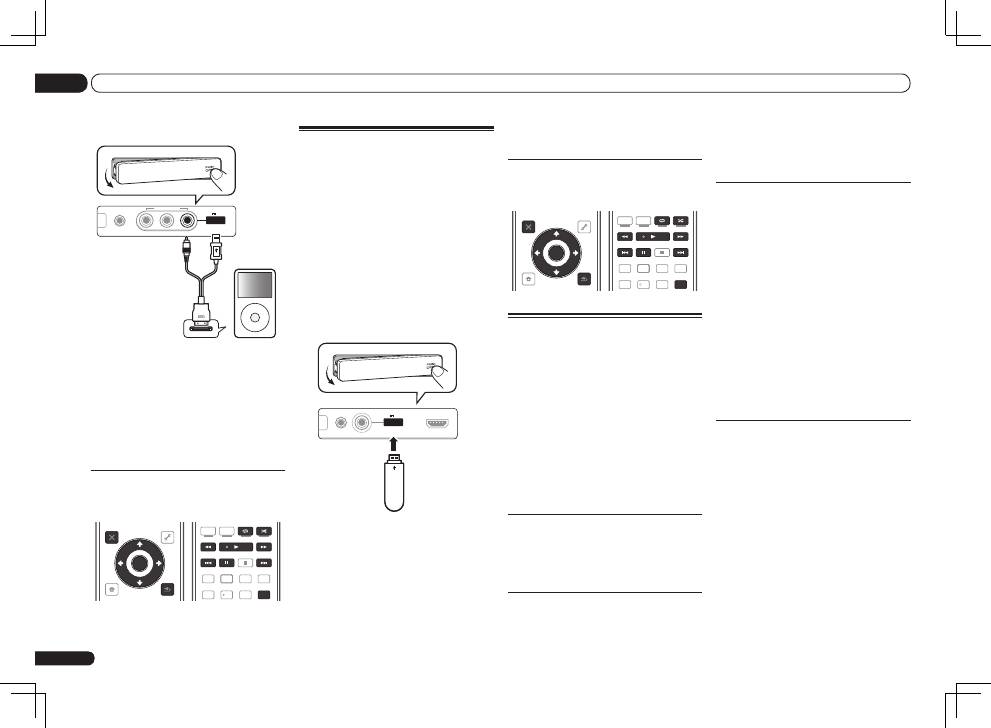
iPod
iPod cable
(supplied)
2 Press
u
RECEIVER to switch on the
receiver and your TV.
3 Press iPod USB on the remote control
to switch the receiver to the iPod/USB.
4 Use
i
/
j
to select ‘Music’ from the
iPod Top menu.
5 Use
i
/
j
and ENTER to select the track
to be played, then press the
d
button.
Basic playback controls
!
Press
iPod USB
to switch the remote control
to the iPod/USB operation mode.
iPod CTRL
HOME
MENU TUNE
TUNE TOOLS
LIST
PRESET
TOP MENU
BAND
GUIDE
T.EDIT
VIDEO
PARAMETER
AUDIO
PARAMETER
ENTER
PRESET
RETURN
PTY
SEARCH
SIGNAL SEL MCACC SLEEP
TV / DTV
MPX
PQLS
PHASE CTRL
STATUS
PGM
MENU
AUDIO
INFO
DISP
HDD
DVD
5
4
6
1
3
22
S.RETRIEVER
2
Playing a USB device
It is possible to play files using the USB inter-
face on the front of this receiver.
!
Compatible USB devices include external
magnetic hard drives, portable flash memory
drives (particularly key drives) and digital audio
players (MP3 players) of format FAT16/32.
!
Pioneer cannot guarantee compatibility
(operation and/or bus power) with all USB
mass storage devices and assumes no
responsibility for any loss of data that may
occur when connected to this receiver.
1 Switch the receiver into standby
then connect your USB device to the
USB terminal on the front panel of this
receiver.
CONTROL
ON / OFF
MCACC
SETUP MIC
iPod
iPhone
iPad
USB
5V 2.1 A
HDMI 2 INPUT
USB mass
storage device
2 Press
u
RECEIVER to switch on the
receiver and your TV.
!
Make sure the receiver is in standby when
disconnecting the USB device.
3 Press iPod USB on the remote control
to switch the receiver to the iPod/USB.
4 Use
i
/
j
to select ‘Music’ from the
USB Top menu.
