
Pioneer VSX-1021: Basic playback
Basic playback: Pioneer VSX-1021
Table of contents
- IMPORTANT VENTILATION CAUTION Operating Environment
- Contents Flow of settings on the receiver
- Before you start
- Deleting the AVNavigator Remote control
- Connecting your equipment
- Placing the speakers Connecting the speakers
- Bi-amping your speakers Installing your speaker system
- Selecting the Speaker system About the audio connection About the video converter
- About HDMI
- Connecting your TV and playback components
- Connecting an HDD/DVD recorder, BD recorder and other video sources
- Connecting a satellite/cable receiver or other set-top box Connecting other audio components
- MULTI-ZONE setup Sub Zone Input functions available Sub Zone Input functions available Connecting AM/FM antennas
- Connecting to the network through LAN interface Connecting to a wireless LAN Plugging in the receiver
- Basic Setup
- Operation Mode Setup
- Operable functions/
- Basic playback
- Playing a USB device
- Playback with HOME MEDIA GALLERY inputs Bluetooth ADAPTER for Wireless Enjoyment of Music
En
19
04
Basic playback
Basic playback
Playing a source
Here are the basic instructions for playing a
source (such as a DVD disc) with your home
theater system.
CH
TV CONTROL
INPUT
INPUT SELECT
iPod
USB
TUNER
VIDEO
ADPT
HMG
CD
TV
RCU SETUP
SOURCE
RECEIVER
MULTI
OPERATION
BDR
SAT
BD
DVD
DVR
HDMI
RECEIVER
TV CTRL
ZONE2
MUTE
MASTER
VOLUME
VOL
RECEIVER
D.ACCESS
CH LEVEL A.ATT
LISTENING MODE
DIMMER
SIGNAL SEL MCACC SLEEP
MIDNIGHT
TV / DTV
MPX
PQLS
AUTO / ALC /
DIRECT
STEREO STANDARD ADV SURR
AUDIO
INFO
CLASS
ENTER
DISP
5
4
6
8
0
7
9
1
3
/ CLR
CH
22
S.RETRIEVER
2
1 Switch on your system components
and receiver.
Start by switching on the playback compo-
nent (for example a DVD player), your TV and
subwoofer (if you have one), then the receiver
(press
u
RECEIVER
).
Make sure that the TV’s video input is set to this
receiver.
2 Select the input function you want to
play.
You can use the input function buttons on the
remote control,
INPUT SELECT
, or the front
panel
INPUT SELECTOR
dial.
!
If you need to manually switch the input
signal type press
SIGNAL SEL
.
3 Press
to the receiver operation
mode.
4 Press AUTO/ALC/DIRECT
(AUTO SURR/ALC/STREAM DIRECT) to
select ‘AUTO SURROUND’ and start
playback of the source.
If you’re playing a Dolby Digital or DTS surround
sound source, you should hear surround sound.
If you are playing a stereo source, you will only
hear sound from the front left/right speakers in
the default listening mode.
!
You may need to check the digital audio
output settings on your DVD player or digital
satellite receiver. It should be set to output
Dolby Digital, DTS and 88.2 kHz / 96 kHz PCM
(2 channel) audio, and if there is an MPEG
audio option, set this to convert the MPEG
audio to PCM.
5 Use the MASTER VOLUME +/– to adjust
the volume level.
Listening in surround sound
Using this receiver, you can listen to any source
in surround sound.
Standard surround sound
This receiver provide basic surround sound for
stereo and multichannel sources.
RECEIVER
D.ACCESS
CH LEVEL A.ATT
LISTENING MODE
DIMMER
AUTO / ALC /
DIRECT
STEREO
STANDARD ADV SURR
CLASS
ENTER
8
0
7
9
/ CLR
CH
%
While listening to a source, press
STANDARD (STANDARD SURROUND).
If necessary, press repeatedly to select a listen-
ing mode.
Using the Advanced surround
effects
The Advanced surround effects can be used for
a variety of additional surround sound effects.
%
Press ADV SURR
(ADVANCED SURROUND) repeatedly to
select a listening mode.
Playing an iPod
This receiver has the
iPod iPhone iPad USB
terminal that will allow you to control playback
of audio content from your iPod using the con-
trols of this receiver.
!
This receiver is compatible with the audio
and video of the iPod nano (audio only for the
iPod nano 1G/2G), iPod fifth generation (audio
only), iPod classic, iPod touch, iPhone and
iPad. However, some of the functions may be
restricted for some models. The receiver is not
compatible with the iPod shuffle.
!
This receiver has been developed and tested
for the software version of iPod/iPhone/iPad
indicated on the website of Pioneer (http://
pioneer.jp/homeav/support/ios/eu/).
!
Installing software versions other than
indicated on the website of Pioneer to your
iPod/iPhone/iPad may result in incompatibility
with this receiver.
!
iPod, iPhone and iPad are licensed for
reproduction of non-copyrighted materials
or materials the user is legally permitted to
reproduce.
!
Features such as the equalizer cannot
be controlled using this receiver, and we
recommend switching the equalizer off before
connecting.
!
Pioneer cannot under any circumstances
accept responsibility for any direct or indirect
loss arising from any inconvenience or loss
of recorded material resulting from the iPod
failure.
!
When listening to a track on the iPod in the
main zone, it is possible to control the sub
zone, but not to listen to a different track in
the sub zone from the one playing in the main
zone.
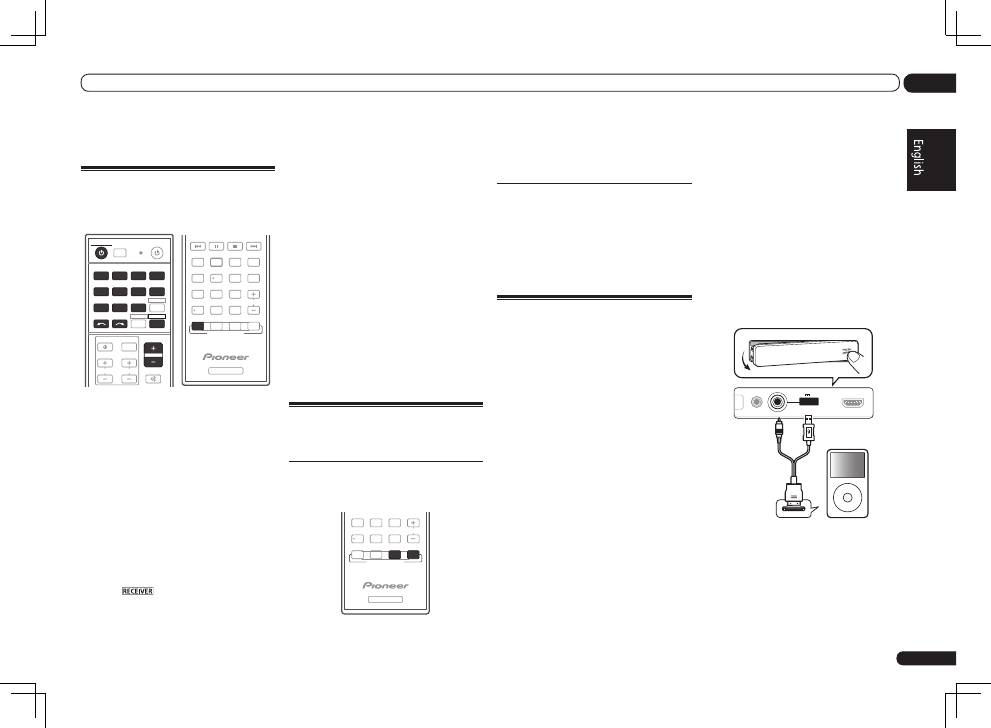
1 Switch the receiver into standby then
use the supplied iPod cable to connect
your iPod to the iPod iPhone iPad USB
terminal on the front panel of this
receiver.
In case of VSX-1021
MCACC
SETUP MIC
iPod
iPhone
iPad
USB
5V 2.1 A
HDMI 2 INPUT
MENU
CONTROL
ON / OFF
iPod
iPod cable
(supplied)
